This page shows you how to connect to a runtime in Colab Enterprise.
To run code in your notebook, you must connect to a runtime. A *runtime*
is a compute resource that runs your code.
## Before you begin
## Connect by using different methods
This page shows you how to connect to a runtime by using the following methods:
- [Use the default runtime](https://docs.cloud.google.com/gemini-enterprise-agent-platform/notebooks/colab/connect-to-runtime.md.txt#default)
- [Connect to an existing runtime](https://docs.cloud.google.com/gemini-enterprise-agent-platform/notebooks/colab/connect-to-runtime.md.txt#existing)
- [Create a runtime](https://docs.cloud.google.com/gemini-enterprise-agent-platform/notebooks/colab/connect-to-runtime.md.txt#create)
## Use the default runtime
This section describes how to connect to the default runtime.
### Required roles
To get the permissions that
you need to connect to the default runtime in a Colab Enterprise notebook,
ask your administrator to grant you the
Colab Enterprise User ([`roles/aiplatform.colabEnterpriseUser`](https://docs.cloud.google.com/gemini-enterprise-agent-platform/machine-learning/general/access-control.md.txt#aiplatform.colabEnterpriseUser))
IAM role on the project.
For more information about granting roles, see [Manage access to projects, folders, and organizations](https://docs.cloud.google.com/iam/docs/granting-changing-revoking-access.md.txt).
You might also be able to get
the required permissions through [custom
roles](https://docs.cloud.google.com/iam/docs/creating-custom-roles) or other [predefined
roles](https://docs.cloud.google.com/iam/docs/roles-overview#predefined).
One or more of the required roles includes the `dataform.repositories.list` permission. Users who are granted the `dataform.repositories.list` permission or the [Code Creator
(`roles/dataform.codeCreator`)](https://docs.cloud.google.com/dataform/docs/access-control#dataform.codeCreator) role in a project can list the names of code assets in that project by using the Dataform API or the Dataform command-line interface (CLI). Non-administrators using BigQuery Studio can only see code assets that they created or that were shared with them.
### Connect to the default runtime
When you run code in a notebook for the first time,
Colab Enterprise
automatically connects to the default runtime unless you
[specify a different one](https://docs.cloud.google.com/gemini-enterprise-agent-platform/notebooks/colab/connect-to-runtime.md.txt#connect-existing).
To connect to the default runtime without running code, do the following:
1. In the Google Cloud console, go to
the Colab Enterprise **My notebooks** page.
[Go to My notebooks](https://console.cloud.google.com/agent-platform/colab/notebooks)
2. In the **Region** menu, select the region that contains your notebook.
3. Click the notebook that you want to open. If you haven't created a notebook yet,
[create a notebook](https://docs.cloud.google.com/colab/docs/create-console-quickstart.md.txt#create).
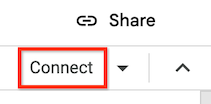
4. In your notebook, click **Connect** .
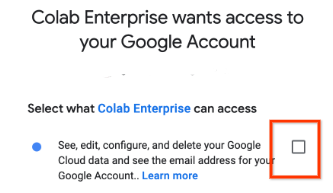
5. If this is your first time connecting to a runtime with
end-user credentials enabled, a **Sign in** dialog appears.
The default runtime has end-user credentials enabled by default. To use a runtime that doesn't have access to your user credentials, [create a runtime template](https://docs.cloud.google.com/colab/docs/create-runtime-template.md.txt) without end-user credentials enabled.
To grant Colab Enterprise access to your user credentials,
complete the following steps:
1. In the **Sign in** dialog, click your user account.
2. Select **See, edit, configure, and delete your
Google Cloud data...** to grant Colab Enterprise
access to your user credentials.
3. Click **Continue**.
Colab Enterprise connects to the default runtime. If the
default runtime isn't running, Colab Enterprise starts
the default runtime, and then connects to it.
## Connect to an existing runtime
This section describes how to connect to an existing runtime by using
the **Connect to Agent Platform runtime** dialog.
### Required roles
To get the permissions that
you need to connect to an existing runtime in a Colab Enterprise notebook,
ask your administrator to grant you the
Colab Enterprise User ([`roles/aiplatform.colabEnterpriseUser`](https://docs.cloud.google.com/gemini-enterprise-agent-platform/machine-learning/general/access-control.md.txt#aiplatform.colabEnterpriseUser))
IAM role on the project.
For more information about granting roles, see [Manage access to projects, folders, and organizations](https://docs.cloud.google.com/iam/docs/granting-changing-revoking-access.md.txt).
You might also be able to get
the required permissions through [custom
roles](https://docs.cloud.google.com/iam/docs/creating-custom-roles) or other [predefined
roles](https://docs.cloud.google.com/iam/docs/roles-overview#predefined).
One or more of the required roles includes the `dataform.repositories.list` permission. Users who are granted the `dataform.repositories.list` permission or the [Code Creator
(`roles/dataform.codeCreator`)](https://docs.cloud.google.com/dataform/docs/access-control#dataform.codeCreator) role in a project can list the names of code assets in that project by using the Dataform API or the Dataform command-line interface (CLI). Non-administrators using BigQuery Studio can only see code assets that they created or that were shared with them.
### Connect to the existing runtime
To connect to an existing runtime:
1. In the Google Cloud console, go to
the Colab Enterprise **My notebooks** page.
[Go to My notebooks](https://console.cloud.google.com/agent-platform/colab/notebooks)
2. In the **Region** menu, select the region that contains your notebook.
3. Click the notebook that you want to open. If you haven't created a notebook yet,
[create a notebook](https://docs.cloud.google.com/colab/docs/create-console-quickstart.md.txt#create).
4. In your notebook, click the **Additional connection options** expander arrow,
and then select **Connect to a runtime** .

The **Connect to Agent Platform runtime** dialog opens.
5. For **Select a runtime** ,
select **Connect to an existing runtime**.
6. For **Select an existing runtime option** ,
select the runtime that you want to connect to. If there aren't
any runtimes in the list,
[create a runtime](https://docs.cloud.google.com/gemini-enterprise-agent-platform/notebooks/colab/connect-to-runtime.md.txt#create) or
[connect to the default runtime](https://docs.cloud.google.com/gemini-enterprise-agent-platform/notebooks/colab/connect-to-runtime.md.txt#default).
7. Click **Connect**.
8. If your runtime has end-user credentials enabled, and this is your
first time connecting to a runtime with
end-user credentials enabled, a **Sign in** dialog appears.
To use a runtime that doesn't have access to your user credentials, [create a runtime template](https://docs.cloud.google.com/colab/docs/create-runtime-template.md.txt) without end-user credentials enabled.
To grant Colab Enterprise access to your user credentials,
complete the following steps:
1. In the **Sign in** dialog, click your user account.
2. Select **See, edit, configure, and delete your
Google Cloud data...** to grant Colab Enterprise
access to your user credentials.

3. Click **Continue**.
Colab Enterprise connects to the runtime. If the
runtime isn't running, Colab Enterprise starts
the runtime, and then connects to it.
## Create a runtime
This section describes how to create a runtime and connect to it by using
the **Connect to Agent Platform runtime** dialog. Alternatively, you can [create
a runtime from the **Runtimes** tab](https://docs.cloud.google.com/colab/docs/create-runtime).
### Required roles
To get the permissions that
you need to create a runtime in Colab Enterprise,
ask your administrator to grant you the
Colab Enterprise Admin ([`roles/aiplatform.colabEnterpriseAdmin`](https://docs.cloud.google.com/gemini-enterprise-agent-platform/machine-learning/general/access-control.md.txt#aiplatform.colabEnterpriseAdmin))
IAM role on the project.
For more information about granting roles, see [Manage access to projects, folders, and organizations](https://docs.cloud.google.com/iam/docs/granting-changing-revoking-access.md.txt).
You might also be able to get
the required permissions through [custom
roles](https://docs.cloud.google.com/iam/docs/creating-custom-roles) or other [predefined
roles](https://docs.cloud.google.com/iam/docs/roles-overview#predefined).
One or more of the required roles includes the `dataform.repositories.list` permission. Users who are granted the `dataform.repositories.list` permission or the [Code Creator
(`roles/dataform.codeCreator`)](https://docs.cloud.google.com/dataform/docs/access-control#dataform.codeCreator) role in a project can list the names of code assets in that project by using the Dataform API or the Dataform command-line interface (CLI). Non-administrators using BigQuery Studio can only see code assets that they created or that were shared with them.
### Create a runtime and connect to it
To create a runtime and connect to it by using the **Connect to Agent Platform runtime** dialog:
1. In the Google Cloud console, go to
the Colab Enterprise **My notebooks** page.
[Go to My notebooks](https://console.cloud.google.com/agent-platform/colab/notebooks)
2. In the **Region** menu, select the region that contains your notebook.
3. Click the notebook that you want to open. If you haven't created a notebook yet,
[create a notebook](https://docs.cloud.google.com/colab/docs/create-console-quickstart.md.txt#create).
4. In your notebook, click the **Additional connection options** expander arrow,
and then select **Connect to a runtime** .

The **Connect to Agent Platform runtime** dialog opens.
5. For **Select a runtime** ,
select **Create new runtime**.
6. In the **Runtime template** menu,
select a runtime template. If there aren't any runtime templates listed,
[create
a runtime template](https://docs.cloud.google.com/colab/docs/create-runtime-template).
7. In the **Runtime name** field, enter a name for your runtime.
8. Click **Connect**.
9. If the runtime template that you selected has end-user credentials enabled,
and this is your first time connecting to a runtime with
end-user credentials enabled, a **Sign in** dialog appears.
To use a runtime that doesn't have access to your user credentials, [create a runtime template](https://docs.cloud.google.com/colab/docs/create-runtime-template.md.txt) without end-user credentials enabled.
To grant Colab Enterprise access to your user credentials,
complete the following steps:
1. In the **Sign in** dialog, click your user account.
2. Select **See, edit, configure, and delete your
Google Cloud data...** to grant Colab Enterprise
access to your user credentials.

3. Click **Continue**.
Colab Enterprise starts the default runtime,
and then connects to it.
## Runtime management
By default, when you create a runtime, you automatically have the
required permissions to
delete (`aiplatform.googleapis.com/notebookRuntimes.delete`) and
start (`aiplatform.googleapis.com/notebookRuntimes.start`) that runtime.
To learn how to manage your runtime, including how to delete, start, or
disconnect from the runtime, see
[Manage runtimes](https://docs.cloud.google.com/colab/docs/manage-runtimes.md.txt).
## Troubleshoot
This section shows you how to resolve issues with connecting to runtimes
in Colab Enterprise.
### Unable to connect to a runtime
This issue occurs due to several reasons. The most common causes are:
#### Browser blocks third party cookies
The browser that you are using is blocking a third party cookie that
Colab Enterprise uses to establish an HTTPS connection with the runtime.
To resolve this issue, configure your browser's settings to
allow the `DATALAB_TUNNEL_TOKEN` third party cookie from the domain
`*.aiplatform-notebook.googleusercontent.com`.
#### Network blocks outbound traffic to notebook domains
Your network's firewall rules block outbound traffic to
`*.aiplatform-notebook.cloud.google.com` or
`*aiplatform.googleapis.com`.
To resolve this issue, configure your network's firewall rules
to allow outbound traffic to `*.aiplatform-notebook.cloud.google.com`
and `*aiplatform.googleapis.com`.
## What's next
- Learn more about [runtimes and runtime templates](https://docs.cloud.google.com/colab/docs/runtimes.md.txt).
- [Create a runtime template](https://docs.cloud.google.com/colab/docs/create-runtime-template.md.txt).
- To find a notebook that can help you get your project started quickly, see the [notebook gallery](https://console.cloud.google.com/agent-platform/colab/notebook-gallery).