You can use Gemini Omni or Veo on Gemini Enterprise Agent Platform to generate new videos using an
existing image as the first frame. Image first frame to video is available through
[Gemini Enterprise Agent Platform Media
Studio](https://console.cloud.google.com/agent-platform/studio/media/video) or
using the [Agent Platform video generation
API](https://docs.cloud.google.com/gemini-enterprise-agent-platform/reference/rest/v1/projects.locations.endpoints/predict).
The following models support generating videos from an image:
**Gemini Omni**
#### Click to expand supported models
- [`gemini-omni-1.2-flash`](https://docs.cloud.google.com/gemini-enterprise-agent-platform/models/gemini/omni-1-2-flash.md.txt)
- [`gemini-omni-1.1-flash-preview`](https://docs.cloud.google.com/gemini-enterprise-agent-platform/models/gemini/omni-1-1-flash.md.txt) preview
**Veo**
#### Click to expand supported models
- [`veo-3.1-lite-generate-001`](https://docs.cloud.google.com/gemini-enterprise-agent-platform/models/veo/3-1-generate.md.txt#3.1-lite-generate-001-preview) preview
- [`veo-3.1-generate-001`](https://docs.cloud.google.com/gemini-enterprise-agent-platform/models/veo/3-1-generate.md.txt#3.1-generate-001)
- [`veo-3.1-fast-generate-001`](https://docs.cloud.google.com/gemini-enterprise-agent-platform/models/veo/3-1-generate.md.txt#3.1-fast-generate-001)
For more information about writing effective text prompts for video generation,
see the [Video generation prompt
guide](https://docs.cloud.google.com/gemini-enterprise-agent-platform/models/video/video-gen-prompt-guide).
[Try Gemini Omni in a Colab](https://github.com/GoogleCloudPlatform/generative-ai/blob/main/vision/getting-started/gemini_omni_1_2_flash_video_gen.ipynb)
## Before you begin
1. Set up authentication for your environment.
Select the tab for how you plan to use the samples on this page:
### Console
When you use the Google Cloud console to access Google Cloud services and
APIs, you don't need to set up authentication.
### REST
To use the REST API samples on this page in a local development environment, you use the
credentials you provide to the gcloud CLI.
1. [Install](https://docs.cloud.google.com/sdk/docs/install) the Google Cloud CLI.
2. If you're using an external identity provider (IdP), you must first [sign in to the gcloud CLI with your federated identity](https://docs.cloud.google.com/iam/docs/workforce-log-in-gcloud.md.txt).
For more information, see
[Authenticate for using REST](https://docs.cloud.google.com/docs/authentication/rest.md.txt)
in the Google Cloud authentication documentation.
## Use Gemini Omni to generate videos from an image
With `gemini-omni-1.2-flash`, you can generate videos from 3 to 15
seconds in length (3 to 10 seconds for preview models), specify
`generation_config.seed` for reproducible results, and attach custom metadata
[labels](https://docs.cloud.google.com/gemini-enterprise-agent-platform/models/capabilities/add-labels-to-api-calls.md.txt) (`labels`) to organize
requests and track billing costs.
### REST
Video generation can take over a minute to complete. You can choose from
several interaction modes depending on your workflow:
- **Synchronous: stateless** : Set `store` to `false` to generate a video in a single request without persisting the interaction state on the server.
- **Synchronous: stateful** : Set `store` to `true` to persist the interaction state, which lets you retrieve the result later or reference the interaction ID for multi-turn video editing.
- **Synchronous: stateful streaming** : Set both `store` and `stream` to `true` to receive model thoughts incrementally as they are generated, followed by the output video in a single `step.delta` event (`"type": "video"`).
- **Asynchronous** : Set `background` to `true` to run video generation in the background and retrieve the result later using the interaction ID.
Stored and asynchronous interactions are retained for up to 7 days.
When you configure `"delivery": "uri"` in `response_format`, you must also
specify `gcs_uri`. Omitting `gcs_uri` when `"delivery"` is `"uri"` returns a
`400 INVALID_ARGUMENT` error.
Unary responses return the Cloud Storage URI
in `steps[].content[].uri` and streaming responses return it in `delta.uri`. To
return video bytes inline in the response instead, set `"delivery": "inline"`
and omit `gcs_uri` (`gcs_uri` isn't supported when `"delivery"` is
`"inline"`). When inline delivery is used, video output is
returned as a base64-encoded byte string alongside `"mime_type": "video/mp4"` in
`steps[].content[].data` (unary `POST` and `GET`) or `delta.data` (SSE
`step.delta`). Unlike text or audio deltas, inline video isn't chunked across
multiple `step.delta` events---each generated video is delivered as a single,
complete base64 payload in one `step.delta` event.
For large or high-resolution
videos, use `"delivery": "uri"` with `gcs_uri` to avoid large HTTP or
single-event SSE response payloads.
For more information about using Gemini Omni models with the
Interactions API, see [Interactions API](https://docs.cloud.google.com/gemini-enterprise-agent-platform/reference/models/interactions-api.md.txt).
### Synchronous: stateless
Before using any of the request data,
make the following replacements:
- `PROJECT_ID`: A string representing your Google Cloud project ID.
- `MODEL_ID`: A string representing the model ID to use. The following are accepted values:
- `"gemini-omni-1.2-flash"`
- `"gemini-omni-1.1-flash-preview"`
- `TEXT_PROMPT`: The text prompt used to guide video generation.
- `CLOUD_STORAGE_INPUT_URI`: A string representing the Cloud Storage bucket that contains the input media. For example: `"gs://video-bucket/input/"`.
- `CLOUD_STORAGE_OUTPUT_URI`: A string representing the Cloud Storage bucket to store the output videos (for example, `"gs://video-bucket/output/"`). Required when `delivery` is set to `"uri"`. To return video bytes inline in the response instead, set `"delivery": "inline"` and omit `gcs_uri` from `response_format`.
- `ASPECT_RATIO`: Optional: A string representing the expected aspect ratio of the output video. If not provided, the aspect ratio is inferred from the prompt. The following are accepted values:
- `"16:9"`
- `"9:16"`
- `OUTPUT_RESOLUTION`:
Optional: A string representing the video output resolution. If not
provided, the output defaults to 720p.
`gemini-omni-1.2-flash` and
`gemini-omni-1.1-flash-preview` support the following
values:
- `"360p"`
- `"720p"`
- `"1080p"`
- `"4k"`
`gemini-omni-flash-preview` only supports
`"720p"`.
- `DURATION`: A string representing the length of the generated video files. Allowed strings are integers between `3` and `15` for `gemini-omni-1.2-flash` (or `3` and `10` for preview models), followed by "s" for seconds. For example, `"10s"` or `"15s"`.
HTTP method and URL:
```
POST https://aiplatform.googleapis.com/v1beta1/projects/PROJECT_ID/locations/global/interactions
```
Request JSON body:
```
{
"model": "MODEL_ID",
"store": false,
"input": [
{
"type": "text",
"text": "TEXT_PROMPT"
},
{
"type": "image",
"uri": "CLOUD_STORAGE_INPUT_URI",
"mime_type": "image/png"
}
],
"response_format": [
{
"type": "video",
"delivery": "uri",
"gcs_uri": "CLOUD_STORAGE_OUTPUT_URI",
"aspect_ratio": "ASPECT_RATIO",
"resolution": "OUTPUT_RESOLUTION",
"duration": "DURATION"
}
],
"generation_config": {
"video_config": {
"task": "image_to_video"
}
}
}
```
To send your request, choose one of these options:
#### curl
Save the request body in a file named `request.json`,
and execute the following command:
```
curl -X POST \
-H "Authorization: Bearer TOKEN" \
-H "Content-Type: application/json; charset=utf-8" \
-d @request.json \
"https://aiplatform.googleapis.com/v1beta1/projects/PROJECT_ID/locations/global/interactions"
```
#### PowerShell
Save the request body in a file named `request.json`,
and execute the following command:
```
$headers = @{ "Authorization" = "Bearer TOKEN" }
Invoke-WebRequest `
-Method POST `
-Headers $headers `
-ContentType: "application/json; charset=utf-8" `
-InFile request.json `
-Uri "https://aiplatform.googleapis.com/v1beta1/projects/PROJECT_ID/locations/global/interactions" | Select-Object -Expand Content
```
The response contains an interaction which includes the model thoughts and an output video.
```
{
"id":"INTERACTION_ID",
"model":"gemini-omni-flash-preview",
"status":"completed",
"usage":{
"total_tokens":479,
"total_input_tokens":26,
"input_tokens_by_modality":[
{
"modality":"text",
"tokens":26
},
{
"modality":"image",
"tokens":124
}
],
"output_tokens_by_modality": [
{
"modality": "video",
"tokens": 28832
}
],
"total_output_tokens":28832,
"total_thought_tokens":453
},
"steps":[
{
"type":"thought",
"summary":[
{
"type":"text",
"text":"MODEL THOUGHTS"
}
]
},
{
"type":"model_output",
"content":[
{
"type":"video",
"uri":"gs://some/output_path/123.mp4",
"mime_type":"video/mp4"
}
]
}
],
"object":"interaction",
"role":"model",
"created":"2026-05-29T02:17:56Z",
"updated":"2026-05-29T02:17:56Z"
}
```
### Synchronous: stateful
Before using any of the request data,
make the following replacements:
- `PROJECT_ID`: A string representing your Google Cloud project ID.
- `MODEL_ID`: A string representing the model ID to use. The following are accepted values:
- `"gemini-omni-1.2-flash"`
- `"gemini-omni-1.1-flash-preview"`
- `TEXT_PROMPT`: The text prompt used to guide video generation.
- `CLOUD_STORAGE_INPUT_URI`: A string representing the Cloud Storage bucket that contains the input media. For example: `"gs://video-bucket/input/"`.
- `CLOUD_STORAGE_OUTPUT_URI`: A string representing the Cloud Storage bucket to store the output videos (for example, `"gs://video-bucket/output/"`). Required when `delivery` is set to `"uri"`. To return video bytes inline in the response instead, set `"delivery": "inline"` and omit `gcs_uri` from `response_format`.
- `ASPECT_RATIO`: Optional: A string representing the expected aspect ratio of the output video. If not provided, the aspect ratio is inferred from the prompt. The following are accepted values:
- `"16:9"`
- `"9:16"`
- `OUTPUT_RESOLUTION`:
Optional: A string representing the video output resolution. If not
provided, the output defaults to 720p.
`gemini-omni-1.2-flash` and
`gemini-omni-1.1-flash-preview` support the following
values:
- `"360p"`
- `"720p"`
- `"1080p"`
- `"4k"`
`gemini-omni-flash-preview` only supports
`"720p"`.
- `DURATION`: A string representing the length of the generated video files. Allowed strings are integers between `3` and `15` for `gemini-omni-1.2-flash` (or `3` and `10` for preview models), followed by "s" for seconds. For example, `"10s"` or `"15s"`.
HTTP method and URL:
```
POST https://aiplatform.googleapis.com/v1beta1/projects/PROJECT_ID/locations/global/interactions
```
Request JSON body:
```
{
"model": "MODEL_ID",
"background": false,
"store": true,
"stream": false,
"input": [
{
"type": "user_input",
"content": [
{
"type": "text",
"text": "TEXT_PROMPT"
},
{
"type": "image",
"uri": "CLOUD_STORAGE_INPUT_URI",
"mime_type": "image/png"
}
]
}
],
"response_format": [
{
"type": "video",
"delivery": "uri",
"gcs_uri": "CLOUD_STORAGE_OUTPUT_URI",
"aspect_ratio": "ASPECT_RATIO",
"resolution": "OUTPUT_RESOLUTION",
"duration": "DURATION"
}
]
}
```
To send your request, choose one of these options:
#### curl
Save the request body in a file named `request.json`,
and execute the following command:
```
curl -X POST \
-H "Authorization: Bearer TOKEN" \
-H "Content-Type: application/json; charset=utf-8" \
-d @request.json \
"https://aiplatform.googleapis.com/v1beta1/projects/PROJECT_ID/locations/global/interactions"
```
#### PowerShell
Save the request body in a file named `request.json`,
and execute the following command:
```
$headers = @{ "Authorization" = "Bearer TOKEN" }
Invoke-WebRequest `
-Method POST `
-Headers $headers `
-ContentType: "application/json; charset=utf-8" `
-InFile request.json `
-Uri "https://aiplatform.googleapis.com/v1beta1/projects/PROJECT_ID/locations/global/interactions" | Select-Object -Expand Content
```
The response contains an interaction which includes the model thoughts and an output video.
```
{
"id":"INTERACTION_ID",
"model":"gemini-omni-flash-preview",
"status":"completed",
"usage":{
"total_tokens":479,
"total_input_tokens":26,
"input_tokens_by_modality":[
{
"modality":"text",
"tokens":26
},
{
"modality":"image",
"tokens":124
}
],
"output_tokens_by_modality": [
{
"modality": "video",
"tokens": 28832
}
],
"total_output_tokens":28832,
"total_thought_tokens":453
},
"steps":[
{
"type":"thought",
"summary":[
{
"type":"text",
"text":"MODEL THOUGHTS"
}
]
},
{
"type":"model_output",
"content":[
{
"type":"video",
"uri":"gs://some/output_path/123.mp4",
"mime_type":"video/mp4"
}
]
}
],
"object":"interaction",
"role":"model",
"created":"2026-05-29T02:17:56Z",
"updated":"2026-05-29T02:17:56Z"
}
```
Use the `INTERACTION_ID` to get the generated video:
Before using any of the request data,
make the following replacements:
- `PROJECT_ID`: A string representing your Google Cloud project ID.
- `INTERACTION_ID`: The interaction ID from the request.
HTTP method and URL:
```
GET https://aiplatform.googleapis.com/v1beta1/projects/PROJECT_ID/locations/global/interactions/INTERACTION_ID
```
To send your request, choose one of these options:
#### curl
Execute the following command:
```
curl -X GET \
-H "Authorization: Bearer TOKEN" \
"https://aiplatform.googleapis.com/v1beta1/projects/PROJECT_ID/locations/global/interactions/INTERACTION_ID"
```
#### PowerShell
Execute the following command:
```
$headers = @{ "Authorization" = "Bearer TOKEN" }
Invoke-WebRequest `
-Method GET `
-Headers $headers `
-Uri "https://aiplatform.googleapis.com/v1beta1/projects/PROJECT_ID/locations/global/interactions/INTERACTION_ID" | Select-Object -Expand Content
```
The response is in a format similar to the following:
```
{
"id":"INTERACTION_ID",
"model":"gemini-omni-1.2-flash",
"status":"completed",
"usage":{
"total_tokens":29435,
"total_input_tokens":150,
"input_tokens_by_modality":[
{
"modality":"text",
"tokens":26
},
{
"modality":"image",
"tokens":124
}
],
"output_tokens_by_modality": [
{
"modality": "video",
"tokens": 28832
}
],
"total_output_tokens":28832,
"total_thought_tokens":453
},
"steps":[
{
"type": "user_input",
"content": [
{
"type": "text",
"text": "5 second, 9:16 video. Use the image as the first frame."
},
{
"type": "image",
"uri": "gs://some/path",
"mime_type": "image/png"
}
]
},
{
"type":"thought",
"summary":[
{
"type":"text",
"text":"MODEL THOUGHTS"
}
]
},
{
"type":"model_output",
"content":[
{
"type":"video",
"uri":"gs://some/output_path/123.mp4",
"mime_type":"video/mp4"
}
]
}
],
"object":"interaction",
"role":"model",
"created":"2026-05-29T02:17:56Z",
"updated":"2026-05-29T02:17:56Z"
}
```
When inline delivery is used (`"delivery": "inline"` with
`gcs_uri` omitted), the `model_output` step returns the
complete video as a base64-encoded
byte string in `steps[].content[].data` alongside
`"mime_type": "video/mp4"` instead of `uri`:
```
{
"type": "model_output",
"content": [
{
"type": "video",
"data": "BASE64_ENCODED_VIDEO",
"mime_type": "video/mp4"
}
]
}
```
### Synchronous: stateful streaming
Before using any of the request data,
make the following replacements:
- `PROJECT_ID`: A string representing your Google Cloud project ID.
- `MODEL_ID`: A string representing the model ID to use. The following are accepted values:
- `"gemini-omni-1.2-flash"`
- `"gemini-omni-1.1-flash-preview"`
- `TEXT_PROMPT`: The text prompt used to guide video generation.
- `CLOUD_STORAGE_INPUT_URI`: A string representing the Cloud Storage bucket that contains the input media. For example: `"gs://video-bucket/input/"`.
- `CLOUD_STORAGE_OUTPUT_URI`: A string representing the Cloud Storage bucket to store the output videos (for example, `"gs://video-bucket/output/"`). Required when `delivery` is set to `"uri"`. To return video bytes inline in the response instead, set `"delivery": "inline"` and omit `gcs_uri` from `response_format`.
- `ASPECT_RATIO`: Optional: A string representing the expected aspect ratio of the output video. If not provided, the aspect ratio is inferred from the prompt. The following are accepted values:
- `"16:9"`
- `"9:16"`
- `OUTPUT_RESOLUTION`:
Optional: A string representing the video output resolution. If not
provided, the output defaults to 720p.
`gemini-omni-1.2-flash` and
`gemini-omni-1.1-flash-preview` support the following
values:
- `"360p"`
- `"720p"`
- `"1080p"`
- `"4k"`
`gemini-omni-flash-preview` only supports
`"720p"`.
- `DURATION`: A string representing the length of the generated video files. Allowed strings are integers between `3` and `15` for `gemini-omni-1.2-flash` (or `3` and `10` for preview models), followed by "s" for seconds. For example, `"10s"` or `"15s"`.
HTTP method and URL:
```
POST https://aiplatform.googleapis.com/v1beta1/projects/PROJECT_ID/locations/global/interactions
```
Request JSON body:
```
{
"model": "MODEL_ID",
"background": false,
"store": true,
"stream": true,
"input": [
{
"type": "user_input",
"content": [
{
"type": "text",
"text": "TEXT_PROMPT"
},
{
"type": "image",
"uri": "CLOUD_STORAGE_INPUT_URI",
"mime_type": "image/png"
}
]
}
],
"response_format": [
{
"type": "video",
"delivery": "uri",
"gcs_uri": "CLOUD_STORAGE_OUTPUT_URI",
"aspect_ratio": "ASPECT_RATIO",
"resolution": "OUTPUT_RESOLUTION",
"duration": "DURATION"
}
]
}
```
To send your request, choose one of these options:
#### curl
Save the request body in a file named `request.json`,
and execute the following command:
```
curl -X POST \
-H "Authorization: Bearer TOKEN" \
-H "Content-Type: application/json; charset=utf-8" \
-d @request.json \
"https://aiplatform.googleapis.com/v1beta1/projects/PROJECT_ID/locations/global/interactions"
```
#### PowerShell
Save the request body in a file named `request.json`,
and execute the following command:
```
$headers = @{ "Authorization" = "Bearer TOKEN" }
Invoke-WebRequest `
-Method POST `
-Headers $headers `
-ContentType: "application/json; charset=utf-8" `
-InFile request.json `
-Uri "https://aiplatform.googleapis.com/v1beta1/projects/PROJECT_ID/locations/global/interactions" | Select-Object -Expand Content
```
The response contains an interaction which includes the model thoughts and an output video.
```
event: interaction.created
data: {"interaction":{"id":"INTERACTION_ID","status":"in_progress","object":"interaction","model":"gemini-omni-flash-preview"},"event_type":"interaction.created"}
event: interaction.status_update
data: {"interaction_id":"INTERACTION_ID","status":"in_progress","event_type":"interaction.status_update"}
event: step.start
data: {"index":0,"step":{"type":"thought"},"event_type":"step.start"}
event: step.delta
data: {"index":0,"delta":{"content":{"text":"MODEL THOUGHTS","type":"text"},"type":"thought_summary"},"event_id":"EVENT_ID","event_type":"step.delta"}
event: step.delta
data: {"index":0,"delta":{"content":{"text":"MODEL THOUGHTS","type":"text"},"type":"thought_summary"},"event_id":"EVENT_ID","event_type":"step.delta"}
event: step.delta
data: {"index":0,"delta":{"signature":"...","type":"thought_signature"},"event_type":"step.delta"}
event: step.stop
data: {"index":0,"event_type":"step.stop"}
event: step.start
data: {"index":1,"step":{"type":"model_output"},"event_type":"step.start"}
event: step.delta
data: {"index":1,"delta":{"mime_type":"video/mp4","uri":"gs://some/output_path/123.mp4","type":"video"},"event_id":"EVENT_ID","event_type":"step.delta"}
event: step.stop
data: {"index":1,"event_type":"step.stop"}
event: interaction.completed
data: {"interaction":{"id":"INTERACTION_ID","status":"completed","usage":{"total_tokens":17812,"total_input_tokens":21,"input_tokens_by_modality":[{"modality":"text","tokens":21}],"total_output_tokens":17376,"output_tokens_by_modality":[{"modality":"video","tokens":17376}],"total_thought_tokens":415},"created":"2026-08-12T21:26:20Z","updated":"2026-08-12T21:26:20Z","event_id":"EVENT_ID","object":"interaction","model":"gemini-omni-flash-preview"},"event_id":"EVENT_ID","event_type":"interaction.completed"}
event: done
data: [DONE]
```
When inline delivery is used (`"delivery": "inline"` with
`gcs_uri` omitted), the video `step.delta` event returns
the video bytes in
`delta.data` as a base64-encoded string alongside
`"mime_type": "video/mp4"` instead of `delta.uri`:
```
event: step.delta
data: {"index":1,"delta":{"mime_type":"video/mp4","data":"BASE64_ENCODED_VIDEO","type":"video"},"event_id":"EVENT_ID","event_type":"step.delta"}
```
Unlike text (`"type": "text"`) or audio
(`"type": "audio"`) deltas, inline video isn't chunked across
multiple `step.delta` events. Each generated video is delivered as
a single, complete base64-encoded payload in one `step.delta`
event (`"type": "video"`). Don't concatenate
`delta.data` across multiple video `step.delta` events.
For large or high-resolution videos, use `"delivery": "uri"` with
a Cloud Storage bucket (`gcs_uri`) to avoid large
single-event SSE payloads.
Use the `INTERACTION_ID` with \`?stream=true\` to stream the stored interaction and generated video:
Before using any of the request data,
make the following replacements:
- `PROJECT_ID`: A string representing your Google Cloud project ID.
- `INTERACTION_ID`: The interaction ID from the request.
HTTP method and URL:
```
GET https://aiplatform.googleapis.com/v1beta1/projects/PROJECT_ID/locations/global/interactions/INTERACTION_ID?stream=true
```
To send your request, choose one of these options:
#### curl
Execute the following command:
```
curl -X GET \
-H "Authorization: Bearer TOKEN" \
"https://aiplatform.googleapis.com/v1beta1/projects/PROJECT_ID/locations/global/interactions/INTERACTION_ID?stream=true"
```
#### PowerShell
Execute the following command:
```
$headers = @{ "Authorization" = "Bearer TOKEN" }
Invoke-WebRequest `
-Method GET `
-Headers $headers `
-Uri "https://aiplatform.googleapis.com/v1beta1/projects/PROJECT_ID/locations/global/interactions/INTERACTION_ID?stream=true" | Select-Object -Expand Content
```
The response is a stream of Server-Sent Events (SSE) in a format similar to the following:
```
event: interaction.created
data: {"interaction":{"id":"INTERACTION_ID","status":"in_progress","object":"interaction","model":"gemini-omni-1.2-flash"},"event_type":"interaction.created"}
event: interaction.status_update
data: {"interaction_id":"INTERACTION_ID","status":"in_progress","event_type":"interaction.status_update"}
event: step.start
data: {"index":0,"step":{"type":"thought"},"event_type":"step.start"}
event: step.delta
data: {"index":0,"delta":{"content":{"text":"MODEL THOUGHTS","type":"text"},"type":"thought_summary"},"event_id":"EVENT_ID","event_type":"step.delta"}
event: step.delta
data: {"index":0,"delta":{"content":{"text":"MODEL THOUGHTS","type":"text"},"type":"thought_summary"},"event_id":"EVENT_ID","event_type":"step.delta"}
event: step.delta
data: {"index":0,"delta":{"signature":"...","type":"thought_signature"},"event_type":"step.delta"}
event: step.stop
data: {"index":0,"event_type":"step.stop"}
event: step.start
data: {"index":1,"step":{"type":"model_output"},"event_type":"step.start"}
event: step.delta
data: {"index":1,"delta":{"mime_type":"video/mp4","uri":"gs://some/output_path/123.mp4","type":"video"},"event_id":"EVENT_ID","event_type":"step.delta"}
event: step.stop
data: {"index":1,"event_type":"step.stop"}
event: interaction.completed
data: {"interaction":{"id":"INTERACTION_ID","status":"completed","usage":{"total_tokens":17664,"total_input_tokens":21,"input_tokens_by_modality":[{"modality":"text","tokens":21}],"total_output_tokens":17376,"output_tokens_by_modality":[{"modality":"video","tokens":17376}],"total_thought_tokens":267},"created":"2026-08-12T21:33:08Z","updated":"2026-08-12T21:33:08Z","event_id":"EVENT_ID","object":"interaction","model":"gemini-omni-1.2-flash"},"event_id":"EVENT_ID","event_type":"interaction.completed"}
event: done
data: [DONE]
```
When inline delivery is used (`"delivery": "inline"` with
`gcs_uri` omitted), the video `step.delta` event returns
the video bytes in
`delta.data` as a base64-encoded string alongside
`"mime_type": "video/mp4"` instead of `delta.uri`:
```
event: step.delta
data: {"index":1,"delta":{"mime_type":"video/mp4","data":"BASE64_ENCODED_VIDEO","type":"video"},"event_id":"EVENT_ID","event_type":"step.delta"}
```
Unlike text (`"type": "text"`) or audio
(`"type": "audio"`) deltas, inline video isn't chunked across
multiple `step.delta` events. Each generated video is delivered as
a single, complete base64-encoded payload in one `step.delta`
event (`"type": "video"`). Don't concatenate
`delta.data` across multiple video `step.delta` events.
For large or high-resolution videos, use `"delivery": "uri"` with
a Cloud Storage bucket (`gcs_uri`) to avoid large
single-event SSE payloads.
### Asynchronous
Before using any of the request data,
make the following replacements:
- `PROJECT_ID`: A string representing your Google Cloud project ID.
- `MODEL_ID`: A string representing the model ID to use. The following are accepted values:
- `"gemini-omni-1.2-flash"`
- `"gemini-omni-1.1-flash-preview"`
- `TEXT_PROMPT`: The text prompt used to guide video generation.
- `CLOUD_STORAGE_INPUT_URI`: A string representing the Cloud Storage bucket that contains the input media. For example: `"gs://video-bucket/input/"`.
- `CLOUD_STORAGE_OUTPUT_URI`: A string representing the Cloud Storage bucket to store the output videos (for example, `"gs://video-bucket/output/"`). Required when `delivery` is set to `"uri"`. To return video bytes inline in the response instead, set `"delivery": "inline"` and omit `gcs_uri` from `response_format`.
- `ASPECT_RATIO`: Optional: A string representing the expected aspect ratio of the output video. If not provided, the aspect ratio is inferred from the prompt. The following are accepted values:
- `"16:9"`
- `"9:16"`
- `OUTPUT_RESOLUTION`:
Optional: A string representing the video output resolution. If not
provided, the output defaults to 720p.
`gemini-omni-1.2-flash` and
`gemini-omni-1.1-flash-preview` support the following
values:
- `"360p"`
- `"720p"`
- `"1080p"`
- `"4k"`
`gemini-omni-flash-preview` only supports
`"720p"`.
- `DURATION`: A string representing the length of the generated video files. Allowed strings are integers between `3` and `15` for `gemini-omni-1.2-flash` (or `3` and `10` for preview models), followed by "s" for seconds. For example, `"10s"` or `"15s"`.
HTTP method and URL:
```
POST https://aiplatform.googleapis.com/v1beta1/projects/PROJECT_ID/locations/global/interactions
```
Request JSON body:
```
{
"model": "MODEL_ID",
"background": true,
"input": [
{
"type": "text",
"text": "TEXT_PROMPT"
},
{
"type": "image",
"uri": "CLOUD_STORAGE_INPUT_URI",
"mime_type": "image/png"
}
],
"response_format": [
{
"type": "video",
"delivery": "uri",
"gcs_uri": "CLOUD_STORAGE_OUTPUT_URI",
"aspect_ratio": "ASPECT_RATIO",
"resolution": "OUTPUT_RESOLUTION",
"duration": "DURATION"
}
],
"generation_config": {
"video_config": {
"task": "image_to_video"
}
}
}
```
To send your request, choose one of these options:
#### curl
Save the request body in a file named `request.json`,
and execute the following command:
```
curl -X POST \
-H "Authorization: Bearer TOKEN" \
-H "Content-Type: application/json; charset=utf-8" \
-d @request.json \
"https://aiplatform.googleapis.com/v1beta1/projects/PROJECT_ID/locations/global/interactions"
```
#### PowerShell
Save the request body in a file named `request.json`,
and execute the following command:
```
$headers = @{ "Authorization" = "Bearer TOKEN" }
Invoke-WebRequest `
-Method POST `
-Headers $headers `
-ContentType: "application/json; charset=utf-8" `
-InFile request.json `
-Uri "https://aiplatform.googleapis.com/v1beta1/projects/PROJECT_ID/locations/global/interactions" | Select-Object -Expand Content
```
The response contains an interaction ID, which you'll use to get the video you generated.
```
{
"id":"INTERACTION_ID",
"status":"in_progress",
"object":"interaction"
}
```
Later, use the `INTERACTION_ID` to get the generated video:
Before using any of the request data,
make the following replacements:
- `PROJECT_ID`: A string representing your Google Cloud project ID.
- `INTERACTION_ID`: The interaction ID from the request.
HTTP method and URL:
```
GET https://aiplatform.googleapis.com/v1beta1/projects/PROJECT_ID/locations/global/interactions/INTERACTION_ID
```
To send your request, choose one of these options:
#### curl
Execute the following command:
```
curl -X GET \
-H "Authorization: Bearer TOKEN" \
"https://aiplatform.googleapis.com/v1beta1/projects/PROJECT_ID/locations/global/interactions/INTERACTION_ID"
```
#### PowerShell
Execute the following command:
```
$headers = @{ "Authorization" = "Bearer TOKEN" }
Invoke-WebRequest `
-Method GET `
-Headers $headers `
-Uri "https://aiplatform.googleapis.com/v1beta1/projects/PROJECT_ID/locations/global/interactions/INTERACTION_ID" | Select-Object -Expand Content
```
The response is in a format similar to the following:
```
{
"id":"INTERACTION_ID",
"model":"gemini-omni-1.2-flash",
"status":"completed",
"usage":{
"total_tokens":29435,
"total_input_tokens":150,
"input_tokens_by_modality":[
{
"modality":"text",
"tokens":26
},
{
"modality":"image",
"tokens":124
}
],
"output_tokens_by_modality": [
{
"modality": "video",
"tokens": 28832
}
],
"total_output_tokens":28832,
"total_thought_tokens":453
},
"steps":[
{
"type": "user_input",
"content": [
{
"type": "text",
"text": "5 second, 9:16 video. Use the image as the first frame."
},
{
"type": "image",
"uri": "gs://some/path",
"mime_type": "image/png"
}
]
},
{
"type":"thought",
"summary":[
{
"type":"text",
"text":"MODEL THOUGHTS"
}
]
},
{
"type":"model_output",
"content":[
{
"type":"video",
"uri":"gs://some/output_path/123.mp4",
"mime_type":"video/mp4"
}
]
}
],
"object":"interaction",
"role":"model",
"created":"2026-05-29T02:17:56Z",
"updated":"2026-05-29T02:17:56Z"
}
```
When inline delivery is used (`"delivery": "inline"` with
`gcs_uri` omitted), the `model_output` step returns the
complete video as a base64-encoded
byte string in `steps[].content[].data` alongside
`"mime_type": "video/mp4"` instead of `uri`:
```
{
"type": "model_output",
"content": [
{
"type": "video",
"data": "BASE64_ENCODED_VIDEO",
"mime_type": "video/mp4"
}
]
}
```
## Use Veo to generate videos from an image
| Sample input | Sample output |
|---|---|
| 1. Input image^1^ 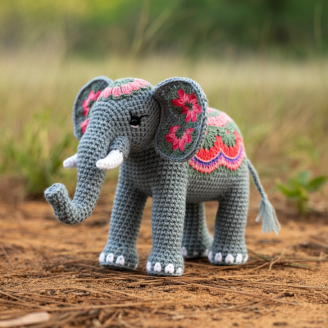 2. Text prompt: *the elephant moves around naturally* |  |
^1^ Image generated from the prompt: *A Crochet elephant in intricate patterns walking on the savanna*
You can generate novel videos using only an image as an input, or an image and
descriptive text as the inputs. The following samples show you basic
instructions to generate videos from image and text.
### Console
1. In the Google Cloud console, go to the **Agent Platform \> Media Studio**
page.
[Media Studio](https://console.cloud.google.com/agent-platform/studio/media/video)
2. Click **Video**.
3. In the **Task** menu, select **Image-to-video**.
4. From the **Model** menu, select a model from the displayed options.
5. In the **Prompt** box, enter a text prompt that describes the videos to
generate.
6. In the **Input images** section, click **Start** to upload an image for the
first frame.
7. Optional: click **End** to upload an image for the last frame.
8. Optional: Adjust the following **Parameters**:
- **Aspect ratio** : choose either **16:9** or **9:16**.
- **Number of results** : adjust the slider or enter a value between **1**
and **4**.
- **Video length**: select a video length from the menu.
- **Output directory** : click **Browse** to create or select a
[Cloud Storage bucket](https://docs.cloud.google.com/storage/docs/buckets.md.txt) to store the generated
files.
9. Click **Run**.
### Python
#### Install
```
pip install --upgrade google-genai
```
To learn more, see the
[SDK reference documentation](https://googleapis.github.io/python-genai/).
Set environment variables to use the Google Gen AI SDK with Vertex AI:
```bash
# Replace the `GOOGLE_CLOUD_PROJECT` and `GOOGLE_CLOUD_LOCATION` values
# with appropriate values for your project.
export GOOGLE_CLOUD_PROJECT=GOOGLE_CLOUD_PROJECT
export GOOGLE_CLOUD_LOCATION=global
export GOOGLE_GENAI_USE_ENTERPRISE=True
```
import time
from google import genai
from google.genai.types import GenerateVideosConfig, Image
client = genai.Client()
# TODO(developer): Update and un-comment below line
# output_gcs_uri = "gs://your-bucket/your-prefix"
operation = client.models.generate_videos(
model="veo-3.1-generate-001",
prompt="Extreme close-up of a cluster of vibrant wildflowers swaying gently in a sun-drenched meadow.",
image=Image(
gcs_uri="gs://cloud-samples-data/generative-ai/image/flowers.png",
mime_type="image/png",
),
config=GenerateVideosConfig(
aspect_ratio="16:9",
output_gcs_uri=output_gcs_uri,
),
)
while not operation.done:
time.sleep(15)
operation = client.operations.get(operation)
print(operation)
if operation.response:
print(operation.result.generated_videos[0].video.uri)
# Example response:
# gs://your-bucket/your-prefix
### Go
Learn how to install or update the [Go](https://docs.cloud.google.com/vertex-ai/generative-ai/docs/sdks/overview).
To learn more, see the
[SDK reference documentation](https://pkg.go.dev/google.golang.org/genai).
Set environment variables to use the Google Gen AI SDK with Vertex AI:
```bash
# Replace the `GOOGLE_CLOUD_PROJECT` and `GOOGLE_CLOUD_LOCATION` values
# with appropriate values for your project.
export GOOGLE_CLOUD_PROJECT=GOOGLE_CLOUD_PROJECT
export GOOGLE_CLOUD_LOCATION=global
export GOOGLE_GENAI_USE_ENTERPRISE=True
```
import (
"context"
"fmt"
"io"
"time"
"google.golang.org/genai"
)
// generateVideoFromImage shows how to gen video from img.
func generateVideoFromImage(w io.Writer, outputGCSURI string) error {
//outputGCSURI = "gs://your-bucket/your-prefix"
ctx := context.Background()
client, err := genai.NewClient(ctx, &genai.ClientConfig{
HTTPOptions: genai.HTTPOptions{APIVersion: "v1"},
})
if err != nil {
return fmt.Errorf("failed to create genai client: %w", err)
}
image := &genai.Image{
GCSURI: "gs://cloud-samples-data/generative-ai/image/flowers.png",
MIMEType: "image/png",
}
config := &genai.GenerateVideosConfig{
AspectRatio: "16:9",
OutputGCSURI: outputGCSURI,
}
modelName := "veo-3.0-generate-preview"
prompt := "Extreme close-up of a cluster of vibrant wildflowers swaying gently in a sun-drenched meadow."
operation, err := client.Models.GenerateVideos(ctx, modelName, prompt, image, config)
if err != nil {
return fmt.Errorf("failed to start video generation: %w", err)
}
// Polling until the operation is done
for !operation.Done {
time.Sleep(15 * time.Second)
operation, err = client.Operations.GetVideosOperation(ctx, operation, nil)
if err != nil {
return fmt.Errorf("failed to get operation status: %w", err)
}
}
if operation.Response != nil && len(operation.Response.GeneratedVideos) > 0 {
videoURI := operation.Response.GeneratedVideos[0].Video.URI
fmt.Fprintln(w, videoURI)
return nil
}
// Example response:
// gs://your-bucket/your-prefix/videoURI
return fmt.Errorf("video generation failed or returned no results")
}
### Node.js
#### Install
```
npm install @google/genai
```
To learn more, see the
[SDK reference documentation](https://googleapis.github.io/js-genai/).
Set environment variables to use the Google Gen AI SDK with Vertex AI:
```bash
# Replace the `GOOGLE_CLOUD_PROJECT` and `GOOGLE_CLOUD_LOCATION` values
# with appropriate values for your project.
export GOOGLE_CLOUD_PROJECT=GOOGLE_CLOUD_PROJECT
export GOOGLE_CLOUD_LOCATION=global
export GOOGLE_GENAI_USE_ENTERPRISE=True
```
const {GoogleGenAI} = require('@google/genai');
const GOOGLE_CLOUD_PROJECT = process.env.GOOGLE_CLOUD_PROJECT;
const GOOGLE_CLOUD_LOCATION = process.env.GOOGLE_CLOUD_LOCATION || 'global';
async function generateVideo(
outputGcsUri,
projectId = GOOGLE_CLOUD_PROJECT,
location = GOOGLE_CLOUD_LOCATION
) {
const client = new GoogleGenAI({
vertexai: true,
project: projectId,
location: location,
});
let operation = await client.models.generateVideos({
model: 'veo-3.1-fast-generate-001',
prompt:
'Extreme close-up of a cluster of vibrant wildflowers swaying gently in a sun-drenched meadow',
image: {
gcsUri: 'gs://cloud-samples-data/generative-ai/image/flowers.png',
mimeType: 'image/png',
},
config: {
aspectRatio: '16:9',
outputGcsUri: outputGcsUri,
},
});
while (!operation.done) {
await new Promise(resolve => setTimeout(resolve, 15000));
operation = await client.operations.get({operation: operation});
console.log(operation);
}
if (operation.response) {
console.log(operation.response.generatedVideos[0].video.uri);
}
return operation;
}
### Java
Learn how to install or update the [Java](https://docs.cloud.google.com/vertex-ai/generative-ai/docs/sdks/overview).
To learn more, see the
[SDK reference documentation](https://central.sonatype.com/artifact/com.google.genai/google-genai).
Set environment variables to use the Google Gen AI SDK with Vertex AI:
```bash
# Replace the `GOOGLE_CLOUD_PROJECT` and `GOOGLE_CLOUD_LOCATION` values
# with appropriate values for your project.
export GOOGLE_CLOUD_PROJECT=GOOGLE_CLOUD_PROJECT
export GOOGLE_CLOUD_LOCATION=global
export GOOGLE_GENAI_USE_ENTERPRISE=True
```
import com.google.genai.Client;
import com.google.genai.types.GenerateVideosConfig;
import com.google.genai.types.GenerateVideosOperation;
import com.google.genai.types.GenerateVideosResponse;
import com.google.genai.types.GeneratedVideo;
import com.google.genai.types.GetOperationConfig;
import com.google.genai.types.Image;
import com.google.genai.types.Video;
import java.util.concurrent.TimeUnit;
public class VideoGenWithImg {
public static void main(String[] args) throws InterruptedException {
// TODO(developer): Replace these variables before running the sample.
String modelId = "veo-3.1-generate-001";
String outputGcsUri = "gs://your-bucket/your-prefix";
generateContent(modelId, outputGcsUri);
}
// Generates a video with an image and a text prompt.
public static String generateContent(String modelId, String outputGcsUri)
throws InterruptedException {
// Client Initialization. Once created, it can be reused for multiple requests.
try (Client client = Client.builder().location("global").vertexAI(true).build()) {
GenerateVideosOperation operation =
client.models.generateVideos(
modelId,
"Extreme close-up of a cluster of vibrant wildflowers"
+ " swaying gently in a sun-drenched meadow.",
Image.builder()
.gcsUri("gs://cloud-samples-data/generative-ai/image/flowers.png")
.mimeType("image/png")
.build(),
GenerateVideosConfig.builder()
.aspectRatio("16:9")
.outputGcsUri(outputGcsUri)
.build());
while (!operation.done().orElse(false)) {
TimeUnit.SECONDS.sleep(15);
operation =
client.operations.getVideosOperation(operation, GetOperationConfig.builder().build());
}
String generatedVideoUri =
operation
.response()
.flatMap(GenerateVideosResponse::generatedVideos)
.flatMap(videos -> videos.stream().findFirst())
.flatMap(GeneratedVideo::video)
.flatMap(Video::uri)
.orElseThrow(
() ->
new IllegalStateException(
"Could not get the URI from the generated video"));
System.out.println("Generated video URI: " + generatedVideoUri);
// Example response:
// Generated video URI: gs://your-bucket/your-prefix/generated-video-123.mp4
return generatedVideoUri;
}
}
}
### REST
For more information about the Veo API, see the following:
- [Method:
`endpoints.predict`](https://docs.cloud.google.com/gemini-enterprise-agent-platform/reference/rest/v1/projects.locations.endpoints/predict)
- [`VideoGenerationModelInstance`](https://docs.cloud.google.com/gemini-enterprise-agent-platform/reference/rest/Shared.Types/VideoGenerationModelInstance.md.txt)
- [`VideoGenerationModelParams`](https://docs.cloud.google.com/gemini-enterprise-agent-platform/reference/rest/Shared.Types/VideoGenerationModelParams.md.txt)
- [`VideoGenerationModelResult`](https://docs.cloud.google.com/gemini-enterprise-agent-platform/reference/rest/Shared.Types/VideoGenerationModelResult.md.txt)
1. Use the following command to send a video generation request. This
request begins a long-running operation and stores output to a
Cloud Storage bucket you specify.
Before using any of the request data,
make the following replacements:
- `PROJECT_ID`: A string representing your Google Cloud project ID.
- `MODEL_ID`: A string representing the model ID to use. The following are accepted values:
- **Veo 3.1:** `veo-3.1-generate-001`
- **Veo 3.1:** `veo-3.1-fast-generate-001`
- `TEXT_PROMPT`: The text prompt used to guide video generation.
- `INPUT_IMAGE`: A base64-encoded string that represents the input image. For best quality, we recommend that the input image's resolution be 720p (1280 x 720 pixels) or higher, and have an aspect ratio of either 16:9 or 9:16. Images of other aspect ratios or sizes may be resized or centrally cropped when the image is uploaded.
- `MIME_TYPE`: A string representing the MIME type of the input image. Only the images of the following MIME types are supported:
- `"image/jpeg"`
- `"image/png"`
- `OUTPUT_STORAGE_URI`: Optional: A string representing the Cloud Storage bucket to store the output videos. If not provided, video bytes are returned in the response. For example: `"gs://video-bucket/output/"`.
- `RESIZE_MODE`: A string that represents the resize mode to use. The following are accepted values:
- `"crop"`: Crop the video to fit the new size.
- `"pad"`: Pad the video to fit the new size.
- `RESPONSE_COUNT`: The number of video files to generate. The accepted range of values is `1`-`4`.
- `DURATION`: An integer representing the length of the generated video files. The accepted values are `4`, `6`, or `8`. The default is `8`.
- **Additional optional parameters**
Use the following optional variables depending on your use
case. Add some or all of the following parameters in the `"parameters": {}` object.
```
"parameters": {
"aspectRatio": "ASPECT_RATIO",
"negativePrompt": "NEGATIVE_PROMPT",
"personGeneration": "PERSON_SAFETY_SETTING",
// "resolution": RESOLUTION, // Veo 3 models only
"sampleCount": RESPONSE_COUNT,
"seed": SEED_NUMBER
}
```
- `ASPECT_RATIO`: Optional: A string value that describes the aspect ratio of the generated videos. You can use the following values:
- `"16:9"` for landscape
- `"9:16"` for portrait
The default value is `"16:9"`
- `NEGATIVE_PROMPT`: Optional: A string value that describes content that you want to prevent the model from generating.
- `PERSON_SAFETY_SETTING`: Optional: A string value that controls the safety setting for generating people or face generation. You can use the following values:
- `"allow_adult"`: Only allow generation of adult people and faces.
- `"disallow"`: Doesn't generate people or faces.
The default value is `"allow_adult"`.
- `RESOLUTION`: Optional: A string value that controls the resolution of the generated video. Supported by **Veo 3 models only.** You can use the following values:
- `"720p"`
- `"1080p"`
- `"4k"` (Veo 3.1 Preview models only)
The default value is `"720p"`.
- `RESPONSE_COUNT`: Optional. An integer value that describes the number of videos to generate. The accepted range of values is `1`-`4`.
- `SEED_NUMBER`: Optional. An uint32 value that the model uses to generate deterministic videos. Specifying a seed number with your request without changing other parameters guides the model to produce the same videos. The accepted range of values is `0`-`4294967295`.
HTTP method and URL:
```
POST https://us-central1-aiplatform.googleapis.com/v1/projects/PROJECT_ID/locations/us-central1/publishers/google/models/MODEL_ID:predictLongRunning
```
Request JSON body:
```
{
"instances": [
{
"prompt": "TEXT_PROMPT",
"image": {
"bytesBase64Encoded": "INPUT_IMAGE",
"mimeType": "MIME_TYPE"
}
}
],
"parameters": {
"storageUri": "OUTPUT_STORAGE_URI",
"sampleCount": RESPONSE_COUNT
"resizeMode": "RESIZE_MODE"
}
}
```
To send your request, choose one of these options:
#### curl
> [!NOTE]
> **Note:** The following command assumes that you have logged in to the `gcloud` CLI with your user account by running [`gcloud init`](https://docs.cloud.google.com/sdk/gcloud/reference/init) or [`gcloud auth login`](https://docs.cloud.google.com/sdk/gcloud/reference/auth/login.md.txt) , or by using [Cloud Shell](https://docs.cloud.google.com/shell/docs.md.txt), which automatically logs you into the `gcloud` CLI . You can check the currently active account by running [`gcloud auth list`](https://docs.cloud.google.com/sdk/gcloud/reference/auth/list.md.txt).
Save the request body in a file named `request.json`,
and execute the following command:
```
curl -X POST \
-H "Authorization: Bearer $(gcloud auth print-access-token)" \
-H "Content-Type: application/json; charset=utf-8" \
-d @request.json \
"https://us-central1-aiplatform.googleapis.com/v1/projects/PROJECT_ID/locations/us-central1/publishers/google/models/MODEL_ID:predictLongRunning"
```
#### PowerShell
> [!NOTE]
> **Note:** The following command assumes that you have logged in to the `gcloud` CLI with your user account by running [`gcloud init`](https://docs.cloud.google.com/sdk/gcloud/reference/init) or [`gcloud auth login`](https://docs.cloud.google.com/sdk/gcloud/reference/auth/login.md.txt) . You can check the currently active account by running [`gcloud auth list`](https://docs.cloud.google.com/sdk/gcloud/reference/auth/list.md.txt).
Save the request body in a file named `request.json`,
and execute the following command:
```
$cred = gcloud auth print-access-token
$headers = @{ "Authorization" = "Bearer $cred" }
Invoke-WebRequest `
-Method POST `
-Headers $headers `
-ContentType: "application/json; charset=utf-8" `
-InFile request.json `
-Uri "https://us-central1-aiplatform.googleapis.com/v1/projects/PROJECT_ID/locations/us-central1/publishers/google/models/MODEL_ID:predictLongRunning" | Select-Object -Expand Content
```
This request returns a full operation name with a unique operation ID. Use this full operation name to poll that status of the video generation request.
```
{
"name": "projects/PROJECT_ID/locations/us-central1/publishers/google/models/MODEL_ID/operations/a1b07c8e-7b5a-4aba-bb34-3e1ccb8afcc8"
}
```
2. Optional: Check the status of the video generation long-running
operation.
Before using any of the request data,
make the following replacements:
- PROJECT_ID: Your Google Cloud [project ID](https://docs.cloud.google.com/resource-manager/docs/creating-managing-projects.md.txt#identifying_projects).
- MODEL_ID: The model ID to use.
- OPERATION_ID: The unique operation ID returned in the original generate video request.
HTTP method and URL:
```
POST https://us-central1-aiplatform.googleapis.com/v1/projects/PROJECT_ID/locations/us-central1/publishers/google/models/MODEL_ID:fetchPredictOperation
```
Request JSON body:
```
{
"operationName": "projects/PROJECT_ID/locations/us-central1/publishers/google/models/MODEL_ID/operations/OPERATION_ID"
}
```
To send your request, choose one of these options:
#### curl
> [!NOTE]
> **Note:** The following command assumes that you have logged in to the `gcloud` CLI with your user account by running [`gcloud init`](https://docs.cloud.google.com/sdk/gcloud/reference/init) or [`gcloud auth login`](https://docs.cloud.google.com/sdk/gcloud/reference/auth/login.md.txt) , or by using [Cloud Shell](https://docs.cloud.google.com/shell/docs.md.txt), which automatically logs you into the `gcloud` CLI . You can check the currently active account by running [`gcloud auth list`](https://docs.cloud.google.com/sdk/gcloud/reference/auth/list.md.txt).
Save the request body in a file named `request.json`,
and execute the following command:
```
curl -X POST \
-H "Authorization: Bearer $(gcloud auth print-access-token)" \
-H "Content-Type: application/json; charset=utf-8" \
-d @request.json \
"https://us-central1-aiplatform.googleapis.com/v1/projects/PROJECT_ID/locations/us-central1/publishers/google/models/MODEL_ID:fetchPredictOperation"
```
#### PowerShell
> [!NOTE]
> **Note:** The following command assumes that you have logged in to the `gcloud` CLI with your user account by running [`gcloud init`](https://docs.cloud.google.com/sdk/gcloud/reference/init) or [`gcloud auth login`](https://docs.cloud.google.com/sdk/gcloud/reference/auth/login.md.txt) . You can check the currently active account by running [`gcloud auth list`](https://docs.cloud.google.com/sdk/gcloud/reference/auth/list.md.txt).
Save the request body in a file named `request.json`,
and execute the following command:
```
$cred = gcloud auth print-access-token
$headers = @{ "Authorization" = "Bearer $cred" }
Invoke-WebRequest `
-Method POST `
-Headers $headers `
-ContentType: "application/json; charset=utf-8" `
-InFile request.json `
-Uri "https://us-central1-aiplatform.googleapis.com/v1/projects/PROJECT_ID/locations/us-central1/publishers/google/models/MODEL_ID:fetchPredictOperation" | Select-Object -Expand Content
```
This request returns information about the operation, including if the operation is still running or is done.
#### Response
```
{
"name": "projects/PROJECT_ID/locations/us-central1/publishers/google/models/MODEL_ID/operations/OPERATION_ID",
"done": true,
"response": {
"raiMediaFilteredCount": 0,
"@type": "type.googleapis.com/cloud.ai.large_models.vision.GenerateVideoResponse",
"videos": [
{
"gcsUri":"gs://BUCKET_NAME/TIMESTAMPED_FOLDER/sample_0.mp4",
"mimeType": "video/mp4"
}
]
}
}
```
## What's next
- [Video generation prompt guide](https://docs.cloud.google.com/gemini-enterprise-agent-platform/models/video/video-gen-prompt-guide.md.txt)
- [Best practices for generating videos](https://docs.cloud.google.com/gemini-enterprise-agent-platform/models/video/best-practice.md.txt)
- [Generate videos from text prompts](https://docs.cloud.google.com/gemini-enterprise-agent-platform/models/video/generate-videos-from-text.md.txt)
- [Generate videos with first and last video
frames](https://docs.cloud.google.com/gemini-enterprise-agent-platform/models/video/generate-videos-from-first-and-last-frames)
- [Generate videos from references](https://docs.cloud.google.com/gemini-enterprise-agent-platform/models/video/generate-videos-from-references.md.txt)
- [Extend videos](https://docs.cloud.google.com/gemini-enterprise-agent-platform/models/video/extend-videos.md.txt)
- [Edit videos](https://docs.cloud.google.com/gemini-enterprise-agent-platform/models/video/edit-videos.md.txt)
- [Upscale videos](https://docs.cloud.google.com/gemini-enterprise-agent-platform/models/video/upscale-videos.md.txt)
- [Understand responsible AI and usage guidelines for video
generation](https://docs.cloud.google.com/gemini-enterprise-agent-platform/models/video/responsible-ai-and-usage-guidelines)