> [!NOTE]
> To see examples of code execution,
> run the following notebooks in the environment of your choice:
>
> - "Intro to Generating and Executing Python Code with Gemini":
>
> [Open in Colab](https://colab.research.google.com/github/GoogleCloudPlatform/generative-ai/blob/main/gemini/code-execution/intro_code_execution.ipynb)
>
>
> \|
>
> [Open in Colab Enterprise](https://console.cloud.google.com/agent-platform/colab/import/https%3A%2F%2Fraw.githubusercontent.com%2FGoogleCloudPlatform%2Fgenerative-ai%2Fmain%2Fgemini%2Fcode-execution%2Fintro_code_execution.ipynb)
>
>
> \|
>
> [Open
> in Agent Platform Workbench](https://console.cloud.google.com/agent-platform/workbench/deploy-notebook?download_url=https://raw.githubusercontent.com/GoogleCloudPlatform/generative-ai/main/gemini/code-execution/intro_code_execution.ipynb)
>
>
> \|
>
> [View on GitHub](https://github.com/GoogleCloudPlatform/generative-ai/blob/main/gemini/code-execution/intro_code_execution.ipynb)
> - "Intro to Gemini code execution with images":
>
> [Open in Colab](https://colab.research.google.com/github/GoogleCloudPlatform/generative-ai/blob/main/gemini/code-execution/intro_agentic_vision.ipynb)
>
>
> \|
>
> [Open in Colab Enterprise](https://console.cloud.google.com/agent-platform/colab/import/https%3A%2F%2Fraw.githubusercontent.com%2FGoogleCloudPlatform%2Fgenerative-ai%2Fmain%2Fgemini%2Fcode-execution%2Fintro_agentic_vision.ipynb)
>
>
> \|
>
> [Open
> in Agent Platform Workbench](https://console.cloud.google.com/agent-platform/workbench/deploy-notebook?download_url=https://raw.githubusercontent.com/GoogleCloudPlatform/generative-ai/main/gemini/code-execution/intro_agentic_vision.ipynb)
>
>
> \|
>
> [View on GitHub](https://github.com/GoogleCloudPlatform/generative-ai/blob/main/gemini/code-execution/intro_agentic_vision.ipynb)
The Gemini API code execution feature enables the model to generate and
run Python code and learn iteratively from the results until it arrives at a
final output. You can use this code execution capability to build applications
that benefit from code-based reasoning and that produce text output. For
example, you could use code execution in an application that solves equations or
processes text.
The Gemini API provides code execution as a tool, similar to
[function calling](https://docs.cloud.google.com/gemini-enterprise-agent-platform/models/tools/function-calling.md.txt).
After you add code execution as a tool, the model decides when to use it.
The code execution environment includes the following libraries. You can't
install your own libraries.
- [Altair](https://altair-viz.github.io/)
- [Chess](https://python-chess.readthedocs.io/)
- [Cv2](https://opencv.org/)
- [Matplotlib](https://matplotlib.org/)
- [Mpmath](https://mpmath.org/)
- [NumPy](https://numpy.org/)
- [Pandas](https://pandas.pydata.org/)
- [Pdfminer](https://pdfminersix.readthedocs.io/)
- [Reportlab](https://www.reportlab.com/)
- [Seaborn](https://seaborn.pydata.org/)
- [Sklearn](https://scikit-learn.org/)
- [Statsmodels](https://www.statsmodels.org/)
- [Striprtf](https://github.com/joshy/striprtf)
- [SymPy](https://www.sympy.org/)
- [Tabulate](https://github.com/astanin/python-tabulate)
## Supported models
The following models provide support for code execution:
#### Click to expand supported models
- [Gemini Robotics ER 2](https://docs.cloud.google.com/gemini-enterprise-agent-platform/models/gemini/robotics-er-2.md.txt) preview
- [Gemini 4 Hydrogen](https://docs.cloud.google.com/gemini-enterprise-agent-platform/models/gemini/4-hydrogen.md.txt)
- [Gemini 4 Carbon for cyber](https://docs.cloud.google.com/gemini-enterprise-agent-platform/models/gemini/4-carbon.md.txt#cyber)
- [Gemini 4 Carbon](https://docs.cloud.google.com/gemini-enterprise-agent-platform/models/gemini/4-carbon.md.txt)
- [Gemini 4 Argon Cyber Permissive](https://docs.cloud.google.com/gemini-enterprise-agent-platform/models/gemini/4-argon.md.txt#cyber)
- [Gemini 4 Argon](https://docs.cloud.google.com/gemini-enterprise-agent-platform/models/gemini/4-argon.md.txt)
- [Gemini 3.8 Flash Cyber](https://docs.cloud.google.com/gemini-enterprise-agent-platform/models/gemini/3-8-flash-cyber.md.txt)
- [Gemini 3.8 Flash](https://docs.cloud.google.com/gemini-enterprise-agent-platform/models/gemini/3-8-flash.md.txt)
- [Gemini 3.7 Flash](https://docs.cloud.google.com/gemini-enterprise-agent-platform/models/gemini/3-7-flash.md.txt)
- [Gemini 3.6 Flash](https://docs.cloud.google.com/gemini-enterprise-agent-platform/models/gemini/3-6-flash.md.txt)
- [Gemini 3.5 Flash-Lite](https://docs.cloud.google.com/gemini-enterprise-agent-platform/models/gemini/3-5-flash-lite.md.txt)
- [Gemini 3.5 Flash](https://docs.cloud.google.com/gemini-enterprise-agent-platform/models/gemini/3-5-flash.md.txt)
- [Gemini 3.1 Pro](https://docs.cloud.google.com/gemini-enterprise-agent-platform/models/gemini/3-1-pro.md.txt) preview
- [Gemini 3.1 Flash-Lite](https://docs.cloud.google.com/gemini-enterprise-agent-platform/models/gemini/3-1-flash-lite.md.txt)
- [Gemini 3 Flash](https://docs.cloud.google.com/gemini-enterprise-agent-platform/models/gemini/3-flash.md.txt) preview
- [Gemini 2.5 Pro](https://docs.cloud.google.com/gemini-enterprise-agent-platform/models/gemini/2-5-pro.md.txt)
- [Gemini 2.5 Flash-Lite](https://docs.cloud.google.com/gemini-enterprise-agent-platform/models/gemini/2-5-flash-lite.md.txt)
- [Gemini 2.5 Flash](https://docs.cloud.google.com/gemini-enterprise-agent-platform/models/gemini/2-5-flash.md.txt)
## Get started with code execution
This section assumes that you've completed the setup and configuration steps
shown in [Get started with Gemini Enterprise Agent Platform](https://docs.cloud.google.com/gemini-enterprise-agent-platform/models/start.md.txt).
### Enable code execution
You can enable the model to use code execution by adding it to the `tools` list
when configuring the model:
### Python
#### Install
```
pip install --upgrade google-genai
```
To learn more, see the
[SDK reference documentation](https://googleapis.github.io/python-genai/).
Set environment variables to use the Google Gen AI SDK with Vertex AI:
```bash
# Replace the `GOOGLE_CLOUD_PROJECT` and `GOOGLE_CLOUD_LOCATION` values
# with appropriate values for your project.
export GOOGLE_CLOUD_PROJECT=GOOGLE_CLOUD_PROJECT
export GOOGLE_CLOUD_LOCATION=global
export GOOGLE_GENAI_USE_ENTERPRISE=True
```
from google import genai
from google.genai.types import (
GenerateContentConfig,
HttpOptions,
Tool,
ToolCodeExecution,
)
client = genai.Client(http_options=HttpOptions(api_version="v1"))
model_id = "gemini-3.5-flash"
code_execution_tool = Tool(code_execution=ToolCodeExecution())
response = client.models.generate_content(
model=model_id,
contents="Calculate 20th fibonacci number. Then find the nearest palindrome to it.",
config=GenerateContentConfig(
tools=[code_execution_tool],
temperature=0,
),
)
print("# Code:")
print(response.executable_code)
print("# Outcome:")
print(response.code_execution_result)
# Example response:
# # Code:
# def fibonacci(n):
# if n <= 0:
# return 0
# elif n == 1:
# return 1
# else:
# a, b = 0, 1
# for _ in range(2, n + 1):
# a, b = b, a + b
# return b
#
# fib_20 = fibonacci(20)
# print(f'{fib_20=}')
#
# # Outcome:
# fib_20=6765
### Go
Learn how to install or update the [Go](https://docs.cloud.google.com/vertex-ai/generative-ai/docs/sdks/overview).
To learn more, see the
[SDK reference documentation](https://pkg.go.dev/google.golang.org/genai).
Set environment variables to use the Google Gen AI SDK with Vertex AI:
```bash
# Replace the `GOOGLE_CLOUD_PROJECT` and `GOOGLE_CLOUD_LOCATION` values
# with appropriate values for your project.
export GOOGLE_CLOUD_PROJECT=GOOGLE_CLOUD_PROJECT
export GOOGLE_CLOUD_LOCATION=global
export GOOGLE_GENAI_USE_ENTERPRISE=True
```
import (
"context"
"fmt"
"io"
genai "google.golang.org/genai"
)
// generateWithCodeExec shows how to generate text using the code execution tool.
func generateWithCodeExec(w io.Writer) error {
ctx := context.Background()
client, err := genai.NewClient(ctx, &genai.ClientConfig{
HTTPOptions: genai.HTTPOptions{APIVersion: "v1"},
})
if err != nil {
return fmt.Errorf("failed to create genai client: %w", err)
}
prompt := "Calculate 20th fibonacci number. Then find the nearest palindrome to it."
contents := []*genai.Content{
{Parts: []*genai.Part{
{Text: prompt},
},
Role: genai.RoleUser},
}
config := &genai.GenerateContentConfig{
Tools: []*genai.Tool{
{CodeExecution: &genai.ToolCodeExecution{}},
},
Temperature: genai.Ptr(float32(0.0)),
}
modelName := "gemini-2.5-flash"
resp, err := client.Models.GenerateContent(ctx, modelName, contents, config)
if err != nil {
return fmt.Errorf("failed to generate content: %w", err)
}
for _, p := range resp.Candidates[0].Content.Parts {
if p.Text != "" {
fmt.Fprintf(w, "Gemini: %s", p.Text)
}
if p.ExecutableCode != nil {
fmt.Fprintf(w, "Language: %s\n%s\n", p.ExecutableCode.Language, p.ExecutableCode.Code)
}
if p.CodeExecutionResult != nil {
fmt.Fprintf(w, "Outcome: %s\n%s\n", p.CodeExecutionResult.Outcome, p.CodeExecutionResult.Output)
}
}
// Example response:
// Gemini: Okay, I can do that. First, I'll calculate the 20th Fibonacci number. Then, I need ...
//
// Language: PYTHON
//
// def fibonacci(n):
// ...
//
// fib_20 = fibonacci(20)
// print(f'{fib_20=}')
//
// Outcome: OUTCOME_OK
// fib_20=6765
//
// Now that I have the 20th Fibonacci number (6765), I need to find the nearest palindrome. ...
// ...
return nil
}
### Node.js
#### Install
```
npm install @google/genai
```
To learn more, see the
[SDK reference documentation](https://googleapis.github.io/js-genai/).
Set environment variables to use the Google Gen AI SDK with Vertex AI:
```bash
# Replace the `GOOGLE_CLOUD_PROJECT` and `GOOGLE_CLOUD_LOCATION` values
# with appropriate values for your project.
export GOOGLE_CLOUD_PROJECT=GOOGLE_CLOUD_PROJECT
export GOOGLE_CLOUD_LOCATION=global
export GOOGLE_GENAI_USE_ENTERPRISE=True
```
const {GoogleGenAI} = require('@google/genai');
const GOOGLE_CLOUD_PROJECT = process.env.GOOGLE_CLOUD_PROJECT;
const GOOGLE_CLOUD_LOCATION = process.env.GOOGLE_CLOUD_LOCATION || 'global';
async function generateAndExecuteCode(
projectId = GOOGLE_CLOUD_PROJECT,
location = GOOGLE_CLOUD_LOCATION
) {
const client = new GoogleGenAI({
vertexai: true,
project: projectId,
location: location,
});
const response = await client.models.generateContent({
model: 'gemini-2.5-flash',
contents:
'Calculate 20th fibonacci number. Then find the nearest palindrome to it.',
config: {
tools: [{codeExecution: {}}],
temperature: 0,
},
});
console.debug(response.executableCode);
// Example response:
// Code:
// function fibonacci(n) {
// if (n <= 0) {
// return 0;
// } else if (n === 1) {
// return 1;
// } else {
// let a = 0, b = 1;
// for (let i = 2; i <= n; i++) {
// [a, b] = [b, a + b];
// }
// return b;
// }
// }
//
// const fib20 = fibonacci(20);
// console.log(`fib20=${fib20}`);
console.debug(response.codeExecutionResult);
// Outcome:
// fib20=6765
return response.codeExecutionResult;
}
### Java
Learn how to install or update the [Java](https://docs.cloud.google.com/vertex-ai/generative-ai/docs/sdks/overview).
To learn more, see the
[SDK reference documentation](https://central.sonatype.com/artifact/com.google.genai/google-genai).
Set environment variables to use the Google Gen AI SDK with Vertex AI:
```bash
# Replace the `GOOGLE_CLOUD_PROJECT` and `GOOGLE_CLOUD_LOCATION` values
# with appropriate values for your project.
export GOOGLE_CLOUD_PROJECT=GOOGLE_CLOUD_PROJECT
export GOOGLE_CLOUD_LOCATION=global
export GOOGLE_GENAI_USE_ENTERPRISE=True
```
import com.google.genai.Client;
import com.google.genai.types.GenerateContentConfig;
import com.google.genai.types.GenerateContentResponse;
import com.google.genai.types.HttpOptions;
import com.google.genai.types.Tool;
import com.google.genai.types.ToolCodeExecution;
public class ToolsCodeExecWithText {
public static void main(String[] args) {
// TODO(developer): Replace these variables before running the sample.
String modelId = "gemini-2.5-flash";
generateContent(modelId);
}
// Generates text using the Code Execution tool
public static String generateContent(String modelId) {
// Initialize client that will be used to send requests. This client only needs to be created
// once, and can be reused for multiple requests.
try (Client client =
Client.builder()
.location("global")
.vertexAI(true)
.httpOptions(HttpOptions.builder().apiVersion("v1").build())
.build()) {
// Create a GenerateContentConfig and set codeExecution tool
GenerateContentConfig contentConfig =
GenerateContentConfig.builder()
.tools(Tool.builder().codeExecution(ToolCodeExecution.builder().build()).build())
.temperature(0.0F)
.build();
GenerateContentResponse response =
client.models.generateContent(
modelId,
"Calculate 20th fibonacci number. Then find the nearest palindrome to it.",
contentConfig);
System.out.println("Code: \n" + response.executableCode());
System.out.println("Outcome: \n" + response.codeExecutionResult());
// Example response
// Code:
// def fibonacci(n):
// if n <= 0:
// return 0
// elif n == 1:
// return 1
// else:
// a, b = 1, 1
// for _ in range(2, n):
// a, b = b, a + b
// return b
//
// fib_20 = fibonacci(20)
// print(f'{fib_20=}')
//
// Outcome:
// fib_20=6765
return response.executableCode();
}
}
}
### REST
#### GenerateContent API
Before using any of the request data,
make the following replacements:
- `GENERATE_RESPONSE_METHOD`: The type of response that you want the model to generate. Choose a method that generates how you want the model's response to be returned:
- `streamGenerateContent`: The response is streamed as it's being generated to reduce the perception of latency to a human audience.
- `generateContent`: The response is returned after it's fully generated.
- `LOCATION`: The region to process the request.
- `PROJECT_ID`: Your [project ID](https://docs.cloud.google.com/resource-manager/docs/creating-managing-projects.md.txt#identifiers).
- `MODEL_ID`: The model ID of the model that you want to use.
- `ROLE`: The role in a conversation associated with the content. Specifying a role is required even in singleturn use cases. Acceptable values include the following:
- `USER`: Specifies content that's sent by you.
- `MODEL`: Specifies the model's response.
- `TEXT`The text instructions to include in the prompt.
To send your request, choose one of these options:
#### curl
> [!NOTE]
> **Note:** The following command assumes that you have logged in to the `gcloud` CLI with your user account by running [`gcloud init`](https://docs.cloud.google.com/sdk/gcloud/reference/init) or [`gcloud auth login`](https://docs.cloud.google.com/sdk/gcloud/reference/auth/login.md.txt) , or by using [Cloud Shell](https://docs.cloud.google.com/shell/docs.md.txt), which automatically logs you into the `gcloud` CLI . You can check the currently active account by running [`gcloud auth list`](https://docs.cloud.google.com/sdk/gcloud/reference/auth/list.md.txt).
Save the request body in a file named `request.json`.
Run the following command in the terminal to create or overwrite
this file in the current directory:
```
cat > request.json << 'EOF'
{
"tools": [{'codeExecution': {}}],
"contents": {
"role": "ROLE",
"parts": { "text": "TEXT" }
},
}
EOF
```
Then execute the following command to send your REST request:
```
curl -X POST \
-H "Authorization: Bearer $(gcloud auth print-access-token)" \
-H "Content-Type: application/json; charset=utf-8" \
-d @request.json \
"https://LOCATION-aiplatform.googleapis.com/v1/projects/PROJECT_ID/locations/LOCATION/publishers/google/models/MODEL_ID:GENERATE_RESPONSE_METHOD"
```
#### PowerShell
> [!NOTE]
> **Note:** The following command assumes that you have logged in to the `gcloud` CLI with your user account by running [`gcloud init`](https://docs.cloud.google.com/sdk/gcloud/reference/init) or [`gcloud auth login`](https://docs.cloud.google.com/sdk/gcloud/reference/auth/login.md.txt) . You can check the currently active account by running [`gcloud auth list`](https://docs.cloud.google.com/sdk/gcloud/reference/auth/list.md.txt).
Save the request body in a file named `request.json`.
Run the following command in the terminal to create or overwrite
this file in the current directory:
```
@'
{
"tools": [{'codeExecution': {}}],
"contents": {
"role": "ROLE",
"parts": { "text": "TEXT" }
},
}
'@ | Out-File -FilePath request.json -Encoding utf8
```
Then execute the following command to send your REST request:
```
$cred = gcloud auth print-access-token
$headers = @{ "Authorization" = "Bearer $cred" }
Invoke-WebRequest `
-Method POST `
-Headers $headers `
-ContentType: "application/json; charset=utf-8" `
-InFile request.json `
-Uri "https://LOCATION-aiplatform.googleapis.com/v1/projects/PROJECT_ID/locations/LOCATION/publishers/google/models/MODEL_ID:GENERATE_RESPONSE_METHOD" | Select-Object -Expand Content
```
You should receive a JSON response similar to the following.
#### Response
```
{
"candidates": [
{
"content": {
"role": "model",
"parts": [
{
"text": "Okay, I understand. You want me to calculate the sum of the first 10 positive integers and to use code to do so. Here's my plan: I will use a loop to add the numbers from 1 to 10 and then return the final sum.\n\n"
},
{
"executableCode": {
"language": "PYTHON",
"code": "\ntotal = 0\nfor i in range(1, 11):\n total += i\nprint(f'{total=}')\n"
}
},
{
"codeExecutionResult": {
"outcome": "OUTCOME_OK",
"output": "total=55\n"
}
},
{
"text": "The sum of the first 10 positive numbers is 55.\n"
}
]
},
"finishReason": "STOP",
"safetyRatings": [
{
"category": "HARM_CATEGORY_HATE_SPEECH",
"probability": "NEGLIGIBLE",
"probabilityScore": 0.19436789,
"severity": "HARM_SEVERITY_NEGLIGIBLE",
"severityScore": 0.17441037
},
{
"category": "HARM_CATEGORY_DANGEROUS_CONTENT",
"probability": "NEGLIGIBLE",
"probabilityScore": 0.0685376,
"severity": "HARM_SEVERITY_NEGLIGIBLE",
"severityScore": 0.14903527
},
{
"category": "HARM_CATEGORY_HARASSMENT",
"probability": "NEGLIGIBLE",
"probabilityScore": 0.23231025,
"severity": "HARM_SEVERITY_LOW",
"severityScore": 0.2436427
},
{
"category": "HARM_CATEGORY_SEXUALLY_EXPLICIT",
"probability": "NEGLIGIBLE",
"probabilityScore": 0.08269742,
"severity": "HARM_SEVERITY_NEGLIGIBLE",
"severityScore": 0.10818888
}
],
"score": -0.50845032930374146,
"avgLogprobs": -0.0046222757209431042
}
],
"usageMetadata": {
"promptTokenCount": 34,
"candidatesTokenCount": 110,
"totalTokenCount": 144,
"billablePromptUsage": {
"textCount": 119
},
"trafficType": "ON_DEMAND"
},
"modelVersion": "gemini-2.0-flash-001",
"createTime": "2024-12-09T23:33:47.842964Z",
"responseId": "W35XZ9S5M6acmecP3vDFkQU"
}
```
#### Interactions API
Before using any of the request data,
make the following replacements:
- `PROJECT_ID`: Your [project ID](https://docs.cloud.google.com/resource-manager/docs/creating-managing-projects.md.txt#identifiers).
- `MODEL_ID`: The model ID of the model that you want to use.
- `TEXT`The text instructions to include in the prompt.
To send your request, choose one of these options:
#### curl
> [!NOTE]
> **Note:** The following command assumes that you have logged in to the `gcloud` CLI with your user account by running [`gcloud init`](https://docs.cloud.google.com/sdk/gcloud/reference/init) or [`gcloud auth login`](https://docs.cloud.google.com/sdk/gcloud/reference/auth/login.md.txt) , or by using [Cloud Shell](https://docs.cloud.google.com/shell/docs.md.txt), which automatically logs you into the `gcloud` CLI . You can check the currently active account by running [`gcloud auth list`](https://docs.cloud.google.com/sdk/gcloud/reference/auth/list.md.txt).
Save the request body in a file named `request.json`.
Run the following command in the terminal to create or overwrite
this file in the current directory:
```
cat > request.json << 'EOF'
{
"model": "MODEL_ID",
"tools": [
{
"type": "code_execution"
}
],
"input": [
{
"type": "user_input",
"content": [
{
"type": "text",
"text": "TEXT"
}
]
}
]
}
EOF
```
Then execute the following command to send your REST request:
```
curl -X POST \
-H "Authorization: Bearer $(gcloud auth print-access-token)" \
-H "Content-Type: application/json; charset=utf-8" \
-d @request.json \
"https://aiplatform.googleapis.com/v1/projects/PROJECT_ID/locations/global/interactions"
```
#### PowerShell
> [!NOTE]
> **Note:** The following command assumes that you have logged in to the `gcloud` CLI with your user account by running [`gcloud init`](https://docs.cloud.google.com/sdk/gcloud/reference/init) or [`gcloud auth login`](https://docs.cloud.google.com/sdk/gcloud/reference/auth/login.md.txt) . You can check the currently active account by running [`gcloud auth list`](https://docs.cloud.google.com/sdk/gcloud/reference/auth/list.md.txt).
Save the request body in a file named `request.json`.
Run the following command in the terminal to create or overwrite
this file in the current directory:
```
@'
{
"model": "MODEL_ID",
"tools": [
{
"type": "code_execution"
}
],
"input": [
{
"type": "user_input",
"content": [
{
"type": "text",
"text": "TEXT"
}
]
}
]
}
'@ | Out-File -FilePath request.json -Encoding utf8
```
Then execute the following command to send your REST request:
```
$cred = gcloud auth print-access-token
$headers = @{ "Authorization" = "Bearer $cred" }
Invoke-WebRequest `
-Method POST `
-Headers $headers `
-ContentType: "application/json; charset=utf-8" `
-InFile request.json `
-Uri "https://aiplatform.googleapis.com/v1/projects/PROJECT_ID/locations/global/interactions" | Select-Object -Expand Content
```
You should receive a JSON response similar to the following.
#### Response
```
{
"id": "W35XZ9S5M6acmecP3vDFkQU",
"model": "gemini-3.8-flash",
"status": "completed",
"steps": [
{
"type": "model_output",
"content": [
{
"type": "text",
"text": "Okay, I understand. You want me to calculate the sum of the first 10 positive integers and to use code to do so. Here's my plan: I will use a loop to add the numbers from 1 to 10 and then return the final sum.\n\n"
}
]
},
{
"type": "code_execution_call",
"id": "code_call_71021",
"arguments": {
"language": "PYTHON",
"code": "\ntotal = 0\nfor i in range(1, 11):\n total += i\nprint(f'{total=}')\n"
}
},
{
"type": "code_execution_result",
"call_id": "code_call_71021",
"result": "total=55\n"
},
{
"type": "model_output",
"content": [
{
"type": "text",
"text": "The sum of the first 10 positive numbers is 55.\n"
}
]
}
],
"usage": {
"total_tokens": 144,
"total_input_tokens": 34,
"input_tokens_by_modality": [
{
"modality": "text",
"tokens": 34
}
],
"total_output_tokens": 110,
"output_tokens_by_modality": [
{
"modality": "text",
"tokens": 110
}
]
},
"object": "interaction",
"created": "2026-05-29T02:17:56Z",
"updated": "2026-05-29T02:17:56Z"
}
```
### Use code execution in chat
You can also use code execution as part of a chat.
### REST
#### GenerateContent API
Before using any of the request data,
make the following replacements:
- PROJECT_ID: Your [project ID](https://docs.cloud.google.com/resource-manager/docs/creating-managing-projects.md.txt#identifiers).
To send your request, choose one of these options:
#### curl
> [!NOTE]
> **Note:** The following command assumes that you have logged in to the `gcloud` CLI with your user account by running [`gcloud init`](https://docs.cloud.google.com/sdk/gcloud/reference/init) or [`gcloud auth login`](https://docs.cloud.google.com/sdk/gcloud/reference/auth/login.md.txt) , or by using [Cloud Shell](https://docs.cloud.google.com/shell/docs.md.txt), which automatically logs you into the `gcloud` CLI . You can check the currently active account by running [`gcloud auth list`](https://docs.cloud.google.com/sdk/gcloud/reference/auth/list.md.txt).
Save the request body in a file named `request.json`.
Run the following command in the terminal to create or overwrite
this file in the current directory:
```
cat > request.json << 'EOF'
{
"tools": [
{
"code_execution": {}
}
],
"contents": [
{
"role": "user",
"parts": {
"text": "Can you print \"Hello world!\"?"
}
},
{
"role": "model",
"parts": [
{
"text": ""
},
{
"executable_code": {
"language": "PYTHON",
"code": "\nprint(\"hello world!\")\n"
}
},
{
"code_execution_result": {
"outcome": "OUTCOME_OK",
"output": "hello world!\n"
}
},
{
"text": "I have printed \"hello world!\" using the provided python code block. \n"
}
]
},
{
"role": "user",
"parts": {
"text": "What is the sum of the first 50 prime numbers? Generate and run code for the calculation, and make sure you get all 50."
}
}
]
}
EOF
```
Then execute the following command to send your REST request:
```
curl -X POST \
-H "Authorization: Bearer $(gcloud auth print-access-token)" \
-H "Content-Type: application/json; charset=utf-8" \
-d @request.json \
"https://aiplatform.googleapis.com/v1/projects/PROJECT_ID/locations/global/publishers/google/models/gemini-3.5-flash:generateContent"
```
#### PowerShell
> [!NOTE]
> **Note:** The following command assumes that you have logged in to the `gcloud` CLI with your user account by running [`gcloud init`](https://docs.cloud.google.com/sdk/gcloud/reference/init) or [`gcloud auth login`](https://docs.cloud.google.com/sdk/gcloud/reference/auth/login.md.txt) . You can check the currently active account by running [`gcloud auth list`](https://docs.cloud.google.com/sdk/gcloud/reference/auth/list.md.txt).
Save the request body in a file named `request.json`.
Run the following command in the terminal to create or overwrite
this file in the current directory:
```
@'
{
"tools": [
{
"code_execution": {}
}
],
"contents": [
{
"role": "user",
"parts": {
"text": "Can you print \"Hello world!\"?"
}
},
{
"role": "model",
"parts": [
{
"text": ""
},
{
"executable_code": {
"language": "PYTHON",
"code": "\nprint(\"hello world!\")\n"
}
},
{
"code_execution_result": {
"outcome": "OUTCOME_OK",
"output": "hello world!\n"
}
},
{
"text": "I have printed \"hello world!\" using the provided python code block. \n"
}
]
},
{
"role": "user",
"parts": {
"text": "What is the sum of the first 50 prime numbers? Generate and run code for the calculation, and make sure you get all 50."
}
}
]
}
'@ | Out-File -FilePath request.json -Encoding utf8
```
Then execute the following command to send your REST request:
```
$cred = gcloud auth print-access-token
$headers = @{ "Authorization" = "Bearer $cred" }
Invoke-WebRequest `
-Method POST `
-Headers $headers `
-ContentType: "application/json; charset=utf-8" `
-InFile request.json `
-Uri "https://aiplatform.googleapis.com/v1/projects/PROJECT_ID/locations/global/publishers/google/models/gemini-3.5-flash:generateContent" | Select-Object -Expand Content
```
#### Interactions API
Before using any of the request data,
make the following replacements:
- PROJECT_ID: Your [project ID](https://docs.cloud.google.com/resource-manager/docs/creating-managing-projects.md.txt#identifiers).
To send your request, choose one of these options:
#### curl
> [!NOTE]
> **Note:** The following command assumes that you have logged in to the `gcloud` CLI with your user account by running [`gcloud init`](https://docs.cloud.google.com/sdk/gcloud/reference/init) or [`gcloud auth login`](https://docs.cloud.google.com/sdk/gcloud/reference/auth/login.md.txt) , or by using [Cloud Shell](https://docs.cloud.google.com/shell/docs.md.txt), which automatically logs you into the `gcloud` CLI . You can check the currently active account by running [`gcloud auth list`](https://docs.cloud.google.com/sdk/gcloud/reference/auth/list.md.txt).
Save the request body in a file named `request.json`.
Run the following command in the terminal to create or overwrite
this file in the current directory:
```
cat > request.json << 'EOF'
{
"model": "gemini-3.8-flash",
"tools": [
{
"type": "code_execution"
}
],
"input": [
{
"type": "user_input",
"content": [
{
"type": "text",
"text": "Can you print \"Hello world!\"?"
}
]
},
{
"type": "code_execution_call",
"id": "code_call_71021",
"arguments": {
"language": "PYTHON",
"code": "\nprint(\"hello world!\")\n"
}
},
{
"type": "code_execution_result",
"call_id": "code_call_71021",
"result": "hello world!\n"
},
{
"type": "model_output",
"content": [
{
"type": "text",
"text": "I have printed \"hello world!\" using the provided python code block. \n"
}
]
},
{
"type": "user_input",
"content": [
{
"type": "text",
"text": "What is the sum of the first 50 prime numbers? Generate and run code for the calculation, and make sure you get all 50."
}
]
}
]
}
EOF
```
Then execute the following command to send your REST request:
```
curl -X POST \
-H "Authorization: Bearer $(gcloud auth print-access-token)" \
-H "Content-Type: application/json; charset=utf-8" \
-d @request.json \
"https://aiplatform.googleapis.com/v1/projects/PROJECT_ID/locations/global/interactions"
```
#### PowerShell
> [!NOTE]
> **Note:** The following command assumes that you have logged in to the `gcloud` CLI with your user account by running [`gcloud init`](https://docs.cloud.google.com/sdk/gcloud/reference/init) or [`gcloud auth login`](https://docs.cloud.google.com/sdk/gcloud/reference/auth/login.md.txt) . You can check the currently active account by running [`gcloud auth list`](https://docs.cloud.google.com/sdk/gcloud/reference/auth/list.md.txt).
Save the request body in a file named `request.json`.
Run the following command in the terminal to create or overwrite
this file in the current directory:
```
@'
{
"model": "gemini-3.8-flash",
"tools": [
{
"type": "code_execution"
}
],
"input": [
{
"type": "user_input",
"content": [
{
"type": "text",
"text": "Can you print \"Hello world!\"?"
}
]
},
{
"type": "code_execution_call",
"id": "code_call_71021",
"arguments": {
"language": "PYTHON",
"code": "\nprint(\"hello world!\")\n"
}
},
{
"type": "code_execution_result",
"call_id": "code_call_71021",
"result": "hello world!\n"
},
{
"type": "model_output",
"content": [
{
"type": "text",
"text": "I have printed \"hello world!\" using the provided python code block. \n"
}
]
},
{
"type": "user_input",
"content": [
{
"type": "text",
"text": "What is the sum of the first 50 prime numbers? Generate and run code for the calculation, and make sure you get all 50."
}
]
}
]
}
'@ | Out-File -FilePath request.json -Encoding utf8
```
Then execute the following command to send your REST request:
```
$cred = gcloud auth print-access-token
$headers = @{ "Authorization" = "Bearer $cred" }
Invoke-WebRequest `
-Method POST `
-Headers $headers `
-ContentType: "application/json; charset=utf-8" `
-InFile request.json `
-Uri "https://aiplatform.googleapis.com/v1/projects/PROJECT_ID/locations/global/interactions" | Select-Object -Expand Content
```
### (Gemini 3 Flash only) Use code execution with images
> [!IMPORTANT]
> **Important:** This feature is only available when using Gemini 3 Flash.
Gemini 3 Flash can write and execute Python code to actively manipulate
and inspect images.
You can use code execution with images to:
- **Zoom and inspect images**: Detect when details are too small (such as
reading a gauge that is far from the camera) and write code to crop and
re-examine the area at a higher resolution.
> [!NOTE]
> **Note:** The model automatically writes code to zoom in on small details. However, for other tasks you must explicitly prompt the model to write code. For example, use prompts like, "write code to count the number of gears," or "rotate this image to make it upright."
- **Visual math**: Run multi-step calculations using code (such as adding up
line items on a receipt).
- **Image annotation**: Annotate images to answer questions, such as drawing
arrows between objects to show relationships.
To use code execution with images, [enable code
execution](https://docs.cloud.google.com/gemini-enterprise-agent-platform/models/tools/code-execution#enable-code-execution) when configuring the model and send a prompt
with an image for the model to inspect:
### Python
#### GenerateContent API
```python
# Example input image
image_path = "https://storage.googleapis.com/cloud-samples-data/generative-ai/image/chips.jpeg"
image_bytes = requests.get(image_path).content
image = types.Part.from_bytes(
data=image_bytes, mime_type="image/jpeg"
)
response = client.models.generate_content(
model=MODEL_ID,
contents=[image, "Locate the ESMT chip. What are the numbers on the chip?"],
config=types.GenerateContentConfig(
tools=[types.Tool(code_execution=types.ToolCodeExecution)]
),
)
```
#### Interactions API
```python
import base64
from google import genai
import requests
client = genai.Client(
enterprise=True,
project="PROJECT_ID",
location="global",
)
# Example input image
image_path = "https://storage.googleapis.com/cloud-samples-data/generative-ai/image/chips.jpeg"
image_bytes = requests.get(image_path).content
base64_image = base64.b64encode(image_bytes).decode("utf-8")
interaction = client.interactions.create(
model="gemini-3.8-flash",
input=[
{
"type": "image",
"data": base64_image,
"mime_type": "image/jpeg",
},
{
"type": "text",
"text": "Locate the ESMT chip. What are the numbers on the chip?",
},
],
tools=[{"type": "code_execution"}],
)
for step in interaction.steps:
if step.type == "code_execution_call":
print(f"Code:\n{step.arguments.code}")
elif step.type == "code_execution_result":
print(f"Output:\n{step.result}")
elif step.type == "model_output":
print(step.content[0].text)
```
## Code execution versus function calling
Code execution and [function calling](https://docs.cloud.google.com/gemini-enterprise-agent-platform/models/tools/function-calling.md.txt)
are similar features:
- Code execution lets the model run code in the API backend in a fixed, isolated environment.
- Function calling lets you run the functions that the model requests, in whatever environment you want.
In general, you should prefer to use code execution if it can handle your use
case. Code execution is simpler to use (you just enable it) and resolves in a
single `GenerateContent` request. Function calling takes an additional
`GenerateContent` request to send back the output from each function call.
For most cases, you should use function calling if you have your own functions
that you want to run locally, and you should use code execution if you'd like
the API to write and run Python code for you and return the result.
## Billing
There's no additional charge for enabling code execution from the
Gemini API. You'll be billed at the current rate of input and output
tokens based on what Gemini model you're using.
Here are a few other things to know about billing for code execution:
- You're only billed once for the input tokens you pass to the model and the intermediate input tokens generated by the code execution tool use.
- You're billed for the final output tokens returned to you in the API response.
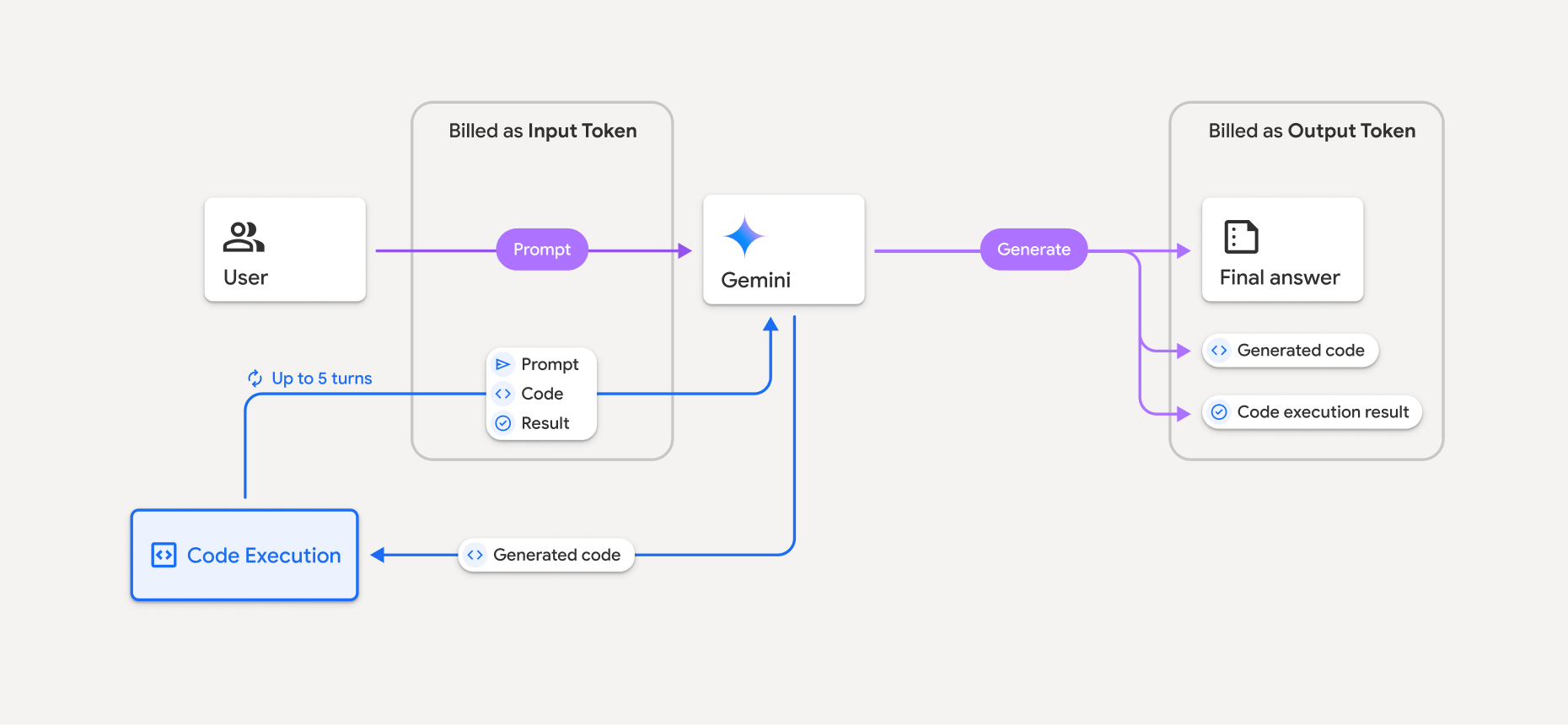
- You're billed at the current rate of input and output tokens based on what Gemini model you're using.
- If Gemini uses code execution when generating your response, the original prompt, the generated code, and the result of the executed code are labeled **intermediate tokens** and are billed as **input tokens**.
- Gemini then generates a summary and returns the generated code, the result of the executed code, and the final summary. These are billed as **output tokens**.
- The Gemini API includes an intermediate token count in the API response, so you can keep track of any additional input tokens beyond those passed in your initial prompt.
Generated code can include both text and multimodal outputs, such as images.
## Limitations
- The model can only generate and execute code. It can't return other artifacts like media files.
- The code execution tool doesn't support file URIs as input/output. However, the code execution tool supports file input and graph output as inlined bytes. By using these input and output capabilities, you can upload CSV and text files, ask questions about the files, and have Matplotlib graphs generated as part of the code execution result. The supported mime types for inlined bytes are `.cpp`, `.csv`, `.java`, `.jpeg`, `.js`, `.png`, `.py`, `.ts`, and `.xml`.
- Code execution can run for a maximum of 30 seconds before timing out.
- In some cases, enabling code execution can lead to regressions in other areas of model output (for example, writing a story).
## Best practices and caveats
Follow these best practices and guidelines when you use code execution:
- **Explicit execution directives**: Large language models might default to linguistic reasoning unless you instruct it otherwise. When you provide code execution instructions, use explicit directives (for example, "ALWAYS execute the script" or "Do NOT compute directly").
- **Network isolation**: The code execution sandbox has no public internet access. Scripts can't make external HTTP requests or download external resources.
- **Stateless execution**: Each execution runs in an ephemeral container. Files created or modified during one turn don't persist across subsequent turns or sessions.
- **Dependencies** : Only standard Python libraries and preinstalled data manipulation packages (such as `numpy` or `pandas`) are available. The environment doesn't support dynamic runtime package installations (such as `pip install`).
- **Standard I/O** : Write scripts that accept input from command-line arguments (`sys.argv`) or standard input (`sys.stdin`), and print the result directly to standard output (`sys.stdout`).