## Summary
This tutorial walks you through the process of deploying and serving Llama 3.1
and 3.2 models using [vLLM](https://docs.vllm.ai/en/latest/index.html) in
Gemini Enterprise Agent Platform. It is designed to be used in conjunction with two separate
notebooks: [Serve Llama 3.1 with
vLLM](https://github.com/GoogleCloudPlatform/vertex-ai-samples/blob/main/notebooks/community/model_garden/model_garden_vllm_text_only_tutorial.ipynb)
for deploying text-only Llama 3.1 models, and [Serve Multimodal Llama 3.2 with
vLLM](https://github.com/GoogleCloudPlatform/vertex-ai-samples/blob/main/notebooks/community/model_garden/model_garden_vllm_multimodal_tutorial.ipynb)
for deploying multimodel Llama 3.2 models that handle both text and image
inputs. The steps outlined on this page show you how to efficiently handle model
inference on GPUs and customize models for diverse applications, equipping you
with the tools to integrate advanced language models into your projects.
By the end of this guide, you will understand how to:
- Download prebuilt Llama models from [Hugging Face](https://huggingface.co) with vLLM container.
- Use vLLM to deploy these models on GPU instances within Google Cloud Gemini Enterprise Agent Platform Model Garden.
- Serve models efficiently to handle inference requests at scale.
- Run inference on text-only requests and text + image requests.
- Cleanup.
- Debug deployment.
## vLLM Key Features
| **Feature** | **Description** |
|---|---|
| **PagedAttention** | An optimized attention mechanism that efficiently manages memory during inference. Supports high-throughput text generation by dynamically allocating memory resources, enabling scalability for multiple concurrent requests. |
| **Continuous batching** | Consolidates multiple input requests into a single batch for parallel processing, maximizing GPU utilization and throughput. |
| **Token streaming** | Enables real-time token-by-token output during text generation. Ideal for applications that require low latency, such as chatbots or interactive AI systems. |
| **Model compatibility** | Supports a wide range of pre-trained models across popular frameworks like Hugging Face Transformers. Makes it easier to integrate and experiment with different LLMs. |
| **Multi-GPU \& multi-host** | Enables efficient model serving by distributing the workload across multiple GPUs within a single machine and across multiple machines in a cluster, significantly increasing throughput and scalability. |
| **Efficient deployment** | Offers seamless integration with APIs, such as OpenAI chat completions, making deployment straightforward for production use cases. |
| **Seamless integration with Hugging Face models** | vLLM is compatible with Hugging Face model artifacts format and supports loading from HF, making it straightforward to deploy Llama models alongside other popular models like Gemma, Phi, and Qwen in an optimized setting. |
| **Community-driven open-source project** | vLLM is open-source and encourages community contributions, promoting continuous improvement in LLM serving efficiency. |
**Table 1: Summary of vLLM features**
### Gemini Enterprise Agent Platform vLLM Customizations: Enhance performance and integration
The vLLM implementation within Gemini Enterprise Agent Platform Model Garden
is not a direct integration of the open-source library. Gemini Enterprise Agent Platform
maintains a customized and optimized version of vLLM that is specifically
tailored to enhance performance, reliability, and seamless integration within
the Google Cloud.
- **Performance optimizations:**
- **Parallel downloading from Cloud Storage:** Significantly accelerates model loading and deployment times by enabling parallel data retrieval from Cloud Storage, reducing latency and improving startup speed.
- **Feature enhancements:**
- **Dynamic LoRA with enhanced caching and Cloud Storage support:** Extends dynamic LoRA capabilities with local disk caching mechanisms and robust error handling, alongside support for loading LoRA weights directly from Cloud Storage paths and signed URLs. This simplifies management and deployment of customized models.
- **Llama 3.1/3.2 function calling parsing:** Implements specialized parsing for Llama 3.1/3.2 function calling, improving the robustness in parsing.
- **Host memory prefix caching:** The external vLLM only supports GPU memory prefix caching.
- **Speculative decoding:** This is an existing vLLM feature, but Gemini Enterprise Agent Platform ran experiments to find high-performing model setups.
These Gemini Enterprise Agent Platform-specific customizations, while often transparent to the
end-user, enable you to maximize the performance and efficiency of your Llama
3.1 deployments on Gemini Enterprise Agent Platform Model Garden.
- **Gemini Enterprise Agent Platform ecosystem integration:**
- **Gemini Enterprise Agent Platform prediction input/output format support:** Ensures seamless compatibility with Gemini Enterprise Agent Platform prediction input and output formats, simplifying data handling and integration with other Gemini Enterprise Agent Platform services.
- **Agent Platform Environment variable awareness:** Respects and leverages Gemini Enterprise Agent Platform environment variables (`AIP_*`) for configuration and resource management, streamlining deployment and ensuring consistent behavior within the Gemini Enterprise Agent Platform environment.
- **Enhanced error handling and robustness:** Implements comprehensive error handling, input/output validation, and server termination mechanisms to ensure stability, reliability, and seamless operation within the managed Gemini Enterprise Agent Platform environment.
- **Nginx server for capability:** Integrates an Nginx server on top of the vLLM server, facilitating the deployment of multiple replicas and enhancing scalability and high availability of the serving infrastructure.
### Additional benefits of vLLM
- **Benchmark performance**: vLLM offers competitive performance when compared to other serving systems like Hugging Face text-generation-inference and NVIDIA's FasterTransformer in terms of throughput and latency.
- **Ease of use**: The library provides a straightforward API for integration with existing workflows, allowing you to deploy both Llama 3.1 and 3.2 models with minimal setup.
- **Advanced features**: vLLM supports streaming outputs (generating responses token-by-token) and efficiently handles variable-length prompts, enhancing interactivity and responsiveness in applications.
For an overview of the vLLM system, see the
[paper](https://dl.acm.org/doi/pdf/10.1145/3600006.3613165).
## Supported Models
vLLM provides support for a broad selection of state-of-the-art models, allowing
you to choose a model that best fits your needs. The following table offers a
selection of these models. However, to access a comprehensive list of supported
models, including those for both text-only and multimodal inference, you can
consult the official vLLM
[website](https://docs.vllm.ai/en/latest/models/supported_models.html).
| **Category** | **Models** |
|---|---|
| **Meta AI** | Llama 3.3, Llama 3.2, Llama 3.1, Llama 3, Llama 2, Code Llama |
| **Mistral AI** | Mistral 7B, Mixtral 8x7B, Mixtral 8x22B, and their variants (Instruct, Chat), Mistral-tiny, Mistral-small, Mistral-medium |
| **DeepSeek AI** | DeepSeek-V3, DeepSeek-R1, DeepSeek-R1-Distill-Qwen-1.5B, DeepSeek-R1-Distill-Qwen-7B, DeepSeek-R1-Distill-Llama-8B, DeepSeek-R1-Distill-Qwen-14B, DeepSeek-R1-Distill-Qwen-32B, DeepSeek-R1-Distill-Llama-70B, Deepseek-vl2-tiny, Deepseek-vl2-small, Deepseek-vl2 |
| **MosaicML** | MPT (7B, 30B) and variants (Instruct, Chat), MPT-7B-StoryWriter-65k |
| **OpenAI** | GPT-2, GPT-3, GPT-4, GPT-NeoX |
| **Together AI** | RedPajama, Pythia |
| **Stability AI** | StableLM (3B, 7B), StableLM-Alpha-3B, StableLM-Base-Alpha-7B, StableLM-Instruct-Alpha-7B |
| **TII (Technology Innovation Institute)** | Falcon 7B, Falcon 40B and variants (Instruct, Chat), Falcon-RW-1B, Falcon-RW-7B |
| **BigScience** | BLOOM, BLOOMZ |
| **Google** | FLAN-T5, UL2, Gemma (2B, 7B), PaLM 2, |
| **Salesforce** | CodeT5, CodeT5+ |
| **LightOn** | Persimmon-8B-base, Persimmon-8B-chat |
| **EleutherAI** | GPT-Neo, Pythia |
| **AI21 Labs** | Jamba |
| **Cerebras** | Cerebras-GPT |
| **Intel** | Intel-NeuralChat-7B |
| **Other Prominent Models** | StarCoder, OPT, Baichuan, Aquila, Qwen, InternLM, XGen, OpenLLaMA, Phi-2, Yi, OpenCodeInterpreter, Nous-Hermes, Gemma-it, Mistral-Instruct-v0.2-7B-Zeus, |
**Table 2: Some models supported by vLLM**
## Get started in Model Garden
The vLLM Cloud GPUs serving container is integrated into
Model Garden the playground, one-click deployment, and
Colab Enterprise notebook examples. This tutorial focuses on the Llama
model family from Meta AI as an example.
### Use the Colab Enterprise notebook
[Playground](https://console.cloud.google.com/agent-platform/publishers/meta/model-garden/llama3_1)
and
[one-click](https://console.cloud.google.com/agent-platform/publishers/meta/model-garden/llama3_1)
deployments are also available but are not outlined in this tutorial.
1. Navigate to the [model card page](https://console.cloud.google.com/agent-platform/publishers/meta/model-garden/llama3_1) and click **Open notebook**.
2. In the **Open Notebook** dialog, for the `model_garden_pytorch_llama3_1_deployment.ipynb` (**Deployment** ) notebook, click **Colab Enterprise**. The notebook opens in Colab Enterprise.
3. Run through the notebook to deploy a model by using vLLM and send prediction requests to the endpoint.
## Setup and requirements
This section outlines the necessary steps for setting up your Google Cloud
project and ensuring you have the required resources for deploying and serving
vLLM models.
### 1. Billing
- **Enable Billing** : Make sure that billing is enabled for your project. You can refer to [Enable, disable, or change billing for a
project](https://docs.cloud.google.com/billing/docs/how-to/modify-project).
### 2. GPU availability and quotas
- To run predictions using high-performance GPUs (NVIDIA A100 80GB or H100 80GB), make sure to check your quotas for these GPUs in your selected region:
- [NVIDIA A100 80GB quota](https://docs.cloud.google.com/compute/docs/gpus.md.txt)
- [NVIDIA H100 80GB quota](https://docs.cloud.google.com/compute/docs/gpus.md.txt)
| Machine Type | Accelerator Type | Recommended Regions |
|---|---|---|
| a2-ultragpu-1g | 1 NVIDIA_A100_80GB | us-central1, us-east4, europe-west4, asia-southeast1 |
| a3-highgpu-8g | 8 NVIDIA_H100_80GB | us-central1, us-west1, europe-west4, asia-southeast1 |
### 3. Set up a Google Cloud Project
Run the following code sample to make sure that your Google Cloud emvironment is
correctly set up. This step installs necessary Python libraries and sets up
access to Google Cloud resources. Actions include:
- Installation: Upgrade the `google-cloud-aiplatform` library and clone repository containing utility functions.
- Environment Setup: Defining variables for the Google Cloud Project ID, region, and a unique Cloud Storage bucket for storing model artifacts.
- API activation: Enable the Gemini Enterprise Agent Platform amd Compute Engine APIs, which are essential for deploying and managing AI models.
- Bucket configuration: Create a new Cloud Storage bucket or check an existing bucket to ensure it's in the correct region.
- Gemini Enterprise Agent Platform initialization: Initialize the Gemini Enterprise Agent Platform client library with the project, location, and staging bucket settings.
- Service account setup: Identify the default service account for running Gemini Enterprise Agent Platform jobs and granting it the necessary permissions.
```python
BUCKET_URI = "gs://"
REGION = ""
! pip3 install --upgrade --quiet 'google-cloud-aiplatform>=1.64.0'
! git clone https://github.com/GoogleCloudPlatform/vertex-ai-samples.git
import datetime
import importlib
import os
import uuid
from typing import Tuple
import requests
from google.cloud import aiplatform
common_util = importlib.import_module(
"vertex-ai-samples.community-content.vertex_model_garden.model_oss.notebook_util.common_util"
)
models, endpoints = {}, {}
PROJECT_ID = os.environ["GOOGLE_CLOUD_PROJECT"]
if not REGION:
REGION = os.environ["GOOGLE_CLOUD_REGION"]
print("Enabling Agent Platform API and Compute Engine API.")
! gcloud services enable aiplatform.googleapis.com compute.googleapis.com
now = datetime.datetime.now().strftime("%Y%m%d%H%M%S")
BUCKET_NAME = "/".join(BUCKET_URI.split("/")[:3])
if BUCKET_URI is None or BUCKET_URI.strip() == "" or BUCKET_URI == "gs://":
BUCKET_URI = f"gs://{PROJECT_ID}-tmp-{now}-{str(uuid.uuid4())[:4]}"
BUCKET_NAME = "/".join(BUCKET_URI.split("/")[:3])
! gsutil mb -l {REGION} {BUCKET_URI}
else:
assert BUCKET_URI.startswith("gs://"), "BUCKET_URI must start with `gs://`."
shell_output = ! gsutil ls -Lb {BUCKET_NAME} | grep "Location constraint:" | sed "s/Location constraint://"
bucket_region = shell_output[0].strip().lower()
if bucket_region != REGION:
raise ValueError(
"Bucket region %s is different from notebook region %s"
% (bucket_region, REGION)
)
print(f"Using this Bucket: {BUCKET_URI}")
STAGING_BUCKET = os.path.join(BUCKET_URI, "temporal")
MODEL_BUCKET = os.path.join(BUCKET_URI, "llama3_1")
print("Initializing Agent Platform API.")
aiplatform.init(project=PROJECT_ID, location=REGION, staging_bucket=STAGING_BUCKET)
shell_output = ! gcloud projects describe $PROJECT_ID
project_number = shell_output[-1].split(":")[1].strip().replace("'", "")
SERVICE_ACCOUNT = "your service account email"
print("Using this default Service Account:", SERVICE_ACCOUNT)
! gsutil iam ch serviceAccount:{SERVICE_ACCOUNT}:roles/storage.admin $BUCKET_NAME
! gcloud config set project $PROJECT_ID
! gcloud projects add-iam-policy-binding --no-user-output-enabled {PROJECT_ID} --member=serviceAccount:{SERVICE_ACCOUNT} --role="roles/storage.admin"
! gcloud projects add-iam-policy-binding --no-user-output-enabled {PROJECT_ID} --member=serviceAccount:{SERVICE_ACCOUNT} --role="roles/aiplatform.user"
```
## Using Hugging Face with Meta Llama 3.1, 3.2, and vLLM
> [!NOTE]
> **Note:** Access to these models requires sharing your contact information and accepting the terms of use as outlined in the Meta Privacy Policy. Your request will then be reviewed by the repo's authors.
Meta's Llama 3.1 and 3.2 collections provide a range of multilingual large
language models (LLMs) designed for high-quality text generation across various
use cases. These models are pre-trained and instruction-tuned, excelling in
tasks like multilingual dialogue, summarization, and agentic retrieval. Before
using Llama 3.1 and 3.2 models, you must agree to their terms of use, as shown
in the screenshot. The vLLM library offers an open-source streamlined serving
environment with optimizations for latency, memory efficiency, and scalability.
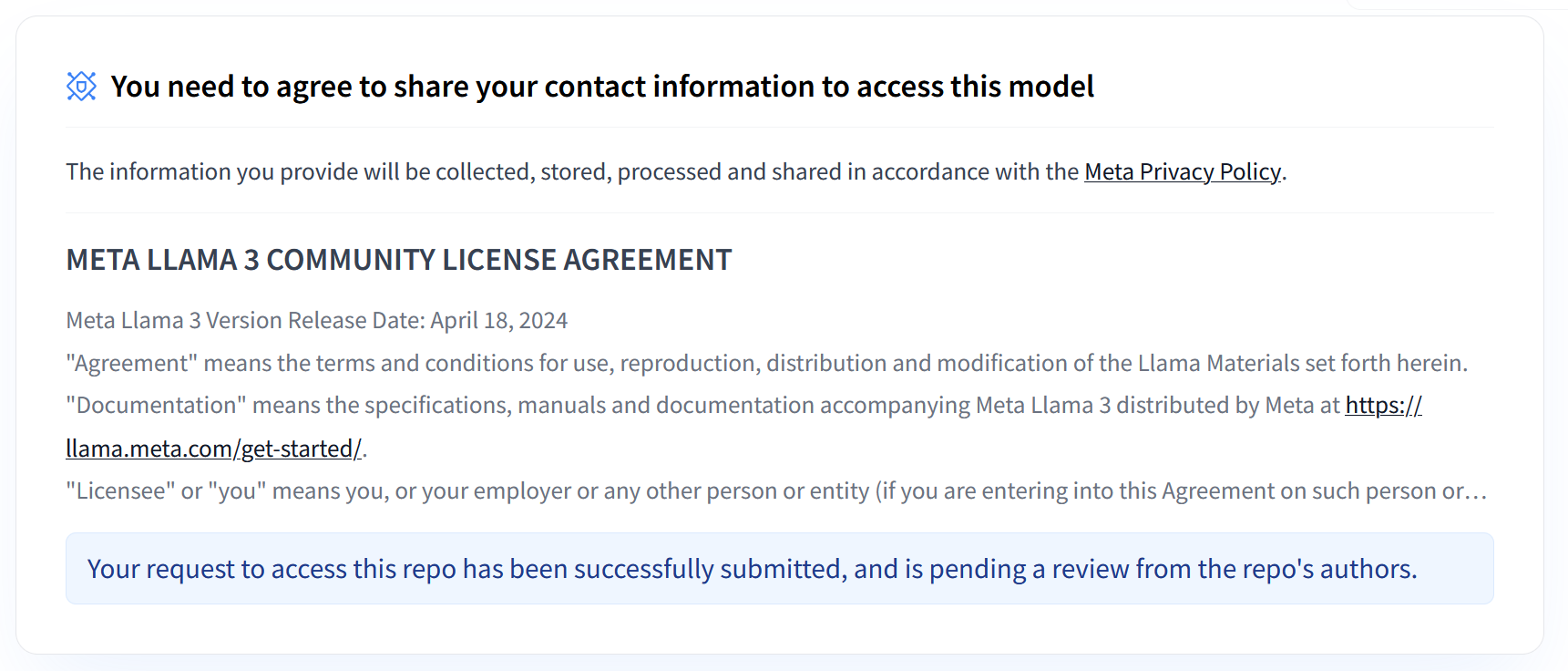 **Figure 1: Meta LLama 3 Community License Agreement**
### Overview of Meta Llama 3.1 and 3.2 Collections
The Llama 3.1 and 3.2 collections each cater to different deployment scales and
model sizes, providing you with flexible options for multilingual dialogue tasks
and beyond. Refer to the [Llama overview
page](https://docs.cloud.google.com/gemini-enterprise-agent-platform/models/partner-models/llama#meta-models) for more information.
- **Text-only**: The Llama 3.2 collection of multilingual large language models (LLMs) is a collection of pretrained and instruction-tuned generative models in 1B and 3B sizes (text in, text out).
- **Vision and Vision Instruct**: The Llama 3.2-Vision collection of multimodal large language models (LLMs) is a collection of pretrained and instruction-tuned image reasoning generative models in 11B and 90B sizes (text + images in, text out). Optimization: Like Llama 3.1, the 3.2 models are tailored for multilingual dialogue and perform well in retrieval and summarization tasks, achieving top results on standard benchmarks.
- **Model Architecture**: Llama 3.2 also features an auto-regressive transformer framework, with SFT and RLHF applied to align the models for helpfulness and safety.
### Hugging Face user access tokens
This tutorial requires a read access token from the Hugging Face Hub to access
the necessary resources. Follow these steps to set up your authentication:
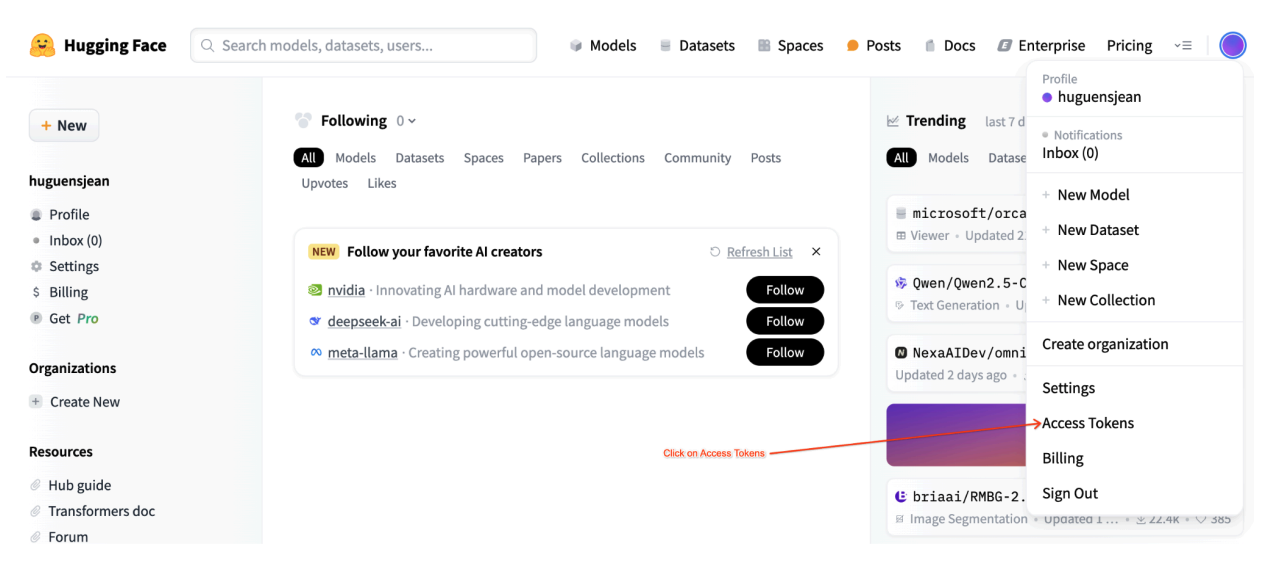 **Figure 2: Hugging Face Access Token Settings**
1. Generate a read access token:
- Navigate to your [Hugging Face account
settings](https://huggingface.co/settings/tokens).
- Create a new token, assign it the Read role, and save the token securely.
2. Use the token:
- Use the generated token to authenticate and access public or private repositories as needed for the tutorial.
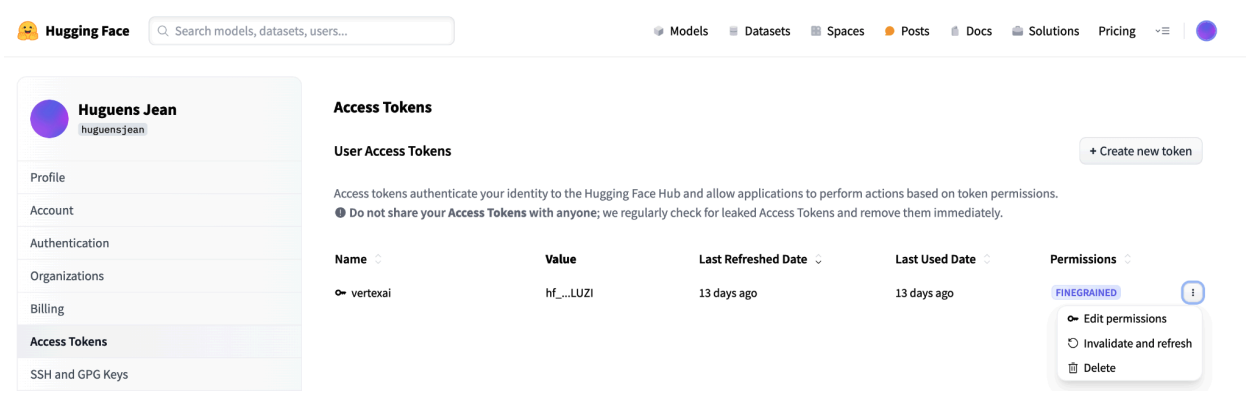 **Figure 3: Manage Hugging Face Access Token**
This setup ensures you have the appropriate level of access without unnecessary
permissions. These practices enhance security and prevent accidental token
exposure. For more information on setting up access tokens, visit Hugging Face
Access Tokens [page](https://huggingface.co/docs/hub/en/security-tokens).
Avoid sharing or exposing your token publicly or online. When you set your token
as an environment variable during deployment, it remains private to your
project. Gemini Enterprise Agent Platform ensures its security by preventing other users from
accessing your models and endpoints.
For more information on protecting your access token, refer to the [Hugging Face
Access Tokens - Best
Practices](https://huggingface.co/docs/hub/en/security-tokens#best-practices).
## Deploying text-only Llama 3.1 Models with vLLM
For production-level deployment of large language models, vLLM provides an
efficient serving solution that optimizes memory usage, lowers latency, and
increases throughput. This makes it particularly well-suited for handling the
larger Llama 3.1 models as well as the multimodal Llama 3.2 models.
> [!NOTE]
> **Note:** Recommended serving configurations: This example recommends using A100 80G or H100 GPUs for optimal serving efficiency and performance. These GPUs are now readily available and are the preferred options for deploying these models.
### Step 1: Choose a model to deploy
Choose the Llama 3.1 model variant to deploy. Available options include various
sizes and instruction-tuned versions:
```python
base_model_name = "Meta-Llama-3.1-8B" # @param ["Meta-Llama-3.1-8B", "Meta-Llama-3.1-8B-Instruct", "Meta-Llama-3.1-70B", "Meta-Llama-3.1-70B-Instruct", "Meta-Llama-3.1-405B-FP8", "Meta-Llama-3.1-405B-Instruct-FP8"]
hf_model_id = "meta-Llama/" + base_model_name
```
### Step 2: Check deployment hardware and quota
The deploy function sets the appropriate GPU and machine type based on the model
size and check the quota in that region for a particular project:
```python
if "8b" in base_model_name.lower():
accelerator_type = "NVIDIA_L4"
machine_type = "g2-standard-12"
accelerator_count = 1
elif "70b" in base_model_name.lower():
accelerator_type = "NVIDIA_L4"
machine_type = "g2-standard-96"
accelerator_count = 8
elif "405b" in base_model_name.lower():
accelerator_type = "NVIDIA_H100_80GB"
machine_type = "a3-highgpu-8g"
accelerator_count = 8
else:
raise ValueError(f"Recommended GPU setting not found for: {accelerator_type} and {base_model_name}.")
```
Verify GPU quota availability in your specified region:
```python
common_util.check_quota(
project_id=PROJECT_ID,
region=REGION,
accelerator_type=accelerator_type,
accelerator_count=accelerator_count,
is_for_training=False,
)
```
### Step 3: Inspect the model using vLLM
The following function uploads the model to Gemini Enterprise Agent Platform, configures
deployment settings, and deploys it to an endpoint using vLLM.
1. **Docker Image**: The deployment uses a prebuilt vLLM Docker image for efficient serving.
2. **Configuration**: Configure memory utilization, model length, and other vLLM settings. For more information on the arguments supported by the server, visit the official vLLM documentation page.
3. **Environment Variables**: Set environment variables for authentication and deployment source.
```python
def deploy_model_vllm(
model_name: str,
model_id: str,
service_account: str,
base_model_id: str = None,
machine_type: str = "g2-standard-8",
accelerator_type: str = "NVIDIA_L4",
accelerator_count: int = 1,
gpu_memory_utilization: float = 0.9,
max_model_len: int = 4096,
dtype: str = "auto",
enable_trust_remote_code: bool = False,
enforce_eager: bool = False,
enable_lora: bool = False,
max_loras: int = 1,
max_cpu_loras: int = 8,
use_dedicated_endpoint: bool = False,
max_num_seqs: int = 256,
) -> Tuple[aiplatform.Model, aiplatform.Endpoint]:
"""Deploys trained models with vLLM into Agent Platform."""
endpoint = aiplatform.Endpoint.create(
display_name=f"{model_name}-endpoint",
dedicated_endpoint_enabled=use_dedicated_endpoint,
)
if "8b" in base_model_name.lower():
accelerator_type = "NVIDIA_L4"
machine_type = "g2-standard-12"
accelerator_count = 1
elif "70b" in base_model_name.lower():
accelerator_type = "NVIDIA_L4"
machine_type = "g2-standard-96"
accelerator_count = 8
elif "405b" in base_model_name.lower():
accelerator_type = "NVIDIA_H100_80GB"
machine_type = "a3-highgpu-8g"
accelerator_count = 8
else:
raise ValueError(f"Recommended GPU setting not found for: {accelerator_type} and {base_model_name}.")
common_util.check_quota(
project_id=PROJECT_ID,
region=REGION,
accelerator_type=accelerator_type,
accelerator_count=accelerator_count,
is_for_training=False,
)
vllm_args = [
"python", "-m", "vllm.entrypoints.api_server",
"--host=0.0.0.0",
"--port=8080",
f"--model={model_id}",
f"--tensor-parallel-size={accelerator_count}",
"--swap-space=16",
f"--gpu-memory-utilization={gpu_memory_utilization}",
f"--max-model-len={max_model_len}", f"--dtype={dtype}",
f"--max-loras={max_loras}", f"--max-cpu-loras={max_cpu_loras}",
f"--max-num-seqs={max_num_seqs}", "--disable-log-stats"
]
if enable_trust_remote_code:
vllm_args.append("--trust-remote-code")
if enforce_eager:
vllm_args.append("--enforce-eager")
if enable_lora:
vllm_args.append("--enable-lora")
if model_type:
vllm_args.append(f"--model-type={model_type}")
env_vars = {
"MODEL_ID": model_id,
"DEPLOY_SOURCE": "notebook",
"HF_TOKEN": HF_TOKEN
}
model = aiplatform.Model.upload(
display_name=model_name,
serving_container_image_uri=VLLM_DOCKER_URI,
serving_container_args=vllm_args,
serving_container_ports=[8080],
serving_container_predict_route="/generate",
serving_container_health_route="/ping",
serving_container_environment_variables=env_vars,
serving_container_shared_memory_size_mb=(16 * 1024),
serving_container_deployment_timeout=7200,
)
print(f"Deploying {model_name} on {machine_type} with {accelerator_count} {accelerator_type} GPU(s).")
model.deploy(
endpoint=endpoint,
machine_type=machine_type,
accelerator_type=accelerator_type,
accelerator_count=accelerator_count,
deploy_request_timeout=1800,
service_account=service_account,
)
print("endpoint_name:", endpoint.name)
return model, endpoint
```
### Step 4: Execute deployment
Run the deployment function with the selected model and configuration. This step
deploys the model and returns the model and endpoint instances:
```python
HF_TOKEN = ""
VLLM_DOCKER_URI = "us-docker.pkg.dev/vertex-ai/vertex-vision-model-garden-dockers/pytorch-vllm-serve:20241001_0916_RC00"
model_name = common_util.get_job_name_with_datetime(prefix=f"{base_model_name}-serve-vllm")
gpu_memory_utilization = 0.9
max_model_len = 4096
max_loras = 1
models["vllm_gpu"], endpoints["vllm_gpu"] = deploy_model_vllm(
model_name=common_util.get_job_name_with_datetime(prefix=f"{base_model_name}-serve"),
model_id=hf_model_id,
service_account=SERVICE_ACCOUNT,
machine_type=machine_type,
accelerator_type=accelerator_type,
accelerator_count=accelerator_count,
gpu_memory_utilization=gpu_memory_utilization,
max_model_len=max_model_len,
max_loras=max_loras,
enforce_eager=True,
enable_lora=True,
use_dedicated_endpoint=use_dedicated_endpoint,
)
```
After running this code sample, your Llama 3.1 model will be deployed on
Gemini Enterprise Agent Platform and accessible through the specified endpoint. You can
interact with it for inference tasks such as text generation, summarization, and
dialogue. Depending on model size, new model deployment can take up to an hour.
You can check the progress at online prediction.
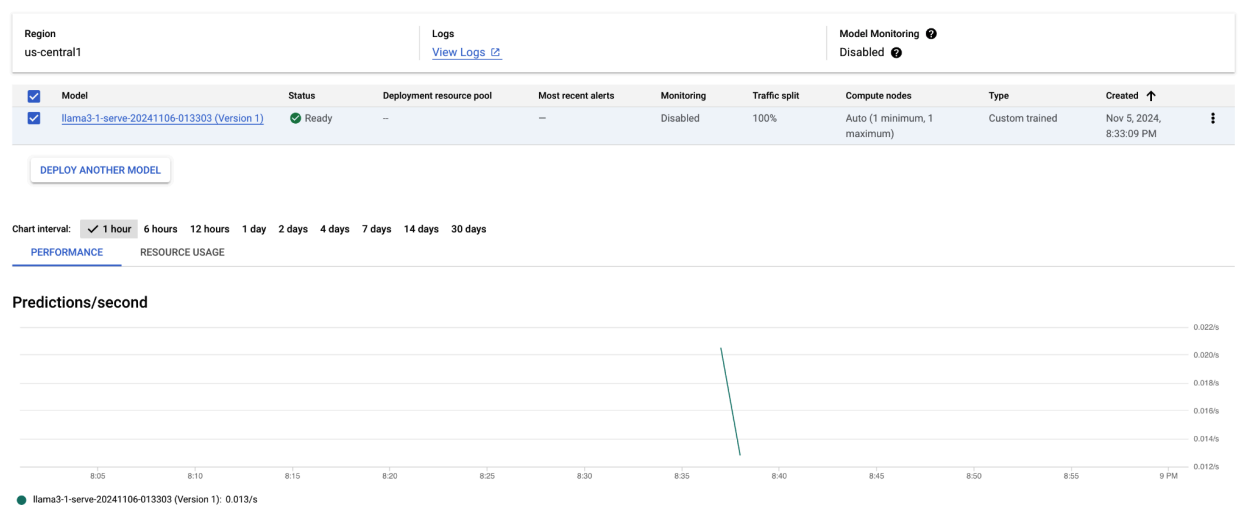 **Figure 4: Llama 3.1 Deployment Endpoint in Agent Platform Dashboard**
## Making predictions with Llama 3.1 on Gemini Enterprise Agent Platform
After successfully deploying the Llama 3.1 model to Gemini Enterprise Agent Platform, you can
start making predictions by sending text prompts to the endpoint. This section
provides an example of generating responses with various customizable parameters
for controlling the output.
### Step 1: Define your prompt and parameters
Start by setting up your text prompt and sampling parameters to guide the
model's response. Here are the key parameters:
- **`prompt`**: The input text for which you want the model to generate a response. For example, prompt = "What is a car?".
- **`max_tokens`**: The maximum number of tokens in the generated output. Reducing this value can help prevent timeout issues.
- **`temperature`**: Controls the randomness of predictions. Higher values (for example, 1.0) increase diversity, while lower values (for example, 0.5) make the output more focused.
- **`top_p`**: Limits the sampling pool to the top cumulative probability. For example, setting top_p = 0.9 will only consider tokens within the top 90% probability mass.
- **`top_k`**: Limits sampling to the top k most likely tokens. For example, setting top_k = 50 will only sample from the top 50 tokens.
- **`raw_response`**: If True, returns the raw model output. If False, apply additional formatting with the structure "Prompt:\\n{prompt}\\nOutput:\\n{output}".
- **`lora_id`** (optional): Path to LoRA weight files to apply Low-Rank Adaptation (LoRA) weights. This can be a Cloud Storage bucket or a Hugging Face repository URL. Note that this only works if `--enable-lora` is set in the deployment arguments. Dynamic LoRA is not supported for multimodal models.
```python
prompt = "What is a car?"
max_tokens = 50
temperature = 1.0
top_p = 1.0
top_k = 1
raw_response = False
lora_id = ""
```
### Step 2: Send the prediction request
Now that the instance is configured, you can send the prediction request to the
deployed Gemini Enterprise Agent Platform endpoint. This example shows how to make a
prediction and print the result:
```python
response = endpoints["vllm_gpu"].predict(
instances=instances, use_dedicated_endpoint=use_dedicated_endpoint
)
for prediction in response.predictions:
print(prediction)
```
### Example output
Here's an example of how the model might respond to the prompt "What is a car?":
Human: What is a car?
Assistant: A car, or a motor car, is a road-connected human-transportation system
used to move people or goods from one place to another.
### Additional notes
- **Moderation**: To ensure safe content, you can moderate the generated text with Agent Platform's text moderation capabilities.
- **Handling timeouts** : If you encounter issues like `ServiceUnavailable:
503`, try reducing the `max_tokens` parameter.
This approach provides a flexible way to interact with the Llama 3.1 model using
different sampling techniques and LoRA adaptors, making it suitable for a
variety of use cases from general-purpose text generation to task-specific
responses.
## Deploying multimodal Llama 3.2 models with vLLM
This section walks you through the process of uploading prebuilt Llama 3.2
models to the Model Registry and deploying them to a
Gemini Enterprise Agent Platform endpoint. The deployment time can take up to an hour,
depending on the size of the model. Llama 3.2 models are available in multimodal
versions that support both text and image inputs. vLLM supports:
- Text-only format
- Single image + text format
These formats make Llama 3.2 suitable for applications requiring both visual and
text processing.
### Step 1: Choose a model to deploy
Specify the Llama 3.2 model variant you want to deploy. The following example
uses `Llama-3.2-11B-Vision` as the selected model, but you can choose from other
available options based on your requirements.
```python
base_model_name = "Llama-3.2-11B-Vision" # @param ["Llama-3.2-1B", "Llama-3.2-1B-Instruct", "Llama-3.2-3B", "Llama-3.2-3B-Instruct", "Llama-3.2-11B-Vision", "Llama-3.2-11B-Vision-Instruct", "Llama-3.2-90B-Vision", "Llama-3.2-90B-Vision-Instruct"]
hf_model_id = "meta-Llama/" + base_model_name
```
### Step 2: Configure hardware and resources
Select appropriate hardware for the model size. vLLM can use different GPUs
depending on the computational needs of the model:
- 1B and 3B models: Use NVIDIA L4 GPUs.
- 11B models: Use NVIDIA A100 GPUs.
- 90B models: Use NVIDIA H100 GPUs.
This example configures the deployment based on the model selection:
```python
if "3.2-1B" in base_model_name or "3.2-3B" in base_model_name:
accelerator_type = "NVIDIA_L4"
machine_type = "g2-standard-8"
accelerator_count = 1
elif "3.2-11B" in base_model_name:
accelerator_type = "NVIDIA_TESLA_A100"
machine_type = "a2-highgpu-1g"
accelerator_count = 1
elif "3.2-90B" in base_model_name:
accelerator_type = "NVIDIA_H100_80GB"
machine_type = "a3-highgpu-8g"
accelerator_count = 8
else:
raise ValueError(f"Recommended GPU setting not found for: {base_model_name}.")
```
Ensure that you have the required GPU quota:
```python
common_util.check_quota(
project_id=PROJECT_ID,
region=REGION,
accelerator_type=accelerator_type,
accelerator_count=accelerator_count,
is_for_training=False,
)
```
### Step 3: Deploy the model using vLLM
The following function handles the deployment of the Llama 3.2 model on
Gemini Enterprise Agent Platform. It configures the model's environment, memory utilization,
and vLLM settings for efficient serving.
```python
def deploy_model_vllm(
model_name: str,
model_id: str,
service_account: str,
base_model_id: str = None,
machine_type: str = "g2-standard-8",
accelerator_type: str = "NVIDIA_L4",
accelerator_count: int = 1,
gpu_memory_utilization: float = 0.9,
max_model_len: int = 4096,
dtype: str = "auto",
enable_trust_remote_code: bool = False,
enforce_eager: bool = False,
enable_lora: bool = False,
max_loras: int = 1,
max_cpu_loras: int = 8,
use_dedicated_endpoint: bool = False,
max_num_seqs: int = 12,
model_type: str = None,
) -> Tuple[aiplatform.Model, aiplatform.Endpoint]:
"""Deploys trained models with vLLM into Agent Platform."""
endpoint = aiplatform.Endpoint.create(
display_name=f"{model_name}-endpoint",
dedicated_endpoint_enabled=use_dedicated_endpoint,
)
if not base_model_id:
base_model_id = model_id
vllm_args = [
"python",
"-m",
"vllm.entrypoints.api_server",
"--host=0.0.0.0",
"--port=8080",
f"--model={model_id}",
f"--tensor-parallel-size={accelerator_count}",
"--swap-space=16",
f"--gpu-memory-utilization={gpu_memory_utilization}",
f"--max-model-len={max_model_len}",
f"--dtype={dtype}",
f"--max-loras={max_loras}",
f"--max-cpu-loras={max_cpu_loras}",
f"--max-num-seqs={max_num_seqs}",
"--disable-log-stats",
]
if enable_trust_remote_code:
vllm_args.append("--trust-remote-code")
if enforce_eager:
vllm_args.append("--enforce-eager")
if enable_lora:
vllm_args.append("--enable-lora")
if model_type:
vllm_args.append(f"--model-type={model_type}")
env_vars = {
"MODEL_ID": base_model_id,
"DEPLOY_SOURCE": "notebook",
}
# HF_TOKEN is not a compulsory field and may not be defined.
try:
if HF_TOKEN:
env_vars["HF_TOKEN"] = HF_TOKEN
except NameError:
pass
model = aiplatform.Model.upload(
display_name=model_name,
serving_container_image_uri=VLLM_DOCKER_URI,
serving_container_args=vllm_args,
serving_container_ports=[8080],
serving_container_predict_route="/generate",
serving_container_health_route="/ping",
serving_container_environment_variables=env_vars,
serving_container_shared_memory_size_mb=(16 * 1024),
serving_container_deployment_timeout=7200,
)
print(f"Deploying {model_name} on {machine_type} with {accelerator_count} {accelerator_type} GPU(s).")
model.deploy(
endpoint=endpoint,
machine_type=machine_type,
accelerator_type=accelerator_type,
accelerator_count=accelerator_count,
deploy_request_timeout=1800,
service_account=service_account,
)
print("endpoint_name:", endpoint.name)
return model, endpoint
```
### Step 4: Execute deployment
Run the deployment function with the configured model and settings. The function
will return both the model and endpoint instances, which you can use for
inference.
```python
model_name = common_util.get_job_name_with_datetime(prefix=f"{base_model_name}-serve-vllm")
models["vllm_gpu"], endpoints["vllm_gpu"] = deploy_model_vllm(
model_name=model_name
model_id=hf_model_id,
base_model_id=hf_model_id,
service_account=SERVICE_ACCOUNT,
machine_type=machine_type,
accelerator_type=accelerator_type,
accelerator_count=accelerator_count,
gpu_memory_utilization=gpu_memory_utilization,
max_model_len=max_model_len,
enforce_eager=True,
use_dedicated_endpoint=use_dedicated_endpoint,
max_num_seqs=max_num_seqs,
)
```
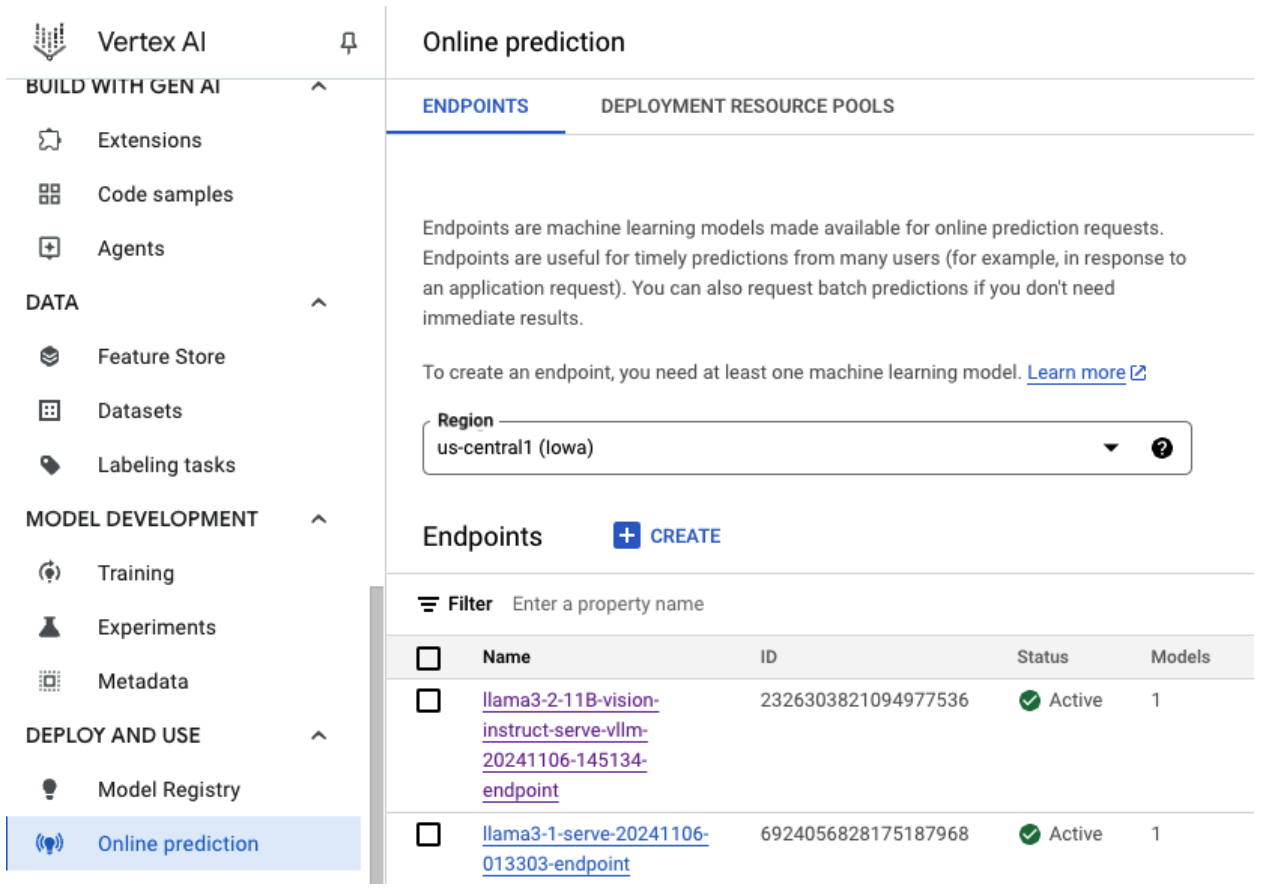 **Figure 5: Llama 3.2 Deployment Endpoint in Agent Platform Dashboard**
Depending on model size, new model deployment can take up to an hour to
complete. You can check its progress at online prediction.
## Inference with vLLM on Gemini Enterprise Agent Platform using default prediction route
This section guides you through setting up inference for the Llama 3.2 Vision
model on Gemini Enterprise Agent Platform using the default prediction route. You'll use the
vLLM library for efficient serving and interact with the model by sending a
visual prompt in combination with text.
To get started, ensure your model endpoint is deployed and ready for
predictions.
### Step 1: Define your prompt and parameters
This example provides an image URL and a text prompt, which the model will
process to generate a response.
 **Figure 6: Sample Image Input for prompting Llama 3.2**
```python
image_url = "https://images.pexels.com/photos/1254140/pexels-photo-1254140.jpeg"
raw_prompt = "This is a picture of"
# Reference prompt formatting guidelines here: https://www.Llama.com/docs/model-cards-and-prompt-formats/Llama3_2/#-base-model-prompt
prompt = f"<|begin_of_text|><|image|>{raw_prompt}"
```
### Step 2: Configure prediction parameters
Adjust the following parameters to control the model's response:
```python
max_tokens = 64
temperature = 0.5
top_p = 0.95
```
### Step 3: Prepare the prediction request
Set up the prediction request with the image URL, prompt, and other parameters.
```python
instances = [
{
"prompt": prompt,
"multi_modal_data": {"image": image_url},
"max_tokens": max_tokens,
"temperature": temperature,
"top_p": top_p,
},
]
```
### Step 4: Make the prediction
Send the request to your Gemini Enterprise Agent Platform endpoint and process the response:
```python
response = endpoints["vllm_gpu"].predict(instances=instances)
for raw_prediction in response.predictions:
prediction = raw_prediction.split("Output:")
print(prediction[1])
```
If you encounter a timeout issue (for example, `ServiceUnavailable: 503 Took too
long to respond when processing`), try reducing the `max_tokens` value to a
lower number, such as 20, to mitigate the response time.
## Inference with vLLM on Gemini Enterprise Agent Platform using OpenAI Chat Completion
This section covers how to perform inference on Llama 3.2 Vision models using
the OpenAI Chat Completions API on Gemini Enterprise Agent Platform. This approach lets you
use multimodal capabilities by sending both images and text prompts to the model
for more interactive responses.
### Step 1: Execute deployment of Llama 3.2 Vision Instruct model
Run the deployment function with the configured model and settings. The function
will return both the model and endpoint instances, which you can use for
inference.
```python
base_model_name = "Llama-3.2-11B-Vision-Instruct"
hf_model_id = f"meta-llama/{base_model_name}"
model_name = common_util.get_job_name_with_datetime(prefix=f"{base_model_name}-serve-vllm")
model, endpoint = deploy_model_vllm(
model_name=model_name
model_id=hf_model_id,
base_model_id=hf_model_id,
service_account=SERVICE_ACCOUNT,
machine_type="a2-highgpu-1g",
accelerator_type="NVIDIA_TESLA_A100",
accelerator_count=1,
gpu_memory_utilization=0.9,
max_model_len=4096,
enforce_eager=True,
max_num_seqs=12,
)
```
### Step 2: Configure endpoint resource
Begin by setting up the endpoint resource name for your Gemini Enterprise Agent Platform
deployment.
```python
ENDPOINT_RESOURCE_NAME = "projects/{}/locations/{}/endpoints/{}".format(
PROJECT_ID, REGION, endpoint.name
)
```
### Step 3: Install OpenAI SDK and authentication libraries
To send requests using OpenAI's SDK, ensure the necessary libraries are
installed:
```python
!pip install -qU openai google-auth requests
```
### Step 4: Define input parameters for chat completion
Set up your image URL and text prompt that will be sent to the model. Adjust
`max_tokens` and `temperature` to control the response length and randomness,
respectively.
```python
user_image = "https://images.freeimages.com/images/large-previews/ab3/puppy-2-1404644.jpg"
user_message = "Describe this image?"
max_tokens = 50
temperature = 1.0
```
### Step 5: Set up authentication and base URL
Retrieve your credentials and set the base URL for API requests.
```python
import google.auth
import openai
creds, project = google.auth.default()
auth_req = google.auth.transport.requests.Request()
creds.refresh(auth_req)
BASE_URL = (
f"https://{REGION}-aiplatform.googleapis.com/v1beta1/{ENDPOINT_RESOURCE_NAME}"
)
try:
if use_dedicated_endpoint:
BASE_URL = f"https://{DEDICATED_ENDPOINT_DNS}/v1beta1/{ENDPOINT_RESOURCE_NAME}"
except NameError:
pass
```
### Step 6: Send Chat Completion request
Using OpenAI's Chat Completions API, send the image and text prompt to your
Gemini Enterprise Agent Platform endpoint:
```python
client = openai.OpenAI(base_url=BASE_URL, api_key=creds.token)
model_response = client.chat.completions.create(
model="",
messages=[
{
"role": "user",
"content": [
{"type": "image_url", "image_url": {"url": user_image}},
{"type": "text", "text": user_message},
],
}
],
temperature=temperature,
max_tokens=max_tokens,
)
print(model_response)
```
### (Optional ) Step 7: Reconnect to an existing endpoint
To reconnect to a previously created endpoint, use the endpoint ID. This step is
useful if you want to reuse an endpoint instead of creating a new one.
```python
endpoint_name = ""
aip_endpoint_name = (
f"projects/{PROJECT_ID}/locations/{REGION}/endpoints/{endpoint_name}"
)
endpoint = aiplatform.Endpoint(aip_endpoint_name)
```
This setup provides flexibility to switch between newly created and existing
endpoints as needed, allowing for streamlined testing and deployment.
## Cleanup
To avoid ongoing charges and free up resources, make sure to delete the deployed
models, endpoints, and optionally the storage bucket used for this experiment.
### Step 1: Delete Endpoints and Models
The following code will undeploy each model and delete the associated endpoints:
```python
# Undeploy model and delete endpoint
for endpoint in endpoints.values():
endpoint.delete(force=True)
# Delete models
for model in models.values():
model.delete()
```
### Step 2: (Optional) Delete Cloud Storage Bucket
If you created a Cloud Storage bucket specifically for this experiment, you
can delete it by setting delete_bucket to True. This step is optional but
recommended if the bucket is no longer needed.
```python
delete_bucket = False
if delete_bucket:
! gsutil -m rm -r $BUCKET_NAME
```
By following these steps, you ensure that all resources used in this tutorial
are cleaned up, reducing any unnecessary costs associated with the experiment.
## Debugging common issues
This section provides guidance on identifying and resolving common issues
encountered during vLLM model deployment and inference on Gemini Enterprise Agent Platform.
### Check the logs
Check the logs to identify the root cause of deployment failures or unexpected
behavior:
1. **Navigate to Gemini Enterprise Agent Platform Prediction Console:** Go to the [Gemini Enterprise Agent Platform Prediction
Console](https://console.cloud.google.com/agent-platform/online-prediction/endpoints) in the Google Cloud console.
2. **Select the Endpoint:** Click the endpoint experiencing issues. The status should indicate if the deployment has failed.
3. **View Logs:** Click the endpoint and then navigate to the **Logs** tab or click **View logs**. This directs you to Cloud Logging, filtered to show logs specific to that endpoint and model deployment. You can also access logs through the Cloud Logging service directly.
4. **Analyze the Logs:** Review the log entries for error messages, warnings, and other relevant information. View timestamps to correlate log entries with specific actions. Look for issues around resource constraints (memory and CPU), authentication problems, or configuration errors.
### Common Issue 1: CUDA Out of Memory (OOM) during deployment
CUDA Out of Memory (OOM) errors occur when the model's memory usage exceeds the
available GPU capacity.
In the case of the text only model, we used the following engine arguments:
```python
base_model_name = "Meta-Llama-3.1-8B"
hf_model_id = f"meta-llama/{base_model_name}"
accelerator_type = "NVIDIA_L4"
accelerator_count = 1
machine_type = "g2-standard-12"
accelerator_count: int = 1
gpu_memory_utilization = 0.9
max_model_len = 4096
dtype = "auto"
max_num_seqs = 256
```
In the case of the multimodal model, we used the following engine arguments:
```python
base_model_name = "Llama-3.2-11B-Vision-Instruct"
hf_model_id = f"meta-llama/{base_model_name}"
accelerator_type = "NVIDIA_L4"
accelerator_count = 1
machine_type = "g2-standard-12"
accelerator_count: int = 1
gpu_memory_utilization = 0.9
max_model_len = 4096
dtype = "auto"
max_num_seqs = 12
```
Deploying the multimodal model with max_num_seqs = 256, like we did in the case
of text only model could cause the following error:
[rank0]: torch.OutOfMemoryError: CUDA out of memory. Tried to allocate 3.91 GiB. GPU 0 has a total capacity of 39.38 GiB of which 3.76 GiB is free. Including non-PyTorch memory, this process has 0 bytes memory in use. Of the allocated memory 34.94 GiB is allocated by PyTorch, and 175.15 MiB is reserved by PyTorch but unallocated. If reserved but unallocated memory is large try setting PYTORCH_CUDA_ALLOC_CONF=expandable_segments:True to avoid fragmentation. See documentation for Memory Management (https://pytorch.org/docs/stable/notes/cuda.html#environment-variables)
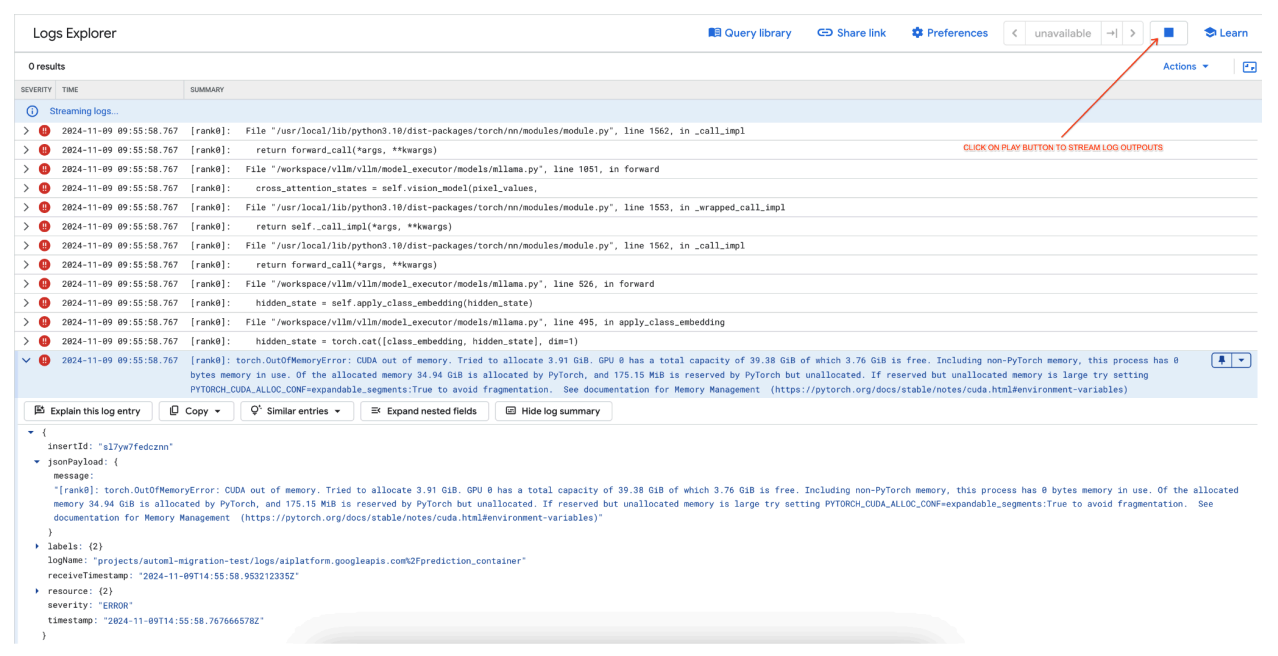 **Figure 7: Out of Memory (OOM) GPU Error Log**
Understand `max_num_seqs` and GPU Memory:
- The `max_num_seqs` parameter defines the maximum number of concurrent requests the model can handle.
- Each sequence processed by the model consumes GPU memory. The total memory usage is proportional to `max_num_seqs` times the memory per sequence.
- Text-only models (like Meta-Llama-3.1-8B) generally consume less memory per sequence than multimodal models (like Llama-3.2-11B-Vision-Instruct), which process both text and images.
Review the Error Log (figure 8):
- The log shows a `torch.OutOfMemoryError` when trying to allocate memory on the GPU.
- The error occurs because the model's memory usage exceeds the available GPU capacity. The NVIDIA L4 GPU has 24 GB, and setting the `max_num_seqs` parameter too high for the multimodal model causes an overflow.
- The log suggests setting `PYTORCH_CUDA_ALLOC_CONF=expandable_segments:True` to improve memory management, though the primary issue here is high memory usage.
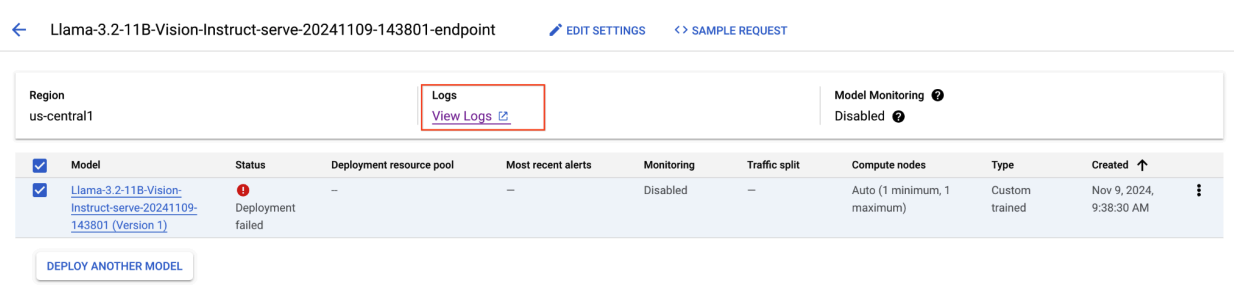 **Figure 8: Failed Llama 3.2 Deployment** 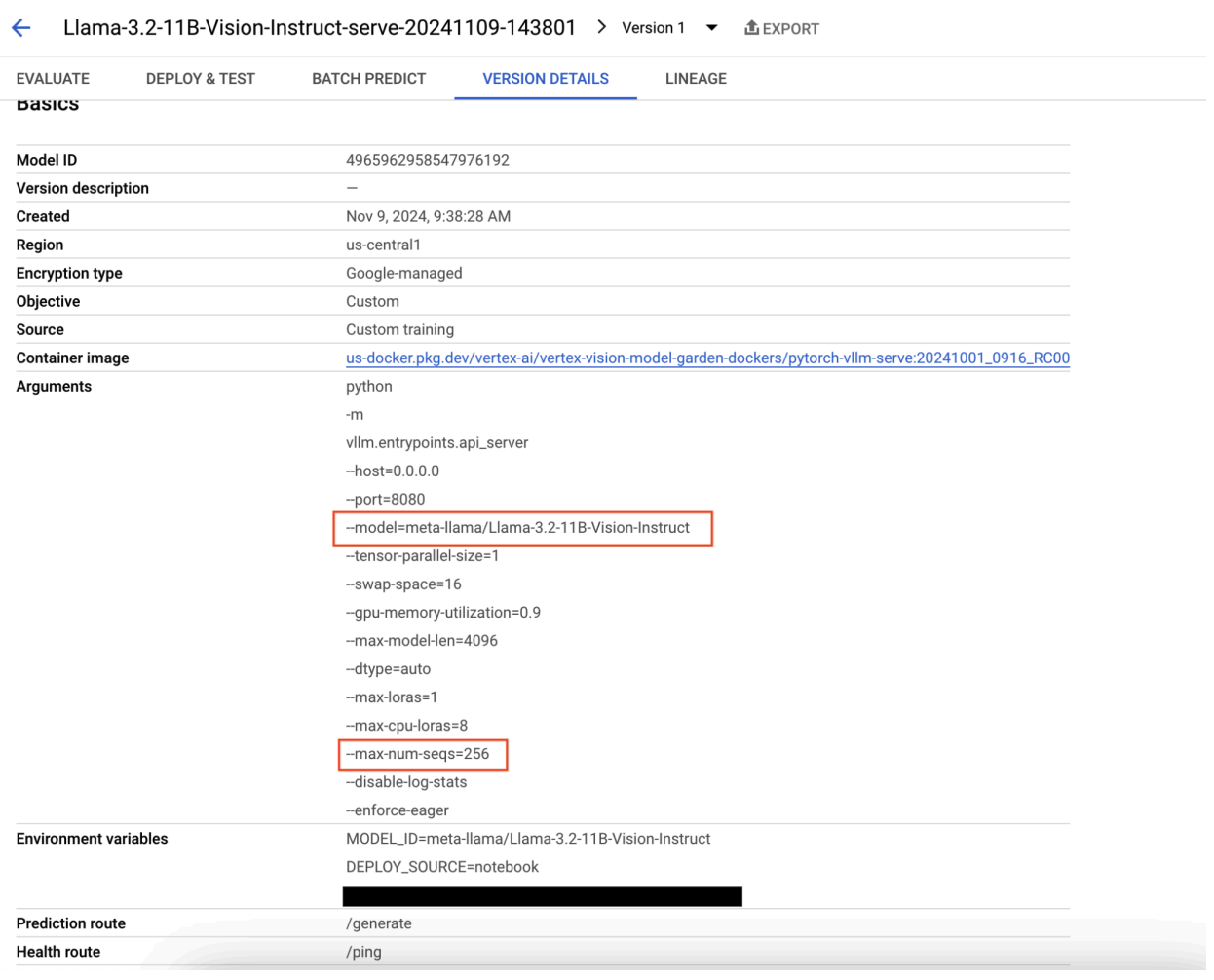 **Figure 9: Model Version Details Panel**
To resolve this issue, navigate to the [Gemini Enterprise Agent Platform Prediction
Console](https://console.cloud.google.com/agent-platform/online-prediction/endpoints),
click the endpoint. The status should indicate that the deployment has failed.
Click to view the logs. Verify that max-num-seqs = 256. This value is too high
for Llama-3.2-11B-Vision-Instruct. A more adequate value should be 12.
### Common Issue 2: Hugging Face token needed
Hugging Face token errors occur when the model is gated and requires proper
authentication credentials to be accessed.
The following screenshot displays a log entry in Google Cloud's Log Explorer
showing an error message related to accessing the Meta LLaMA-3.2-11B-Vision
model hosted on Hugging Face. The error indicates that access to the model is
restricted, requiring authentication to proceed. The message specifically
states, "Cannot access gated repository for URL," highlighting that the model is
gated and requires proper authentication credentials to be accessed. This log
entry can help troubleshoot authentication issues when working with restricted
resources in external repositories.
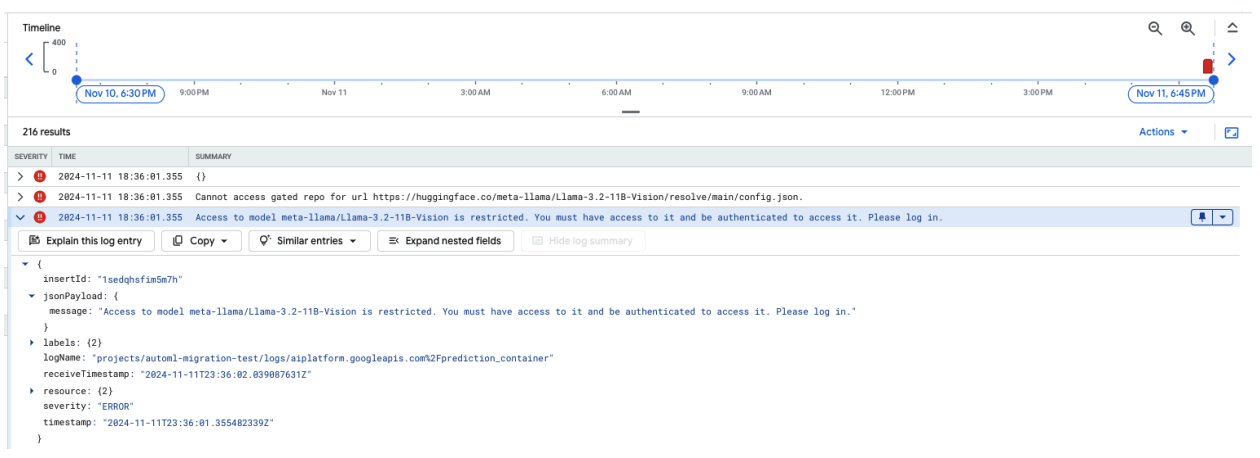 **Figure 10: Hugging Face Token Error**
To resolve this issue, verify the permissions of your Hugging Face access token.
Copy the latest token and deploy a new endpoint.
### Common Issue 3: Chat template needed
Chat template errors occur when the default chat template is no longer allowed,
and a custom chat template must be provided if the tokenizer does not define
one.
This screenshot shows a log entry in Google Cloud's Log Explorer, where a
ValueError occurs due to a missing chat template in the transformers library
version 4.44. The error message indicates that the default chat template is no
longer allowed, and a custom chat template must be provided if the tokenizer
does not define one. This error highlights a recent change in the library
requiring explicit definition of a chat template, useful for debugging issues
when deploying chat-based applications.
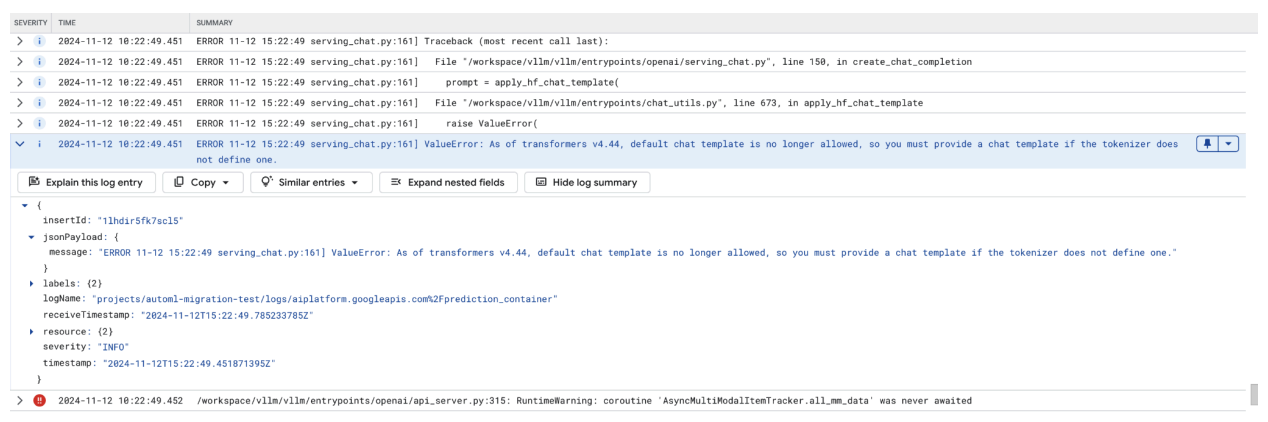 **Figure 11: Chat Template Needed**
To bypass this, make sure to provide a chat template during deployment using the
`--chat-template` input argument. Sample templates can be found in the [vLLM
examples repository](https://github.com/vllm-project/vllm/tree/main/examples).
### Common Issue 4: Model Max Seq Len
Model max sequence length errors occur when the model's max seq len (4096) is
larger than the maximum number of tokens that can be stored in KV cache (2256).
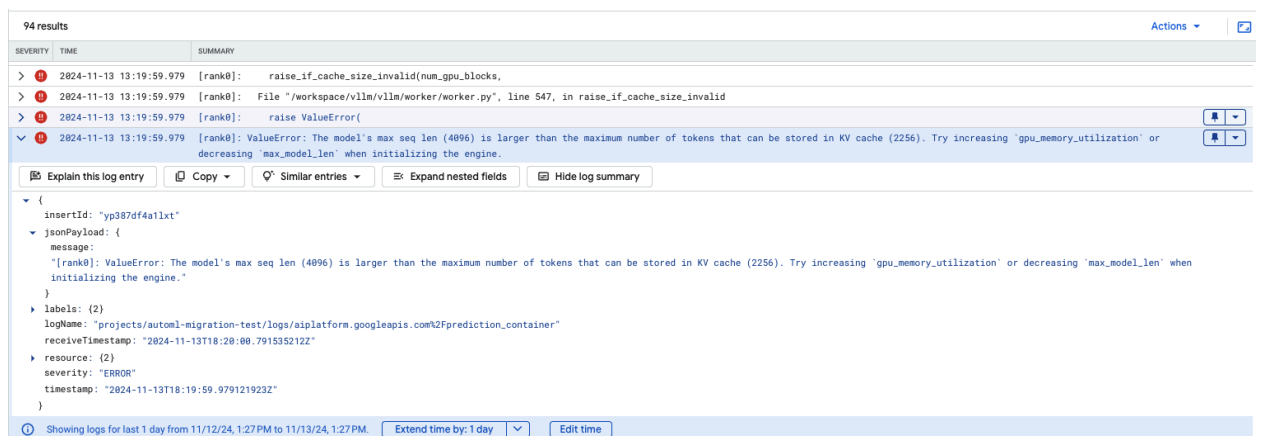 **Figure 12: Max Seq Length too Large**
ValueError: The model's max seq len (4096) is larger than the maximum number of
tokens that can be stored in KV cache (2256). Try increasing
`gpu_memory_utilization` or decreasing `max_model_len` when initializing the
engine.
To resolve this problem, set max_model_len 2048, which is less than 2256.
Another resolution for this issue is to use more or larger GPUs.
tensor-parallel-size will need to be set appropriately if opting to use more
GPUs.
## Model Garden vLLM container release notes
### Main releases
#### Standard vLLM
| **Release date** | **Architecture** | **[vLLM version](https://github.com/vllm-project/vllm/releases)** | **Container URI** |
|---|---|---|---|
| Jul 17, 2025 | ARM | v0.9.2 | us-docker.pkg.dev/vertex-ai/vertex-vision-model-garden-dockers/pytorch-vllm-serve:20250717_0916_arm_RC01 |
| Jul 10, 2025 | x86 | v0.9.2 | us-docker.pkg.dev/vertex-ai/vertex-vision-model-garden-dockers/pytorch-vllm-serve:20250710_0916_RC01 |
| Jun 20, 2025 | x86 | Past v0.9.1, [commit](https://github.com/vllm-project/vllm/commit/5e666f72cdb1aa7dade649d92a45e93983937fd2) | us-docker.pkg.dev/vertex-ai/vertex-vision-model-garden-dockers/pytorch-vllm-serve:20250620_0916_RC01 |
| Jun 11, 2025 | x86 | v0.9.1 | us-docker.pkg.dev/vertex-ai/vertex-vision-model-garden-dockers/pytorch-vllm-serve:20250611_0916_RC01 |
| Jun 2, 2025 | x86 | v0.9.0 | us-docker.pkg.dev/vertex-ai/vertex-vision-model-garden-dockers/pytorch-vllm-serve:20250601_0916_RC01 |
| May 6, 2025 | x86 | v0.8.5.post1 | us-docker.pkg.dev/vertex-ai/vertex-vision-model-garden-dockers/pytorch-vllm-serve:20250506_0916_RC01 |
| Apr 29, 2025 | x86 | v0.8.4 | us-docker.pkg.dev/vertex-ai/vertex-vision-model-garden-dockers/pytorch-vllm-serve:20250429_0916_RC01, 20250430_0916_RC00_maas |
| Apr 17, 2025 | x86 | v0.8.4 | us-docker.pkg.dev/vertex-ai/vertex-vision-model-garden-dockers/pytorch-vllm-serve:20250417_0916_RC01 |
| Apr 10, 2025 | x86 | Past v0.8.3, [commit](https://github.com/vllm-project/vllm/commit/098900d7c2b53324687977eece400f634755cf51) | us-docker.pkg.dev/vertex-ai/vertex-vision-model-garden-dockers/pytorch-vllm-serve:20250410_0917_RC01 |
| Apr 7, 2025 | x86 | v0.8.3 | us-docker.pkg.dev/vertex-ai/vertex-vision-model-garden-dockers/pytorch-vllm-serve:20250407_0917_RC01, 20250407_0917_RC0120250429_0916_RC00_maas |
| Apr 7, 2025 | x86 | v0.8.1 | us-docker.pkg.dev/vertex-ai/vertex-vision-model-garden-dockers/pytorch-vllm-serve:20250404_0916_RC01 |
| Apr 5, 2025 | x86 | Past v0.8.2, [commit](https://github.com/vllm-project/vllm/commit/55acf86bf817cca4baf9ed7a3f6e23be510d0198) | us-docker.pkg.dev/vertex-ai/vertex-vision-model-garden-dockers/pytorch-vllm-serve:20250405_1205_RC01 |
| Mar 31, 2025 | x86 | v0.8.1 | us-docker.pkg.dev/vertex-ai/vertex-vision-model-garden-dockers/pytorch-vllm-serve:20250401_0916_RC01 |
| Mar 26, 2025 | x86 | v0.8.1 | us-docker.pkg.dev/vertex-ai/vertex-vision-model-garden-dockers/pytorch-vllm-serve:20250327_0916_RC01 |
| Mar 23, 2025 | x86 | v0.8.1 | us-docker.pkg.dev/vertex-ai/vertex-vision-model-garden-dockers/pytorch-vllm-serve:20250324_0916_RC01 |
| Mar 21, 2025 | x86 | v0.8.1 | us-docker.pkg.dev/vertex-ai/vertex-vision-model-garden-dockers/pytorch-vllm-serve:20250321_0916_RC01 |
| Mar 11, 2025 | x86 | Past v0.7.3, [commit](https://github.com/vllm-project/vllm/commit/f6bb18fd9a19e5e4fb1991339638fc666d06b27a) | us-docker.pkg.dev/vertex-ai/vertex-vision-model-garden-dockers/pytorch-vllm-serve:20250312_0916_RC01 |
| Mar 3, 2025 | x86 | v0.7.2 | us-docker.pkg.dev/vertex-ai/vertex-vision-model-garden-dockers/pytorch-vllm-serve:20250304_0916_RC01 |
| Jan 14, 2025 | x86 | v0.6.4.post1 | us-docker.pkg.dev/vertex-ai/vertex-vision-model-garden-dockers/pytorch-vllm-serve:20250114_0916_RC00_maas |
| Dec 2, 2024 | x86 | v0.6.4.post1 | us-docker.pkg.dev/vertex-ai/vertex-vision-model-garden-dockers/pytorch-vllm-serve:20241202_0916_RC00_maas |
| Nov 12, 2024 | x86 | v0.6.2 | us-docker.pkg.dev/vertex-ai/vertex-vision-model-garden-dockers/pytorch-vllm-serve:20241112_0916_RC00_maas |
| Oct 16, 2024 | x86 | v0.6.2 | us-docker.pkg.dev/vertex-ai/vertex-vision-model-garden-dockers/pytorch-vllm-serve:20241016_0916_RC00_maas |
#### Optimized vLLM
> [!WARNING]
> **Deprecated:** Development on the Optimized vLLM container is discontinued.
| **Release date** | **Architecture** | **Container URI** |
|---|---|---|
| Jan 21, 2025 | x86 | us-docker.pkg.dev/vertex-ai-restricted/vertex-vision-model-garden-dockers/pytorch-vllm-optimized-serve:20250121_0835_RC00 |
| Oct 29, 2024 | x86 | us-docker.pkg.dev/vertex-ai-restricted/vertex-vision-model-garden-dockers/pytorch-vllm-optimized-serve:20241029_0835_RC00 |
### Additional releases
The full list of VMG standard vLLM container releases can be found on the [Artifact Registry page](https://us-docker.pkg.dev/vertex-ai/vertex-vision-model-garden-dockers/pytorch-vllm-serve).
Releases for vLLM-TPU in experimental status are tagged with ``.