Gemini Enterprise Agent Platform provides two options for projecting future values using your
trained forecast model: online inferences and batch inference.
An online inference is a synchronous request. Use online inferences when you
make requests in response to application input or in other situations
where you require timely inference.
A batch inference request is an asynchronous request. Use batch inference
when you don't require an immediate response and want to process accumulated
data by using a single request.
This page shows you how to project future values using batch inferences. To
learn how to project values using online inferences, see
[Get online inferences for a forecast model](https://docs.cloud.google.com/gemini-enterprise-agent-platform/machine-learning/tabular-data/tabular-workflows/forecasting-online-predictions.md.txt).
You can request batch inferences directly from the model resource.
You can request an inference with explanations (also called feature
attributions) to see how your model arrived at an inference. The local feature
importance values tell you how much each feature contributed to the inference
result. For a conceptual overview, see
[Feature attributions for forecasting](https://docs.cloud.google.com/gemini-enterprise-agent-platform/machine-learning/tabular-data/forecasting-explanations.md.txt).
To learn about pricing for batch inferences, see
[Pricing for Tabular Workflows](https://cloud.google.com/products/gemini-enterprise-agent-platform/pricing#prediction-prices).
## Before you begin
Before you make a batch inference request, first
[train](https://docs.cloud.google.com/gemini-enterprise-agent-platform/machine-learning/tabular-data/tabular-workflows/forecasting-train.md.txt) a model.
## Input data
The input data for batch inference requests is the data that your model uses to
create forecasts. You can provide input data in one of two formats:
- CSV objects in Cloud Storage
- BigQuery tables
We recommend that you use the same format for your input data as you used for
training the model. For example, if you trained your model using data in
BigQuery, it is best to use a BigQuery table as the input for
your batch inference. Because Gemini Enterprise Agent Platform treats all CSV input fields as
strings, mixing training and input data formats may cause errors.
Your data source must contain tabular data that includes all of the columns, in
any order, that were used to train the model. You can include columns that were
not in the training data, or that were in the training data but excluded from
use for training. These extra columns are included in the output but don't
affect forecast results.
### Input data requirements
Input for forecast models must adhere to the following requirements:
- All values in the time column must be present and valid.
- All columns that are used in your inference request must be present in the input data. When columns are empty or don't exist, Agent Platform pads the data automatically.
- The data frequency for the input data and the training data must match. If there are missing rows in the time series, you must manually insert them according to the proper domain knowledge.
- Time series with duplicate timestamps are removed from inferences. To include them, remove any duplicate timestamps.
- Provide historical data for each time series to forecast. For the most accurate forecasts, the amount of data should equal the context window, which is set during model training. For example, if the context window is 14 days, provide at least 14 days of historical data. If you provide less data, Agent Platform pads the data with empty values.
- The forecast starts on the first row of a time series (ordered by time) with a null value in the target column. The null value must be continuous within the time series. For example, if the target column is ordered by time, you cannot have something like `1`, `2`, `null`, `3`, `4`, `null`, `null` for a single time series. For CSV files, Gemini Enterprise Agent Platform treats an empty string as null, and for BigQuery, null values are natively supported.
### BigQuery table
If you choose a BigQuery table as the input, you must ensure the
following:
- BigQuery data source tables must be no larger than 100 GB.
- If the table is in a different project, you must grant the `BigQuery Data Editor` role to the Agent Platform service account in that project.
### CSV file
If you choose a CSV object in Cloud Storage as the input, you must ensure the
following:
- The data source must begin with a header row with the column names.
- Each data source object must not be larger than 10 GB. You can include multiple files, up to a maximum amount of 100 GB.
- If the Cloud Storage bucket is in a different project, you must grant the `Storage Object Creator` role to the Agent Platform service account in that project.
- You must enclose all strings in double quotation marks (").
## Output format
The output format of your batch inference request doesn't need to be the same
as the input format. For example, if you use a
BigQuery table as the input, you can output forecasting results to a
CSV object in Cloud Storage.
## Make a batch inference request to your model
To make batch inference requests, you can use the Google Cloud console or the
Agent Platform API. The input data source can be CSV objects stored in a
Cloud Storage bucket or BigQuery tables. Depending on the
amount of data that you submit as input, a batch inference task can take some
time to complete.
### Google Cloud console
Use the Google Cloud console to request a batch inference.
1. In the Google Cloud console, in the Agent Platform section, go to the **Batch inferences** page.
[Go to the Batch inferences page](https://console.cloud.google.com/agent-platform/batch-predictions)
2. Click **Create** to open the **New batch inference** window.
3. For **Define your batch inference** , complete the following steps:
1. Enter a name for the batch inference.
2. For **Model name**, select the name of the model to use for this batch inference.
3. For **Version**, select the version of the model.
4. For **Select source** , select whether your source input data is a CSV file on Cloud Storage or a table in BigQuery.
- For CSV files, specify the Cloud Storage location where your CSV input file is located.
- For BigQuery tables, specify the project ID where the table is located, the BigQuery dataset ID, and the BigQuery table or view ID.
5. For **Batch inference output** , select **CSV** or **BigQuery** .
- For CSV, specify the Cloud Storage bucket where Gemini Enterprise Agent Platform stores your output.
- For BigQuery, you can specify a project ID or an existing dataset:
- To specify the project ID, enter the project ID in the **Google Cloud project ID** field. Gemini Enterprise Agent Platform creates a new output dataset for you.
- To specify an existing dataset, enter its BigQuery path in the **Google Cloud project ID** field, such as `bq://projectid.datasetid`.
- **Optional.** If your output destination is BigQuery or JSONL on Cloud Storage, you can enable feature attributions in addition to inferences. To do this, select **Enable feature attributions for this model** . Feature attributions are not supported for CSV on Cloud Storage. [Learn more](https://docs.cloud.google.com/gemini-enterprise-agent-platform/machine-learning/tabular-data/forecasting-explanations.md.txt).
4. Optional: [**Model Monitoring**](https://docs.cloud.google.com/gemini-enterprise-agent-platform/machine-learning/model-monitoring/overview.md.txt) analysis for batch inferences is available in [Preview](https://cloud.google.com/products/#product-launch-stages). See the [Prerequisites](https://docs.cloud.google.com/gemini-enterprise-agent-platform/machine-learning/model-monitoring/model-monitoring-batch-predictions.md.txt#prerequisites) for adding skew detection configuration to your batch inference job.
1. Click to toggle on **Enable model monitoring for this batch inference**.
2. Select a **Training data source**. Enter the data path or location for the training data source that you selected.
3. Optional: Under **Alert thresholds**, specify thresholds at which to trigger alerts.
4. For **Notification emails**, enter one or more comma-separated email addresses to receive alerts when a model exceeds an alerting threshold.
5. Optional: For **Notification channels** , add [Cloud Monitoring](https://docs.cloud.google.com/monitoring/support/notification-options.md.txt) channels to receive alerts when a model exceeds an alerting threshold. You can select existing Cloud Monitoring channels or create a new one by clicking **Manage notification channels**. The Console supports PagerDuty, Slack, and Pub/Sub notification channels.
5. Click **Create**.
### API : BigQuery
### REST
You use the
[batchPredictionJobs.create](https://docs.cloud.google.com/gemini-enterprise-agent-platform/reference/rest/v1/projects.locations.batchPredictionJobs/create.md.txt)
method to request a batch inference.
Before using any of the request data,
make the following replacements:
- LOCATION_ID: Region where Model is stored and batch inference job is executed. For example, `us-central1`.
- PROJECT_ID: Your [project ID](https://docs.cloud.google.com/resource-manager/docs/creating-managing-projects.md.txt#identifiers).
- BATCH_JOB_NAME: Display name for the batch job
- MODEL_ID: The ID for the model to use for making inferences
- INPUT_URI: Reference to the BigQuery data source. In the form:
```
bq://bqprojectId.bqDatasetId.bqTableId
```
- OUTPUT_URI: Reference to the BigQuery destination (where the inferences are written). Specify the project ID and, **optionally** , an existing dataset ID. Use the following form:
```
bq://bqprojectId.bqDatasetId
```
If you specify just the project ID, Agent Platform creates a new output dataset for you. Use the following form:
```
bq://bqprojectId
```
- GENERATE_EXPLANATION: Default value is *false*. Set to *true* to enable feature attributions. To learn more, see [Feature attributions for forecasting](https://docs.cloud.google.com/gemini-enterprise-agent-platform/machine-learning/tabular-data/forecasting-explanations.md.txt).
HTTP method and URL:
```
POST https://LOCATION_ID-aiplatform.googleapis.com/v1/projects/PROJECT_ID/locations/LOCATION_ID/batchPredictionJobs
```
Request JSON body:
```
{
"displayName": "BATCH_JOB_NAME",
"model": "projects/PROJECT_ID/locations/LOCATION_ID/models/MODEL_ID",
"inputConfig": {
"instancesFormat": "bigquery",
"bigquerySource": {
"inputUri": "INPUT_URI"
}
},
"outputConfig": {
"predictionsFormat": "bigquery",
"bigqueryDestination": {
"outputUri": "OUTPUT_URI"
}
},
"generate_explanation": GENERATE_EXPLANATION
}
```
To send your request, choose one of these options:
#### curl
> [!NOTE]
> **Note:** The following command assumes that you have logged in to the `gcloud` CLI with your user account by running [`gcloud init`](https://docs.cloud.google.com/sdk/gcloud/reference/init) or [`gcloud auth login`](https://docs.cloud.google.com/sdk/gcloud/reference/auth/login.md.txt) , or by using [Cloud Shell](https://docs.cloud.google.com/shell/docs.md.txt), which automatically logs you into the `gcloud` CLI . You can check the currently active account by running [`gcloud auth list`](https://docs.cloud.google.com/sdk/gcloud/reference/auth/list.md.txt).
Save the request body in a file named `request.json`,
and execute the following command:
```
curl -X POST \
-H "Authorization: Bearer $(gcloud auth print-access-token)" \
-H "Content-Type: application/json; charset=utf-8" \
-d @request.json \
"https://LOCATION_ID-aiplatform.googleapis.com/v1/projects/PROJECT_ID/locations/LOCATION_ID/batchPredictionJobs"
```
#### PowerShell
> [!NOTE]
> **Note:** The following command assumes that you have logged in to the `gcloud` CLI with your user account by running [`gcloud init`](https://docs.cloud.google.com/sdk/gcloud/reference/init) or [`gcloud auth login`](https://docs.cloud.google.com/sdk/gcloud/reference/auth/login.md.txt) . You can check the currently active account by running [`gcloud auth list`](https://docs.cloud.google.com/sdk/gcloud/reference/auth/list.md.txt).
Save the request body in a file named `request.json`,
and execute the following command:
```
$cred = gcloud auth print-access-token
$headers = @{ "Authorization" = "Bearer $cred" }
Invoke-WebRequest `
-Method POST `
-Headers $headers `
-ContentType: "application/json; charset=utf-8" `
-InFile request.json `
-Uri "https://LOCATION_ID-aiplatform.googleapis.com/v1/projects/PROJECT_ID/locations/LOCATION_ID/batchPredictionJobs" | Select-Object -Expand Content
```
You should receive a JSON response similar to the following:
```
{
"name": "projects/PROJECT_ID/locations/LOCATION_ID/batchPredictionJobs/67890",
"displayName": "batch_job_1 202005291958",
"model": "projects/12345/locations/us-central1/models/5678",
"state": "JOB_STATE_PENDING",
"inputConfig": {
"instancesFormat": "bigquery",
"bigquerySource": {
"inputUri": "INPUT_URI"
}
},
"outputConfig": {
"predictionsFormat": "bigquery",
"bigqueryDestination": {
"outputUri": bq://12345
}
},
"dedicatedResources": {
"machineSpec": {
"machineType": "n1-standard-32",
"acceleratorCount": "0"
},
"startingReplicaCount": 2,
"maxReplicaCount": 6
},
"manualBatchTuningParameters": {
"batchSize": 4
},
"outputInfo": {
"bigqueryOutputDataset": "bq://12345.reg_model_2020_10_02_06_04
}
"state": "JOB_STATE_PENDING",
"createTime": "2020-09-30T02:58:44.341643Z",
"updateTime": "2020-09-30T02:58:44.341643Z",
}
```
### Java
Before trying this sample, follow the Java setup instructions in the
[Agent Platform quickstart using
client libraries](https://docs.cloud.google.com/gemini-enterprise-agent-platform/machine-learning/start/client-libraries).
To authenticate to Agent Platform, set up Application Default Credentials.
For more information, see
[Set up authentication for a local development environment](https://docs.cloud.google.com/docs/authentication/set-up-adc-local-dev-environment.md.txt).
In the following sample, replace INSTANCES_FORMAT and PREDICTIONS_FORMAT with \`bigquery\`. To learn how to replace the other placeholders, see the \`REST \& CMD LINE\` tab of this section.
```java
import com.google.cloud.aiplatform.v1.BatchPredictionJob;
import com.google.cloud.aiplatform.v1.BigQueryDestination;
import com.google.cloud.aiplatform.v1.BigQuerySource;
import com.google.cloud.aiplatform.v1.JobServiceClient;
import com.google.cloud.aiplatform.v1.JobServiceSettings;
import com.google.cloud.aiplatform.v1.LocationName;
import com.google.cloud.aiplatform.v1.ModelName;
import com.google.gson.JsonObject;
import com.google.protobuf.Value;
import com.google.protobuf.util.JsonFormat;
import java.io.IOException;
public class CreateBatchPredictionJobBigquerySample {
public static void main(String[] args) throws IOException {
// TODO(developer): Replace these variables before running the sample.
String project = "PROJECT";
String displayName = "DISPLAY_NAME";
String modelName = "MODEL_NAME";
String instancesFormat = "INSTANCES_FORMAT";
String bigquerySourceInputUri = "BIGQUERY_SOURCE_INPUT_URI";
String predictionsFormat = "PREDICTIONS_FORMAT";
String bigqueryDestinationOutputUri = "BIGQUERY_DESTINATION_OUTPUT_URI";
createBatchPredictionJobBigquerySample(
project,
displayName,
modelName,
instancesFormat,
bigquerySourceInputUri,
predictionsFormat,
bigqueryDestinationOutputUri);
}
static void createBatchPredictionJobBigquerySample(
String project,
String displayName,
String model,
String instancesFormat,
String bigquerySourceInputUri,
String predictionsFormat,
String bigqueryDestinationOutputUri)
throws IOException {
JobServiceSettings settings =
JobServiceSettings.newBuilder()
.setEndpoint("us-central1-aiplatform.googleapis.com:443")
.build();
String location = "us-central1";
// Initialize client that will be used to send requests. This client only needs to be created
// once, and can be reused for multiple requests. After completing all of your requests, call
// the "close" method on the client to safely clean up any remaining background resources.
try (JobServiceClient client = JobServiceClient.create(settings)) {
JsonObject jsonModelParameters = new JsonObject();
Value.Builder modelParametersBuilder = Value.newBuilder();
JsonFormat.parser().merge(jsonModelParameters.toString(), modelParametersBuilder);
Value modelParameters = modelParametersBuilder.build();
BigQuerySource bigquerySource =
BigQuerySource.newBuilder().setInputUri(bigquerySourceInputUri).build();
BatchPredictionJob.InputConfig inputConfig =
BatchPredictionJob.InputConfig.newBuilder()
.setInstancesFormat(instancesFormat)
.setBigquerySource(bigquerySource)
.build();
BigQueryDestination bigqueryDestination =
BigQueryDestination.newBuilder().setOutputUri(bigqueryDestinationOutputUri).build();
BatchPredictionJob.OutputConfig outputConfig =
BatchPredictionJob.OutputConfig.newBuilder()
.setPredictionsFormat(predictionsFormat)
.setBigqueryDestination(bigqueryDestination)
.build();
String modelName = ModelName.of(project, location, model).toString();
BatchPredictionJob batchPredictionJob =
BatchPredictionJob.newBuilder()
.setDisplayName(displayName)
.setModel(modelName)
.setModelParameters(modelParameters)
.setInputConfig(inputConfig)
.setOutputConfig(outputConfig)
.build();
LocationName parent = LocationName.of(project, location);
BatchPredictionJob response = client.createBatchPredictionJob(parent, batchPredictionJob);
System.out.format("response: %s\n", response);
System.out.format("\tName: %s\n", response.getName());
}
}
}
```
### Python
To learn how to install or update the Vertex AI SDK for Python, see [Install the Vertex AI SDK for Python](https://docs.cloud.google.com/vertex-ai/docs/start/use-vertex-ai-python-sdk).
For more information, see the
[Python API reference documentation](https://docs.cloud.google.com/python/docs/reference/aiplatform/latest.md.txt).
def create_batch_prediction_job_bigquery_sample(
project: str,
location: str,
model_resource_name: str,
job_display_name: str,
bigquery_source: str,
bigquery_destination_prefix: str,
sync: bool = True,
):
aiplatform.init(project=project, location=location)
my_model = aiplatform.Model(model_resource_name)
batch_prediction_job = my_model.batch_predict(
job_display_name=job_display_name,
bigquery_source=bigquery_source,
bigquery_destination_prefix=bigquery_destination_prefix,
sync=sync,
)
batch_prediction_job.wait()
print(batch_prediction_job.display_name)
print(batch_prediction_job.resource_name)
print(batch_prediction_job.state)
return batch_prediction_job
### API : Cloud Storage
### REST
You use the
[batchPredictionJobs.create](https://docs.cloud.google.com/gemini-enterprise-agent-platform/reference/rest/v1/projects.locations.batchPredictionJobs/create.md.txt)
method to request a batch inference.
Before using any of the request data,
make the following replacements:
- LOCATION_ID: Region where Model is stored and batch inference job is executed. For example, `us-central1`.
- PROJECT_ID:
- BATCH_JOB_NAME: Display name for the batch job
- MODEL_ID: The ID for the model to use for making inferences
- URI: Paths (URIs) to the Cloud Storage buckets containing the training data. There can be more than one. Each URI has the form:
```
gs://bucketName/pathToFileName
```
- OUTPUT_URI_PREFIX: Path to a Cloud Storage destination where the inferences will be written. Agent Platform writes batch inferences to a timestamped subdirectory of this path. Set this value to a string with the following format:
```
gs://bucketName/pathToOutputDirectory
```
- GENERATE_EXPLANATION: Default value is *false*. Set to *true* to enable feature attributions. This option is available only if your output destination is JSONL. Feature attributions are not supported for CSV on Cloud Storage. To learn more, see [Feature attributions for forecasting](https://docs.cloud.google.com/gemini-enterprise-agent-platform/machine-learning/tabular-data/forecasting-explanations.md.txt).
HTTP method and URL:
```
POST https://LOCATION_ID-aiplatform.googleapis.com/v1/projects/PROJECT_ID/locations/LOCATION_ID/batchPredictionJobs
```
Request JSON body:
```
{
"displayName": "BATCH_JOB_NAME",
"model": "projects/PROJECT_ID/locations/LOCATION_ID/models/MODEL_ID",
"inputConfig": {
"instancesFormat": "csv",
"gcsSource": {
"uris": [
URI1,...
]
},
},
"outputConfig": {
"predictionsFormat": "csv",
"gcsDestination": {
"outputUriPrefix": "OUTPUT_URI_PREFIX"
}
},
"generate_explanation": GENERATE_EXPLANATION
}
```
To send your request, choose one of these options:
#### curl
> [!NOTE]
> **Note:** The following command assumes that you have logged in to the `gcloud` CLI with your user account by running [`gcloud init`](https://docs.cloud.google.com/sdk/gcloud/reference/init) or [`gcloud auth login`](https://docs.cloud.google.com/sdk/gcloud/reference/auth/login.md.txt) , or by using [Cloud Shell](https://docs.cloud.google.com/shell/docs.md.txt), which automatically logs you into the `gcloud` CLI . You can check the currently active account by running [`gcloud auth list`](https://docs.cloud.google.com/sdk/gcloud/reference/auth/list.md.txt).
Save the request body in a file named `request.json`,
and execute the following command:
```
curl -X POST \
-H "Authorization: Bearer $(gcloud auth print-access-token)" \
-H "Content-Type: application/json; charset=utf-8" \
-d @request.json \
"https://LOCATION_ID-aiplatform.googleapis.com/v1/projects/PROJECT_ID/locations/LOCATION_ID/batchPredictionJobs"
```
#### PowerShell
> [!NOTE]
> **Note:** The following command assumes that you have logged in to the `gcloud` CLI with your user account by running [`gcloud init`](https://docs.cloud.google.com/sdk/gcloud/reference/init) or [`gcloud auth login`](https://docs.cloud.google.com/sdk/gcloud/reference/auth/login.md.txt) . You can check the currently active account by running [`gcloud auth list`](https://docs.cloud.google.com/sdk/gcloud/reference/auth/list.md.txt).
Save the request body in a file named `request.json`,
and execute the following command:
```
$cred = gcloud auth print-access-token
$headers = @{ "Authorization" = "Bearer $cred" }
Invoke-WebRequest `
-Method POST `
-Headers $headers `
-ContentType: "application/json; charset=utf-8" `
-InFile request.json `
-Uri "https://LOCATION_ID-aiplatform.googleapis.com/v1/projects/PROJECT_ID/locations/LOCATION_ID/batchPredictionJobs" | Select-Object -Expand Content
```
You should receive a JSON response similar to the following:
```
{
"name": "projects/PROJECT_ID/locations/LOCATION_ID/batchPredictionJobs/67890",
"displayName": "batch_job_1 202005291958",
"model": "projects/12345/locations/us-central1/models/5678",
"state": "JOB_STATE_PENDING",
"inputConfig": {
"instancesFormat": "csv",
"gcsSource": {
"uris": [
"gs://bp_bucket/reg_mode_test"
]
}
},
"outputConfig": {
"predictionsFormat": "csv",
"gcsDestination": {
"outputUriPrefix": "OUTPUT_URI_PREFIX"
}
},
"dedicatedResources": {
"machineSpec": {
"machineType": "n1-standard-32",
"acceleratorCount": "0"
},
"startingReplicaCount": 2,
"maxReplicaCount": 6
}
"outputInfo": {
"gcsOutputDataset": "OUTPUT_URI_PREFIX/prediction-batch_job_1 202005291958-2020-09-30T02:58:44.341643Z"
}
"state": "JOB_STATE_PENDING",
"createTime": "2020-09-30T02:58:44.341643Z",
"updateTime": "2020-09-30T02:58:44.341643Z",
}
```
### Python
To learn how to install or update the Vertex AI SDK for Python, see [Install the Vertex AI SDK for Python](https://docs.cloud.google.com/vertex-ai/docs/start/use-vertex-ai-python-sdk).
For more information, see the
[Python API reference documentation](https://docs.cloud.google.com/python/docs/reference/aiplatform/latest.md.txt).
def create_batch_prediction_job_sample(
project: str,
location: str,
model_resource_name: str,
job_display_name: str,
gcs_source: Union[str, Sequence[str]],
gcs_destination: str,
sync: bool = True,
):
aiplatform.init(project=project, location=location)
my_model = aiplatform.Model(model_resource_name)
batch_prediction_job = my_model.batch_predict(
job_display_name=job_display_name,
gcs_source=gcs_source,
gcs_destination_prefix=gcs_destination,
sync=sync,
)
batch_prediction_job.wait()
print(batch_prediction_job.display_name)
print(batch_prediction_job.resource_name)
print(batch_prediction_job.state)
return batch_prediction_job
## Retrieve batch inference results
Gemini Enterprise Agent Platform sends the output of batch inferences to the destination that
you specified, which can be either BigQuery or Cloud Storage.
Cloud Storage output for feature attributions isn't supported.
### BigQuery
### Output dataset
If you are using BigQuery, the output of batch inference is stored
in an output dataset. If you had provided a
dataset to Gemini Enterprise Agent Platform, the name of the dataset (BQ_DATASET_NAME)
is the name you had provided earlier. If you did not provide an output dataset,
Gemini Enterprise Agent Platform created one for you. You can find its name (BQ_DATASET_NAME)
with the following steps:
1. In the Google Cloud console, go to the Gemini Enterprise Agent Platform **Batch inferences** page.
[Go to the Batch inferences page](https://console.cloud.google.com/agent-platform/batch-predictions)
2. Select the inference you created.
3. The output dataset is given in **Export location** . The dataset name is formatted as follows: `prediction_MODEL_NAME_TIMESTAMP`
### Output tables
The output dataset contains one or more of the following three output tables:
- Inference table
This table contains a row for every row in your input data where an
inference was requested (that is, where TARGET_COLUMN_NAME = null).
For example, if your input included 14 null entries for the
target column (such as sales for the next 14 days), your inference request
returns 14 rows, the sales number for each day. If your inference request
exceeds the model's forecast horizon, Gemini Enterprise Agent Platform returns only
inferences up to the forecast horizon.
- Errors validation table
This table contains a row for each non-critical error encountered
during the aggregation phase that takes place prior to batch inference.
Each non-critical error corresponds with a row in the input data that
Agent Platform could not return a forecast for.
- Errors table
This table contains a row for each non-critical error encountered
during batch inference. Each non-critical error corresponds with a row
in the input data that Agent Platform could not return a forecast for.
### Predictions table
The name of the table (BQ_PREDICTIONS_TABLE_NAME) is formed by
appending \`predictions_\` with the timestamp of when the batch inference
job started: `predictions_TIMESTAMP`
To retrieve the inferences table:
1. In the console, go to the BigQuery page.
[Go to BigQuery](https://console.cloud.google.com/bigquery)
2. Run the following query:
```sql
SELECT * FROM BQ_DATASET_NAME.BQ_PREDICTIONS_TABLE_NAME
```
Gemini Enterprise Agent Platform stores inferences in the `predicted_TARGET_COLUMN_NAME.value` column.
If you [trained a model
with Temporal Fusion Transformer (TFT)](https://docs.cloud.google.com/gemini-enterprise-agent-platform/machine-learning/tabular-data/forecasting-parameters#training-methods), you can find TFT interpretability output in the
`predicted_TARGET_COLUMN_NAME.tft_feature_importance` column.
This column is further divided into the following:
- `context_columns`: Forecasting features whose [context window](https://docs.cloud.google.com/gemini-enterprise-agent-platform/machine-learning/tabular-data/forecasting-parameters.md.txt#forecast-window) values serve as inputs to the TFT Long Short-Term Memory (LSTM) Encoder.
- `context_weights`: The feature importance weights associated with each of the `context_columns` for the predicted instance.
- `horizon_columns`: Forecasting features whose [forecast horizon](https://docs.cloud.google.com/gemini-enterprise-agent-platform/machine-learning/tabular-data/forecasting-parameters.md.txt#forecast-window) values serve as inputs to the TFT Long Short-Term Memory (LSTM) Decoder.
- `horizon_weights`: The feature importance weights associated with each of the `horizon_columns` for the predicted instance.
- `attribute_columns`: Forecasting features which are [time-invariant](https://docs.cloud.google.com/gemini-enterprise-agent-platform/machine-learning/tabular-data/forecasting-parameters.md.txt#feature-type).
- `attribute_weights`: The weights associated with each of the `attribute_columns`.
If your model is [optimized for quantile loss](https://docs.cloud.google.com/gemini-enterprise-agent-platform/machine-learning/tabular-data/forecasting-parameters.md.txt#optimization-objectives) and your set of quantiles includes the median,
`predicted_TARGET_COLUMN_NAME.value` is the inference value at the
median. Otherwise, `predicted_TARGET_COLUMN_NAME.value` is the
inference value at the lowest quantile in the set. For example, if your set of quantiles
is `[0.1, 0.5, 0.9]`, `value` is the inference for quantile `0.5`.
If your set of quantiles is `[0.1, 0.9]`, `value` is the inference for
quantile `0.1`.
Additionally, Gemini Enterprise Agent Platform stores quantile values and inferences in the following columns:
- `predicted_TARGET_COLUMN_NAME.quantile_values`: The values of the quantiles, which are set during model training. For example, these can be `0.1`, `0.5`, and `0.9`.
- `predicted_TARGET_COLUMN_NAME.quantile_predictions`: The inference values associated with the quantile values.
If your model uses probabilistic inference,
`predicted_TARGET_COLUMN_NAME.value` contains the minimizer of the
optimization objective. For example, if your optimization objective is `minimize-rmse`,
`predicted_TARGET_COLUMN_NAME.value` contains the mean value. If it
is `minimize-mae`, `predicted_TARGET_COLUMN_NAME.value`
contains the median value.
If your model uses probabilistic inference with quantiles, Gemini Enterprise Agent Platform stores quantile
values and inferences in the following columns:
- `predicted_TARGET_COLUMN_NAME.quantile_values`: The values of the quantiles, which are set during model training. For example, these can be `0.1`, `0.5`, and `0.9`.
- `predicted_TARGET_COLUMN_NAME.quantile_predictions`: The inference values associated with the quantile values.
If you enabled feature attributions, you can find them in the inference
table as well. To access attributions for a feature
BQ_FEATURE_NAME, run the following query:
```sql
SELECT explanation.attributions[OFFSET(0)].featureAttributions.BQ_FEATURE_NAME FROM BQ_DATASET_NAME.BQ_PREDICTIONS_TABLE_NAME
```
To learn more, see
[Feature attributions for forecasting](https://docs.cloud.google.com/gemini-enterprise-agent-platform/machine-learning/tabular-data/forecasting-explanations.md.txt).
### Errors validation table
The name of the table (BQ_ERRORS_VALIDATION_TABLE_NAME)
is formed by appending \`errors_validation\` with the timestamp of when the
batch inference job started: `errors_validation_TIMESTAMP`
To retrieve the errors validation table:
1. In the console, go to the BigQuery page.
[Go to BigQuery](https://console.cloud.google.com/bigquery)
2. Run the following query:
```sql
SELECT * FROM BQ_DATASET_NAME.BQ_ERRORS_VALIDATION_TABLE_NAME
```
The error message is stored in the following column:
- errors_TARGET_COLUMN_NAME
### Errors table
The name of the table (BQ_ERRORS_TABLE_NAME) is formed by
appending \`errors_\` with the timestamp of when the batch inference job
started: `errors_TIMESTAMP`
To retrieve the errors validation table:
1. In the console, go to the BigQuery page.
[Go to BigQuery](https://console.cloud.google.com/bigquery)
2. Run the following query:
```sql
SELECT * FROM BQ_DATASET_NAME.BQ_ERRORS_TABLE_NAME
```
The errors are stored in the following columns:
- errors_TARGET_COLUMN_NAME.code
- errors_TARGET_COLUMN_NAME.message
### Cloud Storage
If you specified Cloud Storage as your output destination, the
results of your batch inference request are returned as CSV objects in a new
folder in the bucket you specified. The name of the folder is the name of your
model, prepended with "prediction-" and appended with the timestamp of when
the batch inference job started. You can find the Cloud Storage
folder name in the **Batch predictions** tab for your model.
The Cloud Storage folder contains two kinds of objects:
- **Inference objects**
The inference objects are named \`predictions_1.csv\`, \`predictions_2.csv\`,
and so on. They contain a header row with the column names, and a row for
every forecast returned. The number of inference values depends on your inference input and
forecast horizon. For example, if your input included 14 null entries for the
target column (such as sales for the next 14 days), your inference request
returns 14 rows, the sales number for each day. If your inference request
exceeds the model's forecast horizon, Gemini Enterprise Agent Platform returns only
inferences up to the forecast horizon.
The forecast values are returned in a column
named \`predicted_TARGET_COLUMN_NAME\`. For quantile
forecasts, the output column contains the quantile inferences and
quantile values in the JSON format.
- **Error objects**
The error objects are named \`errors_1.csv\`, \`errors_2.csv\`, and so on.
They contain a header row, and a row for every row in your input data that
Agent Platform could not return a forecast (for example, if a
non-nullable feature was null) for.
Note: If the results are large, it is split into multiple objects.
## Sample feature attribution queries in BigQuery
### Example 1: Determine attributions for a single inference
Consider the following question:
*How much did an advertisement for a product increase predicted sales on November 24th at a given store?*
The corresponding query is as follows:
```sql
SELECT
* EXCEPT(explanation, predicted_sales),
ROUND(predicted_sales.value, 2) AS predicted_sales,
ROUND(
explanation.attributions[OFFSET(0)].featureAttributions.advertisement,
2
) AS attribution_advertisement
FROM
`project.dataset.predictions`
WHERE
product = 'product_0'
AND store = 'store_0'
AND date = '2019-11-24'
```
### Example 2: Determine global feature importance
Consider the following question:
*How much did each feature contribute to predicted sales overall?*
You can manually compute global feature importance by aggregating the local
feature importance attributions. The corresponding query is as follows:
```sql
WITH
/*
* Aggregate from (id, date) level attributions to global feature importance.
*/
attributions_aggregated AS (
SELECT
SUM(ABS(attributions.featureAttributions.date)) AS date,
SUM(ABS(attributions.featureAttributions.advertisement)) AS advertisement,
SUM(ABS(attributions.featureAttributions.holiday)) AS holiday,
SUM(ABS(attributions.featureAttributions.sales)) AS sales,
SUM(ABS(attributions.featureAttributions.store)) AS store,
SUM(ABS(attributions.featureAttributions.product)) AS product,
FROM
project.dataset.predictions,
UNNEST(explanation.attributions) AS attributions
),
/*
* Calculate the normalization constant for global feature importance.
*/
attributions_aggregated_with_total AS (
SELECT
*,
date + advertisement + holiday + sales + store + product AS total
FROM
attributions_aggregated
)
/*
* Calculate the normalized global feature importance.
*/
SELECT
ROUND(date / total, 2) AS date,
ROUND(advertisement / total, 2) AS advertisement,
ROUND(holiday / total, 2) AS holiday,
ROUND(sales / total, 2) AS sales,
ROUND(store / total, 2) AS store,
ROUND(product / total, 2) AS product,
FROM
attributions_aggregated_with_total
```
## Example batch inference output in BigQuery
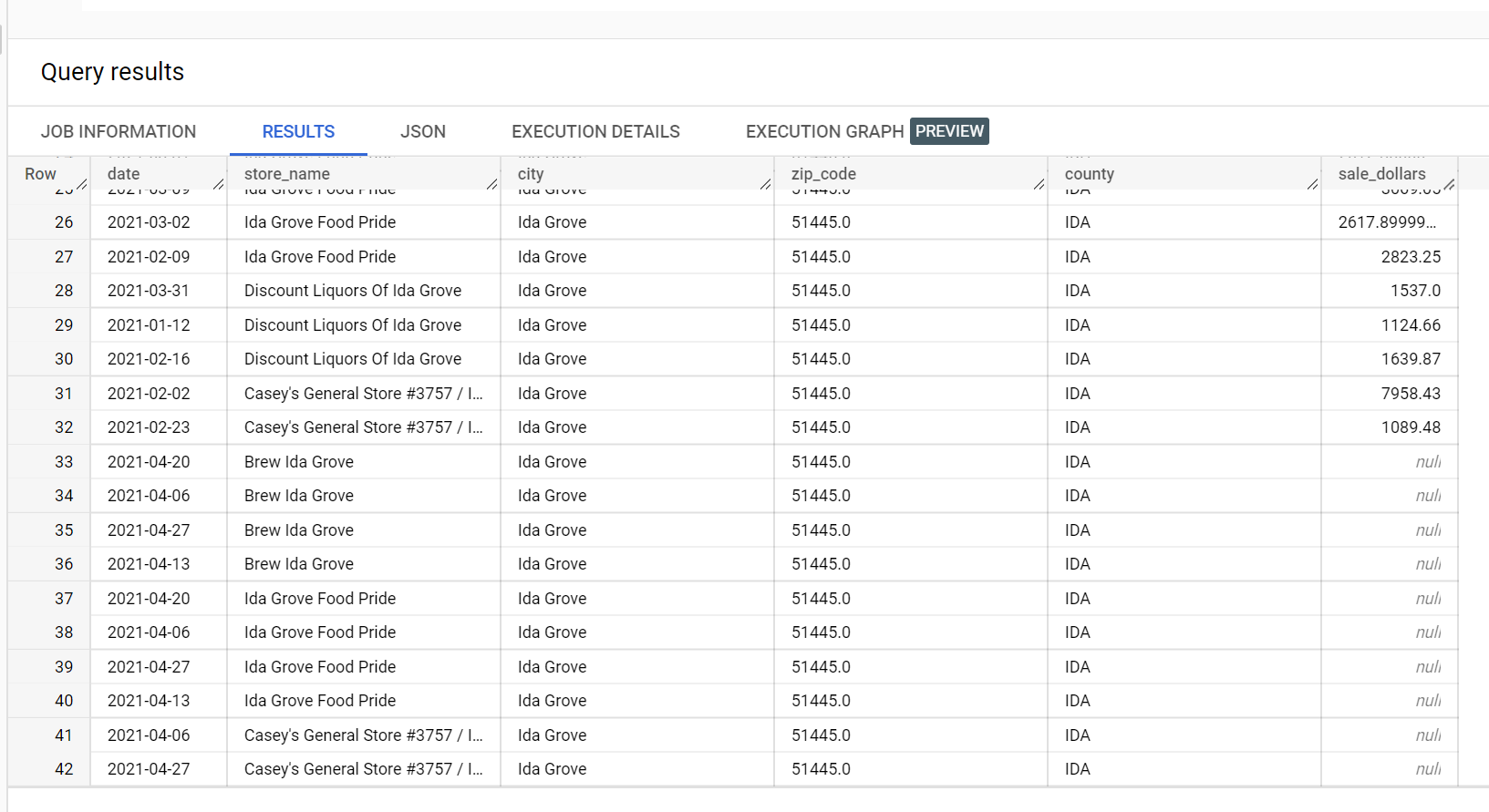
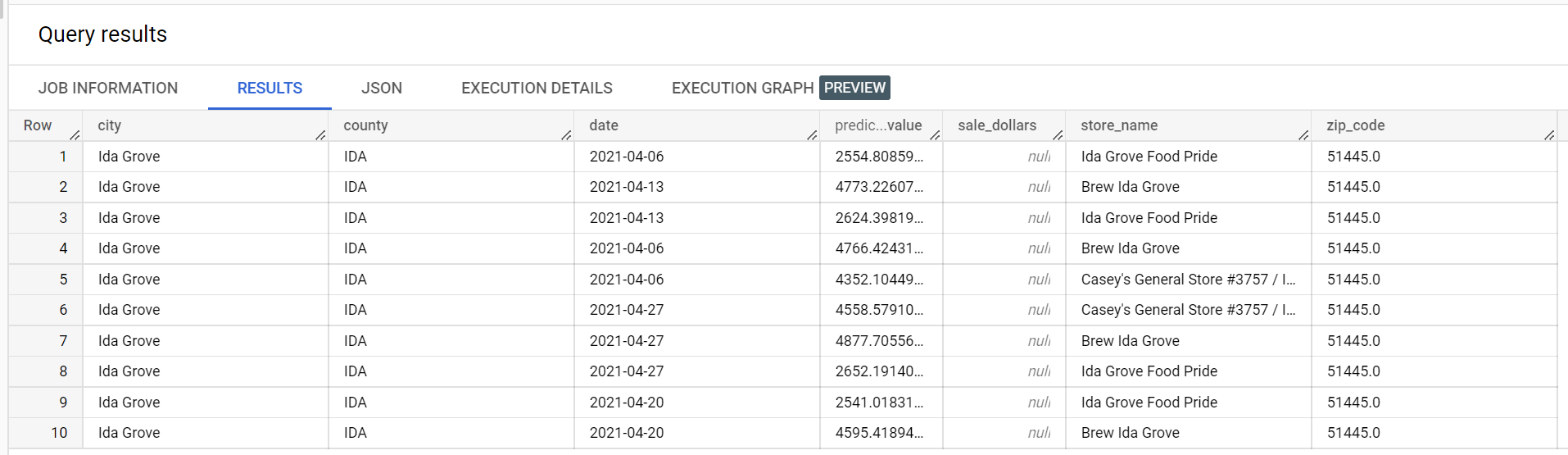
In an example dataset of liquor sales, there are four stores in the city of
"Ida Grove": "Ida Grove Food Pride", "Discount Liquors of Ida Grove",
"Casey's General Store #3757", and "Brew Ida Grove". `store_name` is the
`series identifier` and three of the four stores request inferences for the
target column `sale_dollars`. A validation error is generated because
no forecast was requested for "Discount Liquors of Ida Grove".
The following is an extract from the input dataset used for inference:
The following is an extract from the inference results:
The following is an extract from the validation errors:

### Example batch inference output for a quantile-loss optimized model
The following example is batch inference output for a quantile-loss
optimized model. In this
scenario, the forecast model predicted sales for the next 14 days for each
store.
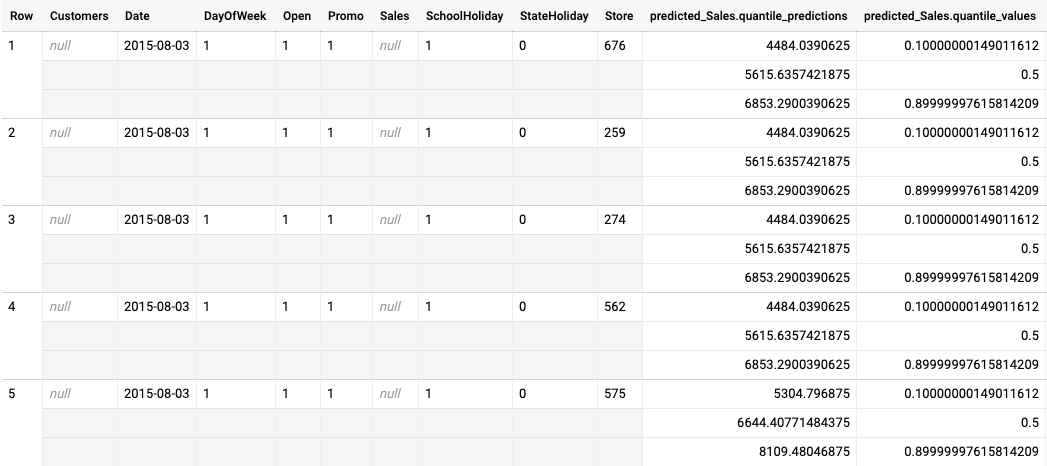
The quantile values are given in the `predicted_Sales.quantile_values` column. In this
example, the model predicted values at the `0.1`, `0.5`, and `0.9`
quantiles.
The inference values are given in the `predicted_Sales.quantile_predictions` column.
This is an array of sales values, which map to the quantile values in the
`predicted_Sales.quantile_values` column. In the first row, we see that the probability
of the sales value being lower than `4484.04` is 10%. The probability of the sales value
being lower than `5615.64` is 50%. The probability of the sales value being lower than
`6853.29` is 90%. The inference for the first row, represented as a single value, is
`5615.64`.
## What's next
- Learn about [pricing for batch inferences](https://cloud.google.com/products/gemini-enterprise-agent-platform/pricing#prediction-prices).