This page describes how to serve inference requests with
[NVIDIA Triton inference server](https://developer.nvidia.com/nvidia-triton-inference-server)
by using Gemini Enterprise Agent Platform. NVIDIA Triton inference server
(Triton) is an open source inference-serving
solution from NVIDIA optimized for both CPUs and GPUs and simplifies the
inference serving process.
## NVIDIA Triton on Gemini Enterprise Agent Platform
Gemini Enterprise Agent Platform supports deploying models on Triton
inference server running on a custom container published by NVIDIA GPU Cloud
(NGC) - [NVIDIA Triton inference server Image](https://catalog.ngc.nvidia.com/orgs/nvidia/containers/tritonserver).
Triton images from NVIDIA have all the required packages and
configurations that meet the [Gemini Enterprise Agent Platform requirements for custom serving
container images](https://docs.cloud.google.com/gemini-enterprise-agent-platform/machine-learning/predictions/custom-container-requirements).
The image contains the Triton inference server with support for
TensorFlow, PyTorch, TensorRT, ONNX, and OpenVINO models. The image also includes
FIL ([Forest Inference Library](https://github.com/rapidsai/cuml/tree/branch-21.10/python/cuml/fil))
backend that supports running ML frameworks such as XGBoost, LightGBM,
and Scikit-Learn.
Triton loads the models and exposes inference, health, and model
management REST endpoints that use [standard inference
protocols](https://github.com/kserve/kserve/tree/master/docs/predict-api/v2).
While deploying a model to Gemini Enterprise Agent Platform, Triton recognizes
Gemini Enterprise Agent Platform environments and adopts the Vertex AI Inference protocol for
[health checks](https://docs.cloud.google.com/gemini-enterprise-agent-platform/machine-learning/predictions/custom-container-requirements.md.txt#health)
and inference requests.
The following list outlines key features and use cases of NVIDIA Triton inference server:
- **Support for multiple Deep Learning and Machine Learning frameworks:** Triton supports deployment of multiple models and a mix of frameworks and model formats - TensorFlow (SavedModel and GraphDef), PyTorch (TorchScript), TensorRT, ONNX, OpenVINO, and FIL backends to support frameworks such as XGBoost, LightGBM, Scikit-Learn, and any custom Python or C++ model formats.
- **Concurrent multiple model execution:** Triton allows multiple models, multiple instances of the same model, or both to execute concurrently on the same compute resource with zero or more GPUs.
- **Model ensembling (chaining or pipelining):** Triton *ensemble* supports use cases where multiple models are composed as a pipeline (or a DAG, Directed Acyclic Graph) with inputs and output tensors that are connected between them. Additionally, with a Triton Python backend, you can include any pre-processing, post-processing, or control flow logic that is defined by [Business Logic Scripting (BLS)](https://github.com/triton-inference-server/python_backend#business-logic-scripting).
- **Run on CPU and GPU backends:** Triton supports inference for models deployed on nodes with CPUs and GPUs.
- **Dynamic batching of inference requests:** For models that support batching, Triton has built-in scheduling and batching algorithms. These algorithms dynamically combine individual inference requests into batches on the server side to improve inference throughput and increase GPU utilization.
For more information about NVIDIA Triton inference server, see the
[Triton](https://docs.nvidia.com/deeplearning/triton-inference-server/user-guide/docs/index.html)
documentation.
### Available NVIDIA Triton container images
The following table shows the [Triton Docker images available on
NVIDIA NGC
Catalog](https://catalog.ngc.nvidia.com/orgs/nvidia/containers/tritonserver).
Choose an image based on the model framework, backend, and the container image size you use.
`xx` and `yy` refer to major and minor versions of Triton,
respectively.
| NVIDIA Triton Image | Supports |
|---|---|
| **`xx.yy-py3`** | Full container with support for TensorFlow, PyTorch, TensorRT, ONNX and OpenVINO models |
| **`xx.yy-pyt-python-py3`** | PyTorch and Python backends only |
| **`xx.yy-tf2-python-py3`** | TensorFlow 2.x and Python backends only |
| **`xx.yy-py3-min`** | [Customize Triton container](https://github.com/triton-inference-server/server/blob/main/docs/customization_guide/compose.md) as needed |
## Get started: Serve inferences with NVIDIA Triton
The following figure shows the high-level architecture of Triton on
Vertex AI Inference:
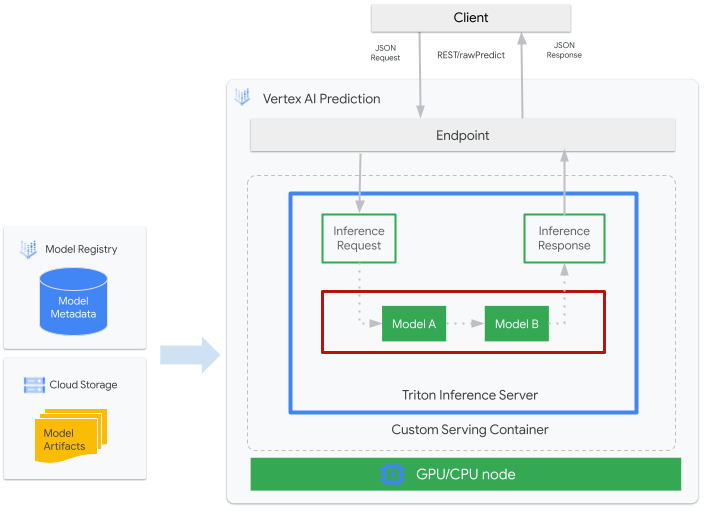
- An ML model to be served by Triton is registered with Gemini Enterprise Agent Platform Model Registry. The model's metadata references a location of the model artifacts in Cloud Storage, the custom serving container, and its configuration.
- The model from Gemini Enterprise Agent Platform Model Registry is deployed to a Vertex AI Inference endpoint that is running Triton inference server as a [custom container](https://docs.cloud.google.com/gemini-enterprise-agent-platform/machine-learning/predictions/custom-container-requirements.md.txt) on compute nodes with CPU and GPU.
- Inference requests arrive at the Triton inference server through a Vertex AI Inference endpoint and routed to the appropriate scheduler.
- The backend performs inference by using the inputs provided in the batched requests and returns a response.
- Triton provides readiness and liveness health endpoints, which enable the integration of Triton into deployment environments such as Gemini Enterprise Agent Platform.
This tutorial shows you how to use a
[custom container](https://docs.cloud.google.com/gemini-enterprise-agent-platform/machine-learning/predictions/custom-container-requirements.md.txt)
that is running NVIDIA Triton inference server to deploy a machine learning (ML) model on
Gemini Enterprise Agent Platform, which serves online inferences. You deploy a container
that is running Triton to serve inferences from an
[object detection model from TensorFlow
Hub](https://www.kaggle.com/models/tensorflow/faster-rcnn-resnet-v1/frameworks/tensorFlow2/variations/faster-rcnn-resnet101-v1-640x640/versions/1)
that has been pre-trained on the
[COCO 2017 dataset](https://cocodataset.org/#download). You can
then use Gemini Enterprise Agent Platform to detect objects in an image.
To run this tutorial in notebook form:
[Open in Colab](https://colab.research.google.com/github/GoogleCloudPlatform/vertex-ai-samples/blob/main/notebooks/community/vertex_endpoints/nvidia-triton/nvidia-triton-custom-container-prediction.ipynb) \| [Open in Colab Enterprise](https://console.cloud.google.com/agent-platform/colab/import/https%3A%2F%2Fraw.githubusercontent.com%2FGoogleCloudPlatform%2Fvertex-ai-samples%2Fmain%2Fnotebooks%2Fcommunity%2Fvertex_endpoints%2Fnvidia-triton%2Fnvidia-triton-custom-container-prediction.ipynb) \| [View on GitHub](https://github.com/GoogleCloudPlatform/vertex-ai-samples/blob/main/notebooks/community/vertex_endpoints/nvidia-triton/nvidia-triton-custom-container-prediction.ipynb) \| [Open in Agent Platform Workbench](https://console.cloud.google.com/agent-platform/workbench/deploy-notebook?download_url=https://raw.githubusercontent.com/GoogleCloudPlatform/vertex-ai-samples/main/notebooks/community/vertex_endpoints/nvidia-triton/nvidia-triton-custom-container-prediction.ipynb) \|
> [!NOTE]
> **Note:** The [tutorial notebook](https://github.com/GoogleCloudPlatform/vertex-ai-samples/blob/main/notebooks/community/vertex_endpoints/nvidia-triton/nvidia-triton-custom-container-prediction.ipynb) uses [Agent Platform SDK for Python](https://docs.cloud.google.com/gemini-enterprise-agent-platform/machine-learning/start/client-libraries.md.txt#python). This tutorial runs [`gcloud ai`](https://cloud.google.com/sdk/gcloud/reference/ai) commands.
## Before you begin
1. In the Google Cloud console, activate Cloud Shell.
[Activate Cloud Shell](https://console.cloud.google.com/?cloudshell=true)
At the bottom of the Google Cloud console, a
[Cloud Shell](https://docs.cloud.google.com/shell/docs/how-cloud-shell-works.md.txt)
session starts and displays a command-line prompt. Cloud Shell is a shell environment
with the Google Cloud CLI
already installed and with values already set for
your current project. It can take a few seconds for the session to initialize.
Throughout this tutorial, we recommend that you use
[Cloud Shell](https://docs.cloud.google.com/shell/docs.md.txt) to interact with Google Cloud. If you want to
use a different Bash shell instead of Cloud Shell, then
perform the following additional configuration:
1.
[Install](https://docs.cloud.google.com/sdk/docs/install) the Google Cloud CLI.
2. If you're using an external identity provider (IdP), you must first
[sign in to the gcloud CLI with your federated identity](https://docs.cloud.google.com/iam/docs/workforce-log-in-gcloud.md.txt).
3.
To [initialize](https://docs.cloud.google.com/sdk/docs/initializing) the gcloud CLI, run the following command:
```bash
gcloud init
```
4. Follow the Artifact Registry documentation to [Install
Docker.](https://docs.cloud.google.com/artifact-registry/docs/docker/quickstart#before-you-begin)
## Build and push the container image
To use a custom container, you must specify a Docker container image that meets
the [custom container requirements](https://docs.cloud.google.com/gemini-enterprise-agent-platform/machine-learning/predictions/custom-container-requirements.md.txt).
This section describes how to create the container image and push it to
Artifact Registry.
### Download model artifacts
Model artifacts are files created by ML training that you can use to serve
inferences. They contain, at a minimum, the structure and
[weights](https://developers.google.com/machine-learning/glossary#weight) of
your trained ML model. The format of model artifacts depends on what ML
framework you use for training.
For this tutorial, instead of training a model from scratch, download the object
detection model from
[TensorFlow Hub](https://www.kaggle.com/models/tensorflow/faster-rcnn-resnet-v1/frameworks/tensorFlow2/variations/faster-rcnn-resnet101-v1-640x640/versions/1)
that has been
trained on the [COCO 2017 dataset](https://cocodataset.org/#download).
Triton expects
[model repository](https://github.com/triton-inference-server/server/blob/main/docs/user_guide/model_repository.md)
to be organized in the following structure for serving
[TensorFlow `SavedModel`](https://www.tensorflow.org/guide/saved_model) format:
└── model-repository-path
└── model_name
├── config.pbtxt
└── 1
└── model.savedmodel
└──
The `config.pbtxt` file describes the
[model configuration](https://github.com/triton-inference-server/server/blob/main/docs/user_guide/model_configuration.md)
for the model. By default, the model configuration file that contains the required
settings must be provided. However, if Triton is started with the
`--strict-model-config=false` option, then in some cases, the model
configuration can be
[generated automatically](https://github.com/triton-inference-server/server/blob/main/docs/user_guide/model_configuration.md#auto-generated-model-configuration)
by Triton and does not need to be provided explicitly.
Specifically, TensorRT, TensorFlow SavedModel, and ONNX models don't require a
model configuration file because Triton can derive all the
required settings automatically. All other model types must provide a model
configuration file.
```bash
# Download and organize model artifacts according to the Triton model repository spec
mkdir -p models/object_detector/1/model.savedmodel/
curl -L "https://tfhub.dev/tensorflow/faster_rcnn/resnet101_v1_640x640/1?tf-hub-format=compressed" | \
tar -zxvC ./models/object_detector/1/model.savedmodel/
ls -ltr ./models/object_detector/1/model.savedmodel/
```
After downloading the model locally, the model repository will be organized as
following:
./models
└── object_detector
└── 1
└── model.savedmodel
├── saved_model.pb
└── variables
├── variables.data-00000-of-00001
└── variables.index
### Copy model artifacts to a Cloud Storage bucket
The downloaded model artifacts including model configuration file are pushed to
a Cloud Storage bucket that is specified by `MODEL_ARTIFACTS_REPOSITORY`, which can be used
when you create the Gemini Enterprise Agent Platform model resource.
```bash
gcloud storage cp ./models/object_detector MODEL_ARTIFACTS_REPOSITORY/ --recursive
```
### Create an Artifact Registry repository
Create an Artifact Registry repository to store the container image that you
will create in the next section.
Enable the Artifact Registry API service for your project.
```bash
gcloud services enable artifactregistry.googleapis.com
```
Run the following command in your shell to create Artifact Registry repository:
```bash
gcloud artifacts repositories create getting-started-nvidia-triton \
--repository-format=docker \
--location=LOCATION_ID \
--description="NVIDIA Triton Docker repository"
```
Replace LOCATION_ID with the region where Artifact Registry
stores your container image. Later, you must create a Gemini Enterprise Agent Platform
model resource on a locational endpoint that matches this region, so choose [a region
where Gemini Enterprise Agent Platform has a locational
endpoint](https://docs.cloud.google.com/gemini-enterprise-agent-platform/machine-learning/general/locations#feature-availability),
such as `us-central1`.
After completing the operation, the command prints the following output:
Created repository [getting-started-nvidia-triton].
### Build the container image
NVIDIA provides
[Docker images](https://catalog.ngc.nvidia.com/orgs/nvidia/containers/tritonserver)
for building a container image that is running Triton
and aligns with Gemini Enterprise Agent Platform
[custom container requirements](https://docs.cloud.google.com/gemini-enterprise-agent-platform/machine-learning/predictions/custom-container-requirements.md.txt) for
serving. You can pull the image by using `docker` and tag the Artifact Registry
path that the image will be pushed to.
```bash
NGC_TRITON_IMAGE_URI="nvcr.io/nvidia/tritonserver:22.01-py3"
docker pull $NGC_TRITON_IMAGE_URI
docker tag $NGC_TRITON_IMAGE_URI LOCATION_ID-docker.pkg.dev/PROJECT_ID/getting-started-nvidia-triton/vertex-triton-inference
```
Replace the following:
- LOCATION_ID: the region of your Artifact Registry repository, as specified in a previous section
- PROJECT_ID: the ID of your [Google Cloud
project](https://docs.cloud.google.com/resource-manager/docs/creating-managing-projects#identifying_projects)
The command might run for several minutes.
### Prepare payload file for testing inference requests
To send the container's server an inference request, prepare the payload
with a sample image file that uses Python. Run the following python script to
generate the payload file:
```python
import json
import requests
# install required packages before running
# pip install pillow numpy --upgrade
from PIL import Image
import numpy as np
# method to generate payload from image url
def generate_payload(image_url):
# download image from url and resize
image_inputs = Image.open(requests.get(image_url, stream=True).raw)
image_inputs = image_inputs.resize((200, 200))
# convert image to numpy array
image_tensor = np.asarray(image_inputs)
# derive image shape
image_shape = [1] + list(image_tensor.shape)
# create payload request
payload = {
"id": "0",
"inputs": [
{
"name": "input_tensor",
"shape": image_shape,
"datatype": "UINT8",
"parameters": {},
"data": image_tensor.tolist(),
}
],
}
# save payload as json file
payload_file = "instances.json"
with open(payload_file, "w") as f:
json.dump(payload, f)
print(f"Payload generated at {payload_file}")
return payload_file
if __name__ == '__main__':
image_url = "https://github.com/tensorflow/models/raw/master/research/object_detection/test_images/image2.jpg"
payload_file = generate_payload(image_url)
```
The Python script generates payload and prints the following response:
Payload generated at instances.json
### Run the container locally (optional)
Before you push your container image to Artifact Registry to use it
with Gemini Enterprise Agent Platform, you can run it as a container in your local
environment to verify that the server works as expected:
1. To run the container image locally, run the following command
in your shell:
```bash
docker run -t -d -p 8000:8000 --rm \
--name=local_object_detector \
-e AIP_MODE=True \
LOCATION_ID-docker.pkg.dev/PROJECT_ID/getting-started-nvidia-triton/vertex-triton-inference \
--model-repository MODEL_ARTIFACTS_REPOSITORY \
--strict-model-config=false
```
Replace the following, as you did in the previous section:
- LOCATION_ID: The region of your Artifact Registry repository, as specified in a previous section.
- PROJECT_ID: The ID of your [Google Cloud.
project](https://docs.cloud.google.com/resource-manager/docs/creating-managing-projects#identifying_projects)
- MODEL_ARTIFACTS_REPOSITORY: The Cloud Storage path where model artifacts are located.
This command runs a container in [detached
mode](https://docs.docker.com/engine/reference/run/#detached-vs-foreground),
mapping port `8000` of the container to port `8000` of the
local environment. The Triton image from NGC configures
Triton to use port `8000`.
2. To send the container's server a [health
check](https://github.com/triton-inference-server/server/blob/main/docs/getting_started/quickstart.md#verify-triton-is-running-correctly),
run the following command in your shell:
```bash
curl -s -o /dev/null -w "%{http_code}" http://localhost:8000/v2/health/ready
```
If successful, the server returns the status code as `200`.
3. Run the following command to send the container's server an inference
request by using the payload generated previously and get inference responses:
```bash
curl -X POST \
-H "Content-Type: application/json" \
-d @instances.json \
localhost:8000/v2/models/object_detector/infer |
jq -c '.outputs[] | select(.name == "detection_classes")'
```
This request uses one of the
[test
images](https://github.com/tensorflow/models/raw/master/research/object_detection/test_images/image2.jpg)
that are included with the TensorFlow object detection example.
If successful, the server returns the following inference:
{"name":"detection_classes","datatype":"FP32","shape":[1,300],"data":[38,1,...,44]}
4. To stop the container, run the following command in your shell:
```bash
docker stop local_object_detector
```
### Push the container image to Artifact Registry
Configure Docker to access Artifact Registry. Then push your container image to
your Artifact Registry repository.
1. To give your local Docker installation permission to push to
Artifact Registry in your chosen region, run the following command in your
shell:
```bash
gcloud auth configure-docker LOCATION_ID-docker.pkg.dev
```
- Replace LOCATION_ID with the region where you created your repository in a previous section.
2. To push the container image that you just to Artifact Registry, run the
following command in your shell:
```bash
docker push LOCATION_ID-docker.pkg.dev/PROJECT_ID/getting-started-nvidia-triton/vertex-triton-inference
```
Replace the following, as you did in the previous section:
- LOCATION_ID: Rhe region of your Artifact Registry repository, as specified in a previous section.
- PROJECT_ID: The ID of your [Google Cloud
project](https://docs.cloud.google.com/resource-manager/docs/creating-managing-projects#identifying_projects).
## Deploy the model
In this section, you create a model and an endpoint, and then you deploy the
model to the endpoint.
### Create a model
To create a `Model` resource that uses a custom container running
Triton, use the [`gcloud ai models upload`
command](https://docs.cloud.google.com/sdk/gcloud/reference/ai/models/upload).
Before you create your model, read
[Settings for custom containers](https://docs.cloud.google.com/gemini-enterprise-agent-platform/machine-learning/predictions/deploy-genai.md.txt#settings-for-custom-containers)
to learn whether
you need to specify the optional `sharedMemorySizeMb`, `startupProbe`, and
`healthProbe` fields for your container.
```bash
gcloud ai models upload \
--region=LOCATION_ID \
--display-name=DEPLOYED_MODEL_NAME \
--container-image-uri=LOCATION_ID-docker.pkg.dev/PROJECT_ID/getting-started-nvidia-triton/vertex-triton-inference \
--artifact-uri=MODEL_ARTIFACTS_REPOSITORY \
--container-args='--strict-model-config=false'
```
- LOCATION_ID: The region where you are using Agent Platform.
- PROJECT_ID: the ID of your [Google Cloud
project](https://docs.cloud.google.com/resource-manager/docs/creating-managing-projects#identifying_projects)
- DEPLOYED_MODEL_NAME: A name for the `DeployedModel`. You can use the display name of the `Model` for the `DeployedModel` as well.
The argument `--container-args='--strict-model-config=false'` allows
Triton to generate the model configuration automatically.
### Create an endpoint
You must deploy the model to an endpoint before the model can be used to serve
online inferences. If you are deploying a model to an existing endpoint,
you can skip this step. The following example uses the
[`gcloud ai endpoints create`
command](https://docs.cloud.google.com/sdk/gcloud/reference/ai/endpoints/create):
```bash
gcloud ai endpoints create \
--region=LOCATION_ID \
--display-name=ENDPOINT_NAME
```
Replace the following:
- LOCATION_ID: The region where you are using Agent Platform.
- ENDPOINT_NAME: The display name for the endpoint.
The Google Cloud CLI tool might take a few seconds to create the endpoint.
### Deploy the model to endpoint
After the endpoint is ready, deploy the model to the endpoint. When you deploy
a model to an endpoint, the service associates physical resources with the model
running Triton to serve online inferences.
The following example uses the [`gcloud ai endpoints deploy-model`
command](https://docs.cloud.google.com/sdk/gcloud/reference/ai/endpoints/deploy-model) to deploy the `Model`
to an `endpoint` running Triton on GPUs to accelerate inference
serving and without splitting traffic between multiple `DeployedModel`
resources:
```bash
ENDPOINT_ID=$(gcloud ai endpoints list \
--region=`LOCATION_ID` \
--filter=display_name=`ENDPOINT_NAME` \
--format="value(name)")
MODEL_ID=$(gcloud ai models list \
--region=`LOCATION_ID` \
--filter=display_name=`DEPLOYED_MODEL_NAME` \
--format="value(name)")
gcloud ai endpoints deploy-model $ENDPOINT_ID \
--region=`LOCATION_ID` \
--model=$MODEL_ID \
--display-name=`DEPLOYED_MODEL_NAME` \
--machine-type=`MACHINE_TYPE` \
--min-replica-count=`MIN_REPLICA_COUNT` \
--max-replica-count=`MAX_REPLICA_COUNT` \
--accelerator=count=ACCELERATOR_COUNT,type=ACCELERATOR_TYPE \
--traffic-split=0=100
```
Replace the following:
- LOCATION_ID: The region where you are using Agent Platform.
- ENDPOINT_NAME: The display name for the endpoint.
- DEPLOYED_MODEL_NAME: A name for the `DeployedModel`. You can use the display name of the `Model` for the `DeployedModel` as well.
- MACHINE_TYPE: Optional. The machine resources used for each node of this deployment. Its default setting is `n1-standard-2`. [Learn more about machine types.](https://docs.cloud.google.com/gemini-enterprise-agent-platform/machine-learning/predictions/configure-compute.md.txt)
- MIN_REPLICA_COUNT: The minimum number of nodes for this deployment. The node count can be increased or decreased as required by the inference load, up to the maximum number of nodes and never fewer than this number of nodes.
- MAX_REPLICA_COUNT: The maximum number of nodes for this deployment. The node count can be increased or decreased as required by the inference load, up to this number of nodes and never fewer than the minimum number of nodes.
- ACCELERATOR_COUNT: The number of accelerators to attach to each
machine running the job. This is usually 1. If not specified, the default value
is 1.
- ACCELERATOR_TYPE: Manage the accelerator config for GPU serving.
When deploying a model with Compute Engine machine types, a GPU accelerator
may also be selected and type must be specified. Choices are
`nvidia-tesla-a100`, `nvidia-tesla-p100`,
`nvidia-tesla-p4`, `nvidia-tesla-t4`, and `nvidia-tesla-v100`.
> [!CAUTION]
> **Caution:** NVIDIA P100 GPUs reach end of support on September 15, 2026. For more information, see [NVIDIA P100 end of support](https://docs.cloud.google.com/compute/docs/eol/p100-eos.md.txt).
The Google Cloud CLI might take a few seconds to deploy the model to the
endpoint. When the model is successfully deployed, this command prints the
following output:
Deployed a model to the endpoint xxxxx. Id of the deployed model: xxxxx.
## Get online inferences from the deployed model
To invoke the model through the Vertex AI Inference endpoint, format
the inference request by using a [standard Inference Request JSON Object](https://github.com/kserve/kserve/blob/master/docs/predict-api/v2/required_api.md#inference)
or an [Inference Request JSON Object with a binary extension](https://github.com/triton-inference-server/server/blob/main/docs/protocol/extension_binary_data.md)
and submit a request to Gemini Enterprise Agent Platform [REST `rawPredict`
endpoint](https://docs.cloud.google.com/gemini-enterprise-agent-platform/reference/rest/v1/projects.locations.endpoints/rawPredict).
> [!NOTE]
> **Note:** Instead of [`predict`](https://docs.cloud.google.com/gemini-enterprise-agent-platform/machine-learning/predictions/get-online-predictions.md.txt#predict-request) API, you must use the [`rawPredict`](https://docs.cloud.google.com/gemini-enterprise-agent-platform/machine-learning/predictions/get-online-predictions.md.txt#raw-predict-request) API because the inference request formats used by Triton aren't compatible with the Gemini Enterprise Agent Platform [standard input format](https://docs.cloud.google.com/gemini-enterprise-agent-platform/machine-learning/predictions/get-online-predictions.md.txt#formatting-prediction-input).
The following example uses the [`gcloud ai endpoints raw-predict`
command](https://docs.cloud.google.com/sdk/gcloud/reference/ai/endpoints/raw-predict):
```bash
ENDPOINT_ID=$(gcloud ai endpoints list \
--region=LOCATION_ID \
--filter=display_name=ENDPOINT_NAME \
--format="value(name)")
gcloud ai endpoints raw-predict $ENDPOINT_ID \
--region=LOCATION_ID \
--http-headers=Content-Type=application/json \
--request=@instances.json
```
Replace the following:
- LOCATION_ID: The region where you are using Agent Platform.
- ENDPOINT_NAME: The display name for the endpoint.
The endpoint returns the following response for a valid request:
```json
{
"id": "0",
"model_name": "object_detector",
"model_version": "1",
"outputs": [{
"name": "detection_anchor_indices",
"datatype": "FP32",
"shape": [1, 300],
"data": [2.0, 1.0, 0.0, 3.0, 26.0, 11.0, 6.0, 92.0, 76.0, 17.0, 58.0, ...]
}]
}
```
## Clean up
To avoid incurring further [Gemini Enterprise Agent Platform charges](https://cloud.google.com/products/gemini-enterprise-agent-platform/pricing) and [Artifact Registry
charges](https://cloud.google.com/artifact-registry/pricing), delete the Google Cloud resources
that you created during this tutorial:
1. To undeploy model from endpoint and delete the endpoint,
run the following command in your shell:
```bash
ENDPOINT_ID=$(gcloud ai endpoints list \
--region=LOCATION_ID \
--filter=display_name=ENDPOINT_NAME \
--format="value(name)")
DEPLOYED_MODEL_ID=$(gcloud ai endpoints describe $ENDPOINT_ID \
--region=LOCATION_ID \
--format="value(deployedModels.id)")
gcloud ai endpoints undeploy-model $ENDPOINT_ID \
--region=LOCATION_ID \
--deployed-model-id=$DEPLOYED_MODEL_ID
gcloud ai endpoints delete $ENDPOINT_ID \
--region=LOCATION_ID \
--quiet
```
Replace LOCATION_ID with the region where you created your model in
a previous section.
2. To delete your model, run the following command in your shell:
```bash
MODEL_ID=$(gcloud ai models list \
--region=LOCATION_ID \
--filter=display_name=DEPLOYED_MODEL_NAME \
--format="value(name)")
gcloud ai models delete $MODEL_ID \
--region=LOCATION_ID \
--quiet
```
Replace LOCATION_ID with the region where you created your model in
a previous section.
3. To delete your Artifact Registry repository and the container image in it,
run the following command in your shell:
```bash
gcloud artifacts repositories delete getting-started-nvidia-triton \
--location=LOCATION_ID \
--quiet
```
Replace LOCATION_ID with the region where you created your
Artifact Registry repository in a previous section.
## What's next
- To learn more about deployment patterns with NVIDIA Triton inference server on Gemini Enterprise Agent Platform, see the [NVIDIA Triton notebook
tutorials](https://github.com/GoogleCloudPlatform/vertex-ai-samples/blob/main/notebooks/community/vertex_endpoints/nvidia-triton/).