The following are required to setup Vertex AI TensorBoard:
1. [Create a service account with required permissions](https://docs.cloud.google.com/gemini-enterprise-agent-platform/machine-learning/experiments/tensorboard-setup.md.txt#create-service-account).
2. [Create a Cloud Storage bucket to store Vertex AI TensorBoard logs](https://docs.cloud.google.com/gemini-enterprise-agent-platform/machine-learning/experiments/tensorboard-setup.md.txt#create_storage_bucket).
3. [Create a Vertex AI TensorBoard instance](https://docs.cloud.google.com/gemini-enterprise-agent-platform/machine-learning/experiments/tensorboard-setup.md.txt#create-tensorboard-instance).
### Create a service account with required permissions
The Vertex AI TensorBoard integration with custom training requires
[attaching a service account](https://docs.cloud.google.com/gemini-enterprise-agent-platform/machine-learning/general/custom-service-account.md.txt).
> [!NOTE]
> **Note:** If you already have a service account that you use for custom training, you can skip this step. Make sure the service account has the [Storage Admin role](https://docs.cloud.google.com/storage/docs/access-control/iam-roles.md.txt) (`roles/storage.admin`) and [Agent Platform User role](https://docs.cloud.google.com/gemini-enterprise-agent-platform/machine-learning/general/access-control.md.txt#predefined-roles) (`roles/aiplatform.user`) associated with it.
1. Create a service account:
```bash
gcloud --project=PROJECT_ID iam service-accounts create USER_SA_NAME
```
Replace the following:
- `PROJECT_ID`: the ID of the project in which you're
creating a service account.
- `USER_SA_NAME`: a unique name for the service
account you're creating.
2. The new service account is used by the Gemini Enterprise Agent Platform Training Service to
access Google Cloud services and resources.
Use the following commands to grant these roles if needed:
> [!NOTE]
> **Note:** You need at least project level setIamPolicy permission to run these commands. For details, see [Required Permissions](https://docs.cloud.google.com/iam/docs/granting-changing-revoking-access.md.txt#required-permissions) for details.
```bash
SA_EMAIL="USER_SA_NAME@PROJECT_ID.iam.gserviceaccount.com"
gcloud projects add-iam-policy-binding PROJECT_ID \
--member="serviceAccount:${SA_EMAIL}" \
--role="roles/storage.admin"
gcloud projects add-iam-policy-binding PROJECT_ID \
--member="serviceAccount:${SA_EMAIL}" \
--role="roles/aiplatform.user"
```
### Create a Cloud Storage bucket to store Vertex AI TensorBoard logs
A Cloud Storage bucket is required to store the Vertex AI TensorBoard
logs your training script generates. The bucket must be [regional](https://docs.cloud.google.com/storage/docs/locations.md.txt#location-r)
that is, not multi-region or dual-region, and the following resources must
be in same region:
- Cloud Storage bucket
- Gemini Enterprise Agent Platform training job
- Vertex AI TensorBoard instance
You can use an existing bucket instead of following the bucket creation step
described here. When using an existing bucket, the location of the bucket has
to be the same location your
[Vertex AI TensorBoard instance was created in](https://docs.cloud.google.com/gemini-enterprise-agent-platform/machine-learning/experiments/tensorboard-setup.md.txt#create-tensorboard-instance).
```bash
UNIQUE_SUFFIX=$(python3 -c "import uuid; print(uuid.uuid4().hex[:8])")
GCS_BUCKET_NAME="PROJECT_ID-tb-logs-LOCATION_ID-${UNIQUE_SUFFIX}"
gcloud storage buckets create "gs://${GCS_BUCKET_NAME}" --location=LOCATION_ID
```
Replace the following:
- LOCATION_ID: the location that your Vertex AI TensorBoard instance was created in, for example `us-central1`.
> [!NOTE]
> **Note:** Using a unique suffix when naming your bucket helps prevent [bucket squatting](https://cloud.google.com/storage/docs/best-practices#naming), where an attacker pre-creates a bucket with a predictable name. Always verify that you own the bucket before writing data to it.
`GCS_BUCKET_NAME` is used to
[create a custom training job](https://docs.cloud.google.com/gemini-enterprise-agent-platform/machine-learning/experiments/tensorboard-training.md.txt#aiplatform_sdk_create_training_pipeline_custom_job_sample-drest) with REST.
### Create a Vertex AI TensorBoard instance
A Vertex AI TensorBoard instance, which is a regionalized resource
storing your Vertex AI TensorBoard experiments, must be present
before experiments can be visualized. There are two options. You can either
use a default instance, or manually create one. You *can* create multiple
instances within a project and region, however most users only need a single
instance.
#### Use the default Vertex AI TensorBoard instance
A default TensorBoard instance is automatically created when initializing a
[Gemini Enterprise Agent Platform
experiment](https://docs.cloud.google.com/gemini-enterprise-agent-platform/machine-learning/experiments/create-experiment#vertex-ai-sdk-for-python).
This backing TensorBoard is associated with the Gemini Enterprise Agent Platform experiment and is used with all
subsequent Gemini Enterprise Agent Platform Experiments runs. The `tensorboard_resource_name` can be reterived
directly from the experiment. This is the easiest way to get started with
Vertex AI TensorBoard and should meet most users needs.
### Agent Platform SDK for Python
Create a Vertex AI TensorBoard experiment with a default instance using
the Agent Platform SDK for Python. Retrieve the `tensorboard_resource_name` from the experiment.
See [init](https://docs.cloud.google.com/python/docs/reference/aiplatform/latest/google.cloud.aiplatform.md.txt#google_cloud_aiplatform_init) and [Experiment](https://docs.cloud.google.com/python/docs/reference/aiplatform/latest/google.cloud.aiplatform.md.txt#google_cloud_aiplatform_Experiment)
in the Agent Platform SDK reference documentation.
### Python
from google.cloud import aiplatform
def create_experiment_default_tensorboard_sample(
experiment_name: str,
experiment_description: str,
project: str,
location: str,
):
aiplatform.init(
experiment=experiment_name,
experiment_description=experiment_description,
project=project,
location=location,
)
tensorboard = aiplatform.Experiment(experiment_name).get_backing_tensorboard_resource()
print(f"Tensorboard resource name: {tensorboard.name}")
experiment_name: str, experiment_description: str, project: str, location: str,
- `experiment_name`: The name of your experiment.
- `experiment_description`: A description of your experiment.
- ` project`: The `PROJECT_ID` of project that you want to create the TensorBoard instance in.
- `location`: The location to create your TensorBoard instance in. Vertex AI TensorBoard location is regional. Be sure to [select a region](https://docs.cloud.google.com/gemini-enterprise-agent-platform/machine-learning/general/locations.md.txt) that supports Vertex AI TensorBoard.
#### Manually create a Vertex AI TensorBoard instance
You can manually create a Vertex AI TensorBoard. This is useful for users more
comfortable with the Google Cloud console, users that need a CMEK enabled TensorBoard
(see [CMEK](https://docs.cloud.google.com/gemini-enterprise-agent-platform/machine-learning/general/cmek.md.txt)), or users who
want to use multiple TensorBoards. This instance can then be specified directly when
initializing a Gemini Enterprise Agent Platform experiment, starting an Experiment Run, or configuring the
training code.
### Agent Platform SDK for Python
Create a Vertex AI TensorBoard instance using
the Agent Platform SDK for Python.
### Python
def create_tensorboard_sample(
project: str,
location: str,
display_name: Optional[str] = None,
):
aiplatform.init(project=project, location=location)
tensorboard = aiplatform.Tensorboard.create(
display_name=display_name,
project=project,
location=location,
)
aiplatform.init(
project=project,
location=location,
experiment_tensorboard=tensorboard
)
return tensorboard
- `project`: The `PROJECT_ID` of the project that you want to create the TensorBoard instance in.
- `display_name`: A descriptive name for the Vertex AI TensorBoard instance.
- `location`: The location to create your TensorBoard instance in. Vertex AI TensorBoard location is regional. Be sure to [select a region](https://docs.cloud.google.com/gemini-enterprise-agent-platform/machine-learning/general/locations.md.txt) that supports Vertex AI TensorBoard
### Google Cloud CLI
Use Google Cloud CLI to create a Vertex AI TensorBoard instance.
1. [Install the gcloud CLI](https://cloud.google.com/sdk/docs/install)
2. Initialize the Google Cloud CLI by running `gcloud init`.
3. To confirm installation, explore the commands.
```python
gcloud ai tensorboards --help
```
The commands include `create`, `describe`, `list`, `update`, and `delete`. If needed, you can [follow these
steps](https://cloud.google.com/sdk/gcloud/reference/config/set) to set default values for your project and location before proceeding.
4. Authenticate to the gcloud CLI.
```python
gcloud auth application-default login
```
5. Create a Vertex AI TensorBoard instance by providing a project name and a display name. This step might take a few minutes to complete for the first time in a project. Make note of the Vertex AI TensorBoard instance name (for example: `projects/123/locations/us-central1/tensorboards/456`) that is printed at the end of the following command. You will need it in the later steps.
```python
gcloud ai tensorboards create --display-name DISPLAY_NAME \
--project PROJECT_NAME
```
Replace the following:
- `PROJECT_NAME`: The project that you want to create the TensorBoard instance in.
- `DISPLAY_NAME`: A descriptive name for the TensorBoard instance.
### Google Cloud console
If you want your Vertex AI TensorBoard data encrypted, you must enable the
[CMEK key](https://docs.cloud.google.com/gemini-enterprise-agent-platform/machine-learning/general/cmek.md.txt) when creating the instance.
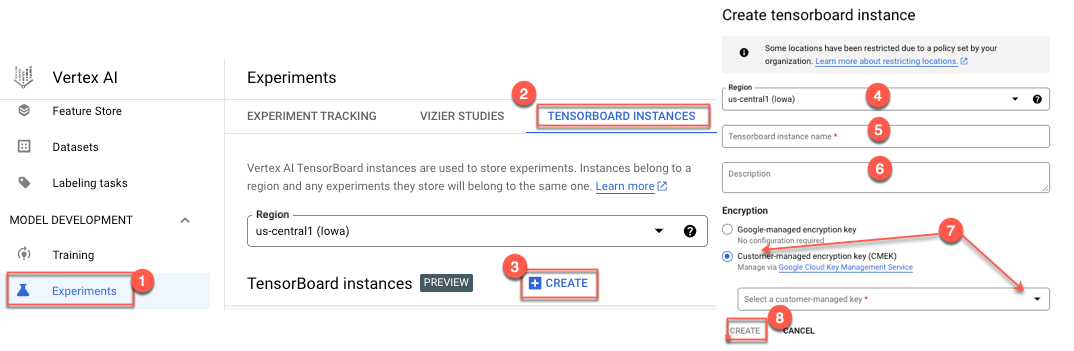
Follow these steps to create a Vertex AI TensorBoard CMEK enabled instance using the
Google Cloud console.
1. If you're new to Gemini Enterprise Agent Platform or starting a new project, [set up your project and development environment](https://docs.cloud.google.com/gemini-enterprise-agent-platform/machine-learning/start/cloud-environment.md.txt).
2. In the Gemini Enterprise Agent Platform section of the Google Cloud console, go to the **Experiments** page.
[Go to the Experiments page](https://console.cloud.google.com/agent-platform/experiments/)
3. Navigate to the **TensorBoard Instances** tab.
4. Click **Create** at the top of the page.
5. Select a location from the **Region** drop-down list.
6. (Optional) Add a description.
7. (Optional) Under **Encryption** , select **Customer-managed encryption key (CMEK)** and select a customer-managed key.
8. Click **Create** to create your TensorBoard instance.
### Terraform
The following sample uses the [`google_vertex_ai_tensorboard`](https://registry.terraform.io/providers/hashicorp/google/latest/docs/resources/vertex_ai_tensorboard) Terraform resource to create a non-encrypted Vertex AI TensorBoard instance.
To learn how to apply or remove a Terraform configuration, see
[Basic Terraform commands](https://docs.cloud.google.com/docs/terraform/basic-commands.md.txt).
### Terraform
```terraform
resource "google_vertex_ai_tensorboard" "default" {
display_name = "vertex-ai-tensorboard-sample-name"
region = "us-central1"
}
```
### Delete a TensorBoard instance
Deleting a TensorBoard instance deletes that TensorBoard and all associated
TensorBoard experiments and TensorBoard runs. The
Vertex AI Experiments the instance is associated with isn't deleted.
To delete a Vertex AI Experiments and it's associated
Vertex AI TensorBoard experiments, see
[Delete an experiment](https://docs.cloud.google.com/gemini-enterprise-agent-platform/machine-learning/experiments/create-experiment.md.txt#delete_experiment).
### Agent Platform SDK for Python
Delete a Vertex AI TensorBoard instance using
the Agent Platform SDK for Python.
### Python
def delete_tensorboard_instance_sample(
tensorboard_resource_name: str,
project: str,
location: str,
):
aiplatform.init(project=project, location=location)
tensorboard = aiplatform.Tensorboard(
tensorboard_name=tensorboard_resource_name
)
tensorboard.delete()
- `tensorboard_resource_name`: Provide the [TensorBoard Resource name](https://docs.cloud.google.com/gemini-enterprise-agent-platform/machine-learning/experiments/tensorboard-setup.md.txt#tensorboard_resource_name).
- `project`: The `PROJECT_ID` your TensorBoard instance is in.
- `location`: The location that your TensorBoard instance is in.
### Google Cloud console
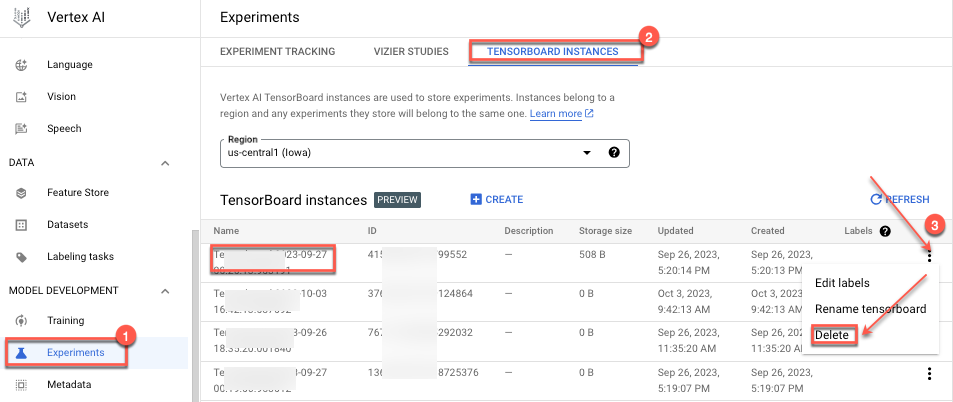
Follow these steps to delete a Vertex AI TensorBoard instance using the
Google Cloud console.
1. In the Gemini Enterprise Agent Platform section of the Google Cloud console, go to the **Experiments** page.
[Go to the Experiments page](https://console.cloud.google.com/agent-platform/experiments/)
2. Select the **TensorBoard Instances** tab. A list TensorBoard instances appears.
3. Select and click **Delete**
### Relevant terms
These terms, "TensorBoard resource name", and "TensorBoard instance ID" are
referenced in numerous samples.
#### TensorBoard resource name
The TensorBoard Resource name is used to fully identify the
Vertex AI TensorBoard instance. The format is as follows:
`projects/PROJECT_ID_OR_NUMBER/locations/REGION/tensorboards/TENSORBOARD_INSTANCE_ID`
The TensorBoard resource name is printed in the log messages when created
using gcloud CLI or Vertex AI SDK, or can be created by
providing the appropriate values for the placeholders.
### Agent Platform SDK for Python
The TensorBoard resource name can be retrieved from an Vertex AI Experiments
using the Vertex AI SDK.
### Python
from google.cloud import aiplatform
def get_experiment_backing_tensorboard_sample(
experiment_name: str,
project: str,
location: str,
):
backing_tensorboard = aiplatform.Experiment(
project=project,
location=location,
experiment_name=experiment_name
).get_backing_tensorboard_resource()
return backing_tensorboard.name
- `experiment_name`: The name of your experiment.
- `project`: The `PROJECT_ID` of your experiment.
- `location`: The location your experiment is located in.
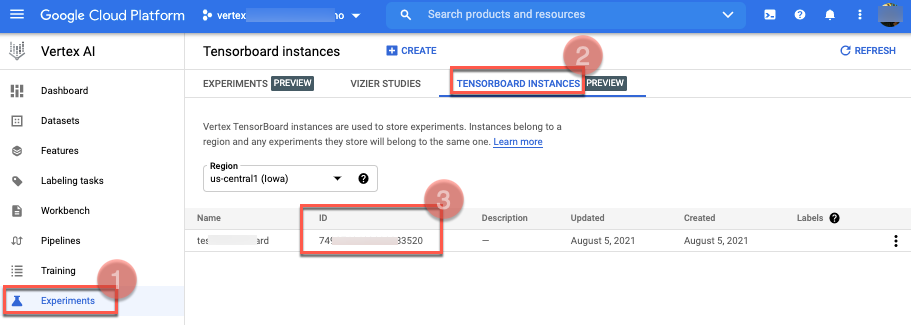
#### TensorBoard instance ID
The TensorBoard instance ID is a generated ID value associated with a
TensorBoard instance. To find the `TENSORBOARD_INSTANCE_ID`, go to the
Experiments page Gemini Enterprise Agent Platform section of the Google Cloud console, and
select the **TensorBoard Instances** tab.
You can also retrieve the instance ID from the
[TensorBoard resource name](https://docs.cloud.google.com/gemini-enterprise-agent-platform/machine-learning/experiments/tensorboard-setup.md.txt#tensorboard_resource_name).