

This page shows examples of hierarchical firewall policies. These examples help you understand how hierarchical firewall policies work and how to use them to provide consistent security across your Google Cloud resource hierarchy. To understand these examples, familiarize yourself with hierarchical firewall policies concepts.
Example 1: Allow a prober to access all VMs
This example describes how to set up a firewall rule at the organization level and allow a prober to access all virtual machines (VMs). A prober is a special program that automatically checks your VMs to determine their contents or configuration.
Scenario
You're a security administrator who needs to ensure your
security scanning tool can connect to all your VM instances.
The tool sends probes from IP address 10.100.0.1 to destination port 123.
You need to ensure that no network or security
administrator accidentally blocks this connection at any level within your
organization.
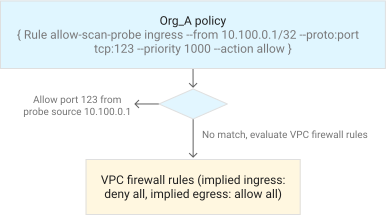
The following diagram shows the configuration for this scenario:
How the policy applies to VMs
After evaluating all rules, the firewall policy applies to your VMs as follows:
Ingress connections
The organization policy allows ingress connections from source IP
10.100.0.1to destination port123. If the organization policy matches, it allows the probe connections and stops evaluating other rules in the hierarchy.For ingress connections that don't originate from source IP
10.100.0.1or target destination port123, no match occurs. Therefore, the default ingress rule in Virtual Private Cloud (VPC) firewall rules applies and denies the connection.
Egress connections
No match occurs across the hierarchy-defined rules. Therefore, the default egress rule in VPC firewall rules applies and allows egress connections. If you have other firewall rules configured to deny egress traffic, note that Google Cloud firewall is stateful and allows return traffic for established connections.
If you have egress firewall rules configured to deny egress traffic, including an implicit
deny-allegress rule, and your setup includes protocols that don't use connection tracking, you must explicitly configure firewall rules to allow egress return traffic.
How to configure
To create a policy rule and associate it with an organization, do the following:
Create a firewall policy to contain the rule:
gcloud compute firewall-policies create \
     --organization ORG_ID \
     --short-name SHORT_NAME \
     --description DESCRIPTION
Add the rule to the firewall policy:
gcloud compute firewall-policies rules create 1000 \
    --action=allow \
    --description DESCRIPTION \
    --layer4-configs=tcp:123 \
    --firewall-policy SHORT_NAME \
    --organization ORG_ID \
    --src-ip-ranges=10.100.0.1/32
Associate the firewall policy with the organization:
gcloud compute firewall-policies associations create \
    --firewall-policy SHORT_NAME\
    --organization ORG_ID
Replace the following:
ORG_ID: your organization's IDSpecify an organization ID to create a policy whose parent is an organization. The policy can be associated with the organization or a folder within the organization.
SHORT_NAME: a name for the policyA policy created by using the Google Cloud CLI has two names: a system-generated name and a short name provided by you. When using the gcloud CLI to update an existing policy, you can provide either the system-generated name or the short name and the organization ID. When using the API to update the policy, you must provide the system-generated name.
DESCRIPTION: description of the firewall policy
Example 2: Deny all external connections except to certain ports
This example describes how to set up policies to deny ingress connections from a specific ports.
Scenario
You're a security administrator who wants to block all incoming internet
traffic to secure your organization, except for specific services, such as
web traffic (ports 80 and 443) and SSH access (port 22).
You must block all incoming internet traffic on ports other than
80, 443, or 22, regardless of existing VPC network rules.
For connections on those allowed ports, you delegate to the VPC
security administrator the ability to decide what happens in their specific
VPC network.
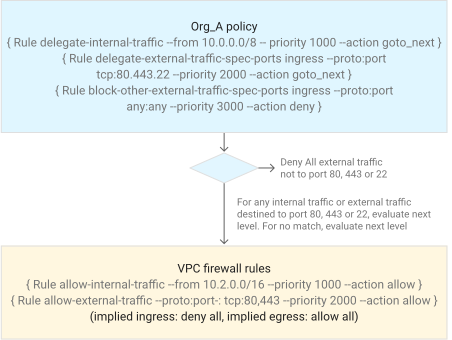
The following diagram shows the configuration for this scenario:
How the policy applies to VMs
After evaluating the rules across the hierarchy, the VM firewall policy applies as follows:
Ingress connections
Ingress connections from
10.0.0.0/8match the highest priority organization-level ruledelegate-internal-traffic. These connections bypass the remaining rules in the organization policy for evaluation against the firewall rules at the VPC network level. The VPC firewall rule allows connections from10.2.0.0/16and evaluates the remaining connections against the implied ingress rule,deny.Ingress connections from source outside the
10.0.0.0/8IP range on destination ports22,80, and443are delegated to the next level. At this level, rules permit traffic on ports80and443, but block port22.All other connections are blocked.
Egress connections
No match occurs across the hierarchy-defined rules. Therefore, the default egress rule in VPC firewall rules applies and allows egress connections. If you have other firewall rules configured to deny egress traffic, note that Google Cloud firewall is stateful and allows return traffic for established connections.
If you have egress firewall rules configured to deny egress traffic, including an implicit
deny-allegress rule, and your setup includes protocols that don't use connection tracking, you must explicitly configure firewall rules to allow egress return traffic.
How to configure
To create a policy rule and allow external TCP 80 or 443 connections,
do the following:
Create a firewall policy to contain the rule:
gcloud compute firewall-policies create \
    --organization ORG_ID \
    --short-name SHORT_NAME \
    --description DESCRIPTION
Add a rule to delegate internal connections to the project owner:
gcloud compute firewall-policies rules create 1000 \
    --action=goto_next \
    --description DESCRIPTION \
    --organization ORG_ID \
    --firewall-policy SHORT_NAME \
    --src-ip-ranges=10.0.0.0/8
Add a rule to delegate external connections rules to ports
80or443or22to the project owner:gcloud compute firewall-policies rules create 2000 \ --action=goto_next \ --description DESCRIPTION \ --src-ip-ranges=0.0.0.0/0 \ --layer4-configs=tcp:80,tcp:443,tcp:22 \ --organization ORG_ID \ --firewall-policy SHORT_NAMEAdd a rule to deny all other external connections:
gcloud compute firewall-policies rules create 3000 \
    --action=deny \
    --description DESCRIPTION \
    --organization ORG_ID \
    --firewall-policy SHORT_NAME \
    --src-ip-ranges=0.0.0.0/0
Associate the firewall policy with the organization:
gcloud compute firewall-policies associations create \
    --organization ORG_ID \
    --firewall-policy SHORT_NAME
In the project, add a firewall rule to allow internal connections from the designated subnet:
gcloud compute firewall-rules create allow-internal-traffic \
    --action=allow \
    --priority=1000 \
    --source-ranges=10.2.0.0/16
In the project, add a firewall rule to allow external TCP
80or443connections:gcloud compute firewall-rules create allow-external-traffic \ --action=allow \ --priority=2000 \ --rules=tcp:80,tcp:443Replace the following:
ORG_ID: your organization's IDSpecify an organization ID to create a policy whose parent is an organization. The policy can be associated with the organization or a folder within the organization.
SHORT_NAME: a name for the policyA policy created by using the Google Cloud CLI has two names: a system-generated name and a short name provided by you. When using the gcloud CLI to update an existing policy, you can provide either the system-generated name or the short name and the organization ID. When using the API to update the policy, you must provide the system-generated name.
DESCRIPTION: description of the firewall policy
Example 3: Deny egress connections except from a specific VPC network
This example describes how to set up policies to deny egress connections from specific VPC network.
Scenario
Your organization handles sensitive data and needs to restrict information
leaving its network. By default, your organization prevents all VM instances
from sending data to the internet. However, a project in the myvpc
VPC network needs to communicate securely with a trusted
partner's server at 203.0.113.1. To support this, you must implement the
following:
- Allow only outbound connections from
myvpcto203.0.113.1. - Delegate management of the specific communication details for this
connection to the
myvpcsecurity administrator. - Ensure this configuration prevents accidental data leaks from other parts of the organization.
The organization security administrator achieves this by blocking egress
connections in all other VPC networks, except for connections
originating in myvpc. The administrator specifically delegates the allowance
of egress to public server 203.0.113.1 to the myvpc security administrator.
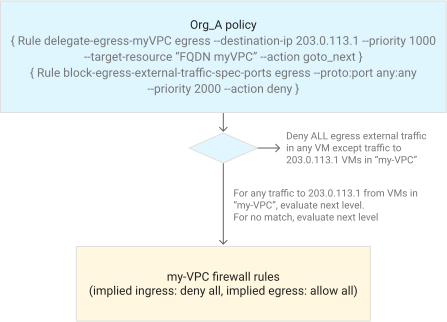
The following diagram shows the configuration for this scenario:
How the policy applies to VMs
After evaluating the rules across the hierarchy, the VM firewall policy applies as follows:
Ingress connections
- There is no match across the hierarchy-defined rules. Therefore, the default ingress rule in VPC firewall rules applies, denying ingress connections.
Egress connections
Egress connections destined to
203.0.113.1are allowed because they match thedelegate-egress-my-vpcrule and bypass the remaining rules in the organization policy. The rest of the other egress connections are denied.The egress connections are then evaluated against the firewall rules configured in
myvpc. The default rule allows the egress connections. Theblock-egress-traffic-sepc-portsrule in the organization-level policy denies the rest of the connections.
How to configure
To create a policy rule and delegate certain egress connections to them, do the following:
Create a firewall policy to contain the rule:
gcloud compute firewall-policies create \
    --organization ORG_ID \
    --short-name SHORT_NAME \
    --description DESCRIPTION
Add a rule to delegate certain egress connections:
gcloud compute firewall-policies rules create 1000 \
    --action=goto_next \
    --description DESCRIPTION \
    --dest-ip-ranges=203.0.113.1/32 \
    --direction=egress \
    --organization ORG_ID \
    --short-name SHORT_NAME \
    --target-resources=projects/PROJECT_ID/networks/myvpc
Add a rule to deny all other egress connections:
gcloud compute firewall-policies rules create 2000 \
    --action=deny \
    --description DESCRIPTION \
    --direction=egress \
    --dest-ip-ranges=0.0.0.0/0 \
    --organization ORG_ID \
    --short-name SHORT_NAME
Associate the firewall policy with the organization:
gcloud compute firewall-policies associations create \
    --organization ORG_ID \
    --short-name SHORT_NAME
Replace the following:
ORG_ID: your organization's IDSpecify an organization ID to create a policy whose parent is an organization. The policy can be associated with the organization or a folder within the organization.SHORT_NAME: a name for the policyA policy created by using the Google Cloud CLI has two names: a system-generated name and a short name provided by you. When using the gcloud CLI to update an existing policy, you can provide either the system-generated name or the short name and the organization ID. When using the API to update the policy, you must provide the system-generated name.DESCRIPTION: description of the firewall policy
Example 4: Configure organization-wide and folder-specific rules
This example describes how to block ingress connections to all VMs in an organization, except for connections from an IP range.
Scenario
Your organization includes multiple folders, such as Folder1 and Folder2.
The organization security team configures an organization-level policy to
allow ingress traffic exclusively from the 203.0.113.0/24 IP range across
all folders.
After the traffic enters the network, different folders have different needs:
Folder1: This team only runs web applications, so their security administrator allows traffic from the trusted partner only on web ports80and443. The policy blocks all other ports for added security.Folder2: This team uses a tool that scans its systems. The tool originates from IP address203.0.113.1within the trusted partner's range. Their administrator ensures this scanning tool can reach any port on their VMs. For all other traffic from the trusted partner, project-level administrators determine the rules. They then open ports80,443, and22for their specific applications.
In this example, a security administrator blocks ingress connections to any VMs
in the organization except those from the allowed IP range 203.0.113.0/24. The
administrator delegates further decisions regarding connections from
203.0.113.0/24 to security administrators at the folder levels.
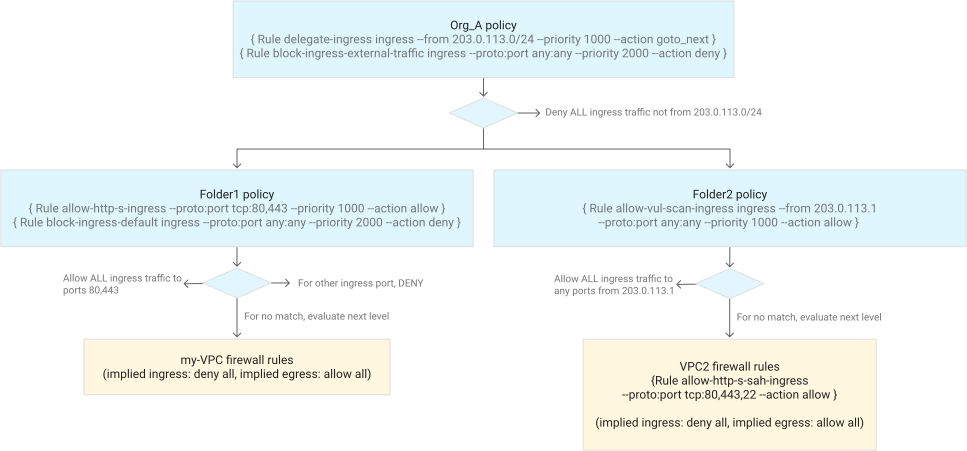
The following diagram shows the configuration for this scenario:
How the policy applies to VMs
After evaluating the rules across the hierarchy, the VM firewall policy applies as follows:
For VMs in VPC network my-vpc
All ingress connections from
203.0.113.0/24to destination TCP ports80and443are allowed. Any other ingress connections are denied.The VPC firewall rule allows all egress connections when no higher-level firewall policy rules match.
For VMs in VPC network vpc2
The policy allows all ingress connections from
203.0.113.1. For ingress connections from203.0.113.0/24sources, except for203.0.113.1, the policy permits traffic only to ports80,443, and22. The policy denies all other ingress connections.Because no higher-level firewall policy rules match, the VPC firewall rule allows all egress connections.
How to configure
To configure organization-wide and folder-specific rules, do the following:
Create a firewall policy for
Org_A:gcloud compute firewall-policies create \ --organization ORG_ID \ --short-name SHORT_NAME \ --description DESCRIPTIONAdd a rule to delegate ingress from
203.0.113.0/24to the project owner:gcloud compute firewall-policies rules create 1000 \ --action=goto_next \ --description DESCRIPTION \ --organization ORG_ID \ --short-name SHORT_NAME \ --src-ip-ranges=203.0.113.0/24Add a rule to deny all other external connections:
gcloud compute firewall-policies rules create 2000 \
    --action=deny \
    --description DESCRIPTION \
    --organization ORG_ID \
    --short-name SHORT_NAME \
    --src-ip-ranges=0.0.0.0/0
Associate the firewall policy with the organization:
gcloud compute firewall-policies associations create \
    --organization ORG_ID \
    --short-name SHORT_NAME
Create a firewall policy to contain the rules for
Folder1:gcloud compute firewall-policies create \ --organization ORG_ID \ --short-name SHORT_NAME \ --description DESCRIPTIONAdd a rule to allow all HTTP(S) ingress:
gcloud compute firewall-policies rules create 1000 \
    --action=allow \
    --description DESCRIPTION \
    --layer4-configs=tcp:80,tcp:443 \
    --organization ORG_ID \
    --short-name SHORT_NAME
Add a rule to deny ingress on all other ports or protocols:
gcloud compute firewall-policies rules create 2000 \
    --action=deny \
    --description DESCRIPTION \
    --organization ORG_ID \
    --short-name SHORT_NAME \
    --src-ip-ranges=0.0.0.0/0
Associate the firewall policy with
Folder1:gcloud compute firewall-policies associations create \ --organization ORG_ID \ --short-name SHORT_NAME \ --folder FOLDER_IDCreate a firewall policy to contain the rules for
Folder2:gcloud compute firewall-policies create \ --organization ORG_ID \ --short-name SHORT_NAME \ --description DESCRIPTIONAdd a rule to allow ingress from
203.0.113.1:gcloud compute firewall-policies rules create 1000 \ --action=allow \ --description DESCRIPTION \ --organization ORG_ID \ --short-name SHORT_NAME \ --src-ip-ranges=203.0.113.1/32Associate the firewall policy with
Folder2:gcloud compute firewall-policies associations create \ --organization ORG_ID \ --short-name SHORT_NAME \ --folder FOLDER_IDAdd a firewall rule to allow HTTP(S) connection ingress:
gcloud compute firewall-rules create allow-internal-traffic \
    --network=vpc2 \
    --action=allow \
    --rules=tcp:80,tcp:443,tcp:22
Replace the following:
ORG_ID: your organization's IDSpecify an organization ID to create a policy whose parent is an organization. The policy can be associated with the organization or a folder within the organization.SHORT_NAME: a name for the policyA policy created by using the Google Cloud CLI has two names: a system-generated name and a short name provided by you. When using the gcloud CLI to update an existing policy, you can provide either the system-generated name or the short name and the organization ID. When using the API to update the policy, you must provide the system-generated name.DESCRIPTION: description of the firewall policyFOLDER_ID: your folder's ID
What's next
To understand hierarchical firewall policies and rules, see Hierarchical firewall policies.
To create and modify hierarchical firewall policies and rules, see Use hierarchical firewall policies.