> [!WARNING]
>
> **Preview
> --- Eventarc for GKE destinations**
>
>
> This feature is
>
> subject to the "Pre-GA Offerings Terms" in the General Service Terms section of the
> [Service Specific
> Terms](https://docs.cloud.google.com/terms/service-terms#1).
>
> Pre-GA features are available "as is" and might have limited support.
>
> For more information, see the
> [launch stage descriptions](https://cloud.google.com/products/#product-launch-stages).
This tutorial shows you how to use Eventarc to build a
processing pipeline that schedules queries to a public BigQuery
dataset, generates charts based on the data, and shares links to the charts
through email.
## Objectives
In this tutorial, you build and deploy three Google Kubernetes Engine (GKE)
services running in a GKE cluster that
receive events using Eventarc:
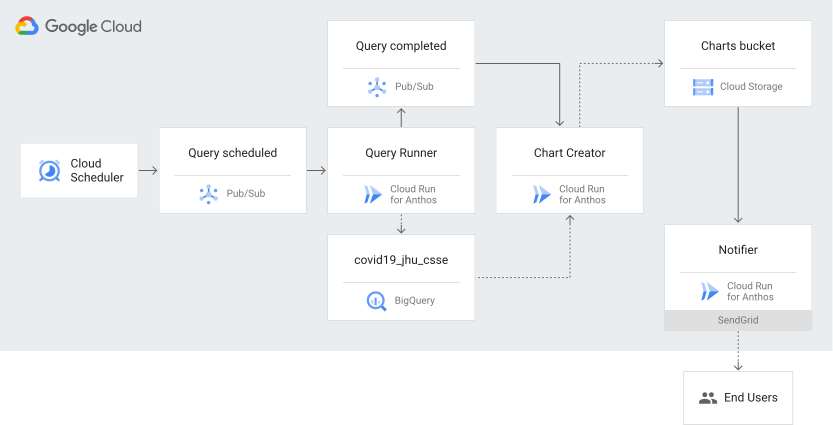
1. **Query runner**---Triggered when Cloud Scheduler jobs publish a message to a Pub/Sub topic; this service uses the BigQuery API to retrieve data from a public COVID-19 dataset, and saves the results in a new BigQuery table.
2. **Chart creator** ---Triggered when the query runner service publishes a message to a Pub/Sub topic; this service generates charts using the Python plotting library, [Matplotlib](https://matplotlib.org/), and saves the charts to a Cloud Storage bucket.
3. **Notifier** ---Triggered by audit logs when the chart creator service stores a chart in a Cloud Storage bucket; this service uses the email service, [SendGrid](https://sendgrid.com/), to send links of the charts to an email address.
The following diagram shows the high-level architecture:
## Costs
In this document, you use the following billable components of Google Cloud:
- [Artifact Registry](https://docs.cloud.google.com/artifact-registry)
- [BigQuery](https://docs.cloud.google.com/bigquery)
- [Cloud Build](https://docs.cloud.google.com/build)
- [Cloud Scheduler](https://docs.cloud.google.com/scheduler)
- [Cloud Storage](https://docs.cloud.google.com/storage)
- [Eventarc](https://docs.cloud.google.com/eventarc)
- [Google Kubernetes Engine](https://docs.cloud.google.com/kubernetes-engine)
- [Pub/Sub](https://docs.cloud.google.com/pubsub)
To generate a cost estimate based on your projected usage,
use the [pricing calculator](https://docs.cloud.google.com/products/calculator).
New Google Cloud users might be eligible for a [free trial](https://docs.cloud.google.com/free).
## Before you begin
1. For Cloud Storage, enable audit logging for the `ADMIN_READ`, `DATA_WRITE`, and `DATA_READ` data access types.
1. Read the Identity and Access Management (IAM) policy associated with your Google Cloud project, folder, or organization and store it in a temporary file:
```
gcloud projects get-iam-policy PROJECT_ID > /tmp/policy.yaml
```
2. In a text editor, open `/tmp/policy.yaml`, and add or change *only* the audit log configuration in the `auditConfigs` section:
> [!CAUTION]
> **Caution:** You must preserve the `bindings:` and `etag:` sections without changes. Changing parts of your policy not related to audit logging might make your Google Cloud project inaccessible.
```yaml
auditConfigs:
- auditLogConfigs:
- logType: ADMIN_READ
- logType: DATA_WRITE
- logType: DATA_READ
service: storage.googleapis.com
bindings:
- members:
[...]
etag: BwW_bHKTV5U=
version: 1
```
3. Write your new IAM policy:
```
gcloud projects set-iam-policy PROJECT_ID /tmp/policy.yaml
```
If the preceding command reports a conflict with another change, then
repeat these steps, starting with reading the IAM policy. For
more information, see
[Configure Data Access audit logs with the API](https://docs.cloud.google.com/logging/docs/audit/configure-data-access.md.txt#config-api).
2. Set the defaults used in this tutorial:
```bash
CLUSTER_NAME=events-cluster
CLUSTER_LOCATION=us-central1
PROJECT_ID=PROJECT_ID
gcloud config set project $PROJECT_ID
gcloud config set eventarc/location $CLUSTER_LOCATION
```
Replace `PROJECT_ID` with your project ID.
## Create a SendGrid API key
SendGrid is a cloud-based email provider that lets you send email without
having to maintain email servers.
1. [Sign in to SendGrid](https://sendgrid.com) and go to **Settings \> API Keys**.
2. Click **Create API Key**.
3. Select the permissions for the key. At a minimum, the key must have **Mail Send** permissions to send email.
4. Click **Save** to create the key.
5. SendGrid generates a new key. This is the **only** copy of the key, so make sure that you copy the key and save it for later.
## Create a GKE cluster
Create a cluster with [Workload Identity Federation for GKE](https://docs.cloud.google.com/kubernetes-engine/docs/how-to/workload-identity.md.txt#enable_on_cluster)
enabled so that it can access Google Cloud services from applications
running within GKE. You also need Workload Identity Federation for GKE to
forward events using Eventarc.
1. Create a GKE cluster with the `HttpLoadBalancing` and
`HorizontalPodAutoscaling` add-ons enabled:
```
gcloud container clusters create $CLUSTER_NAME \
--addons=HttpLoadBalancing,HorizontalPodAutoscaling \
--machine-type=n1-standard-4 \
--enable-autoscaling --min-nodes=2 --max-nodes=10 \
--no-issue-client-certificate --num-nodes=2 \
--logging=SYSTEM,WORKLOAD \
--monitoring=SYSTEM \
--scopes=cloud-platform,logging-write,monitoring-write,pubsub \
--region=$CLUSTER_LOCATION \
--release-channel=rapid \
--workload-pool=$PROJECT_ID.svc.id.goog
```
2. Wait a few minutes for the cluster creation to complete. During the process,
you might see warnings that you can safely ignore. When the cluster has been
created, the output is similar to the following:
```sh
Creating cluster ...done.
Created [https://container.googleapis.com/v1/projects/my-project/zones/us-central1/clusters/events-cluster].
```
3. Update the `kubeconfig` file with credentials and endpoint information to
point `kubectl` at the GKE cluster:
```bash
gcloud container clusters get-credentials $CLUSTER_NAME \
--region=$CLUSTER_LOCATION
```
4. Create an Artifact Registry standard repository to store your
Docker container image:
```bash
gcloud artifacts repositories create REPOSITORY \
--repository-format=docker \
--location=$CLUSTER_LOCATION
```
Replace `REPOSITORY` with a unique name for the
repository.
### Configure the service accounts
1. To allow the GKE nodes to pull container images from
Artifact Registry, grant the
[Artifact Registry Reader](https://docs.cloud.google.com/iam/docs/roles-permissions/artifactregistry.md.txt#artifactregistry.reader)
(`roles/artifactregistry.reader`) role on the project to the Compute Engine
default service account used by the cluster nodes:
```bash
PROJECT_NUMBER="$(gcloud projects describe $(gcloud config get-value project) --format='value(projectNumber)')"
gcloud projects add-iam-policy-binding $PROJECT_ID \
--member "serviceAccount:$PROJECT_NUMBER-compute@developer.gserviceaccount.com" \
--condition=None \
--role "roles/artifactregistry.reader"
```
2. To allow the GKE services to query and write to
BigQuery, publish to Pub/Sub, and upload charts
to Cloud Storage, grant the
[BigQuery Data Editor](https://docs.cloud.google.com/iam/docs/roles-permissions/bigquery.md.txt#bigquery.dataEditor)
(`roles/bigquery.dataEditor`),
[BigQuery Job User](https://docs.cloud.google.com/iam/docs/roles-permissions/bigquery.md.txt#bigquery.jobUser)
(`roles/bigquery.jobUser`),
[Pub/Sub Publisher](https://docs.cloud.google.com/iam/docs/roles-permissions/pubsub.md.txt#pubsub.publisher)
(`roles/pubsub.publisher`), and
[Storage Object Admin](https://docs.cloud.google.com/iam/docs/roles-permissions/storage.md.txt#storage.objectAdmin)
(`roles/storage.objectAdmin`) roles on the project to the
`default` Kubernetes ServiceAccount in the `default` namespace:
```bash
gcloud projects add-iam-policy-binding $PROJECT_ID \
--member "principal://iam.googleapis.com/projects/$PROJECT_NUMBER/locations/global/workloadIdentityPools/$PROJECT_ID.svc.id.goog/subject/ns/default/sa/default" \
--condition=None \
--role "roles/bigquery.dataEditor"
gcloud projects add-iam-policy-binding $PROJECT_ID \
--member "principal://iam.googleapis.com/projects/$PROJECT_NUMBER/locations/global/workloadIdentityPools/$PROJECT_ID.svc.id.goog/subject/ns/default/sa/default" \
--condition=None \
--role "roles/bigquery.jobUser"
gcloud projects add-iam-policy-binding $PROJECT_ID \
--member "principal://iam.googleapis.com/projects/$PROJECT_NUMBER/locations/global/workloadIdentityPools/$PROJECT_ID.svc.id.goog/subject/ns/default/sa/default" \
--condition=None \
--role "roles/pubsub.publisher"
gcloud projects add-iam-policy-binding $PROJECT_ID \
--member "principal://iam.googleapis.com/projects/$PROJECT_NUMBER/locations/global/workloadIdentityPools/$PROJECT_ID.svc.id.goog/subject/ns/default/sa/default" \
--condition=None \
--role "roles/storage.objectAdmin"
```
### Enable GKE destinations
To allow Eventarc to manage resources in the GKE
cluster, enable GKE destinations and bind the Eventarc
service account with the required roles.
1. Enable GKE destinations for Eventarc:
```bash
gcloud eventarc gke-destinations init
```
2. At the prompt to bind the required roles, enter `y`.
The following roles are bound:
- `roles/compute.viewer`
- `roles/container.developer`
- `roles/iam.serviceAccountAdmin`
## Create a Cloud Storage bucket
Create a Cloud Storage bucket in the same region as your
GKE service to save the charts, and grant your account read
access (`roles/storage.objectViewer`) to view the generated charts:
```bash
export BUCKET="$(gcloud config get-value core/project)-charts"
gcloud storage buckets create gs://${BUCKET} --location=$CLUSTER_LOCATION
gcloud storage buckets update gs://${BUCKET} --uniform-bucket-level-access
gcloud storage buckets add-iam-policy-binding gs://${BUCKET} \
--member="user:$(gcloud config get-value core/account)" \
--role=roles/storage.objectViewer
```
> [!NOTE]
> **Note:** If you send the chart links to a different email address, grant the `roles/storage.objectViewer` role to that recipient (`--member="user:EMAIL_ADDRESS"`). Granting access to a specific principal instead of `allUsers` complies with [public access prevention](https://docs.cloud.google.com/storage/docs/public-access-prevention.md.txt).
## Clone the repository
Clone the GitHub repository.
```bash
git clone https://github.com/GoogleCloudPlatform/eventarc-samples
cd eventarc-samples/processing-pipelines
```
## Create a service account and bind access roles
Before creating the Eventarc triggers, set up a user-managed
service account and grant it specific roles so that Eventarc
can forward Pub/Sub events.
1. Create a service account called `eventarc-triggers-test-sa`:
```bash
TRIGGER_GSA=eventarc-triggers-test-sa
gcloud iam service-accounts create $TRIGGER_GSA
```
2. Grant the `pubsub.subscriber`, `monitoring.metricWriter`, and
`eventarc.eventReceiver` roles to the service account:
```bash
PROJECT_ID=$(gcloud config get-value project)
gcloud projects add-iam-policy-binding $PROJECT_ID \
--member "serviceAccount:$TRIGGER_GSA@$PROJECT_ID.iam.gserviceaccount.com" \
--condition=None \
--role "roles/pubsub.subscriber"
gcloud projects add-iam-policy-binding $PROJECT_ID \
--member "serviceAccount:$TRIGGER_GSA@$PROJECT_ID.iam.gserviceaccount.com" \
--condition=None \
--role "roles/monitoring.metricWriter"
gcloud projects add-iam-policy-binding $PROJECT_ID \
--member "serviceAccount:$TRIGGER_GSA@$PROJECT_ID.iam.gserviceaccount.com" \
--condition=None \
--role "roles/eventarc.eventReceiver"
```
## Deploy the notifier service
From the `bigquery/notifier/python` directory, deploy a
GKE service that receives chart creator events and
uses SendGrid to email links to the generated charts.
1. Build and push the container image:
```bash
pushd bigquery/notifier/python
export SERVICE_NAME=notifier
docker build -t $CLUSTER_LOCATION-docker.pkg.dev/$(gcloud config get-value project)/REPOSITORY/${SERVICE_NAME}:v1 .
docker push $CLUSTER_LOCATION-docker.pkg.dev/$(gcloud config get-value project)/REPOSITORY/${SERVICE_NAME}:v1
popd
```
2. Create a Kubernetes deployment for the container image and set the required
environment variables, including an address to send emails to and the
SendGrid API key:
```bash
export TO_EMAILS=EMAIL_ADDRESS
export SENDGRID_API_KEY=YOUR_SENDGRID_API_KEY
kubectl create deployment ${SERVICE_NAME} \
--image=$CLUSTER_LOCATION-docker.pkg.dev/$(gcloud config get-value project)/REPOSITORY/${SERVICE_NAME}:v1
kubectl set env deployment/${SERVICE_NAME} \
TO_EMAILS=${TO_EMAILS} \
SENDGRID_API_KEY=${SENDGRID_API_KEY} \
BUCKET=${BUCKET}
```
Replace the following:
- `EMAIL_ADDRESS`: an email address to send the links to the generated charts
- `YOUR_SENDGRID_API_KEY`: the SendGrid API key you noted previously
- `REPOSITORY`: the name of your Artifact Registry repository
3. Expose the deployment as a Kubernetes service:
```bash
kubectl expose deployment ${SERVICE_NAME} \
--type=ClusterIP --port=80 --target-port=8080
```
> [!NOTE]
> **Note:** It can take a few minutes before permissions are propagated to the service and before you can create a trigger.
### Create a trigger for the notifier service
Create an Eventarc trigger for the notifier service deployed on
GKE that filters for Cloud Storage audit logs for the
specified Cloud Storage bucket and where the `methodName` is
`storage.objects.create`:
```bash
gcloud eventarc triggers create trigger-${SERVICE_NAME}-gke \
--destination-gke-cluster=$CLUSTER_NAME \
--destination-gke-location=$CLUSTER_LOCATION \
--destination-gke-namespace=default \
--destination-gke-service=$SERVICE_NAME \
--destination-gke-path=/ \
--event-filters="type=google.cloud.audit.log.v1.written" \
--event-filters="serviceName=storage.googleapis.com" \
--event-filters="methodName=storage.objects.create" \
--event-filters-path-pattern="resourceName=/projects/_/buckets/$BUCKET/objects/*" \
--service-account=$TRIGGER_GSA@$PROJECT_ID.iam.gserviceaccount.com
```
This creates a trigger called `trigger-notifier-gke`.
## Deploy the chart creator service
From the `bigquery/chart-creator/python` directory, deploy a GKE
service that receives query runner events, retrieves data from a BigQuery
table for a specific country, and then generates a chart, using Matplotlib, from
the data. The chart is uploaded to a Cloud Storage bucket.
1. Build and push the container image:
```bash
pushd bigquery/chart-creator/python
export SERVICE_NAME=chart-creator
docker build -t $CLUSTER_LOCATION-docker.pkg.dev/$(gcloud config get-value project)/REPOSITORY/${SERVICE_NAME}:v1 .
docker push $CLUSTER_LOCATION-docker.pkg.dev/$(gcloud config get-value project)/REPOSITORY/${SERVICE_NAME}:v1
popd
```
2. Create a Kubernetes deployment for the container image and set the `BUCKET`
environment variable:
```bash
kubectl create deployment ${SERVICE_NAME} \
--image=$CLUSTER_LOCATION-docker.pkg.dev/$(gcloud config get-value project)/REPOSITORY/${SERVICE_NAME}:v1
kubectl set env deployment/${SERVICE_NAME} \
BUCKET=${BUCKET}
```
3. Expose the deployment as a Kubernetes service:
```bash
kubectl expose deployment ${SERVICE_NAME} \
--type=ClusterIP --port=80 --target-port=8080
```
### Create a trigger for the chart creator service
Create an Eventarc trigger for the chart creator service deployed
on GKE that filters for messages published to a
Pub/Sub topic.
1. Create the trigger:
```bash
gcloud eventarc triggers create trigger-${SERVICE_NAME}-gke \
--destination-gke-cluster=$CLUSTER_NAME \
--destination-gke-location=$CLUSTER_LOCATION \
--destination-gke-namespace=default \
--destination-gke-service=$SERVICE_NAME \
--destination-gke-path=/ \
--event-filters="type=google.cloud.pubsub.topic.v1.messagePublished" \
--service-account=$TRIGGER_GSA@$PROJECT_ID.iam.gserviceaccount.com
```
This creates a trigger called `trigger-chart-creator-gke`.
2. Set the Pub/Sub topic environment variable.
```bash
export TOPIC_QUERY_COMPLETED=$(basename $(gcloud eventarc triggers describe trigger-${SERVICE_NAME}-gke --format='value(transport.pubsub.topic)'))
```
## Deploy the query runner service
From the `processing-pipelines` directory, deploy a GKE
service that receives Cloud Scheduler events, retrieves data from a
public COVID-19 dataset, and saves the results in a new BigQuery
table.
1. Build and push the container image:
```bash
export SERVICE_NAME=query-runner
docker build -t $CLUSTER_LOCATION-docker.pkg.dev/$(gcloud config get-value project)/REPOSITORY/${SERVICE_NAME}:v1 -f Dockerfile .
docker push $CLUSTER_LOCATION-docker.pkg.dev/$(gcloud config get-value project)/REPOSITORY/${SERVICE_NAME}:v1
```
2. Create a Kubernetes deployment for the container image and set the
`PROJECT_ID` and `TOPIC_ID` environment variables:
```bash
kubectl create deployment ${SERVICE_NAME} \
--image=$CLUSTER_LOCATION-docker.pkg.dev/$(gcloud config get-value project)/REPOSITORY/${SERVICE_NAME}:v1
kubectl set env deployment/${SERVICE_NAME} \
PROJECT_ID=$(gcloud config get-value project) \
TOPIC_ID=${TOPIC_QUERY_COMPLETED}
```
3. Expose the deployment as a Kubernetes service:
```bash
kubectl expose deployment ${SERVICE_NAME} \
--type=ClusterIP --port=80 --target-port=8080
```
### Create a trigger for the query runner service
Create an Eventarc trigger for the query runner service deployed
on GKE that filters for messages published to a
Pub/Sub topic.
1. Create the trigger:
```bash
gcloud eventarc triggers create trigger-${SERVICE_NAME}-gke \
--destination-gke-cluster=$CLUSTER_NAME \
--destination-gke-location=$CLUSTER_LOCATION \
--destination-gke-namespace=default \
--destination-gke-service=$SERVICE_NAME \
--destination-gke-path=/ \
--event-filters="type=google.cloud.pubsub.topic.v1.messagePublished" \
--service-account=$TRIGGER_GSA@$PROJECT_ID.iam.gserviceaccount.com
```
This creates a trigger called `trigger-query-runner-gke`.
2. Set an environment variable for the Pub/Sub topic.
```bash
export TOPIC_QUERY_SCHEDULED=$(basename $(gcloud eventarc triggers describe trigger-${SERVICE_NAME}-gke --format='value(transport.pubsub.topic)'))
```
## Schedule the jobs
The processing pipeline is triggered by two Cloud Scheduler jobs.
Create two Cloud Scheduler jobs that publish to a Pub/Sub
topic once per day:
```bash
gcloud scheduler jobs create pubsub cre-scheduler-uk \
--location=$CLUSTER_LOCATION \
--schedule="0 16 * * *" \
--topic=${TOPIC_QUERY_SCHEDULED} \
--message-body="United Kingdom"
```
```bash
gcloud scheduler jobs create pubsub cre-scheduler-cy \
--location=$CLUSTER_LOCATION \
--schedule="0 17 * * *" \
--topic=${TOPIC_QUERY_SCHEDULED} \
--message-body="Cyprus"
```
The schedule is specified in [unix-cron format](https://docs.cloud.google.com/scheduler/docs/configuring/cron-job-schedules.md.txt).
For example, `0 16 * * *` means that the jobs runs at 16:00 (4 PM) UTC every
day.
## Run the pipeline
1. Confirm that all the triggers were successfully created:
```bash
gcloud eventarc triggers list
```
> [!NOTE]
> **Note:** It can take up to two minutes for triggers to be fully functional.
The output should be similar to the following:
NAME TYPE DESTINATION ACTIVE LOCATION
trigger-chart-creator-gke google.cloud.pubsub.topic.v1.messagePublished GKE:chart-creator Yes us-central1
trigger-notifier-gke google.cloud.audit.log.v1.written GKE:notifier Yes us-central1
trigger-query-runner-gke google.cloud.pubsub.topic.v1.messagePublished GKE:query-runner Yes us-central1
2. Retrieve the Cloud Scheduler job IDs:
```bash
gcloud scheduler jobs list --location=$CLUSTER_LOCATION
```
The output should be similar to the following:
ID LOCATION SCHEDULE (TZ) TARGET_TYPE STATE
cre-scheduler-cy us-central1 0 17 * * * (Etc/UTC) Pub/Sub ENABLED
cre-scheduler-uk us-central1 0 16 * * * (Etc/UTC) Pub/Sub ENABLED
3. Although the jobs are scheduled to run daily at 4 and 5 PM, you can also run
the Cloud Scheduler jobs manually:
```bash
gcloud scheduler jobs run cre-scheduler-cy --location=$CLUSTER_LOCATION
```
```bash
gcloud scheduler jobs run cre-scheduler-uk --location=$CLUSTER_LOCATION
```
4. After a few minutes, confirm that there are two charts in the Cloud Storage
bucket:
```bash
gcloud storage ls gs://${BUCKET}
```
The output should be similar to the following:
```
gs://PROJECT_ID-charts/chart-cyprus.png
gs://PROJECT_ID-charts/chart-unitedkingdom.png
```
Congratulations! You should also receive two emails with links to the charts.
## Clean up
If you created a new project for this tutorial, delete the project. If you used
an existing project and want to keep it without the changes added
in this tutorial, [delete the resources created for the tutorial](https://docs.cloud.google.com/eventarc/standard/docs/gke/big-query-tutorial.md.txt#delete-resources).
> [!CAUTION]
> **Caution** : Deleting a project has the following effects:
>
> - **Everything in the project is deleted.** If you used an existing project for the tasks in this document, when you delete it, you also delete any other work you've done in the project.
> - **Custom project IDs are lost.** When you created this project, you might have created a custom project ID that you want to use in the future. To preserve the URLs that use the project ID, such as an `appspot.com` URL, delete selected resources inside the project instead of deleting the whole project.
>
>
> If you plan to explore multiple architectures, tutorials, or quickstarts, reusing projects
> can help you avoid exceeding project quota limits.
1. Delete a Google Cloud project:
```
gcloud projects delete PROJECT_ID
```
### Delete tutorial resources
1. Delete the Kubernetes services and deployments that you deployed in this
tutorial, and delete the GKE cluster:
```bash
kubectl delete service notifier chart-creator query-runner
kubectl delete deployment notifier chart-creator query-runner
gcloud container clusters delete $CLUSTER_NAME --region=$CLUSTER_LOCATION
```
2. Delete any Eventarc triggers you created in this tutorial:
```
gcloud eventarc triggers delete TRIGGER_NAME
```
Replace `TRIGGER_NAME` with the name of your trigger.
3. Delete the images from Artifact Registry:
```bash
gcloud artifacts docker images delete $CLUSTER_LOCATION-docker.pkg.dev/$(gcloud config get-value project)/REPOSITORY/notifier:v1
gcloud artifacts docker images delete $CLUSTER_LOCATION-docker.pkg.dev/$(gcloud config get-value project)/REPOSITORY/chart-creator:v1
gcloud artifacts docker images delete $CLUSTER_LOCATION-docker.pkg.dev/$(gcloud config get-value project)/REPOSITORY/query-runner:v1
```
4. Delete the Artifact Registry repository:
```bash
gcloud artifacts repositories delete REPOSITORY \
--location=$CLUSTER_LOCATION
```
5. Delete the bucket, along with all the objects within the bucket:
```
gcloud storage rm --recursive gs://${BUCKET}/
```
6. Delete the Cloud Scheduler jobs:
```bash
gcloud scheduler jobs delete cre-scheduler-cy --location=$CLUSTER_LOCATION
gcloud scheduler jobs delete cre-scheduler-uk --location=$CLUSTER_LOCATION
```
7. Remove any Google Cloud CLI default configurations you added during the
tutorial setup:
```bash
gcloud config unset project
gcloud config unset eventarc/location
```
## What's next
- [Learn more about Eventarc](https://docs.cloud.google.com/eventarc/standard/docs/overview.md.txt)
- [Learn how to route Pub/Sub events to GKE](https://docs.cloud.google.com/eventarc/standard/docs/gke/route-trigger-cloud-pubsub.md.txt)