This tutorial shows you how to use Eventarc to read events from a
source in one Google Cloud project and route them to a target destination
in another Google Cloud project. This is possible by using Pub/Sub
as a cross-project transport layer.
## Objectives
In this tutorial, you will:
1. Create a topic in one project, and then [publish to that topic](https://docs.cloud.google.com/pubsub/docs/publisher.md.txt)
from another project. This routes events to a publicly accessible
Cloud Run service using an Eventarc trigger.
2. Use [Pub/Sub notifications](https://docs.cloud.google.com/storage/docs/pubsub-notifications.md.txt)
for Cloud Storage to publish Cloud Storage events from one
project to another. Route the events to a publicly accessible
Cloud Run service using an Eventarc trigger.
3. Use [Cloud Logging sinks](https://docs.cloud.google.com/logging/docs/export/configure_export_v2.md.txt) to
publish Cloud Audit Logs from one project to another. Route the events to a
publicly accessible Cloud Run service using an
Eventarc trigger.
> [!NOTE]
> **Note:** All Cloud Run services are deployed privately by default, which means that they can't be accessed without providing authentication credentials in the request. For projects with [domain restricted sharing organization policies](https://docs.cloud.google.com/resource-manager/docs/organization-policy/restricting-domains), use an authenticated Cloud Run target service rather than one that allows [public access](https://docs.cloud.google.com/run/docs/authenticating/public.md.txt).
## Costs
In this document, you use the following billable components of Google Cloud:
- [Cloud Logging](https://docs.cloud.google.com/logging)
- [Cloud Run](https://docs.cloud.google.com/run)
- [Cloud Storage](https://docs.cloud.google.com/storage)
- [Compute Engine](https://docs.cloud.google.com/compute)
- [Eventarc](https://docs.cloud.google.com/eventarc)
- [Pub/Sub](https://docs.cloud.google.com/pubsub)
To generate a cost estimate based on your projected usage,
use the [pricing calculator](https://docs.cloud.google.com/products/calculator).
New Google Cloud users might be eligible for a [free trial](https://docs.cloud.google.com/free).
## Before you begin
Security constraints defined by your organization might prevent you from completing the
following steps. For troubleshooting information, see
[Develop applications in a constrained Google Cloud environment](https://docs.cloud.google.com/resource-manager/docs/organization-policy/develop-apps-constrained-environment).
Note that you will need **two** projects for this tutorial. The
following steps apply to both projects.
1. Update the gcloud CLI components:
```bash
gcloud components update
```
2. Sign in using your account:
```bash
gcloud auth login
```
## Route Pub/Sub events across projects
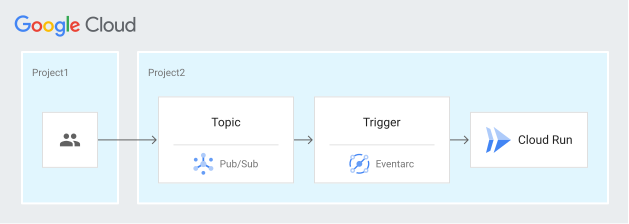
Because Pub/Sub is a globally distributed service, you can
create a topic in one project, publish to that topic from another project, and
then trigger Eventarc which routes the message to a
Cloud Run service:
1. Set the Google Cloud project ID to your second project:
```bash
gcloud config set project PROJECT_TWO_ID
```
Replace `PROJECT_TWO_ID` with the ID of your second
Google Cloud project.
2. In your second project, do the following:
1. Enable the Cloud Run and Eventarc APIs:
```bash
gcloud services enable run.googleapis.com eventarc.googleapis.com
```
2. Set the default location:
```bash
REGION=REGION
```
Replace `REGION` with the supported Eventarc
[location](https://docs.cloud.google.com/eventarc/docs/locations.md.txt) of your choice. For example,
`us-central1`.
3. Create a Pub/Sub topic:
```bash
TOPIC=my-topic
gcloud pubsub topics create $TOPIC
```
4. Deploy a publicly accessible Cloud Run service using a
prebuilt image, `us-docker.pkg.dev/cloudrun/container/hello`:
```bash
gcloud run deploy hello \
--image=us-docker.pkg.dev/cloudrun/container/hello \
--allow-unauthenticated \
--region=$REGION
```
When you see the service URL, the deployment is complete.
5. Connect the topic to the service with an Eventarc
trigger:
```bash
gcloud eventarc triggers create cross-project-trigger \
--destination-run-service=hello \
--destination-run-region=${REGION} \
--location=${REGION} \
--event-filters="type=google.cloud.pubsub.topic.v1.messagePublished" \
--transport-topic=projects/PROJECT_TWO_ID/topics/$TOPIC
```
This creates a trigger called `cross-project-trigger`.
3. Set the Google Cloud project ID to your first project:
```bash
gcloud config set project PROJECT_ONE_ID
```
Replace `PROJECT_ONE_ID` with the ID of your first
Google Cloud project.
4. In your first project, publish a message to the topic in the second project:
```bash
gcloud pubsub topics publish projects/PROJECT_TWO_ID/topics/$TOPIC --message="hello"
```
5. Set the Google Cloud project ID to your second project:
```bash
gcloud config set project PROJECT_TWO_ID
```
6. In your second project, confirm that the generated event was logged:
```bash
gcloud logging read "resource.labels.service_name=hello AND jsonPayload.message:hello" --format=json
```
A logging entry similar to the following is returned:
```bash
"message": "Received event of type google.cloud.pubsub.topic.v1.messagePublished. Event data: hello"
```
## Route Cloud Storage events across projects
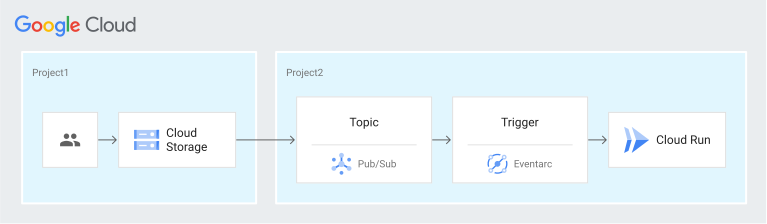
Use Pub/Sub notifications for Cloud Storage to
publish events from one project to another, and then route the events to a
Cloud Run service through an Eventarc trigger:
1. Set the Google Cloud project ID to your first project:
```bash
gcloud config set project PROJECT_ONE_ID
```
2. Create a Cloud Storage bucket:
```bash
PROJECT1=$(gcloud config get-value project)
BUCKET=$PROJECT1-cross-project
gcloud storage buckets create gs://$BUCKET --location=${REGION}
```
3. Create a Pub/Sub notification for the bucket to the topic in
your second project:
```bash
gcloud storage buckets notifications create gs://$BUCKET --topic=projects/PROJECT_TWO_ID/topics/$TOPIC --payload-format=json
```
4. Upload a file to the bucket:
```bash
echo "Hello World" > random.txt
gcloud storage cp random.txt gs://$BUCKET/random.txt
```
5. Set the Google Cloud project ID to your second project:
```bash
gcloud config set project PROJECT_TWO_ID
```
6. In your second project, confirm that the generated event was logged:
```bash
gcloud logging read "resource.labels.service_name=hello AND jsonPayload.message:random.txt" --format=json
```
A logging entry similar to the following is returned:
```bash
Received event of type google.cloud.pubsub.topic.v1.messagePublished. Event data: {
"kind": "storage#object",
"id": "project1-cross-project/random.txt/1635327604259719",
"selfLink": "https://www.googleapis.com/storage/v1/b/project1-cross-project/o/random.txt",
"name": "random.txt",
"bucket": "project1-cross-project",
"generation": "1635327604259719",
[...]
}
```
## Route Cloud Audit Logs events across projects
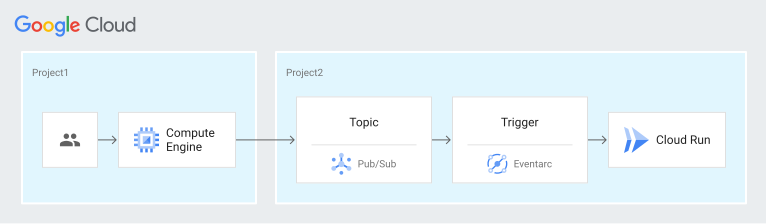
Requests to your service can be triggered when an audit log entry
is created that matches the trigger's filter criteria. (For more information,
see [Determine event filters for Cloud Audit Logs](https://docs.cloud.google.com/eventarc/docs/determining-filters-cal.md.txt).)
In this case, when a Compute Engine VM instance is created in your
first project, an audit log entry that matches the trigger's filter criteria
lets you capture and route an event to a Cloud Run service
in the second project:
1. Set the Google Cloud project ID to your first project:
```bash
gcloud config set project PROJECT_ONE_ID
```
2. In your first project, enable the **Admin Read** ,
**Data Read** , and **Data Write** Log Types for
Compute Engine:
Note that at the project level, you need the
`roles/owner`
Identity and Access Management (IAM) role to configure Data Access audit logs for
your Google Cloud resources.
1. Read your project's IAM policy and store it in a file:
```
gcloud projects get-iam-policy PROJECT_ONE_ID > /tmp/policy.yaml
```
2. Edit `/tmp/policy.yaml`, adding or changing *only* the Data Access audit
logs configuration.
> [!CAUTION]
> **Caution:** You must preserve the `bindings:` and `etag:` sections without changes. Failure to do so might cause your project to become unusable.
```yaml
auditConfigs:
- auditLogConfigs:
- logType: ADMIN_READ
- logType: DATA_READ
- logType: DATA_WRITE
service: compute.googleapis.com
```
3. Write your new IAM policy:
```
gcloud projects set-iam-policy PROJECT_ONE_ID /tmp/policy.yaml
```
If the preceding command reports a conflict with another change, then
repeat these steps, starting with reading the project's IAM
policy.
3. In your first project, create a
[Cloud Logging sink](https://docs.cloud.google.com/logging/docs/routing/overview.md.txt#sinks)
to route Cloud Audit Logs to the topic in your second project:
```bash
gcloud logging sinks create cross-project-sink \
pubsub.googleapis.com/projects/PROJECT_TWO_ID/topics/my-topic \
--log-filter='protoPayload.methodName="beta.compute.instances.insert"'
```
A reminder similar to the following should be returned:
```bash
Please remember to grant `serviceAccount:p1011272509317-375795@gcp-sa-logging.iam.gserviceaccount.com` the Pub/Sub Publisher role on the topic.
```
4. Set the Google Cloud project ID to your second project:
```bash
gcloud config set project PROJECT_TWO_ID
```
5. In your second project, grant the role to the service account:
```bash
gcloud pubsub topics add-iam-policy-binding my-topic \
--member=SERVICE_ACCOUNT \
--role=roles/pubsub.publisher
```
Replace `SERVICE_ACCOUNT` with the service account email
address returned in the previous step.
6. Set the Google Cloud project ID to your first project:
```bash
gcloud config set project PROJECT_ONE_ID
```
7. In your first project, [create a Compute Engine VM instance](https://docs.cloud.google.com/compute/docs/instances/create-start-instance.md.txt).
If you are using the Google Cloud console to create the VM instance, you can
accept the defaults for the purposes of this tutorial.
8. Set the Google Cloud project ID to your second project:
```bash
gcloud config set project PROJECT_TWO_ID
```
9. In your second project, confirm that the generated event was logged:
```bash
gcloud logging read "resource.labels.service_name=hello AND jsonPayload.message:beta.compute.instances.insert" --format=json
```
A logging entry similar to the following is returned:
```bash
Received event of type google.cloud.pubsub.topic.v1.messagePublished. Eventdata: {
"logName": "projects/workflows-atamel/logs/cloudaudit.googleapis.com%2Factivity",
"operation": {
"id": "operation-1635330842489-5cf5321f4f454-ecc363cd-3883c08d",
"last": true,
"producer": "compute.googleapis.com"
},
"protoPayload": {
"@type": "type.googleapis.com/google.cloud.audit.AuditLog",
"methodName": "beta.compute.instances.insert",
}
[...]
}
```
## Clean up
If you created a new project for this tutorial, [delete the project](https://docs.cloud.google.com/eventarc/docs/cross-project-triggers.md.txt#delete-project).
If you used an existing project and want to keep it without the changes added
in this tutorial, [delete the resources created for the tutorial](https://docs.cloud.google.com/eventarc/docs/cross-project-triggers.md.txt#delete-resources).
### Delete the project
The easiest way to eliminate billing is to delete the project that you
created for the tutorial.
To delete the project:
> [!CAUTION]
> **Caution** : Deleting a project has the following effects:
>
> - **Everything in the project is deleted.** If you used an existing project for the tasks in this document, when you delete it, you also delete any other work you've done in the project.
> - **Custom project IDs are lost.** When you created this project, you might have created a custom project ID that you want to use in the future. To preserve the URLs that use the project ID, such as an `appspot.com` URL, delete selected resources inside the project instead of deleting the whole project.
>
>
> If you plan to explore multiple architectures, tutorials, or quickstarts, reusing projects
> can help you avoid exceeding project quota limits.
1. In the Google Cloud console, go to the **Manage resources** page.
[Go to Manage resources](https://console.cloud.google.com/iam-admin/projects)
2. In the project list, select the project that you want to delete, and then click **Delete**.
3. In the dialog, type the project ID, and then click **Shut down** to delete the project.
### Delete tutorial resources
1. Delete the Cloud Run service you deployed in this tutorial:
```bash
gcloud run services delete SERVICE_NAME
```
Where `SERVICE_NAME` is your chosen service name.
You can also delete Cloud Run services from the
[Google Cloud console](https://console.cloud.google.com/run).
2. Remove any gcloud CLI default configurations you added during
the tutorial setup.
For example:
`gcloud config unset run/region`
or
`gcloud config unset project`
3. Delete other Google Cloud resources created in this tutorial:
- Delete the Eventarc trigger:
```
gcloud eventarc triggers delete TRIGGER_NAME
```
Replace `TRIGGER_NAME` with the name of your trigger.
- Delete the Pub/Sub topic:
```
gcloud pubsub topics delete TOPIC TOPIC_ID
```
Replace `TOPIC_ID` with the ID of your topic.
- Delete the Cloud Logging sink:
```
gcloud logging sinks delete SINK_NAME
```
Replace `SINK_NAME` with the name of your sink.
## What's next
- [Understand Eventarc locations](https://docs.cloud.google.com/eventarc/docs/understand-locations.md.txt)
- [Try other tutorials](https://docs.cloud.google.com/eventarc/docs/tutorials)