

In the Google Cloud console, you can view, sort, and filter error groups to assess application health, track recurrence trends, and prioritize critical failures.
The Error Reporting page lists your application's error groups, displaying diagnostic details such as error names, resolution statuses, HTTP response codes, and occurrences over time:

For information about how Error Reporting aggregates individual error events by their root cause, see How error events are grouped.
Before you begin
- Make sure that you have at least one error group. For more information, see Collect error data by using Error Reporting.
-
To get the permissions that you need to view and filter errors, ask your administrator to grant you the Error Reporting Viewer (
roles/errorreporting.viewer) IAM role on your project. For more information about granting roles, see Manage access to projects, folders, and organizations.You might also be able to get the required permissions through custom roles or other predefined roles.
View error details
The details of an error group include the history of error events, the resolution status, the number of occurrences, and a timestamped list of error events. Each entry in the list contains a link to relevant logs and, when available, a stack trace.
To view the details of an error group, do the following:
-
In the Google Cloud console, go to the Error Reporting page:
You can also find this page by using the search bar.
Click the error name.
The Error Group Details page displays information about the error group, including the history of error events and diagnostic information from previous error events. If Gemini is enabled in the project, then you can use Gemini to get troubleshooting suggestions.
View associated log entries
To view the log entry associated with an error event, go to the Recent samples pane and click View Logs.
The Logs Explorer page opens and displays log entries associated
with the error group. The query-editor field specifies the error group ID.
For example, this field might include something like
errorGroups.id="ERROR_GROUP_ID", where ERROR_GROUP_ID is
the ID of your error group.
In the Logs Explorer, the presence of the
 Error group button indicates that the
log entry is associated with an error group. You can filter your log entries
by the error group ID. To view the error group, click the button.
Error group button indicates that the
log entry is associated with an error group. You can filter your log entries
by the error group ID. To view the error group, click the button.
For more information, see the following:
Filter error groups
You can use the filters on the Error Reporting toolbar to filter error groups by status, affected resources, and the region of the log buckets that store your log entries.
Filter error groups by resource
To filter error groups by resource, select the All Resources menu and then select a resource. Some resources let you further filter by error group labels. The type and number of available error group labels vary depending on the resource. For example, if you have error groups for the Kubernetes Container Services resource, then you can filter first by service and then by version:
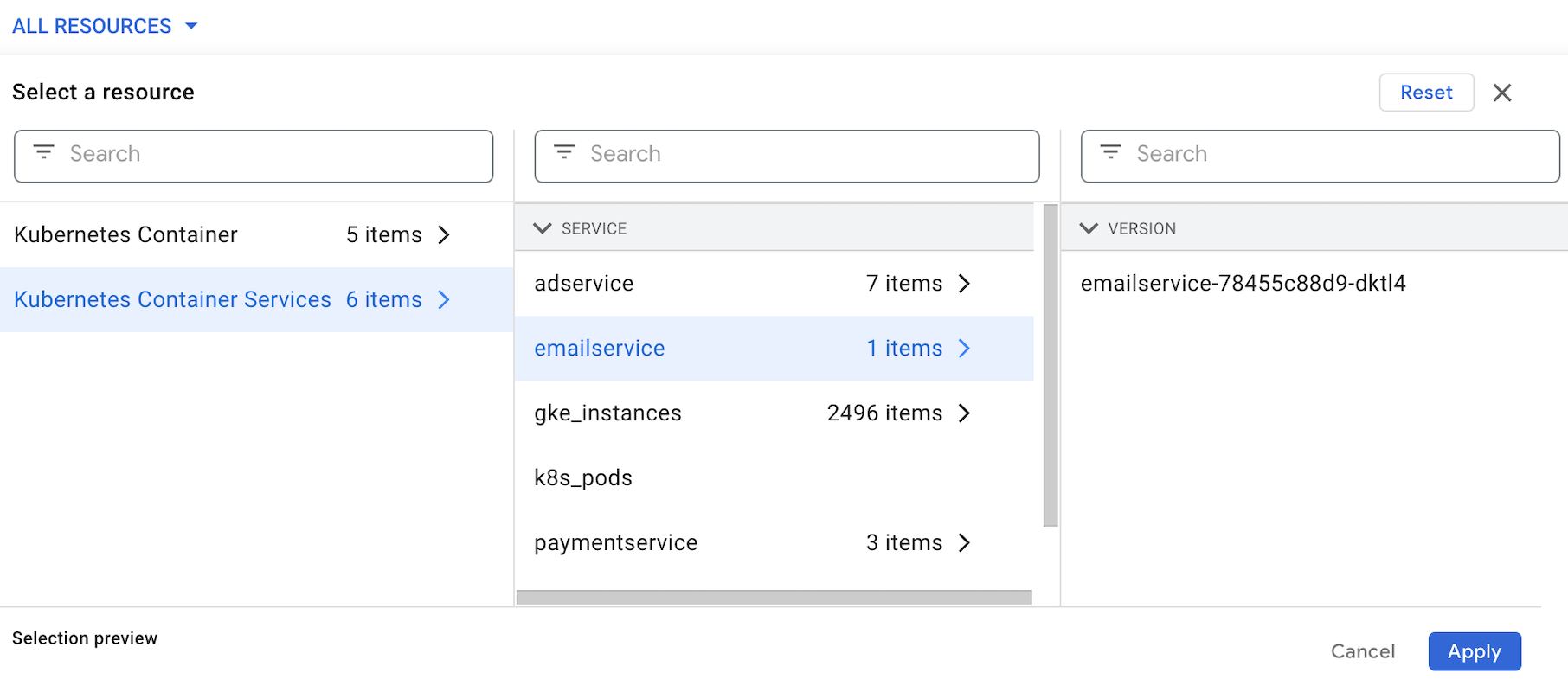
To save your selections, click Apply.
To clear your resource filters and reset the list of filtered error groups, select Reset and then select Apply.
Filter error groups by text
To filter error groups by text, enter a value in the Filter errors text field. The text filter can perform a text match on any of the following fields:
- Error information
- HTTP response code
- Exception stack
- Request URL
- Report location
- HTTP method