# Check a crashed app for errors by using Error Reporting
You can use Error Reporting to view, triage, and troubleshoot
application crashes, helping your team identify issues and resolve errors
before they affect users.
In this quickstart, you simulate error conditions in a Google Cloud project, view
error details in the Google Cloud console, and configure notifications to
receive alerts when new errors occur.
*** ** * ** ***
To follow step-by-step guidance for this task directly in the
Google Cloud console, click **Guide me**:
[Guide me](https://console.cloud.google.com/welcome?walkthrough_id=error_reporting_quickstart)
*** ** * ** ***
## Before you begin
1. Open Cloud Shell for your Google Cloud project. While it starts, the message **Connecting** is displayed.
[Open Cloud Shell](https://console.cloud.google.com/?cloudshell=true).
2. [Configure your email address as a supported notification channel](https://docs.cloud.google.com/error-reporting/docs/notifications.md.txt#create-channel).
## Simulate an error
1. To generate 11 sample errors, run the following script in
Cloud Shell:
```bash
COUNTER=0
while [ $COUNTER -lt 11 ]; do
gcloud beta error-reporting events report --service tutorial --service-version v$((COUNTER/10+1)) \
--message "java.lang.RuntimeException: Error rendering template $COUNTER
at com.example.TestClass.test(TestClass.java:51)
at com.example.AnotherClass(AnotherClass.java:25)
at javax.servlet.http.HttpServlet.service (HttpServlet.java:617)
at javax.servlet.http.HttpServlet.service (HttpServlet.java:717)"
if [ $COUNTER -eq 10 ]; then
echo "All sample errors reported."
fi
let COUNTER=COUNTER+1
done
```
When the script finishes generating all of the errors, it prints the following
line:
`All sample errors reported.`
## View the errors in Error Reporting
1. In the Google Cloud console, go to the **Error Reporting** page:
[Go to **Error Reporting**](https://console.cloud.google.com/errors)
You can also find this page by using the search bar.
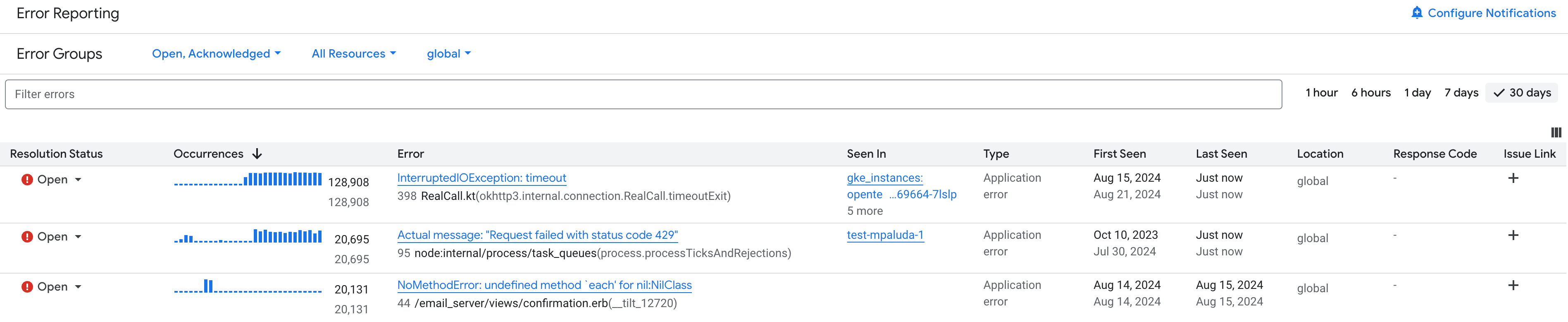
The Error Reporting dashboard displays a summary list of each
error found and the number of occurrences of each error.
When **Auto reload** is turned on, Error Reporting
automatically reloads the error list every 10 seconds.
The following screenshot shows a sample error
reporting page:
2. Click the error name to view the error details page, which contains all of
the available information about an error. If Gemini is
enabled in the project, then you can use Gemini to
[get troubleshooting suggestions](https://docs.cloud.google.com/error-reporting/docs/troubleshoot-errors-gemini).
## Configure notifications
You can configure Error Reporting to notify you when a new
type of error arrives. Notifications aren't sent when there are new
occurrences of existing errors:
1. In the Google Cloud console, go to the **Error Reporting** page:
[Go to **Error Reporting**](https://console.cloud.google.com/errors)
You can also find this page by using the search bar.
2. To enable email notifications, click **Configure notifications**.
3. In the **Notification channels** menu, select your email address, and then
select **Save**.
4. To generate new types of errors,
click **Activate Cloud Shell**
and run the following script:
```bash
COUNTER=0
while [ $COUNTER -lt 3 ]; do
gcloud beta error-reporting events report --service tutorial --service-version v1 \
--message "java.lang.ArrayIndexOutOfBoundsException: $COUNTER
at com.example.AppController.createUser(AppController.java:42)
at com.example.User(User.java:31)
at javax.servlet.http.HttpServlet.service (HttpServlet.java:617)
at javax.servlet.http.HttpServlet.service (HttpServlet.java:717)"
let COUNTER=COUNTER+1
done
echo "All sample errors reported."
```
When the script finishes generating all of the errors, it prints the following
line:
`All sample errors reported.`
5. Check your email for a message from "Stackdriver Notifications".
## Generate error messages from a App Engine app
The sample messages generated by the previous scripts simulate error conditions.
To generate errors from a live service running in your Google Cloud project,
follow the steps in this section.
### Deploy an app
To download and deploy an app to App Engine, do the following:
1. Download and configure the application from the GitHub project
[python-docs-samples](https://github.com/GoogleCloudPlatform/python-docs-samples):
1. Clone the project to your Cloud Shell:
```
git clone https://github.com/GoogleCloudPlatform/python-docs-samples
```
Git returns a message similar to this:
```sh
git clone https://github.com/GoogleCloudPlatform/python-docs-samples
Cloning into 'python-docs-samples'...
```
2. Create an isolated Python environment and activate it:
```
cd python-docs-samples/appengine/standard_python3/hello_world
virtualenv env -p python3
source env/bin/activate
```
3. Install dependencies:
```
pip install -r requirements.txt
```
2. Verify that the application installation and configuration are successful:
1. Run the application:
```
python main.py
```
2. To view the application on a local web page, click the link displayed
in Cloud Shell. The web page displays `Hello World!`.
3. To stop your running application, in Cloud Shell enter `Ctrl-C`.
3. Upload your application to App Engine:
```
gcloud app deploy
```
If prompted for a deployment region, then select one near you. Enter `Y` when
asked if you want to continue.
After a few moments, the upload is complete.
4. View your application in a browser by running the following command in
Cloud Shell:
```
gcloud app browse
```
If the Google Cloud CLI can't find your browser, then the previous command
displays an error message and a link. Click the displayed link. The message
`Hello, World!` is displayed in the browser.
### Generate an error
To create an error that Error Reporting catches and displays,
do the following:
1. Edit `main.py` and change
```
return 'Hello World!
```
to
```
return 'Hello World!' + 1000
```
When executed, this change causes a Python `TypeError` exception because it
is illegal to concatenate a string and an integer.
2. Upload the modified application to App Engine:
```
gcloud app deploy
```
3. Return to the browser tab containing the running application, and reload
the page. Because of your change, instead of the page displaying
`Hello, World!`, it displays an error message:
```sh
Internal Server Error
The server encountered an internal error and was unable to complete your
request. Either the server is overloaded or there is an error in the
application.
```
If you don't see this message, wait a minute and reload it again. It might
take a few moments before the new version is activated.
### View the error in Error Reporting
To view the error, follow the instructions in the previous section [View the errors in Error Reporting](https://docs.cloud.google.com/error-reporting/docs/check-app-crash.md.txt#view).
## Clean up
To avoid incurring charges to your Google Cloud account for
the resources used on this page, follow these steps.
> [!CAUTION]
> **Caution** : Deleting a project has the following effects:
>
> - **Everything in the project is deleted.** If you used an existing project for the tasks in this document, when you delete it, you also delete any other work you've done in the project.
> - **Custom project IDs are lost.** When you created this project, you might have created a custom project ID that you want to use in the future. To preserve the URLs that use the project ID, such as an `appspot.com` URL, delete selected resources inside the project instead of deleting the whole project.
1. In the Google Cloud console, go to the **Manage resources** page.
[Go to Manage resources](https://console.cloud.google.com/iam-admin/projects)
2. In the project list, select the project that you want to delete, and then click **Delete**.
3. In the dialog, type the project ID, and then click **Shut down** to delete the project.
## What's next
- [View error groups](https://docs.cloud.google.com/error-reporting/docs/viewing-errors.md.txt)
- [Manage error groups](https://docs.cloud.google.com/error-reporting/docs/managing-errors.md.txt)