> [!WARNING]
>
> **Preview**
>
>
> This product is
>
> subject to the "Pre-GA Offerings Terms" in the General Service Terms section of the
> [Service Specific
> Terms](https://docs.cloud.google.com/terms/service-terms#1).
>
> You can process personal data for
>
> this product
>
> as outlined in the
> [Cloud Data
> Processing Addendum](https://docs.cloud.google.com/terms/data-processing-addendum), subject to the obligations and restrictions described in the
> agreement under which you access Google Cloud.
>
> Pre-GA products are available "as is" and might have limited support.
>
> For more information, see the
> [launch stage descriptions](https://cloud.google.com/products/#product-launch-stages).
This quickstart introduces you to the Entity Reconciliation API.
In this quickstart, you use the Google Cloud console to set up your
Google Cloud project and authorization, create schema mapping files, and then make a
request for Enterprise Knowledge Graph to run an entity reconciliation job.
*** ** * ** ***
To follow step-by-step guidance for this task directly in the
Google Cloud console, click **Guide me**:
[Guide me](https://console.cloud.google.com/ai/knowledge-graph?tutorial=enterprise-knowledge-graph--ekg_intro_console)
*** ** * ** ***
## Identify your data source
Entity Reconciliation API supports BigQuery tables only as input.
If your data isn't stored in BigQuery, we recommend that you transfer
your data to BigQuery before more connectors become available. Also make
sure the service account or OAuth client you've configured has read access to
the tables you're planning to use, and also write permission to the destination
dataset.
## Create a schema mapping file
For each one of your data sources, you need to create a schema mapping file
to inform Enterprise Knowledge Graph how to ingest the data.
Enterprise Knowledge Graph uses a human-readable simple format language called
[YARRRML](https://rml.io/yarrrml/) to define the mappings between
source schema and target common graph ontologies,
[`schema.org`](https://schema.org).
Enterprise Knowledge Graph only supports 1:1 simple mappings.
The following entity types that correspond to types in `schema.org` are supported:
- [`Person`](https://schema.org/Person)
- [`Organization`](https://schema.org/Organization)
- [`LocalBusiness`](https://schema.org/LocalBusiness)
> [!IMPORTANT]
> The full attributes of each supported [entity type](https://docs.cloud.google.com/enterprise-knowledge-graph/docs/schema.md.txt) has more information.
### Example schema mapping files
### Organization
```yaml
prefixes:
ekg: http://cloud.google.com/ekg/0.0.1#
schema: https://schema.org/
mappings:
Organization:
sources:
- [example_project:example_dataset.example_table~bigquery]
s: ekg:company_$(record_id)
po:
- [a, schema:Organization]
- [schema:name, $(company_name_in_source)]
- [schema:streetAddress, $(street)]
- [schema:postalCode, $(postal_code)]
- [schema:addressCountry, $(country)]
- [schema:addressLocality, $(city)]
- [schema:addressRegion, $(state)]
- [ekg:recon.source_name, $(source_system)]
- [ekg:recon.source_key, $(source_key)]
```
### LocalBusiness
```yaml
prefixes:
ekg: http://cloud.google.com/ekg/0.0.1#
schema: https://schema.org/
mappings:
LocalBusiness:
sources:
- [example_project:example_dataset.example_table~bigquery]
s: ekg:local_business_$(record_id)
po:
- [a, schema:LocalBusiness]
- [schema:name, $(company_name_in_source)]
- [schema:streetAddress, $(street)]
- [schema:postalCode, $(postal_code)]
- [schema:addressCountry, $(country)]
- [schema:addressLocality, $(city)]
- [schema:addressRegion, $(state)]
- [schema:url, $(url)]
- [schema:telephone, $(telephone)]
- [schema:latitude, $(latitude)]
- [schema:longitude, $(longitude)]
- [ekg:recon.source_name, $(source_system)]
- [ekg:recon.source_key, $(source_key)]
```
### Person
```yaml
prefixes:
ekg: http://cloud.google.com/ekg/0.0.1#
schema: https://schema.org/
mappings:
Person:
sources:
- [example_project:example_dataset.example_table~bigquery]
s: ekg:person_$(record_id)
po:
- [a, schema:Person]
- [schema:postalCode, $(ZIP)]
- [schema:birthDate, $(BIRTHDATE)]
- [schema:name, $(NAME)]
- [schema:gender, $(GENDER)]
- [schema:streetAddress, $(ADDRESS)]
- [ekg:recon.source_name, (Patients)]
- [ekg:recon.source_key, $(source_key)]
```
For the source string `example_project:example_dataset.example_table~bigquery`,
`~bigquery` is the fixed string indicating the datasource comes from BigQuery.
In the predicate list (`po`), `ekg:recon.source_name` and `ekg:recon.source_key` are
reserved predicate names used by the system and always need to be mentioned in
the mapping file. Normally, the predicate `ekg:recon.source_name` takes a constant
value for the source (in this example, `(Patients)`). The predicate
`ekg:recon.source_key` takes the unique key from the source table (in this example, `$(source_key)`),
which represents the variable value from the source column ID).
If you have multiple tables or sources to be defined in the mapping files or
different mapping files within one API call, you need to make sure the
subject value is unique across different sources. You can use prefix plus source
column key to make it unique. For example, if you have two person tables with
the same schema, you can assign different formats to the subject (`s`) value:
`ekg:person1_$(record_id)` and `ekg:person2_$(record_id)`.
> [!IMPORTANT]
> Here is an example of a relational schema, and how it represents in the mapping file.
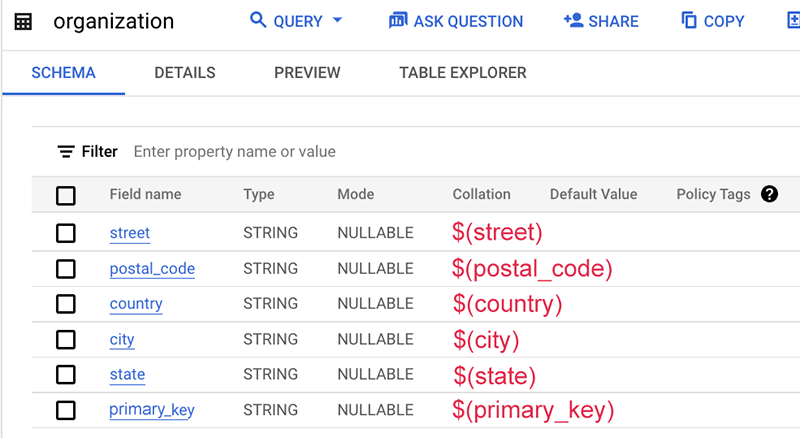
Here is an example of the mapping file:
```yaml
prefixes:
ekg: http://cloud.google.com/ekg/0.0.1#
schema: https://schema.org/
mappings:
organization:
sources:
- [ekg-api-test:demo.organization~bigquery]
s: ekg:company_$(source_key)
po:
- [a, schema:Organization]
- [schema:name, $(source_name)]
- [schema:streetAddress, $(street)]
- [schema:postalCode, $(postal_code)]
- [schema:addressCountry, $(country)]
- [schema:addressLocality, $(city)]
- [schema:addressRegion, $(state)]
- [ekg:recon.source_name, (org)]
- [ekg:recon.source_key, $(primary_key)]
```
In this example, the table schema itself does not contain the name of this data source, which is typically the table name or the database name. Hence, we use a static string "org" without the dollar sign `$`.
## Create an entity reconciliation job
Use the Google Cloud console to create a reconciliation job.
1. Open the **Enterprise Knowledge Graph dashboard**.
[Go to the Enterprise Knowledge Graph dashboard](https://console.cloud.google.com/ai/knowledge-graph)
2. Click **Schema Mapping** to create mapping files from our template for each of your data sources, and then save the mapping file in Cloud Storage.

3. Click **Job** and **Run A Job** to configure job parameters before starting the job.
### Entity type
| Value | Model name | Description |
|---|---|---|
| `Organization` | `google_brasil` | Reconcile entities at the `Organization` level. For example, the name of a corporation as a company. This is different from `LocalBusiness`, which focuses on a particular branch, point of interest, or physical presence, for example, one of many company campuses. |
| `LocalBusiness` | `google_cyprus` | Reconcile entity based on a particular branch, point of interest, or physical presence. It could also take in geo coordinates as model input. |
| `Person` | `google_atlantis` | Reconcile the person entity based on a set of predefined attributes in `schema.org`. |
### Data sources
Only BigQuery tables are supported.
### Destination
The output path should be a BigQuery dataset, where Enterprise Knowledge Graph has permission to write.
For each job executed, Enterprise Knowledge Graph creates a new BigQuery table with timestamp to store the results.
If you use the Entity Reconciliation API, the job response contains the full output table name and location.
4. Configure **Advanced Options** if needed.
5. To start the job, click **Done**.
## Monitor the job status
You can monitor the job status from both the Google Cloud console and the API. The job might take up to 24 hours to complete depending on the number of records in your datasets. Click each individual job to see the detailed configuration of the job.

You can also inspect the job status to see where the current step is.
| Job display state | Code state | Description |
|---|---|---|
| Running | `JOB_STATE_RUNNING` | The job is in progress. |
| Knowledge extraction | `JOB_STATE_KNOWLEDGE_EXTRACTION` | Enterprise Knowledge Graph is pulling data out from BigQuery and creating features. |
| Reconciliation preprocessing | `JOB_STATE_RECON_PREPROCESSING` | The job is at the reconciliation preprocessing step. |
| Clustering | `JOB_STATE_CLUSTERING` | The job is at the clustering step. |
| Exporting clusters | `JOB_STATE_EXPORTING_CLUSTERS` | The job is writing output into the BigQuery destination dataset. |
The run time for each job varies depending on many factors, such as complexity of the data, size of the dataset, and how many other parallel jobs are running at the same time. Here is a rough estimation of job execution time vs. dataset size for your reference. Your actual job completion time will be different.
| Number of total records | Execution time |
|---|---|
| 100k | \~2 hours |
| 100M | \~16 hours |
| 300M | \~24 hours |
## Cancel a reconciliation job
You can `cancel` a running job from both the Google Cloud console (on the job details page) and the API; Enterprise Knowledge Graph stops the job at the earliest opportunity on a best-efforts basis. The success of the `cancel` command isn't guaranteed.
## Advanced options
| Configuration | Description |
|---|---|
| Previous result BigQuery table | Specifying a previous result table keeps the cluster ID stable across different jobs. Then you could use the cluster ID as your permanent ID. |
| Affinity clustering | Recommended option for most cases. It is a parallel version of hierarchical agglomerative clustering and scales very well. The number of clustering rounds (iterations) can be specified in the range `[1, 5]`. The higher the number, the more the algorithm tends to overmerge the cluster. |
| Connected component clustering | Default option. This is an alternative and legacy option; try this option only if affinity clustering doesn't work well on your dataset. The weight threshold can be a number in the range `[0.6, 1]`. |
| Geocoding separation | This option ensures entities from different geographical regions are not clustered together. |