This tutorial shows you how to deploy a simple example [gRPC](https://docs.cloud.google.com/endpoints/docs/grpc/glossary.md.txt#grpc)
service with the
[Extensible Service Proxy V2](https://docs.cloud.google.com/endpoints/docs/grpc/glossary.md.txt#extensible_service_proxy_v2)
(ESPv2) in a [Docker](https://docs.docker.com/)
container in [Compute Engine](https://docs.cloud.google.com/compute).
This tutorial uses the Python version of the
[`bookstore-grpc`](https://github.com/GoogleCloudPlatform/python-docs-samples/tree/master/endpoints/bookstore-grpc)
sample. See the [What's next](https://docs.cloud.google.com/endpoints/docs/grpc/get-started-compute-engine-docker-espv2.md.txt#whats-next) section for gRPC samples in other
languages.
For an overview of Cloud Endpoints, see
[About Endpoints](https://docs.cloud.google.com/endpoints/docs/grpc/about-cloud-endpoints.md.txt)
and [Endpoints architecture](https://docs.cloud.google.com/endpoints/docs/grpc/architecture-overview.md.txt).
## Objectives
Use the following high-level task list as you work through the tutorial. All
tasks are required to successfully send requests to the API.
1. Set up a Google Cloud project, and download required software. See [Before you begin](https://docs.cloud.google.com/endpoints/docs/grpc/get-started-compute-engine-docker-espv2.md.txt#before-you-begin).
2. Create a Compute Engine VM instance. See [Creating a Compute Engine instance](https://docs.cloud.google.com/endpoints/docs/grpc/get-started-compute-engine-docker-espv2.md.txt#create_vm).
3. Copy and configure files from the [`bookstore-grpc`](https://github.com/GoogleCloudPlatform/python-docs-samples/tree/master/endpoints/bookstore-grpc) sample. See [Configuring Endpoints](https://docs.cloud.google.com/endpoints/docs/grpc/get-started-compute-engine-docker-espv2.md.txt#endpoints_configure).
4. Deploy the Endpoints configuration to create an Endpoints service. See [Deploying the Endpoints configuration](https://docs.cloud.google.com/endpoints/docs/grpc/get-started-compute-engine-docker-espv2.md.txt#deploy_configuration).
5. Deploy the API and ESPv2 on the Compute Engine VM. See [Deploying the API backend](https://docs.cloud.google.com/endpoints/docs/grpc/get-started-compute-engine-docker-espv2.md.txt#deploy_backend).
6. Send a request to the API. See [Sending a request to the API](https://docs.cloud.google.com/endpoints/docs/grpc/get-started-compute-engine-docker-espv2.md.txt#send_request).
7. Avoid incurring charges to your Google Cloud account. See [Clean up](https://docs.cloud.google.com/endpoints/docs/grpc/get-started-compute-engine-docker-espv2.md.txt#clean-up).
## Costs
In this document, you use the following billable components of Google Cloud:
- [Compute Engine](https://docs.cloud.google.com/compute/pricing)
- [Endpoints](https://docs.cloud.google.com/endpoints/pricing)
To generate a cost estimate based on your projected usage,
use the [pricing calculator](https://docs.cloud.google.com/products/calculator).
New Google Cloud users might be eligible for a [free trial](https://docs.cloud.google.com/free).
When you finish the tasks that are described in this document, you can avoid
continued billing by deleting the resources that you created. For more information, see
[Clean up](https://docs.cloud.google.com/endpoints/docs/grpc/get-started-compute-engine-docker-espv2.md.txt#clean-up).
## Before you begin
1. Make a note of the project ID because it's needed later.
2. [Install and initialize the Google Cloud CLI](https://docs.cloud.google.com/sdk/docs/quickstarts).
3. Update the gcloud CLI and install the Endpoints components:
```
gcloud components update
```
4. Make sure that the Google Cloud CLI (`gcloud`) is authorized to access your data and services on Google Cloud:
```
gcloud auth login
```
In the new browser tab that opens, select an account.
5. Set the default project to your project ID.
```
gcloud config set project YOUR_PROJECT_ID
```
Replace YOUR_PROJECT_ID with your project ID. If
you have other Google Cloud projects, and you want to use `gcloud`
to manage them, see [Managing gcloud CLI
Configurations](https://docs.cloud.google.com/sdk/docs/managing-configurations).
6. Follow the steps in the [gRPC Python quickstart](https://grpc.io/docs/languages/python/quickstart/) to install gRPC and the gRPC tools.
When you finish the tasks that are described in this document, you can avoid
continued billing by deleting the resources that you created. For more information, see
[Clean up](https://docs.cloud.google.com/endpoints/docs/grpc/get-started-compute-engine-docker-espv2.md.txt#clean-up).
## Creating a Compute Engine instance
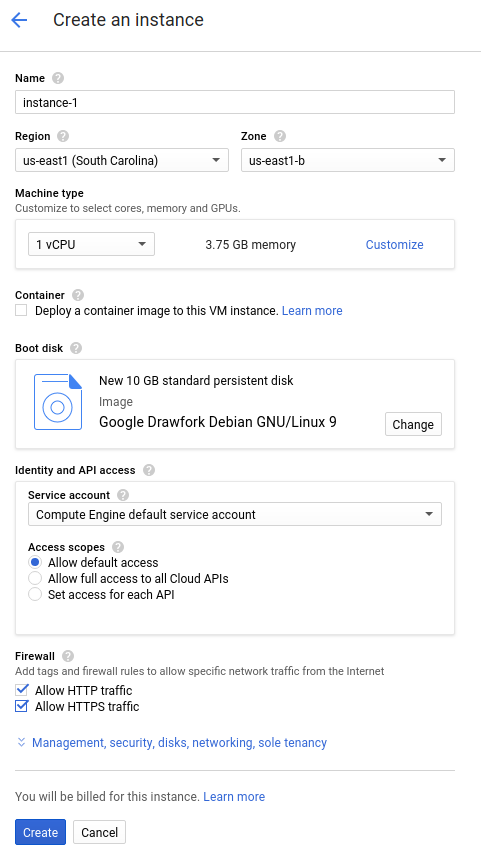
To create a Compute Engine instance:
1. In the Google Cloud console, go to the **Create an instance** page.
[Go to Create an instance](https://console.cloud.google.com/compute/instancesAdd)
2. Click **Select**.
3. In the **Firewall** section, select **Allow HTTP traffic** and **Allow HTTPS traffic**.
4. To create the VM, click **Create**.
5. 
6. Allow a short time for the instance to start up. Once ready, it is listed on the **VM Instances** page with a green status icon.
7. Make sure you that you can connect to your VM instance.
1. In the list of virtual machine instances, click **SSH** in the row of the instance that you want to connect to.
2. You can now use the terminal to run Linux commands on your Debian instance.
3. Enter `exit` to disconnect from the instance.
8. Make a note the instance name, zone, and external IP address because they are needed later.
## Configuring Endpoints
Clone the [`bookstore-grpc` sample](https://github.com/GoogleCloudPlatform/python-docs-samples/tree/master/endpoints/bookstore-grpc)
repository from GitHub.
To configure Endpoints:
1. Create a self-contained protobuf descriptor file from your service `.proto` file:
1. Save a copy of [`bookstore.proto`](https://raw.githubusercontent.com/GoogleCloudPlatform/python-docs-samples/master/endpoints/bookstore-grpc/bookstore.proto) from the example repository. This file defines the Bookstore service's API.
2. Create the following directory: `mkdir generated_pb2`
3. Create the descriptor file, `api_descriptor.pb`, by using the `protoc` protocol buffers compiler. Run the following command in the directory where you saved `bookstore.proto`:
```
python -m grpc_tools.protoc \
--include_imports \
--include_source_info \
--proto_path=. \
--descriptor_set_out=api_descriptor.pb \
--python_out=generated_pb2 \
--grpc_python_out=generated_pb2 \
bookstore.proto
```
In the preceding command, `--proto_path` is set to the current
working directory. In your gRPC build environment, if you use a different
directory for
`.proto` input files, change `--proto_path` so the
compiler searches the directory where you saved `bookstore.proto`.
2. Create a gRPC API configuration YAML file:
1. Save a copy of the [`api_config.yaml`file](https://raw.githubusercontent.com/GoogleCloudPlatform/python-docs-samples/master/endpoints/bookstore-grpc/api_config.yaml). This file defines the [gRPC API configuration](https://docs.cloud.google.com/endpoints/docs/grpc/grpc-service-config.md.txt) for the Bookstore service.
2. Replace MY_PROJECT_ID in your `api_config.yaml` file with your Google Cloud project ID. For example:
```
#
# Name of the service configuration.
#
name: bookstore.endpoints.example-project-12345.cloud.goog
```
Note that the `apis.name` field value in this file exactly matches
the fully-qualified API name from the `.proto` file; otherwise
deployment won't work. The Bookstore service is defined in
`bookstore.proto` inside package `endpoints.examples.bookstore`.
Its fully-qualified API name is `endpoints.examples.bookstore.Bookstore`,
just as it appears in the `api_config.yaml` file.
```
apis:
- name: endpoints.examples.bookstore.Bookstore
```
See [Configuring Endpoints](https://docs.cloud.google.com/endpoints/docs/grpc/configure-endpoints.md.txt)
for more information.
## Deploying the Endpoints configuration
To deploy the Endpoints configuration, you use the
[`gcloud endpoints services deploy`](https://docs.cloud.google.com/sdk/gcloud/reference/endpoints/services/deploy)
command. This command uses
[Service Management](https://docs.cloud.google.com/service-infrastructure/docs/manage-config.md.txt)
to create a managed service.
1. Make sure you are in the directory where the `api_descriptor.pb` and `api_config.yaml` files are located.
2. Confirm that the default project that the `gcloud` command-line tool is currently using is the Google Cloud project that you want to deploy the Endpoints configuration to. Validate the project ID returned from the following command to make sure that the service doesn't get created in the wrong project.
```
gcloud config list project
```
If you need to change the default project, run the following command:
```
gcloud config set project YOUR_PROJECT_ID
```
3. Deploy the `proto descriptor` file and the configuration file by using the Google Cloud CLI:
```
gcloud endpoints services deploy api_descriptor.pb api_config.yaml
```
As it is creating and configuring the service, Service Management outputs
information to the terminal. When the deployment completes, a message similar to
the following is displayed:
```
Service Configuration [CONFIG_ID] uploaded for service [bookstore.endpoints.example-project.cloud.goog]
```
CONFIG_ID is the unique Endpoints service configuration
ID created by the deployment. For example:
```
Service Configuration [2017-02-13r0] uploaded for service [bookstore.endpoints.example-project.cloud.goog]
```
In the previous example, `2017-02-13r0` is the service
configuration ID and
`bookstore.endpoints.example-project.cloud.goog` is the
service name. The service configuration ID consists of a date stamp followed by
a revision number. If you deploy the Endpoints configuration
again on the same day, the revision number is incremented in the service
configuration ID.
### Checking required services
At a minimum, Endpoints and ESP require the following Google services to be enabled:
| Name | Title |
|---|---|
| `servicemanagement.googleapis.com` | Service Management API |
| `servicecontrol.googleapis.com` | Service Control API |
In most cases, the `gcloud endpoints services deploy` command enables these
required services. However, the `gcloud` command completes successfully but
doesn't enable the required services in the following circumstances:
- If you used a third-party application such as Terraform, and you don't
include these services.
- You deployed the Endpoints configuration to an existing
Google Cloud project in which these services were explicitly disabled.
Use the following command to confirm that the required services are enabled:
```
gcloud services list
```
If you do not see the required services listed, enable them:
gcloud services enable servicemanagement.googleapis.com
gcloud services enable servicecontrol.googleapis.com
Also enable your Endpoints service:
```
gcloud services enable ENDPOINTS_SERVICE_NAME
```
To determine the ENDPOINTS_SERVICE_NAME you can either:
- After deploying the Endpoints configuration, go to the **Endpoints** page in the Cloud console. The list of possible ENDPOINTS_SERVICE_NAME are shown under the **Service name** column.
- For OpenAPI, the ENDPOINTS_SERVICE_NAME is what you specified in the `host` field of your OpenAPI spec. For gRPC, the ENDPOINTS_SERVICE_NAME is what you specified in the `name` field of your gRPC Endpoints configuration.
For more information about the `gcloud` commands, see
[`gcloud` services](https://docs.cloud.google.com/sdk/gcloud/reference/services).
If you get an error message, see
[Troubleshooting Endpoints configuration deployment](https://docs.cloud.google.com/endpoints/docs/grpc/troubleshoot-config-deployment.md.txt).
See
[Deploying the Endpoints configuration](https://docs.cloud.google.com/endpoints/docs/grpc/deploy-endpoints-config.md.txt)
for additional information.
## Deploying the API backend
So far you have deployed the API configuration to Service Management, but
you haven't yet deployed the code that serves the API backend. This section
walks you through getting Docker set up on your VM instance and running the API
backend code and the ESPv2 in a Docker container.
### Install Docker on the VM instance
To install Docker on the VM instance:
1. Set the zone for your project by running the command:
```
gcloud config set compute/zone YOUR_INSTANCE_ZONE
```
Replace YOUR_INSTANCE_ZONE with the zone where your instance
is running.
2. Connect to your instance by using the following command:
```
gcloud compute ssh INSTANCE_NAME
```
Replace INSTANCE_NAME with your VM instance name.
3. See the [Docker documentation](https://docs.docker.com/install/linux/docker-ce/debian/) to set up the Docker repository. Make sure to follow the steps that match the version and architecture of your VM instance:
- **Jessie or newer**
- **x86_64 / amd64**
### Run the sample API and ESPv2 in a Docker container
To run the sample gRPC service with ESPv2 in a Docker container so
that clients can use it:
1. On the VM instance, create your own container network called `esp_net`.
```
sudo docker network create --driver bridge esp_net
```
2. Run the sample Bookstore server that serves the sample API:
```
sudo docker run \
--detach \
--name=bookstore \
--net=esp_net \
gcr.io/endpointsv2/python-grpc-bookstore-server:1
```
3. Run the pre-packaged ESPv2 Docker container. In the ESPv2 startup options, replace SERVICE_NAME with the name of your service. This is the same name that you configured in the `name` field in the `api_config.yaml` file. For example: `bookstore.endpoints.example-project-12345.cloud.goog`
```
sudo docker run \
--detach \
--name=esp \
--publish=80:9000 \
--net=esp_net \
gcr.io/endpoints-release/endpoints-runtime:2 \
--service=SERVICE_NAME \
--rollout_strategy=managed \
--listener_port=9000 \
--backend=grpc://bookstore:8000
```
The `--rollout_strategy=managed` option
configures ESPv2 to use the latest deployed service configuration. When you
specify this option, within a minute after you deploy a new service
configuration, ESPv2 detects the change and automatically begins using it. We
recommend that you specify this option instead of providing a specific configuration ID
for ESPv2 to use.
For more details on the ESPv2 arguments, see
[ESPv2 startup options](https://docs.cloud.google.com/endpoints/docs/grpc/specify-proxy-startup-options.md.txt).
If you get an error message, see
[Troubleshooting Endpoints on Compute Engine](https://docs.cloud.google.com/endpoints/docs/grpc/troubleshoot-gce-deployment.md.txt).
## Sending a request to the API
If you are sending the request from the same instance in which the Docker
containers are running, you can replace SERVER_IP with `localhost`. Otherwise
replace SERVER_IP with the external IP of the instance.
You can find the external IP address by running:
```
gcloud compute instances list
```
To send requests to the sample API, you can use a sample gRPC client written in
Python.
1. Clone the git repo where the gRPC client code is hosted:
```
git clone https://github.com/GoogleCloudPlatform/python-docs-samples.git
```
2. Change your working directory:
```
cd python-docs-samples/endpoints/bookstore-grpc/
```
3. Install dependencies:
pip install virtualenv
virtualenv env
source env/bin/activate
python -m pip install -r requirements.txt
4. Send a request to the sample API:
```
python bookstore_client.py --host SERVER_IP --port 80
```
- Look at the activity graphs for your API in the
**Endpoints** \> **Services** page.
[Go to the Endpoints Services page](https://console.cloud.google.com/endpoints)
It may take a few moments for the request to be reflected in the graphs.
- Look at the request logs for your API in the Logs Explorer page.
[Go to the Logs Explorer page](https://console.cloud.google.com/logs/query)
If you don't get a successful response, see
[Troubleshooting response errors](https://docs.cloud.google.com/endpoints/docs/grpc/troubleshoot-response-errors.md.txt).
You just deployed and tested an API in Endpoints!
> [!NOTE]
> **Note** : If you want to let us know what you liked about this tutorial, feel free to provide feedback at the bottom of this page. Your feedback helps us improve these tutorials.
> If you got an error, join the [`google-cloud-endpoints`](https://groups.google.com/forum/#!forum/google-cloud-endpoints) Google group and let us know what went wrong. This group receives responses from other Endpoints users and from Google engineers, who monitor the group.
## Clean up
To avoid incurring charges to your Google Cloud account for the resources used in this
tutorial, either delete the project that contains the resources, or keep the project and
delete the individual resources.
1. Delete the API:
```
gcloud endpoints services delete SERVICE_NAME
```
Replace `SERVICE_NAME` with the name of your service.
2. In the Google Cloud console, go to the **VM instances** page.
[Go to VM instances](https://console.cloud.google.com/compute/instances)
3. Select the checkbox for the instance that you want to delete.
4. To delete the instance, click **More actions** , click **Delete**, and then follow the instructions.
## What's next
- Find out how to [configure your own gRPC API](https://docs.cloud.google.com/endpoints/docs/grpc/grpc-service-config.md.txt) for Endpoints.
- Look through the Bookstore sample on GitHub in more detail. Both the client and server are available in [Python](https://github.com/GoogleCloudPlatform/python-docs-samples/tree/master/endpoints/bookstore-grpc) and [Java](https://github.com/GoogleCloudPlatform/java-docs-samples/tree/master/endpoints).
- The `getting-started-grpc` sample is available on GitHub in the following languages:
- [Java](https://github.com/GoogleCloudPlatform/java-docs-samples/tree/master/endpoints/getting-started-grpc)
- [Python](https://github.com/GoogleCloudPlatform/python-docs-samples/tree/master/endpoints/getting-started-grpc)
- [Ruby](https://github.com/GoogleCloudPlatform/ruby-docs-samples/tree/master/endpoints/getting-started-grpc)
- [Go](https://github.com/GoogleCloudPlatform/golang-samples/tree/master/endpoints/getting-started-grpc)
- [Node.js](https://github.com/GoogleCloudPlatform/nodejs-docs-samples/tree/master/endpoints/getting-started-grpc)