This page explains how to manage an App Engine project for your
Cloud Endpoints Frameworks API by using
[Apache Maven](http://maven.apache.org).
Apache Maven is a software project management and comprehension tool capable of building
Web Application Archive (WAR) files for deployment into App Engine. Google
provides a plugin and Maven Archetypes that are supported by Maven 3.3.9 or
greater.
Maven downloads the Java libraries from the App Engine SDK. You can use
Maven to test your app locally and deploy it to App Engine.
## Before you start
1. Use the Google Cloud console to create and set up your Google Cloud project:
[Go to App Engine](https://console.cloud.google.com/projectselector/appengine/create?lang=java&st=true)
1. Select or create a new Google Cloud project.
2. If you need to create an App Engine application for your project, follow the prompts to select the [region](https://docs.cloud.google.com/appengine/docs/locations) where you want your App Engine application located.
2. [Download and install the gcloud CLI](https://docs.cloud.google.com/sdk/docs.md.txt), and then initialize the Google Cloud CLI.
If you
already have the Google Cloud CLI installed and want to set it to
use a different Google Cloud project ID than the one that you initialized
it to, see [Managing gcloud CLI
configurations](https://docs.cloud.google.com/sdk/docs/managing-configurations).
3. Install the gcloud CLI `app-engine-java` component:
```bash
gcloud components install app-engine-java
```
**Note:** To make sure you have the latest version of the
gcloud CLI for Java, run `gcloud components update`.
4. If you don't have Java, [download](http://www.java.com/en/download/manual.jsp), install, and configure it.
5. Set the Java compiler flags in your project's `pom.xml` to specify Java 8 byte code:
```xml
1.8
1.8
```
6. You must have Apache Maven version 3.3.9 or greater installed. To determine your Maven version, run the following command:
```bash
mvn -v
```
7. If you don't have the proper version of Maven installed:
1. [Download](http://maven.apache.org/download.cgi) Maven version 3.3.9 or greater from the Maven website.
2. [Install](http://maven.apache.org/install.html) Maven on your local machine.
**Note:** Linux users may need to download Maven instead of
using `apt-get install`.
## Adding the App Engine Maven plugin to an existing project (optional)
To use the
[App Engine Maven plugin](https://github.com/GoogleCloudPlatform/app-maven-plugin)
in an existing Maven project, add the following to the
`plugins` section in the project's `pom.xml` file:
```xml
com.google.cloud.tools
appengine-maven-plugin
2.8.7
```
> [!NOTE]
> **Note:** If there is a newer version, upgrade to the [latest version](http://mvnrepository.com/artifact/com.google.cloud.tools/appengine-maven-plugin).
## Choosing an App Engine archetype
[Maven archetypes](http://maven.apache.org/archetype/maven-archetype-plugin)
let users create Maven projects by using templates that cover common
scenarios. App Engine takes advantage of this Maven feature to
provide some useful
[App Engine archetypes](http://search.maven.org/#search%7Cga%7C1%7Ccom.google.appengine.archetypes)
at Maven Central. Select an App Engine archetype appropriate for your app:
| Application type | Artifact | Description |
|---|---|---|
| Endpoints Frameworks for App Engine | `endpoints-skeleton-archetype` | Generates a new, empty Endpoints Frameworks for App Engine backend API project ready for your own classes and resources, with required files and directories. |
| Endpoints Frameworks for App Engine | `hello-endpoints-archetype` | Generates a starter Endpoints Frameworks for App Engine backend API project, ready to build and run. |
## Creating a new project by using Maven
During project creation, Maven prompts you to supply `groupId`, `artifactId`,
`version`, and the `package` for the project.
| Term | Meaning |
|---|---|
| `groupId` | A namespace within Maven to keep track of your artifacts. When people consume your project in their own Maven Project, it serves as an attribute of the dependency they end up specifying. |
| `artifactId` | The name of your project within Maven. It is also specified by consumers of your project when they depend on you in their own Maven projects. |
| `version` | The initial Maven version you want to have your project generated with. It's a good idea to have `version` suffixed by `-SNAPSHOT` because this provides support in the Maven release plugin for versions that are under development. For more information, see the [Maven guide](http://maven.apache.org/guides/mini/guide-releasing.html) to using the release plugin. |
| `package` | The Java package created during the generation. |
### Creating a new Endpoints Frameworks app
This section describes creating a new Endpoints Frameworks version 2.0
project.
The `hello-endpoints-archetype` provides an example of using plugins,
including the App Engine Maven plugin and
[Endpoints Frameworks Maven plugin](https://docs.cloud.google.com/endpoints/docs/frameworks/java/maven-endpoints-frameworks-plugin.md.txt).
The `hello-endpoints-archetype` generates an example Greetings API
by using Endpoints Frameworks version 2.0. It also acts as an example
for
[migrating](https://docs.cloud.google.com/endpoints/docs/frameworks/java/migrating.md.txt)
your Endpoints Frameworks version 1.0 applications to
Endpoints Frameworks version 2.0.
The `README.md` that's generated with the archetype provides information of
where the migration occurred.
To create an Endpoints Frameworks for App Engine backend API
archetype project:
1. Change directory to a directory where you want to build the project.
2. Run the following Maven command:
```xml
mvn archetype:generate -Dgoogle-cloud-project=[YOUR-PROJECT-ID] -Dappengine-plugin=2.8.7 -Dendpoints-frameworks=2.1.0 -Dendpoints-plugin=1.0.2 -Dappengine-sdk=1.9.98 -Dfilter=com.google.appengine.archetypes:
```
Where:
- `-Dgoogle-cloud-project` is set to your project ID.
- `-Dappengine-plugin` is set to the most recent version of the App Engine Maven plugin.
- `-Dendpoints-frameworks` is set to the most recent version of the Endpoints Frameworks for App Engine for Maven dependencies.
- `-Dendpoints-plugin` is set to the most recent version of the Endpoints Frameworks for App Engine Maven plugin.
> [!NOTE]
> **Note:** Endpoints Frameworks for App Engine archetypes have Gradle support and uses the latest version of each dependency.
3. Supply the number corresponding to `hello-endpoints-archetype`.
> [!NOTE]
> **Note:** To create an empty project containing the required directory structure and files ready for your own classes, supply the number corresponding to `endpoints-skeleton-archetype`.
4. Select the most recent version from the displayed list of available archetype
versions.
5. When prompted to `Define value for property 'groupId'`, supply the namespace
for your app; for example, supply the value `com.example.helloendpoints`.
6. When prompted to `Define value for property 'artifactId'`, supply the project
name; for example, supply the value `helloendpoints`.
7. When prompted to `Define value for property 'version'`, accept the default
value.
8. When prompted to `Define value for property 'package'`, accept the default
value.
9. When prompted to confirm your choices, accept the default value by entering
`Y`.
10. Wait for the project to finish generating. then change directories to the
new project directory, for example `helloendpoints/`.
11. Build the project.
```java
mvn clean package
```
12. Wait for the project to build. When the project successfully finishes, a
message similar to the following is displayed:
```java
[INFO] ---
[INFO] BUILD SUCCESS
[INFO] ---
[INFO] Total time: 4.062 s
[INFO] Finished at: 2017-02-28T00:28:03-08:00
[INFO] Final Memory: 27M/485M
[INFO] ---
```
13. To test locally and deploy the project to the App Engine standard
environment, review
[Managing, testing, and deploying a Maven project](https://docs.cloud.google.com/endpoints/docs/frameworks/java/using-maven.md.txt#managing_testing_and_deploying_a_maven_project).
14. Additionally, you can generate Java client libraries for the Greeting API
by using the [Endpoints Frameworks Maven Plugin](https://docs.cloud.google.com/endpoints/docs/frameworks/java/maven-endpoints-frameworks-plugin.md.txt):
```java
mvn endpoints-framework:clientLibs
```
The following diagram shows the basic project layout of the Greetings API:
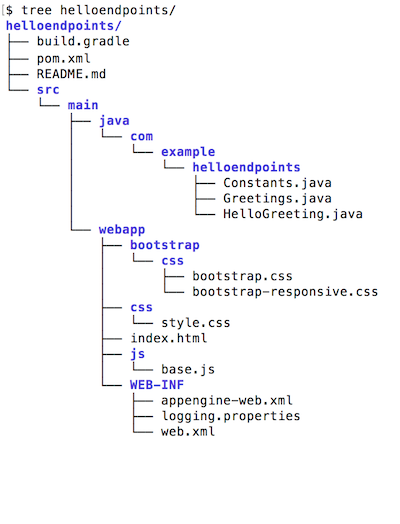
- `README.md` contains information about the generated example.
- `Greetings.java` contains an API definition for an example Greetings API.
- `Constants.java` contains constants used in by the example Greetings API.
- `HelloGreeting.java` contains a container for messages received and sent from the example Greetings API.
- `index.html` contains simple UI to call the backend Greetings API.
- `base.js` contains necessary JavaScript for the UI to make backend requests.
- `build.gradle` once generated, the example also supports Gradle and more information about this functionality in the `README.md`.
## Compiling and building your application
To build an application created with the Maven App Engine archetypes:
1. Change to the main directory for your project, for example, `guestbook/`.
2. Run Maven:
```java
mvn clean package
```
3. Wait for the project to build. When the project successfully finishes, a
message similar to the following is displayed:
```java
BUILD SUCCESS
Total time: 10.724s
Finished at: 2016-08-04T16:18:24-07:00
Final Memory: 24M/213M
```
## Testing your application with the development server
During the development phase, you can run and test your application at any time
in the development server by running the App Engine Maven plugin.
To test your Endpoints Frameworks for App Engine app:
1. If you haven't already done so, build your app:
```java
mvn clean package
```
2. Run the example locally:
```java
mvn appengine:run
```
Wait for the server to start. When the server is completely started with
your application running, a message similar to the following is displayed:
```java
[INFO] GCLOUD: INFO ### devappserver2.py:764] Skipping SDK update check.
[INFO] GCLOUD: INFO ### api_server.py:268] Starting API server at: http://localhost:34199
[INFO] GCLOUD: INFO ### dispatcher.py:199] Starting module "default" running at: http://localhost:8080
[INFO] GCLOUD: INFO ### admin_server.py:116] Starting admin server at: http://localhost:8000
[INFO] GCLOUD: ### com.google.appengine.tools.development.SystemPropertiesManager setSystemProperties
```
3. Use your browser to go to `http://localhost:8080/` to access your app.
4. Shut down the application and the development server by pressing `Control+C`.
### Specifying a port for local testing
When you run your application in the local development server, the default port is
`8080`. You can change this default by modifying the plugin entry for
`appengine-maven-plugin`. For example, you can specify port and address in the
`pom.xml` file of your application directory:
```xml
com.google.cloud.tools
appengine-maven-plugin
2.8.7
0.0.0.0
8181
```
In this example, the `` sets the port to `8181` instead of the
default, and the address `0.0.0.0` is specified, which means the development
server listens for requests coming in from the local network.
The prefix `devserver` is optional; you can use `8181` instead.
### Debugging on the development server
To debug a locally running application, set the `jvmFlags` in the plugin
configuration to enable debugging on the underlying JVM, for example:
```xml
-Xdebug
-Xrunjdwp:transport=dt_socket,server=y,suspend=y,address=5005
```
## Deploying your application
To deploy your application:
```java
mvn appengine:deploy
```
The `appengine:deploy` goal and all other goals in the App Engine Maven
plugin have associated parameters that you can use. For a complete list of goals
and parameters, refer to
[App Engine Maven plugin goals and parameters](https://docs.cloud.google.com/appengine/docs/standard/java/maven-reference).
## What's next
- Explore the App Engine Maven plugin code and report issues on [GitHub](https://github.com/GoogleCloudPlatform/app-maven-plugin).
- Learn how to specify parameters for goals by referring to [App Engine Maven Goals and Parameters](https://docs.cloud.google.com/appengine/docs/standard/java/maven-reference).
- Explore the Endpoints Frameworks Maven plugin code and report issues on [GitHub](https://github.com/GoogleCloudPlatform/endpoints-framework-maven-plugin).
- Learn how to specify parameters for goals by referring to [Cloud Endpoints Frameworks Maven plugin](https://docs.cloud.google.com/endpoints/docs/frameworks/java/maven-endpoints-frameworks-plugin.md.txt).