


許多應用程式都需要在網頁要求環境以外執行背景處理作業。本教學課程會建立一個網頁應用程式,讓使用者輸入要翻譯的文字,然後顯示先前翻譯的清單。翻譯是在背景程序中完成,以避免妨礙使用者的要求。
下圖說明要求翻譯的過程。
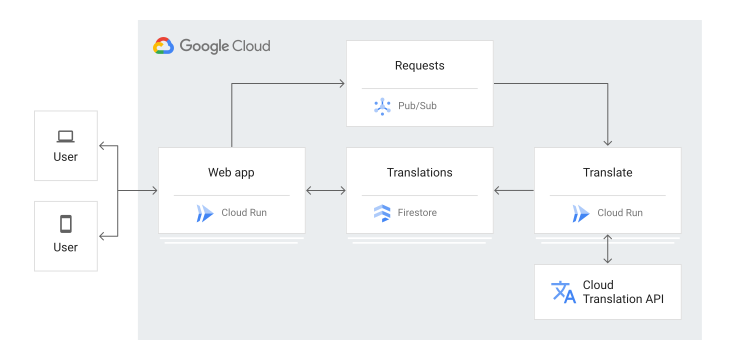
這是教學課程應用程式運作的事件順序:
- 前往網頁以查看 Firestore 儲存的先前翻譯清單。
- 輸入 HTML 表單以要求翻譯文字。
- 翻譯要求會發布至 Pub/Sub。
- 系統會觸發訂閱該 Pub/Sub 主題的 Cloud Run 服務。
- Cloud Run 服務會使用 Cloud Translation 翻譯文字。
- Cloud Run 服務會將結果儲存在 Firestore 中。
本教學課程適合有興趣瞭解如何使用 Google Cloud進行背景處理的使用者。您不需要有 Pub/Sub、Firestore、App Engine 或 Cloud Run functions 的經驗。不過,如要瞭解所有程式碼,具備 .NET、JavaScript 和 HTML 經驗會很有幫助。
目標
- 瞭解及部署 Cloud Run 服務。
- 試用應用程式。
費用
在本文件中,您將使用下列 Google Cloud計費元件:
如要根據預測用量估算費用,請使用 Pricing Calculator。
完成本文所述工作後,您可以刪除建立的資源,避免繼續計費,詳情請參閱「清除所用資源」。
事前準備
- 登入 Google Cloud 帳戶。如果您是 Google Cloud新手,歡迎 建立帳戶,親自體驗產品的實際應用成效。新客戶還能獲得價值 $300 美元的免費抵免額,能用於執行、測試及部署工作負載。
-
In the Google Cloud console, on the project selector page, select or create a Google Cloud project.
Roles required to select or create a project
- Select a project: Selecting a project doesn't require a specific IAM role—you can select any project that you've been granted a role on.
-
Create a project: To create a project, you need the Project Creator role
(
roles/resourcemanager.projectCreator), which contains theresourcemanager.projects.createpermission. Learn how to grant roles.
-
Verify that billing is enabled for your Google Cloud project.
Enable the Firestore, Cloud Run, Pub/Sub, and Cloud Translation APIs, if any are not already enabled.
Roles required to enable APIs
To enable APIs, you need the
serviceusage.services.enablepermission. If you created the project, then you likely already have this permission through the Owner role (roles/owner). Otherwise, you can get this permission through the Service Usage Admin role (roles/serviceusage.serviceUsageAdmin). Learn how to grant roles.-
Install the Google Cloud CLI.
-
If you're using an external identity provider (IdP), you must first sign in to the gcloud CLI with your federated identity.
-
To initialize the gcloud CLI, run the following command:
gcloud init -
In the Google Cloud console, on the project selector page, select or create a Google Cloud project.
Roles required to select or create a project
- Select a project: Selecting a project doesn't require a specific IAM role—you can select any project that you've been granted a role on.
-
Create a project: To create a project, you need the Project Creator role
(
roles/resourcemanager.projectCreator), which contains theresourcemanager.projects.createpermission. Learn how to grant roles.
-
Verify that billing is enabled for your Google Cloud project.
Enable the Firestore, Cloud Run, Pub/Sub, and Cloud Translation APIs, if any are not already enabled.
Roles required to enable APIs
To enable APIs, you need the
serviceusage.services.enablepermission. If you created the project, then you likely already have this permission through the Owner role (roles/owner). Otherwise, you can get this permission through the Service Usage Admin role (roles/serviceusage.serviceUsageAdmin). Learn how to grant roles.-
Install the Google Cloud CLI.
-
If you're using an external identity provider (IdP), you must first sign in to the gcloud CLI with your federated identity.
-
To initialize the gcloud CLI, run the following command:
gcloud init -
更新
gcloud元件:gcloud components update
- 準備開發環境。
準備應用程式
在終端機視窗中,將範例應用程式存放區複製到本機電腦:
git clone https://github.com/GoogleCloudPlatform/getting-started-dotnet.git
您也可以 下載 zip 格式的範例檔案 ,然後將檔案解壓縮。
變更為包含背景工作程式碼範例的目錄:
cd getting-started-dotnet/BackgroundProcessing
瞭解 TranslateWorker 服務
這項服務首先會匯入多個依附元件,例如 Firestore 和 Translation。
系統會初始化 Firestore 和 Translation 用戶端,以便在處理常式呼叫之間重複使用。這樣一來,您就不必為每次叫用初始化新用戶端,這會減緩執行速度。
Translation API 將字串轉換為您選擇的語言。
控制器的建構函式會接收 Firestore 和 Pub/Sub 用戶端。
Post方法會剖析 Pub/Sub 訊息,取得要翻譯的文字。這項服務會使用訊息 ID 做為翻譯要求的專屬名稱,確保不會儲存任何重複翻譯。
部署 TranslateWorker 服務
在
BackgroundProcessing目錄中執行 PowerShell 指令碼,建構服務並部署至 Cloud Run:PublishTo-CloudRun.ps1
瞭解 PublishTo-CloudRun.ps1 指令碼
PublishTo-CloudRun.ps1 指令碼會將服務發布至 Cloud Run,並防止 TranslateWorker 服務遭到濫用。如果服務允許所有連入連線,任何人都可以將翻譯要求發布至控制器,進而產生費用。因此,您將服務設為只接受來自 Pub/Sub 的 POST 要求。
這段指令碼會執行下列動作:
- 使用
dotnet publish在本機建構應用程式。 - 使用 Cloud Build 建構執行應用程式的容器。
- 將應用程式部署至 Cloud Run。
- 允許專案建立 Pub/Sub 驗證權杖。
- 建立服務帳戶,代表 Pub/Sub 訂閱項目身分。
- 授予服務帳戶叫用
TranslateWorker服務的權限。 建立 Pub/Sub 主題和訂閱項目。
瞭解 TranslateUI 服務
TranslateUI 服務會顯示最近的翻譯內容,並接受新的翻譯要求。
StartUp類別會設定 ASP.NET 應用程式,並建立 Pub/Sub 和 Firestore 用戶端。索引處理常式
Index會從 Firestore 取得所有現有翻譯內容,並在ViewModel中填入清單:如要要求新的翻譯,請提交 HTML 表單。要求翻譯處理常式會驗證要求,並將訊息發布至 Pub/Sub:
部署 TranslateUI 服務
在
BackgroundProcessing目錄中執行 PowerShell 指令碼,建構服務並部署至 Cloud Run:./PublishTo-CloudRun.ps1
瞭解 PublishTo-CloudRun.ps1 指令碼
PublishTo-CloudRun.ps1 指令碼會將應用程式發布至 Cloud Run。
這段指令碼會執行下列動作:
- 使用
dotnet publish在本機建構應用程式。 - 使用 Cloud Build 建構執行應用程式的容器。
將應用程式部署至 Cloud Run。
測試應用程式
成功執行 PublishTo-CloudRun.ps1 指令碼後,請嘗試要求翻譯。
PublishTo-CloudRun.ps1指令碼中的最後一個指令會顯示 UI 服務的網址。在終端機視窗中,找出TranslateUI服務的網址:gcloud beta run services describe translate-ui --region $region --format="get(status.address.hostname)"
在瀏覽器中前往上一步取得的網址。
頁面會顯示空白的翻譯清單,以及要求新翻譯的表單。
在「Text to translate」(要翻譯的文字) 欄位中,輸入要翻譯的文字,例如
Hello, World.。按一下「提交」。
如要重新整理頁面,請按一下「重新整理」圖示 refresh。翻譯清單中會顯示新資料列。如果沒有看到翻譯,請稍候幾秒再試一次。如果還是沒有看到翻譯,請參閱下一節,瞭解如何偵錯應用程式。
應用程式偵錯
如果無法連線至 Cloud Run 服務,或沒有看到新的翻譯內容,請檢查下列事項:
確認
PublishTo-CloudRun.ps1指令碼已順利完成,且未輸出任何錯誤。如有錯誤 (例如message=Build failed),請修正錯誤,然後再試一次。檢查記錄中的錯誤:
前往 Google Cloud 控制台的 Cloud Run 頁面。
按一下服務名稱
translate-ui。按一下「Logs」(記錄檔)。
清除所用資源
為避免因為本教學課程所用資源,導致系統向 Google Cloud 帳戶收取費用,請刪除含有相關資源的專案,或者保留專案但刪除個別資源。
刪除 Google Cloud 專案
- 前往 Google Cloud 控制台的「Manage resources」(管理資源) 頁面。
- 在專案清單中選取要刪除的專案,然後點選「Delete」(刪除)。
- 在對話方塊中輸入專案 ID,然後按一下 [Shut down] (關閉) 以刪除專案。
刪除 Cloud Run 服務。
刪除在本教學課程中建立的 Cloud Run 服務:
gcloud beta run services delete --region=$region translate-ui
gcloud beta run services delete --region=$region translate-worker