


多くのアプリでは、認証設定とユーザー設定用にセッション管理が必要です。ASP.NET Core には、セッションを分散キャッシュに保存するためのミドルウェアが付属しています。
ASP.NET のデフォルトの分散キャッシュは実際に配布されることはありません。セッション データはウェブサーバーのメモリに保存されます。ウェブサイトを提供しているウェブサーバーが 1 つだけの場合はこの方法が有効です。しかし、多くのウェブサーバーがウェブサイトを提供している場合、そのウェブサイトのユーザーにはエラーが発生し、データが失われる可能性があります。
エラーとデータの損失を回避するために、ASP.NET アプリは、永続データストアにデータを保存する分散キャッシュを使用する必要があります。このチュートリアルでは、Cloud Run でセッションを Firestore に保存し、Cloud Key Management Service で Cookie を暗号化してセッションを管理する方法を説明します。
目標
- アプリを Cloud Run にデプロイする。
費用
このドキュメントでは、課金対象である次の Google Cloudコンポーネントを使用します。
料金計算ツールを使うと、予想使用量に基づいて費用の見積もりを生成できます。
このドキュメントに記載されているタスクの完了後、作成したリソースを削除すると、それ以上の請求は発生しません。詳細については、クリーンアップをご覧ください。
始める前に
- Google Cloud アカウントにログインします。 Google Cloudを初めて使用する場合は、 アカウントを作成して、実際のシナリオでの Google プロダクトのパフォーマンスを評価してください。新規のお客様には、ワークロードの実行、テスト、デプロイができる無料クレジット $300 分を差し上げます。
-
In the Google Cloud console, on the project selector page, select or create a Google Cloud project.
Roles required to select or create a project
- Select a project: Selecting a project doesn't require a specific IAM role—you can select any project that you've been granted a role on.
-
Create a project: To create a project, you need the Project Creator role
(
roles/resourcemanager.projectCreator), which contains theresourcemanager.projects.createpermission. Learn how to grant roles.
-
Verify that billing is enabled for your Google Cloud project.
Enable the Firestore, Cloud Run, Cloud Key Management Service, and Cloud Storage APIs, if any are not already enabled.
Roles required to enable APIs
To enable APIs, you need the
serviceusage.services.enablepermission. If you created the project, then you likely already have this permission through the Owner role (roles/owner). Otherwise, you can get this permission through the Service Usage Admin role (roles/serviceusage.serviceUsageAdmin). Learn how to grant roles.-
In the Google Cloud console, on the project selector page, select or create a Google Cloud project.
Roles required to select or create a project
- Select a project: Selecting a project doesn't require a specific IAM role—you can select any project that you've been granted a role on.
-
Create a project: To create a project, you need the Project Creator role
(
roles/resourcemanager.projectCreator), which contains theresourcemanager.projects.createpermission. Learn how to grant roles.
-
Verify that billing is enabled for your Google Cloud project.
Enable the Firestore, Cloud Run, Cloud Key Management Service, and Cloud Storage APIs, if any are not already enabled.
Roles required to enable APIs
To enable APIs, you need the
serviceusage.services.enablepermission. If you created the project, then you likely already have this permission through the Owner role (roles/owner). Otherwise, you can get this permission through the Service Usage Admin role (roles/serviceusage.serviceUsageAdmin). Learn how to grant roles.-
Firestore データベースをネイティブ モードで作成するには、次の手順に沿って操作してください。
-
Google Cloud コンソールで、[Firestore Viewer] ページに移動します。
Firestore Viewer に移動 - [Cloud Firestore モードの選択] 画面から、[ネイティブ モードを選択] をクリックします。
- Firestore データベースのロケーションを選択します。このロケーション設定は、 Google Cloud プロジェクトのデフォルトの Google Cloud リソースのロケーション です。このロケーションは、ロケーション設定が必要な Google Cloud プロジェクト内の Google Cloud サービスで使用されます。具体的には、デフォルトの Cloud Storage バケットと App Engine アプリです。
- [データベースを作成] をクリックします。
-
Google Cloud コンソールで、[Firestore Viewer] ページに移動します。
-
Cloud Shell で、アプリのソースコードを開きます。
Cloud Shell に移動Cloud Shell を使用すると、ブラウザからコマンドラインで直接 Google Cloud リソースにアクセスできます。
- サンプルコードをダウンロードしてアプリのディレクトリに移動するには、[続行] をクリックします。
-
Cloud Shell で、新しい Google Cloud プロジェクトを使用するように gcloud CLI を構成します。
# Configure gcloud for your project
gcloud config set project PROJECT_ID
PROJECT_IDは、 Google Cloud コンソールを使用して作成した Google Cloud プロジェクト ID に置き換えます。Google Cloud CLI は、コマンドラインから Google Cloud リソースを操作する基本的な方法です。このチュートリアルでは、gcloud CLI を使用してアプリをデプロイおよびモニタリングします。
ソースコードを調べる
次の図は、Firestore が Cloud Run アプリのセッションを取り扱う方法を示しています。
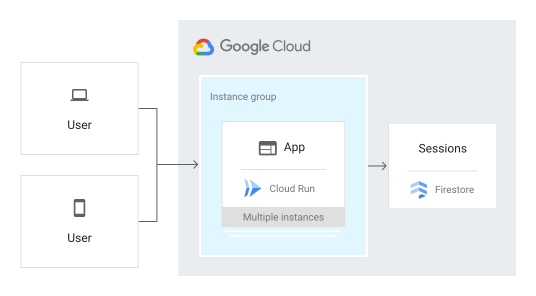
Startup.cs ファイルの ConfigureServices メソッドは、暗号化に Cloud KMS を使用し、暗号化された鍵を Cloud Storage に保存するようにアプリを設定します。
-
Cloud Shell で、[
 ] をクリックしてエディタを起動し、
Startup.csファイルを調べます。
Google Cloud プロジェクトの設定
-
Cloud Shell エディタで、
appsettings.jsonファイルを編集し、YOUR-PROJECT-IDの 2 つのインスタンスを Google Cloud プロジェクト ID に置き換えます。ファイルを保存します。 -
dataprotectionproviderという名前の新しい Cloud Key Management Service キーリングを作成します。gcloud kms keyrings create dataprotectionprovider --location global
-
masterkeyという名前の新しい Cloud Key Management Service 鍵を作成します。gcloud kms keys create masterkey --location global --keyring dataprotectionprovider --purpose=encryption
-
暗号化された鍵を格納する Cloud Storage バケットを作成します。
gcloud storage buckets create gs://PROJECT_ID-bucket
Cloud Run でのデプロイと実行
Cloud Run を使用すると、高負荷の元で大量のデータを使用して正常に実行されるアプリをビルドしてデプロイできます。
このチュートリアルでは、Cloud Run を使用してサーバーをデプロイします。
Cloud Shell で、アプリを公開します。
dotnet publish -c ReleaseCloud Build を使用して Docker コンテナをビルドし、Container Registry に公開します。
gcloud builds submit --tag gcr.io/PROJECT_ID/sessions bin/Release/netcoreapp2.1/publish
Cloud Run を使用してコンテナを実行します。
gcloud beta run deploy sessions --region us-central1 --platform managed --image gcr.io/PROJECT_ID/sessions --allow-unauthenticated
出力の URL をメモしておきます。
Service [sessions] revision [sessions-00003-xiz] has been deployed and is serving
100 percent of traffic at https://sessions-r3f3em7nuq-uc.a.run.app
ライブアプリを表示するには、前の手順でメモした URL に移動します。
セッションの削除
Google Cloud コンソールでセッション データを削除するか、自動削除戦略を実装できます。セッションに、Memcache や Redis などのストレージ ソリューションを使用すると、期限切れのセッションが自動的に削除されます。
アプリのデバッグ
Cloud Run アプリに接続できない場合は、次の点を確認してください。
gcloudデプロイ コマンドが正常に終了して、エラーを出力しなかったことを確認します。エラー(message=Build failedなど)がある場合は、修正し、Cloud Run アプリのデプロイを再度行ってください。- ログの表示に関する Cloud Run ガイドをご覧ください。
クリーンアップ
プロジェクトを削除する
- Google Cloud コンソールで [リソースの管理] ページに移動します。
- プロジェクト リストで、削除するプロジェクトを選択し、[削除] をクリックします。
- ダイアログでプロジェクト ID を入力し、[シャットダウン] をクリックしてプロジェクトを削除します。
次のステップ
- Cloud Run の詳細を確認する
- Cloud KMS の詳細を確認する
- Cloud Storage の詳細を確認する