> [!CAUTION]
> **Caution** : Document AI Warehouse is deprecated and will no longer be available on Google Cloud after January 16, 2025. To safeguard your data, migrate any documents currently saved in Document AI Warehouse to an alternative like Cloud Storage. Verify that your data migration is completed before the discontinuation date to prevent any data loss. See [Deprecations](https://docs.cloud.google.com/document-warehouse/docs/deprecations) for details.
> [!WARNING]
>
> **Preview**
>
>
> This feature is
>
> subject to the "Pre-GA Offerings Terms" in the General Service Terms section of the
> [Service Specific
> Terms](https://docs.cloud.google.com/terms/service-terms#1).
>
> Pre-GA features are available "as is" and might have limited support.
>
> For more information, see the
> [launch stage descriptions](https://cloud.google.com/products/#product-launch-stages).
> [!NOTE]
> This feature is subject to the [Data Processing and Security
> Terms](https://cloud.google.com/terms/data-processing-terms) and the [GenAI Trusted Tester Terms of Service](https://cloud.google.com/trustedtester/aitos).
> [!NOTE]
> **Note:** You can **report suspected abuse** of the service or any generated output that contains inappropriate material or inaccurate information [through this form](https://support.google.com/code/contact/cloud_platform_report).
## Before you start
1. Make sure that your project was provisioned with **Question \& Answering** enabled. See the [Quickstart Guide](https://docs.cloud.google.com/document-warehouse/docs/genai-quickstart) for instructions.
2. Follow the [steps to ingest documents](https://docs.cloud.google.com/document-warehouse/docs/gcc-upload-documents) for [LLM-based search](https://docs.cloud.google.com/document-warehouse/docs/llm-search) into Document AI Warehouse.
## Use generative AI for document search
- On the [documents page](https://console.cloud.google.com/ai/docai-warehouse/documents), enter your natural language question in the **generative AI search box**.

- The top five documents are listed in the generative AI section, which is populated with additional information in the table section.
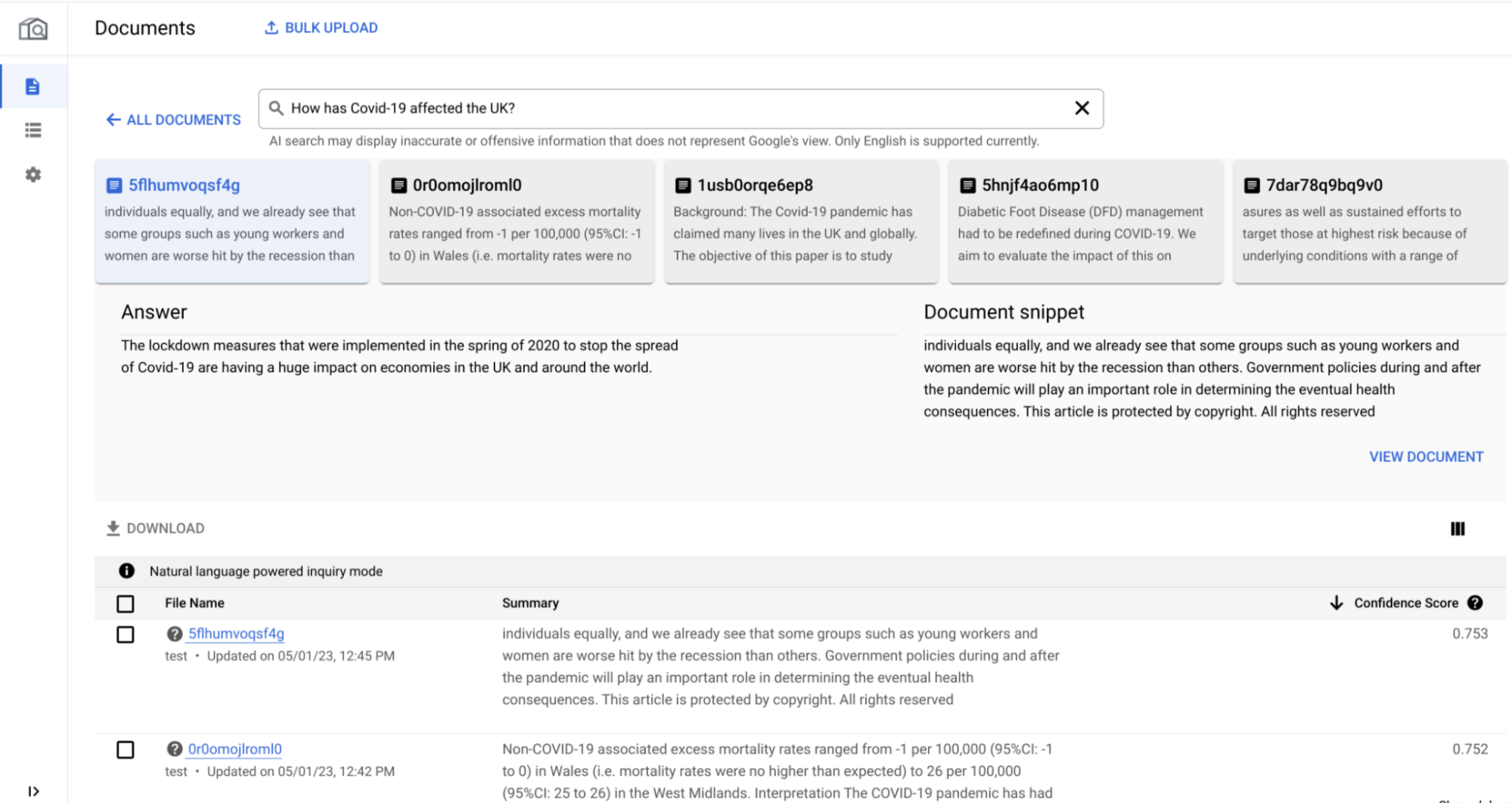
### GenAI section
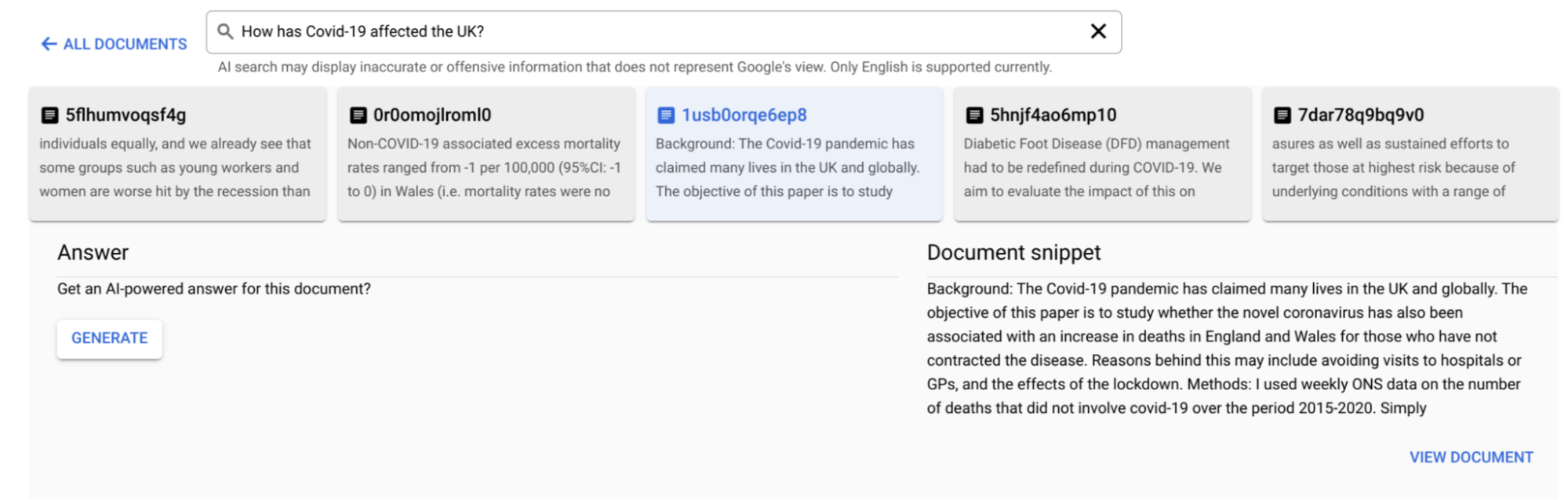
- It contains the top 5 documents that are most relevant to your natural language question.
- For each selected document in the answer section, there are two parts: `answer` and `document snippet`, which is the actual text of the document that closely relates to your question. It's most likely to have the answer, which is an AI-assisted response based on the selected document.
1. To generate an answer, click **Generate**.
2. Click **View Document** to open the selected document. For PDFs, the document snippet is highlighted in the opened document.
> [!NOTE]
> **Note:** AI assisted answer is generated by default for the top document.
### Table section
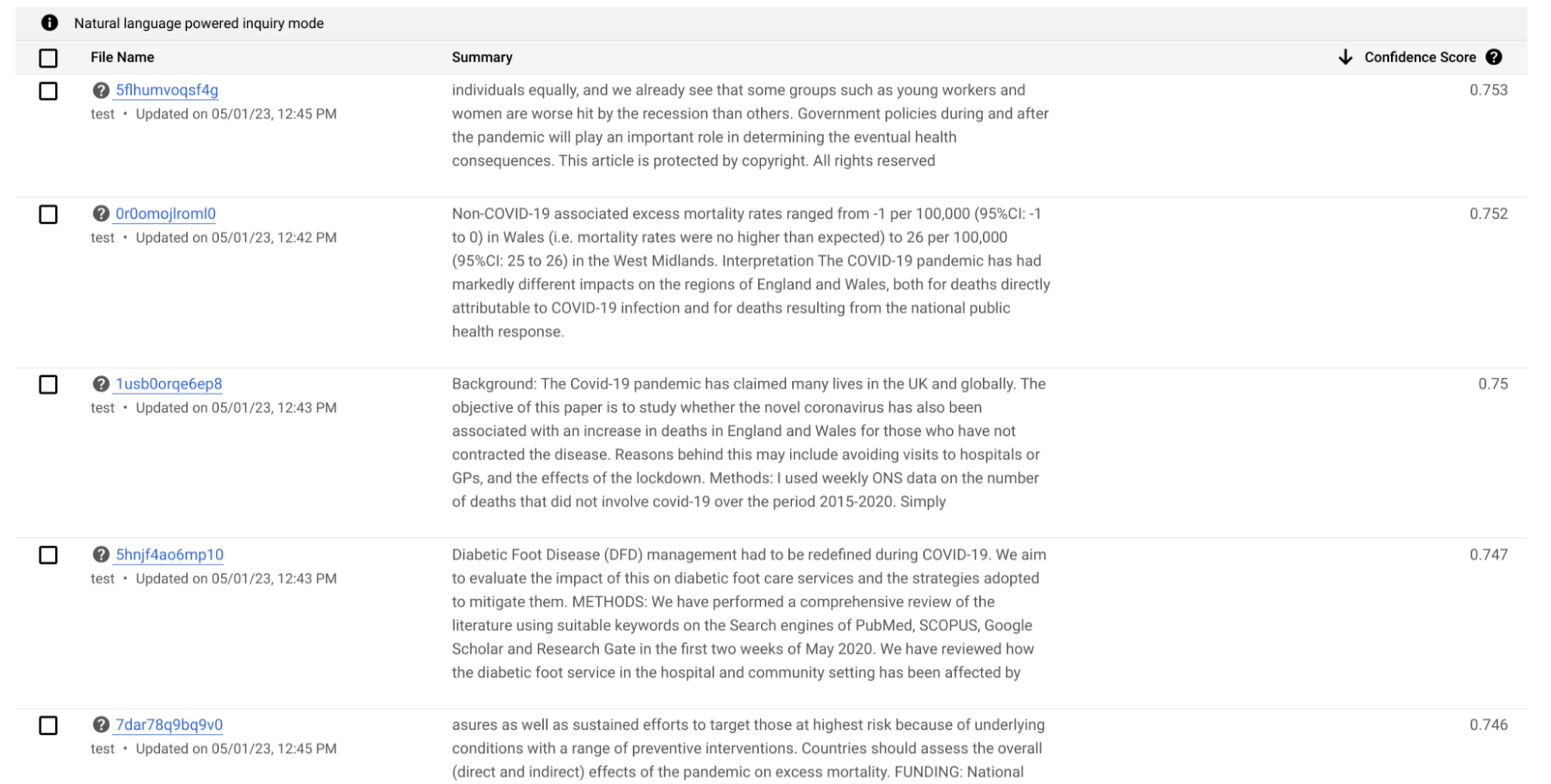
- The table section contains the top documents from the GenAI section with some additional information.
- In the filename column, you can find the details on the document schema and last updated time.
- The **Summary** column contains the actual text of the document, which closely relates to your natural language question. This is similar to the documents snippet part of the generative AI section.
- The **Confidence Score** column is a metric from 0 to 1, with higher scores indicating greater relevance to a search query.
### Use generative AI for select-document analysis
You can also use the search box to answer and summarize your questions for specific documents.
1. On the [documents page](https://console.cloud.google.com/ai/docai-warehouse/documents), select documents on the table for which you want to ask questions. The **Search** option now appears as **Ask** to indicate that you enter the Q\&A mode.
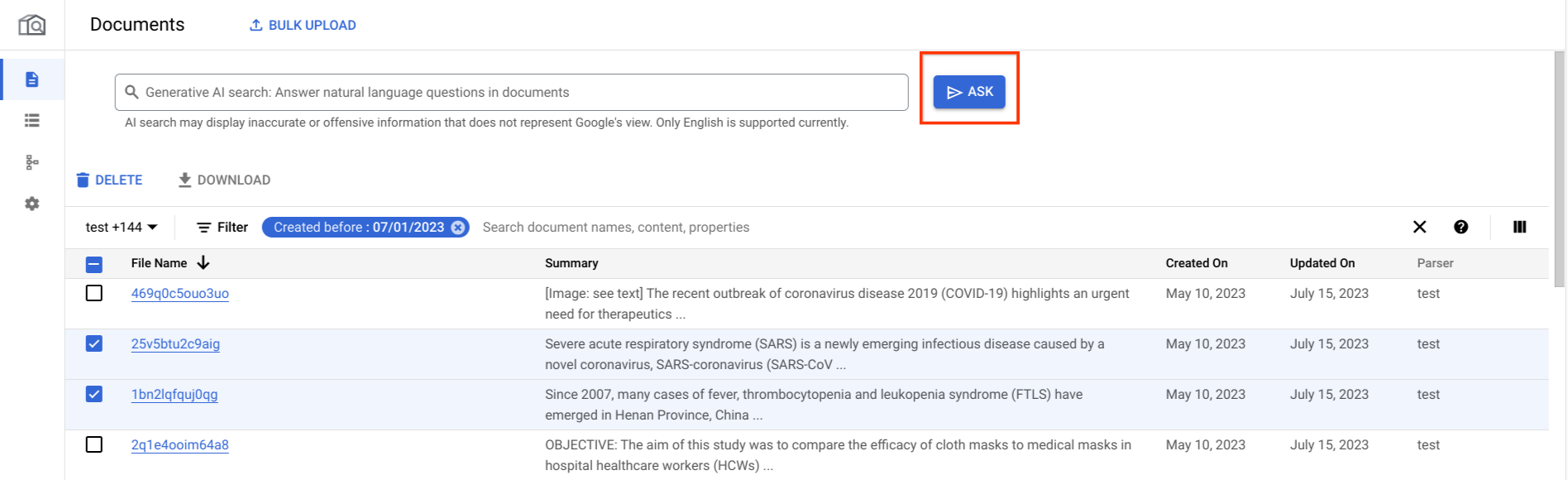
2. Enter your natural language question. A generative AI section appears near the search box that contains a single summarized answer from the selected documents.
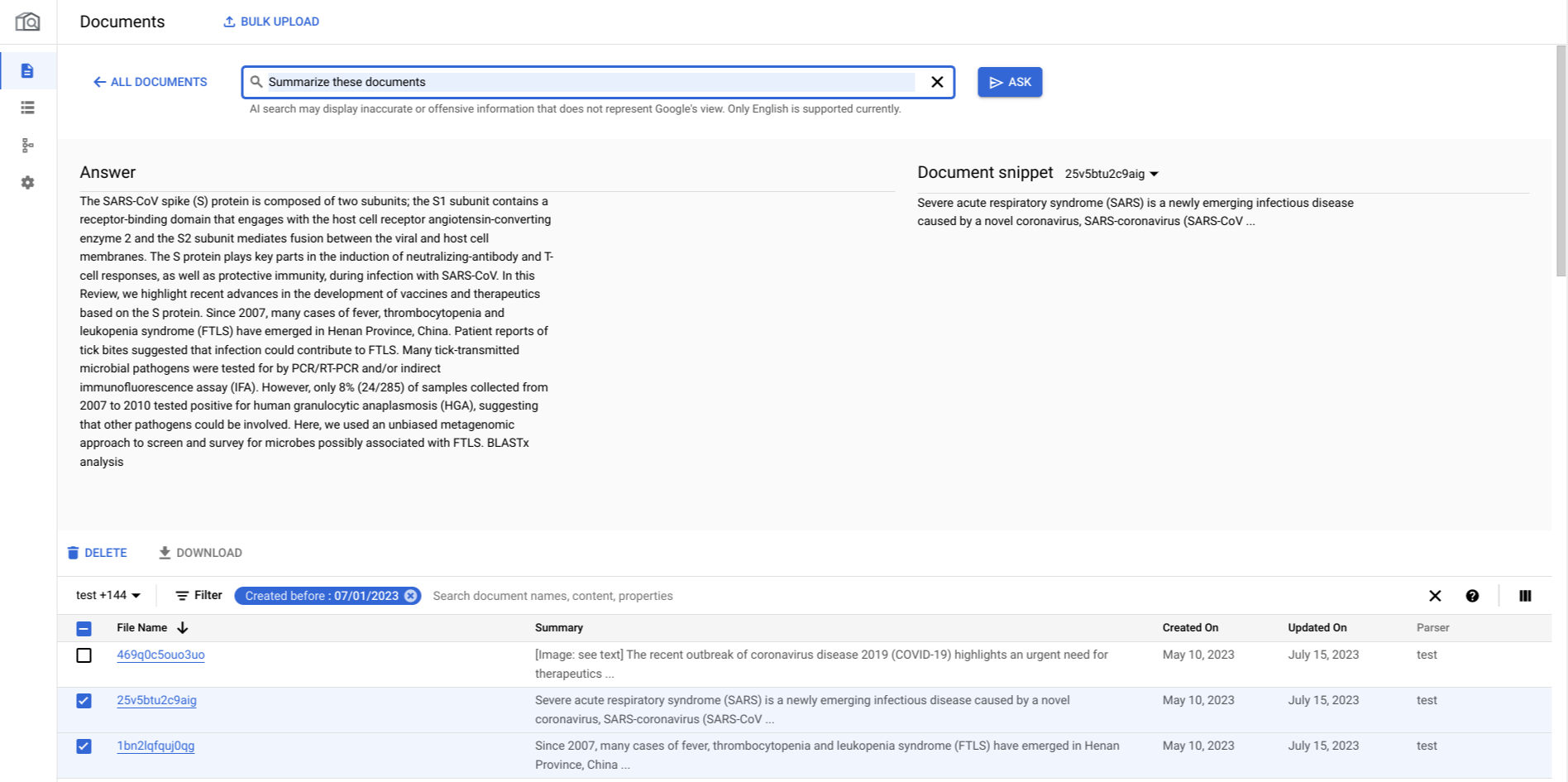
3. A dropdown menu appears on the document snippet part within the GenAI section, which contains the actual text from each selected document that closely relates to the entered question and is most likely to contain the answer.