[Video](https://www.youtube.com/watch?v=BkE69dM0G-w)
Document AI lets you train new processor versions using your own training
data and evaluate the quality of your processor version against your own test
data.
This is useful when you want to use a custom processor. There is a Document AI
processor for your document type, but you can up-train a custom version of
it to meet your needs.
Training and evaluation are typically performed in tandem to iterate towards a
high quality, usable processor version.
## Document AI
**Document AI** lets you build your own **custom extractor**, which extracts
entities from documents of a particular type, for example, the items in a menu
or the name and contact information from a resume.
Unlike other processors, custom processors don't come with any pretrained
processor versions and thus, cannot process any documents until you train a
version from scratch.
To get started with Document AI, see
[Build your own custom processor](https://docs.cloud.google.com/document-ai/docs/workbench/build-custom-processor).
## Uptraining a processor
You can **uptrain** new processor versions to improve accuracy on your data,
extract additional custom fields from your documents, and add support for new
languages.
Up training works by applying *transfer learning* on Google pretrained processor
versions and generally requires less data than training from scratch.
To get started, see [Uptrain a pretrained processor](https://docs.cloud.google.com/document-ai/docs/uptrain-pretrained-processor.md.txt).
### Supported processors
Not all specialized processors support up training. These are the processors that support up training.
## Data considerations and recommendations
The quality and the amount of your data determines the quality of the training,
uptraining, and evaluation.
Obtaining a set of representative, real-world documents and providing enough
high-quality labels are often the most time-consuming and resource-intensive
part of the process.
### Number of documents
If your documents all have a similar format (for example, a fixed form with very
low variation), then fewer documents are required to achieve accuracy. The
higher the variation, the more documents are required.
The following charts provide a rough estimate of the number of documents that
are required for a Custom Document Extractor to achieve a particular quality
score.
| Low variation | High variation |
|---|---|
|  |  |
### Data labeling
Consider your [options for labeling documents](https://docs.cloud.google.com/document-ai/docs/label-documents.md.txt#labeling-options)
and make sure you have enough resources to annotate the documents in your
dataset.
### Training models
Custom extractor processors can use different model types
depending on the specific use case and available training data.
- Custom model: model using labeled training data.
- Template-based: documents with a fixed layout.
- Model-based: documents with some layout variation.
- Generative AI model: based on pretrained [foundation models](https://docs.cloud.google.com/vertex-ai/docs/generative-ai/learn/models) that require minimal additional training.
The following table illustrates which use cases correspond to each model type.
| | **Custom model** || **Generative AI** |
| | **Template-based** | **Model-based** | **Generative AI** |
|---|---|---|---|
| **Layout variation** | None | Low to medium | High |
| **Amount of free-form text (for example, paragraphs in a contract)** | Low | Low | High |
| **Amount of training data required** | Low | High | Low |
| **Accuracy with limited training data** | Higher | Lower | Higher |
Learn to [Fine-tune a processor with property descriptions](https://docs.cloud.google.com/document-ai/docs/ce-with-genai.md.txt#fine-tune_a_processor_with_property_descriptions).
## When to use another processor
Here are some instances in which you might want to consider options besides
Document AI Document AI Workbench, or adapt your workflow.
- Certain text-based input formats (.txt, .html, .docx, .md, and so forth) are not supported by Document AI Document AI Workbench. Consider other prebuilt or custom language processing offerings in Google Cloud, such as the [Cloud Natural Language API](https://cloud.google.com/natural-language).
- The Custom Document Extractor schema supports up to 150 entity labels. If your business logic requires more than 150 entities in the schema definition, consider training multiple processors, each targeting a subset of entities.
## How to train a processor
Assuming that you have already
[created a processor](https://docs.cloud.google.com/document-ai/docs/create-processor.md.txt) that supports training or uptraining and [labeled your dataset](https://docs.cloud.google.com/document-ai/docs/label-documents.md.txt), you can train a new processor version from scratch. Or you can
uptrain a new processor version based on an existing one.
### Train processor version
### Web UI
1. In the Google Cloud console, go to your processor's **Train** tab.
[Go to the Processors Gallery](https://console.cloud.google.com/ai/document-ai/processors)
2. Click **Edit Schema** to open the **Manage Labels** page. Verify the processor's labels.
The labels that are *enabled* at the time of training determine the entities
that your new processor version extracts. If a label is inactive in the
schema, the processor version is not extracting that label, even if the
documents are labeled.
3. On the **Train** tab, click **View Label Stats** and
verify your test and training set. Documents that are *auto-labeled* ,
*unlabeled* , or *unassigned* are excluded from training and evaluation.
4. Click **Train new version**.
The **Version Name** defines the `name` field of the
[`processorVersion`](https://docs.cloud.google.com/document-ai/docs/reference/rest/v1/projects.locations.processors.processorVersions.md.txt).

5. Click **Start training** and wait for your new processor version to be
trained and evaluated.
You can monitor training progress on the **Manage
Versions** tab:

6. Click the **Evaluate \& Test** tab to see how well your new processor version
performed on the test set. For more information, see
[Evaluate processor version](https://docs.cloud.google.com/document-ai/docs/evaluate.md.txt).
### Python
For more information, see the
[Document AI Python API
reference documentation](https://docs.cloud.google.com/python/docs/reference/documentai/latest).
To authenticate to Document AI, set up Application Default Credentials.
For more information, see
[Set up authentication for a local development environment](https://docs.cloud.google.com/docs/authentication/set-up-adc-local-dev-environment.md.txt).
```python
from typing import Optional
from google.api_core.client_options import ClientOptions
from google.cloud import documentai # type: ignore
# TODO(developer): Uncomment these variables before running the sample.
# project_id = 'YOUR_PROJECT_ID'
# location = 'YOUR_PROCESSOR_LOCATION' # Format is 'us' or 'eu'
# processor_id = 'YOUR_PROCESSOR_ID'
# processor_version_display_name = 'new-processor-version'
# train_data_uri = 'gs://bucket/directory/' # (Optional)
# test_data_uri = 'gs://bucket/directory/' # (Optional)
def train_processor_version_sample(
project_id: str,
location: str,
processor_id: str,
processor_version_display_name: str,
train_data_uri: Optional[str] = None,
test_data_uri: Optional[str] = None,
) -> None:
# You must set the api_endpoint if you use a location other than 'us', e.g.:
opts = ClientOptions(api_endpoint=f"{location}-documentai.googleapis.com")
client = documentai.DocumentProcessorServiceClient(client_options=opts)
# The full resource name of the processor
# e.g. `projects/{project_id}/locations/{location}/processors/{processor_id}
parent = client.processor_path(project_id, location, processor_id)
processor_version = documentai.ProcessorVersion(
display_name=processor_version_display_name
)
# If train/test data is not supplied, the default sets in the Cloud Console will be used
input_data = documentai.TrainProcessorVersionRequest.InputData(
training_documents=documentai.BatchDocumentsInputConfig(
gcs_prefix=documentai.GcsPrefix(gcs_uri_prefix=train_data_uri)
),
test_documents=documentai.BatchDocumentsInputConfig(
gcs_prefix=documentai.GcsPrefix(gcs_uri_prefix=test_data_uri)
),
)
request = documentai.TrainProcessorVersionRequest(
parent=parent, processor_version=processor_version, input_data=input_data
)
operation = client.train_processor_version(request=request)
# Print operation details
print(operation.operation.name)
# Wait for operation to complete
response = documentai.TrainProcessorVersionResponse(operation.result())
metadata = documentai.TrainProcessorVersionMetadata(operation.metadata)
print(f"New Processor Version:{response.processor_version}")
print(f"Training Set Validation: {metadata.training_dataset_validation}")
print(f"Test Set Validation: {metadata.test_dataset_validation}")
```
### Deploy and use the processor version
You can deploy and manage your processor versions just like any other processor
version. For more information, see
[Managing processor versions](https://docs.cloud.google.com/document-ai/docs/manage-processor-versions.md.txt).
Once deployed, you can
[Send a processing request](https://docs.cloud.google.com/document-ai/docs/send-request.md.txt) to your custom
processor.
### Disable or delete a processor
If you no longer want to use a processor, you can disable or delete it. If you
disable a processor, you can re-enable it. If you delete a processor, you cannot
recover it.
1. In the **Document AI** panel on the left, click **My processors**.
2. Click the vertical dots to the right of the processor name. Click
**Disable processor** or **Delete processor**.
For more information, see
[Managing processor versions](https://docs.cloud.google.com/document-ai/docs/manage-processor-versions.md.txt).
## Processors with fine-tuning and confidence scores
In the following tables you can review the different processor types and which
versions support fine-tuning and confidence scores.
For more information on confidence scores, see [confidence
thresholds](https://docs.cloud.google.com/document-ai/docs/evaluate#confidence_threshold).
| **Custom Extractor** | **Release channel** | **Fine-tuning** | **Confidence score** |
|---|---|---|---|
| `pretrained-foundation-model-v1.5-2025-05-05` | Stable | US, EU | Yes |
| `pretrained-foundation-model-v1.5-pro-2025-06-20` | Stable | No | Yes |
| `pretrained-foundation-model-v3.1-lite-2026-07-15` | Release candidate | Yes | No |
| **Custom Classifier** | **Release channel** | **Fine-tuning** | **Confidence score** |
|---|---|---|---|
| `pretrained-classifier-v1.5-2025-08-05` | Stable | US, EU ([Preview](https://docs.cloud.google.com/products#product-launch-stages)) | Yes |
| **Custom Splitter** | **Release channel** | **Fine-tuning** | **Confidence score** |
|---|---|---|---|
| `pretrained-splitter-v1.5-2025-07-14` | Stable | No | Yes |
## Upgrade a fine-tuned processor version
You can upgrade fine-tuned [custom extractor](https://docs.cloud.google.com/document-ai/docs/ce-with-genai.md.txt)
processor versions to a newer base version. The newer base version's configurations
will be based on the older one. It will use the processor training data that's
in the original versions.
1. In the Google Google Cloud console, go to your processor's **Deploy \& use** tab,
and select a checkbox for a supported processor version for upgrading. This
will be what the new processor version's configuration is based on.
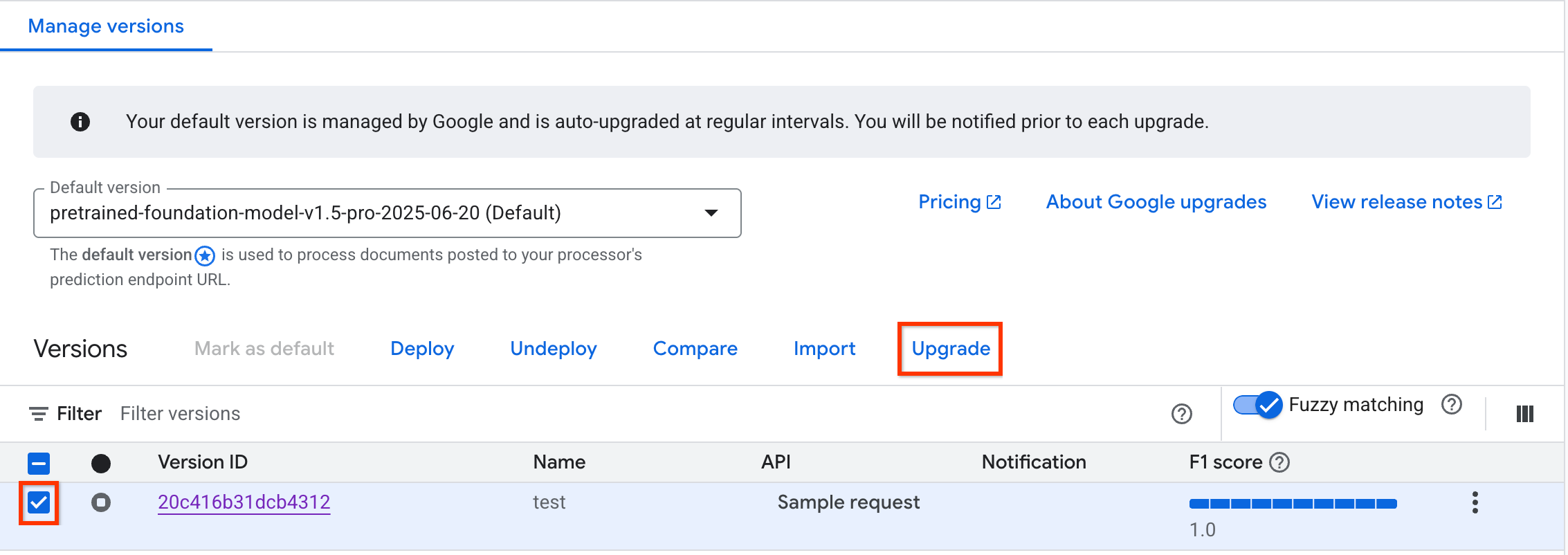
2. Select the enabled **Upgrade**. Input the name and the base version for the
new processor version.
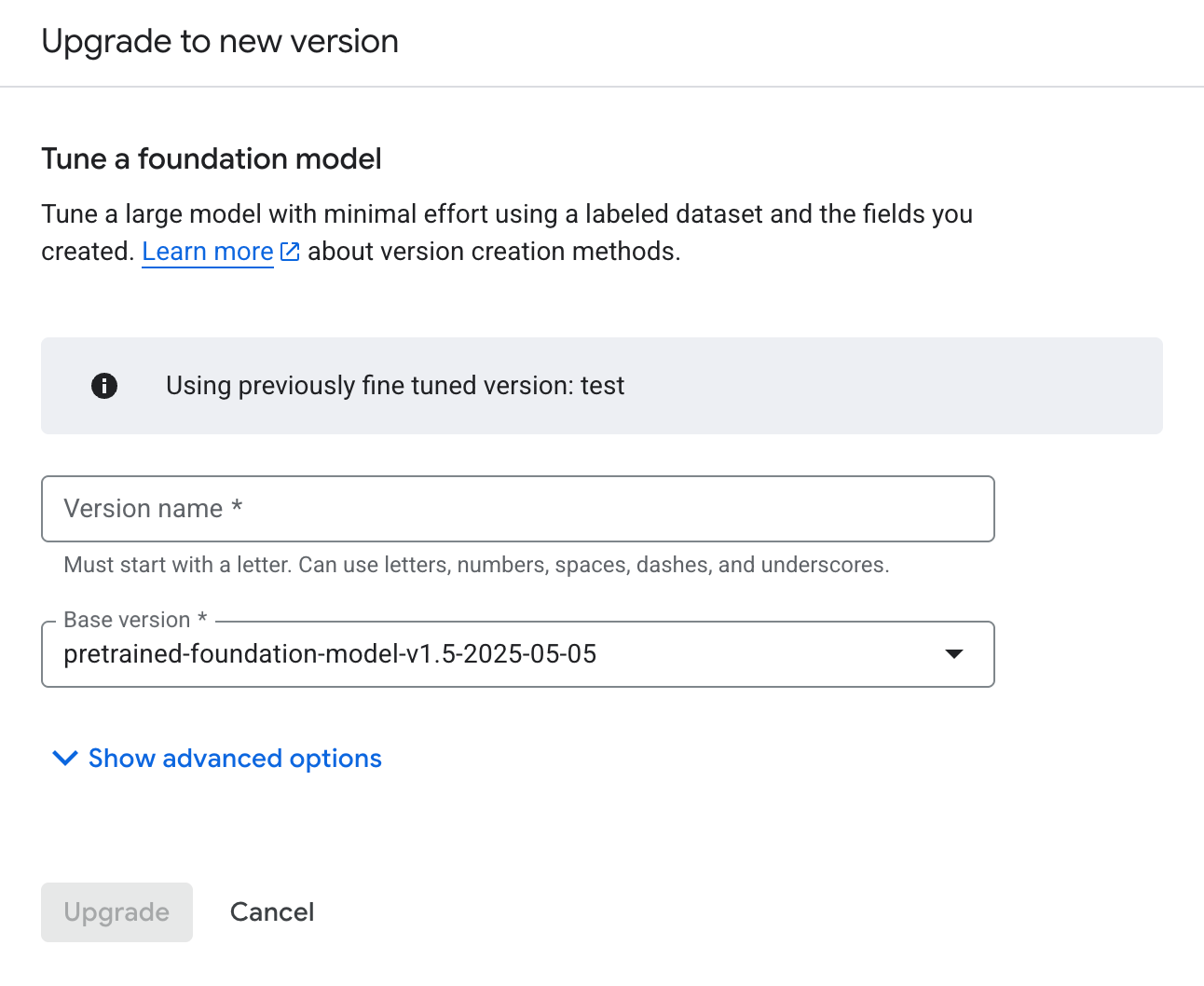
3. Click **Upgrade** and wait for your new processor version to be trained.
> [!NOTE]
> **Note:** This is supported for upgrading `pretrained-foundation-model-v1.4-2025-02-05` to `pretrained-foundation-model-v1.5-2025-05-05`.
### Use the API to upgrade
You can also use API calls to upgrade fine-tuned [custom
extractor](https://docs.cloud.google.com/document-ai/docs/ce-with-genai) processor versions to a newer base
version.
### curl
This sample shows you how to migrate an existing fine-tuned [`processor`](https://docs.cloud.google.com/document-ai/docs/reference/rest/v1beta3/projects.locations.processors.md.txt#resource:-processor) using the `FoundationModelTuningOptions` field
in the [`TrainingMethod`](https://docs.cloud.google.com/document-ai/docs/reference/rest/v1beta3/projects.locations.processors.processorVersions/train.md.txt?rep_location=global#trainingmethod).
Before using any of the request data, make the following replacements with the
information in the Document AI [Google Cloud console](https://console.cloud.google.com/ai/document-ai)
**Overview** tab for your processor.
- LOCATION: Your processor's [location](https://docs.cloud.google.com/document-ai/docs/regions.md.txt).
- PROJECT_ID: Your project ID.
- PROCESSOR_ID: Your processor ID.
- DISPLAY_NAME: Your processor's new display name.
- BASE_PROCESSOR_VERSION: The name of the current model's processor version
- PROCESSOR_VERSION: The
ID of your current processor to be upgraded
```bash
curl -X POST -v -H "Authorization: Bearer $(gcloud auth print-access-token)" \
-H "Content-Type: application/json" \
"https://LOCATION-documentai.googleapis.com/PROJECT_ID/locations/LOCATION/processors/PROCESSOR_ID/processorVersions:train" \
-d '{
"processor_version": {
"display_name": "DISPLAY_NAME"
},
"base_processor_version": "projects/PROJECT_ID/locations/LOCATION/processors/PROCESSOR_ID/processorVersions/BASE_PROCESSOR_VERSION",
"foundation_model_tuning_options": {
"train_steps": 10,
"learning_rate_multiplier": 1,
"previous_fine_tuned_processor_version_name": "projects/PROJECT_ID/locations/LOCATION/processors/PROCESSOR_ID/processorVersions/PROCESSOR_VERSION",
}
}'
```
## Encryption of training data
Document AI training data is saved in Cloud Storage and can be
encrypted with [Customer-managed encryption keys](https://docs.cloud.google.com/storage/docs/encryption/customer-managed-keys.md.txt)
if required.
## Deletion of training data
After a Document AI training job is completed, all training data saved
in Cloud Storage expire after a two-day retention period. Subsequent data
deletion activities respect the process described in [Data deletion on Google Cloud](https://docs.cloud.google.com/docs/security/deletion.md.txt).
## Pricing
There is no cost for training or up-training. You pay for hosting and prediction.
For more information, see [Document AI Pricing](https://cloud.google.com/document-ai/pricing).