


开始使用人机协同
本快速入门介绍人机协同 (Human-in-the-Loop)。在本快速入门中,您将使用 Google Cloud 控制台来设置 Google Cloud 项目和授权、创建处理器,然后在该处理器上启用人工审核。
如需在 Google Cloud 控制台中直接遵循有关此任务的分步指导,请点击操作演示:
准备工作
- 登录您的 Google Cloud 账号。如果您是 Google Cloud新手,请 创建一个账号来评估我们的产品在实际场景中的表现。新客户还可获享 $300 赠金,用于运行、测试和部署工作负载。
-
In the Google Cloud console, on the project selector page, select or create a Google Cloud project.
Roles required to select or create a project
- Select a project: Selecting a project doesn't require a specific IAM role—you can select any project that you've been granted a role on.
-
Create a project: To create a project, you need the Project Creator role
(
roles/resourcemanager.projectCreator), which contains theresourcemanager.projects.createpermission. Learn how to grant roles.
-
Verify that billing is enabled for your Google Cloud project.
Enable the Document AI, Cloud Storage, Vertex AI APIs.
Roles required to enable APIs
To enable APIs, you need the Service Usage Admin IAM role (
roles/serviceusage.serviceUsageAdmin), which contains theserviceusage.services.enablepermission. Learn how to grant roles.-
In the Google Cloud console, on the project selector page, select or create a Google Cloud project.
Roles required to select or create a project
- Select a project: Selecting a project doesn't require a specific IAM role—you can select any project that you've been granted a role on.
-
Create a project: To create a project, you need the Project Creator role
(
roles/resourcemanager.projectCreator), which contains theresourcemanager.projects.createpermission. Learn how to grant roles.
-
Verify that billing is enabled for your Google Cloud project.
Enable the Document AI, Cloud Storage, Vertex AI APIs.
Roles required to enable APIs
To enable APIs, you need the Service Usage Admin IAM role (
roles/serviceusage.serviceUsageAdmin), which contains theserviceusage.services.enablepermission. Learn how to grant roles.
创建处理器
注意:概览页面上列出的处理器支持人工审核工作流。
在 Google Cloud 控制台导航菜单中,点击 Document AI 并选择处理器库。处理器库
在处理器库中,
搜索 账单解析器,然后选择创建。在
创建处理器 菜单中,输入处理器的名称,例如my-invoice-processor。选择离您最近的区域。
点击创建。您将转到新创建的处理器的详情页面。
在处理器上启用人工审核
转到处理器的
人机协同 (Human-in-the-Loop) 标签页。选择
配置人机协同 (Human-in-the-Loop) 。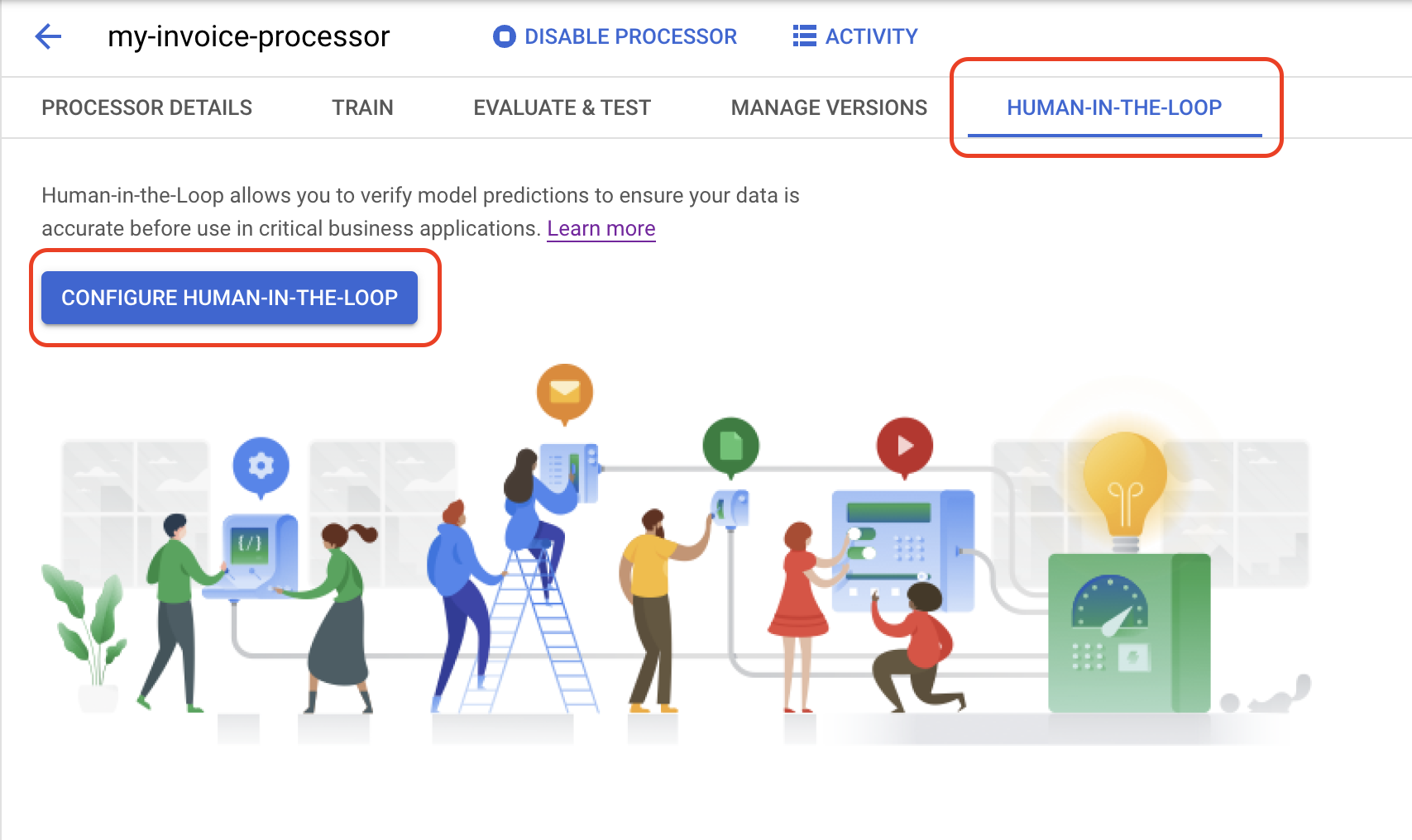
在
选择专家 列表中,选择使用我自己的专家。在
标签添加者池列表中 ,选择新建专家池。
在弹出式对话框中,输入
池名称 ,例如My Labeler Pool。
输入池管理员和专家的电子邮件地址。
点击 Create Pool(创建池)。完成此操作需要几秒钟时间。
(可选)勾选
启用自动分配 框。勾选
确认扣款 框。在
设置过滤条件部分 中,选择文档级过滤条件。- (可选)您还可以设置标签级过滤条件,以根据各个字段进行过滤。
将
置信度阈值 设置为 100%。此操作会发送所有预测的文档以供人工审核。
在添加说明部分的
说明位置 字段中,输入以下 Cloud Storage 路径。这是一个 PDF 文件,其中包含针对账单解析器的预制说明。如果需要,您还可以创建您自己的说明。
cloud-samples-data/documentai/labeling-instructions/pretrained-invoice-v1.3-2022-07-15.pdf在
结果位置 字段中,选择或创建人工审核输出的存储桶。点击
保存配置 按钮。完成此操作需要几秒钟时间。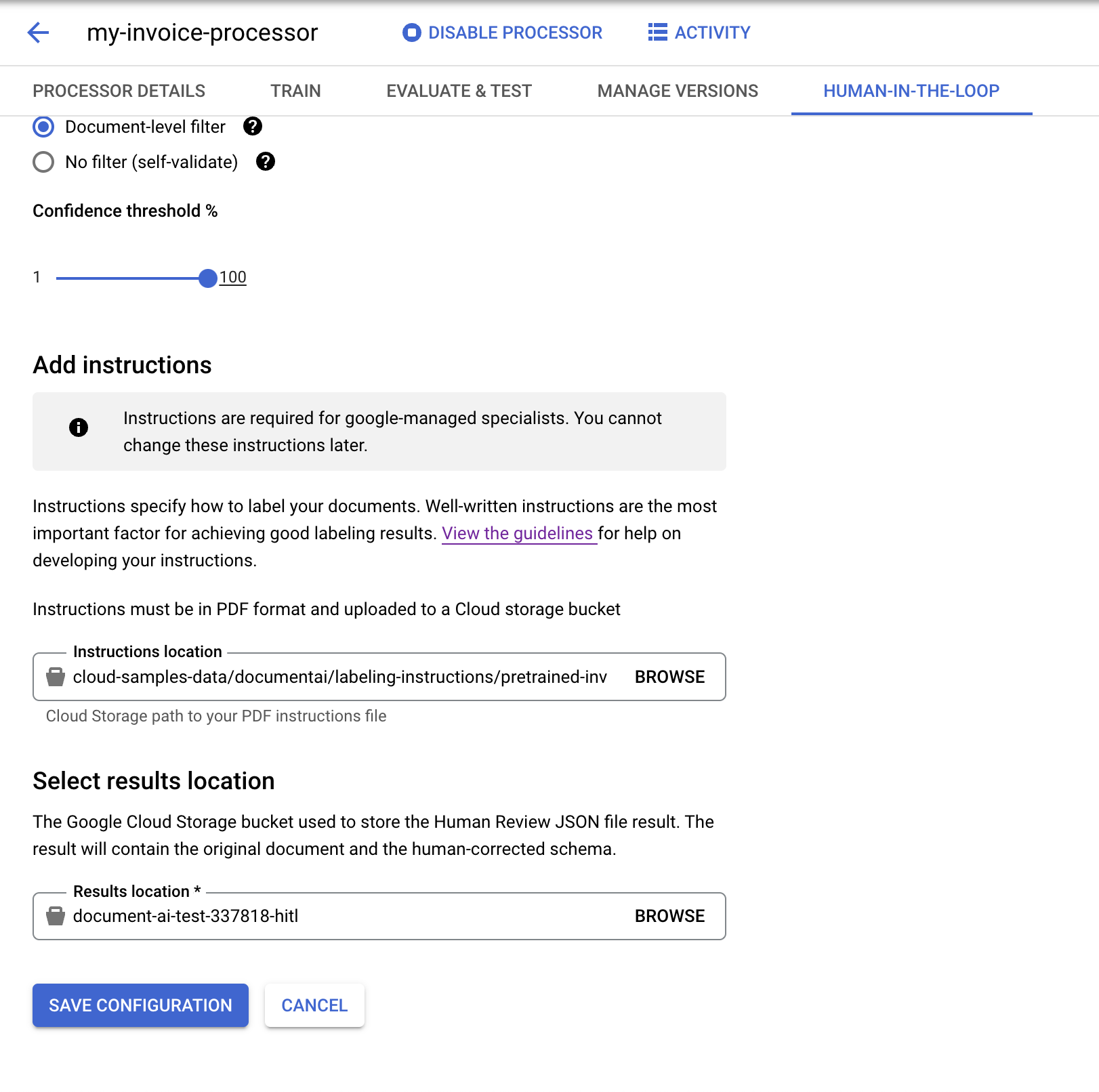
配置完成后,选择
启用人机协同 (Human-in-the-Loop) 滑块。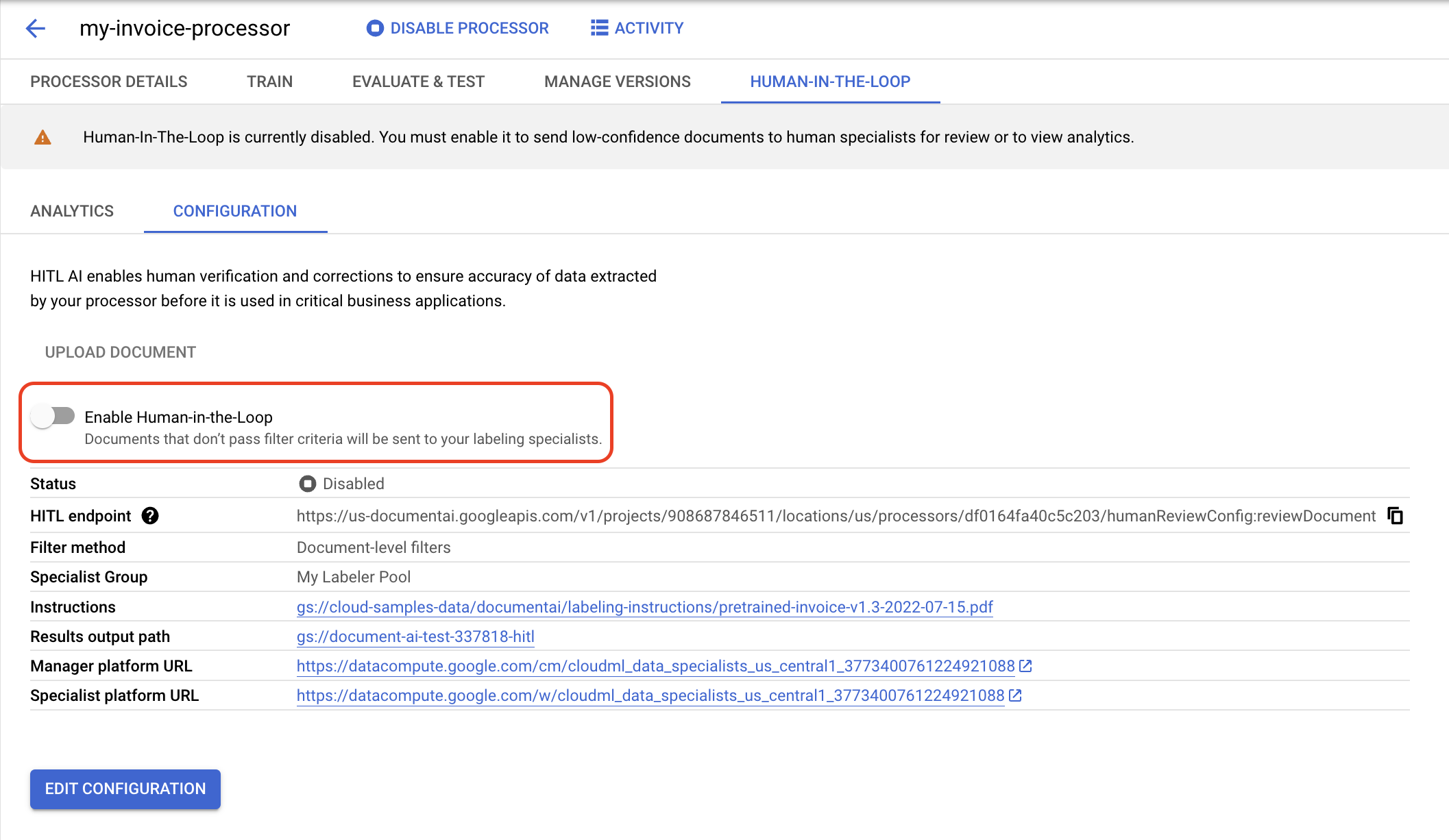
从弹出式对话框中选择
启用 。
您已成功为账单解析器配置人机协同 (Human-in-the-Loop)。
(可选)管理标签任务
配置人工审核后,您应该会收到类似于以下内容的电子邮件:
From: AI Platform <noreply-aiplatform@google.com>\
Subject: Added to AI Platform SpecialistPool Test Labeler Group

Hello AI Platform Customer,

You are added as a manager to specialist pool
cloudml_data_specialists_us_central1_785484070008756xxxx.
To view details, visit Manager console
https://datacompute.google.com/cm/

Sincerely,
The Google Cloud AI Team