> [!WARNING]
>
> **Preview**
>
>
> This product or feature is
>
> subject to the "Pre-GA Offerings Terms" in the General Service Terms section
> of the [Service Specific
> Terms](https://docs.cloud.google.com/terms/service-terms#1).
>
> Pre-GA products and features are available "as is" and might have limited support.
>
> For more information, see the
> [launch stage descriptions](https://cloud.google.com/products/#product-launch-stages).
*Knowledge connectors* complement defined intents.
They parse *knowledge documents* (for example, FAQs or articles)
to find automated responses.
To configure them, you define one or more
[knowledge bases](https://docs.cloud.google.com/dialogflow/docs/how/knowledge-bases),
which are collections of knowledge documents.
You can enable knowledge bases for your agent,
so all detect intent requests
can find automated responses using your knowledge bases.
Alternatively, you can specify one or more knowledge bases
in your individual
[detect intent](https://docs.cloud.google.com/dialogflow/docs/api-overview#detect-intent)
requests.
It is common for an agent using knowledge connectors
to also use defined intents.
Knowledge connectors offer less response precision and control than intents.
You should define your intents to handle complex user requests,
and let knowledge connectors handle simple requests.
For a list of supported languages,
see the *Knowledge Connectors* column in the
[languages reference](https://docs.cloud.google.com/dialogflow/docs/reference/language).
## Limitations
The knowledge connectors feature is only available for the `global`
[region](https://docs.cloud.google.com/dialogflow/es/docs/how/region).
## Enable beta features
Ensure that beta features are enabled:
1. Go to the [Dialogflow ES console](https://dialogflow.cloud.google.com).
2. Select an agent.
3. Click the settings button next to the agent's name.
4. Scroll down while on the **General** tab and ensure that **Beta Features** is enabled.
5. If you have made changes, click **Save**.
## Create a knowledge base and document
Follow the instructions in the
[knowledge bases how-to](https://docs.cloud.google.com/dialogflow/docs/how/knowledge-bases)
to create a knowledge base and document.
## Settings for knowledge connectors
> [!CAUTION]
> **Caution:** Knowledge connector settings are not currently included when [exporting, importing, or restoring](https://docs.cloud.google.com/dialogflow/docs/agents-settings#export) agents.
You can enable or disable knowledge bases for your agent.
Enabled knowledge bases will be considered for all intent matching requests
that do not specify knowledge bases.
To enable or disable knowledge bases:
1. Go to the [Dialogflow ES console](https://dialogflow.cloud.google.com).
2. Select an agent.
3. Click **Knowledge** in the left sidebar menu.
4. Select one or more knowledge bases from the list.
5. Click **Enable** or **Disable**.
When an end-user expression also matches an intent,
you can specify how strongly you prefer knowledge results:
1. Scroll down to the **Adjust Knowledge Results Preference** section.
2. Adjust the slider from weaker (preference given to intent) to stronger (preference given to knowledge). For more information, see [Detect intent responses](https://docs.cloud.google.com/dialogflow/es/docs/knowledge-connectors#response) below.
## Configure responses
By default, a knowledge base is configured
with a single default text response
populated with the best matching knowledge answer.
You can change this response and add
[rich response messages](https://docs.cloud.google.com/dialogflow/docs/intents-rich-messages).
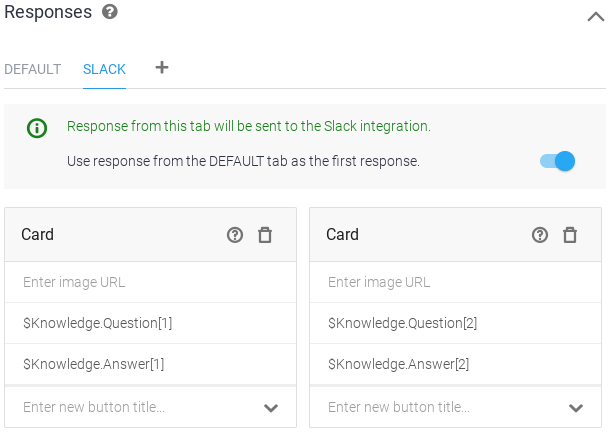
Knowledge responses may contain up to three answers per knowledge base,
and you can reference these answers in your configured responses.
To add responses:
1. From the **Knowledge** page, click your knowledge base name.
2. Scroll down to the **Responses** section and add responses as desired:
1. When defining the first response, use `$Knowledge.Question[1]` and `$Knowledge.Answer[1]` where you want the question and answer to be supplied.
2. The index for `$Knowledge.Question` and `$Knowledge.Answer` starts at 1, so increase this index when adding more responses.
3. Click **Save** once you are done editing.
When defining responses,
you should consider these points:
- If the number of defined responses is greater than the number N of knowledge connector response matches, only N responses will be returned.
- Given that the accuracy could be lower than matching explicitly defined intents, we recommend returning three responses to your users when possible.
> [!CAUTION]
> **Caution:** The current behavior when defining multiple response variants is a known issue. Once corrected, the behavior will be as follows:
>
> - If there are multiple response variants defined within a single *Text Response* or Google Assistant *Simple Response* box, Dialogflow chooses one at random.
> - If there are multiple rich response boxes defined, Dialogflow chooses one response variant from each box.
Example:
## Detect intent with knowledge base
When making a
[detect intent request](https://docs.cloud.google.com/dialogflow/docs/api-overview#detect-intent),
you can specify one or more knowledge bases for a possible response.
Explicitly supplying knowledge bases in a request
overrides the settings for enabled and disabled knowledge bases.
The samples below show you how to
use the Dialogflow Console, REST API (including command line),
or client libraries to detect intent.
To use the API, call the `detectIntent` method on the
[`Sessions`](https://docs.cloud.google.com/dialogflow/docs/reference/common-types#sessions)
type.
### Web UI
You can interact with the agent and receive knowledge connector responses via the [Dialogflow simulator](https://docs.cloud.google.com/dialogflow/docs/console#simulator):
1. Follow the [steps above to enable a knowledge base](https://docs.cloud.google.com/dialogflow/es/docs/knowledge-connectors#settings).
2. Follow the [steps above to define responses](https://docs.cloud.google.com/dialogflow/es/docs/knowledge-connectors#response-config).
3. Type "How do I sign up?" in the simulator.
### REST
Call the `detectIntent` method on the [`Sessions`](https://docs.cloud.google.com/dialogflow/docs/reference/common-types#sessions) type and specify the knowledge base in the `queryParams` field.
Before using any of the request data,
make the following replacements:
- PROJECT_ID: your GCP project ID
- KNOWLEDGE_BASE_ID: your knowledge base ID
HTTP method and URL:
```
POST https://dialogflow.googleapis.com/v2beta1/projects/PROJECT_ID/agent/sessions/123456789:detectIntent
```
Request JSON body:
```
{
"queryInput": {
"text": {
"text": "How do I sign up?",
"languageCode": "en-US"
}
},
"queryParams": {
"knowledgeBaseNames": ["projects/PROJECT_ID/knowledgeBases/KNOWLEDGE_BASE_ID"]
}
}
```
To send your request, expand one of these options:
#### curl (Linux, macOS, or Cloud Shell)
> [!NOTE]
> **Note:** The following command assumes that you have logged in to the `gcloud` CLI with your user account by running [`gcloud init`](https://docs.cloud.google.com/sdk/gcloud/reference/init) or [`gcloud auth login`](https://docs.cloud.google.com/sdk/gcloud/reference/auth/login) , or by using [Cloud Shell](https://docs.cloud.google.com/shell/docs), which automatically logs you into the `gcloud` CLI . You can check the currently active account by running [`gcloud auth list`](https://docs.cloud.google.com/sdk/gcloud/reference/auth/list).
Save the request body in a file named `request.json`,
and execute the following command:
```
curl -X POST \
-H "Authorization: Bearer $(gcloud auth print-access-token)" \
-H "x-goog-user-project: PROJECT_ID" \
-H "Content-Type: application/json; charset=utf-8" \
-d @request.json \
"https://dialogflow.googleapis.com/v2beta1/projects/PROJECT_ID/agent/sessions/123456789:detectIntent"
```
#### PowerShell (Windows)
> [!NOTE]
> **Note:** The following command assumes that you have logged in to the `gcloud` CLI with your user account by running [`gcloud init`](https://docs.cloud.google.com/sdk/gcloud/reference/init) or [`gcloud auth login`](https://docs.cloud.google.com/sdk/gcloud/reference/auth/login) . You can check the currently active account by running [`gcloud auth list`](https://docs.cloud.google.com/sdk/gcloud/reference/auth/list).
Save the request body in a file named `request.json`,
and execute the following command:
```
$cred = gcloud auth print-access-token
$headers = @{ "Authorization" = "Bearer $cred"; "x-goog-user-project" = "PROJECT_ID" }
Invoke-WebRequest `
-Method POST `
-Headers $headers `
-ContentType: "application/json; charset=utf-8" `
-InFile request.json `
-Uri "https://dialogflow.googleapis.com/v2beta1/projects/PROJECT_ID/agent/sessions/123456789:detectIntent" | Select-Object -Expand Content
```
#### APIs Explorer (browser)
Copy the request body and open the
[method reference page](https://docs.cloud.google.com/dialogflow/docs/reference/rest/v2beta1/projects.agent.sessions/detectIntent).
The APIs Explorer panel opens on the right side of the page.
You can interact with this tool to send requests.
Paste the request body in this tool, complete any other required fields, and click **Execute**.
You should receive a JSON response similar to the following:
```
{
...
"queryResult": {
"queryText": "How do I sign up?",
"parameters": {},
"allRequiredParamsPresent": true,
"fulfillmentText": "Sign up for Cloud Storage by turning on the Cloud Storage service in the Google Cloud Platform Console.",
"intent": {
"name": "projects/my-gcp-project/agent/intents/487c7242-a769-408a-a339-47b95e10dac4",
"displayName": "Knowledge.KnowledgeBase.MzkzNTAyMDE3NDQxNDk3MDg4MA"
},
"intentDetectionConfidence": 0.99371547,
"languageCode": "en-us",
"knowledgeAnswers": {
"answers": [
{
"answer": "Sign up for Cloud Storage by turning on the Cloud Storage service in the Google Cloud Platform Console.",
"matchConfidenceLevel": "HIGH",
"matchConfidence": 0.99371547
},
{
"answer": "Certain types of content are not allowed on this service; please refer to the Terms of Services and Platform Policies for details. If you believe a piece of content is in violation of our policies, report it here (select See more products, then Google Cloud Storage and Cloud Bigtable).",
"matchConfidenceLevel": "LOW",
"matchConfidence": 0.0012244871
},
{
"answer": "From the Cloud Storage documentation click \"Send feedback\" near the top right of the page. This will open a feedback form. Your comments will be reviewed by the Cloud Storage team.",
"matchConfidenceLevel": "LOW",
"matchConfidence": 0.0011537358
}
]
}
}
}
```
### Java
To authenticate to Dialogflow CX, set up Application Default Credentials.
For more information, see
[Set up authentication for a local development environment](https://docs.cloud.google.com/docs/authentication/set-up-adc-local-dev-environment).
import com.google.api.gax.rpc.https://docs.cloud.google.com/java/docs/reference/gax/latest/com.google.api.gax.rpc.ApiException.html;
import com.google.cloud.dialogflow.v2beta1.DetectIntentRequest;
import com.google.cloud.dialogflow.v2beta1.DetectIntentResponse;
import com.google.cloud.dialogflow.v2beta1.KnowledgeAnswers;
import com.google.cloud.dialogflow.v2beta1.KnowledgeAnswers.Answer;
import com.google.cloud.dialogflow.v2beta1.QueryInput;
import com.google.cloud.dialogflow.v2beta1.QueryParameters;
import com.google.cloud.dialogflow.v2beta1.QueryResult;
import com.google.cloud.dialogflow.v2beta1.SessionName;
import com.google.cloud.dialogflow.v2beta1.SessionsClient;
import com.google.cloud.dialogflow.v2beta1.TextInput;
import com.google.common.collect.Maps;
import java.io.IOException;
import java.util.List;
import java.util.Map;
public class DetectIntentKnowledge {
// DialogFlow API Detect Intent sample with querying knowledge connector.
public static Map detectIntentKnowledge(
String projectId,
String knowledgeBaseName,
String sessionId,
String languageCode,
List texts)
throws IOException, https://docs.cloud.google.com/java/docs/reference/gax/latest/com.google.api.gax.rpc.ApiException.html {
// Instantiates a client
Map allKnowledgeAnswers = Maps.newHashMap();
try (SessionsClient sessionsClient = SessionsClient.create()) {
// Set the session name using the sessionId (UUID) and projectID (my-project-id)
SessionName session = SessionName.of(projectId, sessionId);
System.out.println("Session Path: " + session.toString());
// Detect intents for each text input
for (String text : texts) {
// Set the text and language code (en-US) for the query
TextInput.Builder textInput =
TextInput.newBuilder().setText(text).setLanguageCode(languageCode);
// Build the query with the TextInput
QueryInput queryInput = QueryInput.newBuilder().setText(textInput).build();
QueryParameters queryParameters =
QueryParameters.newBuilder().addKnowledgeBaseNames(knowledgeBaseName).build();
DetectIntentRequest detectIntentRequest =
DetectIntentRequest.newBuilder()
.setSession(session.toString())
.setQueryInput(queryInput)
.setQueryParams(queryParameters)
.build();
// Performs the detect intent request
DetectIntentResponse response = sessionsClient.detectIntent(detectIntentRequest);
// Display the query result
QueryResult queryResult = response.getQueryResult();
System.out.format("Knowledge results:\n");
System.out.format("====================\n");
System.out.format("Query Text: '%s'\n", queryResult.getQueryText());
System.out.format(
"Detected Intent: %s (confidence: %f)\n",
queryResult.getIntent().getDisplayName(), queryResult.getIntentDetectionConfidence());
System.out.format(
"Fulfillment Text: '%s'\n",
queryResult.getFulfillmentMessagesCount() > 0
? queryResult.getFulfillmentMessages(0).getText()
: "Triggered Default Fallback Intent");
KnowledgeAnswers knowledgeAnswers = queryResult.getKnowledgeAnswers();
for (Answer answer : knowledgeAnswers.getAnswersList()) {
System.out.format(" - Answer: '%s'\n", answer.getAnswer());
System.out.format(" - Confidence: '%s'\n", answer.getMatchConfidence());
}
KnowledgeAnswers answers = queryResult.getKnowledgeAnswers();
allKnowledgeAnswers.put(text, answers);
}
}
return allKnowledgeAnswers;
}
}
### Node.js
To authenticate to Dialogflow CX, set up Application Default Credentials.
For more information, see
[Set up authentication for a local development environment](https://docs.cloud.google.com/docs/authentication/set-up-adc-local-dev-environment).
// Imports the Dialogflow client library
const dialogflow = require('https://docs.cloud.google.com/nodejs/docs/reference/dialogflow/latest/overview.html').v2beta1;
// Instantiate a DialogFlow client.
const sessionClient = new dialogflow.https://docs.cloud.google.com/nodejs/docs/reference/dialogflow-cx/latest/overview.html();
/**
* TODO(developer): Uncomment the following lines before running the sample.
*/
// const projectId = 'ID of GCP project associated with your Dialogflow agent';
// const sessionId = `user specific ID of session, e.g. 12345`;
// const languageCode = 'BCP-47 language code, e.g. en-US';
// const knowledgeBaseId = `the ID of your KnowledgeBase`;
// const query = `phrase(s) to pass to detect, e.g. I'd like to reserve a room for six people`;
// Define session path
const sessionPath = sessionClient.projectAgentSessionPath(
projectId,
sessionId
);
const knowledgeBasePath =
'projects/' + projectId + '/knowledgeBases/' + knowledgeBaseId + '';
// The audio query request
const request = {
session: sessionPath,
queryInput: {
text: {
text: query,
languageCode: languageCode,
},
},
queryParams: {
knowledgeBaseNames: [knowledgeBasePath],
},
};
const responses = await sessionClient.detectIntent(request);
const result = responses[0].queryResult;
console.log(`Query text: ${result.queryText}`);
console.log(`Detected Intent: ${result.intent.displayName}`);
console.log(`Confidence: ${result.intentDetectionConfidence}`);
console.log(`Query Result: ${result.fulfillmentText}`);
if (result.knowledgeAnswers && result.knowledgeAnswers.answers) {
const answers = result.knowledgeAnswers.answers;
console.log(`There are ${answers.length} answer(s);`);
answers.forEach(a => {
console.log(` answer: ${a.answer}`);
console.log(` confidence: ${a.matchConfidence}`);
console.log(` match confidence level: ${a.matchConfidenceLevel}`);
});
}
### Python
To authenticate to Dialogflow CX, set up Application Default Credentials.
For more information, see
[Set up authentication for a local development environment](https://docs.cloud.google.com/docs/authentication/set-up-adc-local-dev-environment).
def detect_intent_knowledge(
project_id, session_id, language_code, knowledge_base_id, texts
):
"""Returns the result of detect intent with querying Knowledge Connector.
Args:
project_id: The GCP project linked with the agent you are going to query.
session_id: Id of the session, using the same `session_id` between requests
allows continuation of the conversation.
language_code: Language of the queries.
knowledge_base_id: The Knowledge base's id to query against.
texts: A list of text queries to send.
"""
from google.cloud import dialogflow_v2beta1 as dialogflow
session_client = dialogflow.SessionsClient()
session_path = session_client.session_path(project_id, session_id)
print("Session path: {}\n".format(session_path))
for text in texts:
text_input = dialogflow.TextInput(text=text, language_code=language_code)
query_input = dialogflow.QueryInput(text=text_input)
knowledge_base_path = dialogflow.KnowledgeBasesClient.knowledge_base_path(
project_id, knowledge_base_id
)
query_params = dialogflow.QueryParameters(
knowledge_base_names=[knowledge_base_path]
)
request = dialogflow.DetectIntentRequest(
session=session_path, query_input=query_input, query_params=query_params
)
response = session_client.detect_intent(request=request)
print("=" * 20)
print("Query text: {}".format(response.query_result.query_text))
print(
"Detected intent: {} (confidence: {})\n".format(
response.query_result.intent.display_name,
response.query_result.intent_detection_confidence,
)
)
print("Fulfillment text: {}\n".format(response.query_result.fulfillment_text))
print("Knowledge results:")
knowledge_answers = response.query_result.knowledge_answers
for answers in knowledge_answers.answers:
print(" - Answer: {}".format(answers.answer))
print(" - Confidence: {}".format(answers.match_confidence))
## Detect intent responses
The response for the
[`Sessions`](https://docs.cloud.google.com/dialogflow/docs/reference/common-types#sessions)
type `detectIntent` method is a `DetectIntentResponse`.
Multiple factors affect how response fields are populated.
If a defined intent and a knowledge base are both potential matches,
the match confidence of each and the *knowledge results preference*
(see [Settings for knowledge connectors](https://docs.cloud.google.com/dialogflow/es/docs/knowledge-connectors#settings))
are used to determine which match is the selected match.
The selected match is populated in the `DetectIntentResponse.queryResult` field,
and other potential matches are populated in the `DetectIntentResponse.alternativeQueryResults` field.
Both of these fields contain `QueryResult` messages.
If a knowledge base provides a potential match:
- `QueryResult.knowledgeAnswers` is populated with a list of potential knowledge answers ordered by decreasing match confidence.
- If rich responses have been defined for the knowledge base, `QueryResult.fulfillmentMessages` is populated with rich response messages.
When performing a detect intent request,
it is possible for the knowledge query to fail.
When this happens, defined intents will be selected,
so the overall detect intent request will not fail.
You can find knowledge query error information in the `DetectIntentResponse.alternativeQueryResults[i].diagnosticInfo` field.
## Manage knowledge bases
To learn more about managing knowledge bases, see
[Manage knowledge bases](https://docs.cloud.google.com/dialogflow/docs/how/knowledge-bases).