Dialogflow Telegram Integration allows you to easily create Telegram bots with
natural language understanding based on the Dialogflow technology.
> [!NOTE]
> **Note:** When using a third party integration, requests and end-user data are sent to both Google and the third party. The terms of service, SLA, pricing, and quotas [for your agent edition](https://docs.cloud.google.com/dialogflow/docs/editions) are applicable for Google's handling of these requests. The third party's terms of service, SLA, pricing, and quotas are applicable for the third party's handling of these requests.
## Limitations
Only the
[default agent language](https://docs.cloud.google.com/dialogflow/es/docs/agents-settings#lang)
is supported by this integration.
## Setting Up Telegram
In order to set up the Telegram integration for your agent, you'll need the
following:
- a [Telegram account](https://web.telegram.org/#/login).
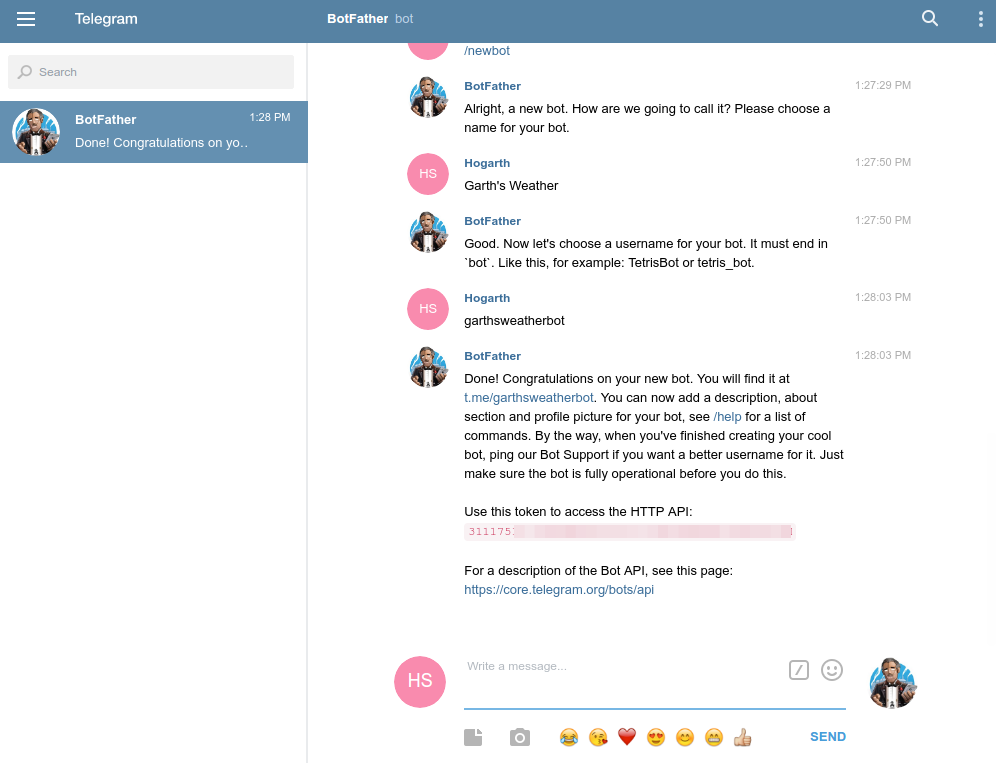
### Creating a Bot in Telegram
1. Login to Telegram and go to
2. Click the **Start** button in the web interface or type /start
3. Click on or type **/newbot** and enter a name
4. Enter a username for the bot, ending in "bot" (e.g. garthsweatherbot)
5. Copy the generated access token
## Setting Up Dialogflow
1. In Dialogflow, go to **Integrations** in the left hand menu
2. Click on the **Telegram** tile
3. Paste the **Access Token** into the related field
4. Click the **Start** button

## Testing
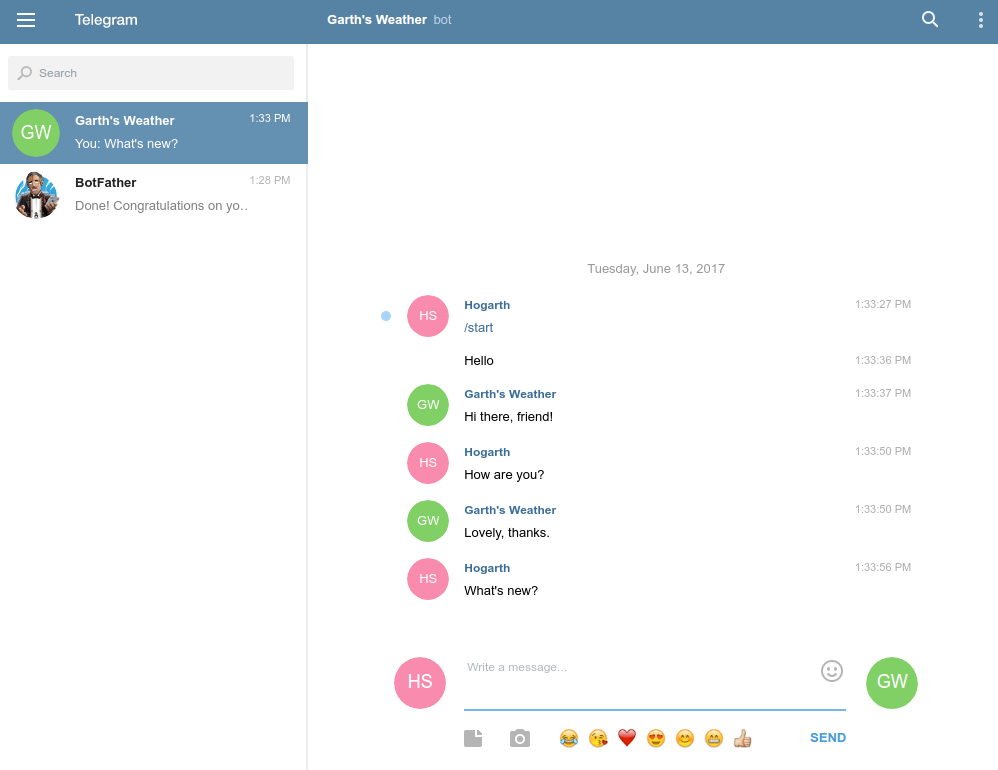
BotFather will provide a link to your bot once you've completed the setup. Go to
this link to test out your agent.
## Regenerating Telegram Token
To regenerate the Telegram token for an agent with Telegram integration enabled,
do the following:
1. Go to the Dialogflow integration settings and click **STOP**.
2. Regenerate the token in Telegram.
3. Enter the new Telegram token in the integration settings and click **START**.
## Integrating Agent with a New Telegram Bot
For an agent with Telegram integration enabled, to link it to a new Telegram bot,
do the following:
1. Go to the Dialogflow integration settings and click **STOP**.
2. Delete the old bot in Telegram if needed.
3. Enter the new Telegram token in the integration settings and click **START**.
## Events
The following [events](https://docs.cloud.google.com/dialogflow/docs/events-overview)
are triggered by this integration:
| Event | Description |
|---|---|
| `TELEGRAM_WELCOME` | Triggered when a user starts a conversation with your Telegram bot or types `/start`. |
| `TELEGRAM_HELP` | Triggered when a user inputs `/help` while conversing with your Telegram bot. |
| `TELEGRAM_SETTINGS` | Triggered when a user inputs `/settings` while conversing with your Telegram bot. |
## Rich response messages
The following
[rich response messages](https://docs.cloud.google.com/dialogflow/docs/intents-rich-messages)
are supported.
### Image responses
Supported formats and sizes:
- 5 MB max size
### Card responses
Either the image URL field or the title field is mandatory.
Buttons with a URL and with a text postback are supported. When tapped, a button with a URL will open a web page, whereas a button with text will send the text as a user query.
### Quick reply responses
Quick replies in one-click Telegram integrations correspond to [keyboard buttons in Telegram](https://core.telegram.org/bots/api/#keyboardbutton).
When a user clicks one of the buttons, the buttons are dismissed. This prevents the issue where users could click buttons that are attached to old messages in a conversation.
### Custom payload responses
**Formatted text and hyperlinks in one-click Telegram integration**
Your Telegram bots can send formatted text and hyperlinks.
The following example sends formatted text with a hyperlink using the Markdown parsing mode:
```
{
"telegram": {
"text": "You can read about *entities* [here](/docs/concept-entities).",
"parse_mode": "Markdown"
}
}
```
See the [Telegram documentation](https://core.telegram.org/bots/api#formatting-options) for reference.
##### Inline Keyboard Buttons
The following example shows how you can define [Inline Keyboard buttons](https://core.telegram.org/bots/api#inlinekeyboardmarkup) in the Custom payload element.
```
{
"telegram": {
"text": "Pick a color",
"reply_markup": {
"inline_keyboard": [
[
{
"text": "Red",
"callback_data": "Red"
}
],
[
{
"text": "Green",
"callback_data": "Green"
}
],
[
{
"text": "Yellow",
"callback_data": "Yellow"
}
],
[
{
"text": "Blue",
"callback_data": "Blue"
}
],
[
{
"text": "Pink",
"callback_data": "Pink"
}
]
]
}
}
}
```