It is common for multiple team members to collaborate on building an agent
and for services to access the agent.
Using *roles* , you can control access and permissions granted to
[principals](https://docs.cloud.google.com/docs/authentication#principal).
> [!NOTE]
> **Note:** Developers should avoid working on the same agent at the same time. This can cause conflicts when saving and training the agent.
If you are using the API,
you may also have one or more applications that send requests to an agent.
In this case, you can control access with
[service accounts](https://docs.cloud.google.com/dialogflow/docs/quick/setup#auth).
You can control access using either
[Identity and Access Management (IAM)](https://docs.cloud.google.com/iam/docs)
or the [Dialogflow Console](https://docs.cloud.google.com/dialogflow/docs/console).
The Dialogflow Console provides the Agent Admin role to the user that created
the agent. This user automatically gets the IAM Project Owner
role in the project associated with the agent.
Agent Admins can add Developers and Reviewers to the agent in the Dialogflow
Console. When the Developer or Reviewer role is granted in the Dialogflow
Console, the user gets the IAM Project Editor role or
IAM Project Viewer role respectively. An alternative way to add
Developers and Reviewers to the agent is to grant users the corresponding
IAM Project Editor or IAM Project Viewer roles in
the Google Cloud console.
There are some situations in which you must use the Google Cloud console:
- If you want to change the Admin, add multiple Admins for one agent, or remove Admins for an agent, you need to use the Google Cloud console.
- If you have integrations with other Google Cloud resources, like Cloud Functions, and you don't want to grant full project access to an application, you must assign the Dialogflow API roles (Admin, Client, or Reader) in the Google Cloud console for IAM.
- A subset of IAM roles have corresponding Dialogflow Console roles. If you want to grant a role that does not exist on the Dialogflow Console, you need to use the Google Cloud console.
## Roles
The following table lists common roles relevant to Dialogflow, the correlation
between the Dialogflow Console roles and the IAM roles, and
details about permissions.
Permission summaries in the table use the following terms:
- **Full access**: Permission to modify access, create, delete, edit, and read any resource.
- **Edit access**: Permission to create, delete, edit, and read any resource.
- **Session access**: Permission to call methods for runtime-only resources during a conversation like detecting intent, updating context, updating session entities, or Agent Assist conversation interactions. This access provides a subset of permissions found in full and edit access.
- **Read access**: Permission to read any resource.
> [!NOTE]
> **Note:** In order to modify access for an agent, you need a role that provides **full access** to the agent. In order to delete an agent with the console, you need a role that provides **full access** to the agent. In order to delete an agent with the API, you need a role that provides **full access** or **edit access** to the agent.
> [!NOTE]
> **Note:** The [console simulator](https://docs.cloud.google.com/dialogflow/es/docs/console#simulator) calls the detectIntent API method during a conversation. This method performs a write on the session state. In order to use the console or call the API's detectIntent/streamingDetectIntent methods, you need a role that provides **full access** , **edit access** , or **session access**.
| Dialogflow Console role | IAM role | Permission Summary | Permission Detail |
|---|---|---|---|
| Admin | Project \> Owner | Grant to project owners that need full access to all Google Cloud and Dialogflow resources: - Full access to all Google Cloud project resources using Google Cloud console or APIs. - Full access to agents using the Dialogflow Console. - Can detect intent using API. - Can [change agent edition](https://docs.cloud.google.com/dialogflow/es/docs/agents-settings#change-editions) in the Dialogflow Console or using API. | See [IAM basic role definitions.](https://docs.cloud.google.com/iam/docs/roles-overview#basic) |
| Developer | Project \> Editor | Grant to project editors that need edit access to all Google Cloud and Dialogflow resources: - Edit access to all Google Cloud project resources using Google Cloud console or APIs. - Edit access to agents using the Dialogflow Console. - Can detect intent using API. | See [IAM basic role definitions.](https://docs.cloud.google.com/iam/docs/roles-overview#basic) |
| Reviewer | Project \> Viewer | Grant to project viewers that need read access to all Google Cloud and Dialogflow resources: - Read access to all Google Cloud project resources using Google Cloud console or APIs. - Read access to agents using the Dialogflow Console or API, cannot use the simulator. - Cannot detect intent using API. | See [IAM basic role definitions.](https://docs.cloud.google.com/iam/docs/roles-overview#basic) |
| N/A | Project \> Browser | Grant to project browsers that need read access to browse the hierarchy for a project, including the folder, organization, and IAM policy: - Read access to Google Cloud project hierarchy. - No access to agents using the Dialogflow Console. - Cannot detect intent using API. | See [IAM project role definitions](https://docs.cloud.google.com/iam/docs/roles-permissions/browser). |
| N/A | Dialogflow \> Dialogflow API Admin | Grant to Dialogflow API admins that need full access to Dialogflow-specific resources: - Full access to all Dialogflow resources using Google Cloud console or APIs. - Read access to agents using the Dialogflow Console. - Can detect intent using API. | See [Dialogflow IAM role definitions.](https://docs.cloud.google.com/iam/docs/roles-permissions/dialogflow) |
| N/A | Dialogflow \> Dialogflow API Client | Grant to Dialogflow API clients that perform detect intent calls using the API: - Session access to runtime Dialogflow resources using Dialogflow simulator or API. - Limited access to agents using the Dialogflow Console. - Can detect intent using API. | See [Dialogflow IAM role definitions.](https://docs.cloud.google.com/iam/docs/roles-permissions/dialogflow) |
| N/A | Dialogflow \> Dialogflow Console Agent Editor | Grant to Dialogflow Console editors that edit existing agents: - Full access to all Dialogflow resources using Google Cloud console. - Edit access to most agent data using the Dialogflow Console. Cannot access Inline Editor for Cloud Functions or Google Assistant integration. - Can detect intent using API. | See [Dialogflow IAM role definitions.](https://docs.cloud.google.com/iam/docs/roles-permissions/dialogflow) |
| N/A | Dialogflow \> Dialogflow API Reader | Grant to Dialogflow API clients that perform Dialogflow-specific read-only calls using the API: - Read access to all Dialogflow resources using Google Cloud console or APIs. - Read access to agents using the Dialogflow Console, cannot use the simulator. - Cannot detect intent using API. | See [Dialogflow IAM role definitions.](https://docs.cloud.google.com/iam/docs/roles-permissions/dialogflow) |
## Control access with the Google Cloud console
You can control access with [IAM](https://docs.cloud.google.com/iam/docs) settings.
See the [IAM quickstart](https://docs.cloud.google.com/iam/docs/grant-role-console)
for detailed instructions on adding, editing, and removing permissions.
To access the settings below, open the
[IAM](https://console.cloud.google.com/iam-admin/iam) page in the Google Cloud console.
### Add a user or service account to the project
You can provide permissions to either users or service accounts
by granting them roles on your Google Cloud project.
Users are added by providing their email address.
Service accounts are also added by providing their associated email address.
You need to add service account members when you want to use one service account for multiple projects and agents.
To find the email address associated with your service account, see the IAM
[Service Accounts](https://console.cloud.google.com/iam-admin/serviceaccounts) page in the Google Cloud console.
To add a member:
1. Click the add button at the top of the page.
2. Enter the member's email address.
3. Select a role.
4. Click **Save**.
### Change permissions
1. Click the edit button for the member.
2. Select a different role.
3. Click **Save**.
### Remove a member
1. Click the delete button for the member.
## Control access with the Dialogflow Console
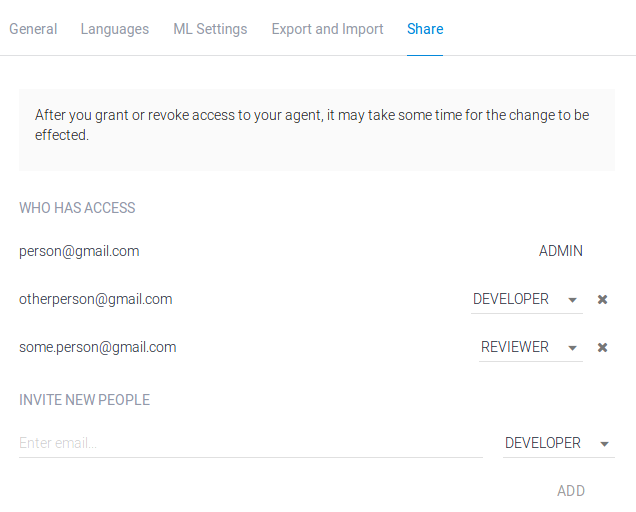
Sharing options are found in the agent's settings.
To open the agent sharing settings:
1. Go to the [Dialogflow ES console](https://dialogflow.cloud.google.com).
2. Select your agent near the top of the left sidebar menu.
3. Click the settings button next to the agent name.
4. Click the **Share** tab. If you do not see the **Share** tab, it is because you do not have the required Agent Admin role.
### Add a user
1. Enter the user's email address under **Invite New People**.
2. Select a role.
3. Click **Add**.
4. Click **Save**.
### Change permissions
1. Find the user in the list.
2. Select a different role.
3. Click **Save**.
### Remove a user
1. Find the user in the list.
> [!NOTE]
> **Note:** If a user is listed with a prefix of `deleted:user:`, this user has been removed from your organization. The Dialogflow console cannot remove this user. You must [use the Cloud Console](https://docs.cloud.google.com/dialogflow/es/docs/access-control#gcp-console) to remove this user.
2. Click the delete button for the user.
3. Click **Save**.
> [!NOTE]
> **Note:** After you grant or change permissions, there may be a delay before the changes take effect.
## Automatically created service accounts
When you create and work with your agent,
Dialogflow creates some [service agents](https://docs.cloud.google.com/iam/docs/service-account-types#service-agents)
automatically.
To see the roles granted to these service agents, enable the **Include Google-provided role grants**
option on the
[IAM page](https://console.cloud.google.com/iam-admin/iam).
You should not delete, edit, or download keys for any of these service agents,
nor should you use these service agents to make direct API calls.
They are used only by the Dialogflow service to connect to a variety
of Google Cloud services used by your agent.
You may need to refer to these service agents by email when
configuring certain Dialogflow features.
The following table describes some of these service agents:
| IAM email form | Purpose |
|---|---|
| service-project-number @gcp-sa-dialogflow.iam.gserviceaccount.com | Used to connect your agent to the services that handle [integration](https://docs.cloud.google.com/dialogflow/docs/integrations) traffic. |
| firebase-adminsdk-alphanum @project-id.iam.gserviceaccount.com | Used to connect your agent to the services that handle [Google Assistant integration](https://docs.cloud.google.com/dialogflow/docs/integrations/aog) traffic. |
| project-id @appspot.gserviceaccount.com | Used to connect your agent to the services that handle [Google Assistant integration](https://docs.cloud.google.com/dialogflow/docs/integrations/aog) traffic. |
## Transfer admin role
In order to transfer the admin role of an agent,
the existing admin needs to [follow steps](https://docs.cloud.google.com/dialogflow/es/docs/access-control#gcp-add) above to add a new admin.
Once the new admin accepts the granted role,
it is safe to remove the old admin.
If the existing admin no longer works at your organization,
and you need the admin role transferred to another employee,
you have two options:
- An administrator of the [organization](https://docs.cloud.google.com/resource-manager/docs/cloud-platform-resource-hierarchy) associated with the agent's project has permissions to modify the agent admin.
- If you have read permissions for the agent, you can export the agent and import to an agent where the desired employee is admin. This may create downtime for a live production agent while the agent is migrated and any integrations are updated.
## OAuth
If you are using Google client libraries to access Dialogflow,
you do not need to use
[OAuth](https://developers.google.com/identity/protocols/oauth2)
directly, because these libraries handle the implementation for you.
However, if you are implementing your own client,
you may need to implement your own OAuth flow.
Access to the Dialogflow API requires one of the following OAuth scopes:
- `https://www.googleapis.com/auth/cloud-platform` (access to all project resources)
- `https://www.googleapis.com/auth/dialogflow` (access to Dialogflow resources)
## Requests that involve Cloud Storage access
Some Dialogflow requests access objects in
[Cloud Storage](https://docs.cloud.google.com/storage/docs)
for reading or writing data.
When you call one of these requests,
Dialogflow accesses the Cloud Storage data on the caller's behalf.
This means that your request authentication must have permissions
to access Dialogflow as well as the Cloud Storage objects.
When using a Google client library and IAM roles,
see the
[Cloud Storage access control guide](https://docs.cloud.google.com/storage/docs/access-control)
for information on Cloud Storage roles.
When implementing your own client and using [OAuth](https://docs.cloud.google.com/dialogflow/es/docs/access-control#oauth),
you must use the following OAuth scope:
- `https://www.googleapis.com/auth/cloud-platform` (access to all project resources)