## Enable Cloud Logging for your agent
Activate Cloud Logging for your agent. This is essential for capturing data
and diagnosing problems in real conversations.
## Collect conversation IDs
When unexpected behavior occurs, collect the Dialogflow conversation
IDs. These IDs, found in the Conversation History, provide a way to trace the
execution path of a conversation and examine specific interactions.
## API call gets permission denied
**Issue**
Received `PERMISSION_DENIED` response for API call.
**Solution**
Ensure you have set up ([Dialogflow CX](https://docs.cloud.google.com/dialogflow/cx/docs/quick/setup),
[Dialogflow ES](https://docs.cloud.google.com/dialogflow/es/docs/quick/setup)) authentication and roles
correctly. In particular, ensure you have done the following:
- Created a service account and did not accidentally delete it.
- Provided the service account with a role that grants permission to call the chosen method.
- Downloaded the service account private key file.
- Set the `GOOGLE_APPLICATION_CREDENTIALS` environment variable to the private key file.
## API call mentions unknown project
**Issue**
Received
`Dialogflow API has not been used in project 32555940559`
error for API call.
**Solution**
Ensure you have done the following:
- Set the `GOOGLE_APPLICATION_CREDENTIALS` environment variable (see [`PERMISSION_DENIED`](https://docs.cloud.google.com/dialogflow/docs/support/troubleshooting#permission-denied)).
- Provided the correct project ID to the API call.
## API call gets invalid authentication credentials error
**Issue**
Received
`Request had invalid authentication credentials.
Expected OAuth 2 access token, login cookie
or other valid authentication credential.`
response for API call.
**Solution**
This may be due to manually creating credentials with your client library while
specifying a non-default region. See one of the following for guidance:
- [Select a region with the API (Dialogflow CX)](https://docs.cloud.google.com/dialogflow/cx/docs/concept/region#api)
- [Select a region with the API (Dialogflow ES)](https://docs.cloud.google.com/dialogflow/es/docs/how/region#api)
## API call response requests a switch to a different host
**Issue**
Received
`Please switch to 'REGION-dialogflow.googleapis.com' to access resources
located in 'REGION'`
response for API call,
where `REGION` is a specific region ID.
**Solution**
This happens when you specify the region in the request, but not the endpoint.
See one of the following for guidance:
- [Select a region with the API (Dialogflow CX)](https://docs.cloud.google.com/dialogflow/cx/docs/concept/region#api)
- [Select a region with the API (Dialogflow ES)](https://docs.cloud.google.com/dialogflow/es/docs/how/region#api)
## Missing fields in the API call response
**Issue**
Some fields are missing in the API response.
**Solution**
If you expect a numeric value for a specific field in the API response, the
field may be absent from the response if the returned value is 0.
For more information on the default value behavior (including non-numeric
values), see:
- [Protocol buffers (Dialogflow CX)](https://docs.cloud.google.com/dialogflow/cx/docs/reference/api-overview#proto)
- [Protocol buffers (Dialogflow ES)](https://docs.cloud.google.com/dialogflow/es/docs/reference/api-overview#proto)
## Unable to delete project because of lien
**Issue**
When trying to delete a Google Cloud project, you get a notification that the
project cannot be deleted because it has liens, and one of the liens is related
to Dialogflow ES.
**Solution**
1. Make sure that you no longer need the Dialogflow ES agent associated with the
project. If you get a notification that the agent doesn't exist, this means
that it has already been deleted.
### Dialogflow ES Console
Open https://dialogflow.cloud.google.com/#/agent/project-id/intents.
Note that this link differs from the link in the Google Cloud project
deletion dialog.
### Dialogflow API
Use the `search` method of the
[`agent`](https://docs.cloud.google.com/dialogflow/es/docs/reference/common-types#agents_references)
type.
2. Get the lien name.
### gcloud
Use the gcloud alpha resource-manager liens list
command, as described in the
[Listing liens on a project](https://docs.cloud.google.com/resource-manager/docs/project-liens#listing_liens_on_a_project)
documentation.
### API Explorer
Use the **Try this API** panel on the
[Method: liens.list](https://docs.cloud.google.com/resource-manager/reference/rest/v1/liens/list) page:
- Fill out the `parent` field, as suggested in the parameter description.
- Click **Execute**.
3. Delete the lien.
### gcloud
Use the gcloud alpha resource-manager liens delete LIEN_NAME
command, as described in the
[Removing liens from a project](https://docs.cloud.google.com/resource-manager/docs/project-liens#removing_liens_from_a_project)
documentation.
### API Explorer
Use the **Try this API** panel on the
[Method: liens.delete](https://docs.cloud.google.com/resource-manager/reference/rest/v1/liens/delete)
page:
- Fill out the `name` field with the lien name that you got in step 2.
- Click **Execute**.
4. [Shut down](https://docs.cloud.google.com/resource-manager/docs/creating-managing-projects#shutting_down_projects)
the project.
## Dialogflow CX webhook fails with deadline exceeded error
**Issue**
A webhook that was called from Dialogflow CX may fail with this error
message:
`Webhook call failed. Error: DEADLINE_EXCEEDED`
This may happen because the webhook call exceeds the webhook timeout limit.
These are possible reasons for the webhook call to exceed the timeout limit:
- Trying to trigger an inexistent intent.
- A cold start issue with the webhook backend (for example, Cloud Functions).
- The webhook calls other services, increasing the response time.
- No connection between agent and webhook backend (for example, misconfigured Load Balancer).
- Organization policy preventing ingress traffic or Dialogflow methods from being run.
**Workaround**
A webhook has a 5-second timeout limit by default. You can increase the webhook
timeout limit when you [create or edit the webhook resource](https://docs.cloud.google.com/dialogflow/cx/docs/concept/webhook#create),
which would provide more time for the webhook to respond.
## Console fails to set up project
**Issue**
Received `Failed to set up GCP project` error when creating an agent with the
console.
**Solution**
You may not have permission to create Google Cloud projects.
Check if you can [create a Google Cloud project](https://docs.cloud.google.com/resource-manager/docs/creating-managing-projects#creating_a_project) directly from the console. If you
cannot create a project, follow the recommendations provided in the error message.
## Session parameter reference shown in the response
**Issue**
Responses returned from Dialogflow include the parameter references
instead of the values of the parameters.
For example:
Hello, $session.params.customer_name
The parameters won't be resolved, and the parameter reference will be shown if
the parameter is not found in the current session or if the parameter is not
being used according to its type.
**Solution**
This issue may appear due to the parameter used not being included in the
conversation, having a typo, or having a different type than the used type.
## Console fails agent creation when API has not been enabled
**Issue**
Received
`Dialogflow API has not been enabled for the project. Code: FAILED_PRECONDITION`
error when creating an agent with the console.
**Solution**
Follow the [setup steps](https://docs.cloud.google.com/dialogflow/cx/docs/quick/setup#api) to enable the
Dialogflow API.
## When attempting to access console from organization account, received service error
**Issue**
Received `You don't have access to this service` error when attempting to access
the console from your organization account.
**Solution**
Contact your organization's system administrator and verify that your
organization's settings provide access to the console. Otherwise, check if your
migrated account from a different organization has been flagged as restricted by
Google --- this is likely the problem if other users in your organization can
access the console, but you can't.
Alternatively, contact [support](https://docs.cloud.google.com/dialogflow/docs/support/getting-support) to
get assistance.
## Cannot export agent in JSON format due to missing flow
**Issue**
Agent export as raw bytes completes successfully, but exporting the agent in
JSON format fails with an error message similar to this:
```
Flow 'projects/PROJECT_ID/locations/LOCATION_ID/agents/AGENT_ID/flows/FLOW_ID' does not exist
in the agent
```
This issue can be caused by a test case referencing a flow that has been deleted.
**Solution**
To solve this issue, explore unused test cases to confirm if the flow referenced
in the error message is being used in any test cases, then delete the confirmed
test cases.
## Phone gateway connectivity
**Issue**
When using a Phone Gateway, you get a busy signal or the call drops.
**Solution**
There are quotas and limits for this feature. If you receive a busy signal or
the call drops, you may have exceeded your [quota](https://docs.cloud.google.com/dialogflow/quotas).
## `RESOURCE_EXHAUSTED` error when trying to create a new phone number
**Issue**
When trying to create a new phone number in Dialogflow CX, Dialogflow ES, or Agent Assist,
a `RESOURCE_EXHAUSTED` error is returned.
**Solution**
This error means that you exceeded the [limit of phone numbers per project](https://docs.cloud.google.com/dialogflow/quotas#count_limits).
To create a new phone number, delete unused phone numbers associated with your
project until you are below the limit.
If you created phone numbers in the [Dialogflow CX Phone Gateway](https://docs.cloud.google.com/dialogflow/cx/docs/concept/integration/phone-gateway) or [Dialogflow ES Phone Gateway](https://docs.cloud.google.com/dialogflow/es/docs/integrations/phone-gateway),
you can delete them in the console. Note that deleting the agent without
deleting the phone number doesn't delete the phone number associated with it.
Alternatively, you can use the API by performing the following steps.
**Step 1. Identify all phone numbers associated with your project**
To identify the phone numbers associated with your project, use the
[projects.phoneNumbers/list](https://docs.cloud.google.com/dialogflow/es/docs/reference/rest/v2beta1/projects.phoneNumbers/list)
or
[projects.locations.phoneNumbers.list](https://docs.cloud.google.com/dialogflow/es/docs/reference/rest/v2beta1/projects.locations.phoneNumbers/list) API method for all regions in which you may have created phone numbers.
- For the `global` region, use the following command:
curl -X GET \
-H "Authorization: Bearer "$(gcloud auth print-access-token) \
-H "X-Goog-User-Project: PROJECT_ID" \
-H "Content-Type: application/json; charset=utf-8" \
https://dialogflow.googleapis.com/v2beta1/projects/PROJECT_ID/locations/global/phoneNumbers
- For other regions, you need to specify the region in two places:
curl -X GET \
-H "Authorization: Bearer "$(gcloud auth print-access-token) \
-H "X-Goog-User-Project: PROJECT_ID" \
-H "Content-Type: application/json; charset=utf-8" \
https://REGION_ID-dialogflow.googleapis.com/v2beta1/projects/PROJECT_ID/locations/REGION_ID/phoneNumbers
**Step 2. (Optional) Identify agents associated with the conversation profiles**
Getting the Dialogflow CX agent ID associated with the phone number through the
conversation profile could help you identify if the agent is still in use and if
the phone number is still needed. You can do this by using the
[projects.conversationProfiles/get](https://docs.cloud.google.com/dialogflow/es/docs/reference/rest/v2beta1/projects.conversationProfiles/get)
API method. You can find conversation profile IDs in the responses to the
commands you ran in step 1.
- For the `global` region, use the following command:
curl -X GET \
-H "Authorization: Bearer "$(gcloud auth print-access-token) \
-H "X-Goog-User-Project: PROJECT_ID" \
-H "Content-Type: application/json; charset=utf-8" \
https://dialogflow.googleapis.com/v2beta1/projects/PROJECT_ID/locations/global/conversationProfiles/CONVERSATION_PROFILE_ID
- For other regions, specify the region in two places:
curl -X GET \
-H "Authorization: Bearer "$(gcloud auth print-access-token) \
-H "X-Goog-User-Project: PROJECT_ID" \
-H "Content-Type: application/json; charset=utf-8" \
https://REGION_ID-dialogflow.googleapis.com/v2beta1/projects/PROJECT_ID/locations/REGION_ID/conversationProfiles/CONVERSATION_PROFILE_ID
You can find the agent by its ID in the Dialogflow CX console by using the
**Search** option on the **View all agents** page.
For Dialogflow ES, one project can be associated only with five agents maximum,
and one Dialogflow ES agent can be associated with one phone number. So you can
open the agent in the Dialogflow ES console through https://dialogflow.cloud.google.com/#/editAgent/`PROJECT_ID`/intents.
If no agent is found, you can still delete the phone number if you are sure it's
no longer needed.
**Step 3. Delete unused phone numbers**
To delete phone numbers that are no longer needed, use the
[projects.phoneNumbers/delete](https://docs.cloud.google.com/dialogflow/es/docs/reference/rest/v2beta1/projects.phoneNumbers/delete) or
[projects.locations.phoneNumbers.delete](https://cloud.google.com/dialogflow/es/docs/reference/rest/v2beta1/projects.locations.phoneNumbers/delete) API method. You can find phone number
IDs in the response to the commands you ran in step 1.
- For the `global` region, use the following command:
curl -X DELETE \
-H "Authorization: Bearer "$(gcloud auth print-access-token) \
-H "X-Goog-User-Project: PROJECT_ID" \
-H "Content-Type: application/json; charset=utf-8" \
https://dialogflow.googleapis.com/v2beta1/PHONE_NUMBER_ID
- For other regions, specify the region:
curl -X DELETE \
-H "Authorization: Bearer "$(gcloud auth print-access-token) \
-H "X-Goog-User-Project: PROJECT_ID" \
-H "Content-Type: application/json; charset=utf-8" \
https://REGION_ID-dialogflow.googleapis.com/v2beta1/PHONE_NUMBER_ID
## Dialogflow CX Messenger no response
**Issue**
No agent response for Dialogflow CX Messenger interactions.
**Solution**
If you are not seeing any responses from Dialogflow CX Messenger, make sure that
billing is enabled on the project and the Dialogflow API is enabled on the
project. See the [setup](https://docs.cloud.google.com/dialogflow/cx/docs/quick/setup) instructions.
## Parameter value matched while not being an entity synonym
**Issue**
- *General case:* A parameter value is extracted at runtime, even though the entity corresponding to the parameter doesn't contain the matched value as a synonym.
- *A more specific case:* After a synonym has been deleted from an entity and the agent has been retrained, this synonym is still extracted as a parameter value for this entity.
**Solution**
1. Use the [search](https://docs.cloud.google.com/dialogflow/cx/docs/concept/search) option to check if the matched value may be present in the agent as an implicit entity ([Dialogflow CX](https://docs.cloud.google.com/dialogflow/cx/docs/concept/intent#implicit-entity), [Dialogflow ES](https://docs.cloud.google.com/dialogflow/es/docs/intents-training-phrases#implicit-entity)). Find all the intents that have annotations with this parameter and entity.
2. Fix the annotations by making sure that none of these annotations are applied to the text representing the undesired matched value.
3. Test the agent at runtime to verify if the issue is resolved.
4. If the issue persists, make sure that [Automatic expansion](https://docs.cloud.google.com/dialogflow/cx/docs/concept/entity-options#expansion) and [Fuzzy matching](https://docs.cloud.google.com/dialogflow/cx/docs/concept/entity-options#fuzzy) options are unchecked in the advanced entity settings, and test the agent again.
## Voice bot skips some responses
**Issue**
For an agent designed for both text and voice, the voice bot does not read some
responses.
**Solution**
If at least one [output audio text](https://docs.cloud.google.com/dialogflow/cx/docs/concept/fulfillment#tts)
response is defined for a particular conversation turn, make sure that the
output audio text option is consistently present throughout the agent's
fulfillment and webhook responses at all steps for this conversation turn.
## SSML tags don't take effect
**Issue**
SSML tags are defined in the agent fulfillment, but the voice bot reads the
synthesized text without SSML effects.
**Solution**
Make sure that only one `` pair is present per one response card
in the Dialogflow console, or per one response message object if responses
are supplied by the API or webhook.
## Voice agent pronounces zero as letter O
**Issue**
For an agent designed for voice, the voice agent reads zeroes as letter O
instead of zero.
**Solution**
1. Change [**Agent says**](https://docs.cloud.google.com/dialogflow/cx/docs/concept/fulfillment#text) to use [**Output audio text dialogue option**](https://docs.cloud.google.com/dialogflow/cx/docs/concept/fulfillment#tts).
2. Check SSML checkbox.
3. Surround your text with an [**SSML tag**](https://docs.cloud.google.com/text-to-speech/docs/ssml#examples):
```
YOUR_TEXT
```
4. Save.
For example, credit card numbers zeroes will be spelled as zeroes:
```
5177 7702 8500 4578
```
## Unexpected synthesized pronunciation
**Issue**
Synthesized pronunciation of agent responses (e.g., proper names, acronyms) is
not as expected.
**Solution**
To guarantee particular pronunciations for not commonly known words, use the
SSML [say-as](https://docs.cloud.google.com/text-to-speech/docs/ssml#say%E2%80%91as) or [phoneme](https://docs.cloud.google.com/text-to-speech/docs/ssml#phoneme)
tag in agent responses.
## Reached the maximum allowed state machine execution steps
**Issue**
Received the following error message in the Dialogflow CX console or in the logs
when sending runtime requests to the agent:
`You have reached the maximum allowed state machine execution steps. You may consider simplifying your agent/flow design. Current execution steps are: []`
The array in the error message contains a list of execution steps for the
request. The list may be incomplete if the number of steps is too large.
**Solution**
This error message usually indicates that the number of transitions for a single
conversation turn is too large. A common example is transitioning to the same
page, which creates an infinite loop.
To solve the issue:
1. Copy the JSON array from the error message.
2. (Optional) Format the copied array as pretty JSON for better readability. If the error message is truncated, search for the last "Step" object, delete the incomplete step object and the preceding comma, and add a closing array bracket before validating and prettifying the JSON.
3. Look at the `"TriggeredTransitionRouteId"` and `"TargetPage"` values for each step. In the case of infinite loop, the `"TriggeredTransitionRouteId"` and `"TargetPage"` fields have repeating values for most of the steps.
4. Modify your agent design to remove the infinite loop transitions or to reduce the number of transitions for a single conversation turn.
## Regular expression match is too broad
**Issue**
Received an error `Regular expression match is too broad` when creating a regexp
entity ([Dialogflow CX](https://docs.cloud.google.com/dialogflow/cx/docs/concept/entity-regexp), [Dialogflow ES](https://docs.cloud.google.com/dialogflow/es/docs/entities-regexp)).
**Solution**
Consider the following approach:
- Use `^` and `$` in the regular expression to indicate the beginning and the end of text, respectively.
- Use the regexp entity with a required parameter ([Dialogflow CX](https://docs.cloud.google.com/dialogflow/cx/docs/concept/parameter#form_filling), [Dialogflow ES](https://docs.cloud.google.com/dialogflow/es/docs/intents-actions-parameters#required)).
- Define the required parameter prompts to ask the end-user to provide only th entity value without any surrounding words.
## Undesired non-alphanumerics inserted by speech recognition
**Issue**
When trying to match alphanumerics, undesired non-alphanumerics characters
(spaces, dashes, etc.) are inserted by the speech recognizer, which results in
the entity not being matched.
**Solution**
1. If you use system entities for matching numbers, consider using regexp entities ([Dialogflow CX](https://docs.cloud.google.com/dialogflow/cx/docs/concept/entity-regexp), [Dialogflow ES](https://docs.cloud.google.com/dialogflow/es/docs/entities-regexp)) instead.
2. Follow all the recommendations from the section [Inaccurate alphanumerics speech recognition by regexp entities](https://docs.cloud.google.com/dialogflow/docs/support/troubleshooting#stt-regex-inaccurate).
3. For matching numbers using telephony integrations, consider a [DTMF](https://docs.cloud.google.com/dialogflow/cx/docs/concept/parameter#dtmf) option, in addition to voice recognition.
## Empty transcripts for voice inputs
**Issue**
Dialogflow responses for voice inputs return empty transcripts. The
requests are handled as no input or no match.
**Solution**
Listen to the audio recording to confirm that it contains speech.
Make sure that speech adaptation is enabled in the agent settings ([Dialogflow CX](https://docs.cloud.google.com/dialogflow/cx/docs/concept/speech-adaptation), [Dialogflow ES](https://docs.cloud.google.com/dialogflow/es/docs/speech-adaptation)).
If enabling speech adaptation doesn't help, experiment with the following
[speech models](https://docs.cloud.google.com/speech-to-text/docs/transcription-model) in a non-production
setup and use the one that renders the best results:
- `latest_short`
- `phone_call`
- `command_and_search`
For languages other than English, find the supported speech models in the
[Speech-to-Text supported languages](https://docs.cloud.google.com/speech-to-text/docs/speech-to-text-supported-languages)
documentation.
The way to specify a speech model depends on how you set up interactions with
Dialogflow.
- For API requests, provide the model name in the `model` field in `InputAudioConfig`
([Dialogflow CX](https://docs.cloud.google.com/dialogflow/cx/docs/reference/rpc/google.cloud.dialogflow.cx.v3#inputaudioconfig),
[Dialogflow ES](https://docs.cloud.google.com/dialogflow/es/docs/reference/rpc/google.cloud.dialogflow.v2#inputaudioconfig)).
- If you use Phone Gateway ([Dialogflow CX](https://docs.cloud.google.com/dialogflow/cx/docs/concept/integration/phone-gateway),
[Dialogflow ES](https://docs.cloud.google.com/dialogflow/es/docs/integrations/phone-gateway)), you can update
the speech model in the conversation profile that was created by Dialogflow
when you enabled the integration:
1. Retrieve the conversation profile ID:
- Use the [`conversationProfiles.list`](https://docs.cloud.google.com/dialogflow/es/docs/reference/rest/v2/projects.conversationProfiles/list) method to retrieve all conversation profiles linked to your project.
- Find the conversation profile you'd like to update and copy the `name` field value.
For Dialogflow CX Phone Gateway, the conversation profile display name can
be found in the integration settings. For Dialogflow ES Phone Gateway, the
conversation profile display name corresponds to the agent name in which
integration was enabled.
If you have multiple conversation profiles with the same display name,
verify the agent ID in the `automatedAgentConfig` field from the
`conversationProfiles.list` method response.
2. Use the [`conversationProfiles.patch`](https://docs.cloud.google.com/dialogflow/es/docs/reference/rest/v2/projects.conversationProfiles/patch) API method to update the `model` field in [`SpeechToTextConfig`](https://docs.cloud.google.com/dialogflow/es/docs/reference/rest/v2/projects.conversationProfiles#ConversationProfile.SpeechToTextConfig).
- For [Contact Center AI](https://docs.cloud.google.com/solutions/contact-center) integrations, check with
your telephony integrator on how to update the speech model for the
integration or for individual requests.
## Understanding playbook loop errors
**Issue**
When linking playbooks, you are encountering error
`Playbook caused loop in playbook routes`.
**Solution**
A loop can occur if you attempt to route to an "ancestor" playbook---one that
directly or indirectly called the current one. To fix this, verify that your
playbook routing is unidirectional and doesn't circle back to a parent playbook
in the same conversational path.
## Blank screen error 'File size exceeds 2MB' when comparing agent versions
**Issue**
When trying to compare two different agent versions, the screen turns blank with
the error message:
```
File size exceeds 2MB
```
This issue is due to one of the files exceeding 2MB in size.
**Solution**
To compare agent versions where one of the files exceeds 2MB in size, it's
recommended to use the API method [compareVersion](https://docs.cloud.google.com/dialogflow/cx/docs/reference/rest/v3/projects.locations.agents.flows.versions/compareVersions).
## Inaccurate alphanumerics speech recognition by regexp entities
**Issue**
Received inaccurate transcripts for voice inputs of alphanumerics designed
to be matched to a regexp entity ([Dialogflow CX](https://docs.cloud.google.com/dialogflow/cx/docs/concept/entity-regexp),
[Dialogflow ES](https://docs.cloud.google.com/dialogflow/es/docs/entities-regexp)).
**Solution**
1. Make sure that speech adaptation is enabled in the agent settings ([Dialogflow CX](https://docs.cloud.google.com/dialogflow/cx/docs/concept/speech-adaptation), [Dialogflow ES](https://docs.cloud.google.com/dialogflow/es/docs/speech-adaptation)).
2. Make sure that at least one entity entry follows all the regex entry requirements ([Dialogflow CX](https://docs.cloud.google.com/dialogflow/cx/docs/concept/speech-adaptation#regexp-req), [Dialogflow ES](https://docs.cloud.google.com/dialogflow/es/docs/speech-adaptation#regexp-req)).
3. For specific patterns, use the most specific regular expressions. For example, for an alphanumeric that starts with two letters followed by five digits, use `[a-zA-Z]{2}\d{5}` instead of `[a-zA-Z0-9]{7}`.
4. Make sure that your regexp entity allows for matching non-alphanumerics (spaces, dashes, etc.) that may be inserted by the speech recognizer. To meet the requirement 2 from this list, create multiple entity entries: one entry to satisfy the requirements 2 of this list and another to account for non-alphanumeric. For example, to match five digits and allow for non-alphanumerics:
\d{5}
(\d[^a-zA-Z0-9]*){5}
5. Make sure that your agent follows the parameter definition requirement ([Dialogflow CX](https://docs.cloud.google.com/dialogflow/cx/docs/concept/speech-adaptation#parameter-req), [Dialogflow ES](https://docs.cloud.google.com/dialogflow/es/docs/speech-adaptation#parameter-req)).
#### Example for Dialogflow CX

#### Example for Dialogflow ES
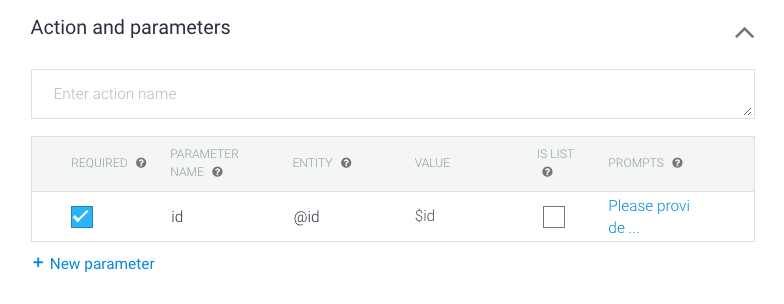
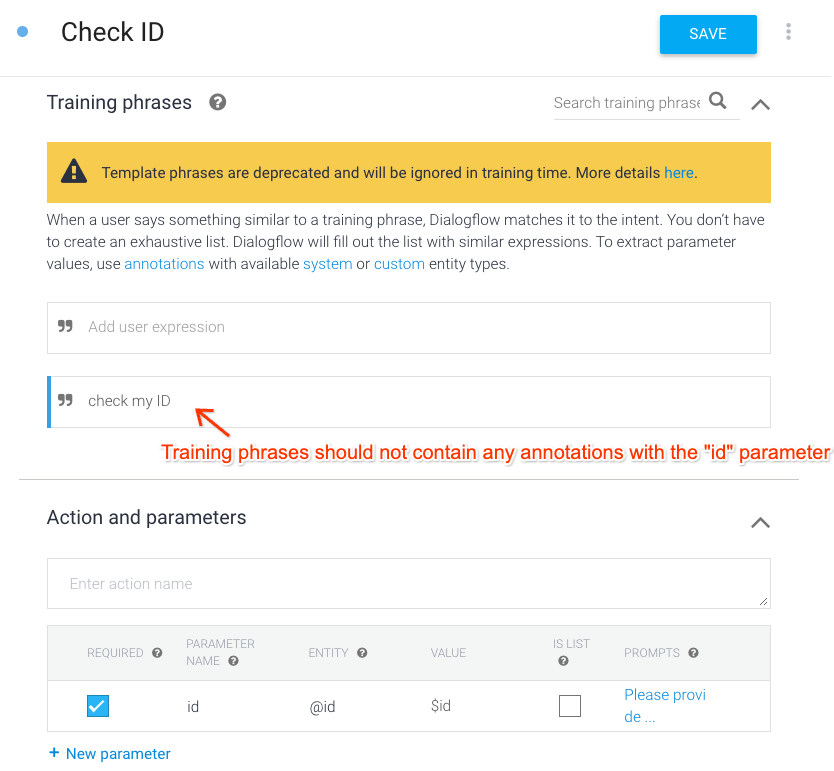
6. Make sure that your agent follows the training phrases annotation requirement ([Dialogflow CX](https://docs.cloud.google.com/dialogflow/cx/docs/concept/speech-adaptation#annotation-req), [Dialogflow ES](https://docs.cloud.google.com/dialogflow/es/docs/speech-adaptation#annotation-req)).
#### Example for Dialogflow ES
- Make sure that your tests follow the testing guidelines ([Dialogflow CX](https://docs.cloud.google.com/dialogflow/cx/docs/concept/speech-adaptation#testing), [Dialogflow ES](https://docs.cloud.google.com/dialogflow/es/docs/speech-adaptation#testing)).
- To remove non-alphanumeric characters that may have been inserted by the speech recognizer, use the following:
- For Dialogflow CX: [SUBSTITUTE](https://docs.cloud.google.com/dialogflow/cx/docs/reference/system-functions#func-substitute) system function or [webhook](https://docs.cloud.google.com/dialogflow/cx/docs/concept/webhook)
- For Dialogflow ES: [webhook](https://docs.cloud.google.com/dialogflow/es/docs/fulfillment-webhook)
- Check speech adaptation limitations ([Dialogflow CX](https://docs.cloud.google.com/dialogflow/cx/docs/concept/speech-adaptation#limits), [Dialogflow ES](https://docs.cloud.google.com/dialogflow/es/docs/speech-adaptation#limits)).
## Design for controlled conversations
- Build your agent with clearly defined conversation paths. Ensure that the agent can request the information needed to fulfill user requirements. Avoid overly broad conversational scope, which can lead to unpredictable behavior.
## Analyze logs
- The inputs and outputs of playbooks, tools, and data stores are captured in the logs. Use the collected conversation IDs to follow the chain of calls and identify where execution went wrong.
## Experiment with prompting
- If a specific set of instructions isn't working as expected, try rewording it. Alternatively, you can use Gemini to generate prompts (meta-prompting). This iterative approach can help to find the optimal phrasing for your use case.
## Provide complete information to support
- When opening a support case with Cloud Support, include the relevant conversation IDs and logs collected during your investigation. This information is critical for debugging issues efficiently.