This page explains how to view security information about the container images
you deploy. You can view this information in the **Security insights** side
panel for Cloud Deploy in Google Cloud console.
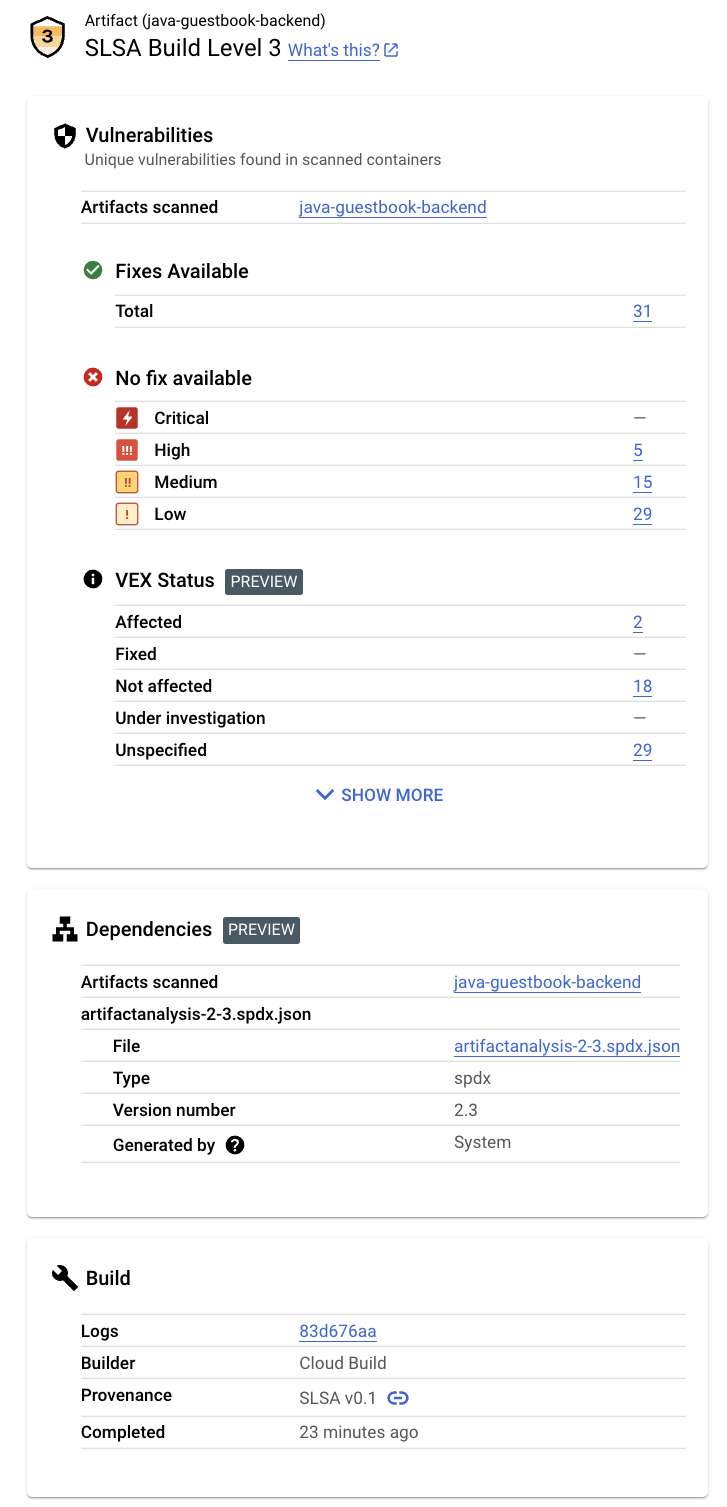
The **Security insights** side panel provides a high-level overview of multiple
security metrics. You can use this panel to identify and mitigate risks in
the images you deploy.
This panel displays the following information:
- SLSA build level
Identifies the maturity level of your software build process in accordance
with the
[Supply-chain Levels for Software Artifacts (SLSA) specification](https://slsa.dev).
- Vulnerabilities
Lists any vulnerabilities found in your artifact or artifacts.
- VEX status
[Vulnerability Exploitability eXchange(VEX) status](https://docs.cloud.google.com/artifact-analysis/docs/upload-view-vex-statements)
for the build artifacts.
- SBOM
[**Software bill of materials (SBOM)**](https://docs.cloud.google.com/artifact-analysis/docs/sbom-overview)
for the build artifacts.
- Build details
Includes information about the build.
## Requirements
Security insights are available only for container images that meet the
following requirements:
- Vulnerability scanning must be [enabled](https://docs.cloud.google.com/deploy/docs/securing/security-insights#enable_vulnerability_scanning).
- The required Identity and Access Management
[roles must be granted](https://docs.cloud.google.com/deploy/docs/securing/security-insights#grant_permissions_to_view_insights), in
the project where Artifact Analysis is running.
- The name of the image, as part of [release creation](https://docs.cloud.google.com/sdk/gcloud/reference/deploy/releases/create#--images),
must be [SHA qualified](https://docs.cloud.google.com/kubernetes-engine/docs/concepts/about-container-images).
If the image is shown in the **Artifacts** tab in Cloud Deploy
without the SHA256 hash, you might need to rebuild that image.
## Enable vulnerability scanning
The information shown in the **Security Insights** panel comes from
[Artifact Analysis](https://docs.cloud.google.com/artifact-analysis/docs/container-analysis) and
potentially from [Cloud Build](https://docs.cloud.google.com/build/docs/overview).
Artifact Analysis is a service that provides integrated
on-demand or automated scanning for base container images, Maven, and Go
packages in containers, and for non-containerized Maven packages.
To receive all of the security insights available, you must enable vulnerability
scanning:
1. To turn on vulnerability scanning, enable the required APIs.
**Roles required to enable APIs**
To enable APIs, you need the `serviceusage.services.enable` permission. If you
created the project, then you likely already have this permission through the
Owner role (`roles/owner`). Otherwise, you can get this permission through the
Service Usage Admin role (`roles/serviceusage.serviceUsageAdmin`).
[Learn how to grant roles](https://docs.cloud.google.com/iam/docs/granting-changing-revoking-access).
[Enable the APIs](https://console.cloud.google.com/apis/enableflow?apiid=containerscanning.googleapis.com,cloudbuild.googleapis.com,artifactregistry.googleapis.com,containersecurity.googleapis.com)
2. Build your container image, and
[store it in Artifact Registry](https://docs.cloud.google.com/build/docs/building/store-artifacts-in-artifact-registry).
Artifact Analysis automatically scans the build artifacts.
Vulnerability scanning may take a few minutes, depending on the size of your
container image.
For more information on vulnerability scanning, see
[On-push scanning](https://docs.cloud.google.com/artifact-analysis/docs/scanning-types#on-push_scanning).
There is a cost for scanning. See the [Pricing page](https://cloud.google.com/artifact-analysis/pricing)
for pricing information.
## Grant permissions to view insights
To view security insights in Cloud Deploy, you need the IAM
roles described here, or a role with equivalent permissions. If Artifact Registry and
Artifact Analysis are running in different projects, you must
add the Artifact Analysis Occurrences Viewer role, or
equivalent permissions, in the project where Artifact Analysis
is running.
- [Cloud Build Viewer](https://docs.cloud.google.com/iam/docs/roles-permissions/cloudbuild#cloudbuild.builds.viewer)
(`roles/cloudbuild.builds.viewer`)
View insights for a build.
- [Artifact Analysis Viewer](https://docs.cloud.google.com/iam/docs/roles-permissions/containeranalysis#containeranalysis.occurrences.viewer)
(`roles/containeranalysis.occurrences.viewer`)
View vulnerabilities and other dependency information.
## View security insights in Cloud Deploy
1. Open the Cloud Deploy **Delivery pipelines** page in the
Google Cloud console:
[Open the delivery pipelines page](https://console.cloud.google.com/deploy)
2. If necessary, select the project that includes the pipeline and release that
delivered the container image for which you want to view security insights.
3. Click the name of the delivery pipeline.
The delivery pipeline details are shown.
4. From the Delivery pipeline details page, select a release that delivered the
container image.
5. On the Release details page, select the **Artifacts** tab.
Containers that were delivered by the selected release are listed under
**Build artifacts** . For each container, the **Security insights** column
includes a **View** link.
> [!NOTE]
> **Note:** If security insights are not available for a given container image, the **View** link is disabled. The **View** link is disabled if the container doesn't satisfy all requirements for it to have been scanned.
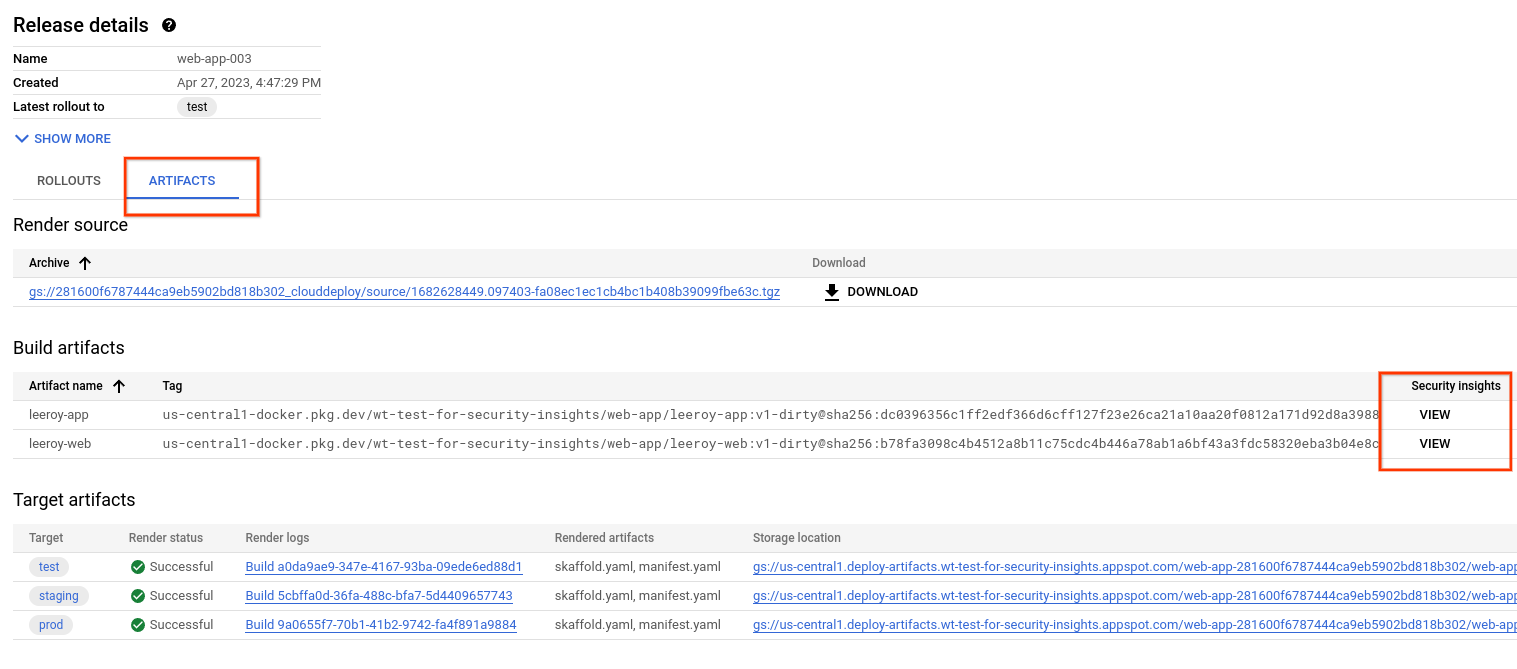
6. Click the **View** link next to the name of the artifact whose security
details you want to view.
The **Security insights** panel is displayed, showing available security
information for this artifact. The following sections describe this
information in more detail.
### SLSA level
SLSA is an industry-standard set security guidelines for producers and consumers
of software. This standard establishes
[four levels](https://slsa.dev/spec/v0.1/levels) of confidence in the security
of your software.
### Vulnerabilities
The **Vulnerabilities** card shows the vulnerability occurrences,
available fixes, and VEX status for the build artifacts.
[Artifact Analysis](https://docs.cloud.google.com/artifact-analysis/docs/scanning-types#automated)
supports scanning for container images pushed to
[Artifact Registry](https://docs.cloud.google.com/artifact-registry/docs/overview). The scans detect
vulnerabilities in operating system packages, and in application packages
created in Python, Node.js, Java (Maven), or Go.
Scanning results are organized by [severity
level](https://docs.cloud.google.com/artifact-analysis/docs/os-overview#severity_levels_for_vulnerabilities).
The severity level is a qualitative assessment based on exploitability, scope,
impact, and maturity of the vulnerability.
Click the image name to see the artifacts that have been scanned for
vulnerabilities.
For every container image pushed to Artifact Registry, Artifact Analysis
can store an associated VEX statement. VEX is a type of security advisory that
indicates whether a product is affected by a known vulnerability.
Each VEX statement provides:
- The publisher of the VEX Statement
- The artifact for which the statement is written
- The vulnerability assessment (VEX status) for any CVEs
## Dependencies
The **Dependencies** card displays a list of SBOMs that include a list of
dependencies.
When you build a container image using Cloud Build and push
it to Artifact Registry, Artifact Analysis can generate SBOM records for
the pushed images.
An SBOM is a full inventory of an application, identifying the packages your
software relies on. The contents can include third-party software from vendors,
internal artifacts, and open source libraries.
### Build details
The build details include the following:
- A link to the Cloud Build logs
- The name of the builder that built the image
- The build date/time
- Build provenance, in JSON format
## What's next
- Try the quickstart [Deploy an app to GKE and view security insights](https://docs.cloud.google.com/software-supply-chain-security/docs/sds/deploy-gke-view-security-insights)
- Try the quickstart [Deploy an app to Cloud Run and view security insights](https://docs.cloud.google.com/software-supply-chain-security/docs/sds/deploy-run-view-security-insights)
- Learn [software supply chain security best practices](https://docs.cloud.google.com/software-supply-chain-security/docs/overview).
- Learn how to [store and view build logs](https://docs.cloud.google.com/build/docs/securing-builds/store-view-build-logs).