In Datastream, [VPC Network Peering](https://docs.cloud.google.com/vpc/docs/vpc-peering) lets
you establish a dedicated connection between your Virtual Private Cloud (VPC)
network and Datastream using internal IP addresses. Before you
create a private connectivity configuration, review the [supported network
topologies](https://docs.cloud.google.com/datastream/docs/vpc-peering#about-vpc-peering) and complete the
[VPC](https://docs.cloud.google.com/datastream/docs/vpc-peering#vpc-prereqs) and [Shared VPC](https://docs.cloud.google.com/datastream/docs/vpc-peering#shared-vpc)
prerequisites. To connect to a Cloud SQL instance, you can also [set up a NAT
VM](https://docs.cloud.google.com/datastream/docs/vpc-peering#set-up-reverse-proxy) in your VPC network.
## About VPC Network Peering in Datastream
Using private connectivity establishes a dedicated connection on the
Datastream network, meaning no other customers can share it.
The VPC Network Peering connection between your VPC network
and the Datastream VPC network lets
Datastream connect to:
- Resources like virtual machines (VMs) and internal load balancers in your VPC network.
- Resources in other networks connected to your VPC network using [Cloud VPN
tunnels](https://docs.cloud.google.com/network-connectivity/docs/vpn/concepts/overview), [Dedicated Interconnect VLAN
attachments](https://docs.cloud.google.com/network-connectivity/docs/interconnect/concepts/dedicated-overview), [Partner Interconnect VLAN
attachments](https://docs.cloud.google.com/network-connectivity/docs/interconnect/concepts/partner-overview), and [Network Connectivity Center (NCC)
Cloud Routers](https://docs.cloud.google.com/network-connectivity/docs/network-connectivity-center/concepts/ra-overview).
The VPC Network Peering connection between your VPC network
and the Datastream VPC network doesn't let
Datastream connect to:
- Private Service Connect endpoints located in your VPC network.
- Resources located in another VPC network that is peered with your VPC network, but *not* peered with the Datastream VPC network, because [VPC Network Peering doesn't provide transitive
routing](https://docs.cloud.google.com/vpc/docs/vpc-peering#spec-general).
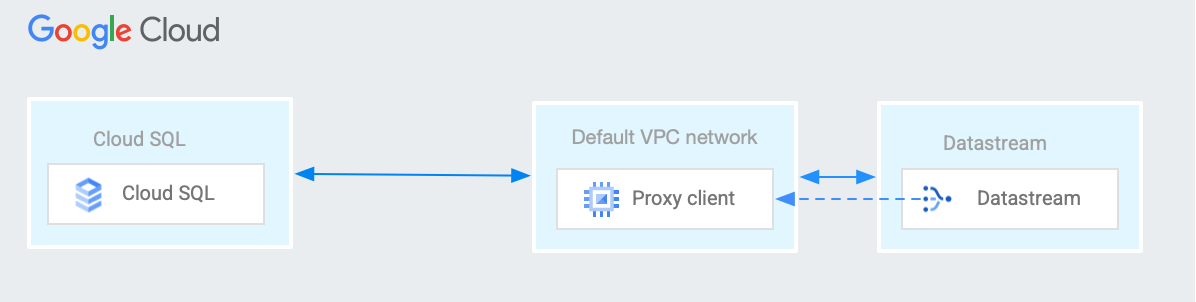
To establish connectivity between Datastream and a resource
that's only accessible from your VPC network, such as a
Cloud SQL instance, you can use a network address translation (NAT) VM
in your VPC network. The following diagram shows an example NAT
VM configuration that lets Datastream privately connect to a
Cloud SQL instance:
## VPC peering prerequisites
Before you create a private connectivity configuration, you need to take the following steps so that Datastream can create the VPC peering connection to your project:
- Have a VPC network that can peer to Datastream's private network and that meets the requirements described in the [VPC Network Peering](https://docs.cloud.google.com/vpc/docs/vpc-peering) page. For more information about creating this network, see [Using VPC Network Peering](https://docs.cloud.google.com/vpc/docs/using-vpc-peering).
- Identify an available IP range, with a CIDR block of `/29`, on the VPC network. This range can't already exist as a subnet or a private services access pre-allocated IP range. It also can't be included in any route other than the default `0.0.0.0` route. Additionally, the IP range can't overlap with the internal IP ranges reserved by Datastream (`100.64.0.0/16` and `100.65.0.0/24`). Datastream uses this IP range to create a subnet so that it can communicate with the source database. The following table describes valid IP ranges:
| Range | Description |
|---|---|
| `10.0.0.0/8` `172.16.0.0/12` `192.168.0.0/16` | Private IP addresses [RFC 1918](https://tools.ietf.org/html/rfc1918) |
| `100.64.0.0/10` | Shared address space [RFC 6598](https://tools.ietf.org/html/rfc6598), excluding `100.64.0.0/16` and `100.65.0.0/24` (reserved by Datastream) |
| `192.0.0.0/24` | IETF protocol assignments [RFC 6890](https://tools.ietf.org/html/rfc6890) |
| `192.0.2.0/24` (TEST-NET-1) `198.51.100.0/24` (TEST-NET-2) `203.0.113.0/24` (TEST-NET-3) | Documentation [RFC 5737](https://tools.ietf.org/html/rfc5737) |
| `192.88.99.0/24` | IPv6 to IPv4 relay (deprecated) [RFC 7526](https://tools.ietf.org/html/rfc7526) |
| `198.18.0.0/15` | Benchmark testing [RFC 2544](https://tools.ietf.org/html/rfc2544) |
- Don't assign IP addresses in the `100.64.0.0/16` or `100.65.0.0/24` ranges to
any resources in your VPC network that communicate with Datastream.
This requirement applies to resources such as NAT VMs, internal load
balancers, and source or destination databases. These ranges are reserved for
Datastream internal infrastructure, and using them for your
resources can cause routing conflicts and unpredictable connectivity
failures.
- Verify that Google Cloud and the on-premises firewall allow traffic from the
selected IP range. If they don't, then create an ingress [firewall rule](https://docs.cloud.google.com/firewall/docs/firewalls)
that allows traffic on the source database port, and make sure that the IPv4
address range in the firewall rule is the same as the IP address range
allocated when creating the private connectivity resource:
```bash
gcloud compute firewall-rules create FIREWALL-RULE-NAME \
--direction=INGRESS \
--priority=PRIORITY \
--network=PRIVATE_CONNECTIVITY_VPC \
--project=VPC_PROJECT \
--action=ALLOW \
--rules=FIREWALL_RULES \
--source-ranges=IP-RANGE
```
Replace the following:
- FIREWALL-RULE-NAME: The name of the firewall rule to create.
- PRIORITY: The priority for the rule, expressed as an integer between 0 and 65535, inclusive. The value needs to be lower than the value set for the block traffic rule, if it exists. Lower priority values imply higher precedence.
- PRIVATE_CONNECTIVITY_VPC: The VPC network that can peer to the Datastream private network and that meets the requirements described in the [VPC Network Peering](https://docs.cloud.google.com/vpc/docs/vpc-peering#restrictions) page. This is the VPC you specify when you create your [private connectivity configuration](https://docs.cloud.google.com/datastream/docs/create-a-private-connectivity-configuration#create-the-configuration).
- VPC_PROJECT: The project of the VPC network.
- FIREWALL_RULES: The list of protocols and ports to which the firewall rule applies, for example `tcp:80`. The rule needs to allow TCP traffic to the IP address and the port of the source database, or of the proxy. Because private connectivity can support multiple databases, the rule needs to consider the actual usage of your configuration.
- IP-RANGE: The range of IP addresses that Datastream
uses to communicate with the source database. This is the same range you
indicate in the **Allocate an IP range** field when you create your [private
connectivity configuration](https://docs.cloud.google.com/datastream/docs/create-a-private-connectivity-configuration#create-the-configuration).
You might also need to create an identical egress firewall rule to allow
traffic back to Datastream.
- Are assigned to a role that contains the `compute.networks.list` permission. This permission gives you the required IAM permissions to list VPC networks in your project. You can find which roles contain this permission by viewing [IAM permissions reference](https://docs.cloud.google.com/iam/docs/permissions-reference).
> [!NOTE]
> You can use private connectivity to connect Datastream to any source. However, only VPC networks that are peered directly can communicate with each other.
>
> Transitive peering isn't supported. If the network that Datastream is peered with isn't the network where your source is hosted, you're using a fully managed database (for example, Cloud SQL), or if Datastream doesn't run on the region where your source exists, then a reverse proxy is required.
>
> For more information, see [Private connectivity](https://docs.cloud.google.com/datastream/docs/private-connectivity).
## Shared VPC prerequisites
If you're using [Shared VPC](https://docs.cloud.google.com/vpc/docs/shared-vpc), then you must complete the following actions in addition to the steps described in the [VPC prerequisites](https://docs.cloud.google.com/datastream/docs/vpc-peering#vpc-prereqs) section:
1. On the service project:
1. Enable the [Datastream API](https://console.cloud.google.com/apis/enableflow?apiid=datastream).
2. Obtain the email address used for the Datastream [service account](https://docs.cloud.google.com/docs/authentication#service-accounts). Datastream service accounts are created when you perform one of the following:
- You create a Datastream resource, such as a connection profile or a stream.
- You create a private connectivity configuration, select your shared VPC and click **Create Datastream Service Account**. The service account is created in the host project.
To obtain the email address used for the Datastream service account, find the **Project number** in the Google Cloud console home page. The email address of the service account is `service-[project_number]@gcp-sa-datastream.iam.gserviceaccount.com`.
2. On the host project:
1. Grant the `compute.networkAdmin` Identity and Access Management (IAM) role permission to the Datastream service account. This role is only required when you create the VPC peering. After the peering is established, you no longer need the role.
If your organization doesn't allow granting the permission, create a custom role with the following minimum permissions to create and delete private connection resources:
`compute.globalAddresses.*`
- `compute.globalAddresses.create`
- `compute.globalAddresses.createInternal`
- `compute.globalAddresses.delete`
- `compute.globalAddresses.deleteInternal`
- `compute.globalAddresses.get`
`compute.globalOperations.*`
- `compute.globalOperations.get`
`compute.networks.*`
- `compute.networks.addPeering`
- `compute.networks.get`
- `compute.networks.listPeeringRoutes`
- `compute.networks.removePeering`
- `compute.networks.use`
`compute.routes.*`
- `compute.routes.get`
- `compute.routes.list`
`compute.subnetworks.*`
- `compute.subnetworks.get`
- `compute.subnetworks.list`
For more information about custom roles, see [Create and manage custom roles](https://docs.cloud.google.com/iam/docs/creating-custom-roles).
## Set up a NAT VM
1. Identify the IP address of the Cloud SQL instance to which
Datastream needs to connect.
2. Identify *your VPC network*. This is the VPC
network that's connected to the Datastream VPC
network using VPC Network Peering.
3. If you haven't already, [create a private connectivity
configuration](https://docs.cloud.google.com/datastream/docs/create-a-private-connectivity-configuration)
in Datastream. This creates the VPC Network Peering connection
that connects your VPC network and the Datastream
VPC network. Take note of the IP address range used by the
Datastream private connectivity configuration.
4. Choose a machine type to use for the NAT VM that you create in the next step.
Google Cloud enforces a per-instance maximum egress bandwidth limit,
for packets routed by next hops within a VPC network,
according to the machine type of the VM instance. For more information,
see [Egress to destinations routable within a VPC
network](https://docs.cloud.google.com/compute/docs/network-bandwidth#vm-out-dest-i) and [Per-instance
maximum egress bandwidth](https://docs.cloud.google.com/compute/docs/network-bandwidth#vm-out-baseline).
5. Create the NAT VM in your VPC network. When you create the VM,
you must enable IP forwarding. For more information, see
[Enable IP forwarding for instances](https://cloud.google.com/vpc/docs/using-routes#canipforward).
If your VPC network is a Shared VPC network, you can create
the NAT VM in either the host project or any service project, as long as the
network interface of the NAT VM is in the Shared VPC network.
- To minimize network round-trip time, create the NAT VM in the same region as Datastream.
- This example assumes that the NAT VM has a single network interface.
- Run the script in a Linux distribution---for example, Debian 12.
- Use the following [startup
script](https://docs.cloud.google.com/compute/docs/instances/startup-scripts/linux). The startup script is executed by root each time the VM starts up. This script includes comments explaining what each line of the script does. In the script, replace CLOUD_SQL_INSTANCE_IP with the IP address of the Cloud SQL instance and DATABASE_PORT with the destination port used by the database software.
```bash
#! /bin/bash
export DB_ADDR=CLOUD_SQL_INSTANCE_IP
export DB_PORT=DATABASE_PORT
export SYSCTL_CONF_FILE="/etc/sysctl.d/99-sysctl.conf"
# Ensure the VM can receive packets whose destinations do
# not match any running process local to the VM
if [ "$(sysctl net.ipv4.ip_forward)" != "net.ipv4.ip_forward = 1" ]; then
echo "Enabling IP forwarding..."
if [ ! -f "${SYSCTL_CONF_FILE}" ]; then
# Create the kernel parameter config file if it doesn't exist.
touch "${SYSCTL_CONF_FILE}"
fi
# Remove any lines with net.ipv4.ip_forward:
sed -i '/net.ipv4.ip_forward/d' "${SYSCTL_CONF_FILE}"
# Append net.ipv4.ip_forward=1:
echo "net.ipv4.ip_forward=1" >> "${SYSCTL_CONF_FILE}"
# Reload kernel parameters:
sysctl --system
fi
# Ask the Metadata server for the IP address of the VM nic0
# network interface:
md_url_prefix="http://169.254.169.254/computeMetadata/v1/instance"
vm_nic_ip="$(curl -H "Metadata-Flavor: Google" ${md_url_prefix}/network-interfaces/0/ip)"
# Clear any existing iptables NAT table entries (all chains):
iptables -t nat -F
# Create a NAT table entry in the prerouting chain, matching
# any packets with destination database port, changing the destination
# IP address of the packet to the SQL instance IP address:
iptables -t nat -A PREROUTING \
-p tcp --dport $DB_PORT \
-j DNAT \
--to-destination $DB_ADDR
# Create a NAT table entry in the postrouting chain, matching
# any packets with destination database port, changing the source IP
# address of the packet to the NAT VM's primary internal IPv4 address:
iptables -t nat -A POSTROUTING \
-p tcp --dport $DB_PORT \
-j SNAT \
--to-source $vm_nic_ip
# Save iptables configuration:
iptables-save
```
6. Create an ingress allow [firewall
rule](https://docs.cloud.google.com/firewall/docs/using-firewalls#creating_firewall_rules) (or rule in a
[global network firewall
policy](https://docs.cloud.google.com/firewall/docs/use-network-firewall-policies), [regional network
firewall policy](https://docs.cloud.google.com/firewall/docs/use-regional-firewall-policies) or
[hierarchical firewall policy](https://docs.cloud.google.com/firewall/docs/using-firewall-policies)) with
these characteristics:
- Direction: ingress
- Action: allow
- Target parameter: at least the NAT VM
- Source parameter: the IP address range used by the Datastream private connectivity configuration
- Protocol: TCP
- Port: must at least include the DATABASE_PORT
7. The [implied allow egress firewall
rule](https://docs.cloud.google.com/firewall/docs/firewalls#default_firewall_rules) allows the NAT VM to
send packets to any destination. If your VPC network uses
egress deny firewall rules, you might have to create an egress allow firewall
rule to permit the NAT VM to send packets to the Cloud SQL instance. If an
egress allow rule is necessary, use these parameters:
- Direction: egress
- Action: allow
- Target parameter: at least the NAT VM
- Destination parameter: the Cloud SQL instance IP address
- Protocol: TCP
- Port: must at least include the DATABASE_PORT
8. Ensure that you've configured your Cloud SQL instance to accept
connections from the primary internal IPv4 address used by the network
interface of your NAT VM. For directions, see [Authorize with authorized
networks](https://docs.cloud.google.com/sql/docs/mysql/authorize-networks) in the Cloud SQL
documentation.
9. [Create a connection profile](https://docs.cloud.google.com/datastream/docs/create-connection-profiles) in
Datastream. In the connection details of the profile, specify the
primary internal IPv4 address of the NAT VM that you created. Enter the port
of the source database in the connection profile's port field.
## Set up a pair of NAT VMs and an internal passthrough Network Load Balancer
To enhance the reliability of a NAT VM solution, consider the following
architecture, which uses a pair of NAT VMs and an internal passthrough Network Load Balancer:
1. Create two NAT VMs in different zones of the same region. Follow the [Set up
a NAT VM](https://docs.cloud.google.com/datastream/docs/vpc-peering#set-up-reverse-proxy) instructions to create each VM, and place
each VM in its own zonal unmanaged instance group.
Alternatively, you can [create a regional managed instance
group](https://docs.cloud.google.com/compute/docs/instance-groups/distributing-instances-with-regional-instance-groups).
In the managed instance group template, include a startup script like the
example startup script in the [Set up a NAT VM](https://docs.cloud.google.com/datastream/docs/vpc-peering#set-up-reverse-proxy)
instructions.
2. Create an internal passthrough Network Load Balancer whose backend service uses the instance group or
groups from the previous step as its backends. For an internal passthrough Network Load Balancer example,
see [Set up an internal passthrough Network Load Balancer with VM instance group
backends](https://docs.cloud.google.com/load-balancing/docs/internal/setting-up-internal).
When configuring the load balancer health check, you can use a TCP health
check that uses a destination TCP port matching the
DATABASE_PORT. Health check packets are routed to the
CLOUD_SQL_INSTANCE_IP according to the NAT VM configuration.
Alternatively, you could run a local process on the NAT VM which answers a
TCP or HTTP health check on a custom port.
3. Create firewall rules and configure Cloud SQL authorized networks as
described in the [Set up a NAT VM](https://docs.cloud.google.com/datastream/docs/vpc-peering#set-up-reverse-proxy) instructions.
Ensure the Cloud SQL authorized networks include the primary internal
IPv4 address of both NAT VMs.
4. When you [create a Datastream connection
profile](https://docs.cloud.google.com/datastream/docs/create-connection-profiles), specify the IP address
of the internal passthrough Network Load Balancer's forwarding rule in the profile's connection details.
## What's next
- Learn how to [create a private connectivity configuration](https://docs.cloud.google.com/datastream/docs/create-a-private-connectivity-configuration).
- Learn how to [view your private connectivity configuration](https://docs.cloud.google.com/datastream/docs/view-a-private-connectivity-configuration).
- Find out how to [delete a private connectivity configuration](https://docs.cloud.google.com/datastream/docs/delete-a-private-connectivity-configuration).