In Datastream, Private Service Connect interfaces let you
replicate data privately while keeping network traffic entirely within
Google Cloud. A Private Service Connect interface connects a
producer Virtual Private Cloud (VPC) network to a network attachment in a
consumer VPC network. Producer and consumer networks can be in
different projects and organizations.
[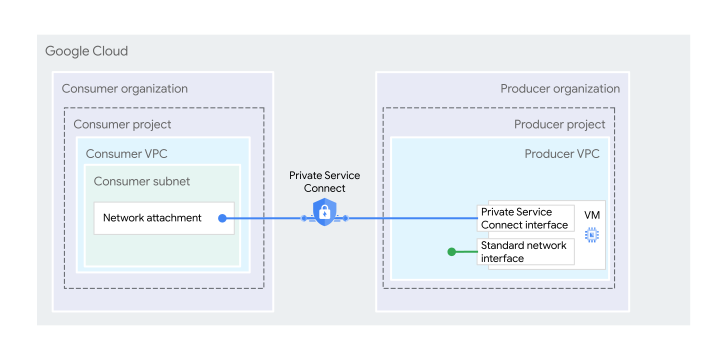](https://docs.cloud.google.com/static/datastream/docs/images/psc-overview-interface-overview.svg) **Figure 1.** Private Service Connect interfaces
let service producers initiate connections to service consumers.
Before you [configure Private Service Connect](https://docs.cloud.google.com/datastream/docs/psc-interfaces#configure-psc),
review the [key terms](https://docs.cloud.google.com/datastream/docs/psc-interfaces#key-terms), [prerequisites](https://docs.cloud.google.com/datastream/docs/psc-interfaces#psci-prereqs),
[pricing](https://docs.cloud.google.com/datastream/docs/psc-interfaces#pricing), and [required roles and permissions](https://docs.cloud.google.com/datastream/docs/psc-interfaces#roles-permissions).
For more information, see
[Private Service Connect](https://docs.cloud.google.com/vpc/docs/private-service-connect) in
the VPC documentation.
## Key terms
This section provides an overview of key terms and concepts that apply to
Private Service Connect.
- **Producer**: an entity, typically a service or a VM within a VPC network,
that initiates the connection to the consumer network. The producer delivers
the service: in the Datastream context, it fetches and replicates
data to a destination.
- **Consumer**: an entity, typically a VM within a VPC network, that receives
the connection from the producer. When the consumer accepts the connection,
Google Cloud allocates the Private Service Connect interface an
IP address from a subnet in the consumer VPC network that's specified by the
network attachment. The VM of the Private Service Connect
interface has a second network interface that connects to the producer's
VPC network.
- **Network attachment** : a regional resource that lets a producer VPC network
initiate connections to a consumer VPC network through a
Private Service Connect interface. In the consumer VPC network,
the network attachment acts as a designated entry point for connections from
Private Service Connect interfaces in the producer network. When
a Private Service Connect interface is established on
a network attachment, the producer VM is assigned an IP from the subnet of the
network attachment. The virtual machine instance of the
Private Service Connect interface has at least one more regular network
interface that connects to a producer subnet. For more information, see
[About network attachments](https://docs.cloud.google.com/vpc/docs/about-network-attachments).
- **Producer project**: a Google-owned project where the virtual machines (VMs)
running Datastream are hosted. To access resources in the customer
VPC, the Datastream VMs use the IP address that the
Private Service Connect network interface assigns from its subnet.
## Private Service Connect prerequisites
Before you create a private connectivity configuration using a
Private Service Connect interface, you need to take the following steps
so that Datastream can establish a connection to your project:
- Have a VPC network that you can connect to the Datastream
private network. For more information about creating a VPC network, see
[Create and manage VPC networks](https://docs.cloud.google.com/vpc/docs/create-modify-vpc-networks).
- Create a [network attachment](https://docs.cloud.google.com/vpc/docs/create-manage-network-attachments#create-manual-accept)
in your VPC project.
- Ensure that the subnetwork associated with your network attachment doesn't
overlap with the `100.64.0.0/16` or `100.65.0.0/24` IP address ranges. Don't
use addresses in these ranges for any VPC resources that communicate with
Datastream, such as NAT VMs, internal load balancers, or source and
destination databases. Using these reserved ranges can cause routing
conflicts with Datastream internal infrastructure and unpredictable
connectivity failures.
- Verify that Google Cloud and the on-premises firewall allow traffic from the
network attachment IP address range to the source database from which you want
to stream data. For information about how to create firewall rules, see
[Use VPC firewall rules](https://docs.cloud.google.com/firewall/docs/using-firewalls).
## Pricing
Data ingress and egress through Private Service Connect is
charged. For more information, see the [Private Service Connect
pricing](https://docs.cloud.google.com/vpc/network-pricing#psc-network-attachment).
## Required roles and permissions
To get the permissions that you need to create a network attachment, ask your
administrator to grant you the following Identity and Access Management (IAM) roles on
your project:
- Create, view, and delete network attachments: [Compute Network Admin](https://docs.cloud.google.com/compute/docs/access/iam#compute.networkAdmin) (`roles/compute.networkAdmin`)
If your network attachment or its underlying subnetwork is in a different
project than Datastream (for example, if you use a Shared VPC
host project), then you need to grant the following role to the
`service-DATASTREAM-PROJECT-NUMBER@gcp-sa-datastream.iam.gserviceaccount.com`
service account:
- Read-only access to networking resources:
[Compute Network Viewer](https://docs.cloud.google.com/compute/docs/access/iam#compute.networkViewer)
(`roles/compute.networkViewer`)
Grant the role on the project where your network attachment or its
subnetwork is, and replace DATASTREAM-PROJECT-NUMBER with the
number of the project where Datastream is deployed.
For more information about granting roles, see
[Manage access](https://docs.cloud.google.com/iam/docs/granting-changing-revoking-access).
You might also be able to get the required permissions through
[custom roles](https://docs.cloud.google.com/iam/docs/creating-custom-roles) or other
[predefined roles](https://docs.cloud.google.com/iam/docs/understanding-roles).
For more information about access control options in Datastream,
see [Access control with IAM](https://docs.cloud.google.com/data-fusion/docs/access-control).
## Configure Private Service Connect
To let Datastream establish outbound connectivity to your network
using a Private Service Connect interface:
1. Create a network attachment in your project.
2. Create a private connectivity configuration.
### Create a network attachment
To configure Private Service Connect in Datastream, you
must first create a network attachment.
### Console
1. In the Google Cloud console, go to the **Network attachments** page:
[Go to Network attachments](https://console.cloud.google.com/net-services/psc/list/networkAttachments)
2. Click **Create network attachment**.
3. In the **Name** field, enter a name for your network attachment.
4. From the **Network** list, select a VPC or a Shared VPC
network.
5. From the **Region** list, select a Google Cloud region. This region
must be the same as the region used for the subnet of the VPC network
peered to the Datastream private network. For more
information, see [Private Service Connect prerequisites](https://docs.cloud.google.com/datastream/docs/psc-interfaces#psci-prereqs).
6. From the **Subnetwork** list, select a subnetwork range.
> [!NOTE]
> Ensure that the subnetwork range doesn't overlap with the internal IP ranges reserved by Datastream (`100.64.0.0/16` and `100.65.0.0/24`).
7. In **Connection preference** , select
**Accept connections for selected projects**.
Datastream automatically adds the producer project to the
**Accepted projects** list when you create the Datastream
private connectivity resource.
> [!CAUTION]
> **Caution:** The option **Automatically accept connections for all projects** is less secure because it allows any service to obtain IP addresses from your subnet. We don't recommend using this option.
8. Don't add **Accepted projects** or **Rejected projects**.
9. Click **Create network attachment**.
### gcloud
1. Create one or more subnetworks. For example:
gcloud compute networks subnets create subnet-1 --network=network-0 --range=10.10.1.0/24 --region=REGION
The network attachment uses these subnetworks in the subsequent steps.
Ensure that the subnetwork range doesn't overlap with the internal IP
ranges reserved by Datastream (`100.64.0.0/16` and
`100.65.0.0/24`).
2. Create a network attachment resource in the same region as the
Datastream project, with the `connection-preference` property
set to `ACCEPT_MANUAL`:
gcloud compute network-attachments create NAME
--region=REGION
--connection-preference=ACCEPT_MANUAL
--subnets=SUBNET
Replace the following:
- `NAME`: the name for your network attachment.
- `REGION`: the name of the Google Cloud region. This region must be the same as the Datastream private network.
- `SUBNET`: the name of the subnet.
The output of this command is a network attachment URL of the following
format:
`projects/PROJECT/locations/REGION/network-attachments/NETWORK_ATTACHMENT_ID`.
Make a note of this URL as Datastream needs it for
connectivity. For information about how to create a
Private Service Connect interface private
connectivity configuration using Google Cloud, see
[Manage private connectivity configurations](https://docs.cloud.google.com/datastream/docs/manage-private-connectivity-configurations#create-a-private-connectivity-configuration).
> [!CAUTION]
> **Caution:** Specifying `connection-preference` as `ACCEPT_AUTOMATIC` is less secure because it allows any service to obtain IP addresses from your subnet. We don't recommend using this option.
### Create a private connectivity configuration
After you create a network attachment in your Google Cloud project, you need
to set up your private connectivity configuration using
Private Service Connect interfaces. When you create the configuration,
you allowlist the project that hosts the Private Service Connect
interface. You then provide the network attachment URL to
Datastream as part of the Private Service Connect
resource.
For more information, see
[Create a private connectivity configuration](https://docs.cloud.google.com/datastream/docs/create-a-private-connectivity-configuration#create-the-configuration).
> [!NOTE]
> **Note:** Don't change the subnetwork associated with your Private Service Connect network attachment after you create the private connectivity configuration. If you do, the streams using the configuration fail. If you need to change the subnetwork, recreate the private connectivity configuration.
## What's next
- Learn how to [view your private connectivity configuration](https://docs.cloud.google.com/datastream/docs/view-a-private-connectivity-configuration).
- Find out how to [delete a private connectivity configuration](https://docs.cloud.google.com/datastream/docs/delete-a-private-connectivity-configuration).