This page describes how to export and import Firestore in Datastore mode entities using
the managed export and import service. The managed export and import service
is available through the Google Cloud console, Google Cloud CLI,
and the Datastore Admin API ([REST](https://docs.cloud.google.com/datastore/docs/reference/admin/rest), [RPC](https://docs.cloud.google.com/datastore/docs/reference/admin/rpc)).
With the managed export and import service, you can recover from accidental
deletion of data and export data for offline processing. You can
export all entities or just specific kinds of entities. Likewise, you can
import all data from an export or only specific kinds. As you use the managed
export and import service, consider the following:
- The export service uses [eventually consistent](https://docs.cloud.google.com/datastore/docs/concepts/structuring_for_strong_consistency#consistency_levels) reads. You
cannot assume an export happens at a single point in time. The export
might include entities written after the export begins and exclude entities
written before the export begins.
- An export does not contain any indexes. When you import data, the required
indexes are automatically rebuilt using your database's current index
definitions. [Per-entity property value index settings](https://docs.cloud.google.com/datastore/docs/concepts/indexes#unindexed_properties) are
exported and honored during import.
- Imports don't assign new IDs to entities. Imports use the IDs that existed at
the time of the export and overwrite any existing entity with the same ID.
During an import, the IDs are reserved during the time that the entities are
being imported. This feature prevents ID collisions with new entities if
writes are enabled while an import is running.
- If an entity in your database is not affected by an import, it will remain in
your database after the import.
- Data exported from one Datastore mode database can be imported into
another Datastore mode database, even one in another project.
- The managed export and import service limits the number of concurrent exports
and imports to 50 and allows a maximum of
20 export and import requests per minute for a project. For each request, the service limits the number of [entity filter](https://docs.cloud.google.com/datastore/docs/export-import-entities#entity_filter) combinations to 100.
- The output of a managed export uses the [LevelDB log format](https://github.com/google/leveldb/blob/master/doc/log_format.md).
- To import only a subset of entities or to import data into BigQuery,
you must specify an [entity filter](https://docs.cloud.google.com/datastore/docs/export-import-entities#entity_filter) in your export.
- The `.overall_export_metadata` filename must match the name of its parent
folder:
`gs://BUCKET_NAME/OPTIONAL_NAMESPACE_PATH/PARENT_FOLDER_NAME/PARENT_FOLDER_NAME.overall_export_metadata`
If you move or copy the output files of an export, keep the
`PARENT_FOLDER_NAME`, contents of the subfolders, and the
`.overall_export_metadata` filename the same.
## Before you begin
Before you can use the managed export and import service, you must complete the
following tasks.
1. [Enable billing for your Google Cloud project](https://docs.cloud.google.com/billing/docs/how-to/modify-project#enable_billing_for_a_project).
Only Google Cloud projects with billing enabled can use the export and
import features.
2. [Create a Cloud Storage bucket](https://docs.cloud.google.com/storage/docs/creating-buckets) in the same location as
your [Firestore in Datastore mode database](https://docs.cloud.google.com/datastore/docs/locations#location-chosen). You cannot use a
Requester Pays bucket or a [Rapid bucket](https://docs.cloud.google.com/storage/docs/rapid/rapid-bucket) for export and import operations.
3. Assign an [IAM role](https://docs.cloud.google.com/datastore/docs/access/iam) to your user account that grants the
`datastore.databases.export` permission, if you are exporting data, or the
`datastore.databases.import` permission, if you are importing data. The
`Datastore Import Export Admin` [role](https://docs.cloud.google.com/datastore/docs/access/iam#iam_roles), for example, grants both
permissions.
4. If the Cloud Storage bucket is in another project,
[give the Firestore service agent access to the bucket](https://docs.cloud.google.com/datastore/docs/export-import-entities#service_agent_permissions).
### Set up `gcloud` for your project
If you plan to use `gcloud` to start your import and export operations,
set up `gcloud` and connect to your project in one of the
following ways:
- Access `gcloud` from the Google Cloud console using [Cloud Shell](https://docs.cloud.google.com/shell).
[Start Cloud Shell](https://console.cloud.google.com/?cloudshell=true)
Configure the gcloud CLI to use your current project:
gcloud config set project project-id
- [Install and initialize the Google Cloud CLI.](https://docs.cloud.google.com/sdk/docs/quickstarts)
## Permissions
To run export and import operations, your user account and your project's
Datastore mode service agent require the Identity and Access Management following permissions.
### User account permissions
The user account or service account initiating the operation
requires the `datastore.databases.export` and `datastore.databases.import`
IAM permissions. **If you are the project owner, your account has
the required permissions**. Otherwise, the following IAM roles
grant the necessary permissions:
- Datastore Owner
- Datastore Import Export Admin
You can also assign these permissions with a [custom role](https://docs.cloud.google.com/iam/docs/creating-custom-roles).
A project owner can grant one of these roles by following the steps in
[Grant access](https://docs.cloud.google.com/iam/docs/granting-changing-revoking-access#grant_access).
### Service agent permissions
Export and import operations use a Firestore service agent to
authorize Cloud Storage operations. The Firestore service agent
uses the following naming convention:
Firestore service agent
: `service-PROJECT_NUMBER@gcp-sa-firestore.iam.gserviceaccount.com`
To learn more about service agents, see
[Service agents](https://cloud.google.com/iam/docs/service-agents).
> [!NOTE]
> **Note:** Firestore previously used the App Engine default service account instead of the Firestore service agent. If your database still uses the App Engine service account to import or export data, we recommend that you [migrate to the service specific Firestore service agent](https://docs.cloud.google.com/datastore/docs/export-import-entities#service_agent_migration). You can [view which account your import and export operations use](https://docs.cloud.google.com/datastore/docs/export-import-entities#view_service_agent_name) in the Google Cloud console.
>
> If you use VPC Service Controls, you must use the service-specific Firestore service agent to fully protect import and export operations. VPC Service Controls are not compatible with the App Engine service account.
The Firestore service agent requires access to the
Cloud Storage bucket used in an export or import operation. **If your
Cloud Storage bucket is in the same project as your Firestore
database, then the Firestore service agent can access the
bucket by default**.
If the Cloud Storage bucket is in another project, then you
must give the Firestore service agent access to the Cloud Storage
bucket.
#### Assign roles to the service agent
You can use the [gsutil](https://cloud.google.com/storage/docs/gsutil) command-line tool to
assign one of the roles below. For example, to assign the Storage Admin role
to the Firestore service agent, run the following:
```bash
gsutil iam ch serviceAccount:service-PROJECT_NUMBER@gcp-sa-firestore.iam.gserviceaccount.com:roles/storage.admin \
gs://[BUCKET_NAME]
```
Replace `PROJECT_NUMBER` with your project number, which
is used to name your Firestore service agent. To view the
service agent name, see [View service agent name](https://docs.cloud.google.com/datastore/docs/export-import-entities#view_service_agent_name).
Alternatively, you can
[assign this role using the Google Cloud console](https://cloud.google.com/storage/docs/access-control/using-iam-permissions#bucket-add).
### View service agent name
You can view the account that your import and export operations use to authorize
requests from the **Import/Export** page in the Google Cloud console. You can also
view whether your database uses the Firestore
service agent or the legacy App Engine service account.
1. In the Google Cloud console, go to the **Databases** page.
[Go to Databases](https://console.cloud.google.com/datastore/databases)
2. Select the required database from the list of databases.
3. In the navigation menu, click **Import/Export**.
4. View the authorization account next to the **Import/Export jobs run as** label.
### Export operations
For export operations involving a bucket in another project, modify the
permissions of the bucket to assign one of the following [Identity and Access Management roles](https://docs.cloud.google.com/storage/docs/access-control/iam-roles)
to the Datastore mode service agent of the project
that contains your Datastore mode database:
- Storage Admin
- Owner (basic role)
You can also create an
[IAM custom role](https://docs.cloud.google.com/iam/docs/creating-custom-roles) with slightly different permissions than the ones contained in the roles listed earlier:
- `storage.buckets.get`
- `storage.objects.create`
- `storage.objects.delete`
- `storage.objects.list`
### Import operations
For import operations involving a Cloud Storage bucket in another project,
modify the permissions of the bucket to assign one of the following
[Cloud Storage roles](https://docs.cloud.google.com/storage/docs/access-control/iam-roles) to the Datastore mode service
agent of the project that contains your Datastore mode database:
- Storage Admin
- Both Storage Object Viewer and Storage Legacy Bucket Reader
You can also create an
[IAM custom role](https://docs.cloud.google.com/iam/docs/creating-custom-roles) with the
following permissions:
- `storage.buckets.get`
- `storage.objects.get`
## Starting managed export and import operations
This section describes how to start a managed export or import operation.
### Exporting all entities
> [!WARNING]
> **Warning:** You cannot import a subset of kinds and namespaces from an export of all entities. You also cannot import an export of all entities into BigQuery. If you need to import only a subset of entities or need to import data to BigQuery, [add an entity
> filter](https://docs.cloud.google.com/datastore/docs/export-import-entities#entity_filter) to your export operation.
### Console
1. In the Google Cloud console, go to the **Databases** page.
[Go to Databases](https://console.cloud.google.com/datastore/databases)
2. Select the required database from the list of databases.
1. In the navigation menu, click **Import/Export**.
2. Click **Export**.
3. Set the **Namespace** field to `All Namespaces`, and set the **Kind** field to `All Kinds`.
4. Below **Destination**, enter the name of your Cloud Storage bucket.
5. Click **Export**.
The console returns to the **Import/Export** page. An alert reports
the success or failure of your managed export request.
### gcloud
Use the [`gcloud firestore export`](https://docs.cloud.google.com/sdk/gcloud/reference/firestore/export)
command to export all entities in your database.
```
gcloud firestore export gs://bucket-name --async --database=DATABASE
```
where bucket-name is the name of your Cloud Storage bucket and an optional prefix, for example,
`bucket-name/datastore-exports/export-name`. You cannot
re-use the same prefix for another export
operation. If you do
not provide a file prefix, the managed export service creates one based on
the current time.
Use the [`--async`](https://docs.cloud.google.com/sdk/gcloud/reference/firestore/export#--async) flag to prevent `gcloud` from waiting for
the operation to complete. If you omit the `--async` flag, you can type
`Ctrl+c` to stop waiting for an operation. This will not cancel the operation.
Set the `--database` flag to the name of the database from which you want to export the entities. For the default database, use `--database='(default)'`.
### rest
Before using any of the request data,
make the following replacements:
- project-id: your project ID
- bucket-name: your Cloud Storage bucket name
HTTP method and URL:
```
POST https://datastore.googleapis.com/v1/projects/project-id:export
```
Request JSON body:
```
{
"outputUrlPrefix": "gs://bucket-name",
}
```
To send your request, expand one of these options:
#### curl (Linux, macOS, or Cloud Shell)
> [!NOTE]
> **Note:** The following command assumes that you have logged in to the `gcloud` CLI with your user account by running [`gcloud init`](https://docs.cloud.google.com/sdk/gcloud/reference/init) or [`gcloud auth login`](https://docs.cloud.google.com/sdk/gcloud/reference/auth/login) , or by using [Cloud Shell](https://docs.cloud.google.com/shell/docs), which automatically logs you into the `gcloud` CLI . You can check the currently active account by running [`gcloud auth list`](https://docs.cloud.google.com/sdk/gcloud/reference/auth/list).
Save the request body in a file named `request.json`,
and execute the following command:
```
curl -X POST \
-H "Authorization: Bearer $(gcloud auth print-access-token)" \
-H "Content-Type: application/json; charset=utf-8" \
-d @request.json \
"https://datastore.googleapis.com/v1/projects/project-id:export"
```
#### PowerShell (Windows)
> [!NOTE]
> **Note:** The following command assumes that you have logged in to the `gcloud` CLI with your user account by running [`gcloud init`](https://docs.cloud.google.com/sdk/gcloud/reference/init) or [`gcloud auth login`](https://docs.cloud.google.com/sdk/gcloud/reference/auth/login) . You can check the currently active account by running [`gcloud auth list`](https://docs.cloud.google.com/sdk/gcloud/reference/auth/list).
Save the request body in a file named `request.json`,
and execute the following command:
```
$cred = gcloud auth print-access-token
$headers = @{ "Authorization" = "Bearer $cred" }
Invoke-WebRequest `
-Method POST `
-Headers $headers `
-ContentType: "application/json; charset=utf-8" `
-InFile request.json `
-Uri "https://datastore.googleapis.com/v1/projects/project-id:export" | Select-Object -Expand Content
```
You should receive a JSON response similar to the following:
```
{
"name": "projects/project-id/operations/operation-id",
"metadata": {
"@type": "type.googleapis.com/google.datastore.admin.v1.ExportEntitiesMetadata",
"common": {
"startTime": "2019-09-18T18:42:26.591949Z",
"operationType": "EXPORT_ENTITIES",
"state": "PROCESSING"
},
"entityFilter": {},
"outputUrlPrefix": "gs://bucket-name/2019-09-18T18:42:26_85726"
}
}
```
The response is a [long-running operation](https://docs.cloud.google.com/datastore/docs/export-import-entities#long-running-operation), which you can check for completion.
### Exporting specific kinds or namespaces
To export a specific subset of kinds and/or namespaces, provide an
*entity filter* with values for kinds and namespace IDs. Each request is limited to 100 entity filter combinations, where each combination of filtered kind and namespace counts as a separate filter towards this limit.
### Console
In the console, you can select either all kinds or one specific kind.
Similarly, you can select all namespaces or one specific namespace.
To specify a list of namespaces and kinds to export, use `gcloud` instead.
1. In the Google Cloud console, go to the **Databases** page.
[Go to Databases](https://console.cloud.google.com/datastore/databases)
2. Select the required database from the list of databases.
3. In the navigation menu, click **Import/Export**.
4. Click **Export**.
5. Set the **Namespace** field to `All Namespaces` or to the name of one of
your namespaces.
6. Set the **Kind**
field to `All Kinds` or to the name a kind.
7. Under **Destination**, enter the name of your Cloud Storage bucket.
8. Click **Export**.
The console returns to the **Import/Export** page. An alert reports
the success or failure of your managed export request.
### gcloud
```
gcloud firestore export --collection-ids="KIND1,KIND2" \
--namespaces="(default),NAMESPACE2" \
gs://bucket-name \
--async \
--database=DATABASE
```
where bucket-name is the name of your Cloud Storage bucket and an optional prefix, for example,
`bucket-name/datastore-exports/export-name`. You cannot
re-use the same prefix for another export
operation. If you do
not provide a file prefix, the managed export service creates one based on
the current time.
Use the [`--async`](https://docs.cloud.google.com/sdk/gcloud/reference/firestore/export#--async) flag to prevent `gcloud` from waiting for
the operation to complete. If you omit the `--async` flag, you can type
`Ctrl+c` to stop waiting for an operation. This will not cancel the operation.
Set the `--database` flag to the name of the database from which you want to export specific kinds or namespaces. For the default database, use `--database='(default)'`.
### rest
Before using any of the request data,
make the following replacements:
- project-id: your project ID
- bucket-name: your Cloud Storage bucket name
- kind: the entity kind
- namespace: the namespace ID (use "" for the default namespace ID)
HTTP method and URL:
```
POST https://datastore.googleapis.com/v1/projects/project-id:export
```
Request JSON body:
```
{
"outputUrlPrefix": "gs://bucket-name",
"entityFilter": {
"kinds": ["kind"],
"namespaceIds": ["namespace"],
},
}
```
To send your request, expand one of these options:
#### curl (Linux, macOS, or Cloud Shell)
> [!NOTE]
> **Note:** The following command assumes that you have logged in to the `gcloud` CLI with your user account by running [`gcloud init`](https://docs.cloud.google.com/sdk/gcloud/reference/init) or [`gcloud auth login`](https://docs.cloud.google.com/sdk/gcloud/reference/auth/login) , or by using [Cloud Shell](https://docs.cloud.google.com/shell/docs), which automatically logs you into the `gcloud` CLI . You can check the currently active account by running [`gcloud auth list`](https://docs.cloud.google.com/sdk/gcloud/reference/auth/list).
Save the request body in a file named `request.json`,
and execute the following command:
```
curl -X POST \
-H "Authorization: Bearer $(gcloud auth print-access-token)" \
-H "Content-Type: application/json; charset=utf-8" \
-d @request.json \
"https://datastore.googleapis.com/v1/projects/project-id:export"
```
#### PowerShell (Windows)
> [!NOTE]
> **Note:** The following command assumes that you have logged in to the `gcloud` CLI with your user account by running [`gcloud init`](https://docs.cloud.google.com/sdk/gcloud/reference/init) or [`gcloud auth login`](https://docs.cloud.google.com/sdk/gcloud/reference/auth/login) . You can check the currently active account by running [`gcloud auth list`](https://docs.cloud.google.com/sdk/gcloud/reference/auth/list).
Save the request body in a file named `request.json`,
and execute the following command:
```
$cred = gcloud auth print-access-token
$headers = @{ "Authorization" = "Bearer $cred" }
Invoke-WebRequest `
-Method POST `
-Headers $headers `
-ContentType: "application/json; charset=utf-8" `
-InFile request.json `
-Uri "https://datastore.googleapis.com/v1/projects/project-id:export" | Select-Object -Expand Content
```
You should receive a JSON response similar to the following:
```
{
"name": "projects/project-id/operations/operation-id",
"metadata": {
"@type": "type.googleapis.com/google.datastore.admin.v1.ExportEntitiesMetadata",
"common": {
"startTime": "2019-09-18T21:17:36.232704Z",
"operationType": "EXPORT_ENTITIES",
"state": "PROCESSING"
},
"entityFilter": {
"kinds": [
"Task"
],
"namespaceIds": [
""
]
},
"outputUrlPrefix": "gs://bucket-name/2019-09-18T21:17:36_82974"
}
}
```
The response is a [long-running operation](https://docs.cloud.google.com/datastore/docs/export-import-entities#long-running-operation), which you can check for completion.
### Metadata files
An export operation creates a metadata file for each namespace-kind pair
specified. Metadata files are typically named
`NAMESPACE_NAME_KIND_NAME.export_metadata`. However, if a namespace or kind
would create an invalid [Cloud Storage object name](https://docs.cloud.google.com/storage/docs/objects#naming), the file will be named
`export[NUM].export_metadata`.
The metadata files are protocol buffers and can be decoded with the
[`protoc` protocol compiler](https://github.com/protocolbuffers/protobuf#readme).
For example, you can decode a metadata file to determine the namespace
and kinds the export files contain:
```
protoc --decode_raw < export0.export_metadata
```
### Importing all entities
### Console
1. In the Google Cloud console, go to the **Databases** page.
[Go to Databases](https://console.cloud.google.com/datastore/databases)
2. Select the required database from the list of databases.
3. In the navigation menu, click **Import/Export**.
4. Click **Import**.
5. In the `File` field, click *Browse* and select an
`.overall_export_metadata` file.
Make sure that the `.overall_export_metadata` file is not moved from the default location.
6. Set the **Namespace** field to `All Namespaces`, and set the **Kind**
field to `All Kinds`.
7. Click **Import**.
The console returns to the **Import/Export** page. An alert reports
the success or failure of your managed import request.
### gcloud
Use the [gcloud firestore import](https://docs.cloud.google.com/sdk/gcloud/reference/firestore/import)
command to import all entities that were previously exported with the managed
export service.
```
gcloud firestore import gs://bucket-name/file-path/file-name.overall_export_metadata \
--async \
--database=DATABASE
```
where bucket-name/file-path/file-name is the path to your
`overall_export_metadata` file within your Cloud Storage bucket.
Use the [`--async`](https://docs.cloud.google.com/sdk/gcloud/reference/firestore/export#--async) flag to prevent `gcloud` from waiting for
the operation to complete. If you omit the `--async` flag, you can type
`Ctrl+c` to stop waiting for an operation. This will not cancel the operation.
Set the `--database` flag to the name of the database where you want to import all the entities. For the default database, use `--database='(default)'`.
### rest
Before using any of the request data,
make the following replacements:
- project-id: your project ID
- bucket-name: your Cloud Storage bucket name
- object-name: your Cloud Storage object name (example: `2017-05-25T23:54:39_76544/2017-05-25T23:54:39_76544.overall_export_metadata`
HTTP method and URL:
```
POST https://datastore.googleapis.com/v1/projects/project-id:import
```
Request JSON body:
```
{
"inputUrl": "gs://bucket-name/object-name",
}
```
To send your request, expand one of these options:
#### curl (Linux, macOS, or Cloud Shell)
> [!NOTE]
> **Note:** The following command assumes that you have logged in to the `gcloud` CLI with your user account by running [`gcloud init`](https://docs.cloud.google.com/sdk/gcloud/reference/init) or [`gcloud auth login`](https://docs.cloud.google.com/sdk/gcloud/reference/auth/login) , or by using [Cloud Shell](https://docs.cloud.google.com/shell/docs), which automatically logs you into the `gcloud` CLI . You can check the currently active account by running [`gcloud auth list`](https://docs.cloud.google.com/sdk/gcloud/reference/auth/list).
Save the request body in a file named `request.json`,
and execute the following command:
```
curl -X POST \
-H "Authorization: Bearer $(gcloud auth print-access-token)" \
-H "Content-Type: application/json; charset=utf-8" \
-d @request.json \
"https://datastore.googleapis.com/v1/projects/project-id:import"
```
#### PowerShell (Windows)
> [!NOTE]
> **Note:** The following command assumes that you have logged in to the `gcloud` CLI with your user account by running [`gcloud init`](https://docs.cloud.google.com/sdk/gcloud/reference/init) or [`gcloud auth login`](https://docs.cloud.google.com/sdk/gcloud/reference/auth/login) . You can check the currently active account by running [`gcloud auth list`](https://docs.cloud.google.com/sdk/gcloud/reference/auth/list).
Save the request body in a file named `request.json`,
and execute the following command:
```
$cred = gcloud auth print-access-token
$headers = @{ "Authorization" = "Bearer $cred" }
Invoke-WebRequest `
-Method POST `
-Headers $headers `
-ContentType: "application/json; charset=utf-8" `
-InFile request.json `
-Uri "https://datastore.googleapis.com/v1/projects/project-id:import" | Select-Object -Expand Content
```
You should receive a JSON response similar to the following:
```
{
"name": "projects/project-id/operations/operation-id",
"metadata": {
"@type": "type.googleapis.com/google.datastore.admin.v1.ImportEntitiesMetadata",
"common": {
"startTime": "2019-09-18T21:25:02.863621Z",
"operationType": "IMPORT_ENTITIES",
"state": "PROCESSING"
},
"entityFilter": {},
"inputUrl": "gs://bucket-name/2019-09-18T18:42:26_85726/2019-09-18T18:42:26_85726.overall_export_metadata"
}
}
```
The response is a [long-running operation](https://docs.cloud.google.com/datastore/docs/export-import-entities#long-running-operation), which you can check for completion.
#### Locating your `overall_export_metadata` file
You can determine the value to use for the import location by using the
Cloud Storage browser in the Google Cloud console:
[Open the Cloud Storage Browser](https://console.cloud.google.com/storage/browser)
You can also [list and describe completed
operations](https://docs.cloud.google.com/datastore/docs/export-import-entities#long-running-operation). The `outputURL` field shows the name of
the `overall_export_metadata` file:
```
"outputUrl": "gs://bucket-name/2017-05-25T23:54:39_76544/2017-05-25T23:54:39_76544.overall_export_metadata",
```
### Importing specific kinds or namespaces
To import a specific subset of kinds and/or namespaces, provide an
entity filter with values for kinds and namespace IDs.
You can specify kinds and namespaces only if the export files were created
with an entity filter. You can not import a subset of kinds and namespaces from
an [export of all entities](https://docs.cloud.google.com/datastore/docs/export-import-entities#exporting_all_entities).
### Console
In the console, you can select either all kinds or one specific kind.
Similarly, you can select all namespaces or one specific namespace.
To specify a list of namespaces and kinds to import, use `gcloud` instead.
1. In the Google Cloud console, go to the **Databases** page.
[Go to Databases](https://console.cloud.google.com/datastore/databases)
2. Select the required database from the list of databases.
3. In the navigation menu, click **Import/Export**.
4. Click **Import**.
5. In the `File` field, click *Browse* and select an
`.overall_export_metadata` file.
Ensure that you import the `.overall_export_metadata` file and not an
`.export_metadata` file.
6. Set the **Namespace** field to `All Namespaces` or to a specific namespace.
7. Set the **Kind** field to `All Kinds` or to a specific kind.
8. Click **Import**.
The console returns to the **Import/Export** page. An alert reports
the success or failure of your managed import request.
### gcloud
```
gcloud firestore import --collection-ids="KIND1,KIND2" \
--namespaces="(default),NAMESPACE2" \
gs://bucket-name/file-path/file-nameoverall_export_metadata \
--async \
--database=DATABASE
```
where bucket-name/file-path/file-name is the path to your
`overall_export_metadata` file within your Cloud Storage bucket.
Use the [`--async`](https://docs.cloud.google.com/sdk/gcloud/reference/firestore/export#--async) flag to prevent `gcloud` from waiting for
the operation to complete. If you omit the `--async` flag, you can type
`Ctrl+c` to stop waiting for an operation. This will not cancel the operation.
Set the `--database` flag to the name of the database where you want to import the specific kinds or namespaces. For the default database, use `--database='(default)'`.
### rest
Before using any of the request data,
make the following replacements:
- project-id: your project ID
- bucket-name: your Cloud Storage bucket name
- object-name: your Cloud Storage object name (example: `2017-05-25T23:54:39_76544/2017-05-25T23:54:39_76544.overall_export_metadata`
- kind: the entity kind
- namespace: the namespace ID (use "" for the default namespace ID)
HTTP method and URL:
```
POST https://datastore.googleapis.com/v1/projects/project-id:import
```
Request JSON body:
```
{
"inputUrl": "gs://bucket-name/object-name",
"entityFilter": {
"kinds": ["kind"],
"namespaceIds": ["namespace"],
},
}
```
To send your request, expand one of these options:
#### curl (Linux, macOS, or Cloud Shell)
> [!NOTE]
> **Note:** The following command assumes that you have logged in to the `gcloud` CLI with your user account by running [`gcloud init`](https://docs.cloud.google.com/sdk/gcloud/reference/init) or [`gcloud auth login`](https://docs.cloud.google.com/sdk/gcloud/reference/auth/login) , or by using [Cloud Shell](https://docs.cloud.google.com/shell/docs), which automatically logs you into the `gcloud` CLI . You can check the currently active account by running [`gcloud auth list`](https://docs.cloud.google.com/sdk/gcloud/reference/auth/list).
Save the request body in a file named `request.json`,
and execute the following command:
```
curl -X POST \
-H "Authorization: Bearer $(gcloud auth print-access-token)" \
-H "Content-Type: application/json; charset=utf-8" \
-d @request.json \
"https://datastore.googleapis.com/v1/projects/project-id:import"
```
#### PowerShell (Windows)
> [!NOTE]
> **Note:** The following command assumes that you have logged in to the `gcloud` CLI with your user account by running [`gcloud init`](https://docs.cloud.google.com/sdk/gcloud/reference/init) or [`gcloud auth login`](https://docs.cloud.google.com/sdk/gcloud/reference/auth/login) . You can check the currently active account by running [`gcloud auth list`](https://docs.cloud.google.com/sdk/gcloud/reference/auth/list).
Save the request body in a file named `request.json`,
and execute the following command:
```
$cred = gcloud auth print-access-token
$headers = @{ "Authorization" = "Bearer $cred" }
Invoke-WebRequest `
-Method POST `
-Headers $headers `
-ContentType: "application/json; charset=utf-8" `
-InFile request.json `
-Uri "https://datastore.googleapis.com/v1/projects/project-id:import" | Select-Object -Expand Content
```
You should receive a JSON response similar to the following:
```
{
"name": "projects/project-id/operations/operation-id",
"metadata": {
"@type": "type.googleapis.com/google.datastore.admin.v1.ImportEntitiesMetadata",
"common": {
"startTime": "2019-09-18T21:51:02.830608Z",
"operationType": "IMPORT_ENTITIES",
"state": "PROCESSING"
},
"entityFilter": {
"kinds": [
"Task"
],
"namespaceIds": [
""
]
},
"inputUrl": "gs://bucket-name/2019-09-18T21:49:25_96833/2019-09-18T21:49:25_96833.overall_export_metadata"
}
}
```
The response is a [long-running operation](https://docs.cloud.google.com/datastore/docs/export-import-entities#long-running-operation), which you can check for completion.
### Export and import from PITR data
You can export your database to Cloud Storage from [PITR data](https://docs.cloud.google.com/datastore/docs/pitr).
You can export PITR data where the timestamp is a whole minute timestamp within
the past seven days, but not earlier than the `earliestVersionTime`. If data no
longer exists at the specified timestamp, the export operation fails.
The PITR export operation supports all filters, including exporting all
documents and exporting specific collections.
Note the following points before exporting PITR data:
- [Enable PITR](https://docs.cloud.google.com/datastore/docs/use-pitr#enable) on your database. If PITR is disabled, exporting at a snapshot timestamp fails, even for timestamps within the past hour after `earliestVersionTime`. The export operation returns the `Point-in-Time Recovery must be enabled in
order to execute exports at a snapshot timestamp` error.
- Specify the timestamp in [RFC 3339 format](https://developers.google.com/protocol-buffers/docs/reference/google.protobuf#google.protobuf.Timestamp). For example, `2023-05-26T10:20:00.00Z`.
- Make sure that the timestamp you specify is a whole minute timestamp within the past seven days, but not earlier than the `earliestVersionTime`. If data no longer exists at the specified timestamp, an error is generated.
- You are not charged for a failed PITR export.
### Console
1. In the Google Cloud console, go to the **Databases** page.
[Go to Databases](https://console.cloud.google.com/firestore/databases)
2. Select a database from the list of databases.
3. In the navigation menu, click **Import/Export**.
4. Click **Export**.
5. Choose a namespace to export
6. Select the kinds to export.
7. In the **Choose the state of your database to export** section,
select **Export from an earlier point in time**.
Select a snapshot time to use for the export
8. In the **Destination** section, enter the name of a Cloud Storage bucket or use the **Browse** button to select a bucket.
9. Click **Export**.
The console returns to the **Import/Export** page. If the operation successfully starts,
the page adds an entry to the recent imports and exports page. On failure,
the page displays an error message.
### gcloud
You can export your database to Cloud Storage from
[PITR data](https://docs.cloud.google.com/datastore/docs/pitr) using the [`gcloud firestore export`](https://cloud.google.com/sdk/gcloud/reference/firestore/export) command.
The PITR export operation supports all filters, including exporting all entities and exporting specific kinds or namespaces.
Export the database, specifying the `snapshot-time` parameter to a recovery timestamp. Run the following command to export the database to your bucket.
```
gcloud firestore export gs://[BUCKET_NAME_PATH] \
--snapshot-time=[PITR_TIMESTAMP] \
--collection-ids=[COLLECTION_IDS] \
--namespace-ids=[NAMESPACE_IDS]
```
Where `PITR_TIMESTAMP` is a PITR timestamp at the minute granularity, for example, `2023-05-26T10:20:00.00Z`.
### Import transformations
When importing entities from another project, keep in mind that
entity keys include the project ID. An import operation updates entity keys
and key reference properties in the
import data with the project ID of the destination project. If this update
increases your [entity sizes](https://docs.cloud.google.com/datastore/docs/concepts/storage-size), it can cause "entity is too big"
or "index entries too large" errors for import operations.
To avoid either error, import into a destination project with a shorter project
ID. This does not affect import operations with data from the same
project.
## Managing long-running operations
Managed import and export operations are *long-running operations*.
These method calls can take a substantial amount of time to complete.
After you start an export or import operation, Datastore mode assigns
the operation a unique name. You can use the operation name to delete,
cancel, or status check the operation.
Operation names are prefixed with `projects/[PROJECT_ID]/databases/(default)/operations/`,
for example:
```
projects/project-id/databases/(default)/operations/ASA1MTAwNDQxNAgadGx1YWZlZAcSeWx0aGdpbi1zYm9qLW5pbWRhEgopEg
```
You can leave out the prefix when specifying an operation name for
`gcloud` commands.
### Listing all long-running operations
You can view ongoing and recently completed operations in the following ways.
Operations are listed for a few days after completion:
### Console
You can view a list of the long-running operations in the
**Import/Export** page of the Google Cloud console.
1. In the Google Cloud console, go to the **Databases** page.
[Go to Databases](https://console.cloud.google.com/datastore/databases)
2. Select the required database from the list of databases.
3. In the navigation menu, click **Import/Export**.
### gcloud
To list long-running operations, use the
[gcloud datastore operations list](https://docs.cloud.google.com/sdk/gcloud/reference/datastore/operations/list)
command.
```
gcloud datastore operations list
```
For example, a recently completed export operation shows the following information:
```
{
"operations": [
{
"name": "projects/project-id/operations/ASAyMDAwOTEzBxp0bHVhZmVkBxJsYXJ0bmVjc3Utc2Jvai1uaW1kYRQKKhI",
"metadata": {
"@type": "type.googleapis.com/google.datastore.admin.v1.ExportEntitiesMetadata",
"common": {
"startTime": "2017-12-05T23:01:39.583780Z",
"endTime": "2017-12-05T23:54:58.474750Z",
"operationType": "EXPORT_ENTITIES"
},
"progressEntities": {
"workCompleted": "21933027",
"workEstimated": "21898182"
},
"progressBytes": {
"workCompleted": "12421451292",
"workEstimated": "9759724245"
},
"entityFilter": {
"namespaceIds": [
""
]
},
"outputUrlPrefix": "gs://bucket-name"
},
"done": true,
"response": {
"@type": "type.googleapis.com/google.datastore.admin.v1.ExportEntitiesResponse",
"outputUrl": "gs://bucket-name/2017-05-25T23:54:39_76544/2017-05-25T23:54:39_76544.overall_export_metadata"
}
}
]
}
```
### rest
Before using any of the request data,
make the following replacements:
- project-id: your project ID
HTTP method and URL:
```
GET https://datastore.googleapis.com/v1/projects/project-id/operations
```
To send your request, expand one of these options:
#### curl (Linux, macOS, or Cloud Shell)
> [!NOTE]
> **Note:** The following command assumes that you have logged in to the `gcloud` CLI with your user account by running [`gcloud init`](https://docs.cloud.google.com/sdk/gcloud/reference/init) or [`gcloud auth login`](https://docs.cloud.google.com/sdk/gcloud/reference/auth/login) , or by using [Cloud Shell](https://docs.cloud.google.com/shell/docs), which automatically logs you into the `gcloud` CLI . You can check the currently active account by running [`gcloud auth list`](https://docs.cloud.google.com/sdk/gcloud/reference/auth/list).
Execute the following command:
```
curl -X GET \
-H "Authorization: Bearer $(gcloud auth print-access-token)" \
"https://datastore.googleapis.com/v1/projects/project-id/operations"
```
#### PowerShell (Windows)
> [!NOTE]
> **Note:** The following command assumes that you have logged in to the `gcloud` CLI with your user account by running [`gcloud init`](https://docs.cloud.google.com/sdk/gcloud/reference/init) or [`gcloud auth login`](https://docs.cloud.google.com/sdk/gcloud/reference/auth/login) . You can check the currently active account by running [`gcloud auth list`](https://docs.cloud.google.com/sdk/gcloud/reference/auth/list).
Execute the following command:
```
$cred = gcloud auth print-access-token
$headers = @{ "Authorization" = "Bearer $cred" }
Invoke-WebRequest `
-Method GET `
-Headers $headers `
-Uri "https://datastore.googleapis.com/v1/projects/project-id/operations" | Select-Object -Expand Content
```
See information about the response below.
For example, a recently completed export operation shows the following information:
```
{
"operations": [
{
"name": "projects/project-id/operations/ASAyMDAwOTEzBxp0bHVhZmVkBxJsYXJ0bmVjc3Utc2Jvai1uaW1kYRQKKhI",
"metadata": {
"@type": "type.googleapis.com/google.datastore.admin.v1.ExportEntitiesMetadata",
"common": {
"startTime": "2017-12-05T23:01:39.583780Z",
"endTime": "2017-12-05T23:54:58.474750Z",
"operationType": "EXPORT_ENTITIES"
},
"progressEntities": {
"workCompleted": "21933027",
"workEstimated": "21898182"
},
"progressBytes": {
"workCompleted": "12421451292",
"workEstimated": "9759724245"
},
"entityFilter": {
"namespaceIds": [
""
]
},
"outputUrlPrefix": "gs://bucket-name"
},
"done": true,
"response": {
"@type": "type.googleapis.com/google.datastore.admin.v1.ExportEntitiesResponse",
"outputUrl": "gs://bucket-name/2017-05-25T23:54:39_76544/2017-05-25T23:54:39_76544.overall_export_metadata"
}
}
]
}
```
### Check operation status
To view the status of a long-running operation:
### Console
You can view a list of the most recent export and import operations in the
**Import/Export** page of the Google Cloud console.
1. In the Google Cloud console, go to the **Databases** page.
[Go to Databases](https://console.cloud.google.com/datastore/databases)
2. Select the required database from the list of databases.
3. In the navigation menu, click **Import/Export**.
### gcloud
Use the [`operations describe`](https://docs.cloud.google.com/sdk/gcloud/reference/datastore/operations/describe) command to show the status
of a long-running operation.
```
gcloud datastore operations describe operation-name
```
### rest
Before using any of the request data,
make the following replacements:
- project-id: your project ID
- operation-name: the operation name
HTTP method and URL:
```
GET https://datastore.googleapis.com/v1/projects/project-id/operations/operation-name
```
To send your request, expand one of these options:
#### curl (Linux, macOS, or Cloud Shell)
> [!NOTE]
> **Note:** The following command assumes that you have logged in to the `gcloud` CLI with your user account by running [`gcloud init`](https://docs.cloud.google.com/sdk/gcloud/reference/init) or [`gcloud auth login`](https://docs.cloud.google.com/sdk/gcloud/reference/auth/login) , or by using [Cloud Shell](https://docs.cloud.google.com/shell/docs), which automatically logs you into the `gcloud` CLI . You can check the currently active account by running [`gcloud auth list`](https://docs.cloud.google.com/sdk/gcloud/reference/auth/list).
Execute the following command:
```
curl -X GET \
-H "Authorization: Bearer $(gcloud auth print-access-token)" \
"https://datastore.googleapis.com/v1/projects/project-id/operations/operation-name"
```
#### PowerShell (Windows)
> [!NOTE]
> **Note:** The following command assumes that you have logged in to the `gcloud` CLI with your user account by running [`gcloud init`](https://docs.cloud.google.com/sdk/gcloud/reference/init) or [`gcloud auth login`](https://docs.cloud.google.com/sdk/gcloud/reference/auth/login) . You can check the currently active account by running [`gcloud auth list`](https://docs.cloud.google.com/sdk/gcloud/reference/auth/list).
Execute the following command:
```
$cred = gcloud auth print-access-token
$headers = @{ "Authorization" = "Bearer $cred" }
Invoke-WebRequest `
-Method GET `
-Headers $headers `
-Uri "https://datastore.googleapis.com/v1/projects/project-id/operations/operation-name" | Select-Object -Expand Content
```
You should receive a JSON response similar to the following:
```
{
"name": "projects/project-id/operations/ASA3ODAwMzQxNjIyChp0bHVhZmVkBxJsYXJ0bmVjc3Utc2Jvai1uaW1kYRQKLRI",
"metadata": {
"@type": "type.googleapis.com/google.datastore.admin.v1.ExportEntitiesMetadata",
"common": {
"startTime": "2019-10-08T20:07:28.105236Z",
"endTime": "2019-10-08T20:07:36.310653Z",
"operationType": "EXPORT_ENTITIES",
"state": "SUCCESSFUL"
},
"progressEntities": {
"workCompleted": "21",
"workEstimated": "21"
},
"progressBytes": {
"workCompleted": "2272",
"workEstimated": "2065"
},
"entityFilter": {},
"outputUrlPrefix": "gs://bucket-name/2019-10-08T20:07:28_28481"
},
"done": true,
"response": {
"@type": "type.googleapis.com/google.datastore.admin.v1.ExportEntitiesResponse",
"outputUrl": "gs://bucket-name/2019-10-08T20:07:28_28481/2019-10-08T20:07:28_28481.overall_export_metadata"
}
}
```
### Estimating the completion time
As your operation runs, see the value of the [`state` field](https://docs.cloud.google.com/datastore/docs/reference/admin/rpc/google.datastore.admin.v1#state)
for the overall status of the operation.
A request for the status of a long-running operation returns the metrics
`workEstimated` and `workCompleted`. Each of these metrics is returned in both
number of bytes and number of entities:
- `workEstimated` shows the estimated total number of bytes and documents an
operation will process. Datastore mode might omit this metric if it
cannot make an estimate.
- `workCompleted` shows the number of bytes and documents processed so far.
After the operation completes, the value shows the total number of
bytes and documents that were actually processed, which might be larger than the
value of `workEstimated`.
Divide `workCompleted` by `workEstimated` for a rough progress estimate. This
estimate might be inaccurate, because it depends on delayed statistics
collection.
For example, here is the progress status of an export operation:
```
{
"operations": [
{
"name": "projects/project-id/operations/ASAyMDAwOTEzBxp0bHVhZmVkBxJsYXJ0bmVjc3Utc2Jvai1uaW1kYRQKKhI",
"metadata": {
"@type": "type.googleapis.com/google.datastore.admin.v1.ExportEntitiesMetadata",
...
"progressEntities": {
"workCompleted": "1",
"workEstimated": "3"
},
"progressBytes": {
"workCompleted": "85",
"workEstimated": "257"
},
...
```
When an operation completes, the operation description contains [`"done":
true`](https://docs.cloud.google.com/datastore/docs/reference/admin/rpc/google.longrunning#operation). See the value of the [`state` field](https://docs.cloud.google.com/datastore/docs/reference/admin/rpc/google.datastore.admin.v1#state) for
the result of the operation. If the `done` field is not set in the response,
then its value is `false`. Don't depend on the existence of the `done` value
for in-progress operations.
### Cancel an operation
### Console
You can cancel a running export or import operation in the
**Import/Export** page of the Google Cloud console.
1. In the Google Cloud console, go to the **Databases** page.
[Go to Databases](https://console.cloud.google.com/datastore/databases)
2. Select the required database from the list of databases.
3. In the navigation menu, click **Import/Export**.
In the *Recent imports and exports* table, currently running
operations include a **Cancel** button in the *Completed* column. Click the
**Cancel** button to stop the operation. The button changes to a *Cancelling*
message and then to *Cancelled* when the operation stops completely.

### gcloud
Use the [`operations cancel`](https://docs.cloud.google.com/sdk/gcloud/reference/datastore/operations/cancel) command to stop an operation in progress:
```
gcloud datastore operations cancel operation-name
```
Cancelling a running operation does not undo the operation. A cancelled export
operation leaves documents already exported in Cloud Storage, and a cancelled
import operation leaves in place updates already made to your database. You
cannot import a partially completed export.
### Delete an operation
### gcloud
Use the [`operations delete`](https://docs.cloud.google.com/sdk/gcloud/reference/datastore/operations/delete) command to remove an operation from the
list of recent operations. This command won't delete export files from
Cloud Storage.
```
gcloud datastore operations delete operation-name
```
## Billing and pricing for managed exports and imports
You are required to
[enable billing](https://docs.cloud.google.com/billing/docs/how-to/modify-project#enable_billing_for_a_project)
for your Google Cloud project before you use
the managed export and import service. Export and import operations contribute
to your Google Cloud costs in the following ways:
- Entity reads and writes performed by export and import operations count towards your [Firestore in Datastore mode costs](https://docs.cloud.google.com/datastore/pricing). Export operations incur one read operation per entity exported. Import operations incur one write operation per entity imported.
- Output files stored in Cloud Storage count towards your [Cloud Storage data storage costs](https://cloud.google.com/storage/pricing#storage-pricing).
Export or import operations won't
trigger any [Google Cloud budget](https://docs.cloud.google.com/billing/docs/how-to/budgets) alerts until after completion.
Similarly, reads and writes performed during an export or import operation are
applied to your [daily quota](https://docs.cloud.google.com/datastore/pricing) after the operation is complete.
### Viewing export and import costs
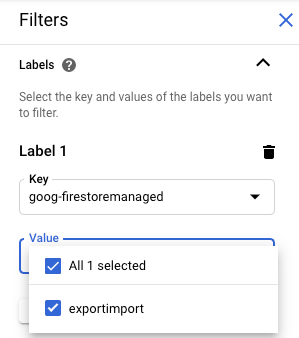
Export and import operations apply the `goog-firestoremanaged:exportimport`
label to billed operations. In the [Cloud Billing reports page](https://docs.cloud.google.com/billing/docs/how-to/reports#getting_started),
you can use this label to view costs related to import and export operations:
> [!NOTE]
> **Note:** Export and import operations executed before September 8th, 2020 did not apply the `goog-firestoremanaged` label.
## Differences from Datastore Admin backups
If you previously used the Datastore Admin console for backups, you
should note the following differences:
- Exports created by a managed export don't appear in the
Datastore Admin console. Managed exports and imports are a new
service that does not share data with App Engine's backup and restore
feature, which is administered through the Google Cloud console.
- The managed export and import service does not support the same metadata as
the Datastore Admin backup and does not store progress status in
your database. For information on checking the progress of
export and import operations, see
[Managing long-running operations](https://docs.cloud.google.com/datastore/docs/export-import-entities#long-running-operation)
- You cannot view service logs of managed export and import operations.
- The managed import service is backward compatible with Datastore
Admin backup files. You can import a Datastore Admin backup file
using the managed import service, but you cannot import the output of a managed
export using the Datastore Admin console.
## Importing into BigQuery
To import data from a managed export into BigQuery, see [Loading
Datastore export service data](https://docs.cloud.google.com/bigquery/docs/loading-data-cloud-datastore#loading_cloud_datastore_export_service_data).
Data exported without specifying an [entity filter](https://docs.cloud.google.com/datastore/docs/export-import-entities#entity_filter) cannot be
loaded into BigQuery. If you want to import data into
BigQuery, your export request must include one or more kind names in
the entity filter.
### BigQuery column limit
BigQuery imposes a limit of 10,000 columns per table.
Export operations generate a BigQuery table
schema for each kind. In this schema, each unique property within a kind's
entities becomes a schema column.
If a kind's BigQuery schema surpasses 10,000 columns, the
export operation attempts to stay under the column limit by treating embedded
entities as blobs. If this conversion brings the
number of columns in the schema under 10,000, you can load the data into
BigQuery, but you cannot query the properties within embedded entities.
If the number of columns still exceeds 10,000, the export operation does not
generate a BigQuery schema for the kind and you cannot load its data
into BigQuery.
## Service agent migration
Firestore uses a Firestore service agent to authorize import
and export operations instead of using the App Engine service account.
The service agent and service account use the following naming conventions:
Firestore service agent
: `service-PROJECT_NUMBER@gcp-sa-firestore.iam.gserviceaccount.com`
Firestore previously used the App Engine default service
account instead of the Firestore service agent. If your database
still uses the App Engine service account to import or export data, we
recommend that you follow the instructions in this section to migrate
to using the Firestore service agent.
App Engine service account
: `PROJECT_ID@appspot.gserviceaccount.com`
The Firestore service agent is preferable because it is specific
to Firestore. The App Engine service account is shared
by more than one service.
> [!NOTE]
> **Note:** If you use VPC Service Controls, you must use the Firestore service agent to fully protect import and export operations. VPC Service Controls is not compatible with the App Engine service account.
### View authorization account
You can view which account your import and export operations use to authorize
requests from the **Import/Export** page in the Google Cloud console. You can also
view if your database already uses the Firestore
service agent.
1. In the Google Cloud console, go to the **Databases** page.
[Go to Databases](https://console.cloud.google.com/datastore/databases)
2. Select the required database from the list of databases.
3. In the navigation menu, click **Import/Export**.
4. View the authorization account next to the **Import/Export jobs run as** label.
If your project does not use the Firestore service agent, you
can migrate to the Firestore service agent using either of
these techniques:
- [Migrate a project by checking and updating Cloud Storage bucket permissions (recommended)](https://docs.cloud.google.com/datastore/docs/export-import-entities#migrate-by-project).
- [Add an organization-wide policy constraint](https://docs.cloud.google.com/datastore/docs/export-import-entities#migrate-by-org-policy) that affects all projects within the organization.
The first of these techniques is preferable because it localizes the scope of
effect to a single Datastore mode project. The second technique is not
preferred because it doesn't migrate existing Cloud Storage bucket
permissions. It does, however, offer security compliance at the organization
level.
### Migrate by checking and updating Cloud Storage bucket permissions
The migration process has two steps:
1. Update Cloud Storage bucket permissions. See the following section for details.
2. Confirm migration to the Firestore service agent.
#### Service agent bucket permissions
For any export or import operations that use a Cloud Storage bucket in
*another* project, you must grant the Firestore service agent
permissions for that bucket. For example, operations that move data to another
project need to access a bucket in that other project. Otherwise, these
operations fail after migrating to the Firestore service
agent.
Import and export workflows that stay within the same project do not require
changes to permissions. The Firestore service agent can access
buckets in the same project by default.
Update the permissions for Cloud Storage buckets from other projects to give
access to the
`service-PROJECT_NUMBER@gcp-sa-firestore.iam.gserviceaccount.com`
service agent. Grant the service agent the `Firestore Service Agent` role.
The `Firestore Service Agent` role grants read and write permissions for a
Cloud Storage bucket. If you need to grant only read or only write
permissions, use a
[custom role](https://cloud.google.com/iam/docs/creating-custom-roles).
The migration process described in the following section
helps you identify Cloud Storage
buckets that might require permission updates.
#### Migrate a project to the Firestore Service Agent
Complete the following steps to migrate from the App Engine service account to
the Firestore service agent. Once completed, the migration can't be
undone.
1. In the Google Cloud console, go to the **Databases** page.
[Go to Databases](https://console.cloud.google.com/datastore/databases)
2. Select the required database from the list of databases.
3. In the navigation menu, click **Import/Export**.
4.
If your project has not yet migrated to the Firestore service
agent, you see a banner describing the migration and
a **Check Bucket Status** button. The next step helps you identify and
fix potential permission errors.
Click **Check Bucket Status**.
A menu appears with the option to complete your migration and a
list of Cloud Storage buckets. It may take a few minutes for
the list to finish loading.
This list includes buckets which were recently
used in import and export operations, but do not currently give read and
write permissions to the Datastore mode service agent.
5. Take note of the principal name of your project's Datastore mode service agent. The service agent name appears under the **Service agent to give access to** label.
6.
For any bucket in the list that you will
use for future import or export operations, complete the following
steps:
1.
In this bucket's table row, click **Fix**.
This opens that bucket's permissions page in a new tab.
2. Click **Add**.
3. In the **New principals** field, enter the name of your Firestore service agent.
4. In the **Select a role** field, select **Service Agents \> Firestore Service Agent**.
5. Click **Save**.
6. Return to the tab with the Datastore mode Import/Export page.
7. Repeat these steps for other buckets in the list. Make sure to view all the pages of the list.
7.
Click **Migrate to Firestore Service Agent** . If you
still have buckets with failed permission checks, you
need to confirm your migration by clicking **Migrate**.
An alert informs you when your migration completes. Migration can't be
undone.
#### View migration status
To verify your project's migration status:
1. In the Google Cloud console, go to the **Databases** page.
[Go to Databases](https://console.cloud.google.com/datastore/databases)
2. Select the required database from the list of databases.
3. In the navigation menu, click **Import/Export**.
4.
Look for the principal next to the **Import/Export jobs run as** label.
If the principal is `service-PROJECT_NUMBER@gcp-sa-firestore.iam.gserviceaccount.com`,
then your project has already migrated to the Firestore
service agent. The migration can't be undone.
If the project has not been migrated, a banner appears at the top of the page
with a **Check Bucket Status** button. See
[Migrate to the Firestore service agent](https://docs.cloud.google.com/datastore/docs/export-import-entities#migrate_to_the_firestore_service_agent)
to complete the migration.
### Add an organization-wide policy constraint
- Set the following constraint in your organization's policy:
**Require Firestore Service Agent for import/export** (`firestore.requireP4SAforImportExport`).
This constraint requires import and export operations to use the
Firestore service agent to authorize requests.
To set this constraint, see
[Creating and managing organization policies](https://docs.cloud.google.com/resource-manager/docs/organization-policy/creating-managing-policies#creating_and_editing_policies).
Applying this organizational policy constraint does not automatically grant the
appropriate Cloud Storage bucket permissions for the
Firestore service agent.
If the constraint creates permission errors for any import or export workflows,
you can disable it to go back to using default service account.
After you [check and update Cloud Storage bucket
permissions](https://docs.cloud.google.com/datastore/docs/export-import-entities#migrate-by-project), you can enable the constraint again.