Dataproc Metastore This tutorial proposes a dual-region disaster recovery and business continuity
strategy using Managed Service for Apache Spark Metastore. The tutorial employs
dual-region buckets for storing both
[Hive datasets and Hive metadata exports](https://hive.apache.org/).
[Managed Service for Apache Spark Metastore](https://docs.cloud.google.com/dataproc-metastore)
is a fully-managed, highly-available, auto-scaled, auto-healing, OSS-native
metastore service that greatly simplifies technical metadata management. Our
managed service is based on Apache Hive Metastore and serves as a critical
component towards enterprise data lakes.
This tutorial is designed for Google Cloud customers who require high
availability for their Hive data and metadata. It uses
[Cloud Storage](https://docs.cloud.google.com/storage)
for storage,
[Managed Service for Apache Spark](https://docs.cloud.google.com/dataproc)
for computing, and
[Managed Service for Apache Spark Metastore](https://docs.cloud.google.com/dataproc-metastore)
(DPMS), a fully managed Hive Metastore service on Google Cloud. The tutorial
also features two different ways of orchestrating failovers: one uses
[Cloud Run](https://docs.cloud.google.com/run)
and
[Cloud Scheduler](https://docs.cloud.google.com/scheduler),
the other uses
[Managed Service for Apache Airflow](https://docs.cloud.google.com/composer).
The dual-region approach used in the tutorial has advantages and
disadvantages:
**Advantages**
- Dual-region buckets are geo-redundant.
- Dual-region buckets have a 99.95% availability SLA, compared to the 99.9% availability of single-region buckets.
- Dual-region buckets have optimized performance in two regions, whereas single-region buckets don't perform as well when working with resources in other regions.
**Disadvantages**
- Dual-region bucket writes are not immediately replicated to both regions.
- Dual-region buckets have higher storage costs than single-region buckets.
## Reference architecture
The following architectural diagrams show the components that you use in this
tutorial. In both diagrams, the large red X indicates the failure of the primary
region:
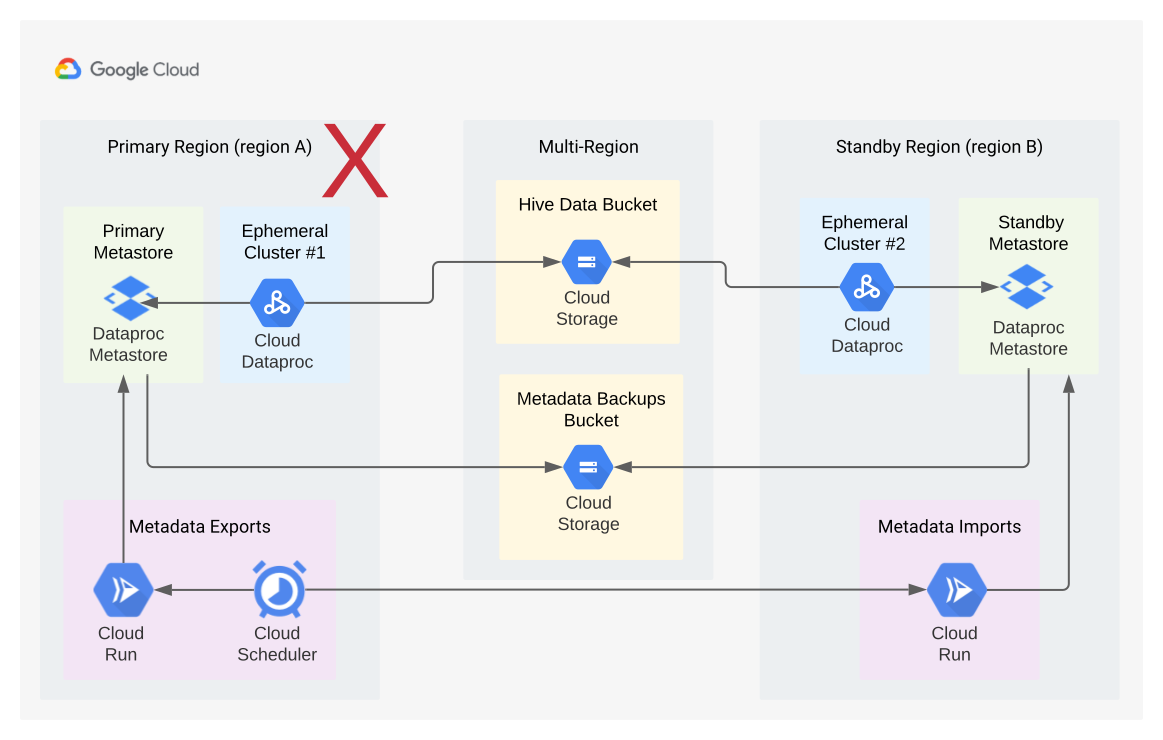
Figure 1: Using Cloud Run and Cloud Scheduler
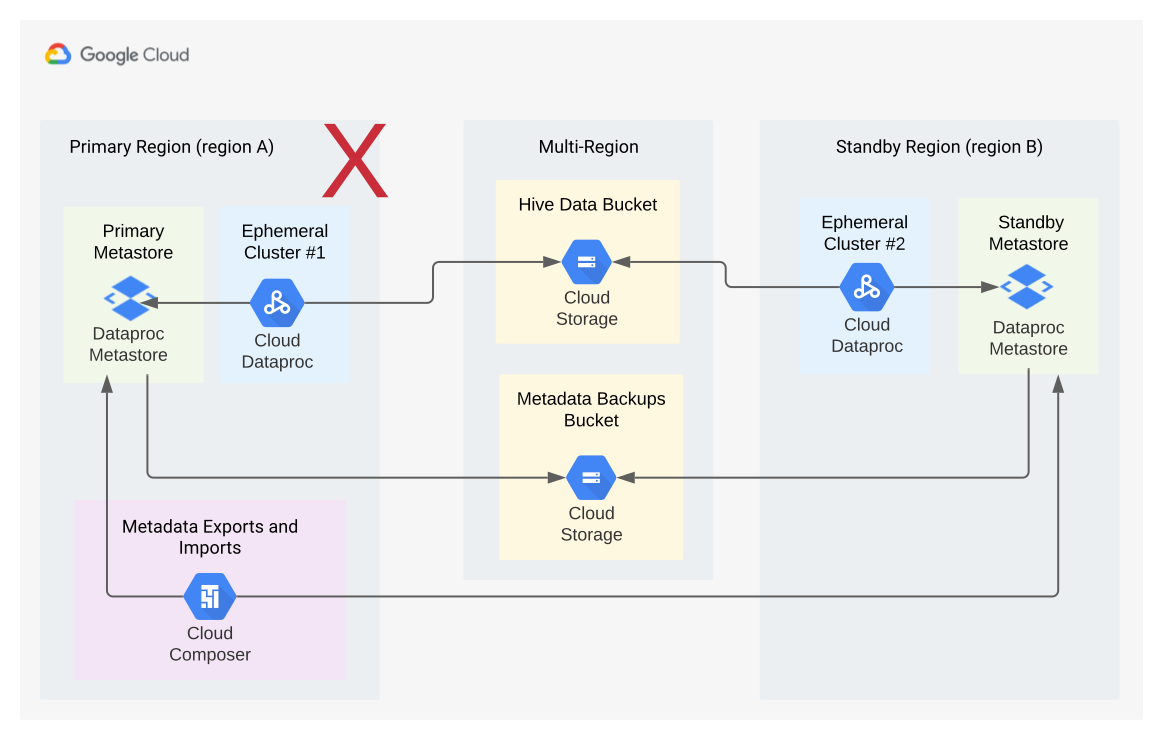
Figure 2: Using Managed Airflow
The solution's components and their relationships are:
- **Two Cloud Storage dual-region buckets:** You create one bucket for the Hive data, and one bucket for the periodic backups of Hive metadata. Create both dual-region buckets such that they use the same regions as the [Hadoop](https://hadoop.apache.org/) clusters that access the data.
- **A Hive metastore using DPMS:** You create this Hive metastore in your primary region (region A). The metastore configuration points to your Hive data bucket. A Hadoop cluster using Managed Service for Apache Spark must be in the same region as the DPMS instance to which it is attached.
- **A second DPMS instance:** You create a second DPMS instance in your standby region (region B) to prepare for a region-wide failure. You then import the most recent `hive.sql` export file from your export bucket into your standby DPMS. You also create a Managed Service for Apache Spark cluster in your standby region and attach it to your standby DPMS instance. Lastly, in a disaster recovery scenario, you redirect your client applications from your Managed Service for Apache Spark cluster in region A to your Managed Service for Apache Spark cluster in region B.
- **A Cloud Run deployment:** You create a
Cloud Run deployment in region A that periodically exports
the DPMS metadata into a metadata backup bucket using
Cloud Scheduler (as shown in Figure 1). The export takes the form
of a SQL file that contains a full dump of the DPMS metadata.
> [!NOTE]
> **Note:** Cloud Scheduler has a dependency on App Engine. As such, it can be configured only for one region per Google Cloud project. Therefore, use Cloud Scheduler only for short-term disaster recovery scenarios in which the duration of the failover to region B is measured in hours or days rather than weeks or months.
If you already have a Managed Airflow environment, you can orchestrate
your DPMS metadata exports and imports by running an Airflow DAG on that
environment (as shown in Figure 2). This use of an Airflow DAG would be in place
of the Cloud Run method mentioned earlier.
## Objectives
- Set up dual-regional storage for Hive data and Hive Metastore backups.
- Deploy a Managed Service for Apache Spark Metastore and a Managed Service for Apache Spark cluster in regions A and B.
- Fail the deployment over to region B.
- Fail the deployment back to region A.
- Create automated Hive metastore backups.
- Orchestrate metadata exports and imports through Cloud Run.
- Orchestrate metadata exports and imports through Managed Airflow.
## Costs
In this document, you use the following billable components of Google Cloud:
- [Managed Service for Apache Spark](https://docs.cloud.google.com/dataproc)
- [Managed Service for Apache Spark Metastore](https://docs.cloud.google.com/dataproc-metastore)
- [Cloud Run](https://docs.cloud.google.com/run)
- [Cloud Scheduler](https://docs.cloud.google.com/scheduler)
- [Managed Airflow](https://docs.cloud.google.com/composer)
To generate a cost estimate based on your projected usage,
use the [pricing calculator](https://docs.cloud.google.com/products/calculator).
New Google Cloud users might be eligible for a [free trial](https://docs.cloud.google.com/free).
## Before you begin
### Initialize the environment
1. In Cloud Shell, start a [Cloud Shell instance](https://console.cloud.google.com/welcome?cloudshell=true).
2. Clone the tutorial's GitHub repository:
git clone https://github.com/GoogleCloudPlatform/metastore-disaster-recovery.git
3. Enable the following Google Cloud APIs:
gcloud services enable dataproc.googleapis.com metastore.googleapis.com
4. Set some environment variables:
export PROJECT=$(gcloud info --format='value(config.project)')
export WAREHOUSE_BUCKET=${PROJECT}-warehouse
export BACKUP_BUCKET=${PROJECT}-dpms-backups
export DPMS_PRIMARY_REGION=us-central1
export DPMS_STANDBY_REGION=us-east1
export DPMS_PRIMARY_INSTANCE=dpms1
export DPMS_STANDBY_INSTANCE=dpms2
export HADOOP_PRIMARY=dataproc-cluster1
export HADOOP_STANDBY=dataproc-cluster2
## Creating storage for Hive data and Hive Metastore backups
In this section, you create Cloud Storage buckets to host the Hive
data and Hive Metastore backups.
### Create Hive data storage
1. In Cloud Shell, create a dual-regional bucket to host the
Hive data:
gcloud storage buckets create gs://${WAREHOUSE_BUCKET} --location=NAM4
2. Copy some sample data to the Hive data bucket:
gcloud storage cp gs://retail_csv gs://${WAREHOUSE_BUCKET}/retail --recursive
### Create storage for metadata backups
- In Cloud Shell, create a dual-region bucket to host the DPMS
metadata backups:
gcloud storage buckets create gs://${BACKUP_BUCKET} --location=NAM4
## Deploying compute resources in the primary region
In this section, you deploy all the compute resources in the primary region,
including the DPMS instance and the Managed Service for Apache Spark cluster. You also
populate the Managed Service for Apache Spark Metastore with sample metadata.
### Create the DPMS instance
1. In Cloud Shell, create the DPMS instance:
gcloud metastore services create ${DPMS_PRIMARY_INSTANCE} \
--location=${DPMS_PRIMARY_REGION} \
--hive-metastore-version=3.1.2
This command can take several minutes to complete.
> [!NOTE]
> **Note:** Hive Metastore version 3.1.2 is compatible with Managed Service for Apache Spark image version 2.0. They both use Hive version 3.1.2. If you use a different Hive Metastore version, be sure to use a compatible Managed Service for Apache Spark image that matches the Hive version.
2. Set the Hive data bucket as the default warehouse directory:
gcloud metastore services update ${DPMS_PRIMARY_INSTANCE} \
--location=${DPMS_PRIMARY_REGION} \
--update-hive-metastore-configs="hive.metastore.warehouse.dir=gs://${PROJECT}- warehouse"
This command can take several minutes to complete.
### Create a Managed Service for Apache Spark cluster
- In Cloud Shell, create a Managed Service for Apache Spark cluster and
attach it to the DPMS instance:
gcloud dataproc clusters create ${HADOOP_PRIMARY} \
--dataproc-metastore=projects/${PROJECT}/locations/${DPMS_PRIMARY_REGION}/services/${DPMS_PRIMARY_INSTANCE} \
--region=${DPMS_PRIMARY_REGION} \
--image-version=2.0
Specify the cluster image as
[version 2.0](https://docs.cloud.google.com/dataproc/docs/concepts/versioning/dataproc-versions),
which is the latest version available as of June 2021. It's also the first
version that supports DPMS.
### Populate the metastore
1. In Cloud Shell, update the sample
[`retail.hql`](https://github.com/GoogleCloudPlatform/metastore-disaster-recovery/blob/main/dpms_dag.py)
provided in this tutorial's repository with the name of the Hive data
bucket:
sed -i -- 's/${WAREHOUSE_BUCKET}/'"$WAREHOUSE_BUCKET"'/g' retail.hql
2. Run the queries contained in the `retail.hql` file to create the table
definitions in the metastore:
gcloud dataproc jobs submit hive \
--cluster=${HADOOP_PRIMARY} \
--region=${DPMS_PRIMARY_REGION} \
--file=retail.hql
3. Verify that the table definitions were correctly created:
gcloud dataproc jobs submit hive \
--cluster=${HADOOP_PRIMARY} \
--region=${DPMS_PRIMARY_REGION} \
--execute="
desc departments;
desc categories;
desc products;
desc order_items;
desc orders;
desc customers;
select count(*) as num_departments from departments;
select count(*) as num_categories from categories;
select count(*) as num_products from products;
select count(*) as num_order_items from order_items;
select count(*) as num_orders from orders;
select count(*) as num_customers from customers;
"
The output resembles the following:
```
+---+---+---+
| col_name | data_type | comment |
+---+---+---+
| department_id | int | |
| department_name | string | |
+---+---+---+
```
The output also contains the number of elements in each table---for example:
```
+---+
| num_customers |
+---+
| 12435 |
+---+
```
## Failing over to the standby region
This section provides the steps to failover from the primary region (region A)
to the standby region (region B).
1. In Cloud Shell, export the primary DPMS instance's metadata to
the backups bucket:
gcloud metastore services export gcs ${DPMS_PRIMARY_INSTANCE} \
--location=${DPMS_PRIMARY_REGION} \
--destination-folder=gs://${BACKUP_BUCKET}
The output resembles the following:
```
metadataManagementActivity:
metadataExports:
‐ databaseDumpType: MYSQL
destinationGcsUri: gs://qa01-300915-dpms-backups/hive-export-2021-05-04T22:21:53.288Z
endTime: '2021-05-04T22:23:35.982214Z'
startTime: '2021-05-04T22:21:53.308534Z'
state: SUCCEEDED
```
Note the value in the `destinationGcsUri` attribute. This attribute
stores the backup that you created.
2. Create a new DPMS instance in the standby region:
gcloud metastore services create ${DPMS_STANDBY_INSTANCE} \
--location=${DPMS_STANDBY_REGION} \
--hive-metastore-version=3.1.2
3. Set the Hive data bucket as the default warehouse directory:
gcloud metastore services update ${DPMS_STANDBY_INSTANCE} \
--location=${DPMS_STANDBY_REGION} \
--update-hive-metastore-configs="hive.metastore.warehouse.dir=gs://${PROJECT}-warehouse"
4. Retrieve the path of the latest metadata backup:
IMPORT_DIR=`gcloud storage ls gs://${BACKUP_BUCKET} | sort -k 1 | tail -1`
IMPORT_SQL="${IMPORT_DIR}hive.sql"
echo ${IMPORT_SQL}
5. Import the backed-up metadata into the new Managed Service for Apache Spark
Metastore instance:
gcloud metastore services import gcs ${DPMS_STANDBY_INSTANCE} \
--location=${DPMS_STANDBY_REGION} \
--dump-type=mysql \
--database-dump=${IMPORT_SQL} \
--import-id=import-$(date +"%Y-%m-%d-%H-%M-%S")
6. Create a Managed Service for Apache Spark cluster in the standby region (region B):
gcloud dataproc clusters create ${HADOOP_STANDBY} \
--dataproc-metastore=projects/${PROJECT}/locations/${DPMS_STANDBY_REGION}/services/${DPMS_STANDBY_INSTANCE} \
--region=${DPMS_STANDBY_REGION} \
--image-version=2.0
7. Verify that the metadata was correctly imported:
gcloud dataproc jobs submit hive \
--cluster ${HADOOP_STANDBY} \
--region ${DPMS_STANDBY_REGION} \
--execute "select count(*) as num_orders from orders;"
The `num_orders`output is most important to the tutorial. It resembles
the following:
+---+
| num_orders |
+---+
| 68883 |
+---+
The primary Managed Service for Apache Spark Metastore has become the new standby
metastore, and the standby Managed Service for Apache Spark Metastore has become the
new primary metastore.
8. Update the environment variables based on these new roles:
export DPMS_PRIMARY_REGION=us-east1
export DPMS_STANDBY_REGION=us-central1]
export DPMS_PRIMARY_INSTANCE=dpms2
export DPMS_STANDBY_INSTANCE=dpms1
export HADOOP_PRIMARY=dataproc-cluster2
export HADOOP_STANDBY=dataproc-cluster1
9. Verify that you can write to the new primary Managed Service for Apache Spark
Metastore in region B:
gcloud dataproc jobs submit hive \
--cluster ${DPMS_PRIMARY_INSTANCE} \
--region ${DPMS_PRIMARY_REGION} \
--execute "create view completed_orders as select * from orders where order_status = 'COMPLETE';"
gcloud dataproc jobs submit hive \
--cluster ${HADOOP_PRIMARY} \
--region ${DPMS_PRIMARY_REGION} \
--execute "select * from completed_orders limit 5;"
The output contains the following:
```
+---+---+---+---+
| completed_orders.order_id | completed_orders.order_date | completed_orders.order_customer_id | completed_orders.order_status |
+---+---+---+---+
| 3 | 2013-07-25 00:00:00.0 | 12111 | COMPLETE |
| 5 | 2013-07-25 00:00:00.0 | 11318 | COMPLETE |
| 6 | 2013-07-25 00:00:00.0 | 7130 | COMPLETE |
| 7 | 2013-07-25 00:00:00.0 | 4530 | COMPLETE |
| 15 | 2013-07-25 00:00:00.0 | 2568 | COMPLETE |
+---+---+---+---+
```
The failover is now complete. You should now redirect your client
applications to the new primary Managed Service for Apache Spark cluster in region B
by updating your Hadoop client configuration files.
## Failing back to the original region
This section provides the steps to fail back to the original region (region
A).
1. In Cloud Shell, export the metadata from the DPMS instance:
gcloud metastore services export gcs ${DPMS_PRIMARY_INSTANCE} \
--location=${DPMS_PRIMARY_REGION} \
--destination-folder=gs://${BACKUP_BUCKET}
2. Retrieve the path of the latest metadata backup:
IMPORT_DIR=`gcloud storage ls gs://${BACKUP_BUCKET} | sort -k 1 | tail -1`
IMPORT_SQL="${IMPORT_DIR}hive.sql"
echo ${IMPORT_SQL}
3. Import the metadata into the standby DPMS instance in the original
region (region A):
gcloud metastore services import gcs ${DPMS_STANDBY_INSTANCE} \
--location=${DPMS_STANDBY_REGION} \
--dump-type=mysql \
--database-dump=${IMPORT_SQL} \
--import-id=import-$(date +"%Y-%m-%d-%H-%M-%S")
4. Verify that the metadata was correctly imported:
gcloud dataproc jobs submit hive \
--cluster ${HADOOP_STANDBY} \
--region ${DPMS_STANDBY_REGION} \
--execute "select * from completed_orders limit 5;"
The output includes the following:
```
+---+---+---+---+
| completed_orders.order_id | completed_orders.order_date | completed_orders.order_customer_id | completed_orders.order_status |
+---+---+---+---+
| 3 | 2013-07-25 00:00:00.0 | 12111 | COMPLETE |
| 5 | 2013-07-25 00:00:00.0 | 11318 | COMPLETE |
| 6 | 2013-07-25 00:00:00.0 | 7130 | COMPLETE |
| 7 | 2013-07-25 00:00:00.0 | 4530 | COMPLETE |
| 15 | 2013-07-25 00:00:00.0 | 2568 | COMPLETE |
+---+---+---+---+
```
The primary Managed Service for Apache Spark Metastore and standby
Managed Service for Apache Spark Metastore have swapped roles again.
1. Update the environment variables to these new roles:
export DPMS_PRIMARY_REGION=us-central1
export DPMS_STANDBY_REGION=us-east1
export DPMS_PRIMARY_INSTANCE=dpms1
export DPMS_STANDBY_INSTANCE=dpms12
export HADOOP_PRIMARY=dataproc-cluster1
export HADOOP_STANDBY=dataproc-cluster2
The failback is now complete. You should now redirect your client
applications to the new primary Managed Service for Apache Spark cluster in region A
by updating your Hadoop client configuration files.
## Creating automated metadata backups
This section outlines two different methods of automating your metadata backup
exports and imports. The first method,
[Option 1: Cloud Run and Cloud Scheduler](https://docs.cloud.google.com/dataproc-metastore/docs/disaster-recovery-for-dataproc-metastore#option-1-cloud-run-and-cloud-scheduler),
uses
[Cloud Run](https://docs.cloud.google.com/run)
and
[Cloud Scheduler](https://docs.cloud.google.com/scheduler).
The second method,
[Option 2: Managed Airflow](https://docs.cloud.google.com/dataproc-metastore/docs/disaster-recovery-for-dataproc-metastore#option-2-cloud-composer),
uses
[Managed Airflow](https://docs.cloud.google.com/composer).
In both examples, an export job creates a backup of the metadata from the
primary DPMS in region A. An import job populates the standby DPMS in region B
from the backup.
If you already have an existing Managed Airflow cluster, you should
consider Option 2: Managed Airflow (assuming that your cluster has
enough compute capacity). Otherwise, go with Option 1: Cloud Run
and Cloud Scheduler. This option uses a pay-as-you-go pricing model and
is more economical than Managed Airflow, which requires the use of
persistent compute resources.
### Option 1: Cloud Run and Cloud Scheduler
This section shows how to use Cloud Run and
Cloud Scheduler to automate the exports of imports of DPMS metadata.
#### Cloud Run services
This section shows how to build two Cloud Run services to
execute the metadata export and import jobs.
1. In Cloud Shell, enable the Cloud Run,
Cloud Scheduler,
[Cloud Build](https://docs.cloud.google.com/build),
and
[App Engine](https://docs.cloud.google.com/appengine)
APIs:
gcloud services enable run.googleapis.com cloudscheduler.googleapis.com cloudbuild.googleapis.com appengine.googleapis.com
You enable the App Engine API because the
Cloud Scheduler service requires App Engine.
2. Build the Docker image with the provided Dockerfile:
cd metastore-disaster-recovery
gcloud builds submit --tag gcr.io/$PROJECT/dpms_dr
3. Deploy your container image to a Cloud Run service in
the primary region (region A). This deployment is responsible for creating
the metadata backups from the primary metastore:
gcloud run deploy dpms-export \
--image gcr.io/${PROJECT}/dpms_dr \
--region ${DPMS_PRIMARY_REGION} \
--platform managed \
--update-env-vars DPMS_STANDBY_REGION=${DPMS_STANDBY_REGION},BACKUP_BUCKET=${BACKUP_BUCKET},DPMS_STANDBY_INSTANCE=${DPMS_STANDBY_INSTANCE},DPMS_PRIMARY_INSTANCE=${DPMS_PRIMARY_INSTANCE},DPMS_PRIMARY_REGION=${DPMS_PRIMARY_REGION} \
--allow-unauthenticated \
--timeout=10m
By default, a Cloud Run service request times out after 5
minutes. To help ensure that all requests have enough time to successfully
complete, the previous code sample extends the timeout value to at least 10
minutes.
4. Retrieve the deploy URL for the Cloud Run service:
EXPORT_RUN_URL=$(gcloud run services describe dpms-export --platform
managed --region ${DPMS_PRIMARY_REGION} --format `
"value(status.address.url)")
echo ${EXPORT_RUN_URL}
5. Create a second Cloud Run service in the standby region
(region B). This service is responsible for importing the metadata backups
from `BACKUP_BUCKET` into the standby metastore:
gcloud run deploy dpms-import \
--image gcr.io/${PROJECT}/dpms_dr \
--region ${DPMS_STANDBY_REGION} \
--platform managed \
--update-env-vars DPMS_STANDBY_REGION=${DPMS_STANDBY_REGION},BACKUP_BUCKET=${BACKUP_BUCKET},DPMS_STANDBY_INSTANCE=${DPMS_STANDBY_INSTANCE} \
--allow-unauthenticated \
--timeout=10m
6. Retrieve the deploy URL for the second Cloud Run service:
IMPORT_RUN_URL=$(gcloud run services describe dpms-import --platform
managed --region ${REGION_B} --format "value(status.address.url)")
echo ${IMPORT_RUN_URL}
#### Jobs scheduling
This section shows how to use Cloud Scheduler to trigger the two
Cloud Run services.
1. In Cloud Shell, create an App Engine application,
which Cloud Scheduler requires:
gcloud app create --region=${REGION_A}
2. Create a Cloud Scheduler job to schedule the metadata exports
from the primary metastore:
gcloud scheduler jobs create http dpms-export \
--schedule "*/15 * * * *" \
--http-method=post \
--uri=${EXPORT_RUN_URL}/export\
The Cloud Scheduler job makes an `http` request to the
Cloud Run service every 15 minutes. The
Cloud Run service runs a containerized
[Flask](https://flask.palletsprojects.com/)
application with both an export and an import function. When the export
function is triggered, it exports the metadata to Cloud Storage
using the `gcloud metastore services export` command.
In general, if your Hadoop jobs frequently write to the Hive Metastore,
we recommend that you back up your metastore often. A good backup schedule would
be in the range of every 15 minutes to 60 minutes.
1. Trigger a test run of the Cloud Run service:
gcloud scheduler jobs run dpms-export
2. Verify that Cloud Scheduler correctly triggered the DPMS
export operation:
gcloud metastore operations list --location ${REGION_A}
The output resembles the following:
```
OPERATION_NAME LOCATION TYPE TARGET DONE CREATE_TIME DURATION
...
operation-a520936204508-5v23bx4y23f60-920f0a0f-9c2b56b5 us-central1 update dpms1 True 2021-05-13T20:05:04 2M23S
```
If the value for `DONE` is `False`, the export is still in progress. To
confirm that the operation is complete, re-run the `gcloud metastore
operations list --location ${REGION_A}` command until the value becomes
`True`.
Learn more about `gcloud metastore operations` commands in the
[reference documentation](https://docs.cloud.google.com/sdk/gcloud/reference/metastore/operations).
3. (Optional) Create a Cloud Scheduler job to schedule the
imports into the standby metastore:
gcloud scheduler jobs create http dpms-import \
--schedule "*/15 * * * *" \
--http-method=post \
--uri=${IMPORT_RUN_URL}/import
This step depends on your recovery time objective (RTO) requirements.
If you would like a hot standby to minimize your failover time, you
should schedule this import job. It refreshes your standby DPMS every 15
minutes.
If a cold standby is sufficient for your RTO needs, you can skip this
step and also delete your standby DPMS and Managed Service for Apache Spark cluster
to further reduce your overall monthly bill. When failing over to your
standby region (region B), provision the standby DPMS and the
Managed Service for Apache Spark cluster and also run an import job. Because the
backup files are stored in a dual-regional bucket, they are accessible
even if your primary region (region A) goes down.
#### Handle Failovers
Once you've failed over to region B, you must apply the following steps in
order to preserve your disaster recovery requirements and protect your
infrastructure against a potential failure in region B:
- Pause your existing Cloud Scheduler jobs.
- Update the primary's DPMS region to region B (`us-east1`).
- Update the standby's DPMS region to region A (`us-central1`).
- Update the DPMS primary instance to `dpms2`.
- Update the DPMS standby instance to `dpms1`.
- Redeploy the Cloud Run services based on the updated variables.
- Create new Cloud Scheduler jobs that point to your new Cloud Run services.
The steps required in the preceding list repeat many of steps from previous
sections, only with minor tweaks (like swapping out the region names). Use the
information in Option 1: Cloud Run and Cloud Scheduler
to complete this required work.
### Option 2: Managed Airflow
This section shows how to use Managed Airflow to run the export and
import jobs within a single
[Airflow](http://airflow.apache.org/)
directed acyclic graph (DAG).
1. In Cloud Shell, enable the Cloud Composer API:
gcloud services enable composer.googleapis.com
2. Create a Managed Airflow environment:
export COMPOSER_ENV=comp-env
gcloud beta composer environments create ${COMPOSER_ENV} \
--location ${DPMS_PRIMARY_REGION} \
--image-version composer-1.17.0-preview.1-airflow-2.0.1 \
--python-version 3
- The composer image `composer-1.17.0-preview.1-airflow-2.0.1` is the [latest version](https://docs.cloud.google.com/composer/docs/concepts/versioning/composer-versions) as of publication.
- Composer environments can use only one major Python version. Python 3 was selected because Python 2 has [supportability issues](https://docs.cloud.google.com/composer/docs/concepts/python-version#about_python_2_support).
3. Configure your Managed Airflow environment with these
environment variables:
gcloud composer environments update ${COMPOSER_ENV} \
--location ${DPMS_PRIMARY_REGION} \
--update-env-variables=DPMS_PRIMARY_REGION=${DPMS_PRIMARY_REGION},DPMS_STANDBY_REGION=${DPMS_STANDBY_REGION},BACKUP_BUCKET=${BACKUP_BUCKET},DPMS_PRIMARY_INSTANCE=${DPMS_PRIMARY_INSTANCE},DPMS_STANDBY_INSTANCE=${DPMS_STANDBY_INSTANCE}
4. Upload the
[DAG file](https://github.com/GoogleCloudPlatform/metastore-disaster-recovery/blob/main/dpms_dag.py)
to your Composer environment:
gcloud composer environments storage dags import \
--environment ${COMPOSER_ENV} \
--location ${DPMS_PRIMARY_REGION} \
--source dpms_dag.py
5. Retrieve the Airflow URL:
gcloud composer environments describe ${COMPOSER_ENV} \
--location ${DPMS_PRIMARY_REGION} \
--format "value(config.airflowUri)"
6. In your browser, open the URL returned by the previous command.
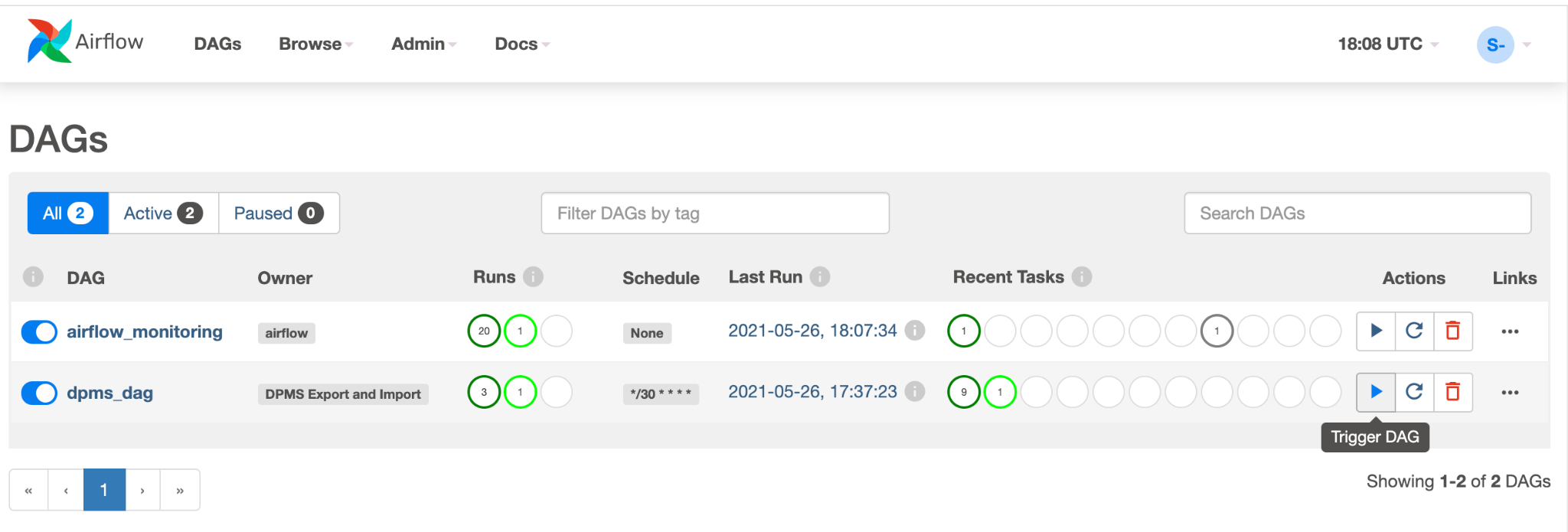
You should see a new DAG entry called `dpms_dag`. Within a single run,
the DAG executes an export, followed by an import. The DAG assumes that the
standby DPMS is always up. If you don't need a hot standby and only want to
run the export task, you should comment out all the import-related tasks in
[the code](https://github.com/GoogleCloudPlatform/metastore-disaster-recovery/blob/main/dpms_dag.py)
(`find_backup, wait_for_ready_status, current_ts`, `dpms_import)`.
7. Click the **Arrow** icon to trigger the DAG to do a test run:
8. Click **Graph View** of the running DAG to check the status of each task:
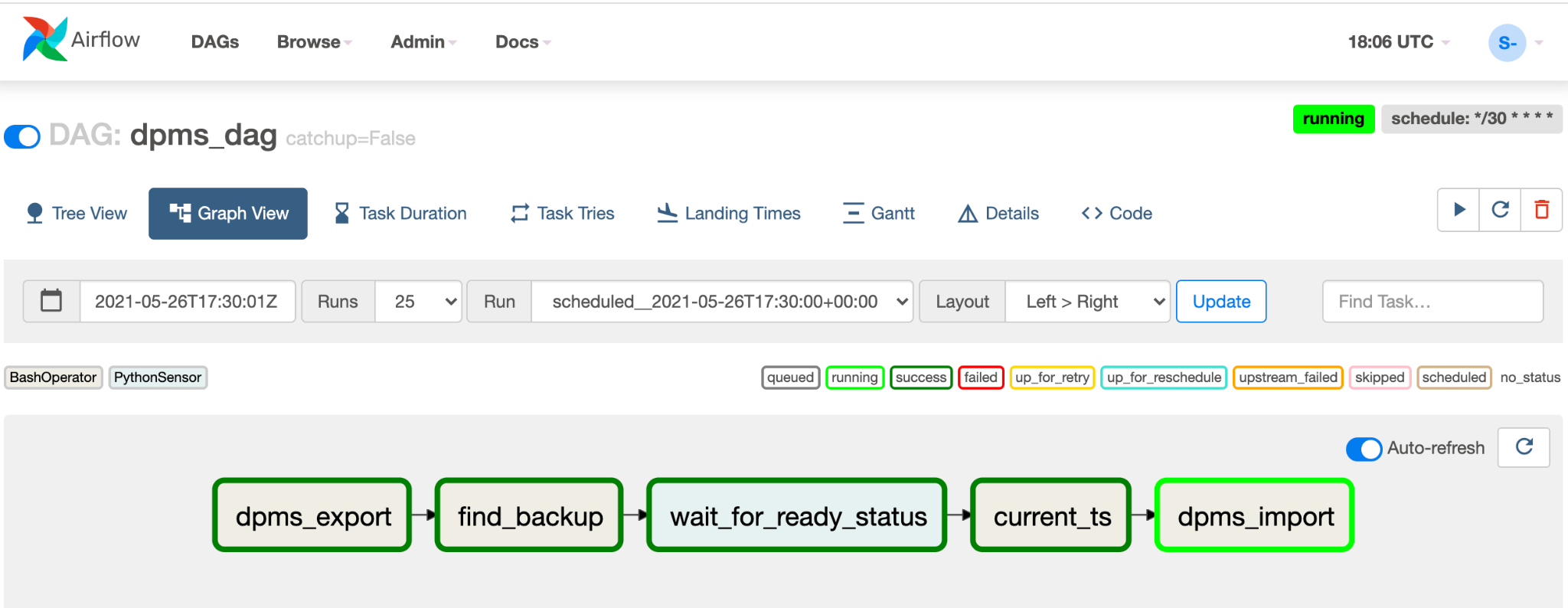
Once you have validated the DAG, let Airflow run it on a regular
schedule. The schedule is set to a 30-minute interval, but can be adjusted
by changing the `schedule_interval` parameter in the code to meet your
timing requirements.
#### Handle failovers
Once you've failed over to region B, you must apply the following steps in
order to preserve your disaster recovery requirements and protect your
infrastructure against a potential failure in region B:
- Update the primary's DPMS region to region B (`us-east1`).
- Update the standby's DPMS region to region A (`us-central1`).
- Update the DPMS primary instance to `dpms2`.
- Update the DPMS standby instance to `dpms1`.
- Create a new Managed Airflow environment in region B (`us-east1`).
- Configure the Managed Airflow environment with the updated environment variables.
- Import the same `dpms_dag` Airflow DAG as before to your new Managed Airflow environment.
The steps required in the preceding list repeat many of steps from previous
sections, only with minor tweaks (like swapping out the region names). Use the
information in Option 2: Managed Airflow to complete this required work.
## Clean up
To avoid incurring charges to your Google Cloud account for the resources used in this
tutorial, either delete the project that contains the resources, or keep the project and
delete the individual resources.
> [!CAUTION]
> **Caution** : Deleting a project has the following effects:
>
> - **Everything in the project is deleted.** If you used an existing project for the tasks in this document, when you delete it, you also delete any other work you've done in the project.
> - **Custom project IDs are lost.** When you created this project, you might have created a custom project ID that you want to use in the future. To preserve the URLs that use the project ID, such as an `appspot.com` URL, delete selected resources inside the project instead of deleting the whole project.
>
>
> If you plan to explore multiple architectures, tutorials, or quickstarts, reusing projects
> can help you avoid exceeding project quota limits.
1. In the Google Cloud console, go to the **Manage resources** page.
[Go to Manage resources](https://console.cloud.google.com/iam-admin/projects)
2. In the project list, select the project that you want to delete, and then click **Delete**.
3. In the dialog, type the project ID, and then click **Shut down** to delete the project.
## What's next
- Learn how to [monitor](https://docs.cloud.google.com/dataproc-metastore/docs/monitoring) your Managed Service for Apache Spark Metastore instance
- Understand how to [sync](https://docs.cloud.google.com/dataproc-metastore/docs/data-catalog-sync) your Hive metastore with Data Catalog
- Learn more about [developing](https://docs.cloud.google.com/run/docs/quickstarts) Cloud Run services
- For more reference architectures, diagrams, and best practices, explore the [Cloud Architecture Center](https://docs.cloud.google.com/architecture).