This page shows you how to create a Dataproc Metastore service.
After you create your Dataproc Metastore service, you can import
metadata and connect to any of the following services:
- [A Managed Service for Apache Spark
cluster](https://docs.cloud.google.com/dataproc-metastore/docs/attach-dataproc).
- A self-managed [Apache Hive](https://hive.apache.org/)
instance, [Apache Spark](https://spark.apache.org/) instance,
or a [Presto](https://prestodb.io/) cluster.
After you connect one of these services, it uses your
Dataproc Metastore service as its Hive metastore during query
execution.
> [!NOTE]
> **Note:** It can take over 20 minutes to create a Dataproc Metastore service. Creating additional services in the same project, region, and VPC network can take less than 10 minutes.
## Before you begin
- Understand the differences between [a *Dataproc Metastore 1 service*
and a *Dataproc Metastore 2 service*](https://docs.cloud.google.com/dataproc-metastore/docs/core-concepts#versioning).
- [Enable
Dataproc Metastore](https://docs.cloud.google.com/dataproc-metastore/docs/enable-service) in your project.
- [Understand networking
requirements](https://docs.cloud.google.com/dataproc-metastore/docs/access-service) specific to your project.
### Required Roles
To get the permission that
you need to create a Dataproc Metastore,
ask your administrator to grant you the
following IAM roles on your project, based on the principle of least privilege:
- [Grant full control of Dataproc Metastore resources](https://docs.cloud.google.com/iam/docs/roles-permissions/metastore#metastore.editor) (`roles/metastore.editor`)
- [Grant full access to all Dataproc Metastore resources, including IAM policy administration](https://docs.cloud.google.com/iam/docs/roles-permissions/metastore#metastore.admin) (`roles/metastore.admin`)
For more information about granting roles, see [Manage access to projects, folders, and organizations](https://docs.cloud.google.com/iam/docs/granting-changing-revoking-access).
This predefined role contains the
`metastore.services.create`
permission,
which is required to
create a Dataproc Metastore.
You might also be able to get
this permission
with [custom roles](https://docs.cloud.google.com/iam/docs/creating-custom-roles) or
other [predefined roles](https://docs.cloud.google.com/iam/docs/roles-overview#predefined).
For more information about specific Dataproc Metastore roles and permissions, see [Manage access with Identity and Access Management (IAM)](https://docs.cloud.google.com/dataproc-metastore/docs/iam-and-access-control).
## Create Dataproc Metastore using default settings
Creating a Dataproc Metastore using the default settings
configures your service with an enterprise tier, a medium instance size,
the latest version of the Hive metastore, a Thrift endpoint, and a data location
of `us-central1`.
### Dataproc Metastore 2
The following instructions show you how to create a Dataproc Metastore
2 using a Thrift endpoint and other provided default settings.
### Console
1. In the Google Cloud console, go to the **Dataproc Metastore**
page.
[Go to
Dataproc Metastore](https://console.cloud.google.com/dataproc/metastore/services)
2. In the navigation bar, click **+Create**.
The **Create metastore service** dialog opens.
3. Select **Dataproc Metastore 2**.
4. In the **Pricing and Capacity** section, choose an instance size.
For more information, see [pricing plans and scaling configurations](https://docs.cloud.google.com/dataproc-metastore/pricing).
5. In the **Service name** field, enter a unique name for your service.
For information on naming conventions, see [Resource naming convention](https://docs.cloud.google.com/compute/docs/naming-resources#resource-name-format).
6. Select the **Data location**.
For more information about selecting the appropriate region,
see [Available regions and zones](https://docs.cloud.google.com/compute/docs/regions-zones/regions-zones#available)
and [Regional endpoint](https://docs.cloud.google.com/dataproc/docs/concepts/regional-endpoints).
7. For the remaining service configuration options, use the provided defaults.
8. To create and start the service, click **Submit**.
Your new metastore service appears on the **Dataproc Metastore**
page. The status displays **Creating** until the service is ready to use.
When it's ready, the status changes to **Active**.
Provisioning the service might take a few minutes.
- gcloud CLI
To create a Dataproc Metastore metastore service 2 using the
provided defaults, run the following [`gcloud metastore services create`](https://docs.cloud.google.com/sdk/gcloud/reference/metastore/services/create)
command:
```
gcloud metastore services create SERVICE \
--location=LOCATION \
--instance-size=INSTANCE_SIZE \
--scaling-factor=SCALING_FACTOR
```
Replace the following:
- `SERVICE`: The name of your new Dataproc Metastore service.
- `LOCATION`: The Google Cloud region that you want
to create your Dataproc Metastore in. You can also set a [default location](https://docs.cloud.google.com/dataproc-metastore/docs/gcloud-installation).
For information on naming conventions, see [Resource naming convention](https://docs.cloud.google.com/compute/docs/naming-resources#resource-name-format).
- `INSTANCE_SIZE`: the [instance size](https://docs.cloud.google.com/dataproc-metastore/pricing#service-2-scaling)
of your Dataproc Metastore. For example, `small`,
`medium` or `large`. If you specify a value for `INSTANCE_SIZE`, don't
specify a value for `SCALING_FACTOR`.
- `SCALING_FACTOR`: the [scaling factor](https://docs.cloud.google.com/dataproc-metastore/pricing#service-2-scaling)
of your Dataproc Metastore service. For example, `0.1`.
If you specify a value for `SCALING_FACTOR`, don't specify a value for
`INSTANCE_SIZE`.
### REST
Follow the API instructions to [create a service](https://docs.cloud.google.com/dataproc-metastore/docs/reference/rest/v1/projects.locations.services/create) by using the APIs Explorer.
### Dataproc Metastore 1
The following instructions show you how to create a Dataproc Metastore
1 using a Thrift endpoint and other provided default settings.
### Console
1. In the Google Cloud console, go to the **Dataproc Metastore**
page.
[Go to
Dataproc Metastore](https://console.cloud.google.com/dataproc/metastore/services)
2. In the navigation bar, click **+Create**.
The **Create metastore service** dialog opens.
3. Select **Dataproc Metastore 1**.
4. In the **Service name** field, enter a unique name for your service.
For information on naming conventions, see [Resource naming convention](https://docs.cloud.google.com/compute/docs/naming-resources#resource-name-format).
5. Select the **Data location**.
For more information about selecting the appropriate region,
see [Available regions and zones](https://docs.cloud.google.com/compute/docs/regions-zones/regions-zones#available)
and [Regional endpoint](https://docs.cloud.google.com/dataproc/docs/concepts/regional-endpoints).
6. For the remaining service configuration options, use the provided defaults.
7. To create and start the service, click **Submit**.
Your new metastore service appears on the **Dataproc Metastore**
page. The status displays **Creating** until the service is ready to use.
When it's ready, the status changes to **Active**.
Provisioning the service might take a couple of minutes.
- gcloud CLI
To create a basic metastore service using the provided defaults,
run the following [`gcloud metastore services create`](https://docs.cloud.google.com/sdk/gcloud/reference/metastore/services/create)
command:
```
gcloud metastore services create SERVICE \
--location=LOCATION
```
Replace the following:
- `SERVICE`: The name of your new Dataproc Metastore service.
- `LOCATION`: The Google Cloud region that you want
to create your Dataproc Metastore in. You can also set a [default location](https://docs.cloud.google.com/dataproc-metastore/docs/gcloud-installation).
For information on naming conventions, see [Resource naming convention](https://docs.cloud.google.com/compute/docs/naming-resources#resource-name-format).
### REST
Follow the API instructions to [create a service](https://docs.cloud.google.com/dataproc-metastore/docs/reference/rest/v1/projects.locations.services/create)
by using the APIs Explorer.
## Create Dataproc Metastore using advanced settings
Creating a Dataproc Metastore using the advanced settings
shows you how to modify configurations such as network configurations, scaling
settings, endpoint settings, security settings, and optional features.
### Dataproc Metastore 2 or 1
The following instructions show you how to create a Dataproc Metastore
2 or a Dataproc Metastore 1 service using advanced
settings.
> [!NOTE]
> **Note:** If your Hive warehouse directory is already on Cloud Storage, then you should [set a metastore configuration override](https://docs.cloud.google.com/dataproc-metastore/docs/create-service#override) when you create your Dataproc Metastore service.
### Console
**Get started**
1. In the Google Cloud console, open the **Dataproc Metastore** page:
[Open Dataproc Metastore](https://console.cloud.google.com/dataproc/metastore/services)
2. In the navigation menu, click **+Create**.
The **Create metastore service** dialog opens.
3. Select the metastore version that you want to use, **Dataproc Metastore 1**
or **Dataproc Metastore 2**.
**Service info**
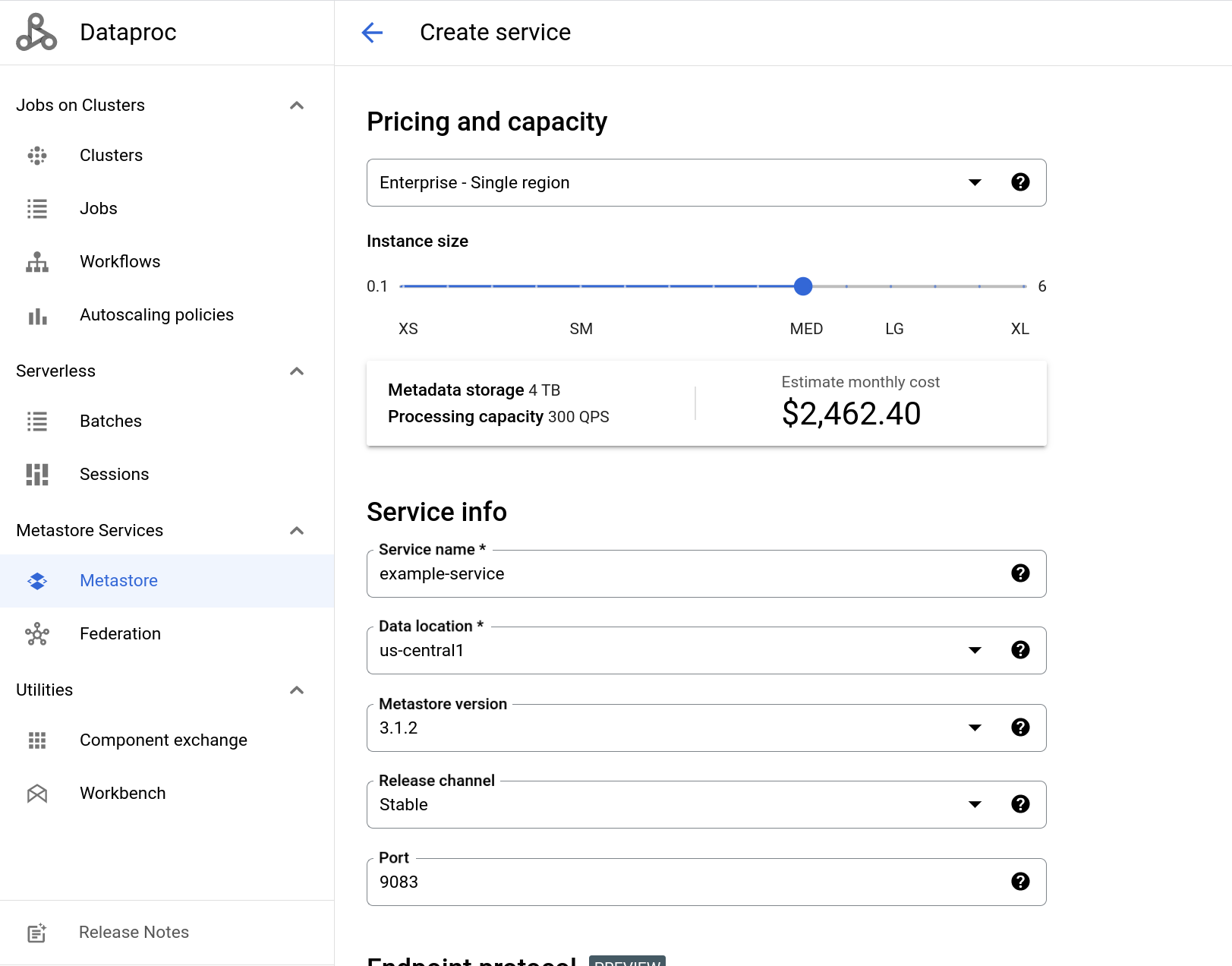 Example of the *create service* page
1. (Optional): For **Dataproc Metastore 2.** In the **Pricing and Capacity**
section, choose an instance size.
For more information, see [pricing plans and scaling configurations](https://docs.cloud.google.com/dataproc-metastore/pricing).
2. In the **Service name** field, enter a unique name for your service.
For information on naming conventions, see [Resource naming convention](https://docs.cloud.google.com/compute/docs/naming-resources#resource-name-format).
3. Select the **Data location**.
For more information about selecting the appropriate region,
see [Available regions and zones](https://docs.cloud.google.com/compute/docs/regions-zones/regions-zones#available)
and [Regional endpoint](https://docs.cloud.google.com/dataproc/docs/concepts/regional-endpoints).
4. Select the Hive **Metastore version**.
If this value is not modified, your service uses the latest supported
version of Hive (currently version `3.1.2`).
For more information about selecting the correct version,
see [Version policy](https://docs.cloud.google.com/dataproc-metastore/docs/version-policy).
5. Select the **Release channel**.
If this value is not modified, your metastore uses the `Stable` value.
For more information, see [Release channel](https://docs.cloud.google.com/dataproc-metastore/docs/release-channel).
6. Enter the TCP **Port**.
The TCP port your Thrift endpoint connects to. If this value is
not modified, port number `9083` is used. If you change your
endpoint to gRPC, this value automatically changes to `443` and can't
be changed.
7. (Optional) For **Dataproc Metastore 1.** Select the **Service tier**.
The service tier influences the capacity of your service.
For more information, see [Service Tier](https://docs.cloud.google.com/dataproc-metastore/docs/service-tier).
**Endpoint protocol**
- Optional: Choose an endpoint protocol.
The default selected option is **Apache Thrift** . For more information
about the different endpoints, see [Choose the endpoint protocol](https://docs.cloud.google.com/dataproc-metastore/docs/endpoint-protocol).
**Network configuration**
1. Select a **Network Configuration**.
By default, your services can be made accessible in multiple VPC networks. You can specify up to five subnetworks.
Change your network settings to complete the
following actions:
- Connect your Dataproc Metastore service to Dataproc Metastore services in other projects.
- Use your Dataproc Metastore service with other Google Cloud services, such as Managed Service for Apache Spark cluster.
> [!NOTE]
> **Note:** If you use a gRPC endpoint, these settings are disabled.
2. Optional: Click **Use shared VPC network** and enter the
**Project ID** and **VPC subnetwork name**.
3. Optional: Click **Expose service in 1 VPC network.**
and select the network or shared VPC network where you want to make the service available.
4. Optional: Click **Make services accessible in multiple VPC subnetworks**
and select the subnetworks. You can specify up to five subnetworks.
5. Click **Done**.
**Metadata integration**
- Optional: Enable **Data Catalog sync**.
For more information, see [Dataproc Metastore to Data Catalog sync](https://docs.cloud.google.com/dataproc-metastore/docs/data-catalog-sync).
**Maintenance window**
- Optional: Select the **Day of week** and **Hour of day** for your
maintenance window.
For more information, see \[Maintenance windows\]\[39\].
**Security**
1. Optional: Enable Kerberos.
> [!NOTE]
> **Note:** To enable Kerberos, you need a keytab file. This file contains pairs of Kerberos principals and encrypted keys. A keytab file must contain the entry for the service principal created for this Hive metastore. For more information, see [Configure Kerberos for a service](https://docs.cloud.google.com/dataproc-metastore/docs/configure-kerberos).
1. To enable Kerberos, click the toggle.
2. Select or enter your secret resource ID.
3. Either choose to use the latest secret version or select an older one to use.
4. Enter the **Kerberos principal**.
This is the principal allocated for this Dataproc Metastore
service.
5. Browse to the **krb5 config** file.
2. Optional: Choose an encryption type.
- The default selected option is **Google-managed encryption key**.
- To select a customer-managed key, click **Use a customer-managed
encryption key (CMEK)**.
For more information, see [Using customer-managed encryption keys](https://docs.cloud.google.com/dataproc-metastore/docs/cmek).
**Metastore config overrides**
- Optional: To apply a mapping to the Hive metastore, click **+ Add Overrides**.
> [!NOTE]
> **Note:** To set a Hive metastore warehouse override, see [Set a Hive warehouse override](https://docs.cloud.google.com/dataproc-metastore/docs/create-service#override).
**Auxiliary version config**
- Optional: To add an auxiliary version config, click **Enable**.
For more information, see [Auxiliary versions](https://docs.cloud.google.com/dataproc-metastore/docs/auxiliary-versions).
**Database type**
- Optional: Choose a database type.
For **Database type** , select **MySQL** or **Spanner**. MySQL is the
default database type.
For more information about choosing a specific database type,
see [Database types](https://docs.cloud.google.com/dataproc-metastore/docs/database-type).
**Labels**
- Optional: To add or remove optional labels that describe your metadata, click **+ Add Labels**.
**Start the service**
To create and start the service, click **Submit**.
Your new metastore service appears on the **Dataproc Metastore**
page. The status displays **Creating** until the service is ready to use.
When it's ready, the status changes to **Active**.
Provisioning the service might take a few minutes.
### gcloud CLI
1. To create a metastore, run the following [`gcloud metastore services create`](https://docs.cloud.google.com/sdk/gcloud/reference/metastore/services/create) command:
```
gcloud metastore services create SERVICE \
--location=LOCATION \
--instance-size=INSTANCE_SIZE \
--scaling-factor=SCALING_FACTOR \
--port=PORT \
--tier=TIER \
--endpoint-protocol=ENDPOINT_PROTOCOL \
--database-type=DATABASE_TYPE \
--hive-metastore-version=HIVE_METASTORE_VERSION \
--data-catalog-sync=DATA_CATALOG_SYNC \
--release-channel=RELEASE_CHANNEL \
--hive-metastore-configs=METADATA_OVERRIDE \
--labels=LABELS \
--auxiliary-versions=AUXILIARY_VERSION \
--network=NETWORK \
--consumer-subnetworks="projects/PROJECT_ID/regions/LOCATION/subnetworks/SUBNET1, projects/PROJECT_ID/regions/LOCATION/subnetworks/SUBNET2" \
--kerberos-principal=KERBEROS_PRINCIPAL \
--krb5-config=KRB5_CONFIG \
--keytab=CLOUD_SECRET \
--encryption-kms-key=KMS_KEY
```
Replace the following:
**Service settings**:
- `SERVICE`: The name of your new Dataproc Metastore service.
- `LOCATION`: The Google Cloud region that you want to create your Dataproc Metastore in. You can also set a [default location](https://docs.cloud.google.com/dataproc-metastore/docs/gcloud-installation).
- `PORT`: Optional: The TCP port that your Thrift endpoint uses. If not set, port `9083` is used. If you choose to use a gRPC endpoint, your port number automatically changes to `443`.
- `TIER`: Optional for *Dataproc Metastore 1* : The [service tier](https://docs.cloud.google.com/dataproc-metastore/docs/service-tier) of your new service. If not set, the `Developer` value is used.
- `ENDPOINT_PROTOCOL`: Optional: [Choose the endpoint protocol](https://docs.cloud.google.com/dataproc-metastore/docs/endpoint-protocol) for your service.
- `DATABASE_TYPE`: Optional: Choose the database type for your service. For more information about choosing a specific database type, see [Database types](https://docs.cloud.google.com/dataproc-metastore/docs/database-type).
- `DATA_CATALOG_SYNC`: Optional: Enable the [Data Catalog sync](https://docs.cloud.google.com/dataproc-metastore/docs/data-catalog-sync) feature.
- `HIVE_METASTORE_VERSION`: Optional: The Hive metastore version you want to use with your service. For example, `3.1.2`. If not set, the latest version of Hive is used.
- `RELEASE_CHANNEL`: Optional: The [release channel](https://docs.cloud.google.com/dataproc-metastore/docs/version-policy) of the service. If not set, the `Stable` value is used.
- `METADATA_OVERRIDE`: Optional: The Hive metastore override configs you want to apply to your service. Use a comma separated list in the following format `k1=v1,k2=v2,k3=v3`.
- `LABELS`: Optional: key-value pairs to add additional metadata to your service. Use a comma separated list in the following format `k1=v1,k2=v2,k3=v3`. Dataproc Metastore
- `AUXILIARY_VERSION`: Optional: Enable auxiliary versions. For more information, see [Auxiliary versions](https://docs.cloud.google.com/dataproc-metastore/docs/auxiliary-versions).
**Scaling settings**:
- `INSTANCE_SIZE`: Optional for Dataproc Metastore 2: the [instance size](https://docs.cloud.google.com/dataproc-metastore/pricing#service-2-scaling) of your Dataproc Metastore. For example, `small`, `medium` or `large`. If you specify a value for `INSTANCE_SIZE`, don't specify a value for `SCALING_FACTOR`.
- `SCALING_FACTOR`: Optional for Dataproc Metastore 2: the [scaling factor](https://docs.cloud.google.com/dataproc-metastore/pricing#service-2-scaling) of your Dataproc Metastore service. For example, `0.1`. If you specify a value for `SCALING_FACTOR`, don't specify a value for `INSTANCE_SIZE`
**Network settings**:
- `NETWORK`: The name of the VPC network that
you're connecting to your service. If not set, the `default` value is used.
If you use a VPC network that belongs to a
different project than your service, you must provide the entire
relative resource name must be provided. For example,
`projects/HOST_PROJECT/global/networks/NETWORK_ID`.
- `SUBNET1`, `SUBNET2`:
Optional: A list of subnetworks that can access your service. You can
use the ID, fully-qualified URL, or relative name of the subnetwork.
You can specify up to 5 subnetworks.
> [!NOTE]
> **Note:** If you specified a value in `--network`, then you can't use this parameter.
**Kerberos settings**:
- `KERBEROS_PRINCIPAL`: Optional: A Kerberos principal that exists in both the keytab and the KDC. A typical principal is of the form "primary/instance@REALM", but there is no exact format.
- `KRB5_CONFIG`: Optional: The krb5.config file specifies the KDC and the Kerberos realm information, which includes locations of KDCs and defaults for the realm and Kerberos applications.
- `CLOUD_SECRET`: Optional: The relative resource name of a [Secret Manager](https://docs.cloud.google.com/secret-manager/docs/managing-secret-versions) secret version.
- `KMS_KEY`: Optional: Refers to the key resource ID.
2. Verify that the creation was successful.
### REST
Follow the API instructions to [create a service](https://docs.cloud.google.com/dataproc-metastore/docs/reference/rest/v1/projects.locations.services/create)
by using the APIs Explorer.
### Set a Hive metastore config override for Dataproc Metastore
If your Apache Hive warehouse directory is on Cloud Storage, you should set a
metastore config override. This override sets your custom data warehouse as the
default warehouse directory for your Dataproc Metastore service.
Before you set this override, make sure that your Dataproc Metastore
service has object read and write permissions to access the warehouse directory.
For more information, see [Hive warehouse directory](https://docs.cloud.google.com/dataproc-metastore/docs/hive-metastore#hive-warehouse-dir).
The following instructions show you how to set a Hive Metastore config override
for a new Dataproc Metastore service.
The following instructions show you how to set a Hive metastore config override
for a new Dataproc Metastore service.
### Console
1. In the Google Cloud console, open the **Dataproc Metastore** page:
[Open Dataproc Metastore](https://console.cloud.google.com/dataproc/metastore/services)
2. In the navigation bar, click **+Create**.
3. In the **Metastore config overrides**, enter the following values:
- **Key** : `hive.metastore.warehouse.dir`.
- **Value** : The Cloud Storage location of your warehouse directory. For example: `gs://my-bucket/path/to/location`.
4. Configure the remaining service options as necessary, or use the
provided defaults.
5. Click **Submit**.
Return to the **Dataproc Metastore** page, and
verify that your service was successfully created.
### gcloud CLI
1. To create a Dataproc Metastore service with a Hive override,
run the following [`gcloud metastore services create`](https://docs.cloud.google.com/sdk/gcloud/reference/metastore/services/create)
command:
```
gcloud metastore services create SERVICE \
--location=LOCATION \
--hive-metastore-configs="hive.metastore.warehouse.dir=CUSTOMER_DIR"
```
Replace the following:
- `SERVICE`: The name of your new Dataproc Metastore service.
- `LOCATION`: The Google Cloud region that you want to create your Dataproc Metastore in. You can also set a [default location](https://docs.cloud.google.com/dataproc-metastore/docs/gcloud-installation).
- `CUSTOMER_DIR`: The Cloud Storage location of your warehouse directory. For example: `gs://my-bucket/path/to/location`.
2. Verify that the creation was successful.
## Create Dataproc Metastore with autoscaling
Dataproc Metastore 2 supports autoscaling. If you turn on autoscaling,
you can set a minimum scaling factor and a maximum scaling factor. After this is
set, your service automatically increases or decreases the scaling factor
required to run your workloads.
### Autoscaling considerations
- Autoscaling and scaling factors are mutually exclusive options. For example, if you turn on autoscaling, you can't manually set a scaling factor or size.
- Autoscaling is only available for single region Dataproc Metastore instances.
- When autoscaling is enabled, existing scaling factors settings are cleared.
- When autoscaling is disabled:
- Existing autoscaling settings are cleared.
- The scaling factor is set to the last `autoscaling_factor` that was configured on the service.
- The minimum and maximum autoscaling factors are optional. If not set, the default values are `0.1` and `6`, respectively.
Choose one of the following tabs to learn how to create a Dataproc Metastore
service 2 with autoscaling enabled.
### Console
1. In the Google Cloud console, go to the **Dataproc Metastore**
page.
[Go to
Dataproc Metastore](https://console.cloud.google.com/dataproc/metastore/services)
2. In the navigation bar, click **+Create**.
The **Create metastore service** dialog opens.
3. Select **Dataproc Metastore 2**.
4. In the **Pricing and Capacity** section, select **Enterprise - Single region**
5. Under **Instance Size** , click **Enable autoscaling**.
6. Under **Instance Size**, use the slider to choose a minimum and maximum instance
size.
7. To create and start the service, click **Submit**.
Your new metastore service appears on the **Dataproc Metastore**
page. The status displays **Creating** until the service is ready to use.
When it's ready, the status changes to **Active**.
Provisioning the service might take a few minutes.
### REST
> [!NOTE]
> **Note:** The following command assumes that you've logged in to the gcloud CLI with your user account. You can sign in by executing [gcloud init](https://docs.cloud.google.com/sdk/gcloud/reference/init) or [gcloud auth login](https://docs.cloud.google.com/sdk/gcloud/reference/auth/login), or by using [Cloud Shell](https://cloud.google.com/shell/docs), which automatically logs you into the gcloud CLI. You can check the active account by executing [gcloud auth list](https://docs.cloud.google.com/sdk/gcloud/reference/auth/list).
curl -X POST -s -i -H "Authorization: Bearer $(gcloud auth print-access-token)" \
-d '{"scaling_config":{"autoscaling_config":{"autoscaling_enabled": true,"limit_config":{"max_scaling_factor":MAX_SCALING_FACTOR,"min_scaling_factor": MIN_SCALING_FACTOR}}}}' \
-H "Content-Type:application/json" \
https://metastore.googleapis.com/v1/projects/PROJECT_ID/locations/us-central1/services?service_id=SERVICE_ID
Replace the following:
- `MIN_INSTANCES` Optional: The minimum number of instances to use in your autoscaling configuration. If this values are not specified, a default value of `0.1` is used.
- `MAX_INSTANCES` Optional: The maximum number of instances to use in your autoscaling configuration. If this values are not specified, a default value of `6` is used.
## Create a Dataproc Metastore service using Shared VPC
A Shared VPC lets you connect Dataproc Metastore
resources from multiple projects to a common VPC network.
To create a Dataproc Metastore service configured with a
Shared VPC, see [Create a service using advanced settings](https://docs.cloud.google.com/dataproc-metastore/docs/create-service#create-a-service-advanced).
### Considerations
- VPC networks are not relevant for Dataproc Metastore services
configured with the gRPC endpoint protocol.
- For Dataproc Metastore services configured with the Thrift endpoint
protocol, make sure your Dataproc Metastore service and the
Managed Service for Apache Spark cluster it's attached to are using the same Shared VPC
network.
- For Dataproc Metastore services configured with the Thrift endpoint
protocol and Private Service Connect, make sure that you use subnetworks
from the Shared VPC network.
#### IAM roles required for Shared VPC networks
To create a Dataproc Metastore service with a VPC that is accessible
in a network belonging to a different project,
you must grant `roles/metastore.serviceAgent` to the service project's
Dataproc Metastore service agent
(`service-SERVICE_PROJECT_NUMBER@gcp-sa-metastore.iam.gserviceaccount.com`)
in the network project's IAM policy.
> [!CAUTION]
> **Caution:** This IAM policy change grants Dataproc Metastore users with the `metastore.services.create` permission in the service project to indirectly create addresses and peerings in the network project.
gcloud projects add-iam-policy-binding NETWORK_PROJECT_ID \
--role "roles/metastore.serviceAgent" \
--member "serviceAccount:service-SERVICE_PROJECT_NUMBER@gcp-sa-metastore.iam.gserviceaccount.com"
> [!NOTE]
> **Note:** If you have never created a Dataproc Metastore service in the service project, then the `gcloud projects add-iam-policy-binding` command might fail with an error message containing `Service account [SERVICE_ACCOUNT_NAME] does not exist.` If this happens, you can resolve the issue by attempting to create a service using a non-existent network in the service project. The service creation will fail, but it will trigger the creation of the service account. Afterwards, the command should succeed.
## Troubleshoot common issues
Some common issues include the following:
- **Restricting VPC peering** . Before creating a metastore, don't set an
org policy constraint to restrict VPC peering or else the metastore creation
fails. For more information about setting the correct VPC configurations,
see [Service creation fails due to constraint to restrict VPC
peering](https://docs.cloud.google.com/dataproc-metastore/docs/troubleshooting#constraint-to-restrict-VPC-peering).
- **Issues with VPC networks** . When creating a metastore, the VPC network you
are using might run out of available RFC 1918 addresses required by
Dataproc Metastore services. For more information about
fixing this issue, see [Allocated IP range is
exhausted](https://docs.cloud.google.com/dataproc-metastore/docs/troubleshooting#allocated-IP-range-exhausted).
## What's next
- [Attach a Managed Service for Apache Spark cluster](https://docs.cloud.google.com/dataproc-metastore/docs/attach-dataproc)
- [Update and delete a service](https://docs.cloud.google.com/dataproc-metastore/docs/manage-service)
- [Import metadata into a service](https://docs.cloud.google.com/dataproc-metastore/docs/import-metadata)