# Deploy a Dataproc Metastore service
This page shows you how to create a Dataproc Metastore service
and connect to it from a Managed Service for Apache Spark cluster. After, you SSH into the
cluster, launch an instance of Apache Hive, and run some basic queries.
Dataproc Metastore provides you with a fully compatible Hive
Metastore (HMS), which is the established standard in the open source big data
ecosystem for managing technical metadata. This service helps you manage the
metadata of your data lakes and provides interoperability between the various
data processing tools you're using.
> [!NOTE]
> **Note:** This guide shows you how to configure Dataproc Metastore using the provided default options. To learn how to configure Dataproc Metastore with advanced settings, see [Create a
> metastore](https://docs.cloud.google.com/dataproc-metastore/docs/create-service).
*** ** * ** ***
To follow step-by-step guidance for this task directly in the
Google Cloud console, click **Guide me**:
[Guide me](https://console.cloud.google.com/freetrial?redirectPath=/?walkthrough_id%3Ddataproc--create-dataproc-metastore-service)
*** ** * ** ***
## Before you begin
### Required Roles
To get the permissions that
you need to create a Dataproc Metastore and a Managed Service for Apache Spark cluster,
ask your administrator to grant you the
following IAM roles:
- To grant full access to all Dataproc Metastore resources, including setting IAM permissions: (`roles/metastore.admin`) on the user account or service account
- To grant full control of Dataproc Metastore resources: [Dataproc Metastore Editor](https://docs.cloud.google.com/iam/docs/roles-permissions/metastore#metastore.editor) (`roles/metastore.editor`) on the user account or service account
- To create a Managed Service for Apache Spark cluster: (`roles/dataproc.worker`) on the service account
For more information about granting roles, see [Manage access to projects, folders, and organizations](https://docs.cloud.google.com/iam/docs/granting-changing-revoking-access).
These predefined roles contain
the permissions required to create a Dataproc Metastore and a Managed Service for Apache Spark cluster. To see the exact permissions that are
required, expand the **Required permissions** section:
#### Required permissions
The following permissions are required to create a Dataproc Metastore and a Managed Service for Apache Spark cluster:
- To create a Dataproc Metastore service: metastore.services.create on the user account or service account
- To create a Managed Service for Apache Spark cluster: Managed Service for Apache Spark worker (`roles/dataproc.worker`) on on the service account
You might also be able to get
these permissions
with [custom roles](https://docs.cloud.google.com/iam/docs/creating-custom-roles) or
other [predefined roles](https://docs.cloud.google.com/iam/docs/roles-overview#predefined).
For more information about specific Dataproc Metastore roles and permissions, see [Dataproc Metastore IAM overview](https://docs.cloud.google.com/dataproc-metastore/docs/iam-and-access-control).
## Create a Dataproc Metastore service
The following instructions show you how to create a basic
Dataproc Metastore service using the provided default settings.
### Console
1. In the Google Cloud console, go to the **Dataproc Metastore** page.
[Go to
Dataproc Metastore](https://console.cloud.google.com/dataproc/metastore/services)
2. In the navigation menu, click **+Create**.
The **Create Metastore service** dialog opens.
3. Select **Dataproc Metastore 2**.
4. In the **Service name** field, enter `example-service`.
5. In the **Data location** field, select `us-central1`.
6. For the remaining service configuration options, use the provided
defaults.
7. To create and start the service, click **Submit**.
Your new metastore service appears on the **Dataproc Metastore** page. The
status displays **Creating** until the service is ready to use. When it's
ready, the status changes to **Active**. Provisioning the service might take
a couple of minutes.
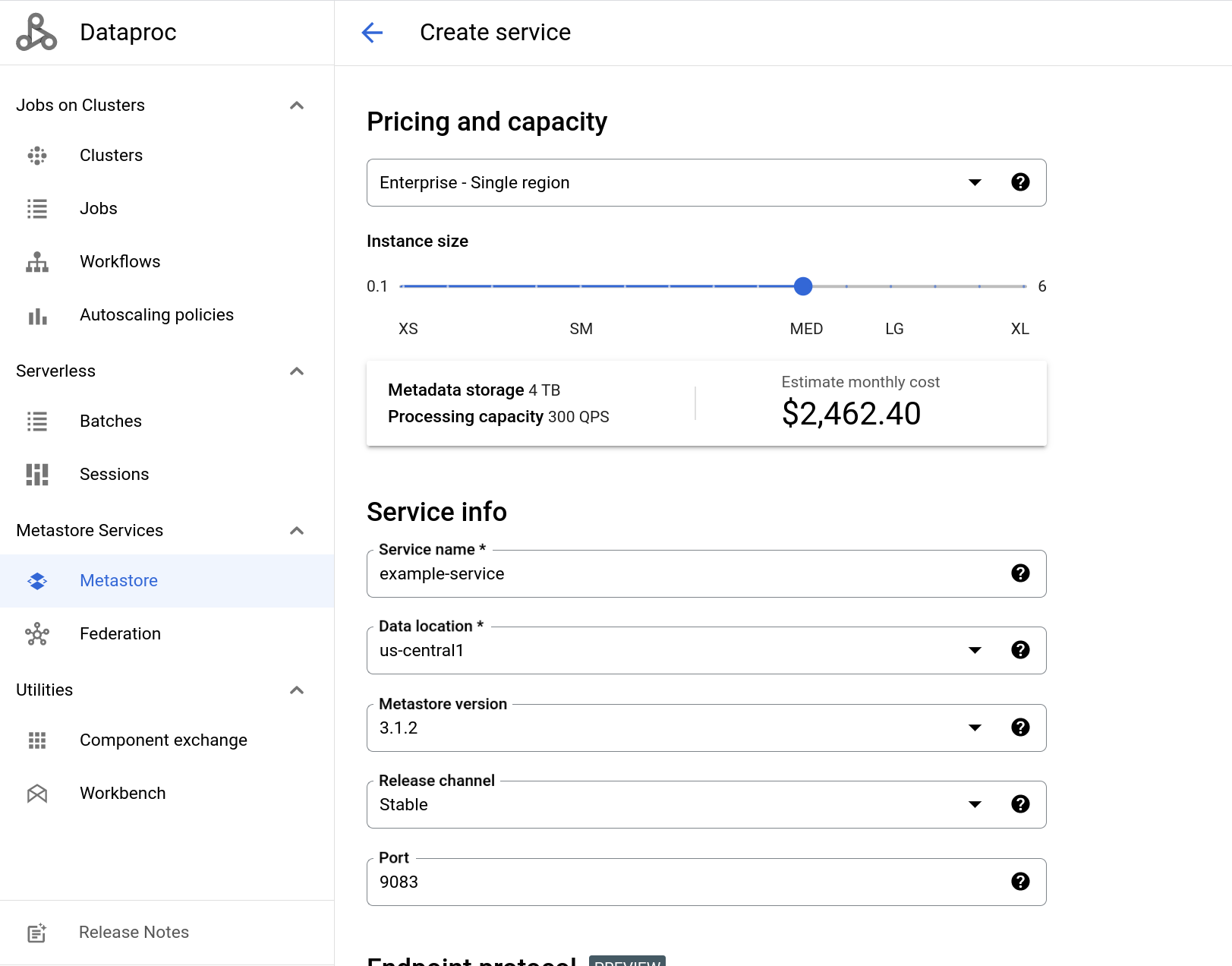
The following screenshot shows an example of the **Create service** page
using some of the provided defaults.
### gcloud CLI
```
gcloud metastore services create example-service \
--location=us-central1 \
--instance-size=MEDIUM
```
### REST
Follow the API instructions to [create a service](https://docs.cloud.google.com/dataproc-metastore/docs/reference/rest/v1/projects.locations.services/create)
by using the APIs Explorer.
## Create a Managed Service for Apache Spark cluster and connect to Dataproc Metastore
Next, you create a Managed Service for Apache Spark cluster and connect to your metastore
from the cluster. After that, your cluster uses the metastore service as its HMS.
The cluster you create here uses the default provided settings.
### Console
1. In the Google Cloud console, go to the **Dataproc Clusters** page.
[Go to
Managed Service for Apache Spark Clusters](https://console.cloud.google.com/dataproc/clusters)
2. In the navigation bar, select **+Create cluster**.
The **Create a cluster** dialog opens providing multiple infrastructure choices that
you can choose from.
3. In the **Cluster on Compute Engine** row, select **Create**.
The **Create a Managed Service for Apache Spark cluster on Compute Engine** page
opens.
4. In the **Cluster Name** field, enter `example-cluster`.
5. In the **Region** and **Zone** menus, select `us-central1`.
6. For the remaining **Set up cluster** options, use the provided defaults.
7. In the navigation menu, click the **Customize cluster (optional)** tab.
8. In the **Dataproc Metastore** section, select the metastore
service you created earlier.
If you followed this tutorial as-is, it's named `example-service`.
9. For the remaining service configuration options, use the provided defaults.
10. To create the cluster, click **Create**.
Your new cluster appears in the **Clusters** list. The cluster status
displays **Provisioning** until the cluster is ready to use. When it's
ready, the status changes to **Active**. Provisioning the cluster might
take a couple of minutes.
> [!NOTE]
> **Note:** The Managed Service for Apache Spark cluster creation process can fail if your service account doesn't have the appropriate roles. For more information, see [Cluster creation fails due to insufficient roles](https://docs.cloud.google.com/dataproc-metastore/docs/troubleshooting#cluster_creation_fails_due_to_insufficient_roles).
### gcloud CLI
To create a cluster using the provided default settings, run the
following [`gcloud dataproc clusters create`](https://docs.cloud.google.com/sdk/gcloud/reference/dataproc/clusters/create)
command:
```
gcloud dataproc clusters create example-cluster \
--dataproc-metastore=projects/PROJECT_ID/locations/us-central1/services/example-service \
--region=us-central1
```
Replace `PROJECT_ID` with the project ID of the
project that you created your Dataproc Metastore service in.
> [!NOTE]
> **Note:** The Managed Service for Apache Spark cluster creation process can fail if your service account doesn't have the appropriate roles. For more information, see [Cluster creation fails due to insufficient roles](https://docs.cloud.google.com/dataproc-metastore/docs/troubleshooting#cluster_creation_fails_due_to_insufficient_roles).
### REST
Follow the API instructions to [create a cluster](https://docs.cloud.google.com/dataproc/docs/reference/rest/v1/projects.regions.clusters/create)
by using the APIs Explorer.
## Connect to Apache Hive with a Managed Service for Apache Spark cluster
These next steps show you how to run some example commands in Apache Hive to create
a database and a table.
Next, open an SSH session on the Managed Service for Apache Spark cluster and launch a
Hive session.
1. In the Google Cloud console, go to the [VM
Instances](https://console.cloud.google.com/compute/instances) page.
2. In the list of virtual machine instances, click **SSH** next to `example-cluster`.
A browser window opens in your home directory on the node with an output similar
to the following:
Connected, host fingerprint: ssh-rsa ...
Linux cluster-1-m 3.16.0-0.bpo.4-amd64 ...
...
example-cluster@cluster-1-m:~$
To start Hive and create a database and table, run the following commands in the SSH session:
1. Start Hive.
hive
2. Create a database called `myDatabase`.
create database myDatabase;
3. Show the database you created.
show databases;
4. Use the database you created.
use myDatabase;
5. Create a table called `myTable`.
create table myTable(id int,name string);
6. List the tables under `myDatabase`.
show tables;
7. Describe the schema of the table you created.
desc MyTable;
Running these commands shows an output similar to the following:
$hive
hive> show databases;
OK
default
hive> create database myDatabase;
OK
hive> use myDatabase;
OK
hive> create table myTable(id int,name string);
OK
hive> show tables;
OK
myTable
hive> desc myTable;
OK
id int
name string
## Clean up
To avoid incurring charges to your Google Cloud account for
the resources used on this page, follow these steps.
> [!CAUTION]
> **Caution** : Deleting a project has the following effects:
>
> - **Everything in the project is deleted.** If you used an existing project for the tasks in this document, when you delete it, you also delete any other work you've done in the project.
> - **Custom project IDs are lost.** When you created this project, you might have created a custom project ID that you want to use in the future. To preserve the URLs that use the project ID, such as an `appspot.com` URL, delete selected resources inside the project instead of deleting the whole project.
>
>
> If you plan to explore multiple architectures, tutorials, or quickstarts, reusing projects
> can help you avoid exceeding project quota limits.
1. In the Google Cloud console, go to the **Manage resources** page.
[Go to Manage resources](https://console.cloud.google.com/iam-admin/projects)
2. If the project that you plan to delete is attached to an organization, expand the **Organization** list in the **Name** column.
3. In the project list, select the project that you want to delete, and then click **Delete**.
4. In the dialog, type the project ID, and then click **Shut down** to delete the project.
Alternatively, you can delete the resources used in this tutorial:
1. Delete the Dataproc Metastore service.
### Console
1. In the Google Cloud console, open the **Dataproc Metastore** page:
[Go to Dataproc Metastore](https://console.cloud.google.com/dataproc/metastore/services)
2. In the service list, select `example-service`.
3. In the navigation bar, click **Delete**.
The **Delete service** dialog opens.
4. In the dialog, click **Delete**
Your service no longer appears in the **Service list**.
### gcloud CLI
To delete your service, run the following `gcloud metastore services
delete` command.
```
gcloud metastore services delete example-service \
--location=us-central1
```
### REST
Follow the API instructions to [delete a service](https://docs.cloud.google.com/dataproc-metastore/docs/reference/rest/v1/projects.locations.services/delete)
by using the APIs Explorer.
All deletions succeed immediately.
2. [Delete the Cloud Storage bucket](https://docs.cloud.google.com/storage/docs/deleting-buckets)
for the Dataproc Metastore service.
> [!NOTE]
> **Note:** Deleting the Dataproc Metastore service doesn't automatically delete its bucket.
3. [Delete the Managed Service for Apache Spark cluster](https://docs.cloud.google.com/dataproc/docs/guides/manage-cluster#deleting_a_cluster)
that used the Dataproc Metastore service.
## What's next
- [Grant basic Dataproc Metastore IAM roles to users](https://docs.cloud.google.com/dataproc-metastore/docs/grant-access)
- [Import metadata into a service](https://docs.cloud.google.com/dataproc-metastore/docs/import-metadata)
- [Dataproc Metastore overview](https://docs.cloud.google.com/dataproc-metastore/docs/overview)