> [!CAUTION]
> Updating batch pipelines isn't supported.
This document describes how to update an ongoing streaming job.
You might want to update your existing
Dataflow job for the following reasons:
- You want to enhance or otherwise improve your pipeline code.
- You want to fix bugs in your pipeline code.
- You want to update your pipeline to handle changes in data format, or to account for version or other changes in your data source.
- You want to patch a security vulnerability related to [Container-Optimized OS](https://docs.cloud.google.com/container-optimized-os/docs/concepts/security) for all the Dataflow workers.
- You want to scale a streaming Apache Beam pipeline to use a different number of workers.
You can update jobs in two ways:
- [In-flight job update](https://docs.cloud.google.com/dataflow/docs/guides/updating-a-pipeline#in-flight-updates): For streaming jobs that use [Streaming Engine](https://docs.cloud.google.com/dataflow/docs/streaming-engine), you can update the `min-num-workers` and `max-num-workers` job options without stopping the job or changing the job ID.
- [Replacement job](https://docs.cloud.google.com/dataflow/docs/guides/updating-a-pipeline#Launching): To run updated pipeline code or to update job options that in-flight job updates don't support, launch a new job that replaces the existing job. To verify whether a replacement job is valid, before launching the new job, [validate its job graph](https://docs.cloud.google.com/dataflow/docs/guides/updating-a-pipeline#validate).
When you update your job, the Dataflow service performs a
[compatibility check](https://docs.cloud.google.com/dataflow/docs/guides/updating-a-pipeline#CCheck) between your already running job and your
potential replacement job. The compatibility check ensures that things like
intermediate state information and buffered data can be transferred from your
prior job to your replacement job.
You can also use the built-in logging infrastructure of the Apache Beam SDK
to log information when you update your job. For more information, see
[Work with pipeline logs](https://docs.cloud.google.com/dataflow/docs/guides/logging).
To identify problems with the pipeline code, use the
[`DEBUG` logging level](https://docs.cloud.google.com/dataflow/docs/guides/logging#SettingLevels).
- For instructions for updating streaming jobs that use classic templates, see [Update a custom template streaming job](https://docs.cloud.google.com/dataflow/docs/guides/templates/running-templates#update).
- For instructions for updating streaming jobs that use Flex Templates, either follow the gcloud CLI instruction on this page, or see [Update a Flex Template job](https://docs.cloud.google.com/dataflow/docs/guides/templates/configuring-flex-templates#update).
## In-flight job option update
For a streaming job that uses
[Streaming Engine](https://docs.cloud.google.com/dataflow/docs/streaming-engine), you can update the
following job options without stopping the job or changing the job ID:
- `min-num-workers`: the minimum number of Compute Engine instances.
- `max-num-workers`: the maximum number of Compute Engine instances.
- `worker-utilization-hint`: the [target CPU
utilization](https://docs.cloud.google.com/dataflow/docs/guides/tune-horizontal-autoscaling#utilization-hint), in the range \[0.1, 0.9\]
- `latency-tier`: the [latency tier](https://docs.cloud.google.com/dataflow/docs/guides/tune-horizontal-autoscaling#latency-tier), which sets the backlog threshold. Values: `low_latency` (default, less than 15 seconds), `medium_latency` (less than 2 minutes), or `high_latency` (less than 10 minutes).
For other job updates, you must *replace* the current job with the updated job.
For more information, see
[Launch a replacement job](https://docs.cloud.google.com/dataflow/docs/guides/updating-a-pipeline#Launching).
### Perform an in-flight update
To perform an in-flight job option update, perform the following steps.
### gcloud
Use the [`gcloud dataflow jobs update-options`](https://docs.cloud.google.com/sdk/gcloud/reference/dataflow/jobs/update-options)
command:
```bash
gcloud dataflow jobs update-options \
--region=REGION \
--min-num-workers=MINIMUM_WORKERS \
--max-num-workers=MAXIMUM_WORKERS \
--worker-utilization-hint=TARGET_UTILIZATION \
--latency-tier=TIER \
JOB_ID
```
Replace the following:
- REGION: the ID of the job's region
- MINIMUM_WORKERS: the minimum number of Compute Engine instances
- MAXIMUM_WORKERS: the maximum number of Compute Engine instances
- TARGET_UTILIZATION: a value in the range \[0.1, 0.9\]
- TIER: the target latency tier. One of the following: `low_latency`, `medium_latency`, or `high_latency`
- JOB_ID: the ID of the job to update
You can also update `--min-num-workers`, `--max-num-workers`,
`--worker-utilization-hint`, or `--latency-tier` individually.
### REST
Use the
[`projects.locations.jobs.update`](https://docs.cloud.google.com/dataflow/docs/reference/rest/v1b3/projects.locations.jobs/update)
method:
```bash
PUT https://dataflow.googleapis.com/v1b3/projects/PROJECT_ID/locations/REGION/jobs/JOB_ID?updateMask=MASK
{
"runtime_updatable_params": {
"min_num_workers": MINIMUM_WORKERS,
"max_num_workers": MAXIMUM_WORKERS,
"worker_utilization_hint": TARGET_UTILIZATION,
"latency_tier": TIER
}
}
```
Replace the following:
- MASK: a comma-separated list of parameters to update, from the following:
- `runtime_updatable_params.max_num_workers`
- `runtime_updatable_params.min_num_workers`
- `runtime_updatable_params.worker_utilization_hint`
- PROJECT_ID: the Google Cloud project ID of the Dataflow job
- REGION: the ID of the job's region
- JOB_ID: the ID of the job to update
- MINIMUM_WORKERS: the minimum number of Compute Engine instances
- MAXIMUM_WORKERS: the maximum number of Compute Engine instances
- TARGET_UTILIZATION: a value in the range \[0.1, 0.9\]
- TIER: the target latency tier. One of the following: `low_latency`, `medium_latency`, or `high_latency`
You can also update `min_num_workers`, `max_num_workers`,
`worker_utilization_hint`, or `latency_tier` individually.
Specify which parameters to update in the `updateMask` query parameter, and
include the updated values in the `runtimeUpdatableParams` field of the
request body. The following example updates `min_num_workers`:
```bash
PUT https://dataflow.googleapis.com/v1b3/projects/my_project/locations/us-central1/jobs/job1?updateMask=runtime_updatable_params.min_num_workers
{
"runtime_updatable_params": {
"min_num_workers": 5
}
}
```
A job must be in the running state to be eligible for in-flight updates. An
error occurs if the job has not started or is already cancelled. Similarly, if
you launch a replacement job, wait for it to begin running before sending any
in-flight updates to the new job.
After you submit an update request, we recommend waiting for the request to
complete before sending another update. View the
[job logs](https://docs.cloud.google.com/dataflow/docs/guides/logging#MonitoringLogs) to see when the request
completes.
## Validate a replacement job
To verify whether a replacement job is valid, before you launch the new job,
validate its job graph. In Dataflow, a
[job graph](https://docs.cloud.google.com/dataflow/docs/guides/job-graph) is a graphical representation of
a pipeline. By validating the job graph, you reduce the risk of the
pipeline encountering errors or pipeline failures after the update.
In addition, you can validate updates without needing to stop the original
job, so that job doesn't experience any downtime.
To validate your job graph, follow the steps to
[launch a replacement job](https://docs.cloud.google.com/dataflow/docs/guides/updating-a-pipeline#Launching). Include the `graph_validate_only`
[Dataflow service option](https://docs.cloud.google.com/dataflow/docs/reference/service-options) in the update command.
### Java
- Pass the `--update` option.
- Set the `--jobName` option in `PipelineOptions` to the same name as the job that you want to update.
- Set the `--region` option to the same region as the region of the job that you want to update.
- Include the `--dataflowServiceOptions=graph_validate_only` service option.
- If any transform names in your pipeline have changed, you must supply a [transform mapping](https://docs.cloud.google.com/dataflow/docs/guides/updating-a-pipeline#Mapping) and pass it using the `--transformNameMapping` option.
- If you're submitting a replacement job that uses a later version of the Apache Beam SDK, set `--updateCompatibilityVersion` to the Apache Beam SDK version used in the original job.
### Python
- Pass the `--update` option.
- Set the `--job_name` option in `PipelineOptions` to the same name as the job that you want to update.
- Set the `--region` option to the same region as the region of the job that you want to update.
- Include the `--dataflow_service_options=graph_validate_only` service option.
- If any transform names in your pipeline have changed, you must supply a [transform mapping](https://docs.cloud.google.com/dataflow/docs/guides/updating-a-pipeline#Mapping) and pass it using the `--transform_name_mapping` option.
- If you're submitting a replacement job that uses a later version of the Apache Beam SDK, set `--updateCompatibilityVersion` to the Apache Beam SDK version used in the original job.
### Go
- Pass the `--update` option.
- Set the `--job_name` option to the same name as the job that you want to update.
- Set the `--region` option to the same region as the region of the job that you want to update.
- Include the `--dataflow_service_options=graph_validate_only` service option.
- If any transform names in your pipeline have changed, you must supply a [transform mapping](https://docs.cloud.google.com/dataflow/docs/guides/updating-a-pipeline#Mapping) and pass it using the `--transform_name_mapping` option.
### gcloud
To validate the job graph for a Flex Template job, use the
[`gcloud dataflow flex-template run`](https://docs.cloud.google.com/sdk/gcloud/reference/dataflow/flex-template/run)
command with the `additional-experiments` option:
- Pass the `--update` option.
- Set the JOB_NAME to the same name as the job that you want to update.
- Set the `--region` option to the same region as the region of the job that you want to update.
- Include the `--additional-experiments=graph_validate_only` option.
- If any transform names in your pipeline have changed, you must supply a [transform mapping](https://docs.cloud.google.com/dataflow/docs/guides/updating-a-pipeline#Mapping) and pass it using the `--transform-name-mappings` option.
For example:
gcloud dataflow flex-template run JOB_NAME --additional-experiments=graph_validate_only
Replace JOB_NAME with the name of the job that you want to update.
### REST
Use the `additionalExperiments` field in the
[`FlexTemplateRuntimeEnvironment`](https://docs.cloud.google.com/dataflow/docs/reference/rest/v1b3/projects.locations.flexTemplates/launch#FlexTemplateRuntimeEnvironment)
(Flex templates) or
[`RuntimeEnvironment`](https://docs.cloud.google.com/dataflow/docs/reference/rest/v1b3/RuntimeEnvironment)
object.
{
additionalExperiments : ["graph_validate_only"]
...
}
The `graph_validate_only` service option
only validates pipeline updates. Don't use this option when creating or
launching pipelines. To update your pipeline,
[launch a replacement job](https://docs.cloud.google.com/dataflow/docs/guides/updating-a-pipeline#Launching) without the
`graph_validate_only` service option.
When the job graph validation succeeds, the job state and
the job logs show the following statuses:
- The [job state](https://docs.cloud.google.com/dataflow/docs/reference/rpc/google.dataflow.v1beta3#google.dataflow.v1beta3.JobState) is `JOB_STATE_DONE`.
- In the Google Cloud console, the **Job status** is `Succeeded`.
- The following message appears in the [job logs](https://docs.cloud.google.com/dataflow/docs/guides/logging#MonitoringLogs):
Workflow job: JOB_ID succeeded validation. Marking graph_validate_only job as Done.
When the job graph validation fails, the job state and the
job logs show the following statuses:
- The [job state](https://docs.cloud.google.com/dataflow/docs/reference/rpc/google.dataflow.v1beta3#google.dataflow.v1beta3.JobState) is `JOB_STATE_FAILED`.
- In the Google Cloud console, the **Job status** is `Failed`.
- A message appears in the [job logs](https://docs.cloud.google.com/dataflow/docs/guides/logging#MonitoringLogs) describing the incompatibility error. The message content depends on the error.
## Launch a replacement job
You might replace an existing job for the following reasons:
- To run updated pipeline code.
- To update job options that don't support [in-flight updates](https://docs.cloud.google.com/dataflow/docs/guides/updating-a-pipeline#in-flight-updates).
To verify whether a replacement job is valid, before you launch the new job,
[validate its job graph](https://docs.cloud.google.com/dataflow/docs/guides/updating-a-pipeline#validate).
When you launch a replacement job, set the following pipeline options to
perform the update process in addition to the regular options of the job:
### Java
- Pass the `--update` option.
- Set the `--jobName` option in `PipelineOptions` to the same name as the job that you want to update.
- Set the `--region` option to the same region as the region of the job that you want to update.
- If any transform names in your pipeline have changed, you must supply a [transform mapping](https://docs.cloud.google.com/dataflow/docs/guides/updating-a-pipeline#Mapping) and pass it using the `--transformNameMapping` option.
- If you're submitting a replacement job that uses a later version of the Apache Beam SDK, set `--updateCompatibilityVersion` to the Apache Beam SDK version used in the original job.
### Python
- Pass the `--update` option.
- Set the `--job_name` option in `PipelineOptions` to the same name as the job that you want to update.
- Set the `--region` option to the same region as the region of the job that you want to update.
- If any transform names in your pipeline have changed, you must supply a [transform mapping](https://docs.cloud.google.com/dataflow/docs/guides/updating-a-pipeline#Mapping) and pass it using the `--transform_name_mapping` option.
- If you're submitting a replacement job that uses a later version of the Apache Beam SDK, set `--updateCompatibilityVersion` to the Apache Beam SDK version used in the original job.
### Go
- Pass the `--update` option.
- Set the `--job_name` option to the same name as the job that you want to update.
- Set the `--region` option to the same region as the region of the job that you want to update.
- If any transform names in your pipeline have changed, you must supply a [transform mapping](https://docs.cloud.google.com/dataflow/docs/guides/updating-a-pipeline#Mapping) and pass it using the `--transform_name_mapping` option.
### gcloud
To update a Flex Template job by using the gcloud CLI, use the
[`gcloud dataflow flex-template run`](https://docs.cloud.google.com/sdk/gcloud/reference/dataflow/flex-template/run)
command. Updating other jobs by using the gcloud CLI
isn't supported.
- Pass the `--update` option.
- Set the JOB_NAME to the same name as the job that you want to update.
- Set the `--region` option to the same region as the region of the job that you want to update.
- If any transform names in your pipeline have changed, you must supply a [transform mapping](https://docs.cloud.google.com/dataflow/docs/guides/updating-a-pipeline#Mapping) and pass it using the `--transform-name-mappings` option.
### REST
These instructions show how to update non-template jobs by using the REST
API. To use the REST API to update a classic template job, see
[Update a custom template streaming job](https://docs.cloud.google.com/dataflow/docs/guides/templates/running-templates#example-3:-updating-a-custom-template-streaming-job).
To use the REST API to update a Flex Template job, see
[Update a Flex Template job](https://docs.cloud.google.com/dataflow/docs/guides/templates/configuring-flex-templates#update).
1. Fetch the
[`job`](https://docs.cloud.google.com/dataflow/docs/reference/rest/v1b3/projects.jobs#resource:-job)
resource for the job that you want to replace by using the
[`projects.locations.jobs.get`](https://docs.cloud.google.com/dataflow/docs/reference/rest/v1b3/projects.locations.jobs/get)
method. Include the
[`view`](https://docs.cloud.google.com/dataflow/docs/reference/rest/v1b3/projects.locations.jobs/get#query-parameters)
query parameter with the value
[`JOB_VIEW_DESCRIPTION`](https://docs.cloud.google.com/dataflow/docs/reference/rest/v1b3/JobView).
Including `JOB_VIEW_DESCRIPTION` limits the amount of data in the response
so that your subsequent request doesn't exceed size limits. If you need
more detailed job information, use the value `JOB_VIEW_ALL`.
GET https://dataflow.googleapis.com/v1b3/projects/PROJECT_ID/locations/REGION/jobs/JOB_ID?view=JOB_VIEW_DESCRIPTION
Replace the following values:
- PROJECT_ID: the Google Cloud project ID of the Dataflow job
- REGION: the region of the job that you want to update
- JOB_ID: the job ID of the job that you want to update
2. To update the job, use the
[`projects.locations.jobs.create`](https://docs.cloud.google.com/dataflow/docs/reference/rest/v1b3/projects.locations.jobs/create)
method. In the request body, use the `job` resource that you fetched.
POST https://dataflow.googleapis.com/v1b3/projects/PROJECT_ID/locations/REGION/jobs
{
"id": JOB_ID,
"replaceJobId": JOB_ID,
"name": JOB_NAME,
"type": "JOB_TYPE_STREAMING",
"transformNameMapping": {
string: string,
...
},
}
Replace the following:
- JOB_ID: the same job ID as the ID of the job that you want to update.
- JOB_NAME: the same job name as the name of the job that you want to update.
If any transform names in your pipeline have changed, you must supply a
[transform mapping](https://docs.cloud.google.com/dataflow/docs/guides/updating-a-pipeline#Mapping) and pass it using the `transformNameMapping` field.
3. Optional: To send your request using curl (Linux, macOS, or Cloud Shell), save the
request to a JSON file, and then run the following command:
curl -X POST -d "@FILE_PATH" -H "Content-Type: application/json" -H "Authorization: Bearer $(gcloud auth print-access-token)" https://dataflow.googleapis.com/v1b3/projects/PROJECT_ID/locations/REGION/jobs
Replace FILE_PATH with the path to the JSON file that contains the
request body.
> [!CAUTION]
> **Caution:** To facilitate the mapping between transforms in your prior
> pipeline and your replacement pipeline, give explicit names to
> every transform in your pipelines. By default, Dataflow
> generates a warning if you don't explicitly name your transforms. You
> can increase this warning to an error.
### Specify your replacement job name
### Java
When you launch your replacement job, the value you pass for the `--jobName`
option must match exactly the name of the job you want to replace.
### Python
When you launch your replacement job, the value you pass for the `--job_name`
option must match exactly the name of the job you want to replace.
### Go
When you launch your replacement job, the value you pass for the `--job_name`
option must match exactly the name of the job you want to replace.
### gcloud
When you launch your replacement job, the JOB_NAME must match
exactly the name of the job you want to replace.
### REST
Set the value of the `replaceJobId` field to the same job ID as the job that you want
to update. To find the correct job name value, select your prior job in the
[Dataflow Monitoring Interface](https://docs.cloud.google.com/dataflow/pipelines/dataflow-monitoring-intf).
Then, in the **Job info** side panel, find the **Job ID** field.
To find the
correct job name value, select your prior job in the [Dataflow
Monitoring Interface](https://docs.cloud.google.com/dataflow/docs/guides/monitoring-overview). Then, in the
**Job info** side panel, find the **Job name** field:
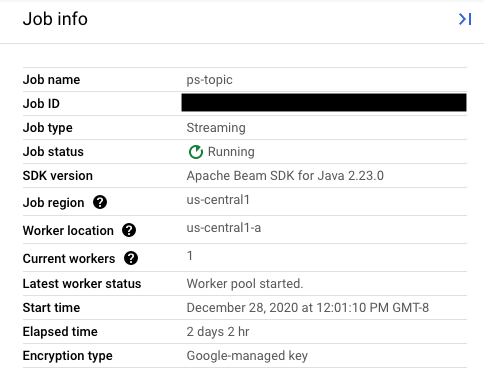 Figure 1: The Job info side panel for a running Dataflow job with the Job name field.
Alternatively, query a list of existing jobs by using the
[Dataflow Command-line Interface](https://docs.cloud.google.com/dataflow/pipelines/dataflow-command-line-intf).
Enter the command `gcloud dataflow jobs list` into your shell or terminal
window to obtain a list of Dataflow jobs in your Google Cloud
project, and find the `NAME` field for the job you want to replace:
```
JOB_ID NAME TYPE CREATION_TIME STATE REGION
2020-12-28_12_01_09-yourdataflowjobid ps-topic Streaming 2020-12-28 20:01:10 Running us-central1
```
### Create a transform mapping
If your replacement pipeline changes any transform names from the names in your
prior pipeline, the Dataflow service requires a **transform
mapping**. The transform mapping maps the named transforms in your prior
pipeline code to names in your replacement pipeline code.
### Java
Pass the mapping by using the `--transformNameMapping` command-line option,
using the following general format:
```
--transformNameMapping= .
{"oldTransform1":"newTransform1","oldTransform2":"newTransform2",...}
```
You only need to provide mapping entries in `--transformNameMapping` for
transform names that have changed between your prior pipeline and your
replacement pipeline.
When you run with `--transformNameMapping`,
you might need to escape
the quotations as appropriate for your shell. For example, in Bash:
```
--transformNameMapping='{"oldTransform1":"newTransform1",...}'
```
### Python
Pass the mapping by using the `--transform_name_mapping` command-line option,
using the following general format:
```
--transform_name_mapping= .
{"oldTransform1":"newTransform1","oldTransform2":"newTransform2",...}
```
You only need to provide mapping entries in `--transform_name_mapping` for
transform names that have changed between your prior pipeline and your
replacement pipeline.
When you run with `--transform_name_mapping`,
you might need to escape
the quotations as appropriate for your shell. For example, in Bash:
```
--transform_name_mapping='{"oldTransform1":"newTransform1",...}'
```
### Go
Pass the mapping by using the `--transform_name_mapping` command-line option,
using the following general format:
```
--transform_name_mapping= .
{"oldTransform1":"newTransform1","oldTransform2":"newTransform2",...}
```
You only need to provide mapping entries in `--transform_name_mapping` for
transform names that have changed between your prior pipeline and your
replacement pipeline.
When you run with `--transform_name_mapping`,
you might need to escape
the quotations as appropriate for your shell. For example, in Bash:
```
--transform_name_mapping='{"oldTransform1":"newTransform1",...}'
```
### gcloud
Pass the mapping by using the `--transform-name-mappings`
option, using the following general format:
```
--transform-name-mappings= .
{"oldTransform1":"newTransform1","oldTransform2":"newTransform2",...}
```
You only need to provide mapping entries in `--transform-name-mappings` for
transform names that have changed between your prior pipeline and your
replacement pipeline.
When you run with `--transform-name-mappings`,
you might need to escape the quotations as appropriate for your shell. For
example, in Bash:
```
--transform-name-mappings='{"oldTransform1":"newTransform1",...}'
```
### REST
Pass the mapping by using the `transformNameMapping`
field, using the following general format:
"transformNameMapping": {
oldTransform1: newTransform1,
oldTransform2: newTransform2,
...
}
You only need to provide mapping entries in `transformNameMapping` for
transform names that have changed between your prior pipeline and your
replacement pipeline.
#### Determine transform names
The **transform name** in each instance in the map is the name that you supplied
when you applied the transform in your pipeline. For example:
### Java
.apply("FormatResults", ParDo
.of(new DoFn<KV<String, Long>>, String>() {
...
}
}))
### Python
| 'FormatResults' >> beam.ParDo(MyDoFn())
### Go
// In Go, this is always the package-qualified name of the DoFn itself.
// For example, if the FormatResults DoFn is in the main package, its name
// is "main.FormatResults".
beam.ParDo(s, FormatResults, results)
You can also get the transform names for your prior job by examining the
execution graph of the job in the
[Dataflow Monitoring Interface](https://docs.cloud.google.com/dataflow/pipelines/dataflow-monitoring-intf):
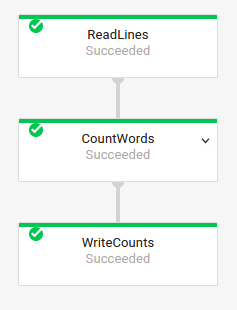 Figure 2: The execution graph for a WordCount pipeline as shown in the Dataflow Monitoring Interface.
#### Composite transform naming
Transform names are hierarchical, based on the transform hierarchy in your
pipeline. If your pipeline has a
[composite transform](https://beam.apache.org/documentation/programming-guide/#composite-transforms),
the nested transforms are named in terms of their containing transform. For
example, suppose that your pipeline contains a composite transform named
`CountWidgets`, which contains an inner transform named `Parse`. The full name
of your transform is `CountWidgets/Parse`, and you must specify that
full name in your transform mapping.
If your new pipeline maps a composite transform to a different name, all nested
transforms are also automatically renamed. You must specify the changed names
for the inner transforms in your transform mapping.
#### Refactor the transform hierarchy
If your replacement pipeline uses a different transform hierarchy than your
prior pipeline, you must explicitly declare the mapping. You might have a
different transform hierarchy because you refactored your composite transforms,
or your pipeline depends on a composite transform from a library that changed.
For example, your prior pipeline applied a composite transform, `CountWidgets`,
which contained an inner transform named `Parse`. The replacement pipeline
refactors `CountWidgets`, and nests `Parse` inside another transform named
`Scan`. For your update to succeed, you must explicitly map the complete
transform name in the prior pipeline (`CountWidgets/Parse`) to the transform
name in the new pipeline (`CountWidgets/Scan/Parse`):
### Java
```
--transformNameMapping={"CountWidgets/Parse":"CountWidgets/Scan/Parse"}
```
If you delete a transform entirely in your replacement pipeline, you must
provide a null mapping. Suppose that your replacement pipeline removes the
`CountWidgets/Parse` transform entirely:
```
--transformNameMapping={"CountWidgets/Parse":""}
```
### Python
```
--transform_name_mapping={"CountWidgets/Parse":"CountWidgets/Scan/Parse"}
```
If you delete a transform entirely in your replacement pipeline, you must
provide a null mapping. Suppose that your replacement pipeline removes the
`CountWidgets/Parse` transform entirely:
```
--transform_name_mapping={"CountWidgets/Parse":""}
```
### Go
```
--transform_name_mapping={"CountWidgets/main.Parse":"CountWidgets/Scan/main.Parse"}
```
If you delete a transform entirely in your replacement pipeline, you must
provide a null mapping. Suppose that your replacement pipeline removes the
`CountWidgets/Parse` transform entirely:
```
--transform_name_mapping={"CountWidgets/main.Parse":""}
```
### gcloud
```
--transform-name-mappings={"CountWidgets/Parse":"CountWidgets/Scan/Parse"}
```
If you delete a transform entirely in your replacement pipeline, you must
provide a null mapping. Suppose that your replacement pipeline removes the
`CountWidgets/Parse` transform entirely:
```
--transform-name-mappings={"CountWidgets/main.Parse":""}
```
### REST
"transformNameMapping": {
CountWidgets/Parse: CountWidgets/Scan/Parse
}
If you delete a transform entirely in your replacement pipeline, you must
provide a null mapping. Suppose that your replacement pipeline removes the
`CountWidgets/Parse` transform entirely:
"transformNameMapping": {
CountWidgets/main.Parse: null
}
### The effects of replacing a job
When you replace an existing job, a new job runs your updated pipeline code. The
Dataflow service retains the job name but runs the replacement
job with an updated **Job ID**. This process might cause downtime
while the existing job stops, the compatibility check runs, and the new job
starts.
The replacement job preserves the following items:
- [Intermediate state data](https://docs.cloud.google.com/dataflow/docs/guides/updating-a-pipeline#state-data) from the prior job. In-memory caches aren't saved.
- Buffered data records or [metadata currently "in-flight"](https://docs.cloud.google.com/dataflow/docs/guides/updating-a-pipeline#in-flight-data) from the prior job. For example, some records in your pipeline might be buffered while waiting for a [window](https://beam.apache.org/documentation/programming-guide/#windowing) to resolve.
- [In-flight job option updates](https://docs.cloud.google.com/dataflow/docs/guides/updating-a-pipeline#in-flight-updates) that you applied to the prior job.
If your pipeline contains [Managed I/O](https://docs.cloud.google.com/dataflow/docs/guides/managed-io)
connectors, then Dataflow checks for updates to the connectors
and automatically uses the latest known-good version. For more information, see
[Automatic upgrades](https://docs.cloud.google.com/dataflow/docs/guides/managed-io#upgrades)
#### Intermediate state data
Intermediate state data from the prior job is preserved. State data
doesn't include in-memory caches. If you want to preserve in-memory cache data
when updating your pipeline, as a workaround, refactor your pipeline to convert
caches to
[state data](https://beam.apache.org/documentation/programming-guide/#types-of-state)
or to
[side inputs](https://beam.apache.org/documentation/programming-guide/#side-inputs).
For more information about using side inputs, see
[Side input patterns](https://beam.apache.org/documentation/patterns/side-inputs/)
in the Apache Beam documentation.
Streaming pipelines have size limits for `ValueState` and for side inputs.
As a result, if you have large caches that you want to preserve, you might need
to use external storage, such as Memorystore or Bigtable.
#### In-flight data
"In-flight" data is still processed by the transforms in your new pipeline.
However, additional transforms that you add in your replacement pipeline code
might or might not take effect, depending on where the records are buffered. In
this example, your existing pipeline has the following transforms:
### Java
```
p.apply("Read", ReadStrings())
.apply("Format", FormatStrings());
```
### Python
```
p | 'Read' >> beam.io.ReadFromPubSub(subscription=known_args.input_subscription)
| 'Format' >> FormatStrings()
```
### Go
```
beam.ParDo(s, ReadStrings)
beam.ParDo(s, FormatStrings)
```
You can replace your job with new pipeline code, as follows:
### Java
```
p.apply("Read", ReadStrings())
.apply("Remove", RemoveStringsStartingWithA())
.apply("Format", FormatStrings());
```
### Python
```
p | 'Read' >> beam.io.ReadFromPubSub(subscription=known_args.input_subscription)
| 'Remove' >> RemoveStringsStartingWithA()
| 'Format' >> FormatStrings()
```
### Go
```
beam.ParDo(s, ReadStrings)
beam.ParDo(s, RemoveStringsStartingWithA)
beam.ParDo(s, FormatStrings)
```
Even though you add a transform to filter out strings that begin with the
letter "A", the next transform (`FormatStrings`) might still see buffered or
in-flight strings that begin with "A" that were transferred over from the prior
job.
#### Change windowing
You can change [windowing](https://beam.apache.org/documentation/programming-guide/#windowing)
and [trigger](https://beam.apache.org/documentation/programming-guide/#triggers)
strategies for the `PCollection` elements in your replacement pipeline, but use caution.
Changing the windowing or trigger strategies doesn't affect data that is
already buffered or otherwise in-flight.
We recommend that you attempt only smaller changes to your pipeline's windowing,
such as changing the duration of fixed- or sliding-time windows. Making major
changes to windowing or triggers, like changing the windowing algorithm, might
have unpredictable results on your pipeline output.
### Job compatibility check
When you launch your replacement job, the Dataflow service
performs a compatibility check between your replacement job and your prior job.
If the **compatibility check passes** , your prior job is stopped.
Your replacement job then launches on the Dataflow service while
retaining the same job name. If the **compatibility check fails**, your prior
job continues running on the Dataflow service and your
replacement job returns an error.
### Java
Due to a limitation, you must use blocking
execution to see failed update attempt errors in your console or terminal.
The current workaround consists of the following steps:
1. Use [pipeline.run().waitUntilFinish()](https://beam.apache.org/documentation/sdks/javadoc/current/index.html?org/apache/beam/runners/dataflow/DataflowPipelineJob.html) in your pipeline code.
2. Run your replacement pipeline program with the `--update` option.
3. Wait for the replacement job to successfully pass the compatibility check.
4. Exit the blocking runner process by typing `Ctrl+C`.
Alternately, you can monitor the state of your replacement job in the
[Dataflow Monitoring Interface](https://docs.cloud.google.com/dataflow/pipelines/dataflow-monitoring-intf).
If your job has started successfully, it also passed the compatibility check.
### Python
Due to a limitation, you must use blocking
execution to see failed update attempt errors in your console or terminal.
The current workaround consists of the following steps:
1. Use [pipeline.run().wait_until_finish()](https://beam.apache.org/releases/pydoc/current/apache_beam.runners.runner.html?highlight=wait_until_finish#apache_beam.runners.runner.PipelineResult.wait_until_finish) in your pipeline code.
2. Run your replacement pipeline program with the `--update` option.
3. Wait for the replacement job to successfully pass the compatibility check.
4. Exit the blocking runner process by typing `Ctrl+C`.
Alternately, you can monitor the state of your replacement job in the
[Dataflow Monitoring Interface](https://docs.cloud.google.com/dataflow/pipelines/dataflow-monitoring-intf).
If your job has started successfully, it also passed the compatibility check.
### Go
Due to a limitation, you must use blocking
execution to see failed update attempt errors in your console or terminal.
Specifically, you must specify non-blocking execution by using the
`--execute_async` or `--async` flags. The current
workaround consists of the following steps:
1. Run your replacement pipeline program with the `--update` option and without the `--execute_async` or `--async` flags.
2. Wait for the replacement job to successfully pass the compatibility check.
3. Exit the blocking runner process by typing `Ctrl+C`.
### gcloud
Due to a limitation, you must use blocking
execution to see failed update attempt errors in your console or terminal.
The current workaround consists of the following steps:
1. For Java pipelines, use [pipeline.run().waitUntilFinish()](https://beam.apache.org/documentation/sdks/javadoc/current/index.html?org/apache/beam/runners/dataflow/DataflowPipelineJob.html) in your pipeline code. For Python pipelines, use [pipeline.run().wait_until_finish()](https://beam.apache.org/releases/pydoc/current/apache_beam.runners.runner.html?highlight=wait_until_finish#apache_beam.runners.runner.PipelineResult.wait_until_finish) in your pipeline code. For Go pipelines, follow the steps in the Go tab.
2. Run your replacement pipeline program with the `--update` option.
3. Wait for the replacement job to successfully pass the compatibility check.
4. Exit the blocking runner process by typing `Ctrl+C`.
### REST
Due to a limitation, you must use blocking
execution to see failed update attempt errors in your console or terminal.
The current workaround consists of the following steps:
- For Java pipelines, use [pipeline.run().waitUntilFinish()](https://beam.apache.org/documentation/sdks/javadoc/current/index.html?org/apache/beam/runners/dataflow/DataflowPipelineJob.html) in your pipeline code. For Python pipelines, use [pipeline.run().wait_until_finish()](https://beam.apache.org/releases/pydoc/current/apache_beam.runners.runner.html?highlight=wait_until_finish#apache_beam.runners.runner.PipelineResult.wait_until_finish) in your pipeline code. For Go pipelines, follow the steps in the Go tab.
- Run your replacement pipeline program with the `replaceJobId` field.
- Wait for the replacement job to successfully pass the compatibility check.
- Exit the blocking runner process by typing `Ctrl+C`.
The compatibility check uses the provided transform mapping to ensure that
Dataflow can transfer intermediate state data from the steps in
your prior job to your replacement job. The compatibility check also ensures
that the `PCollection`s in your pipeline are using
the same [Coders](https://beam.apache.org/documentation/programming-guide/#data-encoding-and-type-safety).
Changing a `Coder` can cause the compatibility check to fail because any
in-flight data or buffered records might not be correctly serialized in the
replacement pipeline.
#### Prevent compatibility breaks
Certain differences between your prior pipeline and your replacement pipeline
can cause the compatibility to check to fail. These differences include:
- **Changing the pipeline graph without providing a mapping.** When you update a job, Dataflow attempts to match the transforms in your prior job to the transforms in the replacement job. This matching process helps Dataflow transfer intermediate state data for each step. If you rename or remove any steps, you must provide a [transform mapping](https://docs.cloud.google.com/dataflow/docs/guides/updating-a-pipeline#Mapping) so that Dataflow can match state data accordingly.
- **Changing the side inputs for a step.** Adding [side inputs](https://beam.apache.org/documentation/programming-guide/#side-inputs) to or removing them from a transform in your replacement pipeline causes the compatibility check to fail.
- **Changing the Coder for a step.** When you update a job, Dataflow preserves any currently buffered data records and handles them in the replacement job. For example, buffered data might occur while [windowing](https://beam.apache.org/documentation/programming-guide/#windowing) is resolving. If the replacement job uses different or incompatible [data encoding](https://beam.apache.org/documentation/programming-guide/#data-encoding-and-type-safety), Dataflow is not able to serialize or deserialize these records.
> [!CAUTION]
> **Caution:** The Dataflow service can't guarantee that changing a coder in your
> prior pipeline to an incompatible coder will cause the compatibility check to fail. It's
> recommended that you **do not** attempt to make backwards-incompatible changes to
> `Coder`s when updating your pipeline. If your pipeline update succeeds but you
> encounter issues or errors in the resulting data, ensure that your replacement pipeline uses
> data encoding that is compatible with your prior job.
- **Removing a "stateful" operation from your pipeline.** If you remove
stateful operations from your pipeline, your replacement job might fail the
compatibility check. Dataflow can
[fuse](https://docs.cloud.google.com/dataflow/service/dataflow-service-desc#Optimization) multiple steps
together for efficiency. If you remove a state-dependent operation from
within a fused step, the check fails. Stateful operations include:
- Transforms that produce or consume side inputs.
- I/O reads.
- Transforms that use keyed state.
- Transforms that have window merging.
- **Changing stateful `DoFn` variables.**
For ongoing streaming jobs, if your pipeline includes stateful `DoFn`s,
changing the stateful `DoFn` variables might cause the pipeline to fail.
- **Attempting to run your replacement job in a different geographic zone.**
Run your replacement job in the same zone in which you ran your prior job,
otherwise your replacement job will fail.
## Updating schemas
Apache Beam allows `PCollection`s to have schemas with named fields, in which case
explicit Coders are not needed. If the field names and types for a given schema
are unchanged (including nested fields), then that schema does not cause the
update check to fail. However, the update might still be blocked if other
segments of the new pipeline are incompatible.
### Evolve schemas
Often it's necessary to evolve a `PCollection`'s schema due to evolving business
requirements. The Dataflow service allows making the following
changes to a schema when updating pipeline:
- Adding one or more new fields to a schema, including nested fields.
- Making a required (non-nullable) field type optional (nullable).
Removing fields, changing field names, or changing field types isn't
permitted during update.
## Pass additional data into an existing ParDo operation
You can pass additional (out-of-band) data into an existing ParDo operation by
using one of the following methods, depending on your use case:
- Serialize information as fields in your `DoFn` subclass.
- Any variables referenced by the methods in an anonymous `DoFn` are automatically serialized.
- Compute data inside `DoFn.startBundle()`.
- Pass in data using `ParDo.withSideInputs`.
For more information, see the following pages:
- [Apache Beam programming guide: ParDo](https://beam.apache.org/documentation/programming-guide/#pardo), specifically the sections about creating a DoFn and side inputs.
- [Apache Beam SDK for Java reference: ParDo](https://beam.apache.org/releases/javadoc/current/index.html?org/apache/beam/sdk/transforms/ParDo.html)