

You can use a TCP proxy on a Compute Engine Virtual Machine (VM) when you want to establish private connectivity over Virtual Private Cloud (VPC) peering, but non-transitive VPC peering prevents direct routing between your source database and your destination AlloyDB for PostgreSQL cluster (for example, when migrating from a Cloud SQL for PostgreSQL instance that uses the older producer network architecture, or from a self-hosted source database in a separate VPC network). For a conceptual overview of how this method works, see TCP proxy through a cloud-hosted VM in the networking methods overview.
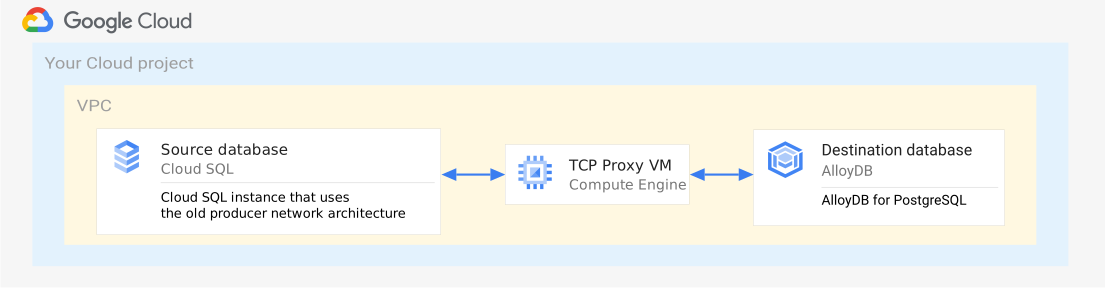
When you create a continuous migration job in the Google Cloud console,
Database Migration Service collects the required parameters and generates a gcloud script
that creates a Compute Engine container VM running the TCP proxy and a
firewall rule allowing incoming TCP traffic on port 5432 from the destination
AlloyDB for PostgreSQL cluster to the proxy VM.
Set up the TCP proxy VM
In the Google Cloud console, when you set up connectivity between the source and destination, perform the following steps:
In the Connectivity method drop-down menu, select Proxy via cloud-hosted VM - TCP.
Specify the following configuration parameters for the Compute Engine instance that serves as the proxy bastion host:
- Compute Engine VM instance name: A unique name for the proxy VM instance.
- Machine type: The Compute Engine machine type (for example,
e2-standard-2orn1-standard-1). - Subnetwork: The subnet of your VPC network that connects to the destination cluster.
Click View script to review the generated deployment script.
Run the script on a machine that has administrative access to your Google Cloud project.
Ensure that the source database network settings are updated to accept connections from the outgoing IP address of the TCP proxy VM:
- For self-hosted PostgreSQL: Update the replication section in
pg_hba.conf. - For Cloud SQL for PostgreSQL: Add the proxy VM's internal IP address to the authorized networks or ensure VPC routing permits the traffic.
- For self-hosted PostgreSQL: Update the replication section in
Click Configure & continue.
Test and create your migration job to verify that the destination AlloyDB for PostgreSQL primary instance can reach the source database through the proxy VM.
What's next
To learn more about database network connectivity in Database Migration Service, see Networking methods overview.
To get a complete, step-by-step migration walkthrough, see Get started with AlloyDB for PostgreSQL migrations.