Configure connectivity using reverse SSH tunnel
Stay organized with collections
Save and categorize content based on your preferences.
You can establish connectivity from the destination database to the source database
through a secure reverse SSH tunnel. This method requires a bastion host VM in
the Google Cloud project as well as a machine (for example, a laptop on the
network) that has connectivity to the source database.
The Database Migration Service collects the required information at migration creation
time, and auto-generates the script for setting it all up.
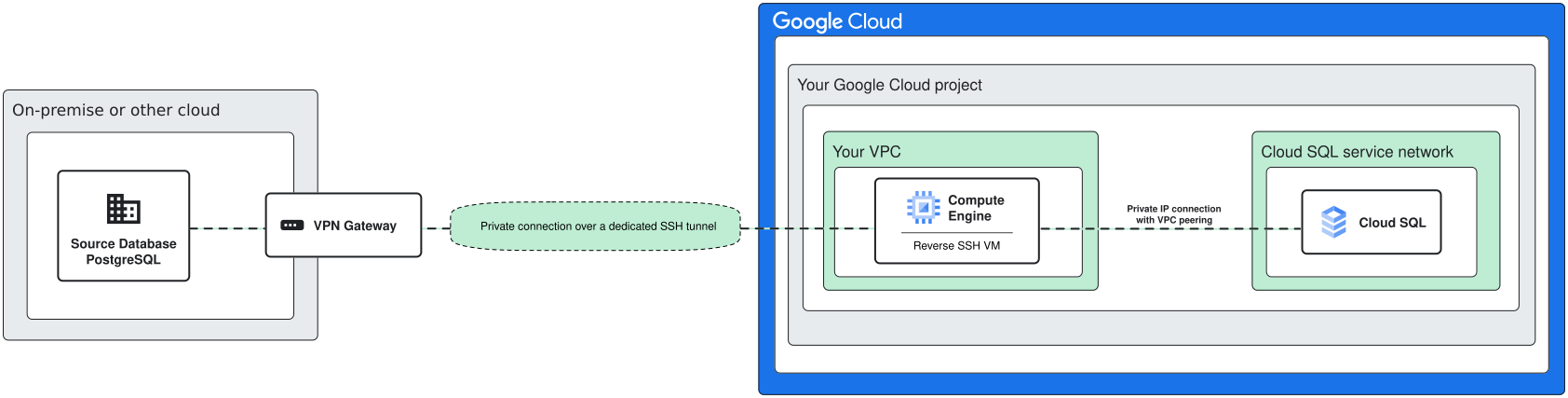
Figure 1. Migration networking example: source
connectivity over an SSH tunnel. (click to enlarge)
Set up a reverse SSH tunnel
The following steps are performed in the Database Migration Service flow for
creating a migration job, to set up a reverse SSH tunnel between the source
database and Cloud SQL instance. After you provide some parameters, you
execute a set of gcloud commands on a machine which has connectivity
to both the source database and to Google Cloud.
Select the VM instance used to establish connectivity between
the source database and the Cloud SQL instance. Typically this is a VM
running in the VPC where the application accessing the new Cloud SQL
database runs. The VM instance serves as the SSH tunnel bastion server.
You can use an existing Compute Engine VM instance for this purpose.
Choose the Compute Engine VM instance from the list.
Provide a free port that the SSH tunnel can use.
Alternatively, you can create a new VM at this step. Select
CREATE A COMPUTE ENGINE VM INSTANCE and the generated script
includes instructions to create it.
Provide a name for the VM instance.
Select a machine type for the VM.
Specify a subnet for the VM
Click VIEW SCRIPT to view the generated script.
Run the script on a machine that has access to both the source database and the
Compute Engine VM. The script performs the following operations:
Configures the Compute Engine VM as an SSH tunnel bastion server.
Establishes a secure SSH connection forwarding traffic from the bastion host port to the source PostgreSQL database server (port 5432).
If you're creating a new Compute Engine VM, then after successfully
running the script, copy the VM server IP from the script output and enter
it in the provided text field. The Cloud SQL instance will be updated
as needed when you later test or start the migration job.
Click CONFIGURE & CONTINUE.
Verify your migration job to confirm that it correctly migrated
data from your source database instance to the destination Cloud SQL database instance.
[[["Easy to understand","easyToUnderstand","thumb-up"],["Solved my problem","solvedMyProblem","thumb-up"],["Other","otherUp","thumb-up"]],[["Hard to understand","hardToUnderstand","thumb-down"],["Incorrect information or sample code","incorrectInformationOrSampleCode","thumb-down"],["Missing the information/samples I need","missingTheInformationSamplesINeed","thumb-down"],["Other","otherDown","thumb-down"]],["Last updated 2026-10-19 UTC."],[],[]]