This page describes how to run a pipeline in Cloud Data Fusion against
an existing Managed Service for Apache Spark cluster.
By default, Cloud Data Fusion creates ephemeral clusters for each pipeline:
it creates a cluster at the beginning of the pipeline run, and then deletes it
after the pipeline run completes. While this behavior saves costs by ensuring
that resources are only created when required, this default behavior might not
be desirable in the following scenarios:
- If the time it takes to create a new cluster for every pipeline is
prohibitive for your use case.
- If your organization requires cluster creation to be managed centrally; for
example, when you want to enforce certain policies for all
Managed Service for Apache Spark clusters.
For these scenarios, you instead run pipelines against an existing cluster with
the following steps.
## Before you begin
You need the following:
- A Cloud Data Fusion instance.
[Create a Cloud Data Fusion instance](https://docs.cloud.google.com/data-fusion/docs/how-to/create-instance)
- An existing Managed Service for Apache Spark cluster.
[Create a Managed Service for Apache Spark cluster](https://docs.cloud.google.com/dataproc/docs/guides/create-cluster)
- If you run your pipelines in Cloud Data Fusion version 6.2, use an
older [Managed Service for Apache Spark image](https://docs.cloud.google.com/dataproc/docs/concepts/versioning/dataproc-versions)
that runs with Hadoop 2.x (for example, 1.5-debian10), or [upgrade to the
latest Cloud Data Fusion version](https://docs.cloud.google.com/data-fusion/docs/how-to/upgrading).
## Connect to the existing cluster
In Cloud Data Fusion versions 6.2.1 and later, you can connect to an
existing Managed Service for Apache Spark cluster when you create a new Compute Engine
profile.
1. Go to your instance:
1. In the Google Cloud console, go to the Cloud Data Fusion page.
2. To open the instance in the Cloud Data Fusion Studio,
click **Instances** , and then click **View instance**.
[Go to Instances](https://console.cloud.google.com/data-fusion/locations/-/instances)
2. Click **System admin**.
3. Click the **Configuration** tab.
4. Click
**System compute profiles**.
5. Click **Create new profile**. A page of provisioners opens.
6. Click **Existing Managed Service for Apache Spark**.
7. Enter the profile, cluster, and monitoring information.
8. Click **Create**.
## Configure your pipeline to use the custom profile
1. Go to your instance:
1. In the Google Cloud console, go to the Cloud Data Fusion page.
2. To open the instance in the Cloud Data Fusion Studio,
click **Instances** , and then click **View instance**.
[Go to Instances](https://console.cloud.google.com/data-fusion/locations/-/instances)
2. Go to your pipeline on the **Studio** page.
3. Click **Configure**.
4. Click **Compute config**.
5. Click the profile that you created.
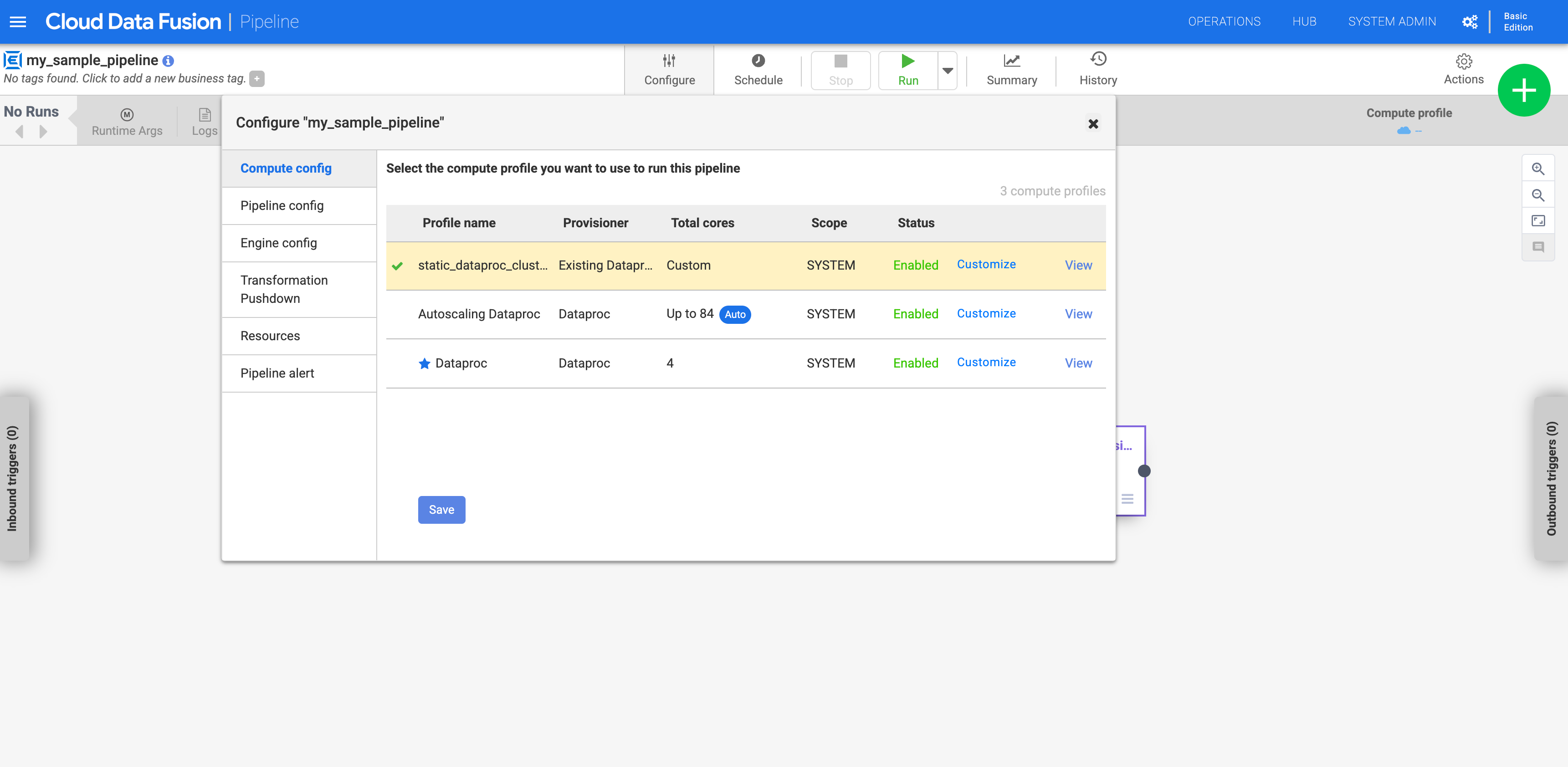 **Figure 1**: Click the custom profile
6. Run the pipeline. It runs against the existing Managed Service for Apache Spark
cluster.
## What's next
- Learn more about [configuring clusters](https://docs.cloud.google.com/data-fusion/docs/concepts/configure-clusters).
- Troubleshoot [deleting clusters](https://docs.cloud.google.com/data-fusion/docs/troubleshoot-deleting-clusters).