This page describes how to use a Cloud Key Management Service (Cloud KMS) encryption key with Cloud Data Fusion.
By default, Cloud Data Fusion encrypts customer content at
rest. Cloud Data Fusion handles encryption for you without any
additional actions on your part. This option is called *Google default encryption*.
If you want to control your encryption keys, then you can use customer-managed encryption keys
(CMEKs) in [Cloud KMS](https://docs.cloud.google.com/kms/docs.md.txt) with CMEK-integrated services including
Cloud Data Fusion. Using Cloud KMS keys gives you control over their protection
level, location, rotation schedule, usage and access permissions, and cryptographic boundaries.
Using Cloud KMS also lets
you [track key usage](https://docs.cloud.google.com/kms/docs/view-key-usage.md.txt), view audit logs, and
control key lifecycles.
Instead of Google owning and managing the symmetric
[key encryption keys (KEKs)](https://docs.cloud.google.com/kms/docs/envelope-encryption.md.txt#key_encryption_keys) that protect your data, you control and
manage these keys in Cloud KMS.
After you set up your resources with CMEKs, the experience of accessing your
Cloud Data Fusion resources is similar to using Google default encryption.
For more information about your encryption
options, see [Customer-managed encryption keys (CMEK)](https://docs.cloud.google.com/kms/docs/cmek.md.txt).
Cloud Data Fusion supports Cloud KMS key usage tracking for the `Instance` resource.
CMEK lets you control the data that's written to Google internal resources in [tenant projects](https://docs.cloud.google.com/data-fusion/docs/concepts/overview.md.txt#tenant-project)
and data written by Cloud Data Fusion pipelines, including the following:
- Pipeline logs and metadata
- Managed Service for Apache Spark cluster metadata
- Various Cloud Storage, BigQuery, Pub/Sub, and Spanner data sinks, actions, and sources
## Cloud Data Fusion resources
For a list of Cloud Data Fusion [plugins](https://docs.cloud.google.com/data-fusion/docs/concepts/overview.md.txt#plugin)
that support CMEK, see the [supported plugins](https://docs.cloud.google.com/data-fusion/docs/how-to/customer-managed-encryption-keys.md.txt#key-behavior).
Cloud Data Fusion supports CMEK for Managed Service for Apache Spark clusters.
Cloud Data Fusion creates a temporary Managed Service for Apache Spark cluster for
use in the pipeline, and then deletes the cluster when the pipeline completes.
CMEK protects the cluster metadata written to the following:
- Persistent disks (PD) attached to cluster VMs
- Job driver output and other metadata written to the auto-created or user-created Managed Service for Apache Spark [staging bucket](https://docs.cloud.google.com/dataproc/docs/concepts/configuring-clusters/staging-bucket)
> [!NOTE]
> **Note:** Cloud Data Fusion does not support CMEK in Google Cloud Observability.
## Set up CMEK
### Create a Cloud KMS key
[Create a Cloud KMS key](https://docs.cloud.google.com/kms/docs/creating-keys) in the
Google Cloud project that contains the Cloud Data Fusion instance
or in a separate user project. The Cloud KMS key ring location
must match the region where you create the instance. A multi-region or
global region key isn't allowed at the instance level because
Cloud Data Fusion is always associated with a particular region.
> [!WARNING]
> **Warning:** If you disable the key that the instance uses, the instance stops working and you will not be able to access the Cloud Data Fusion UI. To fix this, re-enable the key. It takes a few minutes for the action to take effect.
> [!WARNING]
> **Warning:** If you destroy the primary key version that is initially used to encrypt an instance, the instance will stop working and you will not be able to recover any data used by the instance. You will continue to be charged until the instance is deleted.
### Get the resource name for the key
### REST API
Get the resource name of the key that you created with the following command:
`projects/PROJECT_ID/locations/REGION/keyRings/KEY_RING_NAME/cryptoKeys/KEY_NAME`
Replace the following:
- PROJECT_ID: the customer project that hosts the Cloud Data Fusion instance
- REGION: a [Google Cloud region](https://docs.cloud.google.com/compute/docs/regions-zones.md.txt#identifying_a_region_or_zone) that's close to your location---for example, `us-east1`
- KEY_RING_NAME: the name of the key ring that groups the cryptographic keys together
- KEY_NAME: the [Cloud KMS key name](https://docs.cloud.google.com/data-fusion/docs/how-to/customer-managed-encryption-keys.md.txt#key-behavior)
### Console
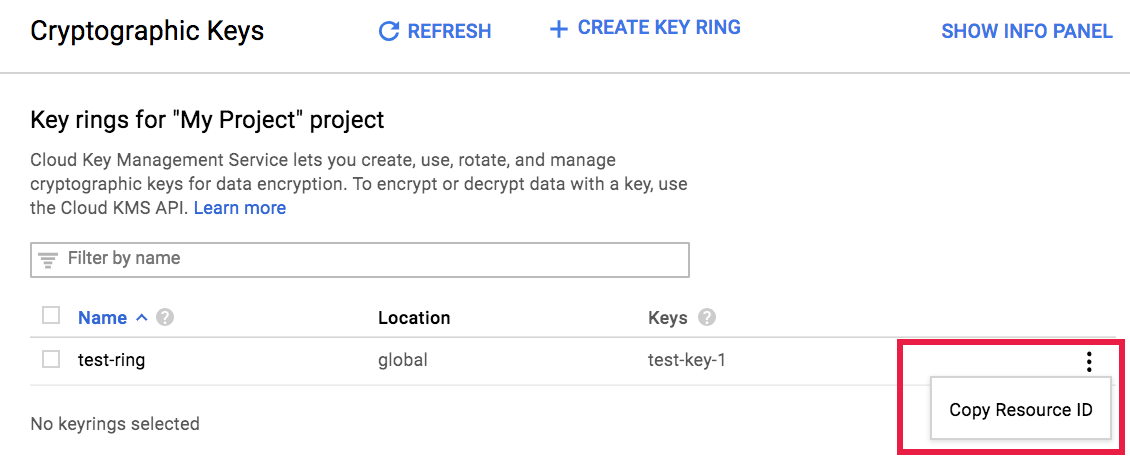
1. Go to the **Key management** page.
[Go to Key management](https://console.cloud.google.com/security/kms)
2. Next to your key, click **More** .
3. Select **Copy Resource Name** to copy the resource name to the
clipboard.
### Update your project's service accounts to use the key
> [!NOTE]
> **Note:** You don't need to assign the Cloud KMS CryptoKey Encrypter/Decrypter role to the service account that is used to run the pipeline. The service accounts mentioned below are other pre-installed project-level service accounts that are used internally by Cloud Data Fusion for various purposes.
To set up your project's service accounts to use your key:
1. **Required** : Grant the Cloud KMS CryptoKey Encrypter/Decrypter
role ([`roles/cloudkms.cryptoKeyEncrypterDecrypter`](https://docs.cloud.google.com/kms/docs/reference/permissions-and-roles.md.txt#predefined_roles))
to the **Cloud Data Fusion** service agent (see
[Granting roles to a service account for specific resources](https://docs.cloud.google.com/iam/docs/granting-roles-to-service-accounts#granting_access_to_a_service_account_for_a_resource)).
This account is in the following format:
`service-PROJECT_NUMBER@gcp-sa-datafusion.iam.gserviceaccount.com`
Granting the Cloud KMS CryptoKey Encrypter/Decrypter role to the
Cloud Data Fusion service agent enables Cloud Data Fusion to
use CMEK to encrypt any customer data stored in tenant projects.
2. **Required** : Grant the
[Cloud KMS CryptoKey Encrypter/Decrypter role](https://docs.cloud.google.com/kms/docs/reference/permissions-and-roles.md.txt#predefined_roles)
to the **Compute Engine** service agent (see
[Assigning a Cloud KMS key to a Cloud Storage service account](https://docs.cloud.google.com/storage/docs/encryption/using-customer-managed-keys.md.txt#service-agent-access)).
This account, which by default is granted the Compute Engine Service
Agent role, is of the form:
`service-PROJECT_NUMBER@compute-system.iam.gserviceaccount.com`
Granting the Cloud KMS CryptoKey Encrypter/Decrypter role to the
**Compute Engine** service agent enables Cloud Data Fusion to
use CMEK to encrypt persistent disk (PD) metadata written by the
Managed Service for Apache Spark cluster running in your pipeline.
3. **Required** : Grant the Cloud KMS CryptoKey
Encrypter/Decrypter role to the **Cloud Storage** service agent
(see [Assigning a Cloud KMS key to a Cloud Storage service agent](https://docs.cloud.google.com/storage/docs/encryption/using-customer-managed-keys.md.txt#service-agent-access)).
This service agent is of the form:
`service-PROJECT_NUMBER@gs-project-accounts.iam.gserviceaccount.com`
Granting this role to the Cloud Storage service agent enables
Cloud Data Fusion to use CMEK to encrypt the Cloud Storage
bucket that stores and caches pipeline information and data written to the
Managed Service for Apache Spark cluster staging bucket and any other
Cloud Storage buckets in your project used by your pipeline.
4. **Required**: Grant the Cloud KMS CryptoKey Encrypter/Decrypter role
to the Google Cloud Dataproc Service Agent. This service agent is of the
form:
`service-PROJECT_NUMBER@dataproc-accounts.iam.gserviceaccount.com`
5. **Optional** : If your pipeline uses **BigQuery** resources,
grant the [Cloud KMS CryptoKey Encrypter/Decrypter role](https://docs.cloud.google.com/kms/docs/reference/permissions-and-roles.md.txt#predefined_roles)
to the BigQuery service account
(see [Grant encryption and decryption permission](https://docs.cloud.google.com/bigquery/docs/customer-managed-encryption.md.txt#grant_permission)).
This account is of the form:
`bq-PROJECT_NUMBER@bigquery-encryption.iam.gserviceaccount.com`
6. **Optional** : If your pipeline uses **Pub/Sub** resources,
grant the [Cloud KMS CryptoKey Encrypter/Decrypter role](https://docs.cloud.google.com/kms/docs/reference/permissions-and-roles.md.txt#predefined_roles)
to the Pub/Sub service account (see
[Using customer-managed encryption keys](https://docs.cloud.google.com/pubsub/docs/cmek)). This account
is of the form:
`service-PROJECT_NUMBER@gcp-sa-pubsub.iam.gserviceaccount.com`
7. **Optional** : If your pipeline uses **Spanner** resources,
grant the [Cloud KMS CryptoKey Encrypter/Decrypter role](https://docs.cloud.google.com/kms/docs/reference/permissions-and-roles.md.txt#predefined_roles)
to the Spanner service account. This account is of the form:
`service-PROJECT_NUMBER@gcp-sa-spanner.iam.gserviceaccount.com`
## Create a Cloud Data Fusion instance with CMEK
CMEK is available in all editions of Cloud Data Fusion version 6.5.0 and
later.
> [!NOTE]
> **Note:** Keys must be in the same region as the instance, and global keys are not supported (see [Create a Cloud KMS key](https://docs.cloud.google.com/data-fusion/docs/how-to/customer-managed-encryption-keys.md.txt#create-key)).
### REST API
1. To create an instance with a customer-managed encryption key, set the
following environment variables:
```bash
export PROJECT=PROJECT_ID
export LOCATION=REGION
export INSTANCE=INSTANCE_ID
export DATA_FUSION_API_NAME=datafusion.googleapis.com
export KEY=KEY_NAME
```
Replace the following:
- PROJECT_ID: the customer project that hosts the Cloud Data Fusion instance
- REGION: a Google Cloud region that's close to your location---for example, `us-east1`
- INSTANCE_ID: the name of the Cloud Data Fusion instance
- KEY_NAME: the full [resource name of the CMEK key](https://docs.cloud.google.com/data-fusion/docs/how-to/customer-managed-encryption-keys.md.txt#key-behavior)
2. Run the following command to create a Cloud Data Fusion instance:
```bash
curl -H "Authorization: Bearer $(gcloud auth print-access-token)" -H "Content-Type: application/json" https://$DATA_FUSION_API_NAME/v1/projects/$PROJECT/locations/$LOCATION/instances?instance_id=INSTANCE -X POST -d '{"description": "CMEK-enabled CDF instance created through REST.", "type": "BASIC", "cryptoKeyConfig": {"key_reference": "$KEY"} }'
```
### Console
1. Go to the Cloud Data Fusion page.
2. Click **Instances** , and then click **Create an instance**.
[Go to Instances](https://console.cloud.google.com/data-fusion/locations/-/instances)
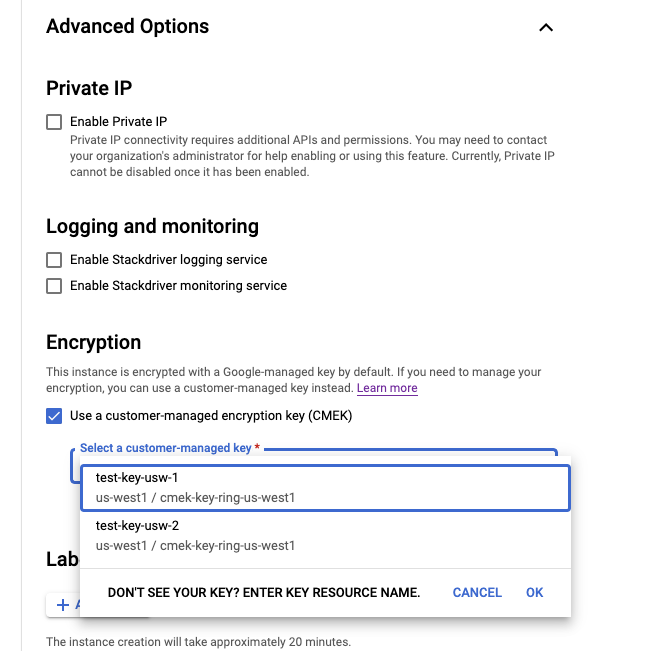
3. In the **Advanced options** , select **Use a customer-managed encryption
key (CMEK)**.
4. In the **Select a customer-managed key** field, select the
[resource name](https://docs.cloud.google.com/data-fusion/docs/how-to/customer-managed-encryption-keys.md.txt#get-the-resource-name) for the key.
5. After you enter all of the instance details, click **Create** . When the
instance is ready to use, it appears on the **Instances** page.
### Check if CMEK is enabled on an instance
### Console
View the instance details:
1. In the Google Cloud console, go to the Cloud Data Fusion page.
2. Click **Instances** , and then click the instance's name to go to the
**Instance details** page.
[Go to Instances](https://console.cloud.google.com/data-fusion/locations/-/instances)
If CMEK is enabled, the **Encryption key** field is shown as **Available**.
If CMEK is disabled, the **Encryption key** field is shown as **Not
available**.
### Use CMEK with supported plugins
> [!NOTE]
> **Note:** While Cloud Data Fusion supports only up to regional keys, you can use multi-regional encryption keys in supported plugins. For example---the BigQuery sink supports multi-regional keys.
When you set the encryption key name, use the following form:
`projects/PROJECT_ID/locations/REGION/keyRings/KEY_RING_NAME/cryptoKeys/KEY_NAME`

The following table describes the behavior of the key in the
Cloud Data Fusion plugins that support CMEK.
| Supported plugins | Behavior of key |
|---|---|
| **Cloud Data Fusion sinks** ||
| Cloud Storage | Encrypts data written to any bucket created by the plugin. If the bucket already exists, this value is ignored. |
| Cloud Storage multi-file | Encrypts data written to any bucket created by the plugin. |
| BigQuery | Encrypts data written to any bucket, dataset or table created by the plugin. |
| BigQuery multi-table | Encrypts data written to any bucket, dataset or table created by the plugin. |
| Pub/Sub | Encrypts data written to any topic created by the plugin. If the topic already exists, this value is ignored. |
| Spanner | Encrypts data written to any database created by the plugin. If the database already exists, this value is ignored. |
| **Cloud Data Fusion actions** ||
| Cloud Storage Create Cloud Storage Copy Cloud Storage Move Cloud Storage Done File Marker | Encrypts data written to any bucket created by the plugin. If the bucket already exists, this value is ignored. |
| BigQuery Execute | Encrypts data written to the dataset or table that the plugin creates to store the query results. It's only applicable if you store the query results in a BigQuery table. |
| **Cloud Data Fusion sources** ||
| BigQuery source | Encrypts data written to any bucket created by the plugin. If the bucket already exists, this value is ignored. |
| **Cloud Data Fusion SQL engine** ||
| BigQuery Pushdown Engine | Encrypts data written to any bucket, dataset, or table created by the plugin. |
## Use CMEK with Managed Service for Apache Spark cluster metadata
The pre-created compute profiles use the CMEK key provided during instance
creation to encrypt the Persistent Disk (PD) and the
[staging bucket](https://docs.cloud.google.com/dataproc/docs/concepts/configuring-clusters/staging-bucket)
metadata written by the Managed Service for Apache Spark cluster running in your pipeline. You
can modify to use another key by doing one of the following:
- **Recommended**: Create a new Managed Service for Apache Spark compute profile (Enterprise edition only).
- Edit an existing Managed Service for Apache Spark compute profile (Developer, Basic, or Enterprise editions).
> [!NOTE]
> **Note:** You need to [grant the Cloud KMS CryptoKey Encrypter/Decrypter
> role](https://docs.cloud.google.com/data-fusion/docs/how-to/customer-managed-encryption-keys#set_up_cmek) for the service account in your project associated with a resource.
### Console
1. Open the Cloud Data Fusion instance:
1. In the Google Cloud console, go to the Cloud Data Fusion page.
2. To open the instance in the Cloud Data Fusion Studio,
click **Instances** , and then click **View instance**.
[Go to Instances](https://console.cloud.google.com/data-fusion/locations/-/instances)
2. Click **System Admin** \> **Configuration**.
3. Click the **System Compute Profiles** drop-down.
4. Click **Create New Profile** , and select **Managed Service for Apache Spark**.
5. Enter a **Profile label** , **Profile name** , and **Description**.
6. By default, Managed Service for Apache Spark creates [staging and temp](https://docs.cloud.google.com/dataproc/docs/concepts/configuring-clusters/staging-bucket) buckets whenever an ephemeral cluster is created by Cloud Data Fusion. Cloud Data Fusion supports passing the Managed Service for Apache Spark staging bucket as an argument in the compute profile.
To encrypt the staging bucket, create a CMEK-enabled bucket and pass it as an argument to Managed Service for Apache Spark in the compute profile.
> [!NOTE]
> **Note:** Cloud Data Fusion 6.9.2 supports passing Managed Service for Apache Spark temp bucket as an argument. For more information, see [Temp Bucket](https://cdap.atlassian.net/wiki/spaces/DOCS/pages/480412227/Google+Dataproc#Temp-Bucket).
7. By default, Cloud Data Fusion auto-creates a Cloud Storage bucket to stage dependencies used by Managed Service for Apache Spark. If you prefer to use a Cloud Storage bucket that already exists in your project, follow these steps:
1. In the **General Settings** section, enter your existing
Cloud Storage bucket in the **Cloud Storage Bucket**
field.
2. [Add your Cloud KMS key to your Cloud Storage bucket](https://docs.cloud.google.com/storage/docs/encryption/using-customer-managed-keys.md.txt#set-default-key).
8. [Get the resource ID](https://docs.cloud.google.com/data-fusion/docs/how-to/customer-managed-encryption-keys.md.txt#set_up_cmek) of your Cloud KMS key. In
the **General Settings** section, enter your resource ID in the
**Encryption Key Name** field.
9. Click **Create**.
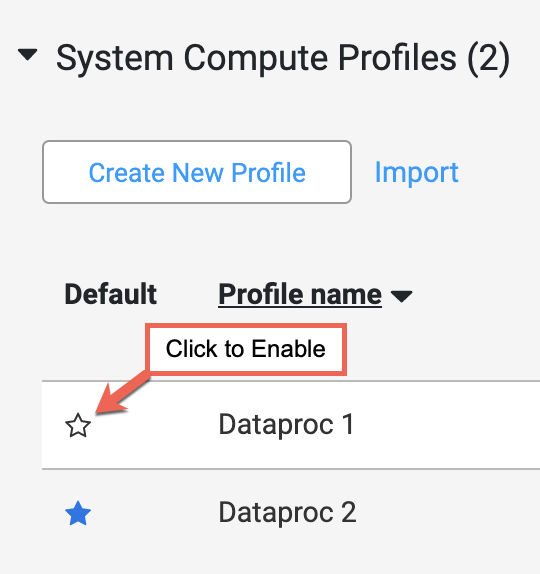
10. If more than one profile is listed in the **System Compute Profiles**
section of the **Configuration** tab, make the new
Managed Service for Apache Spark profile the default profile by holding the
pointer over the profile name field and clicking the star that appears.
> [!NOTE]
> **Note:** The Managed Service for Apache Spark profile applies to the current pipeline only.
## Use CMEK with other resources
The provided CMEK key is set to the system preference during
Cloud Data Fusion instance creation. It is used to encrypt data
written to newly created resources by pipeline sinks such as
Cloud Storage, BigQuery, Pub/Sub, or
Spanner sinks.
This key only applies to newly created resources. If the resource already exists
before pipeline execution, you should manually apply the CMEK key to those
existing resources.
You can change the CMEK key by doing one of the following:
- Use a runtime argument.
- Set a Cloud Data Fusion system preference.
> [!NOTE]
> **Note:** You need to [grant the Cloud KMS CryptoKey Encrypter/Decrypter
> role](https://docs.cloud.google.com/data-fusion/docs/how-to/customer-managed-encryption-keys#set_up_cmek) for the service account in your project associated with a resource.
### Runtime argument
1. In the Cloud Data Fusion **Pipeline Studio** page, click the drop-down arrow to the right of the **Run** button.
2. In the **Name** field, enter `gcp.cmek.key.name`.
3. In the **Value** field, enter your key's [resource ID](https://docs.cloud.google.com/data-fusion/docs/how-to/customer-managed-encryption-keys.md.txt#set_up_cmek). 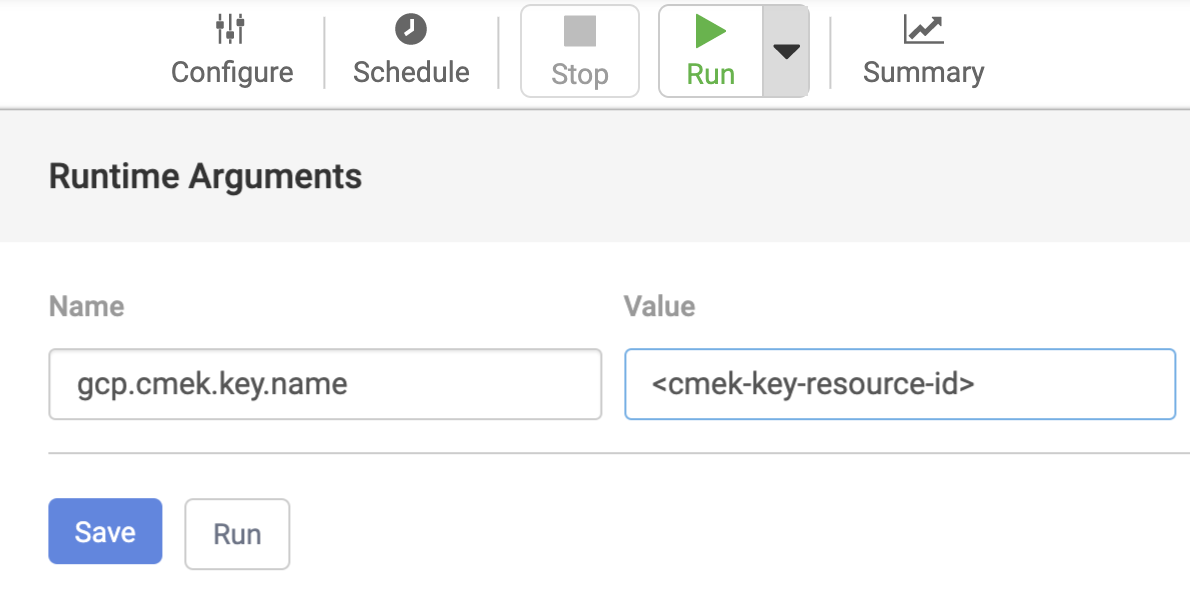
4. Click **Save**.
The runtime argument you set here applies only to runs of the current
pipeline.
### Preference
1. In the Cloud Data Fusion UI, click **SYSTEM ADMIN**.
2. Click the **Configuration** tab.
3. Click the **System Preferences** drop-down.
4. Click **Edit System Preferences**.
5. In the **Key** field, enter `gcp.cmek.key.name`.
6. In the **Value** field, enter your key's [resource ID](https://docs.cloud.google.com/data-fusion/docs/how-to/customer-managed-encryption-keys.md.txt#set_up_cmek). 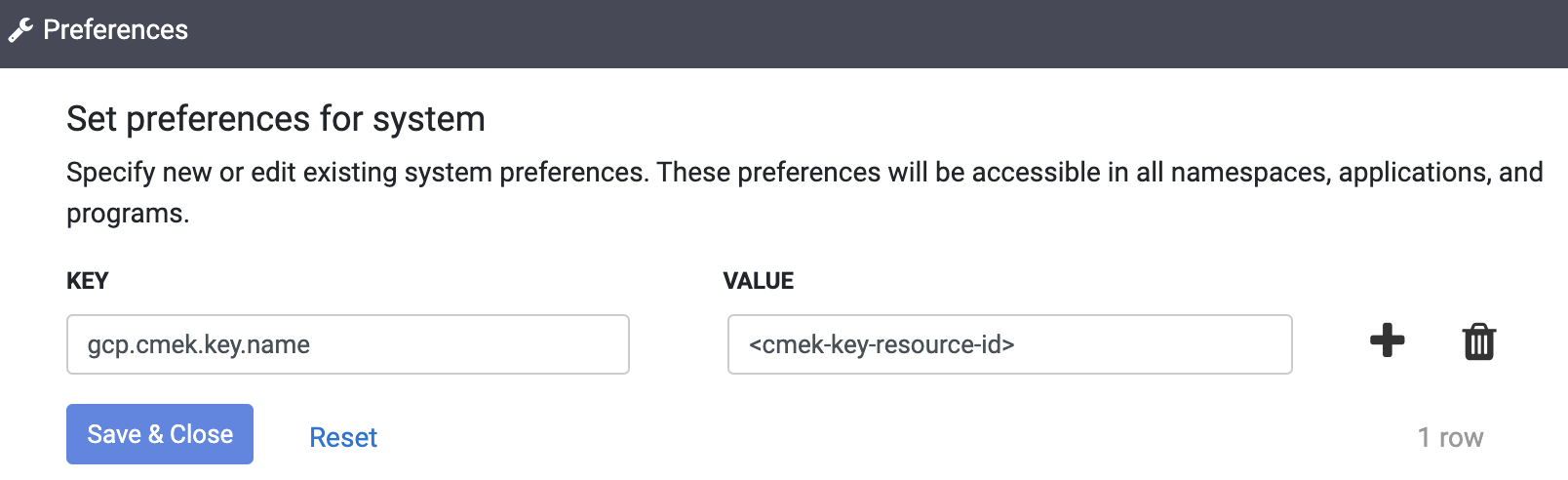
7. Click **Save \& Close** . The system preference you set here applies to all pipelines in the Cloud Data Fusion instances.