Role-based access control (RBAC) in Cloud Data Fusion
lets you manage user permissions across instances and namespaces. This access
model helps you isolate workspaces and secure pipelines by controlling who can
view, design, and run integration workloads.
RBAC is available in Cloud Data Fusion instances
running version 6.5 and later. Unless required for automation purposes, use the
Google Cloud console to perform your RBAC tasks. For more
information, see
[Role-based access control (RBAC) overview](https://docs.cloud.google.com/data-fusion/docs/concepts/rbac).
## Enable RBAC for an existing instance
You can enable RBAC for an existing Cloud Data Fusion
instance running in version 6.5 or later.
### Console
To enable RBAC on an existing Cloud Data Fusion instance:
1. Go to the instance details:
1. In the Google Cloud console, go to the Cloud Data Fusion page.
2. Click **Instances** , and then click the instance's name to go to the
**Instance details** page.
[Go to Instances](https://console.cloud.google.com/data-fusion/locations/-/instances)
2. Ensure that the instance has been upgraded to version 6.5 or later. If the instance is earlier than 6.5, upgrade the instance to version 6.5 or later.
3. Click **Enable RBAC**.
4. Click **Save**.
5. Wait for the instance update operation to complete.
### gcloud
To enable RBAC on an existing Cloud Data Fusion
instance, run the following command:
gcloud beta data-fusion instances update --enable_rbac --location=REGION INSTANCE_ID
### REST API
Enable RBAC for an existing instance with the
Cloud Data Fusion [patch](https://docs.cloud.google.com/data-fusion/docs/reference/rest/v1beta1/projects.locations.instances/patch)
API. Set the `enableRbac` flag to `true` and use the `updateMask` query
parameter using the following example command:
export PROJECT=PROJECT_ID
export LOCATION=REGION
export INSTANCE=INSTANCE_ID
export DATA_FUSION_API_NAME=datafusion.googleapis.com
alias gcurl='curl --header "Authorization: Bearer $(gcloud auth print-access-token)" -H "Content-Type: application/json"'
gcurl https://$DATA_FUSION_API_NAME/v1beta1/projects/$PROJECT/locations/$LOCATION/instances/$INSTANCE?updateMask=enable_rbac -X PATCH -d '{"enable_rbac": "true"}'
## Disable RBAC for an existing instance
If you have an existing instance with RBAC enabled, you can
disable RBAC if needed. Disabling RBAC doesn't
affect any existing pipelines or configurations in the instance. It just
disables security isolation across namespaces.
### Console
To disable RBAC on an existing Cloud Data Fusion
instance:
1. Go to the instance details:
1. In the Google Cloud console, go to the Cloud Data Fusion page.
2. Click **Instances** , and then click the instance's name to go to the
**Instance details** page.
[Go to Instances](https://console.cloud.google.com/data-fusion/locations/-/instances)
2. Click **Disable RBAC**.
3. Click **Save**.
4. Wait for the instance update operation to complete.
### gcloud
To disable RBAC for an existing instance, use argument
--no-enable_rbac instead of --enable-rbac.
gcloud beta data-fusion instances update --no-enable_rbac --location=REGION INSTANCE_ID
Example of usage:
gcloud beta data-fusion instances update --no-enable_rbac --location=us-east1 cdf-test-instance
### REST API
Disable RBAC for an existing instance with the
Cloud Data Fusion [patch](https://docs.cloud.google.com/data-fusion/docs/reference/rest/v1beta1/projects.locations.instances/patch)
API. Set the `enableRbac` flag to `false` and use the `updateMask` query
parameter using the following example command:
export PROJECT=PROJECT_ID
export LOCATION=REGION
export INSTANCE=INSTANCE_ID
export DATA_FUSION_API_NAME=datafusion.googleapis.com
alias gcurl='curl --header "Authorization: Bearer $(gcloud auth print-access-token)" -H "Content-Type: application/json"'
gcurl https://$DATA_FUSION_API_NAME/v1beta1/projects/$PROJECT/locations/$LOCATION/instances/$INSTANCE?updateMask=enable_rbac -X PATCH -d '{"enable_rbac": "false"}'
## Create a new RBAC-enabled instance
### Console
To create a new Cloud Data Fusion instance with RBAC enabled:
1. Go to the Cloud Data Fusion **Instances** page.
2. Click **Instances**.
[Go to Instances](https://console.cloud.google.com/data-fusion/instance-create)
3. Click **Create an instance** and enter the instance details.
4. Select the **Enterprise edition**. RBAC is only
supported in the Enterprise edition.
5. In **Advanced options** , select **Enable Granular Role-Based Access
Control**.
This feature is available only in instances that use
Cloud Data Fusion version 6.5 and later.
6. Click **Create**.
### gcloud
To create a new RBAC-enabled instance, run the following command:
gcloud beta data-fusion instances create --edition=enterprise \
--enable_rbac \
--location=REGION INSTANCE_ID \
--version=6.5.0
Example of usage:
gcloud beta data-fusion instances create --edition=enterprise \
--enable_rbac \
--location=us-east1 \
--version=6.5.0
### REST API
To create an RBAC-enabled instance using the REST API, pass
the `enableRbac` flag set to `true` in the instance options as shown in the
following commands:
export PROJECT=PROJECT_ID
export LOCATION=REGION
export INSTANCE=INSTANCE_ID
export DATA_FUSION_API_NAME=datafusion.googleapis.com
curl -H "Authorization: Bearer $(gcloud auth print-access-token)" -H "Content-Type: application/json" https://$DATA_FUSION_API_NAME/v1beta1/projects/$PROJECT/locations/$LOCATION/instances?instanceId=$INSTANCE -X POST -d '{"description": "RBAC CDF instance created through REST", "type": "ENTERPRISE", "enableRbac": "true"}'
## Grant predefined Cloud Data Fusion roles to users (required)
After RBAC is enabled, you grant roles to principals to let them
perform specific actions in an instance or a namespace. To decide which roles
best meet your requirements, see the
[Predefined Cloud Data Fusion roles](https://docs.cloud.google.com/data-fusion/docs/concepts/rbac#predefined-roles)
and [Security recommendations](https://docs.cloud.google.com/data-fusion/docs/concepts/rbac#security).
### Console
To grant predefined Cloud Data Fusion roles to principals:
1. Go to the Cloud Data Fusion **Permissions** page.
[Go to Permissions](https://console.cloud.google.com/data-fusion/locations/-/users)
2. Click **Add** .
An **Add users' access** dialog opens.
3. In the **New members** field, enter a list of principals (users, groups,
or service account emails) for whom to grant roles.
4. Select the box next to each instance for which you want to grant these
permissions.
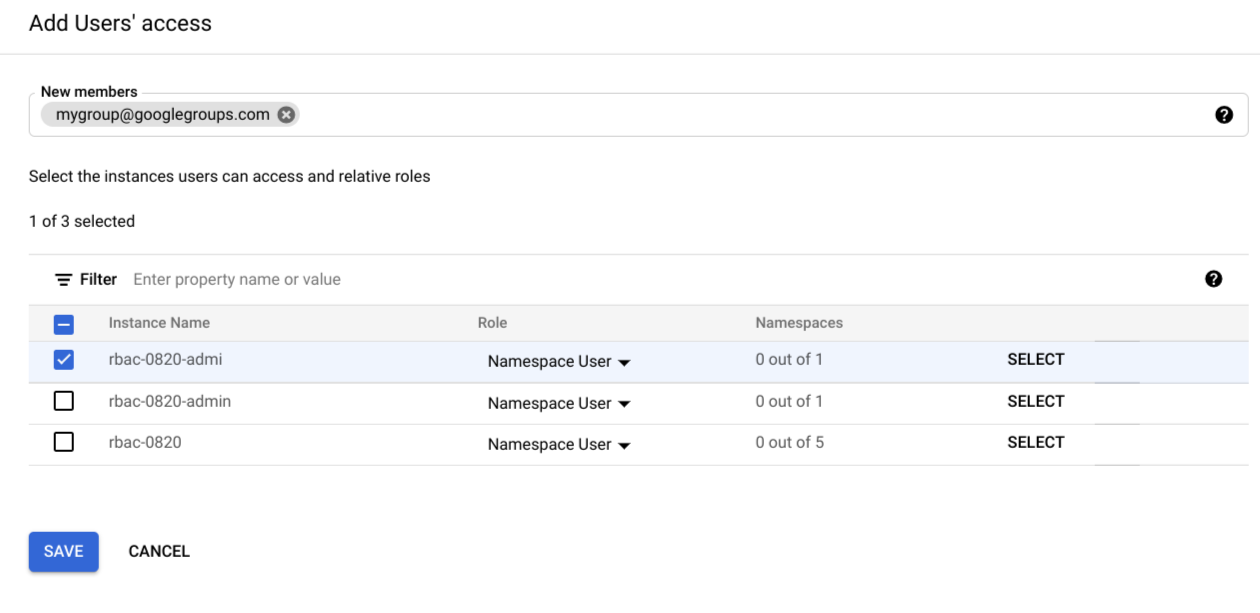
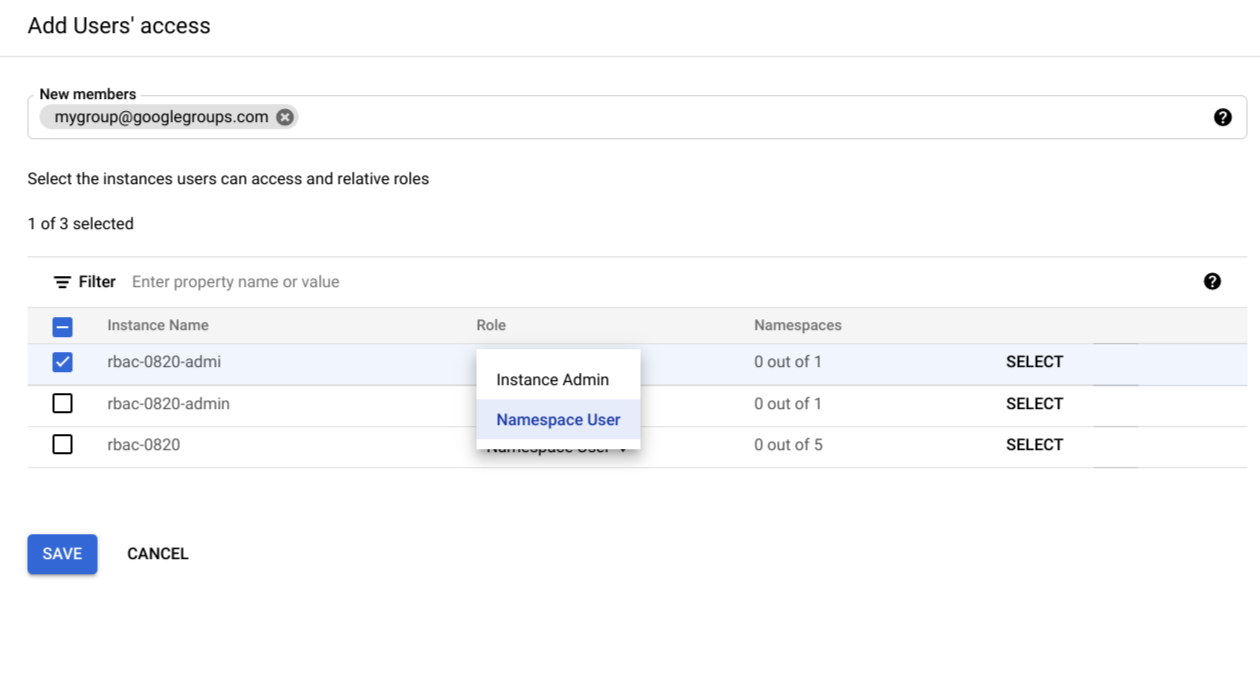
5. Go to the **Role** column and select the drop-down next to the
chosen instances.
1. To grant instance administrator permissions, select **Instance
Admin**.
2. To grant namespace level permissions, select **Namespace User**.
1. If you're granting namespace level permissions, click
**Select**.
An **Add access rights** dialog opens.
> [!NOTE]
> **Note:** Click **Filter** to narrow your results to specific roles or namespaces.
2. Select a namespace and select the predefined
Cloud Data Fusion role you want to grant for the namespace.
3. Click **Select** to save your new settings.
4. Optional: To grant namespace permissions for other instances,
repeat step 5.
6. Click **Save**.
To verify the roles that have been granted, see
[Verify roles in the Google Cloud console](https://docs.cloud.google.com/data-fusion/docs/how-to/create-role-based-access-control#verify-roles-in-console).
### gcloud
You can use the [Google Cloud CLI](https://cloud.google.com/sdk/gcloud/reference/beta/data-fusion)
to [control access programmatically](https://docs.cloud.google.com/iam/docs/granting-changing-revoking-access#programmatic).
To grant a role using gcloud CLI, use a comma-delimited list of
user identifiers in the following format:
`[user|group|serviceAccount][email_address]`
Provide the following values:
- `user:useremail@example.com`
- `group:groupemail@example.com`
- `serviceAccount:serviceaccount@project.iam.gserviceaccount.com`
For more examples, see [Grant a role](https://docs.cloud.google.com/iam/docs/granting-changing-revoking-access#granting-role).
### Grant Instance Accessor role (required)
You must first give a user access to the instance by granting them the
Accessor role on an instance:
1. Export the following variables with the following command, replacing the
variables with your own values:
export PROJECT=PROJECT_ID
export INSTANCE=INSTANCE_ID
export REGION=REGION
export USER_ID=EMAIL
export USER_TYPE=USER_TYPE
Replace the following variables with your own values:
- PROJECT_ID: Your project name.
- INSTANCE_ID: The name of your instance.
- REGION: The region the project belongs to.
- EMAIL: The email address of the principal.
- USER_TYPE: User type can be one of: user, group, or serviceAccount.
2. Run the following command to assign the role:
gcloud beta data-fusion add-iam-policy-binding ${INSTANCE} --project ${PROJECT} --location=${REGION} --member="${USER_TYPE}:${USER_ID}" --role="roles/datafusion.accessor"
### Grant roles to a namespace (use-case dependent)
Depending on your use case, grant roles with the following commands:
1. Export the following variables with the following command, replacing the
variables with your own values:
export PROJECT=PROJECT_ID
export INSTANCE=INSTANCE_ID
export REGION=REGION
export NAMESPACE=NAMESPACE
export USER_ID=EMAIL
export USER_TYPE=USER_TYPE
Replace the following variables with your own values:
- PROJECT_ID: Your project name.
- INSTANCE_ID: The name of your instance.
- REGION: The region the project belongs to.
- NAMESPACE: The namespace name.
- EMAIL: The email address of the principal.
- USER_TYPE: User type can be one of: user, group, or serviceAccount.
2. Run the following command to assign a role to a principal in a given
namespace:
gcloud beta data-fusion add-iam-policy-binding ${INSTANCE} --project ${PROJECT} --location=${REGION} --namespace=${NAMESPACE} --member="${USER_TYPE}:${USER_ID}" --role="roles/ROLE_NAME"
Replace ROLE_NAME with one of the following
values:
- For the Editor role for a namespace, use `datafusion.editor`
- For the Operator role for a namespace, use `datafusion.operator`
- For the Developer role for a namespace, use `datafusion.developer`
- For the Viewer role for a namespace, use `datafusion.viewer`
### Optional: Revoke namespace roles
To revoke the role granted to a user for a given namespace, use the following
command:
export PROJECT=PROJECT_ID
export INSTANCE=INSTANCE_ID
export REGION=REGION
export NAMESPACE=NAMESPACE
export USER_ID=EMAIL
# User type can be one of: user, group, or serviceAccount.
export USER_TYPE=USER_TYPE
export ROLE=ROLE_NAME
gcloud beta data-fusion remove-iam-policy-binding ${INSTANCE} --project ${PROJECT} --location=${REGION} --namespace=${NAMESPACE} --member="${USER_TYPE}:${USER_ID}" --role="${ROLE}"
### Optional: List roles granted on a given namespace
To list all the roles granted on a particular namespace, use the
following command to fetch the IAM policy:
export PROJECT=PROJECT_ID
export INSTANCE=INSTANCE_ID
export REGION=REGION
export NAMESPACE=NAMESPACE
gcloud beta data-fusion get-iam-policy ${INSTANCE} --project ${PROJECT} --location=${REGION} --namespace=${NAMESPACE}
### REST API
> [!WARNING]
> **Warning:** For all the following commands, you must edit the `iam_policy.json` filename as described to successfully add the policy. Simply copying and pasting the commands doesn't work as intended and you might overwrite existing policies.
### Grant Instance Accessor role (required)
You must first give a user access to the instance by granting them the
Accessor role on an instance.
Strongly recommended: Use gcloud CLI to grant the
Accessor role.
1. Grant the accessor role on an instance:
export PROJECT=PROJECT_ID
export INSTANCE=INSTANCE_ID
export REGION=REGION
export USER_ID=EMAIL
# User type can be one of: user, group, or serviceAccount.
export USER_TYPE=USER_TYPE
alias gcurl='curl --header "Authorization: Bearer $(gcloud auth print-access-token)" -H "Content-Type: application/json"'
2. Fetch current IAM policy and save it in a file:
gcurl https://datafusion.googleapis.com/v1beta1/projects/${PROJECT}/locations/${REGION}/instances/${INSTANCE}:getIamPolicy > iam_policy.json
3. Add a binding for the role and the user in the policy. For example:
{
"policy": {
"bindings": [
{
"role": "roles/datafusion.accessor",
"members": [
"${USER_TYPE}:${USER_ID}"
]
}
]
}
}
4. Update the IAM policy of the instance:
gcurl \
-d @iam_policy.json \
https://datafusion.googleapis.com/v1beta1/projects/${PROJECT}/locations/${REGION}/instances/${INSTANCE}:setIamPolicy
### Grant roles to a namespace (use-case dependent)
Depending on your use case, grant roles with the following commands:
1. Export the following variables with the following command, replacing the
variables with your own values:
export PROJECT=PROJECT_ID
export INSTANCE=INSTANCE_ID
export REGION=REGION
export NAMESPACE=NAMESPACE
export USER_ID=EMAIL
export USER_TYPE=USER_TYPE
alias gcurl='curl --header "Authorization: Bearer $(gcloud auth print-access-token)" -H "Content-Type: application/json"'
Replace the following variables with your own values:
- PROJECT_ID: Your project name.
- INSTANCE_ID: The name of your instance.
- REGION: The region the project belongs to.
- NAMESPACE: The namespace name.
- EMAIL: The email address of the principal.
- USER_TYPE: User type can be one of: user, group, or serviceAccount.
2. Fetch current IAM policy and save it in a file:
gcurl https://datafusion.googleapis.com/v1beta1/projects/${PROJECT}/locations/${REGION}/instances/${INSTANCE}/namespaces/{NAMESPACE}:getIamPolicy > iam_policy.json
Replace iam_policy.json with your own filename.
3. Add a binding for the role and the user in the policy file. For example,
the policy file may look like the following:
{
"policy": {
"bindings": [
{
"role": "roles/ROLE_NAME",
"members": [
"${USER_TYPE}:${USER_ID}"
]
}
]
}
}
Multiple role bindings may be specified for a given policy, and multiple
principals may be specified in the **members** list for a given role
binding. For a given principal, replace ROLE_NAME
with one of the following values:
- For the Editor role for a namespace, use `datafusion.editor`
- For the Operator role for a namespace, use `datafusion.operator`
- For the Developer role for a namespace, use `datafusion.developer`
- For the Viewer role for a namespace, use `datafusion.viewer`
4. Run the following command to update the policy file:
gcurl -d @iam_policy.json \
https://datafusion.googleapis.com/v1beta1/projects/${PROJECT}/locations/${REGION}/instances/${INSTANCE}/namespaces/{NAMESPACE}:setIamPolicy
Replace iam_policy.json with your own filename.
## Verify roles in the Google Cloud console
Review and edit existing roles on the Cloud Data Fusion
**Permissions** page.
[Go to Permissions](https://console.cloud.google.com/data-fusion/locations/-/users)
## Verify roles with the Policy file
Verify that the roles are granted to the correct users in the
IAM [Policy](https://docs.cloud.google.com/iam/docs/reference/rest/v1/Policy) file using
either gcloud CLI or the REST API.
In the following IAM Policy file example, the user
`alice@example.com` has the Data Fusion Developer role:
bindings:
- members:
- user:alice@example.com
role: roles/datafusion.developer
- members:
- user:bob@example.com
- serviceAccount:myserviceaccount@myproject.iam.gserviceaccount.com
role: roles/datafusion.operator
- members:
- user:james@example.com
- user:mike@example.com
- group:mygroup@googlegroups.com
role: roles/datafusion.editor
etag: BwXA8BAHYmw=
### Get the IAM Policy for an instance
### gcloud
export PROJECT=PROJECT_ID
export INSTANCE=INSTANCE_ID
export REGION=REGION
gcloud beta data-fusion get-iam-policy ${INSTANCE} --project ${PROJECT} --location=${REGION}
### cURL
export PROJECT=PROJECT_ID
export INSTANCE=INSTANCE_ID
export REGION=REGION
curl -H "Authorization: Bearer "$(gcloud auth print-access-token) \
https://datafusion.googleapis.com/v1beta1/projects/${PROJECT}/locations/${REGION}/instances/${INSTANCE}:getIamPolicy
### Get the IAM Policy for a namespace
### gcloud
export PROJECT=PROJECT_ID
export INSTANCE=INSTANCE_ID
export REGION=REGION
export NAMESPACE=NAMESPACE
gcloud beta data-fusion get-iam-policy ${INSTANCE} --project ${PROJECT} --location=${REGION} --namespace=${NAMESPACE}
### cURL
export PROJECT=PROJECT_ID
export INSTANCE=INSTANCE_ID
export NAMESPACE=NAMESPACE
export REGION=REGION
curl -H "Authorization: Bearer "$(gcloud auth print-access-token) \
https://datafusion.googleapis.com/v1beta1/projects/${PROJECT}/locations/${REGION}/instances/${INSTANCE}/namespaces/${NAMESPACE}:getIamPolicy
## What's next
- Learn more about [role-based access control in Cloud Data Fusion](https://docs.cloud.google.com/data-fusion/docs/concepts/rbac).