This page describes how to connect to software-as-a-service (SaaS) applications
like Salesforce, and third-party cloud services like Amazon S3, from a private
Cloud Data Fusion instance when you develop a pipeline.
Throughout this guide, the terms *egress* and *egress control* are used:
- **Egress** refers to the network traffic exiting Google Cloud over the public
internet. Usually, egress happens when you create a pipeline that reads from or
writes to a SaaS service like Salesforce, or a public cloud service like
Amazon S3.
- **Egress control** defines guardrails for egress traffic using a proxy VM,
that allows egress traffic to a set of preconfigured domains to succeed, and all
others to fail. It enables a higher security perimeter for egress traffic, and
can prevent unwanted egress from a private instance.
The following system architecture diagram shows how a private
Cloud Data Fusion instance connects with the public internet
when you develop a pipeline:
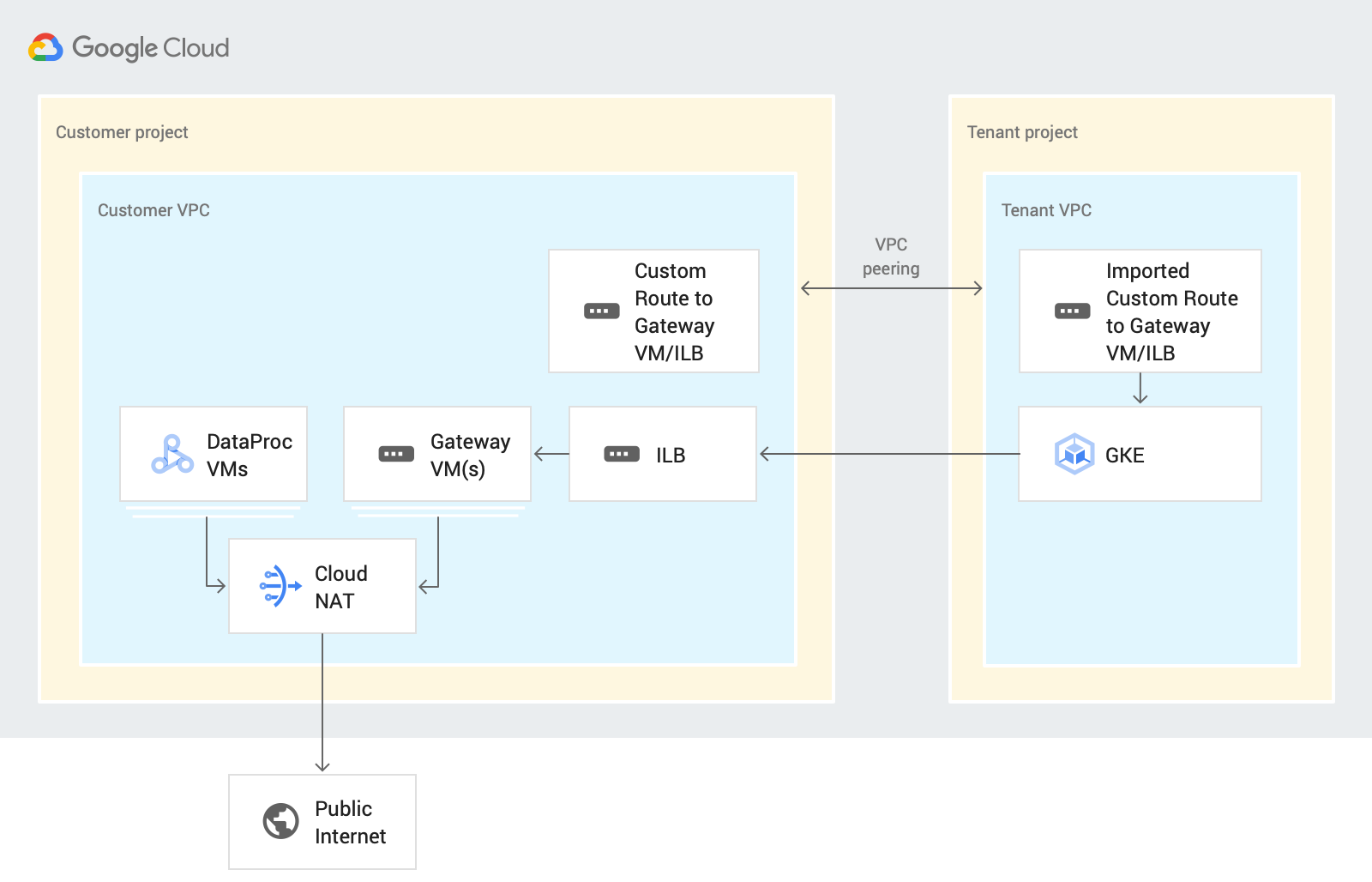
When you design your pipeline in this scenario, Cloud Data Fusion routes
egress traffic through your customer project in Cloud Data Fusion Preview
or Wrangler. This process uses the following resources:
- **A custom VPC network route** : A custom VPC network routes traffic through
an imported custom route to gateway VMs, which export to a tenant
project VPC using [VPC peering](https://cloud.google.com/vpc/docs/vpc-peering#importing-exporting-routes).
- **A gateway VM**: A gateway VM routes egress traffic out of Google Cloud from
the Cloud Data Fusion tenant project to a SaaS or third-party cloud over
the public internet. You manage this VM in your customer project. You can
configure it in a High-Availability (HA) environment using an Internal
Load Balancer (ILB). It's recommended that you reuse the VM for multiple
private Cloud Data Fusion instances within the same VPC.
For information about setting up egress control in your design and execution
environments, see [Control egress in a private instance](https://docs.cloud.google.com/data-fusion/docs/how-to/egress-control).
## Before you begin
- You can connect to a public source from a private instance in
Cloud Data Fusion versions 6.4 or later. To use one of those versions,
you can create a new [private Cloud Data Fusion instance](https://docs.cloud.google.com/data-fusion/docs/how-to/create-private-ip)
or [upgrade an existing instance](https://docs.cloud.google.com/data-fusion/docs/how-to/upgrading) to 6.4.0.
- When you [create a VPC network peering connection](https://docs.cloud.google.com/data-fusion/docs/how-to/create-private-ip#create_a_peering_connection)
for your instance, select **Export routes**.
## Set up internet connectivity
The following steps describe how to access an Amazon S3 bucket from a private
Cloud Data Fusion instance in Wrangler. The same steps apply to accessing
any data source over the public internet when you design a pipeline in Preview
or Wrangler.
Only a single VM is used in this guide, but for mission-critical applications,
we recommend that you create [load balanced VMs](https://docs.cloud.google.com/load-balancing/docs/internal).
For more information, see [Set up High Availability VM](https://docs.cloud.google.com/data-fusion/docs/how-to/connect-to-public-source#set-up-ha-gateway).
### Create an NAT gateway
[Create a Cloud NAT gateway](https://docs.cloud.google.com/nat/docs/set-up-manage-network-address-translation#configure-nat) in the
same region and VPC network as your Cloud Data Fusion private instance.
[Go to Cloud NAT](https://console.cloud.google.com/net-services/nat/list)
### Create a gateway VM instance and firewall rules
> [!NOTE]
> **Note:** The examples in this guide describe how to set up a Gateway VM that uses a Debian image (`debian-10-buster-v20210316`). It's recommended to use a VM with a private IP.
### Console
1. Go to the **VM instances** page.
[Go to VM instances](https://console.cloud.google.com/compute/instances)
2. Click **Create instance**. It's recommended to use a VM with no
external IP.
3. Use the same VPC that has network peering set up with the private
Cloud Data Fusion instance. For more information about
VPC network peering in this scenario, see [Before you begin](https://docs.cloud.google.com/data-fusion/docs/how-to/connect-to-public-source#before-you-begin).
4. [Enable IP forwarding](https://docs.cloud.google.com/vpc/docs/using-routes#canipforward) for the
instance **in the same network** as the Cloud Data Fusion instance.
5. In the **Startup script** field, enter the following script:
#! /bin/bash
echo 1 > /proc/sys/net/ipv4/ip_forward
iptables -t nat -A POSTROUTING -s 0.0.0.0/0 -j MASQUERADE
echo net.ipv4.ip_forward=1 > /etc/sysctl.d/11-gce-network-security.conf
iptables-save
For more information, see [Running startup scripts](https://docs.cloud.google.com/compute/docs/startupscript#console).
> [!NOTE]
> **Note:** To be more restrictive, replace `0.0.0.0/0` with the IP range that is allocated to the private Cloud Data Fusion instance.
To get the allocated IP range for the Cloud Data Fusion instance,
go to the Cloud Data Fusion **Instance details** page.

### gcloud
To create the gateway VM and firewall rules, run the following script in the
Google Cloud CLI:
```
export CDF_PROJECT=CDF_PROJECT
export GATEWAY_VM=GATEWAY_VM_NAME
export ZONE=VM_ZONE
export SUBNET=SUBNET
export VPC_NETWORK=VPC_NETWORK
export COMPUTE_ENGINE_SA=COMPUTE_ENGINE_SA
gcloud beta compute --project=$CDF_PROJECT instances create $GATEWAY_VM --zone=$ZONE --machine-type=e2-medium --subnet=$SUBNET --network-tier=PREMIUM --metadata=startup-script=\#\!\ /bin/bash$'\n'echo\ 1\ \>\ /proc/sys/net/ipv4/ip_forward$'\n'iptables\ -t\ nat\ -A\ POSTROUTING\ -s\ 0.0.0.0/0\ -j\ MASQUERADE$'\n'echo\ net.ipv4.ip_forward=1\ \>\ /etc/sysctl.d/11-gce-network-security.conf$'\n'iptables-save --can-ip-forward --no-address --maintenance-policy=MIGRATE --service-account=$COMPUTE_ENGINE_SA --scopes=https://www.googleapis.com/auth/devstorage.read_only,https://www.googleapis.com/auth/logging.write,https://www.googleapis.com/auth/monitoring.write,https://www.googleapis.com/auth/servicecontrol,https://www.googleapis.com/auth/service.management.readonly,https://www.googleapis.com/auth/trace.append --tags=http-server,https-server --image=debian-10-buster-v20210316 --image-project=debian-cloud --boot-disk-size=10GB --boot-disk-type=pd-balanced --boot-disk-device-name=$GATEWAY_VM --no-shielded-secure-boot --shielded-vtpm --shielded-integrity-monitoring --reservation-affinity=any
gcloud compute --project=$CDF_PROJECT firewall-rules create egress-allow-http --direction=INGRESS --priority=1000 --network=$VPC_NETWORK --action=ALLOW --rules=tcp:80 --source-ranges=CDF_IP_RANGE --target-tags=http-server
gcloud compute --project=$CDF_PROJECT firewall-rules create egress-allow-https --direction=INGRESS --priority=1000 --network=$VPC_NETWORK --action=ALLOW --rules=tcp:443 --source-ranges=CDF_IP_RANGE --target-tags=https-server
```
Replace the following:
- CDF_PROJECT: the customizable unique identifier for your project
- GATEWAY_VM: the name of the VM you want to configure
- ZONE: the zone of your VM
- SUBNET: the subnet
- VPC_NETWORK: the name of your VM
- COMPUTE_ENGINE_SA: the name of your Compute Engine service account
- CDF_IP_RANGE: the IP range that's allocated to the Cloud Data Fusion instance
#### Using a shared VPC
If you use a shared VPC to connect your private Cloud Data Fusion instance
to sources on the public internet, create a gateway VM in the host project where
VPC network peering is set up with the tenant project.
### Create a custom route
Create a custom [route](https://docs.cloud.google.com/vpc/docs/routes) to connect to the [gateway VM instance that you created](https://docs.cloud.google.com/data-fusion/docs/how-to/connect-to-public-source#create-vm).
### Console
To create your route in the Google Cloud console, see [Adding a static route](https://docs.cloud.google.com/vpc/docs/using-routes#addingroute).
When you configure the route:
- Set the **Priority** to greater than or equal to `1001`. Set the destination to the IP range that's allocated to the Cloud Data Fusion instance.
- Use the same project and VPC as the private Cloud Data Fusion instance.
- Be sure that your VPC network peering configuration allows exporting routes, so that the Cloud Data Fusion tenant project VPC imports this custom route through VPC network peering.
### gcloud
To create your route in gcloud CLI:
```
export ROUTE=ROUTE
gcloud beta compute routes create $ROUTE --project=$CDF_PROJECT \
--network=$VPC_NETWORK --priority=1001 \
--destination-range=0.0.0.0/0 \
--next-hop-instance=$GATEWAY_VM \
--next-hop-instance-zone=$ZONE
```
Replace the following:
- ROUTE: the name of the custom route.
### Verify your setup
After performing the previous steps, verify that you can access S3 bucket
services (or other SaaS or public cloud service) in Preview and Wrangler.
## Set up a highly available Gateway
Yes**Recommended:** For mission-critical
applications, we recommend that you create [load balanced VMs](https://docs.cloud.google.com/load-balancing/docs/internal).
### Create firewall rules for health checks
Create firewall rules to allow:
- Port 80 (HTTP) and port 443 (HTTPS) from all source ranges.
- TCP, UDP, and ICMP traffic from [health check](https://docs.cloud.google.com/load-balancing/docs/health-checks)
prober IP addresses. For example: `130.211.0.0/22,35.191.0.0/16`.
### Console
Create Firewall rules to allow ports from all source ranges and firewall
rules to allow TCP, UDP, and ICMP traffic from health check prober IP
addresses such as `130.211.0.0/22,35.191.0.0/16`.
See [Creating health checks](https://cloud.google.com/load-balancing/docs/health-checks#firewall_rules).
### gcloud
Create a firewall rule for health checks:
```
export CDF_PROJECT=PROJECT_ID
export VPC_NETWORK=VPC_NETWORK
gcloud compute --project=$CDF_PROJECT firewall-rules create vpc-allow-http \
--direction=INGRESS --priority=1000 \
--network=$VPC_NETWORK \
--action=ALLOW --rules=tcp:80 \
--source-ranges=CDF_IP_RANGE \
--target-tags=http-server
gcloud compute --project=$CDF_PROJECT firewall-rules create vpc-allow-https \
--direction=INGRESS --priority=1000 --network=$VPC_NETWORK \
--action=ALLOW --rules=tcp:443 --source-ranges=CDF_IP_RANGE \
--target-tags=https-server
gcloud compute --project=$CDF_PROJECT firewall-rules create allow-health-checks \
--network=$VPC_NETWORK \
--action=allow --direction=ingress \
--target-tags=allow-health-checks \
--source-ranges=130.211.0.0/22,35.191.0.0/16 \
--rules=tcp,udp,icmp
```
Replace the following:
- PROJECT_ID: the customizable unique identifier for your project.
- VPC_NETWORK: the name of your VPC network.
- CDF_IP_RANGE: the IP address range allocated to Cloud Data Fusion.
### Create gateway VM instance template
### Console
When you [create an instance template](https://docs.cloud.google.com/compute/docs/instance-templates/create-instance-templates#console) in the console:
- Create it in the same VPC as the Cloud Data Fusion instance.
- Yes**Recommended:** Use a VM with a private IP address.
- Enable HTTP/HTTPS ports.
- Enable IP forwarding
- In the **Startup script** field, enter the following script:
#! /bin/bash
echo 1 > /proc/sys/net/ipv4/ip_forward
iptables -t nat -A POSTROUTING -s 0.0.0.0/0 -j MASQUERADE
echo net.ipv4.ip_forward=1 > /etc/sysctl.d/11-gce-network-security.conf
iptables-save
For more information, see [Running startup scripts](https://docs.cloud.google.com/compute/docs/startupscript#console).
> [!NOTE]
> **Note:** To be more restrictive, replace `0.0.0.0/0` with the IP range that is allocated to the private Cloud Data Fusion instance.
To get the allocated IP range for the Cloud Data Fusion instance,
go to the Cloud Data Fusion **Instance details** page.
### gcloud
Create an instance template:
```
export TEMPLATE_NAME=TEMPLATE_NAME
export REGION=REGION
export SUBNET=SUBNET
export SERVICE_ACCOUNT=SERVICE_ACCOUNT
gcloud beta compute --project=$CDF_PROJECT instance-templates create $TEMPLATE_NAME \
--machine-type=e2-medium \
--subnet=projects/$CDF_PROJECT/regions/$REGION/subnetworks/$SUBNET \
--network-tier=PREMIUM --metadata=startup-script=sudo\ bash\ -c\ \"echo\ 1\ \>\ /proc/sys/net/ipv4/ip_forward\"$'\n'sudo\ iptables\ -t\ nat\ -A\ POSTROUTING\ -s\ 0.0.0.0/0\ -j\ MASQUERADE$'\n'sudo\ bash\ -c\ \"echo\ net.ipv4.ip_forward=1\ \>\ /etc/sysctl.d/11-gce-network-security.conf\"$'\n'sudo\ iptables-save \
--can-ip-forward --no-address --maintenance-policy=MIGRATE \
--service-account=$SERVICE_ACCOUNT \
--scopes=https://www.googleapis.com/auth/devstorage.read_only,https://www.googleapis.com/auth/logging.write,https://www.googleapis.com/auth/monitoring.write,https://www.googleapis.com/auth/servicecontrol,https://www.googleapis.com/auth/service.management.readonly,https://www.googleapis.com/auth/trace.append \
--region=$REGION --tags=http-server,https-server,allow-health-checks \
--image=debian-10-buster-v20210316 \
--image-project=debian-cloud --boot-disk-size=10GB \
--boot-disk-type=pd-balanced \
--boot-disk-device-name=$TEMPLATE_NAME \
--no-shielded-secure-boot --no-shielded-vtpm \
--no-shielded-integrity-monitoring \
--reservation-affinity=any
```
### Create a health check
No service runs on this gateway VM instance, so you can use port `22` for your
health check.
### Console
See [Creating health checks](https://docs.cloud.google.com/load-balancing/docs/health-checks#console_1).
### gcloud
Create a health check:
```
export HEATH_CHECK=HEALTH_CHECK_NAME
gcloud beta compute health-checks create tcp $HEATH_CHECK --project=$CDF_PROJECT \
--port=22 --proxy-header=NONE --no-enable-logging \
--check-interval=5 --timeout=5 \
--unhealthy-threshold=2 --healthy-threshold=2
```
### Create an instance group
Using the health check created in the previous step, create an [instance group](https://docs.cloud.google.com/compute/docs/instance-groups):
### Console
See [Creating managed instance groups](https://docs.cloud.google.com/compute/docs/instance-groups/creating-groups-of-managed-instances).
### gcloud
Create an instance group:
```
export INSTANCE_GROUP=INSTANCE_GROUP
gcloud beta compute --project=$CDF_PROJECT instance-groups managed create $INSTANCE_GROUP \
--base-instance-name=$INSTANCE_GROUP \
--template=$TEMPLATE_NAME --size=1 --zone=$ZONE \
--health-check=test --initial-delay=300
gcloud beta compute --project "$CDF_PROJECT" instance-groups managed set-autoscaling "$INSTANCE_GROUP" \
--zone "$ZONE" --cool-down-period "60" \
--max-num-replicas "10" --min-num-replicas "1" \
--target-cpu-utilization "0.6" --mode "on"
```
### Create a load balancer
[Create TCP load balancer](https://docs.cloud.google.com/load-balancing/docs/internal/setting-up-internal)
(ILB) from the instance group created in the previous step.
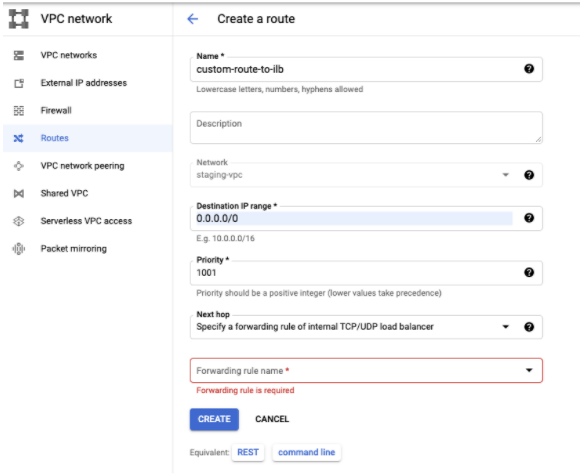
### Add the custom route to the load balancer
Add the [custom route](https://docs.cloud.google.com/data-fusion/docs/how-to/connect-to-public-source#create-route) to the Internal Load Balancer (ILB) in the
same VPC as the Cloud Data Fusion instance.
### Console
Go to the **VPC network** page.
[Go to VPC networks](https://console.cloud.google.com/networking/networks/list)
In the **Routes** tab, click **Create Route**.
### gcloud
Add the custom route to the internal load balancer:
```
export ROUTE=ROUTE_NAME
export ILB_FRONTEND=
gcloud beta compute routes create $ROUTE --project=$CDF_PROJECT \
--network=$VPC_NETWORK --priority=1001 \
--destination-range=0.0.0.0/0 \
--next-hop-ilb=$ILB_FRONTEND \
--next-hop-ilb-region=$REGION
```
## Troubleshooting
### Getting Connection Timeout errors in Preview or Wrangler
When setting up egress controls, you might get a `Connection Timeout` error.
To fix the issue, check that the following settings are in place:
- [The VPC network peering between tenant project and customer project is present](https://docs.cloud.google.com/data-fusion/docs/how-to/create-private-ip#set-up-vpc-peering).
- [The VPC network peering has **Export** routes enabled](https://docs.cloud.google.com/data-fusion/docs/how-to/create-private-ip#set-up-vpc-peering).
- [The custom route to gateway VM or ILB is not missing](https://docs.cloud.google.com/data-fusion/docs/how-to/connect-to-public-source#create-vm).
- [The firewall rules that allow `HTTP` and `HTTPS` traffic are not missing](https://docs.cloud.google.com/data-fusion/docs/how-to/connect-to-public-source#create-route).
### Instance group health checks are not successful
Check that [firewall rules](https://docs.cloud.google.com/load-balancing/docs/internal/setting-up-internal)
to allow TCP, UDP, and ICMP traffic from the
`130.211.0.0/22,35.191.0.0/16` source range are present.
### Pipeline fails while executing in Managed Service for Apache Spark
To access public internet at execution time, [enable Cloud NAT](https://docs.cloud.google.com/nat/docs/set-up-manage-network-address-translation)
in the same region and network as the Managed Service for Apache Spark cluster.
## What's next
- Learn how to [control egress in a private Cloud Data Fusion instance](https://docs.cloud.google.com/data-fusion/docs/how-to/egress-control) to only a specific set of domains.
- Learn more about [Networking in Cloud Data Fusion](https://docs.cloud.google.com/data-fusion/docs/concepts/networking).