Updating the Managed Service for Apache Spark image version in Cloud Data Fusion lets
you maintain dependency compatibility, access new Spark features, and resolve
pipeline runtime issues. You can configure this image version at the instance,
namespace, or pipeline level to match your operational requirements.
## Before you begin
Stop all real-time pipelines and replication jobs in the
Cloud Data Fusion instance. If a real-time pipeline or replication is
running when you change the Managed Service for Apache Spark image version, the changes
aren't applied to the pipeline execution.
For real-time pipelines, if checkpointing is enabled, stopping the
pipelines doesn't cause any data loss. For replication jobs, as long
as the database logs are available, stopping and starting the
replication job doesn't cause data loss.
> [!NOTE]
> **Note:** After the configuration changes are applied, **Batch pipelines** use the following updated configurations on subsequent runs.
### Console
1. Go to the Cloud Data Fusion **Instances** page and open the
instance where you need to stop a pipeline.
[Go to Instances](https://console.cloud.google.com/data-fusion/locations/-/instances)
2. Open each real-time pipeline in the Pipeline Studio and click
**Stop**.
3. Open each replication job on the **Replicate** page and
click **Stop**.
### REST API
- To retrieve all pipelines, use the following REST API call:
GET -H "Authorization: Bearer ${AUTH_TOKEN}" \
"${CDAP_ENDPOINT}/v3/namespaces/NAMESPACE_ID/apps"
Replace `NAMESPACE_ID` with the name of your
namespace.
- To stop a real-time pipeline, use the following REST API call:
POST -H "Authorization: Bearer ${AUTH_TOKEN}" \
"${CDAP_ENDPOINT}/v3/namespaces/NAMESPACE_ID/apps/PIPELINE_NAME/spark/DataStreamsSparkStreaming/stop"
Replace NAMESPACE_ID with the name of your
namespace and PIPELINE_NAME with the name of the
real-time pipeline.
- To stop a replication job, use the following REST API call:
POST -H "Authorization: Bearer ${AUTH_TOKEN}" \
"${CDAP_ENDPOINT}/v3/namespaces/NAMESPACE_ID/apps/REPLICATION_JOB_NAME/workers/DeltaWorker/stop"
Replace NAMESPACE_ID with the name of your
Namespace and REPLICATION_JOB_NAME with the name
of the replication job.
For more information, see [stopping real-time pipelines](https://docs.cloud.google.com/data-fusion/docs/reference/cdap-reference#stop_a_real-time_pipeline)
and [stopping replication jobs](https://docs.cloud.google.com/data-fusion/docs/reference/replication-ref#stop-a-replication-job).
## Check and override the default version of Managed Service for Apache Spark in Cloud Data Fusion
1. [Go to the Cloud Data Fusion web interface](https://docs.cloud.google.com/data-fusion/docs/create-data-pipeline#navigate_the_web_interface).
2. Click **System Admin \> Configuration \> System
Preferences**.
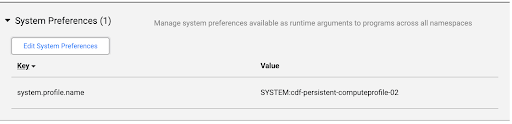
3. If a Managed Service for Apache Spark image is not specified in System Preferences,
or to change the preference, click **Edit System Preferences**.
1. Enter the following text in the **Key** field:
`system.profile.properties.imageVersion`
2. Enter the chosen Managed Service for Apache Spark image in the **Value field** ,
such as `2.1`.
3. Click **Save \& Close**.
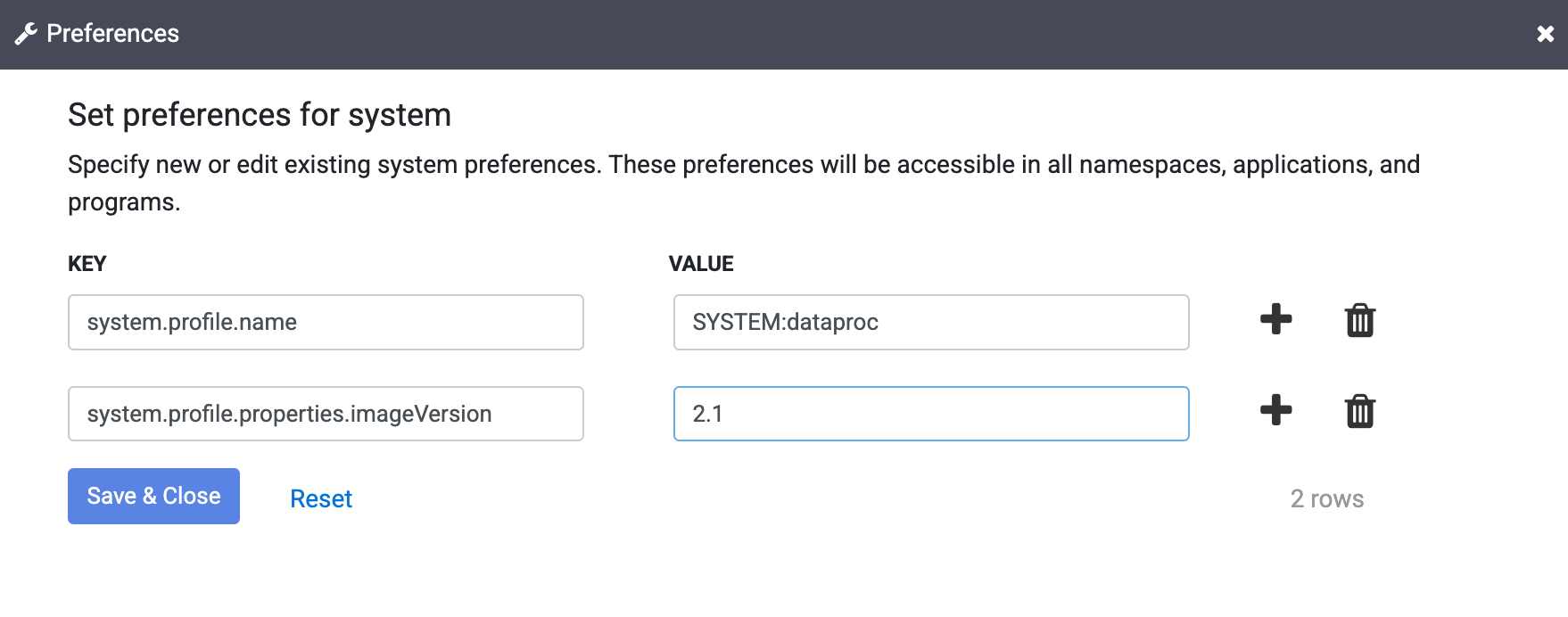
This change affects the entire Cloud Data Fusion instance, including all
its Namespaces and pipeline runs, unless the image version property is
overridden in a Namespace, pipeline, or Runtime Argument in your instance.
## Change the Managed Service for Apache Spark image version
The image version can be set in the Cloud Data Fusion web interface in
the Compute Configurations, Namespace Preferences, or Pipeline Runtime
Arguments.
> [!NOTE]
> **Note:** If you haven't overridden the Managed Service for Apache Spark image version in Namespace Preferences or Pipeline Runtime Arguments, skip these steps.
### Change the image in Namespace Preferences
If you have overridden the image version in your Namespace properties,
follow these steps:
1. [Go to the Cloud Data Fusion web interface](https://docs.cloud.google.com/data-fusion/docs/create-data-pipeline#navigate_the_web_interface).
2. Click **System Admin \> Configuration \> Namespaces**.
3. Open each namespace and click **Preferences**.
1. Make sure that there is no override with key
`system.profile.properties.imageVersion` with an incorrect image
version value.
2. Click **Finish**.
### Change the image in System Compute Profiles
1. [Go to the Cloud Data Fusion web interface](https://docs.cloud.google.com/data-fusion/docs/create-data-pipeline#navigate_the_web_interface).
2. Click **System Admin \> Configuration**.
3. Click System **Compute Profiles \> Create New Profile**.
4. Select the **Managed Service for Apache Spark** provisioner.
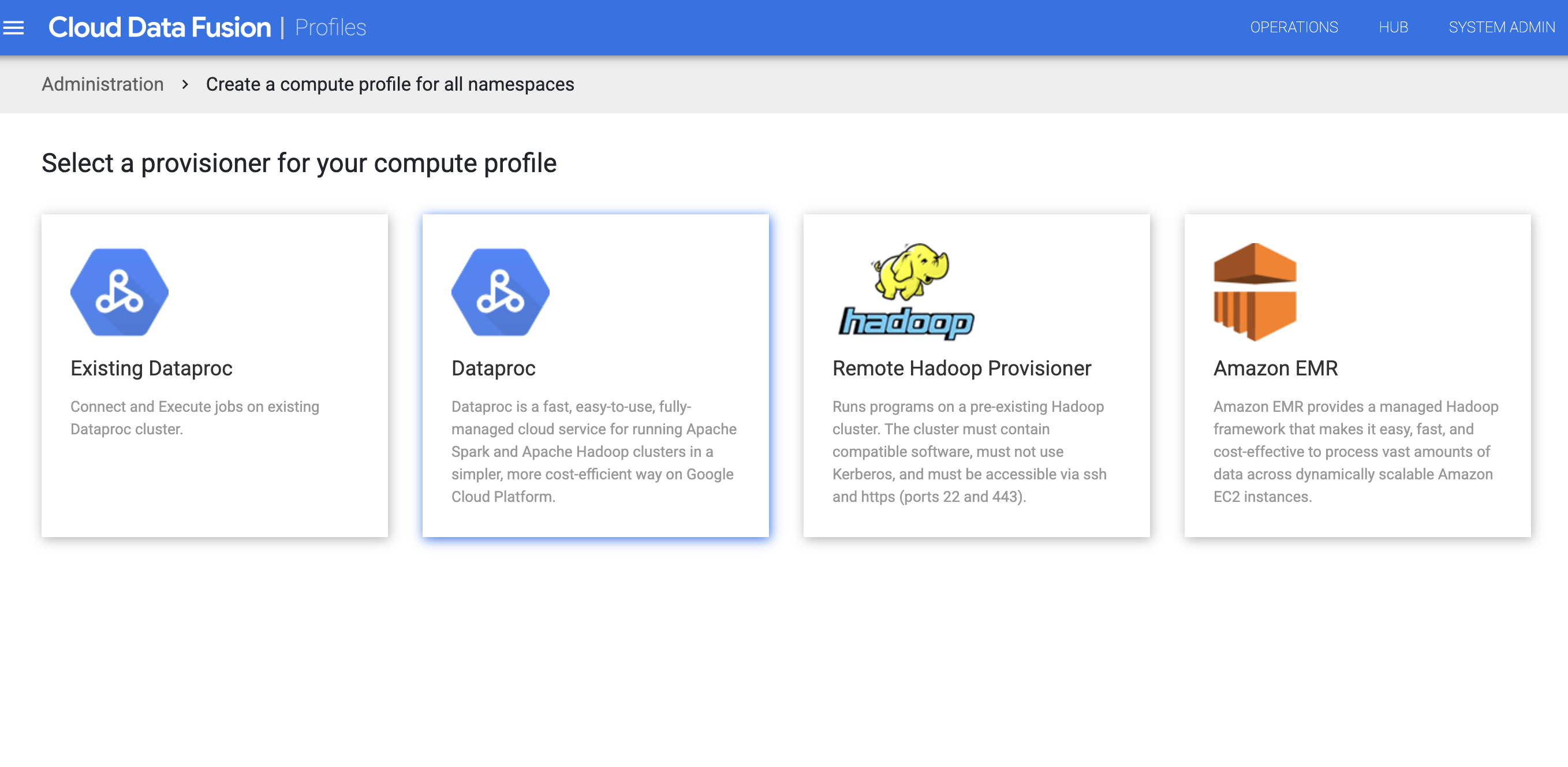
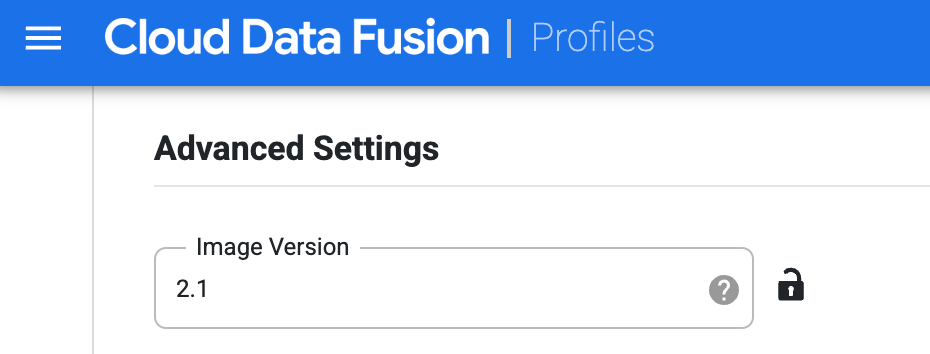
5. Create the profile for Managed Service for Apache Spark. In the **Image Version**
field, enter a Managed Service for Apache Spark image version.
6. Select this compute profile while running the pipeline on the **Studio**
page. On the pipeline run page, click **Configure \> Compute
config** and select this profile.
7. Select the Managed Service for Apache Spark profile and click **Save**.
> [!NOTE]
> **Note:** For more information about using image 2.2 and 2.1, which run in Java11, see [Change the Managed Service for Apache Spark image to version 2.2 or 2.1](https://docs.cloud.google.com/data-fusion/docs/how-to/change-dataproc-image#change-to-dataproc-21).
8. Click **Finish**.
### Change the image in Pipeline Runtime Arguments
If you have overridden the image version with a property in the Runtime
Arguments of your pipeline, follow these steps:
1. [Go to the Cloud Data Fusion web interface](https://docs.cloud.google.com/data-fusion/docs/create-data-pipeline#navigate_the_web_interface).
2. Click menu
**Menu \> List**.
3. On the **List** page, select the pipeline you want to update.
The pipeline opens on the **Studio** page.
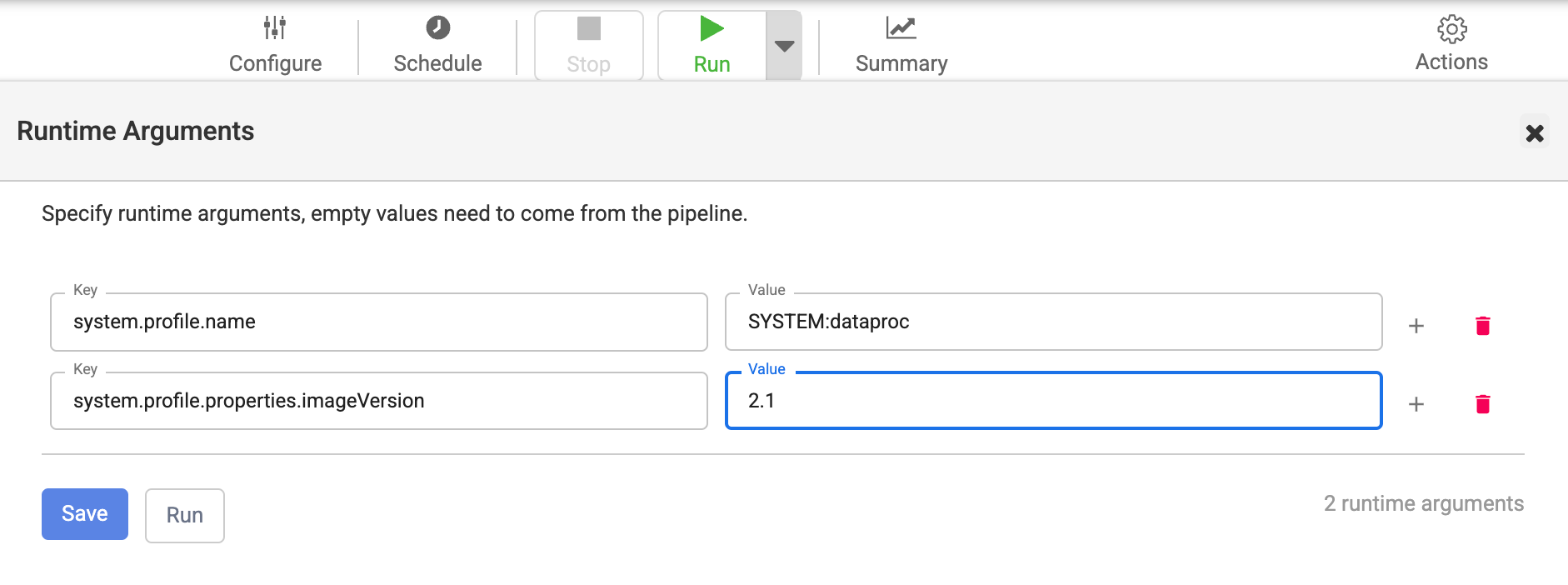
4. To expand the **Run** options, click the expander arrow.
The **Runtime Arguments** window opens.
5. Check that there is no override with the key
`system.profile.properties.imageVersion` with an incorrect image version
as the value.
6. Click **Save**.
## Recreate static Managed Service for Apache Spark clusters used by Cloud Data Fusion with chosen image version
If you use existing Managed Service for Apache Spark clusters with
Cloud Data Fusion, follow the [Managed Service for Apache Spark
guide](https://docs.cloud.google.com/dataproc/docs/guides/recreate-cluster) to recreate the clusters with the
chosen Managed Service for Apache Spark image version for your Cloud Data Fusion
version.
> [!IMPORTANT]
> **Important:** Keep the cluster name the same.
> [!NOTE]
> **Note:** If there are any pipelines running when the cluster is being recreated, the pipelines will fail. Subsequent runs should run on the recreated cluster.
Alternatively, you can create a new Managed Service for Apache Spark cluster with the
chosen Managed Service for Apache Spark image version and delete and recreate the compute
profile in Cloud Data Fusion with the same compute profile name and
updated Managed Service for Apache Spark cluster name. This way, running batch pipelines
can complete execution on the existing cluster and subsequent pipeline runs take
place on the new Managed Service for Apache Spark cluster. You can delete the old
Managed Service for Apache Spark cluster after you have confirmed that all pipeline runs
have completed.
## Check that the Managed Service for Apache Spark image version is updated
### Console
1. In the Google Cloud console, go to the Managed Service for Apache Spark **Clusters**
page.
[Go to Clusters](https://console.cloud.google.com/dataproc/clusters)
2. Open the **Cluster details** page for the new cluster that
Cloud Data Fusion created when you specified the new version.
The **Image version** field has the new value that you specified in
Cloud Data Fusion.
### REST API
1. Get the list of clusters with their metadata:
GET -H "Authorization: Bearer ${AUTH_TOKEN}" \
https://dataproc.googleapis.com/v1/projects/PROJECT_ID/regions/REGION_ID/clusters
Replace the following:
- `PROJECT_ID` with the name of your namespace
- `REGION_ID` with the name of the region where your clusters are located
2. Search for the name of your pipeline (cluster name).
3. Under that JSON object, see the image in `config >
softwareConfig > imageVersion`.
## Change the Managed Service for Apache Spark image to version 2.1 or later
Cloud Data Fusion versions 6.9.1 and later support the
Managed Service for Apache Spark image 2.1 Compute Engine, which runs in Java 11.
In versions 6.10.0 and later, image 2.1 is the default.
If you change to image 2.1 or later, from an earlier image, for your batch
pipelines and replication jobs to succeed, the JDBC drivers that the
database plugins use in those instances must be compatible with Java 11.
Managed Service for Apache Spark image 2.2 and 2.1 have the following limitations in
Cloud Data Fusion:
- Map reduce jobs aren't supported.
- JDBC driver versions used in the database plugins in your instance must be updated to have support for Java 11. See the following table for driver versions that work with Managed Service for Apache Spark 2.2, 2.1, and Java 11:
| JDBC Drivers | Earlier versions removed from Cloud Data Fusion 6.9.1 | Java 8 and Java 11-supported versions that work with Managed Service for Apache Spark 2.2, 2.1, or 2.0 |
|---|---|---|
| Cloud SQL for MySQL JDBC driver | - | 1.0.16 |
| Cloud SQL for PostgreSQL JDBC driver | - | 1.0.16 |
| Microsoft SQL Server JDBC driver | Microsoft JDBC driver 6.0 | Microsoft JDBC driver 9.4 |
| MySQL JDBC driver | 5.0.8, 5.1.39 | 8.0.25 |
| PostgreSQL JDBC driver | 9.4.1211.jre7, 9.4.1211.jre8 | 42.6.0.jre8 |
| Oracle JDBC driver | ojdbc7 | ojdbc8 (12c and above) |
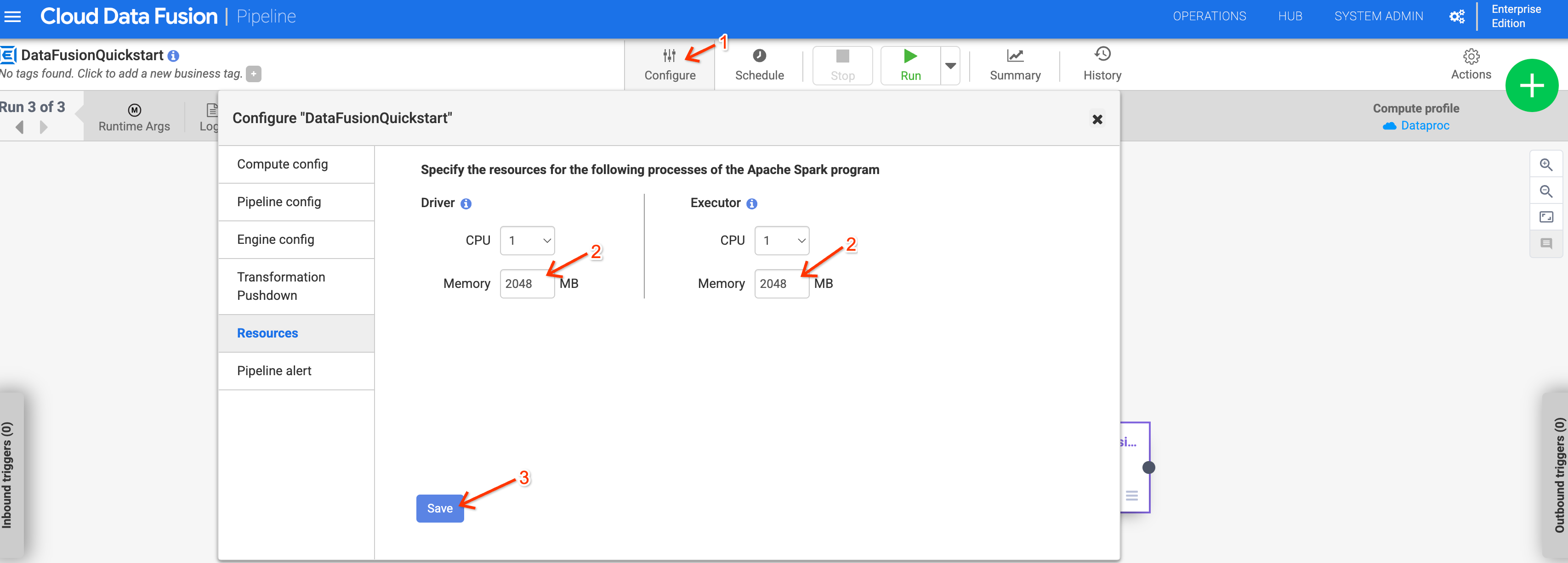
### Memory usage when using Managed Service for Apache Spark 2.1 or later
Memory usage might increase for pipelines that use Managed Service for Apache Spark 2.1
or later. If you upgrade your instance to version 6.10 or later, and
previous pipelines are failing due to memory issues, increase the driver and
executor memory to 2048 MB in the `Resources` configuration for the
pipeline.
Alternatively, you can override the Managed Service for Apache Spark version by setting
the `system.profile.properties.imageVersion` runtime argument to `2.0-debian10`.