

Customer Experience Insights で会話データ処理を行うには、次の API を有効にする必要があります。
- CX インサイトを使用する CX インサイト API。
- 会話を CX Insights に取り込むための Cloud Storage API。
- Speech-to-Text API を使用して音声ファイルをアップロードします。
- 音声ファイルまたは文字起こしファイルで秘匿化を行うための Cloud Data Loss Prevention API。
- Dialogflow API。Dialogflow ランタイム統合とトピック モデリング V1 に必要です。
このクイックスタートでは、次の操作について説明します。
- Cloud Storage API、Cloud Data Loss Prevention API、Speech-to-Text API、Dialogflow API を有効にします。
- CX Insights API を有効にします。
- CX Insights API にリクエストを送信し、レスポンスを受信します。
Cloud Storage API、Cloud Data Loss Prevention API、Speech-to-Text API、Dialogflow API を有効にします。
Cloud Storage を使用する前に、Cloud Storage API を有効にする必要があります。API を有効にするには:
- Google Cloud コンソールに移動します。
[API の概要に移動] をクリックします。
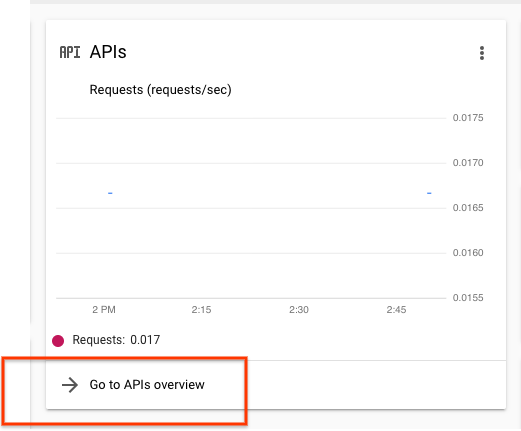
表示された [API とサービス] ページで、[Cloud Storage] をクリックします。
この API をまだ有効にしていない場合は、[有効にする] をクリックします。
Speech-to-Text API、Cloud Data Loss Prevention API、Dialogflow API についても、上記の手順を繰り返します。
Insights API へのアクセスを設定する
- Google Cloud コンソールに移動します。
- プロジェクト セレクタ メニューをクリックします。

- 既存のプロジェクトを選択するか、新しいプロジェクトを作成します。
- Google Cloud コンソールの検索バーに「Customer Experience Insights API」と入力します。
- ポップアップ表示されたオプションをクリックし、[有効にする] を選択します。
Google Cloud SDK をインストールして設定します。
-
Create local authentication credentials for your user account:
gcloud auth application-default login
If an authentication error is returned, and you are using an external identity provider (IdP), confirm that you have signed in to the gcloud CLI with your federated identity.
次の CURL コマンドを入力して、設定を確認します。このコマンドを実行すると、すべての Insights 会話が一覧表示されます。空の辞書が返されます。
curl -H "Authorization: Bearer $(gcloud auth application-default print-access-token)" "https://contactcenterinsights.googleapis.com/v1/projects/<var>project-id</var>/locations/us-central1/conversations"
省略可: VPCSC で CX Insights を使用する
VPC Service Controls(VPC Service Controls)で CX Insights を使用するには、セキュリティ境界に CX Insights を追加します。詳細については、VPCSC ドキュメントをご覧ください。