After VM Manager applies an OS policy assignment to a virtual machine
(VM) instance, an OS policy assignment report is generated. The report contains
the compliance status of all the OS policies that are applied to a specific VM
for a given OS policy assignment.
This document describes the following tasks:
- View the [OS policy compliance report for all VMs in an organization or folder](https://docs.cloud.google.com/compute/vm-manager/docs/os-policies/view-compliance#policy-summary).
- View OS policy assignment reports for all VMs in a specified zone. This is useful for providing an overview of compliance status in a specific zone. See [View OS policy assignment reports](https://docs.cloud.google.com/compute/vm-manager/docs/os-policies/view-compliance#list-reports).
- Review the OS policy assignment for a specific VM. This is useful when reviewing compliance status for a specific VM. See [Review an OS policy assignment report](https://docs.cloud.google.com/compute/vm-manager/docs/os-policies/view-compliance#get-specific-vm).
## Before you begin
- Review [OS Config quotas](https://docs.cloud.google.com/compute/vm-manager/docs/os-config-quotas).
- If you haven't already, set up [authentication](https://docs.cloud.google.com/compute/docs/authentication). Authentication verifies your identity for access to Google Cloud services and APIs. To run code or samples from a local development environment, you can authenticate to Compute Engine by selecting one of the following options:
Select the tab for how you plan to use the samples on this page:
### Console
When you use the Google Cloud console to access Google Cloud services and
APIs, you don't need to set up authentication.
### gcloud
1.
[Install](https://docs.cloud.google.com/sdk/docs/install) the Google Cloud CLI.
After installation,
[initialize](https://docs.cloud.google.com/sdk/docs/initializing) the Google Cloud CLI by running the following command:
```bash
gcloud init
```
If you're using an external identity provider (IdP), you must first
[sign in to the gcloud CLI with your federated identity](https://docs.cloud.google.com/iam/docs/workforce-log-in-gcloud).
> [!NOTE]
> **Note:** If you installed the gcloud CLI previously, make sure you have the latest version by running `gcloud components update`.
2. [Set a default region and zone](https://docs.cloud.google.com/compute/docs/gcloud-compute#set_default_zone_and_region_in_your_local_client).
### REST
To use the REST API samples on this page in a local development environment, you use the
credentials you provide to the gcloud CLI.
1. [Install](https://docs.cloud.google.com/sdk/docs/install) the Google Cloud CLI.
2. If you're using an external identity provider (IdP), you must first [sign in to the gcloud CLI with your federated identity](https://docs.cloud.google.com/iam/docs/workforce-log-in-gcloud).
For more information, see
[Authenticate for using REST](https://docs.cloud.google.com/docs/authentication/rest)
in the Google Cloud authentication documentation.
## Required roles and permissions
To get the permissions that
you need to view OS policy compliance data,
ask your administrator to grant you the
following IAM roles:
- View OS policy compliance summary for VMs in an organization or folder:
- [OSPolicyAssignmentReport Viewer](https://docs.cloud.google.com/iam/docs/roles-permissions/osconfig#osconfig.osPolicyAssignmentReportViewer) (`roles/osconfig.osPolicyAssignmentReportViewer`) on the organization or folder
- [OSPolicyAssignment Viewer](https://docs.cloud.google.com/iam/docs/roles-permissions/osconfig#osconfig.osPolicyAssignmentViewer) (`roles/osconfig.osPolicyAssignmentViewer`) on the organization or folder
- View OS policy assignment reports for VMs in a project: [OSPolicyAssignmentReport Viewer](https://docs.cloud.google.com/iam/docs/roles-permissions/osconfig#osconfig.osPolicyAssignmentReportViewer) (`roles/osconfig.osPolicyAssignmentReportViewer`) on the project
For more information about granting roles, see [Manage access to projects, folders, and organizations](https://docs.cloud.google.com/iam/docs/granting-changing-revoking-access).
These predefined roles contain
the permissions required to view OS policy compliance data. To see the exact permissions that are
required, expand the **Required permissions** section:
#### Required permissions
The following permissions are required to view OS policy compliance data:
- View OS policy compliance summary for VMs in an organization or folder:
- `osconfig.osPolicyAssignmentReports.searchSummaries`
- `osconfig.osPolicyAssignments.searchPolicies`
- `resourcemanager.projects.get`
- `resourcemanager.projects.list`
You might also be able to get
these permissions
with [custom roles](https://docs.cloud.google.com/iam/docs/creating-custom-roles) or
other [predefined roles](https://docs.cloud.google.com/iam/docs/roles-overview#predefined).
## View OS policy compliance summary for all VMs in an organization or folder
You can view the OS policy compliance summary for all VMs in an organization
or folder by using the Google Cloud console.
VM Manager displays OS policy compliance summary only for those projects
that meet one of the following requirements:
- Contains one or more VMs on which VM Manager is enabled and running.
- Contains one or more VMs on which VM Manager was running in the past 7 days and OS policy compliance data is available.
To view OS policy compliance data, do the following:
1. In the Google Cloud console, go to the **Compute Engine** \>
**VM Manager** \> **OS policies** page.
[Go to OS policies](https://console.cloud.google.com/compute/config/projects/)
2. In the project drop-down list at the top of the Google Cloud console,
select the organization or folder for which you want to see the OS policy
compliance summary.
3. Use the following options to view the OS policy compliance data:
1. To view OS policy compliance summary per project, click the **Projects** tab.
2. To view OS policy compliance summary per policy, click the **OS policies** tab.
4. Optional: Specify the criteria for computing the OS policy compliance
summary by [using the query builder](https://docs.cloud.google.com/compute/vm-manager/docs/os-policies/view-compliance#policy-query-builder).
5. Review OS policy compliance summary for VMs. The table in the **Projects** tab
includes a row for each project as shown in the following figure:
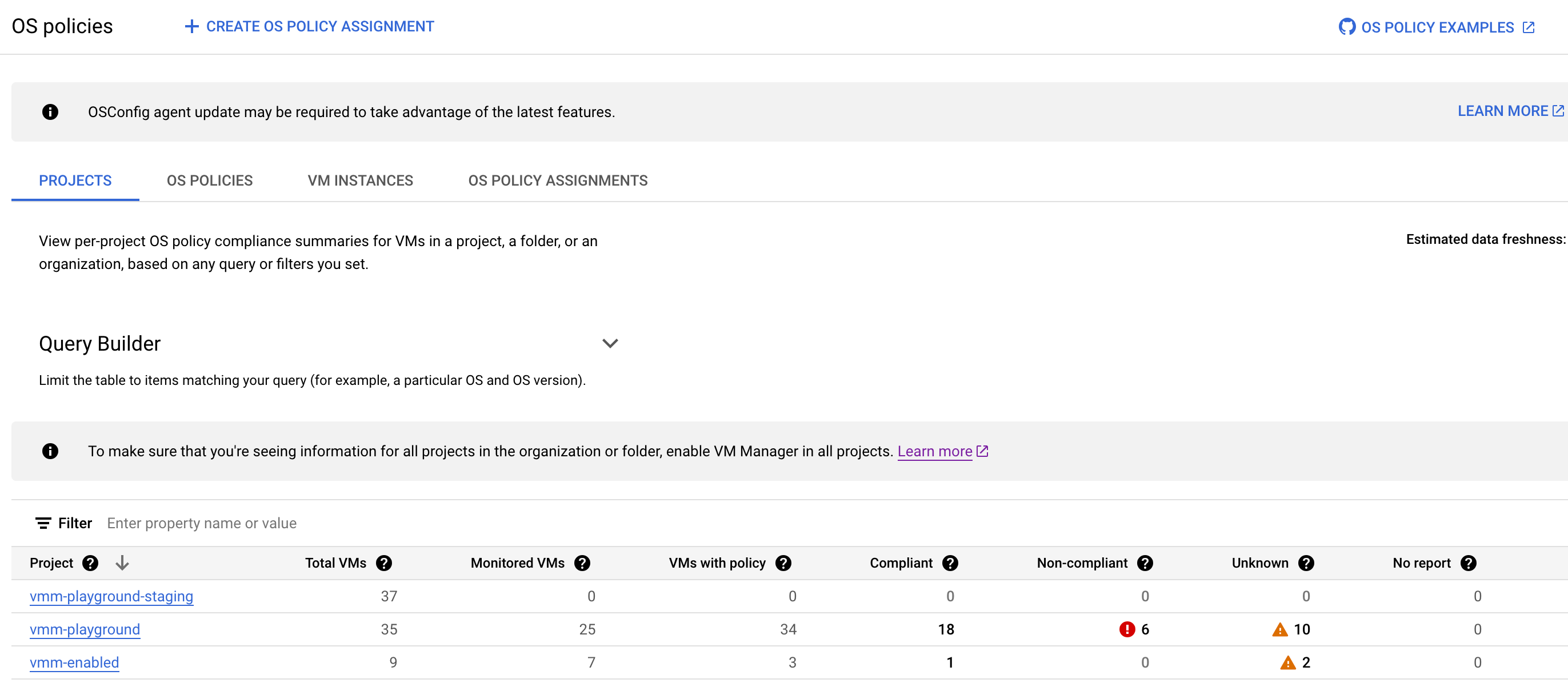
The table lists the following information that meets the
criteria you've specified in the query builder:
- **Project**: The name of projects in the organization that contain at least one VM and have VM Manager enabled.
- **Total VMs**: Total number of VMs in each project.
- **Monitored VMs**: Number of VMs in the project that have VM Manager agent enabled and are being scanned for policy compliance.
- **VMs with policy**: Number of VMs with at least one policy assigned.
- **Compliant** : Number of VMs with all their assigned policies reported as `COMPLIANT`.
- **Non compliant** : Number of VMs with at least one assigned policy reported as `NON-COMPLIANT`.
- **Unknown** : Number of VMs with at least one assigned policy reported as `UNKNOWN`, and no policy reported as `NON-COMPLIANT`. The `UNKNOWN` state is due to one of the following reasons:
- The VM is not running.
- VM Manager agent is not enabled for the VM.
- An error occurred during the process.
- **No report** : Number of VMs with assigned policies, but no policy compliance report was found due to one of the following reasons:
- VM Manager agent is not enabled for the VM.
- Compliance scan is in progress. The report is not ready yet.
6. Optional: Apply table filters if you want to view specific rows in the
OS policy compliance summary table.

For example, if you want to see OS policy compliance summary for projects that have more
than 10 VMs, then set the filter option **Total VMs** to `>= 10`.
7. Optional: Click the number of VMs to view more details about the
VMs in a particular state. For example, clicking the number of VMs for a
given project in the **Unknown** column opens the **VM instances** tab
with a list of unknown OS policies for each VM in that project.
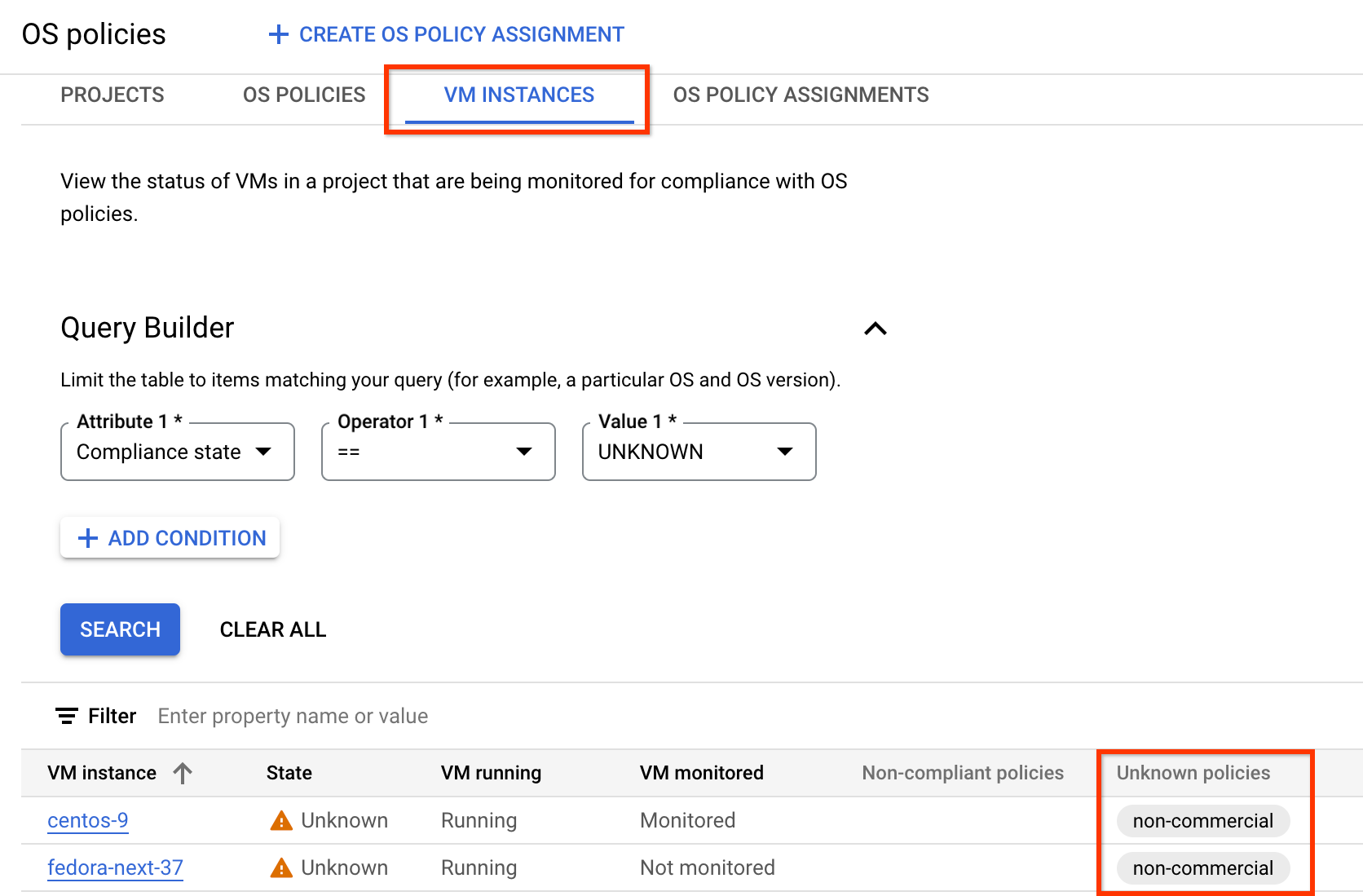
For more information, see [View OS policy assignment reports](https://docs.cloud.google.com/compute/vm-manager/docs/os-policies/view-compliance#list-reports).
### Use query builder to filter OS policy compliance data
Based on the criteria that you specified in the query builder, VM Manager
displays the OS policy compliance data for VMs in the projects in your organization or folder.
You can then use the table filters in the OS policy compliance table to filter
the displayed data.
For example, when you set the `OS` attribute in the Query builder as `Debian`,
VM Manager displays OS policy compliance data for VMs with Debian OS.
If you want to view the compliance data for a specific project, use the
table filter to specify the project ID.
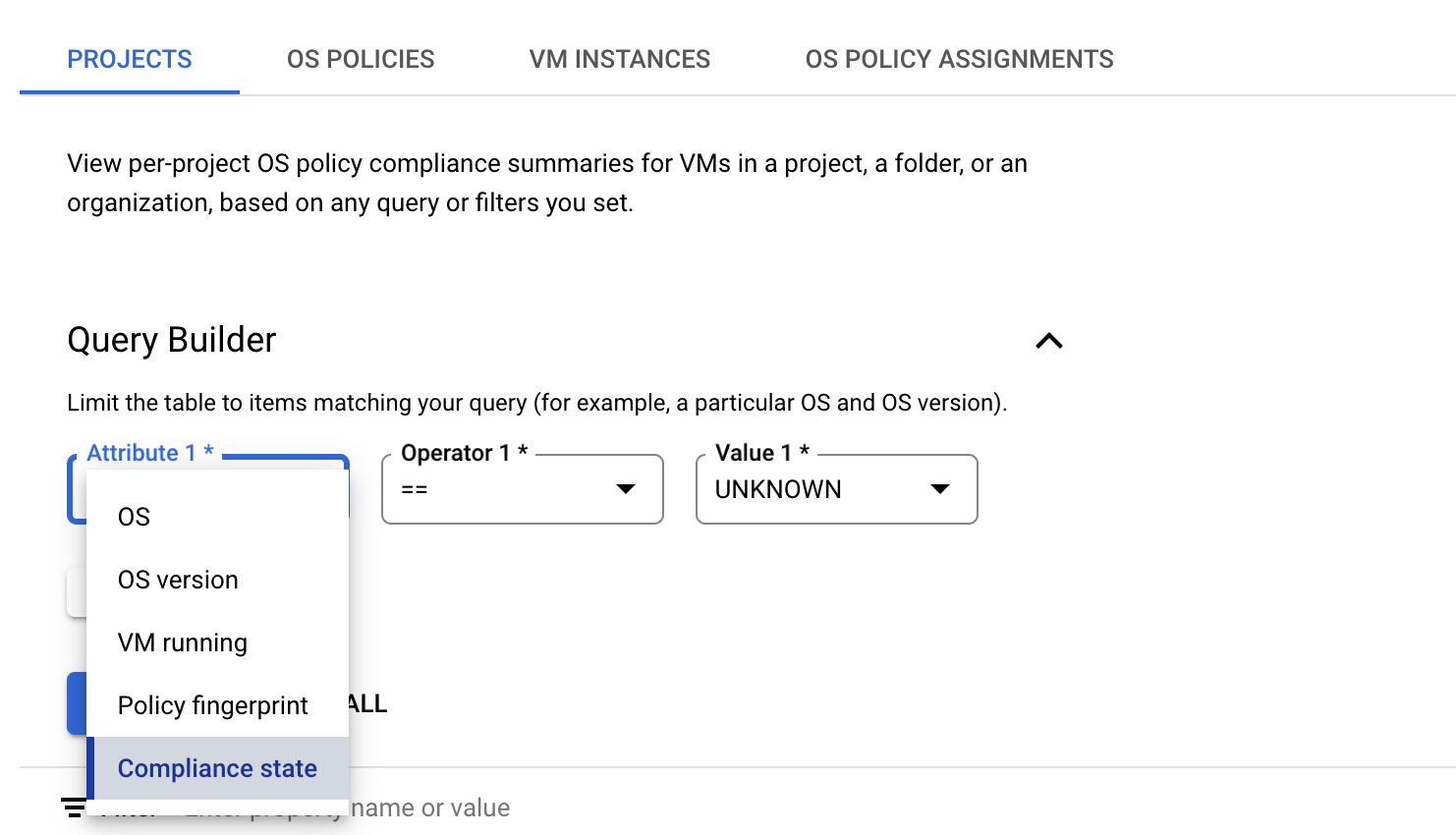
To set a query in the query builder in the **Projects** tab, do the following:
1. Select an **Attribute**. The query builder supports the following attributes:
- **OS** : Specify the short names of the operating systems such as `Windows` or `Debian`.
- **OS version** : Specify the version of the operating system. For example, `21.04` or `10.0.22000`. You can specify a single asterisk (`*`) at the end of the OS version string to denote partial match, for example `10*`.
- **VM running** : Specify whether you want to view patch summary for VMs that are in the `RUNNING` state.
- **Policy fingerprint**: Specify the unique policy fingerprint for the OS policy. When you set this attribute, VM Manager computes compliance summary only for those OS policies with the specified fingerprint.
- **Compliance state** : Specify one of the compliance states for the policy:
- `COMPLIANT`: VMs with all assigned policies reported as `COMPLIANT`
- `NON-COMPLIANT`: VMs with at least one assigned policy reported as `NON-COMPLIANT`
- `UNKNOWN`: VMs with at least one assigned policy reported as `UNKNOWN`
2. Choose one of the attributes and specify a value for the attribute.
For example, if you want to see patch summary for VMs with a specific operating
system, then select **OS**. You then get a list of comparison
operators to choose from.
1. Select an **Operator** , for example, `==`.
2. In the **Value** field, specify the comparison value. For example `Debian`.
3. To add another attribute, click **Add condition**.
4. Click **Search**.
> [!NOTE]
> **Note:** VM Manager applies the query only to VMs on which VM Manager is enabled.
## View OS policy assignment reports
To view the OS policy assignment reports, you can use either Google Cloud console,
the Google Cloud CLI, or
[REST](https://docs.cloud.google.com/compute/docs/osconfig/rest).
Use this procedure to view a list of OS policy assignment reports for a
specified location.
### Console
1. If you use VPC Service Controls to protect your services,
add the Cloud Asset Inventory service to your list of allowed services. For more
information, see [VPC accessible services](https://docs.cloud.google.com/vpc-service-controls/docs/vpc-accessible-services).
2. In the Google Cloud console, go to the
**OS policies \>
VM instances** page.
[Go to VM instances](https://console.cloud.google.com/compute/config/instances)
### gcloud
To view a list of OS policy assignment reports, use the
[`os-config os-policy-assignment-reports list` command](https://docs.cloud.google.com/sdk/gcloud/reference/compute/os-config/os-policy-assignment-reports/list).
To view all OS policy assignment reports for a specific location, run the following
command. Replace `ZONE` with the zone where the VMs are
located.
```
gcloud compute os-config os-policy-assignment-reports list --location=ZONE
```
**Example command and output (all VMs)**
```
gcloud compute os-config os-policy-assignment-reports list --location=us-central1-a
INSTANCE ASSIGNMENT_ID LOCATION UPDATE_TIME SUMMARY
centos7 my-test-assignment1 us-central1-a 2021-11-02T18:14:03.908341Z 0/1 policies compliant
centos7 my-test-assignment2 us-central1-a 2021-11-02T18:14:03.908341Z 0/1 policies compliant
rhel-8 my-test-assignment1 us-central1-a 2021-11-02T19:13:28.468290Z 0/1 policies compliant
rhel-8 my-test-assignment2 us-central1-a 2021-11-02T19:13:28.468290Z 0/1 policies compliant
my-centos my-test-assignment1 us-central1-a 2021-11-02T18:14:37.418883Z 1/1 policies compliant
my-centos my-test-assignment2 us-central1-a 2021-11-02T18:14:37.418883Z 0/1 policies compliant
deb-10 my-test-assignment2 us-central1-a 2021-11-02T19:00:11.777748Z 0/1 policies compliant
windows my-test-assignment2 us-central1-a 2021-11-02T18:24:07.935711Z 0/1 policies compliant
windows my-test-assignment3 us-central1-a 2021-11-02T18:24:07.935711Z 0/1 policies compliant
sles15 my-test-assignment2 us-central1-a 2021-11-02T18:38:07.335276Z 0/1 policies compliant
```
You can also use optional flags such as `--instance` or `--assignment-id`
to filter the results.
```
gcloud compute os-config os-policy-assignment-reports list --location=ZONE \
[--instance=VM_NAME | --assignment-id=ASSIGNMENT_ID]
```
Replace the following:
- `ZONE`: the zone where the VM is located
- Optional: provide one of the following:
- `VM_NAME`: the name or ID of the VM that you want to view OS policy assignment reports for
- `ASSIGNMENT_ID`: the ID of the OS policy assignment that you want to view OS policy assignment reports for
**Example command and output (specific VM)**
```
gcloud compute os-config os-policy-assignment-reports list --location=us-central1-a \
--instance=my-centos
INSTANCE ASSIGNMENT_ID LOCATION UPDATE_TIME SUMMARY
my-centos my-test-assignment1 us-central1-a 2021-11-02T18:14:37.418883Z 1/1 policies compliant
my-centos my-test-assignment2 us-central1-a 2021-11-02T18:14:37.418883Z 0/1 policies compliant
```
**Example command and output (specific assignment)**
```
gcloud compute os-config os-policy-assignment-reports list --location=us-central1-a \
--assignment-id=my-test-assignment1
INSTANCE ASSIGNMENT_ID LOCATION UPDATE_TIME SUMMARY
centos7 my-test-assignment1 us-central1-a 2021-11-02T18:14:03.908341Z 0/1 policies compliant
rhel-8 my-test-assignment1 us-central1-a 2021-11-02T19:13:28.468290Z 0/1 policies compliant
my-centos my-test-assignment1 us-central1-a 2021-11-02T18:14:37.418883Z 1/1 policies compliant
```
### REST
In the API, create a `GET` request to the
[`projects.locations.osPolicyAssignments.reports.list` method](https://docs.cloud.google.com/compute/docs/osconfig/rest/v1/projects.locations.instances.osPolicyAssignments.reports/list).
```
GET https://osconfig.googleapis.com/v1/projects/PROJECT_ID/locations/ZONE/instances/VM_NAME/osPolicyAssignments/OS_POLICY_ASSIGNMENT_ID/report
```
Replace the following:
- `PROJECT_ID`: your project ID
- `ZONE`: the zone where the VMs are located
- Optional. Provide one of the following:
- `VM_NAME`: the name or ID of the VM that you want to view OS policy assignment reports for. If not required, use a `-` for the value.
- `ASSIGNMENT_ID`: the ID of the OS policy assignment that you want to view OS policy assignment reports for. If not required, use a `-` for the value.
**Examples:**
- To view reports for all VMs in the project `my-project-12345` and zone `us-central1-a`, use the following URI:
```
projects/my-project-12345/locations/us-central1-a/instances/-/osPolicyAssignments/-/report
```
- To view reports for the VM `my-test-vm` in the project `my-project-12345` and located in zone `us-central1-a`, use the following URI:
```
projects/my-project-12345/locations/us-central1-a/instances/my-test-vm/osPolicyAssignments/-/report
```
- To view reports for all VMs in the project `my-project-12345` and zone `us-central1-a` that have the `my-test-assignment` OS policy assignment, use the following URI:
```
projects/my-project-12345/locations/us-central1-a/instances/-/osPolicyAssignments/my-test-assignment/report
```
## Review an OS policy assignment report
Use this procedure to get a detailed view of an OS policy assignment report
associated with a specific VM.
### Console
1. If you use VPC Service Controls to protect your services,
add the Cloud Asset Inventory service to your list of allowed services. For more
information, see [VPC accessible services](https://docs.cloud.google.com/vpc-service-controls/docs/vpc-accessible-services).
2. In the Google Cloud console, go to the
**OS policies \>
VM instances** page.
[Go to Google Cloud console](https://console.cloud.google.com/compute/config/instances)
3. To view the OS policy assignment report for a specific VM, click the name of
the VM.
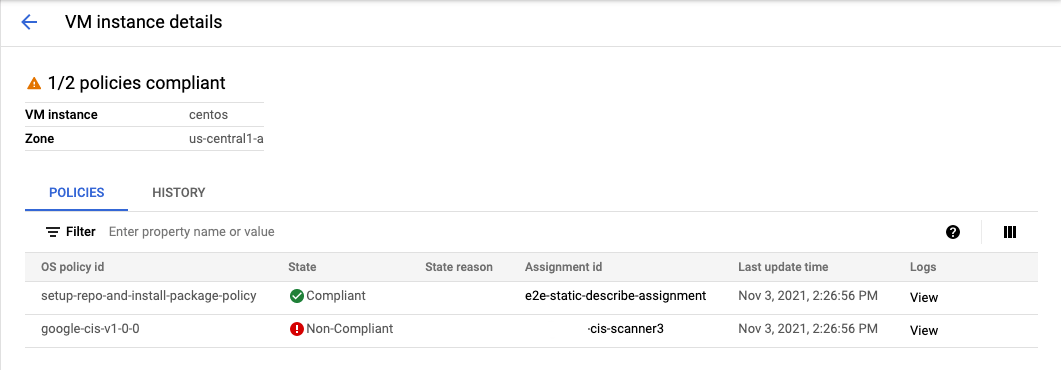
4. Review the **State** , **State reason** , and **Logs** fields. The **Logs**
field provides a link to the Cloud Logging dashboard where you can
access debug logs for the OS Config agent running on the VM.
- For more information about the returned compliance states, review the [`ComplianceState`
section in the API reference documentation](https://docs.cloud.google.com/compute/docs/osconfig/rest/v1/OSPolicyAssignmentReport#compliancestate).
- For more information about the returned compliance reasons, review the `complianceStateReason` field in the [`OSPolicyResourceCompliance`
API reference documentation](https://docs.cloud.google.com/compute/docs/osconfig/rest/v1/OSPolicyAssignmentReport#ospolicyresourcecompliance).
To fix these issues, you can also review the logs for the OS policy and make the required updates.
To check the logs, see [Troubleshooting VM Manager](https://docs.cloud.google.com/compute/docs/troubleshooting/vm-manager/troubleshoot-vm-manager).
### gcloud
1. To view the OS policy assignment report for a specific VM, use the
[`os-config os-policy-assignment-reports describe` command](https://docs.cloud.google.com/sdk/gcloud/reference/compute/os-config/os-policy-assignment-reports/describe).
```
gcloud compute os-config os-policy-assignment-reports describe OS_POLICY_ASSIGNMENT_ID \
--instance=VM_NAME \
--location=ZONE
```
Replace the following:
- `OS_POLICY_ASSIGNMENT_ID`: the ID of the OS policy assignment that you want to review for the specified VM
- `VM_NAME`: the name or ID of the VM that you want to view OS policy assignment report for
- `ZONE`: the zone where the VM is located
**Example**
```
gcloud compute os-config os-policy-assignment-reports describe my-test-assignment1 \
--instance=centos7 \
--location=us-central1-a
```
**Output**
```
instance: centos7
lastRunId: 96a61b92-3e14-4155-a3e8-dd66520f49ae
name: projects/1234578882888/locations/us-central1-a/instances/29255009728795105/osPolicyAssignments/my-test-assignment1/report
osPolicyAssignment: projects/1234578882888/locations/us-central1-a/osPolicyAssignments/my-test-assignment1t@3428384d-fa61-478e-b7e2-3d5fae74bea3
osPolicyCompliances:
– complianceState: UNKNOWN
complianceStateReason: os-policies-not-supported-by-agent
osPolicyId: setup-repo-and-install-package-policy
osPolicyResourceCompliances:
– complianceState: UNKNOWN
complianceStateReason: os-policy-execution-attempt-failed
osPolicyResourceId: setup-repo
– complianceState: UNKNOWN
complianceStateReason: os-policy-execution-attempt-failed
osPolicyResourceId: install-pkg
updateTime: '2021-11-02T19:14:34.314831Z'
```
2. Review the `complianceState` and `complianceStateReason`.
- For more information about the returned compliance states, review the [`ComplianceState`
section in the API reference documentation](https://docs.cloud.google.com/compute/docs/osconfig/rest/v1/OSPolicyAssignmentReport#compliancestate).
- For more information about the returned compliance reasons, review the `complianceStateReason` field in the [`OSPolicyResourceCompliance`
API reference documentation](https://docs.cloud.google.com/compute/docs/osconfig/rest/v1/OSPolicyAssignmentReport#ospolicyresourcecompliance).
To fix these issues, you can also review the logs for the OS policy and make the required updates.
To check the logs, see [Troubleshooting VM Manager](https://docs.cloud.google.com/compute/docs/troubleshooting/vm-manager/troubleshoot-vm-manager).
### REST
1. In the API, create a `GET` request to the
[`projects.locations.osPolicyAssignments.reports.get` method](https://docs.cloud.google.com/compute/docs/osconfig/rest/v1/projects.locations.instances.osPolicyAssignments.reports/get).
```
GET https://osconfig.googleapis.com/v1/projects/PROJECT_ID/locations/ZONE/instances/VM_NAME/osPolicyAssignments/OS_POLICY_ASSIGNMENT_ID/report
```
Replace the following:
- `PROJECT_ID`: your project ID
- `ZONE`: the zone where the VM is located
- `VM_NAME`: the name or ID of the VM that you want to view OS policy assignment report for
- `OS_POLICY_ASSIGNMENT_ID`: the ID of the OS policy assignment that you want to view OS policy assignment report for
2. Review the `complianceState` and `complianceStateReason`.
- For more information about the returned compliance states, review the [`ComplianceState`
section in the API reference documentation](https://docs.cloud.google.com/compute/docs/osconfig/rest/v1/OSPolicyAssignmentReport#compliancestate).
- For more information about the returned compliance reasons, review the `complianceStateReason` field in the [`OSPolicyResourceCompliance`
API reference documentation](https://docs.cloud.google.com/compute/docs/osconfig/rest/v1/OSPolicyAssignmentReport#ospolicyresourcecompliance).
To fix these issues, you can also review the logs for the OS policy and make the required updates.
To check the logs, see [Troubleshooting VM Manager](https://docs.cloud.google.com/compute/docs/troubleshooting/vm-manager/troubleshoot-vm-manager).
## What's next
For more information about working with OS policies and compliance data, see the
following resources:
- Read the [OS policies overview](https://docs.cloud.google.com/compute/vm-manager/docs/os-policies).
- [Manage OS policies](https://docs.cloud.google.com/compute/vm-manager/docs/os-policies/manage-os-policy).
- [View custom data from OS policies for your organization by using Cloud Asset Inventory and BigQuery](https://docs.cloud.google.com/compute/vm-manager/docs/os-policies/view-custom-data).
- Review [best practices for VM Manager across an organization](https://docs.cloud.google.com/compute/vm-manager/docs/best-practices).