This document describes common errors that you may run into when connecting to
virtual machine (VM) instances using SSH, ways to resolve errors, and
methods for diagnosing failed SSH connections.
## SSH troubleshooting tool
Use the SSH troubleshooting tool to help determine why an SSH connection failed.
The troubleshooting tool performs the following tests to check for the cause of
failed SSH connections:
- **User permissions tests:** Checks if you have the required IAM permissions to connect to the VM using SSH.
- **Network connectivity tests:** Checks if the VM is connected to the network.
- **VM instance status tests:** Checks the VM's CPU status to see if the VM is running.
- **VPC settings tests:** Checks the default SSH port.
### Run the troubleshooting tool
You can use the Google Cloud console or the Google Cloud CLI to check for
networking problems and user permission errors that might cause SSH
connections to fail.
#### Permissions required for this task
To perform this task, you must have the following
[permissions](https://docs.cloud.google.com/iam/docs/overview#permissions):
- `networkmanagement.connectivitytests.create` on the VM
- `networkmanagement.connectivitytests.delete` on the VM
- `networkmanagement.connectivitytests.get` on the VM
If you are missing any of the preceding permissions, the troubleshooting
tool skips network connectivity tests.
### Console
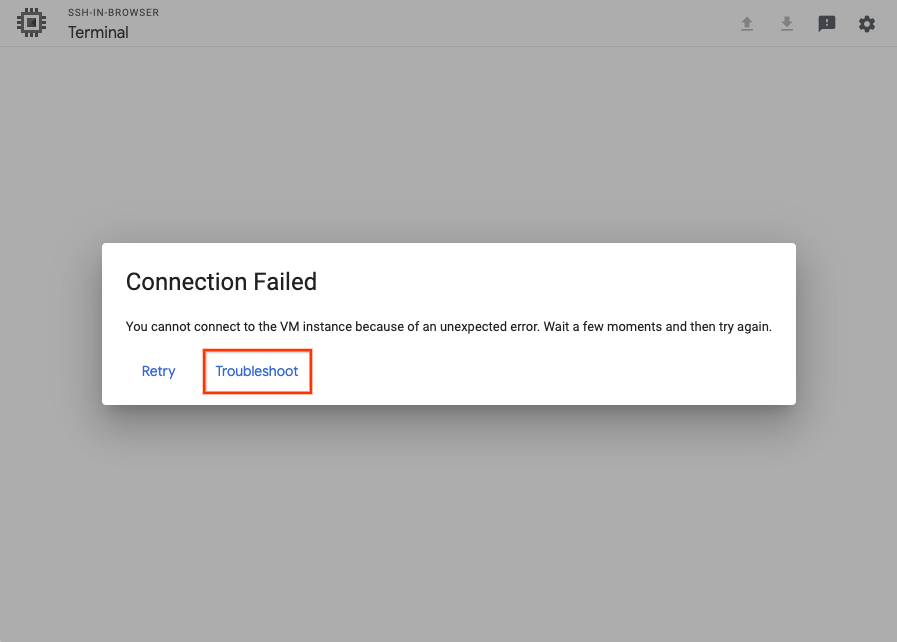
After an SSH connection fails, you have the option to **Retry** the
connection, or **Troubleshoot** the connection using the SSH-in-browser
troubleshooting tool.
To run the troubleshooting tool, click **Troubleshoot**.
### gcloud
Run the troubleshooting tool by using the
[`gcloud compute ssh` command](https://docs.cloud.google.com/sdk/gcloud/reference/compute/ssh):
```
gcloud compute ssh VM_NAME --troubleshoot [--tunnel-through-iap]
```
Replace `VM_NAME` with the name of the VM that you
can't connect to.
Use the `--tunnel-through-iap` flag if you are troubleshooting connectivity
through Identity-Aware Proxy for TCP forwarding.
The tool prompts you to provide permission to perform the troubleshooting
tests.
### Review the results
After running the troubleshooting tool, do the following:
1. Review the test results to understand why the VM's SSH connection isn't working.
2. Resolve SSH connections by performing the remediation steps provided by the tool.
3. Try reconnecting to the VM.
If the connection isn't successful, try manually troubleshooting by doing
the following:
- [Debug issues using the serial console](https://docs.cloud.google.com/compute/docs/troubleshooting/troubleshooting-ssh-errors#debug_with_serial_console)
- [Ensure the VM is booting normally](https://docs.cloud.google.com/compute/docs/troubleshooting/vm-startup)
## Common SSH errors
The following are examples of common errors you might encounter when you use SSH
to connect to Compute Engine VMs.
### SSH-in-Browser errors
#### Unauthorized Error 401
The following error might occur when you connect to your VM using the
[SSH-in-browser](https://docs.cloud.google.com/compute/docs/connect/ssh-in-browser) from
the Google Cloud console:
```
Unauthorized
Error 401
```
This error occurs if your user is part of an organization that is
managed from within Google Workspace and there is an active
restriction in the Workspace policy that prevents users from
accessing SSH-in-browser and the serial console within Google Cloud.
To resolve this issue, have a Google Workspace admin do the following:
1. [Confirm that Google Cloud is enabled for the organization](https://support.google.com/a/answer/9197205).
If Google Cloud is disabled, enable it and retry the connection.
2. [Confirm that services that aren't controlled individually are enabled.](https://support.google.com/a/answer/7646040)
If these services are disabled, enable them and retry the connection.
If the problem persists after enabling Google Cloud settings in
Google Workspace, do the following:
1. [Capture the network traffic in an HTTP Archive Format (HAR) file](https://toolbox.googleapps.com/apps/har_analyzer/)
starting from when you start the SSH-in-Browser SSH connection.
2. [Create a Cloud Customer Care case](https://docs.cloud.google.com/support/docs/manage-cases#creating_cases) and attach the HAR file.
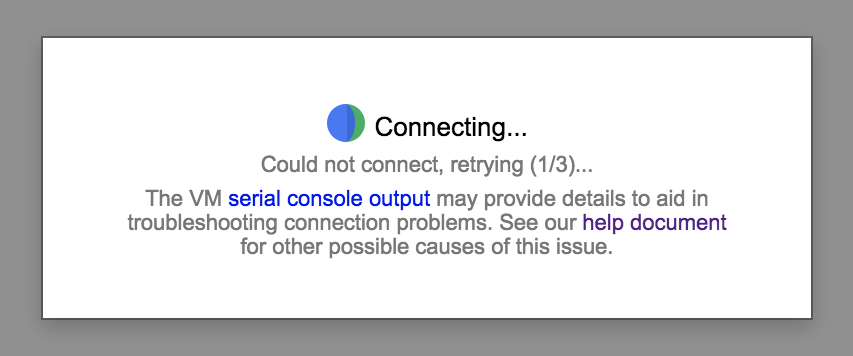
#### Could Not Connect, Retrying...
The following error might occur when you start an SSH session:
```
Could not connect, retrying ...
```
To resolve this issue, do the following:
1. After the VM has finished booting, retry the connection. If the
connection is not successful, verify that the VM did not boot in
emergency mode by running the following command:
```
gcloud compute instances get-serial-port-output VM_NAME \
| grep "emergency mode"
```
If the VM boots in emergency mode, troubleshoot the [VM startup process](https://docs.cloud.google.com/compute/docs/troubleshooting/vm-startup) to identify where the boot process is failing.
2. Verify that the`google-guest-agent.service` service is running, by running the following command in the [serial console](https://docs.cloud.google.com/compute/docs/troubleshooting/troubleshooting-using-serial-console#connectserialconsole).
```
systemctl status google-guest-agent.service
```
If the service is disabled, enable and start the service, by running the following commands:
```
systemctl enable google-guest-agent.service
systemctl start google-guest-agent.service
```
3. Verify that the Linux Google Agent scripts are installed and running. For more information, see
[Determining Google Agent Status](https://docs.cloud.google.com/compute/docs/images/install-guest-environment#wgei_console_logs).
If the Linux Google Agent is not installed,
[re-install it](https://docs.cloud.google.com/compute/docs/images/install-guest-environment).
4. Verify that you have the required roles to connect to the VM. If your VM uses OS Login, see [Assign OS Login IAM role](https://docs.cloud.google.com/compute/docs/oslogin/set-up-oslogin#configure_users). If the VM doesn't use OS Login, you need the [compute instance admin role](https://docs.cloud.google.com/compute/docs/access#granting_users_ssh_access_to_vm_instances)
or the [service account user role](https://docs.cloud.google.com/iam/docs/service-accounts#user-role) (if the VM is set up to run as a
service account). The roles are needed to update the instance or
project SSH keys-metadata.
5. Verify that there is a firewall rule that allows SSH access by running the following command:
```
gcloud compute firewall-rules list | grep "tcp:22"
```
6. Verify that there is a default route to the Internet (or to the bastion
host). For more information, see [Checking routes](https://docs.cloud.google.com/vpc/docs/routes).
7. Make sure that the root volume is not out of disk space. For more information, see
[Troubleshooting full disks and disk resizing](https://docs.cloud.google.com/compute/docs/troubleshooting/troubleshooting-disk-full-resize).
8. Make sure the VM has not run out of memory, by running the following command:
```
gcloud compute instances get-serial-port-output instance-name \
| grep "Out of memory: Kill process" - e "Kill process" -e "Memory cgroup out of memory" -e "oom"
```
If the VM is out of memory, connect to [serial console](https://docs.cloud.google.com/compute/docs/troubleshooting/troubleshooting-using-serial-console#connectserialconsole) to troubleshoot.
### Linux errors
#### Permission denied (publickey)
The following error might occur when you connect to your VM:
```
USERNAME@VM_EXTERNAL_IP: Permission denied (publickey).
```
This error can occur for several reasons. The following are some of the most
common causes of this error:
- **You used an SSH key stored in metadata to connect to a VM that has OS Login
enabled.** If OS Login is enabled on your project, your VM doesn't accept
SSH keys that are stored in metadata. If you aren't sure if OS Login is
enabled, see
[Checking if OS Login is configured](https://docs.cloud.google.com/compute/docs/troubleshooting/troubleshoot-os-login#checking_if_os_login_is_enabled).
To resolve this issue, try one of the following:
- Connect to your VM using the Google Cloud console or the Google Cloud CLI. For more information, see [Connecting to VMs](https://docs.cloud.google.com/compute/docs/instances/connecting-to-instance).
- Add your SSH keys to OS Login. For more information, see [Add keys to VMs that use OS Login](https://docs.cloud.google.com/compute/docs/connect/add-ssh-keys#os-login).
- Disable OS Login. For more information, see [Disabling OS Login](https://docs.cloud.google.com/compute/docs/instances/managing-instance-access#enable_oslogin).
- **You used an SSH key stored in an OS Login profile to connect to a VM that
doesn't have OS Login enabled.** If you disable OS Login, your VM doesn't
accept SSH keys that were stored in your OS Login profile. If you aren't sure
if OS Login is enabled, see
[Checking if OS Login is configured](https://docs.cloud.google.com/compute/docs/troubleshooting/troubleshoot-os-login#checking_if_os_login_is_enabled).
To resolve this issue, try one of the following:
- Connect to your VM using the Google Cloud console or the Google Cloud CLI. For more information, see [Connecting to VMs](https://docs.cloud.google.com/compute/docs/instances/connecting-to-instance).
- Enable OS Login. For more information, see [Enabling OS Login](https://docs.cloud.google.com/compute/docs/instances/managing-instance-access#enable_oslogin).
- Add your SSH keys to metadata. For more information, see [Add SSH keys to VMs that use metadata-based SSH keys](https://docs.cloud.google.com/compute/docs/connect/add-ssh-keys#metadata).
- **The VM has OS Login enabled, but you don't have sufficient IAM permissions
to use OS Login.** To connect to a VM that has OS Login enabled, you must have
the permissions required for OS Login. If you aren't sure if OS Login is
enabled, see
[Checking if OS Login is configured](https://docs.cloud.google.com/compute/docs/troubleshooting/troubleshoot-os-login#checking_if_os_login_is_enabled).
To resolve this issue,
[grant the required OS Login IAM roles](https://docs.cloud.google.com/compute/docs/instances/managing-instance-access#grant-iam-roles).
- **You used a local account that's not managed by Google to connect to a VM
that has OS Login enabled.** Because OS Login uses IAM roles
to authenticate users, it denies access to local accounts that are not
associated with a Google identity and the required permissions.
To resolve this issue, try one of the following:
- Connect to your VM by using an IAM user that has the [required OS Login IAM roles](https://docs.cloud.google.com/compute/docs/oslogin/set-up-oslogin#configure_users).
- Configure the local user with an SSH key by using a
[metadata startup script](https://docs.cloud.google.com/compute/docs/instances/startup-scripts):
1. In the Google Cloud console, go to the **VM instances** page.
2. Click the name of the VM for which you want to configure the local user.
3. Click **Edit**.
4. Under **Metadata** , click **Add item**.
5. For **Key** , enter `startup-script`.
6. For **Value**, enter a script similar to the following to create the user and add the public SSH key:
#!/bin/bash
# Create the local user if it doesn't exist
if ! id -u USERNAME >/dev/null 2>&1; then
useradd -m -s /bin/bash USERNAME
fi
# Create the SSH directory and authorized_keys file
mkdir -p /home/USERNAME/.ssh
echo "SSH_KEY" >> /home/>varUSERNAME/var&>lt;/.ssh/authorized_keys
# Set permissions and ownership
chmod 700 /home/varUNAME/varh
chmod 600 /home/varUNAME/varh/authorized_keys
chown -R varUNAME/var<:var>UNAME/var< /home/varUNAME/varh
Replace the following:
- `USERNAME`: the username of the local user you want to create or configure.
- `SSH_KEY`: your public SSH key.
1. Click **Save** and then restart the VM.
- Disable OS Login. For more information, see [Disabling OS
Login](https://docs.cloud.google.com/compute/docs/oslogin/set-up-oslogin#disable_os_login).
- **Your key expired and Compute Engine deleted your `~/.ssh/authorized_keys`
file.** If you manually added SSH keys to your VM and then connected to your
VM using the Google Cloud console, Compute Engine created a new key pair for
your connection. After the new key pair expired, Compute Engine
deleted your `~/.ssh/authorized_keys` file in the VM, which included your
manually added SSH key.
To resolve this issue, try one of the following:
- Connect to your VM using the Google Cloud console or the Google Cloud CLI. For more information, see [Connecting to VMs](https://docs.cloud.google.com/compute/docs/instances/connecting-to-instance).
- Re-add your SSH key to metadata. For more information, see [Add SSH keys to VMs that use metadata-based SSH keys](https://docs.cloud.google.com/compute/docs/connect/add-ssh-keys#metadata).
- **You connected using a third-party tool and your SSH command is
misconfigured.** If you connect using the `ssh` command but don't specify
a path to your private key or you specify an incorrect path to your private
key, your VM refuses your connection.
To resolve this issue, try one of the following:
- Run the following command:
```
ssh -i PATH_TO_PRIVATE_KEY USERNAME@EXTERNAL_IP
```
Replace the following:
- `PATH_TO_PRIVATE_KEY`: the path to your private SSH key file.
- `USERNAME`: the username of the user connecting to the instance. If you manage your SSH keys in metadata, the username is what you specified when you [created the SSH key](https://docs.cloud.google.com/compute/docs/connect/create-ssh-keys). For [OS Login accounts](https://docs.cloud.google.com/compute/docs/connect/add-ssh-keys#os-login), the username is defined in your Google profile.
- `EXTERNAL_IP`: The external IP address for your VM.
- Connect to your VM using the Google Cloud console or the Google Cloud CLI. When you use these tools to connect, Compute Engine manages key creation for you. For more information, see [Connecting to VMs](https://docs.cloud.google.com/compute/docs/instances/connecting-to-instance).
- **Your VM's guest environment is not running.** If this is the first time that
you are connecting to your VM and the guest environment is not running, then
the VM might refuse your SSH connection request.
To resolve this issue, do the following:
1. Restart the VM.
2. In the Google Cloud console, inspect the system startup logs in the serial port output to determine if the guest environment is running. For more information, see [Validating the guest environment](https://docs.cloud.google.com/compute/docs/images/install-guest-environment#wgei).
3. If the guest environment is not running, manually [install the guest
environment by cloning VM's boot disk and using a startup script](https://docs.cloud.google.com/compute/docs/images/install-guest-environment#startup_script).
-
**The OpenSSH Daemon (`sshd`) isn't running or configured properly.** The
`sshd` provides secure remote access to the system via SSH protocol. If it's
misconfigured or not running, you can't connect to your VM via SSH.
> [!NOTE]
> **Note:** To troubleshoot the issue with `sshd`, you need to [connect to the VM's serial console as the root user](https://docs.cloud.google.com/compute/docs/troubleshooting/troubleshooting-ssh#debug_with_serial_console).
To resolve this issue, try one or more of the following:
- Review the user guide for your operating system to ensure that your
[`sshd_config`](https://linux.die.net/man/5/sshd_config)
is set up correctly.
- Ensure the you have the required ownership and permission settings for the
following:
- `$HOME` and `$HOME/.ssh` directories
- `$HOME/.ssh/authorized_keys` file
### Ownership
The guest environment stores authorized SSH public keys in the
`$HOME/.ssh/authorized_keys` file. The owner of the `$HOME` and `$HOME/.ssh`
directories and the `$HOME/.ssh/authorized_keys` file must be the same as the
user connecting to the VM.
### Permissions
The guest environment requires the following Linux permissions:
| Path | Permissions |
|---|---|
| `/home` | `0755` |
| `$HOME` | `0700` or `0750` or `0755` ^\*^ |
| `$HOME/.ssh` | `0700` |
| `$HOME/.ssh/authorized_keys` | `0600` |
^\*^ To find out which of the options is the correct default permission for your `$HOME` directory, refer to the official documentation for your specific Linux distribution.
*** ** * ** ***
Alternatively, you can create a new VM based on the same image and check its
default permissions for `$HOME`.
To learn how to change permissions and ownership, read about
[`chmod`](https://linux.die.net/man/1/chmod) and
[`chown`](https://linux.die.net/man/1/chown).
- Restart the `sshd` by running the following command:
systemctl restart sshd.service
Check if there are any errors in the status by running the following command:
systemctl status sshd.service
The status output may contain information such as the exit code, the reason
for the failure, etc. You can use these details for further troubleshooting.
- **The VM's boot disk is full.** When an SSH connection is established, the
guest environment adds the session's public SSH key to the
`~/.ssh/authorized_keys` file. If the disk is full, the connection fails.
To resolve this issue, do one or more of the following:
- Confirm the boot disk is full by [debugging with the serial console](https://docs.cloud.google.com/compute/docs/troubleshooting/troubleshooting-ssh-errors#debug_with_serial_console) to identify `no space left errors`.
- [Resize](https://docs.cloud.google.com/compute/docs/disks/resize-persistent-disk) the disk.
- If you know which files are using the disk space, [create a startup script](https://docs.cloud.google.com/compute/docs/startupscript) that deletes unnecessary files and frees space. After the VM starts and you connect to it, delete the `startup-script` metadata.
- **The permissions or ownership on `$HOME`, `$HOME/.ssh`, or
`$HOME/.ssh/authorized_keys` is wrong.**
### Ownership
The guest environment stores authorized SSH public keys in the
`$HOME/.ssh/authorized_keys` file. The owner of the `$HOME` and `$HOME/.ssh`
directories and the `$HOME/.ssh/authorized_keys` file must be the same as the
user connecting to the VM.
### Permissions
The guest environment requires the following Linux permissions:
| Path | Permissions |
|---|---|
| `/home` | `0755` |
| `$HOME` | `0700` or `0750` or `0755` ^\*^ |
| `$HOME/.ssh` | `0700` |
| `$HOME/.ssh/authorized_keys` | `0600` |
^\*^ To find out which of the options is the correct default permission for your `$HOME` directory, refer to the official documentation for your specific Linux distribution.
*** ** * ** ***
Alternatively, you can create a new VM based on the same image and check its
default permissions for `$HOME`.
To learn how to change permissions and ownership, read about
[`chmod`](https://linux.die.net/man/1/chmod) and
[`chown`](https://linux.die.net/man/1/chown).
- **The VM uses OS Login, and the `sshd` daemon can't run the OS Login
authorized keys command because of unsafe ownership or permissions.** On VMs
that use [OS Login](https://docs.cloud.google.com/compute/docs/oslogin), the `sshd` daemon runs the
`/usr/bin/google_authorized_keys` command to retrieve your SSH keys. The
`sshd` daemon refuses to run this command if the file or any parent directory
isn't owned by `root` or is writable by the group or by other users. This
issue causes connections from both the gcloud CLI and
SSH-in-browser to fail, and the SSH logs on the VM, such as
`/var/log/auth.log` or `/var/log/secure`, contain errors similar to the
following:
```
sshd[1297]: error: Unsafe AuthorizedKeysCommand "/usr/bin/google_authorized_keys": bad ownership or modes for directory /usr
```
To resolve this issue, do the following:
1. [Connect to the serial console of the VM](https://docs.cloud.google.com/compute/docs/troubleshooting/troubleshooting-using-serial-console#connectserialconsole).
2. In the serial console, review the ownership and permissions of the command
file and each of its parent directories:
```
namei -l /usr/bin/google_authorized_keys
```
The output is similar to the following:
```
f: /usr/bin/google_authorized_keys
dr-xr-xr-x root root /
drwxrwxr-x root root usr
dr-xr-xr-x root root bin
-rwxr-xr-x root root google_authorized_keys
```
In this example, the `/usr` directory is writable by the group
(`drwxrwxr-x`), which causes the `sshd` daemon to reject the command. Each
path must be owned by `root` and must not be writable by the group or by
other users.
3. In the serial console, for each file or directory that doesn't meet these
requirements, set the owner to `root` and remove write permission for the
group and other users:
```
sudo chown root:root PATH
sudo chmod go-w PATH
```
Replace `PATH` with the file or directory, for
example, `/usr`.
4. Retry the connection.
#### Connection failed
The following errors might occur when you connect to your VM from the
Google Cloud console, the gcloud CLI, a bastion host or a local
client:
- The Google Cloud console:
```
Connection Failed
We are unable to connect to the VM on port 22.
```
- The gcloud CLI:
```
ERROR: (gcloud.compute.ssh) [/usr/bin/ssh] exited with return code [255].
```
- A bastion host or a local client:
```
port 22: Connection timed out.
```
```
port 22: Connection refused
```
> [!NOTE]
> **Note:** Because the `ssh` client returns exit code `255` for any connection or authentication error that occurs, the gcloud CLI error alone doesn't identify a specific cause. The `ssh` client also returns this exit code when the VM closes an active session, for example, when you restart the VM from within the session. If the error appears only after you restart or shut down the VM from within the session, you can ignore it.
To see the underlying `ssh` error, such as a connection timeout, a refused
connection, or `Permission denied (publickey)`, run the `gcloud compute ssh`
command with verbose `ssh` output:
```
gcloud compute ssh VM_NAME --ssh-flag="-vvv"
```
Replace `VM_NAME` with the name of the VM.
You can also run the [SSH troubleshooting tool](https://docs.cloud.google.com/compute/docs/troubleshooting/troubleshooting-ssh-errors#ssh_troubleshooting_tool) to
check for common causes of failed connections.
These errors can occur for several reasons. The following are some of the most
common causes of the errors:
- **The VM is booting up and `sshd` is not running yet.** You can't
connect to a VM before it is running.
To resolve this issue, wait until the VM has finished booting and try to
connect again.
- **`sshd` is running on a custom port.** If you configured `sshd` to run on a
port other than port 22, you won't be able to connect to your VM.
To resolve this issue, create a custom firewall rule allowing `tcp` traffic on
the port that your `sshd` is running on using the following command:
```
gcloud compute firewall-rules create FIREWALL_NAME \
--allow tcp:PORT_NUMBER
```
For more information about creating custom firewall rules, see
[Creating firewall rules](https://docs.cloud.google.com/vpc/docs/using-firewalls#creating_firewall_rules).
- **The SSH firewall rule is missing or doesn't allow traffic from
IAP or the public internet.** SSH connections are refused if
firewall rules don't allow connections from IAP or TCP ingress
traffic for IP range `0.0.0.0/0`.
To resolve this issue, do one of the following:
- If you use Identity-Aware Proxy (IAP) for TCP forwarding, update your custom
firewall rule to accept traffic from IAP, then check your IAM
permissions.
1. Update your custom firewall rule to allow traffic from `35.235.240.0/20`, the IP address range that IAP uses for TCP forwarding. For more information, see [Create a firewall rule](https://docs.cloud.google.com/iap/docs/using-tcp-forwarding#create-firewall-rule).
2. [Grant permissions to use IAP TCP forwarding](https://docs.cloud.google.com/iap/docs/using-tcp-forwarding#grant-permission), if you haven't already done so.
- If you don't use IAP update your custom firewall rule to
allow ingress SSH traffic.
1. Update your custom firewall rule to [Allow ingress ssh connections to VMs](https://docs.cloud.google.com/vpc/docs/using-firewalls#common-use-cases-allow-ssh).
- **The SSH connection failed after you upgraded the VM's kernel.** A VM might
experience a kernel panic after a kernel update, causing the VM to become
inaccessible.
To resolve this issue, do the following:
1. [Mount the disk](https://docs.cloud.google.com/compute/docs/disks/detach-reattach-boot-disk) to another VM.
2. [Update the `grub.cfg` file](https://docs.cloud.google.com/compute/docs/import/import-existing-image#configure_bootloader) to use the previous version of the kernel.
3. [Attach the disk](https://docs.cloud.google.com/compute/docs/disks/detach-reattach-boot-disk) to the unresponsive VM.
4. Verify that the status of the VM is `RUNNING` by using the [`gcloud compute instances describe` command](https://docs.cloud.google.com/sdk/gcloud/reference/compute/instances/describe).
5. [Reinstall the kernel](https://docs.cloud.google.com/compute/docs/images/install-guest-environment#installing_guest_environment).
6. Restart the VM.
Alternatively, if you created a snapshot of the boot disk before
upgrading the VM, [use the snapshot to create a VM](https://docs.cloud.google.com/compute/docs/instances/create-start-instance#createsnapshot).
-
**The OpenSSH Daemon (`sshd`) isn't running or configured properly.** The
`sshd` provides secure remote access to the system via SSH protocol. If it's
misconfigured or not running, you can't connect to your VM via SSH.
> [!NOTE]
> **Note:** To troubleshoot the issue with `sshd`, you need to [connect to the VM's serial console as the root user](https://docs.cloud.google.com/compute/docs/troubleshooting/troubleshooting-ssh#debug_with_serial_console).
To resolve this issue, try one or more of the following:
- Review the user guide for your operating system to ensure that your
[`sshd_config`](https://linux.die.net/man/5/sshd_config)
is set up correctly.
- Ensure the you have the required ownership and permission settings for the
following:
- `$HOME` and `$HOME/.ssh` directories
- `$HOME/.ssh/authorized_keys` file
### Ownership
The guest environment stores authorized SSH public keys in the
`$HOME/.ssh/authorized_keys` file. The owner of the `$HOME` and `$HOME/.ssh`
directories and the `$HOME/.ssh/authorized_keys` file must be the same as the
user connecting to the VM.
### Permissions
The guest environment requires the following Linux permissions:
| Path | Permissions |
|---|---|
| `/home` | `0755` |
| `$HOME` | `0700` or `0750` or `0755` ^\*^ |
| `$HOME/.ssh` | `0700` |
| `$HOME/.ssh/authorized_keys` | `0600` |
^\*^ To find out which of the options is the correct default permission for your `$HOME` directory, refer to the official documentation for your specific Linux distribution.
*** ** * ** ***
Alternatively, you can create a new VM based on the same image and check its
default permissions for `$HOME`.
To learn how to change permissions and ownership, read about
[`chmod`](https://linux.die.net/man/1/chmod) and
[`chown`](https://linux.die.net/man/1/chown).
- Restart the `sshd` by running the following command:
systemctl restart sshd.service
Check if there are any errors in the status by running the following command:
systemctl status sshd.service
The status output may contain information such as the exit code, the reason
for the failure, etc. You can use these details for further troubleshooting.
- **The VM isn't booting and you can't connect using SSH or the serial
console.** If the VM is inaccessible, then your OS might be corrupted. If the
boot disk doesn't boot, you can [diagnose the
issue](https://docs.cloud.google.com/compute/docs/troubleshooting/vm-startup#identify_the_reason_why_the_boot_disk_isnt_booting).
If you want to recover the corrupted VM and retrieve data, see [Recovering a
corrupted VM or a full boot disk](https://docs.cloud.google.com/compute/docs/disks/recover-vm).
- **The VM is booting in maintenance mode.** When booting in maintenance mode,
the VM doesn't accept SSH connections, but you can connect to the VM's serial
console and log in as the root user.
To resolve this issue, do the following:
1. If you haven't set a root password for the VM, use a
[metadata startup script](https://docs.cloud.google.com/compute/docs/instances/startup-scripts) to run
the following command during boot:
```
echo 'root:NEW_PASSWORD' | chpasswd
```
Replace NEW_PASSWORD with a password of your choice.
2. Restart the VM.
3. [Connect to the VM's serial console](https://docs.cloud.google.com/compute/docs/troubleshooting/troubleshooting-using-serial-console)
and log in as the root user.
- **SSH session freezes or disconnects after approximately 30 seconds.** This issue typically occurs due to OS-level firewall rules dropping established connections or Maximum Transmission Unit (MTU) mismatches causing packet drops when transmitting data.
To resolve this issue, perform one or more of the following troubleshooting steps:
- **Check guest OS firewalls:** Inspect guest OS firewall rules to ensure they aren't rate-limiting, dropping stateful connections, or blocking SSH traffic.
- [Connect to the VM by using the serial console](https://docs.cloud.google.com/compute/docs/troubleshooting/troubleshooting-using-serial-console) and run `sudo iptables -S` (or `sudo ufw status`) to inspect active rules.
- To test if the active rules are blocking traffic, temporarily disable or flush these rules by running a command such as the following: `sudo iptables -F` or `sudo ufw disable`.
- **Verify MTU settings:** An MTU mismatch between your VPC network and the guest OS can cause the network to silently drop large packets (for example, when running commands that produce large output like `cat` or `top`).
- See [Change the MTU of a VPC network](https://docs.cloud.google.com/vpc/docs/change-mtu-vpc-network) to verify your VPC network MTU setting (default is 1460).
- Run `ip link show` on the instance to identify your active interface name (such as `ens4` or `eth0`) and verify its `mtu` value.
- Run a ping test with the Don't Fragment (DF) bit set: `ping -M do -s 1432 TARGET_IP` (where a 1432-byte payload size plus 28 ICMP/IP header bytes equals a standard 1460 MTU). Output like `Message too long, mtu = ...` indicates an MTU mismatch.
- Temporarily adjust the OS interface MTU to match the VPC network: `sudo ip link set dev INTERFACE_NAME mtu VPC_MTU`.
- If using [Cloud Interconnect](https://docs.cloud.google.com/network-connectivity/docs/interconnect/concepts/overview) or VPNs, ensure MTU settings are aligned across all on-premises routers, transit gateways, and the VPC network.
- **Can't SSH into VM from snapshot/clone.** When a VM is created from a snapshot or cloned disk, static network configurations cached on the disk might conflict with the new VM's MAC address, preventing the network interface from initializing and blocking SSH access.
To resolve this issue, connect to the VM using the serial console and update the network configuration to match the new MAC address:
- Confirm the conflict by checking the [VM's serial port output](https://docs.cloud.google.com/compute/docs/troubleshooting/viewing-serial-port-output). Look for errors like `"Device eth0 has different MAC address than expected, ignoring"`, DHCP timeout errors, or logs showing interfaces being unexpectedly renamed (for example, `renamed network interface eth0 to eth1`).
- [Connect to the interactive serial console](https://docs.cloud.google.com/compute/docs/troubleshooting/troubleshooting-using-serial-console) and sign in to the instance.
- Identify the new MAC address and active interface name by running: `ip link show`
- Update the network configuration based on the network management tool used by your distribution:
- **Systems using Netplan (Ubuntu, Debian 10+, and some newer Linux):**
1. Check your Netplan configurations in `/etc/netplan/` (for example, `/etc/netplan/50-cloud-init.yaml`).
2. If a `macaddress:` field is hardcoded for the interface (e.g., `eth0`), update it with the new MAC address or remove the `macaddress:` line completely.
3. Apply the updated configuration: `sudo netplan apply`
4. Restart networking services: `sudo systemctl restart systemd-networkd`
- **Modern systems using NetworkManager (RHEL 9+, Rocky Linux):**
1. Locate your active connection profiles in `/etc/NetworkManager/system-connections/` (look for `.nmconnection` files).
2. Open the file corresponding to your primary interface and locate the `mac-address=` line under the `[ethernet]` configuration block.
3. Update the value to match the new MAC address or delete the line to allow dynamic hardware matching.
4. Restart the NetworkManager: `sudo systemctl restart NetworkManager`
- **Legacy systems using ifcfg-scripts (RHEL 7/8, CentOS):**
1. Open the interface script located at `/etc/sysconfig/network-scripts/ifcfg-eth0`: `sudo vi /etc/sysconfig/network-scripts/ifcfg-eth0`
2. Locate the `HWADDR=` line and either update it with the new MAC address or delete the line entirely to permit dynamic binding. Save and exit.
3. Restart the network service: `sudo systemctl restart network.service` or `sudo service network restart`
After correcting the network configuration and restarting your networking stack, verify that `ip addr show` lists a valid internal IP address assigned to your interface. SSH access should now function normally.
- **The gcloud CLI is authenticated with an account that doesn't
have permission to connect to the VM.** If the active account in the
gcloud CLI isn't the account that you expect, or if the account
doesn't have the required IAM roles, the
gcloud CLI can't add your SSH key to the VM and the connection
fails.
To resolve this issue, do the following:
1. Check which account is active in the gcloud CLI:
```
gcloud auth list
```
2. If the active account isn't the account that you want to use, sign in with
the correct account:
```
gcloud auth login ACCOUNT
```
Replace `ACCOUNT` with the email address of a user
account that has permission to connect to the VM.
3. Verify that the account has the required roles. For VMs that use
metadata-based SSH keys, you need the
[Compute Instance Admin (v1) role (`roles/compute.instanceAdmin.v1`)](https://docs.cloud.google.com/compute/docs/access/iam#compute.instanceAdmin.v1).
If the VM runs as a service account, you also need the
[Service Account User role (`roles/iam.serviceAccountUser`)](https://docs.cloud.google.com/iam/docs/service-accounts#user-role).
For VMs that use OS Login, see
[Assign OS Login IAM roles](https://docs.cloud.google.com/compute/docs/oslogin/set-up-oslogin#configure_users).
4. Retry the connection.
- **The SSH key pair that the gcloud CLI uses is missing, corrupted,
or doesn't match the public key on the VM.** The gcloud CLI stores
its SSH key pair in the `~/.ssh/google_compute_engine` and
`~/.ssh/google_compute_engine.pub` files on your workstation. If you lose the
private key, or if the key pair doesn't match the public key that's stored in
metadata or in your OS Login profile, then the VM rejects the connection.
To check whether the issue is specific to your workstation, connect to the VM
by using [SSH-in-browser](https://docs.cloud.google.com/compute/docs/connect/ssh-in-browser). If
SSH-in-browser connects successfully, then the issue is likely with the key
files or the gcloud CLI configuration on your workstation.
To resolve this issue, generate a new key pair by doing the following:
1. Rename the existing key files so that the gcloud CLI doesn't
use them:
```
mv ~/.ssh/google_compute_engine ~/.ssh/google_compute_engine.old
mv ~/.ssh/google_compute_engine.pub ~/.ssh/google_compute_engine.pub.old
```
On Windows, also rename the `google_compute_engine.ppk` file in the same
directory.
2. Connect to the VM by using the gcloud CLI:
```
gcloud compute ssh VM_NAME
```
Replace `VM_NAME` with the name of the VM.
The gcloud CLI creates a new key pair and adds the public key
to the VM's metadata or to your OS Login profile.
- **The VM is out of disk space or memory, or the guest environment isn't
running.** Any of these conditions can prevent the VM from adding your SSH
key or from accepting new connections.
To resolve this issue, do the following:
- Check whether the boot disk is full. For more information, see [Troubleshooting full disks and disk resizing](https://docs.cloud.google.com/compute/docs/troubleshooting/troubleshooting-disk-full-resize).
- Check whether the VM ran out of memory by searching the serial port output for out-of-memory errors. In Cloud Shell or a terminal where the gcloud CLI is installed, run the following command:
```
gcloud compute instances get-serial-port-output VM_NAME \
| grep -i -e "out of memory" -e "oom"
```
- Verify that the guest environment is installed and running. For more information, see [Validating the guest environment](https://docs.cloud.google.com/compute/docs/images/install-guest-environment#wgei).
If the error persists, review the SSH authentication logs on the VM. These logs
are in the `/var/log/auth.log` file on Debian and Ubuntu, and in the
`/var/log/secure` file on RHEL, CentOS, and Rocky Linux. If you can't connect to
the VM by using SSH, you can review the logs without stopping the VM by doing
one of the following:
- Sign in to the VM by using the [interactive serial console](https://docs.cloud.google.com/compute/docs/troubleshooting/troubleshooting-ssh-errors#debug_with_serial_console).
- [Inspect a copy of the boot disk](https://docs.cloud.google.com/compute/docs/troubleshooting/troubleshooting-ssh-errors#inspect_vm) that you create from a snapshot.
If you can't use either option, stop the VM, attach its boot disk to another
VM, and review the logs from that VM. For more information, see the steps to
diagnose an unknown SSH daemon issue in [Unexpected error](https://docs.cloud.google.com/compute/docs/troubleshooting/troubleshooting-ssh-errors#unexpected_error).
#### Unexpected error
The following error might occur when you try to connect to a Linux VM:
```
Connection Failed
You cannot connect to the VM instance because of an unexpected error. Wait a few moments and then try again.
```
This issue can occur for several reasons. The following are some common causes
of the error:
- **The OpenSSH Daemon (`sshd`) isn't running or configured properly.** The
`sshd` provides secure remote access to the system via SSH protocol. If it's
misconfigured or not running, you can't connect to your VM via SSH.
> [!NOTE]
> **Note:** To troubleshoot the issue with `sshd`, you need to [connect to the VM's serial console as the root user](https://docs.cloud.google.com/compute/docs/troubleshooting/troubleshooting-ssh#debug_with_serial_console).
To resolve this issue, try one or more of the following:
- Review the user guide for your operating system to ensure that your
[`sshd_config`](https://linux.die.net/man/5/sshd_config)
is set up correctly.
- Ensure the you have the required ownership and permission settings for the
following:
- `$HOME` and `$HOME/.ssh` directories
- `$HOME/.ssh/authorized_keys` file
### Ownership
The guest environment stores authorized SSH public keys in the
`$HOME/.ssh/authorized_keys` file. The owner of the `$HOME` and `$HOME/.ssh`
directories and the `$HOME/.ssh/authorized_keys` file must be the same as the
user connecting to the VM.
### Permissions
The guest environment requires the following Linux permissions:
| Path | Permissions |
|---|---|
| `/home` | `0755` |
| `$HOME` | `0700` or `0750` or `0755` ^\*^ |
| `$HOME/.ssh` | `0700` |
| `$HOME/.ssh/authorized_keys` | `0600` |
^\*^ To find out which of the options is the correct default permission for your `$HOME` directory, refer to the official documentation for your specific Linux distribution.
*** ** * ** ***
Alternatively, you can create a new VM based on the same image and check its
default permissions for `$HOME`.
To learn how to change permissions and ownership, read about
[`chmod`](https://linux.die.net/man/1/chmod) and
[`chown`](https://linux.die.net/man/1/chown).
- Restart the `sshd` by running the following command:
systemctl restart sshd.service
Check if there are any errors in the status by running the following command:
systemctl status sshd.service
The status output may contain information such as the exit code, the reason
for the failure, etc. You can use these details for further troubleshooting.
- **Unknown SSH daemon issue** . To diagnose an unknown SSH daemon issue, check
the
[serial console logs](https://docs.cloud.google.com/compute/docs/troubleshooting/viewing-serial-port-output#viewing_serial_port_output)
for errors.
Depending on the output of the serial console logs, try to rescue the VM
and fix the SSH daemon related issues by doing the following:
1. [Attach the disk](https://docs.cloud.google.com/compute/docs/disks/detach-reattach-boot-disk) to another Linux VM.
2. Connect to the VM that has the mounted disk.
3. [Mount the disk](https://docs.cloud.google.com/compute/docs/disks/format-mount-disk-linux#mounting) inside OS to a directory MOUNT_DIR inside VM..
4. View the SSH-related logs, `/var/log/secure` or `/var/log/auth.log` for any issues/errors. If you see any issues that you can fix, attempt to fix them. Otherwise, [create a support case](https://cloud.google.com/support-hub) and attach the logs.
5. Unmount the disk from the OS using `umount` command:
```
cd ~/
umount /mnt
```
6. [Detach the disk](https://docs.cloud.google.com/compute/docs/disks/detach-reattach-boot-disk#detach_disk)
from the VM.
7. [Attach the disk](https://docs.cloud.google.com/compute/docs/disks/detach-reattach-boot-disk#attach_disk)
to the original VM.
8. Start the VM.
#### Failed to connect to backend
The following errors might occur when you connect to your VM from the
Google Cloud console or the gcloud CLI:
- The Google Cloud console:
```
-- Connection via Cloud Identity-Aware Proxy Failed
-- Code: 4003
-- Reason: failed to connect to backend
```
- The gcloud CLI:
```
ERROR: (gcloud.compute.start-iap-tunnel) Error while connecting [4003: 'failed to connect to backend'].
```
These errors occur when you try to use SSH to connect to a VM that doesn't have
a public IP address and for which you haven't configured Identity-Aware Proxy on port
22.
To resolve this issue
[Create a firewall rule](https://docs.cloud.google.com/iap/docs/using-tcp-forwarding#create-firewall-rule) on
port 22 that allows ingress traffic from Identity-Aware Proxy.
#### Host key does not match
The following error might occur when you connect to your VM:
```
Host key for server IP_ADDRESS does not match
```
This error occurs when the host key in the `~/.ssh/known_hosts` file
doesn't match the VM's host key.
To resolve this issue, delete the host key from the `~/.ssh/known_hosts`
file, then retry the connection.
#### Metadata value is too large
The following error might occur when you try to add a new SSH key to metadata:
```
ERROR:"Value for field 'metadata.items[X].value' is too large: maximum size 262144 character(s); actual size NUMBER_OF_CHARACTERS."
```
Metadata values have a
[maximum limit of 256 KB](https://docs.cloud.google.com/compute/docs/metadata/setting-custom-metadata#limitations).
To mitigate this limitation, do one of the following:
- Delete expired or duplicated SSH keys from project or instance metadata. For more information, see [Update metadata on a running VM](https://docs.cloud.google.com/compute/docs/metadata/setting-custom-metadata#update_metadata).
- Use [OS Login](https://docs.cloud.google.com/compute/docs/oslogin).
#### No supported authentication methods available
The following error might occur when you connect to a VM:
```
No supported authentication methods available (server sent: publickey,gssapi-keyex,gssapi-with-mic)
```
This error most commonly occurs due to an outdated SSH client. Older SSH clients
might lack support for the ECDSA key types and SHA-2 hashing algorithms required
by newer VMs.
For example, this error occurs if you try to connect to a Red Hat Enterprise
Linux (RHEL) VM using a version of PuTTY older than 0.75.
To resolve this error, update your SSH client to the most recent stable version.
After you have updated your SSH client, retry your SSH connection.
#### Connection failures due to custom client-side SSH configuration
Custom settings can unintentionally override the default behaviors expected by
`gcloud compute ssh` or standard SSH clients when connecting to Compute Engine
instances. This file is typically located at `~/.ssh/config` on Linux and macOS.
The following are symptoms of this issue:
- You are unable to use SSH to connect to your VM due to errors like `Permission denied (publickey)`, even though the instance is running and your IAM permissions are correct.
- Other users can connect to the VM.
- You can connect from a different client machine that doesn't have the same custom SSH configuration.
To diagnose the issue, do the following:
1. To check your local SSH configuration file, examine the contents of your
`~/.ssh/config` file. Look for any `Host` sections that match your VM's
hostname or IP address, or global settings (without a `Host` line) that
might apply. Check for the following:
- `PubkeyAcceptedKeyTypes`: if this directive is present, it might restrict the types of public keys allowed, potentially excluding those used by Compute Engine.
- `IdentityFile`: this directive might force the use of an incorrect or non-existent private key.
- `ProxyCommand`: a proxy might be interfering with the connection.
- Other non-standard options like `KexAlgorithms`, `Ciphers` or `HostKeyAlgorithms`.
2. To test the connection with a verbose output and detailed debugging
information, use the
[`gcloud compute ssh` command](https://docs.cloud.google.com/sdk/gcloud/reference/compute/ssh) with the
`--verbosity=debug` and `--ssh-flag="-vv"` options:
gcloud compute ssh INSTANCE_NAME --zone=ZONE --project=PROJECT_ID --verbosity=debug --ssh-flag="-vv"
Replace the following:
- `INSTANCE_NAME`: the name of the instance you want to connect to.
- `ZONE`: the zone where the instance is located.
- `PROJECT_ID`: the ID of the project containing the instance.
Review the output for messages that indicate key exchange problems,
authentication failures, or unexpected key types being offered by the
client.
To resolve connection failures caused by custom configurations, do the following:
1. To check if your `~/.ssh/config`
is the cause, ignore the local configuration file by using the `-F none` flag. This
test is the most reliable way to isolate the issue.
- For the gcloud CLI:
gcloud compute ssh INSTANCE_NAME --zone=ZONE --project=PROJECT_ID --ssh-flag="-F none"
- For standard `ssh`:
ssh -F none USERNAME@EXTERNAL_IP
Replace the following:
- `USERNAME`: your SSH username.
- `EXTERNAL_IP`: the external IP address of your VM instance.
If you can connect successfully, the problem lies within your
`~/.ssh/config` file.
If the previous tests confirm that the issue is in your configuration file, then follow
these steps to fix the problem:
1. Before you make any changes, create
a backup of your configuration file.
cp ~/.ssh/config ~/.ssh/config.bak
2. To identify the conflicting line. Edit \~/.ssh/config and comment out
(by using `#` symbol) any custom settings you suspect are causing the
issue. Test the connection after each change to identify the specific line.
3. To ,modify or remove settings, comment out the lines to revert to the client's
default supported key types. For example, if `PubkeyAcceptedKeyTypes`
is causing the failure, comment it out.
**Best practices for client-side configuration:**
- **Avoid restrictive global settings:** apply specific settings only to the hosts that require the changes, rather than using broad `Host *` sections.
- **Document changes:** use comments within your config file to explain why specific custom settings were added.
- **Use `-F none` for testing:** when troubleshooting, you can use `-F none` to rule out all client-side configuration conflicts.
### Windows errors
> [!WARNING]
>
> **Preview
> --- SSH for Windows**
>
>
> This feature is
>
> subject to the "Pre-GA Offerings Terms" in the General Service Terms section of the
> [Service Specific
> Terms](https://docs.cloud.google.com/terms/service-terms#1).
>
> Pre-GA features are available "as is" and might have limited support.
>
> For more information, see the
> [launch stage descriptions](https://cloud.google.com/products/#product-launch-stages).
#### Permission denied, please try again
The following error might occur when you connect to your VM:
```
USERNAME@compute.INSTANCE_ID's password:
Permission denied, please try again.
```
This error indicates the user trying to connect to the VM doesn't exist on the
VM. The following are some of the most common causes of this error:
- **Your version of gcloud CLI is out of date**
If gcloud CLI is out of date, you may be attempting to connect
using a username that is not configured. To resolve this issue,
[update the gcloud CLI](https://docs.cloud.google.com/sdk/docs/components#updating_components).
- **You tried to connect to a Windows VM that doesn't have SSH enabled.**
To resolve this error, set the `enable-windows-ssh` key to `TRUE` in project
or instance metadata. For more information about setting medata, see
[Set custom metadata](https://docs.cloud.google.com/compute/docs/metadata/setting-custom-metadata).
#### Permission denied (publickey,keyboard-interactive)
The following error might occur when you connect to a VM that doesn't have SSH
enabled:
```
Permission denied (publickey,keyboard-interactive).
```
To resolve this error, set the `enable-windows-ssh` key to `TRUE` in project
or instance metadata. For more information about setting medata, see
[Set custom metadata](https://docs.cloud.google.com/compute/docs/metadata/setting-custom-metadata).
#### Could not SSH into the instance
The following error might occur when you connect to your VM from the
gcloud CLI:
```
ERROR: (gcloud.compute.ssh) Could not SSH into the instance.
It is possible that your SSH key has not propagated to the instance yet.
Try running this command again. If you still cannot connect, verify that the firewall and instance are set to accept ssh traffic.
```
This error can occur for several reasons. The following are some of the most
common causes of the errors:
- **You tried to connect to a Windows VM that doesn't have SSH installed.**
To resolve this issue, follow the instructions to
[Enable SSH for Windows on a running VM](https://docs.cloud.google.com/compute/docs/connect/windows-ssh#running_vm).
- **The OpenSSH Server (`sshd`) isn't running or isn't configured properly.** The
`sshd` provides secure remote access to the system via SSH protocol. If it's
misconfigured or not running, you can't connect to your VM via SSH.
To resolve this issue, review
[OpenSSH Server configuration for Windows Server and Windows](https://docs.microsoft.com/windows-server/administration/openssh/openssh_server_configuration)
to ensure that `sshd` is set up correctly.
#### Connection timed out
Timed out SSH connections might be caused by one of the following:
- **The VM hasn't finished booting.** Allow a short time for the VM to boot.
To resolve this issue, wait until the VM has finished booting and try to
connect again.
- **The SSH package isn't installed.** Windows VMs require you to install the
`google-compute-engine-ssh` package before you can connect using SSH.
To resolve this issue, [install the SSH package](https://docs.cloud.google.com/compute/docs/connect/windows-ssh#running_vm).
## Diagnose failed SSH connections
The following sections describe steps you can take to diagnose the cause of
failed SSH connections and the steps you can take to fix your connections.
Before you diagnose failed SSH connections, complete the following steps:
- Install or update to the latest version of the [Google Cloud CLI](https://docs.cloud.google.com/compute/docs/gcloud-compute).
- [Run connectivity tests](https://docs.cloud.google.com/network-intelligence-center/docs/connectivity-tests/how-to/running-connectivity-tests).
- If you are using a custom Linux image that isn't running the guest environment, [Install the Linux guest environment](https://docs.cloud.google.com/compute/docs/images/install-guest-environment#startup_script).
- If you use OS Login, view [Troubleshooting OS Login](https://docs.cloud.google.com/compute/docs/oslogin/troubleshoot-os-login).
### Diagnosis methods for Linux and Windows VMs
#### Test connectivity
You might not be able to SSH to a VM instance because of connectivity issues
linked to firewalls, network connection, or the user account. Follow the steps
in this section to identify any connectivity issues.
##### Check your firewall rules
Compute Engine provisions each project with a default set of firewall
rules that permit SSH traffic. If you are unable to access your instance, use
the `gcloud compute` command-line tool to
[check your list of firewalls](https://docs.cloud.google.com/sdk/gcloud/reference/compute/firewall-rules/list)
and ensure that the `default-allow-ssh` rule is present.
On your local workstation, run the following command:
```
gcloud compute firewall-rules list
```
If the firewall rule is missing, add it back:
```
gcloud compute firewall-rules create default-allow-ssh \
--allow tcp:22
```
To view all data associated with the `default-allow-ssh` firewall rule in your
project, use the
[`gcloud compute firewall-rules describe` command](https://docs.cloud.google.com/sdk/gcloud/reference/compute/firewall-rules/describe):
```
gcloud compute firewall-rules describe default-allow-ssh \
--project=project-id
```
For more information about firewall rules, see
[Firewall rules in Google Cloud](https://docs.cloud.google.com/vpc/docs/firewalls#firewall-rules-in-google-cloud).
##### Test the network connection
To determine whether the network connection is working, test the TCP handshake:
1. Obtain the external `natIP` for your VM:
```
gcloud compute instances describe VM_NAME \
--format='get(networkInterfaces[0].accessConfigs[0].natIP)'
```
Replace `VM_NAME` with the name of the VM you can't
connect to.
> [!NOTE]
> **Note:** The IP address may vary if you are using IAP to access the instance via the internal IP address. Also, if the IP address is internal, the instance is accessible from inside the VPC network only.
2. Test the network connection to your VM from your workstation:
### Linux, Windows 2019/2022, and macOS
```
curl -vso /dev/null --connect-timeout 5 EXTERNAL_IP:PORT_NUMBER
```
Replace the following:
- `EXTERNAL_IP`: the external IP address you obtained in the previous step
- `PORT_NUMBER`: the port number
If the TCP handshake is successful, the output is similar to the following:
```
Expire in 0 ms for 6 (transfer 0x558b3289ffb0)
Expire in 5000 ms for 2 (transfer 0x558b3289ffb0)
Trying 192.168.0.4...
TCP_NODELAY set
Expire in 200 ms for 4 (transfer 0x558b3289ffb0)
Connected to 192.168.0.4 (192.168.0.4) port 443 (#0)
> GET / HTTP/1.1
> Host: 192.168.0.4:443
> User-Agent: curl/7.64.0
> Accept: */*
>
Empty reply from server
Connection #0 to host 192.168.0.4 left intact
```
The `Connected to` line indicates a successful TCP handshake.
### Windows 2012 and 2016
```
PS C:> New-Object System.Net.Sockets.TcpClient('EXTERNAL_IP',PORT_NUMBER)
```
Replace the following:
- `EXTERNAL_IP`: the external IP you obtained in the previous step
- `PORT_NUMBER`: the port number
If the TCP handshake is successful, the output is similar to the following:
```
Available : 0
Client : System.Net.Sockets.Socket
Connected : True
ExclusiveAddressUse : False
ReceiveBufferSize : 131072
SendBufferSize : 131072
ReceiveTimeout : 0
SendTimeout : 0
LingerState : System.Net.Sockets.LingerOption
NoDelay : False
```
The `Connected: True` line indicates a successful TCP handshake.
If the TCP handshake completes successfully, a software firewall rule is
not blocking the connection, the OS is correctly forwarding packets, and a
server is listening on the destination port. If the TCP handshake completes
successfully but the VM doesn't accept SSH connections, the issue might be
with that the `sshd` daemon is misconfigured or not running properly. Review
the user guide for your operating system to ensure that your [`sshd_config`](https://linux.die.net/man/5/sshd_config)
is set up correctly.
To run connectivity tests for analyzing the VPC network path configuration
between two VMs and check whether the programmed configuration should allow the
traffic, see [Check for misconfigured firewall rules in Google Cloud](https://docs.cloud.google.com/vpc/docs/ts-vm-vm-internal#check-firewall-rules).
##### Connect as a different user
The issue that prevents you from logging in might be limited to your user
account. For example, the permissions on the `~/.ssh/authorized_keys` file
on the instance might not be set correctly for the user.
Try logging in as a different user with the gcloud CLI by
specifying `ANOTHER_USERNAME` with the SSH request.
The gcloud CLI updates the project's metadata to add the
new user and allow SSH access.
```
gcloud compute ssh ANOTHER_USERNAME@VM_NAME
```
Replace the following:
- `ANOTHER_USERNAME` is a username other than your own username
- `VM_NAME` is the name of the VM you want to connect to
#### Debug issues using the serial console
We recommend that you review the logs from the [serial console](https://docs.cloud.google.com/compute/docs/troubleshooting/troubleshooting-using-serial-console) for
connection errors. You can access the serial console as the root user from your
local workstation by using a browser. This approach is useful when you cannot
log in with SSH, or if the instance has no connection to the network. The serial
console remains accessible in both of these situations.
To log into the VM's serial console and troubleshoot problems with the VM,
follow these steps::
1. [Enable interactive access](https://docs.cloud.google.com/compute/docs/troubleshooting/troubleshooting-using-serial-console#enable_instance_access) to the VM's serial console.
2. For Linux VMs, modify the root password, add the following [startup script](https://docs.cloud.google.com/compute/docs/instances/startup-scripts#startupscriptrunninginstances) to your VM:
```bash
echo root:PASSWORD | chpasswd
```
Replace PASSWORD with a password of your choice.
3. Use the serial console to [connect to your VM](https://docs.cloud.google.com/compute/docs/troubleshooting/troubleshooting-using-serial-console#connectserialconsole).
4. For Linux VMs, after you're done debugging all the errors, disable the root account login:
```bash
sudo passwd -l root
```
### Diagnosis methods for Linux VMs
#### Inspect the VM instance without shutting it down
You might have an instance that you cannot connect to that continues to
correctly serve production traffic. In this case, you might want to inspect
the disk without interrupting the instance.
To inspect and troubleshoot the disk:
1. Back up your boot disk by [creating a snapshot of the disk](https://docs.cloud.google.com/compute/docs/disks/create-snapshots).
2. Create a regular persistent disk from that snapshot.
3. Create a temporary instance.
4. Attach and mount the regular persistent disk to your new temporary instance.
This procedure creates an isolated network that only allows
SSH connections. This setup prevents any unintended consequences of the
cloned instance interfering with your production services.
1. Create a new VPC network to host your cloned instance:
```
gcloud compute networks create debug-network
```
Replace `NETWORK_NAME` with the name you want to call
your new network.
2. Add a firewall rule to allow SSH connections to the network:
```
gcloud compute firewall-rules create debug-network-allow-ssh \
--network debug-network \
--allow tcp:22
```
3. Create a snapshot of the boot disk.
```
gcloud compute disks snapshot BOOT_DISK_NAME \
--snapshot-names debug-disk-snapshot
```
Replace `BOOT_DISK_NAME` with the name of the boot
disk.
4. Create a new disk with the snapshot you just created:
```
gcloud compute disks create example-disk-debugging \
--source-snapshot debug-disk-snapshot
```
5. Create a new debugging instance without an external IP address:
```
gcloud compute instances create debugger \
--network debug-network \
--no-address
```
6. Attach the debugging disk to the instance:
```
gcloud compute instances attach-disk debugger \
--disk example-disk-debugging
```
7. Follow the instructions to
[Connect to a VM using a bastion host](https://docs.cloud.google.com/compute/docs/connect/ssh-using-bastion-host).
8. After you have logged into the debugger instance, troubleshoot the instance.
For example, you can look at the instance logs:
```
sudo su -
```
```
mkdir /mnt/VM_NAME
```
```
mount /dev/disk/by-id/scsi-0Google_PersistentDisk_example-disk-debugging /mnt/VM_NAME
```
```
cd /mnt/VM_NAME/var/log
```
```
# Identify the issue preventing ssh from working
ls
```
Replace `VM_NAME` with the name of the VM you can't
connect to.
#### Use a startup script
If none of the preceding helped, you can create a startup script to collect
information right after the instance starts. Follow the instructions for
[running a startup script](https://docs.cloud.google.com/compute/docs/startupscript).
Afterward, you also need to reset your instance before the metadata takes
effect by using
[`gcloud compute instances reset`](https://docs.cloud.google.com/sdk/gcloud/reference/compute/instances/reset).
Alternatively, you can also recreate your instance by running a diagnostic
startup script:
1. Run `gcloud compute instances delete` with the `--keep-disks` flag.
```
gcloud compute instances delete VM_NAME \
--keep-disks boot
```
Replace `VM_NAME` with the name of the VM you can't
connect to.
2. Add a new instance with the same disk and specify your startup script.
```
gcloud compute instances create NEW_VM_NAME \
--disk name=BOOT_DISK_NAME,boot=yes \
--metadata startup-script-url URL
```
Replace the following:
- `NEW_VM_NAME` is the name of the new VM you're creating
- `BOOT_DISK_NAME` is the name of the boot disk from the VM you can't connect to
- `URL` is the Cloud Storage URL to the script, in either `gs://BUCKET/FILE` or `https://storage.googleapis.com/BUCKET/FILE` format.
#### Use your disk on a new instance
If you still need to recover data from your persistent boot disk, you can
detach the boot disk and then attach that disk as a secondary disk on a
new instance.
1. Delete the VM you can't connect to and keep its boot disk:
```
gcloud compute instances delete VM_NAME \
--keep-disks=boot
```
Replace `VM_NAME` with the name of the VM you can't
connect to.
2. [Create a new VM with your old VM's boot disk](https://docs.cloud.google.com/compute/docs/instances/create-vm-with-additional-non-boot-disks).
Specify the name of the boot disk of the VM you just deleted.
3. Connect to your new VM using SSH:
```
gcloud compute ssh NEW_VM_NAME
```
Replace `NEW_VM_NAME` with the name of your new VM.
#### Check whether or not the VM boot disk is full
Your VM might become inaccessible if its boot disk is full. This scenario can be
difficult to troubleshoot as it's not always obvious when the VM connectivity
issue is due to a full boot disk. For more information about this scenario,
see [Troubleshooting a VM that is inaccessible due to a full boot disk](https://docs.cloud.google.com/compute/docs/troubleshooting/troubleshooting-disk-full-resize#inaccessible-vm).
### Diagnosis methods for Windows VMs
> [!WARNING]
>
> **Preview
> --- SSH for Windows**
>
>
> This feature is
>
> subject to the "Pre-GA Offerings Terms" in the General Service Terms section of the
> [Service Specific
> Terms](https://docs.cloud.google.com/terms/service-terms#1).
>
> Pre-GA features are available "as is" and might have limited support.
>
> For more information, see the
> [launch stage descriptions](https://cloud.google.com/products/#product-launch-stages).
#### Reset SSH metadata
If you can't connect to a Windows VM using SSH, try unsetting the
`enable-windows-ssh` metadata key and re-enabling SSH for Windows.
1. Set the `enable-windows-ssh` metadata key to `FALSE`. For information about
how to set metadata, see
[Set custom metadata](https://docs.cloud.google.com/compute/docs/metadata/setting-custom-metadata).
Wait a few seconds for the change to take place.
2. [Re-enable SSH for Windows](https://docs.cloud.google.com/compute/docs/connect/windows-ssh#running_vm)
3. [Reconnect to the VM](https://docs.cloud.google.com/compute/docs/connect/windows-ssh#connect).
#### Connect to the VM using RDP
If you can't diagnose and resolve the cause of failed SSH connections to your
Windows VM, [connect using RDP](https://docs.cloud.google.com/compute/docs/instances/connecting-to-windows).
After you establish a connection to the VM, review the
[OpenSSH logs](https://github.com/PowerShell/Win32-OpenSSH/wiki/Logging-Facilities).
## What's Next?
- Learn how [SSH connections to Linux VMs](https://docs.cloud.google.com/compute/docs/instances/ssh) work on Compute Engine.