This document explains how to update your internal DNS policy to use zonal DNS
for new projects. Zonal DNS improves application reliability by isolating
outages within zones, preventing disruptions to critical services like instance
creation and autohealing.
## Before you begin
- If you haven't already, set up [authentication](https://docs.cloud.google.com/compute/docs/authentication). Authentication verifies your identity for access to Google Cloud services and APIs. To run code or samples from a local development environment, you can authenticate to Compute Engine by selecting one of the following options:
Select the tab for how you plan to use the samples on this page:
### Console
When you use the Google Cloud console to access Google Cloud services and
APIs, you don't need to set up authentication.
### gcloud
1.
[Install](https://docs.cloud.google.com/sdk/docs/install) the Google Cloud CLI.
After installation,
[initialize](https://docs.cloud.google.com/sdk/docs/initializing) the Google Cloud CLI by running the following command:
```bash
gcloud init
```
If you're using an external identity provider (IdP), you must first
[sign in to the gcloud CLI with your federated identity](https://docs.cloud.google.com/iam/docs/workforce-log-in-gcloud).
> [!NOTE]
> **Note:** If you installed the gcloud CLI previously, make sure you have the latest version by running `gcloud components update`.
2. [Set a default region and zone](https://docs.cloud.google.com/compute/docs/gcloud-compute#set_default_zone_and_region_in_your_local_client).
### REST
To use the REST API samples on this page in a local development environment, you use the
credentials you provide to the gcloud CLI.
1. [Install](https://docs.cloud.google.com/sdk/docs/install) the Google Cloud CLI.
2. If you're using an external identity provider (IdP), you must first [sign in to the gcloud CLI with your federated identity](https://docs.cloud.google.com/iam/docs/workforce-log-in-gcloud).
For more information, see
[Authenticate for using REST](https://docs.cloud.google.com/docs/authentication/rest)
in the Google Cloud authentication documentation.
### Required roles
To get the permissions that
you need to view organization wide internal dns usage and update the default policy,
ask your administrator to grant you the
following IAM roles:
- Check the default global DNS policy: [Organization Policy Administrator](https://docs.cloud.google.com/iam/docs/roles-permissions/orgpolicy#orgpolicy.policyAdmin) (`roles/orgpolicy.policyAdmin`) on the folder or organization
- Determine if a folder is ready to migrate to zonal DNS: [Browser](https://docs.cloud.google.com/iam/docs/roles-permissions/browser#browser) (`roles/browser`) on the folder or organization
For more information about granting roles, see [Manage access to projects, folders, and organizations](https://docs.cloud.google.com/iam/docs/granting-changing-revoking-access).
These predefined roles contain
the permissions required to view organization wide internal dns usage and update the default policy. To see the exact permissions that are
required, expand the **Required permissions** section:
#### Required permissions
The following permissions are required to view organization wide internal dns usage and update the default policy:
- Set an organization policy constraint: `orgpolicy.*`
- Determine if a folder is ready to migrate to zonal DNS:
- `resourcemanager.folders.get`
- `resourcemanager.folders.list`
- `resourcemanager.organizations.get`
- `resourcemanager.projects.get`
- `resourcemanager.projects.list`
- Check for global DNS names and VM metadata: `compute.projects.get`
You might also be able to get
these permissions
with [custom roles](https://docs.cloud.google.com/iam/docs/creating-custom-roles) or
other [predefined roles](https://docs.cloud.google.com/iam/docs/roles-overview#predefined).
## Overview of the configuration
When you set an organization policy to override the default internal DNS type,
newly created projects use zonal DNS by default. The organization policy doesn't
impact existing projects where the Compute Engine API is already enabled. To
switch existing projects to use zonal DNS, see
[switching existing projects to zonal DNS](https://docs.cloud.google.com/compute/docs/networking/migrate-to-zonal-dns).
We recommend enforcing a zonal DNS policy at the organization level. This
approach ensures that all new projects created within your organization will
use zonal DNS, improving their reliability and resilience. However, you might
need to exempt some folders from this organization-wide policy.
Exempting folders is necessary when new projects within those folders depend on
existing projects that are incompatible with zonal DNS.
The process of enforcing a zonal DNS policy at the organization level includes
the following steps:
1. **Gather a list of projects and folders**: Compile a list of all projects and their associated folders within your organization.
2. **Identify folders to exempt**: Pinpoint the folders that contain the incompatible projects identified in the Step 1. These folders will need to be temporarily exempt from the zonal DNS policy.
3. **Set the organizational policy**: Enforce the zonal DNS policy at the organizational level.
4. **Exempt specific folders**: Apply exemptions to the folders identified in Step 3. This allows them to continue using global DNS while you address the incompatible projects within them.
This approach ensures that new projects utilize zonal DNS for enhanced
reliability, while also accommodating existing dependencies on older projects
that might not be ready for immediate migration.
## Limitations
Enabling zonal DNS names across your entire organization applies zonal DNS
settings to instances in other services, such as the following:
- [App Engine flexible environment](https://docs.cloud.google.com/appengine/docs/flexible), [Google Kubernetes Engine](https://docs.cloud.google.com/kubernetes-engine/docs), and [Containers running on Compute Engine](https://docs.cloud.google.com/compute/docs/containers)
- [Cloud SQL](https://docs.cloud.google.com/sql/docs), [Cloud Run functions](https://docs.cloud.google.com/functions/docs), and [Batch](https://docs.cloud.google.com/batch/docs/get-started)
- [Managed Service for Apache Spark](https://docs.cloud.google.com/dataproc/docs) and [Dataflow](https://docs.cloud.google.com/dataflow/docs)
Review whether your applications use any of these services and
[use query analysis to identify compatibility issues with zonal DNS](https://docs.cloud.google.com/compute/docs/networking/migrate-to-zonal-dns#query-analysis)
for the folders and projects associated with those applications.
## Check if your organization uses Global DNS by default
The default DNS setting for your organization depends on two factors:
- The **organization creation date**:
- Created after September 6, 2018: Your organization uses zonal DNS by default. No further action is needed.
- Created before September 6, 2018: Your organization uses global DNS by default. You should consider migrating to zonal DNS.
- The existence and enforcement of an **organization policy constraint**:
Even if your organization was created before September 6, 2018, an
administrator might have enforced a policy to use zonal DNS for all new
projects created within the organization. To check if such a policy exists,
you can use the Google Cloud console or Google Cloud CLI.
### Console
1. Go to the **IAM \& Admin\>Identity \&
Organization** page in the console.
[Go to Identity \& Organization](https://console.cloud.google.com/iam-admin/org-onboarding)
2. Check the organization signup date.
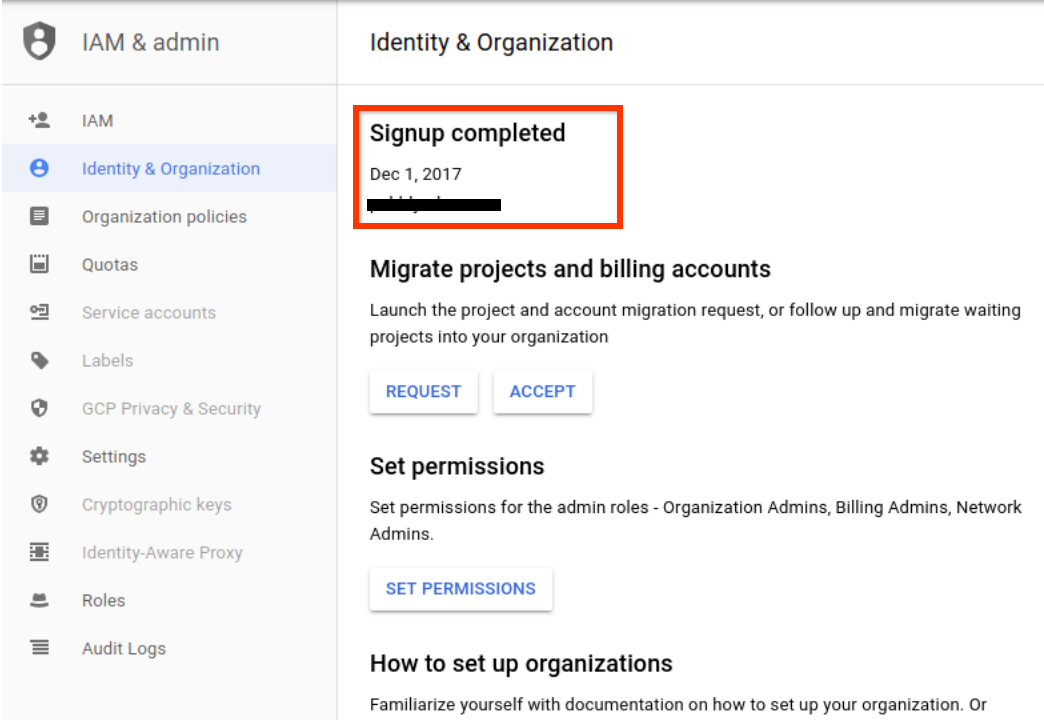
3. If your organization was created before September 6, 2018, check if an
organization policy constraint sets the default DNS type for all newly
created projects to zonal DNS.
1. Go to the [**IAM \& Admin\>Organization Policies** page](https://console.cloud.google.com/iam-admin/orgpolicies/list) in the Google Cloud console.
2. In the **Filter** field, enter `constraints/compute.setNewProjectDefaultToZonalDNSOnly`.
3. If the constraint is configured, click the name **Sets the internal DNS setting for new projects to Zonal DNS Only**.
4. On the **Policy details** page, check the **Status** .
- If the status is **Enforced**, then the default internal DNS type is zonal DNS for all new projects created in the organization.
- Otherwise, the default DNS type for the project is still determined by the organization creation time.
5. If the constraint wasn't configured for the organization, the default DNS type for the project is determined by the organization creation date.
### gcloud
Use the [`organizations describe` command](https://docs.cloud.google.com/sdk/gcloud/reference/organizations/describe)
and the [`resource-manager org-policies list` command](https://docs.cloud.google.com/sdk/gcloud/reference/resource-manager/org-policies/list)
to determine the default DNS type for an organization.
1. Check the organization `creationTime` metadata value.
```
gcloud organizations describe ORGANIZATION_ID
```
Replace ORGANIZATION_ID with either the organization ID
number or the organization domain name.
2. If your organization was created before September 6, 2018, determine if
an organization policy constraint is configured to set the default DNS
type for all newly created projects to zonal DNS.
```
gcloud resource-manager org-policies list --organization=ORGANIZATION_ID \
--filter="constraints/compute"
```
In the output, look for
`constraints/compute.setNewProjectDefaultToZonalDNSOnly`.
1. If the constraint is present and `Status` is `Enforced`, then all new projects created in the organization use zonal DNS by default.
2. If the constraint isn't present or isn't enforced, the default DNS type is determined by the organization's creation date, as described in the first step.
## Determine which projects in a folder or organization use global DNS
To determine which projects are using global DNS, we recommend
using BigQuery to create a table that lists the relative projects for
your organization and their metadata. You can then use this table to run a query
1. [Create a BigQuery dataset](https://docs.cloud.google.com/bigquery/docs/datasets).
2. [Export the asset metadata for your organization to a BigQuery table](https://docs.cloud.google.com/asset-inventory/docs/exporting-to-bigquery).
1. Make sure the Cloud Asset Inventory API is enabled.
2. [Configure the permissions](https://docs.cloud.google.com/asset-inventory/docs/configuring-permissions) that are required to use the Cloud Asset Inventory API.
3. Use the following gcloud CLI command to export the
`compute.googleapis.com/Project` asset:
```
gcloud asset export \
--content-type resource \
--organization 'ORGANIZATION_ID' \
--bigquery-table 'projects/PROJECT_ID/datasets/DATASET_ID/tables/TABLE_NAME' \
--asset-types='compute.googleapis.com/Project' \
--output-bigquery-force
```
Replace the following:
- ORGANIZATION_ID: the organization ID number
- PROJECT_ID: the project ID
- DATASET_ID: the name of the BigQuery dataset
- TABLE_NAME: the table you're exporting your metadata to. If the table doesn't exist, BigQuery creates the table.
3. Go to the [**BigQuery** page](https://console.cloud.google.com/bigquery) in the
Google Cloud console.
4. Select **Compose a new query**.
5. In the query editor text area, enter the following GoogleSQL
query and then click
**Run**.
```
SELECT
JSON_VALUE(SAFE.PARSE_JSON(resource.data).vmDnsSetting) AS vmDnsSetting,
count(*) as project_count
FROM PROJECT_ID.DATASET_ID.TABLE_NAME
GROUP BY 1
```
Replace the following:
- PROJECT_ID: the project ID
- DATASET_ID: the name of the BigQuery dataset
- TABLE_NAME: the table that contains the exported metadata, from Step 2.
Projects with the value `ZONAL_ONLY` for `vmDnsSetting` have zonal
DNS configured. Otherwise, the projects use global DNS by default.
6. Optional: For a detailed view of the `vmDnsSetting` for each
project, enter the following GoogleSQL query and then
click **Run**.
```
SELECT
SUBSTR(name,35) as project_id,
JSON_VALUE(SAFE.PARSE_JSON(resource.data).vmDnsSetting) AS vmDnsSetting
FROM PROJECT_ID.DATASET_ID.TABLE_NAME
```
## Determine migration readiness of a folder
This step uses a `bash` script and the BigQuery table created in
the previous section to determine the migration readiness
of the folder.
- The folder is ready if all projects haven't made any queries that are incompatible with zonal DNS in the last 30 days.
- If a folder is not ready for migration, the script responds with the project IDs in the folder that are preventing the folder from being ready for migration. The projects in this result list are not yet compatible with zonal DNS and require additional action.
Complete the following steps:
1. Get the folder ID. If you don't know the folder ID, do the following:
1. In the Google Cloud console, go to the [**Managed resources** page](https://console.cloud.google.com/cloud-resource-manager).
2. Apply the filter `Name:FOLDER_NAME` to get the folder ID.
2. Query the BigQuery table with the exported
`compute.Project assets` data.
For the instructions on how to create the BigQuery table, see
[Determine which projects in a folder or organization use global DNS](https://docs.cloud.google.com/compute/docs/networking/use-zonal-dns#query_projects).
Enter the following GoogleSQL query and then
click **Run**:
```
SELECT
SUBSTR(name,35) AS project_id,
FROM PROJECT_ID.DATASET_ID.TABLE_NAME
WHERE CONTAINS_SUBSTR(ancestors, 'FOLDER_NUMBER')
```
Replace the following:
- PROJECT_ID: the project ID
- DATASET_ID: the name of the BigQuery dataset
- TABLE_NAME: the table that contains the exported metadata
- FOLDER_NUMBER: the folder ID number
3. Copy the project ID list and save it to a file.
4. Run the following `bash` script. The script iterates through the project IDs
in the saved file to determine whether a folder is ready for migration.
```
#!/bin/bash
inaccessible_projects=()
unready_projects=()
for project in $(cat ~/FILENAME | tr '\n' ' '); do
echo -e "Checking project $project..."
ERROR=`curl -s --request POST "https://monitoring.googleapis.com/v3/projects/$project/timeSeries:query" -H "Authorization: Bearer $(gcloud auth print-access-token)" -H "Accept: application/json" -H "Content-Type: application/json" --data '{"query":"fetch compute.googleapis.com/Location | metric '"'"'compute.googleapis.com/global_dns/request_count'"'"' | filter metric.zonal_dns_readiness = '"'"'zonal_dns_risky'"'"' | every 30d | within 30d"}' --compressed | jq --raw-output '.error'`
if ! [[ "$ERROR" -eq "null" ]]; then
inaccessible_projects+=($project)
continue
fi
QUERY_COUNT=`curl -s --request POST "https://monitoring.googleapis.com/v3/projects/$project/timeSeries:query" -H "Authorization: Bearer $(gcloud auth print-access-token)" -H "Accept: application/json" -H "Content-Type: application/json" --data '{"query":"fetch compute.googleapis.com/Location | metric '"'"'compute.googleapis.com/global_dns/request_count'"'"' | filter metric.zonal_dns_readiness = '"'"'zonal_dns_risky'"'"' | every 30d | within 30d"}' --compressed | jq --raw-output '.timeSeriesData[0].pointData[0].values[0].int64Value'`
if [[ "$QUERY_COUNT" -ne "null" ]] && [[ "$QUERY_COUNT" -ne "0" ]]; then
unready_projects+=($project)
fi
done
error_len=${#inaccessible_projects[@]}
unready_len=${#unready_projects[@]}
echo -e "$error_len projects were inaccessible"
echo -e "$unready_len projects were not ready for migration"
if [ $error_len -ne 0 ]; then
echo "Unable to access the following projects:"
for project in "${inaccessible_projects[@]}"; do
echo "$project"
done
fi
if [ $unready_len -ne 0 ]; then
echo "The following projects are not ready for migration:"
for project in "${unready_projects[@]}"; do
echo "$project"
done
fi
if (( $error_len + $unready_len > 0 )); then
echo "This folder is NOT ready for gDNS -> zDNS migration."
else
echo "This folder is ready for gDNS -> zDNS migration."
fi
```
Replace FILENAME with the name of the file that you saved the
project ID list in.
Convey the results of the migration readiness analysis with the project owners:
- For folders and projects that are safe to migrate, notify the project owners that they can begin to [migrate ready projects](https://docs.cloud.google.com/compute/docs/networking/migrate-to-zonal-dns#migrate-ready-projects).
- For folders that contain projects that aren't safe to migrate, instruct project owners to [fix incompatible queries](https://docs.cloud.google.com/compute/docs/networking/migrate-to-zonal-dns#fix-queries).
## Exempt folders not ready to migrate to zonal DNS
To exempt a folder from the organization policy, complete the
following steps to set the enforcement option
for the policy at the folder level to `Off`.
1. Sign in to the Google Cloud console as a Google Workspace or Cloud Identity super administrator.
2. In the console, go to the **Organization policies** page.
[Go to Organization policies](https://console.cloud.google.com/iam-admin/orgpolicies/list)
3. Click **Select**, and then select the folders that you want to exempt
from the organization policy.
The Google Cloud console displays a list of organization policy constraints
for that folder on one or more pages.
4. To find the organization policy constraint that enforces zonal DNS:
1. Click **Filter**.
2. Select **Name**.
3. Set the filter name to **Sets the internal DNS setting for new
projects to Zonal DNS Only**.
5. Click the organization policy constraint name to open the
**Policy details** page.
6. Click **Edit**.
7. On the **Edit** page, select **Customize**.
8. Under **Enforcement** , select **Off** to disable enforcement of the
constraint. This means that the default internal DNS type for all
projects in the folder are determined by the organization creation date.
9. Click **Save**.
For more information about customizing organization policy constraints, see
[Customizing policies for boolean constraints](https://docs.cloud.google.com/resource-manager/docs/organization-policy/creating-managing-policies#boolean_constraints) in the
Resource Manager documentation.
## Enforce zonal DNS by default for new projects
Use the following steps to set the organization policy for a folder or
organization.
1. Sign in to the Google Cloud console as a Google Workspace or Cloud Identity
super administrator.
2. In the console, go to the **Organization policies** page.
[Go to Organization policies](https://console.cloud.google.com/iam-admin/orgpolicies/list)
3. Select the folder or organization for which you want
to view organization policies. The Google Cloud console displays a list of
organization policy constraints that are available. The list might span
multiple pages.
4. To find the policy to enforce zonal DNS, click **Filter** and select
**Name** , then set the filter name to
**Sets the internal DNS setting for new projects to Zonal DNS Only**.
5. Click the policy name to see its
[details](https://console.cloud.google.com/iam-admin/orgpolicies/compute-setNewProjectDefaultToZonalDNSOnly).
The policy details page provides information about the constraint and how the
constraint is applied.
By default, the enforcement is undefined for a folder or organization.
However, if a parent folder has a defined enforcement, then the
enforcement is inherited from the closest parent folder that has
a defined enforcement. For more information, see
[Understanding hierarchy evaluation](https://docs.cloud.google.com/resource-manager/docs/organization-policy/understanding-hierarchy).
6. To customize the organization policy, click **Edit**.
7. In the edit page, select **Customize**.
8. Under **Enforcement** , select **On**.
This sets the default internal DNS type for all new projects in the
organization to zonal DNS.
9. Click **Save**.
> [!NOTE]
> **Note:** Changes to organization policies can take up to 15 minutes to be fully enforced.
To validate the organization policy change, you can create a new project under
the folder or organization, then
[create and start a VM instance](https://docs.cloud.google.com/compute/docs/instances/create-start-instance),
and [check whether your VM is enabled for zonal DNS](https://docs.cloud.google.com/compute/docs/networking/using-internal-dns#view_instance_dns_name).
If global DNS is needed to resolve a DNS name query built into your
workload, you can rollback this change at the organization or folder level by
disabling the enforcement.
### Revert to using global DNS for an organization or folder
To revert an organization or folder to using global DNS, stop enforcement
of the organizational policy for zonal DNS. Complete the following steps.
1. Disable the organization policy
`constraints/compute.setNewProjectDefaultToZonalDNSOnly` at the organization
or folder level. For instructions on how to modify this policy, see
[Enforce zonal DNS by default for new projects](https://docs.cloud.google.com/compute/docs/networking/use-zonal-dns#enforce_dns_by_policy).
Set the enforcement of **Sets the internal DNS setting for new projects to
Zonal DNS Only** to **Off**.
2. If you want to revert to using global DNS for the entire organization,
verify that none of the folders in the organization are enforcing the
organization policy `constraints/compute.setNewProjectDefaultToZonalDNSOnly`.
3. To verify that global DNS is configured for your projects and instances,
see [Determine which projects in a folder or organization use global DNS](https://docs.cloud.google.com/compute/docs/networking/use-zonal-dns#query_projects).
## What's next
- Any existing projects that use global DNS must be migrated separately. For more information, see [Update your projects to use zonal DNS](https://docs.cloud.google.com/compute/docs/networking/migrate-to-zonal-dns).
- [Use Cloud DNS logs to monitor DNS failure rates](https://docs.cloud.google.com/compute/docs/networking/monitor-dns-failures).