This document explains how to migrate an existing project from global DNS to
zonal DNS. Zonal DNS enhances reliability by isolating outages within zones,
preventing disruptions to essential services like instance creation and
autohealing.
## Before you begin
- If you haven't already, set up [authentication](https://docs.cloud.google.com/compute/docs/authentication). Authentication verifies your identity for access to Google Cloud services and APIs. To run code or samples from a local development environment, you can authenticate to Compute Engine by selecting one of the following options:
Select the tab for how you plan to use the samples on this page:
### Console
When you use the Google Cloud console to access Google Cloud services and
APIs, you don't need to set up authentication.
### gcloud
1.
[Install](https://docs.cloud.google.com/sdk/docs/install) the Google Cloud CLI.
After installation,
[initialize](https://docs.cloud.google.com/sdk/docs/initializing) the Google Cloud CLI by running the following command:
```bash
gcloud init
```
If you're using an external identity provider (IdP), you must first
[sign in to the gcloud CLI with your federated identity](https://docs.cloud.google.com/iam/docs/workforce-log-in-gcloud).
> [!NOTE]
> **Note:** If you installed the gcloud CLI previously, make sure you have the latest version by running `gcloud components update`.
2. [Set a default region and zone](https://docs.cloud.google.com/compute/docs/gcloud-compute#set_default_zone_and_region_in_your_local_client).
### REST
To use the REST API samples on this page in a local development environment, you use the
credentials you provide to the gcloud CLI.
1. [Install](https://docs.cloud.google.com/sdk/docs/install) the Google Cloud CLI.
2. If you're using an external identity provider (IdP), you must first [sign in to the gcloud CLI with your federated identity](https://docs.cloud.google.com/iam/docs/workforce-log-in-gcloud).
For more information, see
[Authenticate for using REST](https://docs.cloud.google.com/docs/authentication/rest)
in the Google Cloud authentication documentation.
### Required roles
To get the permissions that
you need to migrate projects to use zonal DNS,
ask your administrator to grant you the
following IAM roles:
- Migrate a project to use zonal DNS: [Project Editor](https://docs.cloud.google.com/iam/docs/roles-permissions/resourcemanager#resourcemanager.projectEditor) (`roles/resourcemanager.projectEditor`) on the project
- Migrate Compute Engine instances to zonal DNS within a project: [Compute Instance Admin (v1)](https://docs.cloud.google.com/iam/docs/roles-permissions/compute#compute.instanceAdmin.v1) (`roles/compute.instanceAdmin.v1`) on the project
- If your compute instance uses a service account, then: [Service Account User](https://docs.cloud.google.com/iam/docs/roles-permissions/iam#iam.serviceAccountUser) (`roles/iam.serviceAccountUser`) on the service account or project
For more information about granting roles, see [Manage access to projects, folders, and organizations](https://docs.cloud.google.com/iam/docs/granting-changing-revoking-access).
These predefined roles contain
the permissions required to migrate projects to use zonal DNS. To see the exact permissions that are
required, expand the **Required permissions** section:
#### Required permissions
The following permissions are required to migrate projects to use zonal DNS:
- Check for global DNS names and compute instance metadata: `compute.projects.get`
- Set metadata on a compute instance: `compute.instances.setMetadata`
- Set project-wide metadata: `compute.projects.setCommonInstanceMetadata`
- If your compute instances use service accounts, then: `iam.serviceAccounts.actAs`
You might also be able to get
these permissions
with [custom roles](https://docs.cloud.google.com/iam/docs/creating-custom-roles) or
other [predefined roles](https://docs.cloud.google.com/iam/docs/roles-overview#predefined).
## Configure monitoring for DNS lookup failures
As a best practice,
[enable Cloud DNS query logs](https://docs.cloud.google.com/compute/docs/networking/monitor-dns-failures)
in your Compute Engine project before migrating to zonal DNS. You can use
the logs to monitor and compare internal DNS failure rates before and after
migration to zonal internal DNS. Google recommends that you enable DNS query
logging at least 24 hours before the migration to establish a pre-migration
baseline.
After you have collected enough data in the DNS query logs, you can perform
the zonal DNS migration. You can monitor DNS resolution rates during the
migration to ensure that the migration doesn't cause an increase in DNS query
failures.
For information about the cost of DNS query monitoring, see
[Pricing information for Cloud DNS query logging](https://docs.cloud.google.com/compute/docs/networking/monitor-dns-failures#dns-query-cost).
## Check if your project uses global DNS by default
Check your projects to see if they need to migrate from using global DNS to
zonal DNS. You only need to migrate projects that are configured to use global
DNS as the default for any internal DNS names created within the project.
### Console
1. In the Google Cloud console, go to the Compute Engine **Metadata**
page.
[Go to Metadata](https://console.cloud.google.com/compute/metadata)
2. On the **Metadata** tab, view the `VmDnsSetting` setting, if it exists.
The assigned value indicates whether the project uses global DNS by
default.
- `GlobalDefault`: the project has global DNS enabled.
- `ZonalOnly`: the project has zonal DNS enabled. This project doesn't need to be migrated.
If the `VmDnsSetting` metadata setting isn't listed, then
[check if your organization uses Global DNS by default](https://docs.cloud.google.com/compute/docs/networking/use-zonal-dns#check-default).
### gcloud
Run the following gcloud CLI command to check the value of
`vmDnsSetting`.
gcloud compute project-info describe --project=PROJECT_ID --flatten="vmDnsSetting"
Replace PROJECT_ID with the name of the project.
The returned value indicates whether the project uses global DNS by
default.
- `GLOBAL_DEFAULT`: the project has global DNS enabled.
- `ZONAL_ONLY`: the project has zonal DNS enabled. This project doesn't need to be migrated.
### REST
Check the value of `vmDnsSetting` by using the
[`projects.get` method](https://docs.cloud.google.com/compute/docs/reference/rest/v1/projects/get).
This example uses a `fields` query parameter to only include the fields you
want to view.
GET https://compute.googleapis.com/compute/v1/projects/PROJECT_ID?fields=id,name,vmDnsSetting
Replace PROJECT_ID with the project ID.
The value of `vmDnsSetting` indicates whether the project uses
global DNS by default.
- `GLOBAL_DEFAULT`: the project has global DNS enabled.
- `ZONAL_ONLY`: the project has zonal DNS enabled. This project doesn't need to be migrated.
## Project Migration Checklist
Follow these steps to ensure a smooth project transition to zonal DNS:
- **Check for incompatible queries** : Verify that your project has zero queries that are incompatible with zonal DNS. Compute Engine automatically performs this analysis by evaluating your [preceding 30 days of DNS query logs](https://docs.cloud.google.com/compute/docs/networking/migrate-to-zonal-dns#query-analysis). If the log assessment flags any incompatible queries, then resolve them using the instructions in [Logs Explorer](https://docs.cloud.google.com/logging/docs/view/logs-explorer-interface) before proceeding.
- **Review project compatibility guidance** : Verify that your environment doesn't have underlying architectural dependencies, such as specific Linux OS versions, that could impact your project after migration. For more details, see [Project Compatibility Guidance](https://docs.cloud.google.com/compute/docs/networking/zonal-dns#migration-limitations).
- **Switch to zonal DNS** : [Apply the configuration change](https://docs.cloud.google.com/compute/docs/networking/migrate-to-zonal-dns#migrate-ready-projects) or update your Terraform files to migrate the project.
- **Post-migration verification** : Monitor your applications and [verify that all internal DNS queries resolve correctly](https://docs.cloud.google.com/compute/docs/networking/migrate-to-zonal-dns#check-for-issues) after you switch to using zonal DNS.
## Use query analysis to determine the migration readiness of a project
To assess if a project can be migrated to zonal DNS without code changes or
altering how global DNS is used, Google Cloud analyzes your DNS query history.
This analysis provides the following metrics that indicate project compatibility
with zonal DNS:
- `zonal_dns_ready` (**Compatible queries**): This metric represents the
total number of queries within a 100-day period that can be successfully
resolved using zonal DNS.
- `zonal_dns_risky` (**Incompatible queries or queries at-risk of failure post migration** ): This metric represents the
total number of queries that can't be resolved using zonal DNS. These
queries typically involve cross-region communication or other scenarios
where zonal resolution fails. **Crucially, if this metric has a non-zero
value, then your project is not yet ready for migration.** You must address
these incompatible queries before switching to zonal DNS.
> [!NOTE]
> **Note:** The query analysis metrics are updated every 24 hours and refreshed by 9 AM PST each day.
To view these metrics, use the **Metrics Explorer** in the Google Cloud console.
1. In the Google Cloud console, go to the
**Metrics explorer** page:
[Go to **Metrics explorer**](https://console.cloud.google.com/monitoring/metrics-explorer)
If you use the search bar to find this page, then select the result whose subheading is
**Monitoring**.
2. On the right side of the toolbar that contains the **Select a metric**
field, click **Code editor** , **MQL** , or **PromQL**.
3. If the query input field isn't titled **PromQL Query** , then for
**Language** , select **PromQL**.
4. In the query input field, enter the following text exactly as it appears:
```
increase({"compute.googleapis.com/global_dns/request_count", monitored_resource="compute.googleapis.com/Location"}[1d])
```
5. Click the **Run query** button.
> [!NOTE]
> **Note:** When the **Auto-run** toggle is enabled, the **Run query** button isn't displayed. Instead, the query runs automatically.
The Google Cloud console displays a chart of the two metrics
(`zonal_dns_ready` and `zonal_dns_risky`) and the corresponding number of
queries made over the time period for each metric.
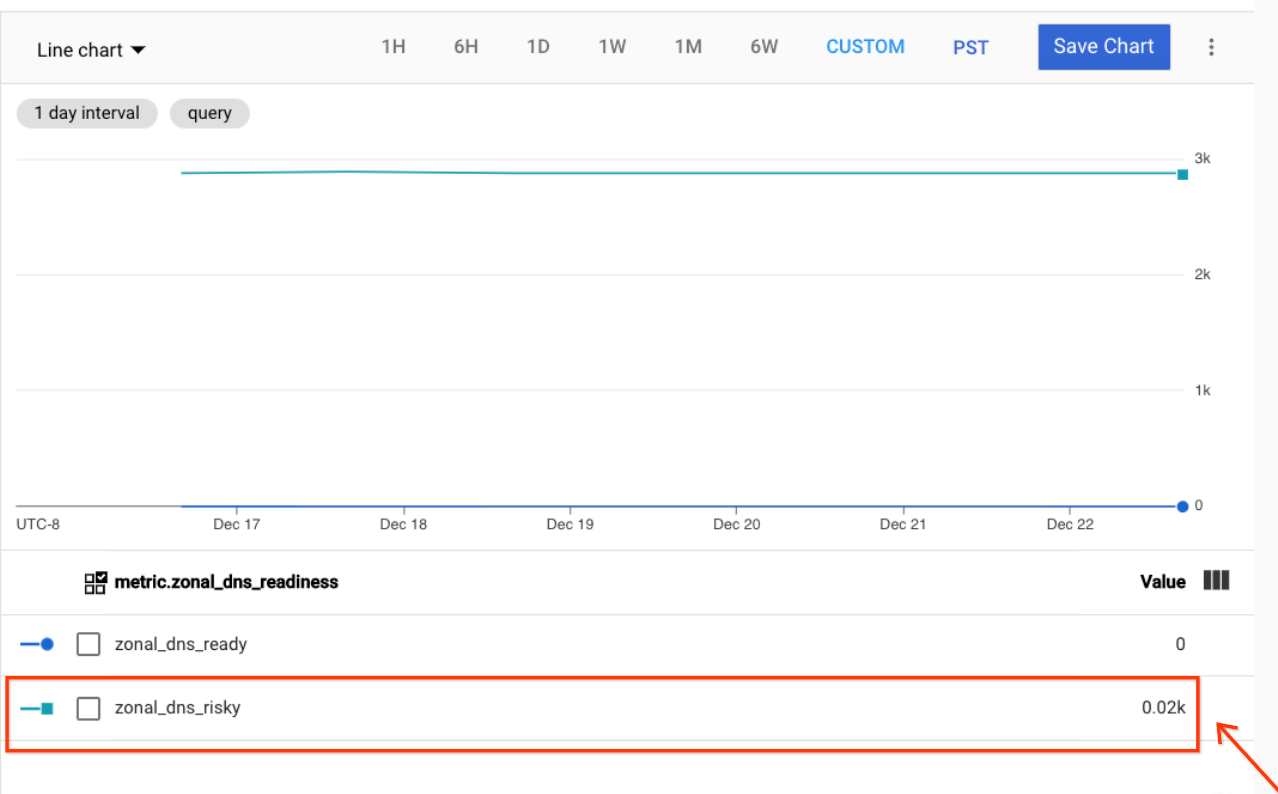
6. Check the value for the `zonal_dns_risky` metric.
- If the value is `0`, then the project is ready for migration to zonal DNS. You can migrate the project, as described in [Migrate projects that are ready to zonal DNS](https://docs.cloud.google.com/compute/docs/networking/migrate-to-zonal-dns#migrate-ready-projects).
- If the value is a non-zero number, such as `0.02k` as shown in the previous screenshot, then there are some queries that might not work after you migrate to zonal DNS. The project is not ready for migration. Continue with the steps in [Fix incompatible queries](https://docs.cloud.google.com/compute/docs/networking/migrate-to-zonal-dns#fix-queries).
## Migrate projects that are compatible with zonal DNS
Enable zonal DNS for your instances by setting the `vmDnsSetting` metadata entry
for the project.
> [!NOTE]
> **Note:** If you set the `vmDnsSetting` metadata entry for a specific instance, then it overrides any `vmDnsSetting` setting inherited from the project metadata for that instance.
After you set this metadata entry, your compute instances:
- Can be accessed only by their zonal DNS names (`INSTANCE_NAME.ZONE.c.PROJECT_ID.internal`) when using search paths.
- Retain both the zonal and global search paths, but the global DNS names, which don't include the ZONE as part of the internal DNS name, no longer function.
- Can use global DNS names to access only other instances in the same region and same project.
Complete the following steps:
1. Use the Google Cloud console, gcloud CLI, or REST to
change the `vmDnsSetting` metadata entry for your project.
### Console
1. To update the setting at the project level, in the Google Cloud console,
go to the Compute Engine **Metadata** page.
[Go to the Custom metadata page](https://console.cloud.google.com/compute/metadata)
2. Click **Edit**.
3. If a key with the value `VmDnsSetting` exists, then change its value
to `ZonalOnly`.
4. If a key with the value `VmDnsSetting` doesn't exist, then click
**Add item**.
- In the **Key** field, enter `vmDnsSetting`.
- In the **Value** field, enter `ZonalOnly`.
5. To finish modifying your custom metadata entries, click
**Save**.
### gcloud
1. To update the metadata setting for the current project, use the
[`project-info add-metadata` command](https://docs.cloud.google.com/sdk/gcloud/reference/compute/project-info/add-metadata).
gcloud compute project-info add-metadata \
--metadata vmDnsSetting=ZonalOnly
2. Optional: To verify the metadata settings for a project, use the
following command:
gcloud compute project-info describe --project=PROJECT_ID --flatten="vmDnsSetting"
Replace PROJECT_ID with the name of the project
to query.
### REST
> [!NOTE]
> **Note:** If you use `curl` or `Invoke-RestMethod` to set project metadata, then ensure that you add the `Content-Type:application/json` header to the request.
To update the metadata setting at the project level, construct
a `POST` request using the
[projects.setCommonInstanceMetadata method](https://docs.cloud.google.com/compute/docs/reference/rest/v1/projects/setCommonInstanceMetadata).
1. Optional: To perform optimistic locking, you can optionally
provide a *fingerprint*.
A fingerprint is a random string of characters generated by
Compute Engine. The fingerprint changes after each
request, and if you provide a mismatched fingerprint, then your
request is rejected.
If you don't provide a fingerprint, then no check for consistency is
performed, and the `projects.setCommonInstanceMetadata` request
succeeds. If you use the `instances.setMetadata` method, then
a fingerprint is always required.
To get the current fingerprint of a project, call the
[`project.get` method](https://docs.cloud.google.com/compute/docs/reference/rest/v1/projects/get).
```
GET https://compute.googleapis.com/compute/v1/projects/PROJECT_ID
```
The output is similar to the following:
```
{
"name": "myproject",
"commonInstanceMetadata": {
"kind": "compute#metadata",
"fingerprint": "FikclA7UBC0=",
...
}
}
```
2. Construct a `POST` request to the
[`projects.setCommonInstanceMetadata` method](https://docs.cloud.google.com/compute/docs/reference/rest/v1/projects/setCommonInstanceMetadata)
to set the metadata key-value pair:
```
POST https://compute.googleapis.com/compute/v1/projects/PROJECT_ID/setCommonInstanceMetadata
{
"fingerprint": "FikclA7UBC0=",
"items": [
{
"key": "vmDnsSetting",
"value": "ZonalOnly"
}
]
}
```
Replace `PROJECT_ID` with your project ID.
### Terraform
To update the metadata setting for your project using Terraform, add the
following
[`google_compute_project_metadata_item` resource](https://registry.terraform.io/providers/hashicorp/google/latest/docs/resources/compute_project_metadata_item)
block to your configuration:
resource "google_compute_project_metadata_item" "vmdnssetting" {
key = "VmDnsSetting"
project = "MyProject"
value = "ZonalOnly"
}
2. After you configure the `vmDnsSetting` metadata entry for your project,
refresh the DHCP lease on each instance in that project. You can
refresh the lease using one of the following methods:
- Restart the instance
- Wait for the lease to expire
- Run one of the following commands:
### Linux instances
sudo dhclient -v -r
### Windows instances
ipconfig /renew
3. [Check that your project uses zonal DNS](https://docs.cloud.google.com/compute/docs/networking/migrate-to-zonal-dns#check-metadata).
## Fix incompatible queries
If a project isn't ready to migrate, then at least one incompatible DNS query
was made within the preceding 30 days. Incompatible queries might have the
following attributes:
- Make a call to a compute instance in a different project.
- Make a call to a compute instance in a different region.
Incompatible DNS queries can break your migration to zonal DNS, so it's
important to fix them before migrating your project to zonal DNS.
To fix all incompatible queries, we recommend that you use the zonal fully
qualified domain name (FQDN) of the source compute instance in the query. This
approach ensures query resolution remains undisrupted after you migrate the
project to use zonal DNS.
To resolve incompatible queries, do the following:
1. Use the Logs Explorer to access and query the global DNS usage for
all compute instances in your project.
[Go to Logs Explorer](https://console.cloud.google.com/logs/query)
2. Select the project you are migrating to zonal DNS.
3. Apply the resource and log name filters:
1. Click **All resources**.
2. In the **Select resource** dialog, select **VM Instance** , and then click **Apply**.
3. In the Fields panel, in the **Severity** section, select **Debug**.
4. Click **All log names**.
5. In the **Select log names** dialog, select **gdnsusage** , and then
click **Apply**.
> [!NOTE]
> **Note:** The Logs Explorer updates your global DNS usage logs only once per day.
#### Alternative query
Alternatively, you can enter the following into the
query field:
```
resource.type='gce_instance'
log_name='projects/PROJECT_ID/logs/compute.googleapis.com/gdnsusage'
```
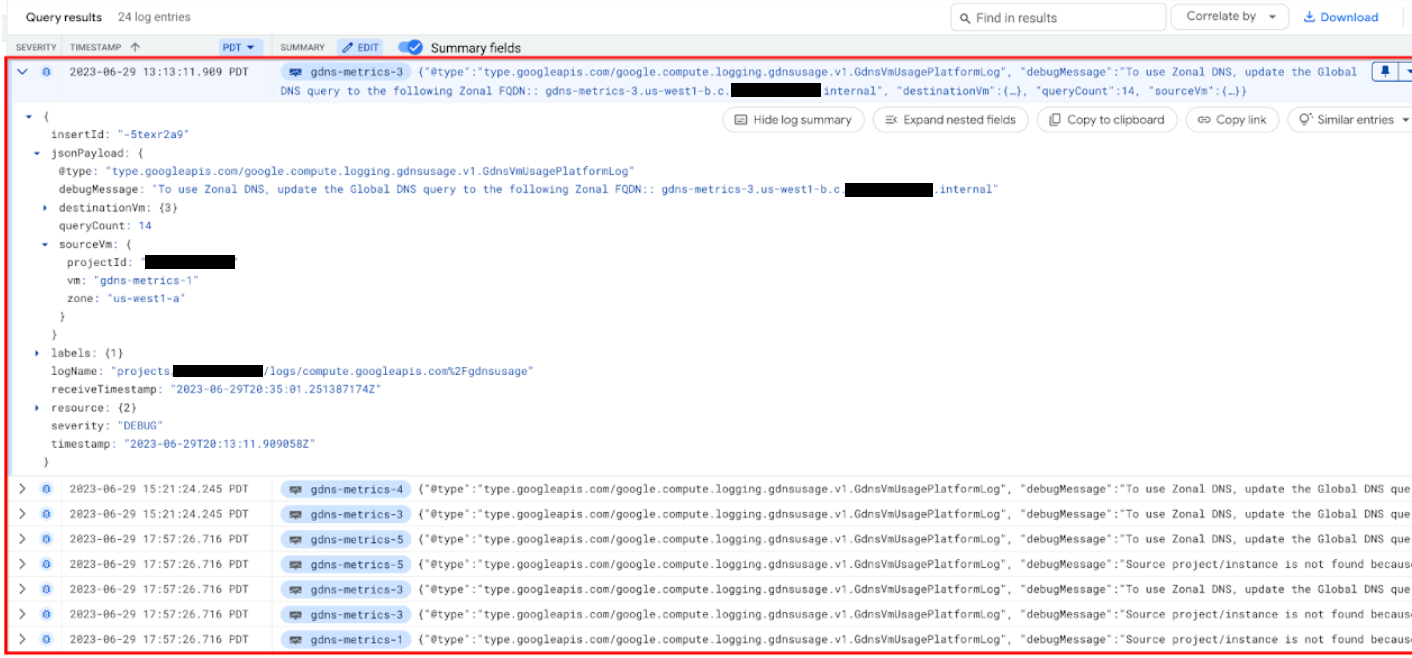
4. In the **Query results** pane, each query has a `jsonPayload` field. Each
`jsonPayload` field contains the following information:
- The source compute instance name, its project ID, and zone name.
- The destination compute instance name, its project ID, and zone name.
- A debug message that provides information about how to update the global
DNS query that can't be resolved by using zonal DNS names. These are
considered migration blocking queries that you should debug and fix.
```
"To use Zonal DNS, update the Global DNS query sent from the source VM
INSTANCE_NAME.c.PROJECT_ID.internal to the following zonal
FQDN: INSTANCE_NAME.ZONE.c.PROJECT_ID.internal"
```
- A query count that shows how many migration blocking queries the source compute instance
sends to the destination compute instance for that day.
The following screenshot shows the `jsonPayload` field information in the
Logs Explorer console page.
> [!NOTE]
> **Note:** Google Cloud can identify the compute instance the query originates from, but it can't determine the specific application responsible.
5. Use the information in the `jsonPayload` that you obtained in the previous
step to determine what FQDN to use to manually update your global DNS
queries to use zonal DNS, and make the project ready for migration. The most
common use cases for where to update the FQDN and resolve compatibility are
as follows:
- Internal DNS names from the metadata server: No action is required because the returned DNS name will change to a zonal FQDN immediately after the migration to zonal DNS. If the DNS name is cached, then you just need to make one more call to update the cache value.
- Internal DNS names used to access VMs in another region: If you have an application that uses the internal DNS names for VMs in different regions, then you can modify the DHCP policy or configuration file to include the zone in the other region.
- Hard-coded global FQDN: If you have an application that uses hard-coded global FQDN names for your compute instances, then you can update the call within the application to use the internal DNS name or zonal FQDN instead. You can make this change through a code change or configuration change in Terraform.
- VMs in service projects that use a Shared VPC network: To resolve DNS names of VMs in service projects that use a Shared VPC network, you must use the zonal FQDNs of the VMs.
6. After you have updated the global DNS queries to use zonal DNS, do
the following:
1. Use the Logs Explorer page to query the global DNS usage again.
After you fix all blocking global DNS queries, there should be no debug
logs displayed in the query results.
2. Recheck the [monitoring metric](https://docs.cloud.google.com/compute/docs/networking/migrate-to-zonal-dns#query-analysis) to see if all
incompatible DNS queries have been removed.
> [!NOTE]
> **Note:** The cost to ingest data within the Logs Explorer tool is low. Query logs within the tool have been aggregated based on source and destination instance pairs to ensure the amount of ingested data remains low.
## View global DNS logs in Logs Explorer
Logs Explorer primarily shows global DNS logs for projects with queries
that are *incompatible* with zonal DNS. These logs help you to identify and
analyze those problematic queries before migrating.
You can also utilize Logs Explorer for these incompatible queries to do the
following:
- [**Create dashboards**](https://docs.cloud.google.com/monitoring/charts/view-logs): Visualize your incompatible global DNS query patterns to gain insights into your application's communication behavior.
- [**Aggregate logs**](https://docs.cloud.google.com/logging/docs/export/aggregated_sinks): Analyze DNS logs across your entire organization to identify broader trends and potential areas for improvement.
## Check if a change to zonal DNS is impacting your project
After migrating to zonal DNS, it's crucial to verify that your applications and
services are still working correctly. Since zonal DNS changes how internal
DNS names are resolved, some applications might experience issues if they rely
on global DNS names.
The following section describes how to check for potential impacts and how to
resolve them:
1. Command-line instance communication
**Task**: Try pinging one instance from another instance using
gcloud CLI.
gcloud compute ssh INSTANCE-A --command "ping INSTANCE-B"
**Potential Error** : "Could not resolve host"---This means `INSTANCE-A` can't
find the IP address for `INSTANCE-B`.
**Resolution** : Update the hostname you're using for `INSTANCE-B` to its fully
qualified domain name (FQDN), which includes the zone name:
`INSTANCE_NAME.ZONE.c.PROJECT_ID.internal`
2. Instance communication within Compute Engine services
**Task** : If you're using health checks for
[managed instance groups (MIGs)](https://docs.cloud.google.com/compute/docs/instance-groups#managed_instance_groups)
that rely on internal DNS names, then check if the health checks are passing.
**Potential Error**: "Health check failed"---This indicates the health
check can't reach its target due to DNS resolution problems.
**Resolution** : Ensure the [health check](https://docs.cloud.google.com/compute/docs/reference/rest/v1/healthChecks)
is using the FQDN of the target instance, including the zone name.
3. Application-specific use cases
Many applications rely on internal DNS for tasks like the following:
- Connecting to databases (for example, Cloud SQL)
- Interacting with message queues (for example, Pub/Sub)
- **Potential Errors**: These vary depending on the application but might
include:
- "Unable to connect to SERVICE_NAME"
- "Connection timed out"
- "No such host is known"
- **Resolution**: Check your application's configuration to make sure it's
using the FQDN (including the zone name) when referencing services.
## Troubleshoot the global DNS to zonal DNS migration process
If you have issues with the migration process, then refer to the
[troubleshooting guide](https://docs.cloud.google.com/compute/docs/troubleshooting/troubleshooting-networking).
## Revert to using global DNS
You can undo the migration to zonal DNS by changing the default internal DNS
type back to global DNS. You can do this at the organization, project, instance,
or container level.
### Revert to using global DNS for a project
To revert a project to using global DNS, complete the following steps.
1. Add the following to the project's metadata: `vmDnsSetting=GlobalDefault`.
For information about how to set project metadata values, see
[Set and remove custom metadata](https://docs.cloud.google.com/compute/docs/metadata/setting-custom-metadata).
2. Verify that none of the instances in the project have the `vmDnsSetting`
metadata value set to `ZonalOnly`.
gcloud compute instances describe INSTANCE_NAME --flatten="metadata.items[]"
Replace INSTANCE_NAME with the name of the instance to
check.
3. Refresh the DHCP lease on each instance. You can refresh the lease by
restarting the instance, waiting for the
[lease to expire](https://docs.cloud.google.com/compute/docs/internal-dns#internal_dns_and_dhcp), or by
running one of the following commands in the guest operating system:
- Linux instances: `sudo dhclient -v -r`
- Windows Server instance: `ipconfig /renew`
### Revert to using global DNS for an instance
To revert a specific instance to using global DNS, complete the following steps.
1. Update the instance's metadata to include `vmDnsSetting=GlobalDefault`.
For information about how to set compute instance metadata values, see
[Set and remove custom metadata](https://docs.cloud.google.com/compute/docs/metadata/setting-custom-metadata).
2. To force the DNS configuration change, restart the network of the instance
using one of the following commands:
- For Container-Optimized OS or Ubuntu:
sudo systemctl restart systemd-networkd
- For CentOS, RedHat EL, Fedora CoreOS, or Rocky Linux:
sudo systemctl restart network
or
sudo systemctl restart NetworkManager.service
- For Debian:
sudo systemctl restart networking
- For Linux systems with [`nmcli`](https://www.unix.com/man-page/centos/1/nmcli/):
sudo nmcli networking off
sudo nmcli networking on
- For Windows:
ipconfig /renew
### Revert to using global DNS for a container
If you run your application or workload in containers, on Google Kubernetes Engine, or on
App Engine flexible environment, then the DNS configuration in your container settings might not
automatically update until you restart the containers. To disable zonal DNS on
these container apps, complete the following steps.
1. Set the project metadata setting `vmDnsSetting` to `GlobalDefault` on the
projects that own the containers and compute instances.
2. Restart the containers so that their DNS settings revert to the original
state.
## What's next
- Review the [Google Cloud resource
hierarchy](https://docs.cloud.google.com/resource-manager/docs/cloud-platform-resource-hierarchy#resource-hierarchy-detail) for information about the relationship between organizations, folders, and projects.
- Learn more about [internal DNS for
Compute Engine](https://docs.cloud.google.com/compute/docs/internal-dns).