Standard snapshots incrementally back up data on a disk. After you create a snapshot, you can use it to create a new disk that contains the captured data. The new disk can immediately achieve its maximum performance and doesn't require pre-warming.
Standard snapshots provide geo-redundant backups of a single disk regardless of
whether the disk is attached to a running virtual machine (VM) instance. To back up
an entire VM or multiple disks at once, create a [machine image](https://docs.cloud.google.com/compute/docs/machine-images).
For other scenarios, see the chart describing [data backup options](https://docs.cloud.google.com/compute/docs/disks/data-protection).
This document describes how standard snapshots work and how to use them to
back up your disks for disaster recovery. The information in this document
applies to both archive and standard snapshots, unless otherwise noted.
The lifecycle of a snapshot created from a disk attached to a running VM
instance is independent of the lifecycle of the VM instance.
## Snapshot types
You can back up a disk with snapshots.
The three types of snapshots---standard, instant, and archive---all
capture the contents of a disk at a specific point in time.
The following are the key differences between the snapshot types:
- Retention after source disk deletion
- [Data recovery time (RTO)](https://wikipedia.org/wiki/Recovery_point_objective)
- Storage location
### Retention after source disk deletion
An instant snapshot of a disk **only exists until the source disk is deleted**.
Standard and archive snapshots aren't deleted with the source disk. Therefore,
if you want to retain a backup of a disk after you delete the disk itself, use
archive or standard snapshots.
### Data recovery time
The data recovery time is the length of time needed to
create a new disk from a snapshot and varies by snapshot type.
- Instant snapshots offer the lowest and best recovery times.
- Standard snapshots have faster data recovery times than archive snapshots.
- Archive snapshots have the longest data recovery times, but offer the most cost efficient storage.
### Storage location by snapshot type
The storage location is the zone or region where Compute Engine stores
the snapshot.
- Instant snapshots are local disk backups that are stored in the same zone or region as the source disk.
- Archive and standard snapshots are remote backups of disk data stored separately from the source disk.
Compute Engine stores archive and standard snapshots in the same manner. Copies of archive and standard snapshots are stored across
multiple locations with automatic checksums to ensure the integrity of your
data.
Unless otherwise specified, references to standard snapshots include archive snapshots.
Learn more
[About instant snapshots](https://docs.cloud.google.com/compute/docs/disks/instant-snapshots).
### Snapshot type comparison
The following table compares the differences between the types of snapshots:
| Snapshot type | Best for | Storage redundancy | Support for Hyperdisk | Can be created with snapshot schedules | Deleted on source disk deletion |
| Standard snapshots | Geo-redundant data backup to safeguard against local, zonal, and regional outages. | Redundant. Stored in one or more regions. Not restricted to the same zone or region as the source disk. | Yes | Yes | No |
| Archive snapshots | Same as standard snapshots, but for data that is rarely accessed and must be retained for several months or years. Lower cost geo-redundant storage that is better suited for data related to compliance, audits, and cold-storage. | Redundant. Stored in one or more regions. Not restricted to the same zone or region as the source disk. | Yes | No | No |
| Instant snapshots | In-place data backup to enable quick restore to a new disk in case of user error or application corruption. | **Not redundant. Stored in the same zone or region as source disk only.** | Yes, for certain Hyperdisk types^\*^ | No | **Yes** |
|---|---|---|---|---|---|
^\*^You can't create instant snapshots of Hyperdisk ML or Hyperdisk Throughput volumes.
In addition to snapshots, Compute Engine offers other data backup options.
Review the chart describing
[data backup options](https://docs.cloud.google.com/compute/docs/disks/data-protection).
### Archive snapshots
Standard and archive snapshots differ primarily in storage location and cost.
Archive snapshots have the same benefits as standard snapshots, including
incremental chains, compression, and encryption.
However, archive snapshots are lower-cost and are better suited for use cases
related to compliance, audit, and long-term cold storage. If you require snapshot
retention for many months or years and rarely need to access snapshots, consider
using archive snapshots instead of standard snapshots. Each snapshot type is
stored in separate incremental snapshot chains, and archive snapshots are listed
separately in the Google Cloud console.
## Access standard snapshots
By default, snapshots are [global resources](https://docs.cloud.google.com/compute/docs/regions-zones/global-regional-zonal-resources#globalresources).
This means that when you use a snapshot to create a new disk, the new disk can
be in any project or region, regardless of where the source snapshot is stored.
To restrict access locations,
[set the regions the snapshot can be created and restored in](https://docs.cloud.google.com/compute/docs/disks/set-snapshot-scope).
You can also [share snapshots across projects](https://docs.cloud.google.com/compute/docs/disks/manage-snapshots#sharing_snapshots).
### Using disks created from snapshots
To access the data in a snapshot, you must create a new disk from the snapshot,
which is called *restoring a snapshot*. The new disk can immediately achieve its
maximum performance and doesn't require pre-warming.
Restoring a snapshot doesn't override the source disk or delete the source
snapshot.
## Work with standard snapshots
- To learn how to back up disks with snapshots, see
[Creating snapshots](https://docs.cloud.google.com/compute/docs/disks/create-snapshots#creating_snapshots).
- To learn how to create a new disk from a snapshot, see
[Restoring snapshots](https://docs.cloud.google.com/compute/docs/disks/restore-snapshot).
- If you no longer need a specific snapshot, you can reduce storage costs by
[deleting the snapshot](https://docs.cloud.google.com/compute/docs/disks/manage-snapshots#delete_a_snapshot).
- To reduce the risk of unexpected data loss, consider the best practice of
setting up a [snapshot schedule](https://docs.cloud.google.com/compute/docs/disks/about-snapshot-schedules)
to ensure your data is regularly backed up.
## Snapshot scopes
> [!WARNING]
>
> **Preview**
>
>
> This product or feature is
>
> subject to the "Pre-GA Offerings Terms" in the General Service Terms section
> of the [Service Specific
> Terms](https://docs.cloud.google.com/terms/service-terms#1).
>
> Pre-GA products and features are available "as is" and might have limited support.
>
> For more information, see the
> [launch stage descriptions](https://cloud.google.com/products/#product-launch-stages).
When you create a snapshot, you can create a globally scoped snapshot (default)
or a regionally scoped snapshot. To set a regional scope, complete the steps to
[create a regionally scoped snapshot](https://docs.cloud.google.com/compute/docs/disks/create-snapshots#create_snapshots).
Setting a
regional scope ensures that all snapshot data and the metadata necessary to use
the snapshot are co-located within the scoped region. Regionally scoped
snapshots support additional location control by letting you restrict
[allowed snapshot creation and restore locations](https://docs.cloud.google.com/compute/docs/disks/set-snapshot-scope).
In contrast, globally scoped snapshots can be created and restored in any region
without restriction.
This helps you control
[snapshot network costs](https://cloud.google.com/compute/disks-image-pricing#tg1-t5),
enhances your resiliency to global outages, and offers additional
protection for your snapshot data.
To decide if regionally scoped or globally scoped snapshots are the best fit for
your project, reference the following table:
| Regionally scoped snapshots | Globally scoped snapshots (default) |
|---|---|
| Restrict allowed snapshot creation and restore locations. | Minimal control over snapshot creation and restore locations. |
| All snapshot metadata and data are co-located in the same scoped region. | Snapshot metadata and data aren't always stored in the same region. |
| Improve data security by limiting the locations where a potential attacker can create and restore snapshot data. | Users with the necessary IAM permissions can create and restore data in any region. |
## Snapshot deletion
> [!WARNING]
> **Warning:** Deleting an archive snapshot is irreversible. You can't recover deleted archive snapshots.
Deleting a standard snapshot might be reversible if the recycle bin
([Preview](https://docs.cloud.google.com/products#product-launch-stages)) is enabled for the standard snapshot.
The recycle bin [protects standard snapshots from accidental deletion](https://docs.cloud.google.com/compute/docs/disks/snapshots#prevent_accidental_snapshot_deletion).
### Protect standard snapshots from accidental deletion
> [!WARNING]
>
> **Preview
> --- Recycle bin for Compute Engine snapshots**
>
>
> This feature is
>
> subject to the "Pre-GA Offerings Terms" in the General Service Terms section of the
> [Service Specific
> Terms](https://docs.cloud.google.com/terms/service-terms#1).
>
> Pre-GA features are available "as is" and might have limited support.
>
> For more information, see the
> [launch stage descriptions](https://cloud.google.com/products/#product-launch-stages).
By default, Compute Engine retains deleted standard snapshots for a
three-day *retention period* . This lets you
recover a deleted standard snapshot within three days
if the deletion was accidental or malicious. Such *recoverable snapshots* are
said to be *in the recycle bin*.
You can set a custom retention period of one to seven days
for different projects, tags, and organizations.
For more information, see
[Retain deleted resources in the recycle bin](https://docs.cloud.google.com/compute/docs/disks/retain-deleted-resources).
To check if the recycle bin is enabled for a specific standard snapshot, see
[Check the recycle bin retention period for a specific snapshot](https://docs.cloud.google.com/compute/docs/disks/configure-recycle-bin#view-retention-period-snapshot).
## Benefits of incremental snapshots
Snapshots are incremental, so each snapshot contains only the data that has
changed since the previous snapshot. This lets you create regular snapshots of
a Persistent Disk or Hyperdisk volume faster and at a
lower cost compared to regularly creating a full image of the disk.
For unchanged data, snapshots reference the data in previous snapshots.
[Storage costs for disk snapshots](https://docs.cloud.google.com/compute/disks-image-pricing#disk-snapshot-pricing)
charge only for the total size of the snapshot.
> [!IMPORTANT]
> **Important:** Snapshots are incremental by default to avoid billing you for redundant data and to minimize use of storage space. However, to ensure the reliability of snapshot history, a snapshot might occasionally capture a full image of the disk. This happens automatically to maximize storage space and minimize storage costs. You don't need to choose between creating incremental or full snapshots. When a snapshot captures a full image of the disk, previous incremental snapshots of that disk are unchanged.
### How incremental snapshots work
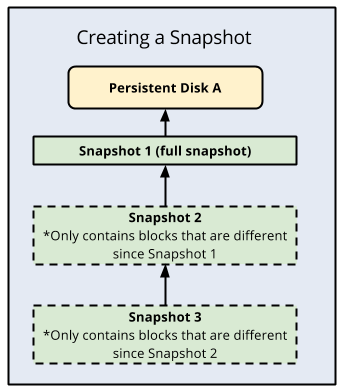
Incremental snapshots work as follows:
- The first successful snapshot of a disk is a full snapshot that contains all the data on the disk.
- The second snapshot only contains any new data or modified data since the first snapshot. Data that hasn't changed since Snapshot 1 isn't included. Instead, Snapshot 2 contains references to Snapshot 1 for any unchanged data.
- Snapshot 3 contains any new or changed data since Snapshot 2 but won't contain any unchanged data from Snapshot 1 or 2. Instead, Snapshot 3 contains references to blocks in Snapshot 1 and Snapshot 2 for any unchanged data.
This repeats for all subsequent snapshots of the disk. Snapshots
are always created based on the last successful snapshot taken.
### Snapshot size
A standard or archive snapshot's size shows how much data has changed on the
source disk since the previous snapshot was created. A snapshot's size is zero
if no data has changed since the snapshot was created.
A zero-byte snapshot doesn't mean that the disk is empty or
that a problem occurred backing up the disk.
### Snapshot deletion process
Compute Engine uses incremental snapshots so that each snapshot
contains only the data that has changed since the previous snapshot.
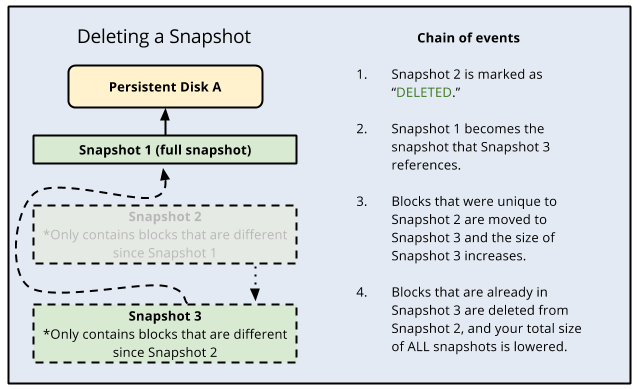
If you delete a snapshot that has dependent snapshots, then the following
occurs:
1. Any data that is required for restoring other snapshots is moved into the next snapshot, increasing its size.
2. Any data that is not required for restoring other snapshots is deleted. This lowers the total size of all your snapshots.
3. The next snapshot no longer references the snapshot marked for deletion, and instead references the snapshot before it.
Because subsequent snapshots might require information stored in a previous
snapshot, keep in mind that deleting a snapshot does not necessarily delete
all the data on the snapshot. To definitively delete data from your snapshots,
you should delete all snapshots.
If your disk has a snapshot schedule, then you must
[detach the snapshot schedule](https://docs.cloud.google.com/compute/docs/disks/manage-snapshot-schedules#change_snapshot_schedule_replace)
from the disk before you can delete the schedule. Removing the snapshot schedule
from the disk prevents further snapshot activity from occurring.
You cannot delete a schedule that is attached to a disk. You have the option
to manually delete snapshots at any time.
The following diagram shows this process:
### Ensure deleted files are discarded
Snapshots capture parts of the disk that were written to and not discarded.
Depending on the disk file system configuration, sometimes deleted files are not
discarded. If this happens, you might see that the size of your snapshot is
larger than the used space on the disk reported by the file system. To avoid
this, it is a best practice to [enable the `discard` option or run `fstrim` on
your disk](https://docs.cloud.google.com/compute/docs/disks/snapshot-best-practices#enable_discard).
### Snapshot chains
You can create standard snapshots in distinct snapshot chains by specifying a
snapshot chain name at the time of the snapshot creation. When you create
multiple standard snapshots of a Persistent Disk using a chain name, each new
snapshot is based incrementally on the last successful snapshot created with
that chain name. Use snapshot chains only if you are an advanced service owner
and you need to create separate snapshot chains, for example, for chargeback
tracking.
You can specify a snapshot chain name during standard snapshot creation by using
the [gcloud CLI](https://docs.cloud.google.com/sdk/gcloud/reference/compute/disks/snapshot#--chain-name),
[REST](https://docs.cloud.google.com/compute/docs/reference/rest/v1/disks/createSnapshot), or
[Terraform](https://registry.terraform.io/providers/hashicorp/google/latest/docs/resources/compute_snapshot#example-usage---snapshot-chainname).
When you [create a snapshot](https://docs.cloud.google.com/compute/docs/disks/create-snapshots#create_zonal_snapshot),
you have the option of creating a *standard snapshot* or an *archive snapshot*.
Archive snapshots have the same benefits as standard snapshots including
incremental chains, compression, and encryption. However, archive snapshots are
lower-cost and are better suited for use cases related to compliance, audit, and
long-term cold storage. If you require snapshot retention for many months or
years and rarely need to access snapshots, consider using archive snapshots
instead of standard snapshots. Each snapshot type is stored in separate
incremental snapshot chains, and archive snapshots are listed separately in the
Google Cloud console.
## Snapshot storage and access locations
When you create a snapshot of a disk, Google Cloud stores your
snapshot in a specific storage location. For globally scoped snapshots,
regardless of a snapshot's storage
location, you can use the snapshot to create a new disk in any
[region and zone](https://docs.cloud.google.com/docs/geography-and-regions#regions_and_zones). However, the
location of a snapshot affects its [availability](https://cloud.google.com/storage/sla) and you can
incur [networking costs](https://cloud.google.com/storage/pricing#network-pricing) when you create the
snapshot or restore it to a new disk. For regionally scoped snapshots, you can
[set allowed locations](https://docs.cloud.google.com/compute/docs/disks/set-snapshot-scope) to control the
regions that you can restore snapshots in.
### Types of storage locations
You can store globally scoped snapshots in either of the following location types:
- [Cloud Storage multi-regional locations](https://docs.cloud.google.com/storage/docs/locations#location-mr), such as `asia` or `us`.
- [Cloud Storage regional locations](https://docs.cloud.google.com/storage/docs/bucket-locations#location-r), such as `asia-south1` or `us-central1`.
([Preview](https://cloud.google.com/products/#product-launch-stages)) You can store regionally scoped
snapshots in
[Cloud Storage regional locations](https://docs.cloud.google.com/storage/docs/bucket-locations#location-r),
such as `asia-south1` or `us-central1`.
A multi-regional storage location provides the highest availability and
resilience. A regional storage location gives you more control over the physical
location of your data because you specify a single region.
If you need to comply with corporate or government data-placement policies,
store your snapshot in the nearest regional location that complies with
these policies.
If your app is not deployed in part of a multi-region and you want
to prioritize low networking costs over high snapshot availability, store
your snapshot in the region where your source disk is located. Storing your
snapshot in the region where your source disk is located minimizes networking
costs for restoring and creating snapshots from that source disk.
However, unlike a multi-regional storage location, a regional storage location
stores your data across multiple zones in a single region, and your data might
not be accessible if a regional disruption occurs. To ensure the availability
of your data, you might also want to store a redundant snapshot in a second
location.
If you have an [organization policy](https://docs.cloud.google.com/resource-manager/docs/organization-policy/overview)
that includes the resource locations [constraint](https://docs.cloud.google.com/resource-manager/docs/organization-policy/understanding-constraints),
then any snapshot storage location that you specify must be in the set of
locations defined by the constraint. See [Compute Engine resource locations](https://docs.cloud.google.com/resource-manager/docs/organization-policy/defining-locations-supported-services#compute-engine)
for more information.
### Configure a storage location
Configure the storage location based on whether you are creating globally scoped
or regionally scoped snapshots.
#### Globally scoped snapshots
- **Use the predefined or customized default storage location configured in
snapshot settings.** The storage location policy of
[snapshot settings](https://docs.cloud.google.com/compute/docs/disks/snapshot-settings)
defines the default location where Google Cloud stores all your
project's snapshots. Although Google Cloud maintains a predefined
default storage location policy, snapshot settings allow you to customize
this policy and configure your own default storage location:
- **Use the Google Cloud predefined default location.** Until you update snapshot settings for the first time, Google Cloud maintains a predefined value for the storage location policy. This predefined default location is the multi-region that is closest to the source disk. For more information, see [Google Cloud predefined storage location policy](https://docs.cloud.google.com/compute/docs/disks/snapshot-settings#gcp_predefined_storage_location_policy)
- **Set your own customized default location.** To customize the default storage location for your project's snapshots, you must update the storage location policy of your snapshot settings. After you update snapshot settings and configure your own default, Google Cloud starts using this newly configured location to store all your future snapshots. For more information, see [Update snapshot settings for your project](https://docs.cloud.google.com/compute/docs/disks/snapshot-settings#snapshot_settings_how_to_update).
- **Override snapshot settings and manually specify the location during
snapshot creation.**
Alternatively, you can override your snapshot settings and manually specify
a location of your choice when you create a snapshot. You can use this
option to choose a different location for specific snapshots on an
operational basis. To learn how to specify location during snapshot creation,
see [Create a snapshot of Persistent Disk volume](https://docs.cloud.google.com/compute/docs/disks/create-snapshots#create_snapshots).
##### When to choose the Google Cloud predefined default location
Some example use cases for using the multi-region, that is predefined in your
snapshot settings, as your storage location include the following:
- The default multi-region location meets corporate or government data-placement policies.
- Your disk is stored in a regional location (like `us-central1`) that is part of a multi-region location (`us`), and you prefer higher snapshot availability at the risk of slower snapshot restoration performance.
- You don't expect your snapshots to be frequently restored to disks that are located outside of the default snapshot storage location.
##### When to choose your own storage location
Some example use cases for using a custom storage location, either by updating
or overriding your snapshot settings, include the following:
- The custom multi-region location meets corporate or government data-placement policies.
- Your app is deployed in a region that is not included in one of the Cloud Storage multi-regional locations and you want to prioritize snapshot restoration performance over snapshot availability.
- You restore your snapshots multiple times from a disk located outside of the default snapshot storage location.
You can't modify the storage location of existing snapshots. If you want
to store your disk snapshot in a new location, create a new snapshot in your
chosen location and then delete the snapshot in the older location. If you need
to store a snapshot in more than one location, you must create a snapshot in
each location. When you create a new snapshot in a new location, a full snapshot
gets created with all the data on the disk.
#### Regionally scoped snapshots
> [!WARNING]
>
> **Preview**
>
>
> This product or feature is
>
> subject to the "Pre-GA Offerings Terms" in the General Service Terms section
> of the [Service Specific
> Terms](https://docs.cloud.google.com/terms/service-terms#1).
>
> Pre-GA products and features are available "as is" and might have limited support.
>
> For more information, see the
> [launch stage descriptions](https://cloud.google.com/products/#product-launch-stages).
To choose the storage location for regionally scoped snapshots, you must
manually specify the region during snapshot creation. When you set a regional
scope, you override any default storage locations you have set. If you don't set
a regional scope, your snapshot is created as a globally scoped snapshot. To
learn how to specify a region during snapshot creation, see
[Set snapshot creation and restore locations for regionally scoped snapshots](https://docs.cloud.google.com/compute/docs/disks/set-snapshot-scope).
### Network costs
For globally scoped snapshots, network charges apply for the creation or
restoration of all multi-regional
standard snapshots when a disk is in a member region of the multi-region. If you
don't require the additional replication and resilience of multi-regional
snapshots, we recommend using regional snapshots by specifying a regional
location when snapshots are created.
Selecting your snapshot storage location is vital to minimizing [network
costs](https://cloud.google.com/storage/pricing#network-pricing). If you store your snapshot in the same
region as your source disk, there is no network charge when you access that
snapshot from the same region. If you access the snapshot from a different
region, there is a network cost. Network costs are incurred when a snapshot is
created in a different region from the source disk, and when a snapshot is
restored to a disk in a different region from the snapshot.
There is a network charge for cross-region access. For example, if your source
disk is in `asia-east1` and you store your snapshots in `asia-east2`, you will
incur a network cost when you access your snapshot between those two regions.
Two regions, `australia-southeast1` and `southamerica-east1`, have a default
multi-region snapshot storage location that will incur network costs unless you
change the storage location. You can modify the storage location using snapshot
settings or manually override the default location during snapshot creation:
- If your source disk is in `australia-southeast1`, the default snapshot storage location is in the `asia` multi-region. To reduce costs, store your snapshots in the `australia-southeast1` region instead.
- If your source disk is in `southamerica-east1`, the default snapshot storage location is in the `us` multi-region. To reduce costs, store your snapshots in the `southamerica-east1` region instead.
If you restore a snapshot to a disk in a region that isn't included in the
snapshot's storage location you will incur a network cost. For example, if you
create a new regional Persistent Disk in `australia-southeast1` from a snapshot
stored in `asia`, a multi-regional location, you will incur network costs.
## Limitations
- You can't change the storage location of an existing standard snapshot. See
[Selecting the storage location for a snapshot](https://docs.cloud.google.com/compute/docs/disks/snapshots#selecting_a_storage_location).
- You can snapshot a specific disk at most six times every 60 minutes. If the disk
is a zonal disk, then this limit is shared with creating regional clones of
the disk if any of the following is true:
- The disk was created from an image
- The disk was created by cloning a disk that was created from an image
For more information,
see [Rate limits for cloning disks](https://docs.cloud.google.com/compute/docs/disks/clone-duplicate-disks#rate-limits)
and [Snapshot frequency limits](https://docs.cloud.google.com/compute/docs/disks/snapshot-best-practices#freq_limits).
- You can't edit the data stored in a snapshot.
-
Deleting a disk, instant snapshot, image, or archive snapshot is irreversible.
Deleting a standard snapshot might be irreversible if the recycle bin
([Preview](https://docs.cloud.google.com/products#product-launch-stages)) is disabled for the standard snapshot.
- You can create an unlimited number of standard snapshots of a given disk.
- ([Preview](https://cloud.google.com/products/#product-launch-stages)) You can
store regionally scoped snapshots only in
[Cloud Storage regional locations](https://docs.cloud.google.com/storage/docs/bucket-locations#location-r),
such as `asia-south1` or `us-central1`. You can't store regionally scoped
snapshots in [multi-regional locations](https://docs.cloud.google.com/storage/docs/locations#location-mr),
such as `asia`.
- You can't convert a globally scoped snapshot to a regionally scoped snapshot.
You must create a new snapshot with the appropriate scope.
- You can't create regionally scoped snapshots of source disks that are
protected by a customer-supplied encryption key (CSEK)
([Deprecated](https://docs.cloud.google.com/compute/docs/deprecations)).
- Regionally scoped snapshot names are unique only within a region. You can
have regionally scoped snapshots with the same name in different regions.
## What's next
- Learn how to [create standard disk snapshots](https://docs.cloud.google.com/compute/docs/disks/create-snapshots).
- Learn how to back up your disks regularly using [scheduled snapshots](https://docs.cloud.google.com/compute/docs/disks/about-snapshot-schedules).
- Learn about [managing snapshot schedules](https://docs.cloud.google.com/compute/docs/disks/manage-snapshot-schedules).
- Learn about [snapshot settings](https://docs.cloud.google.com/compute/docs/disks/snapshot-settings).
- Learn about [instant snapshots](https://docs.cloud.google.com/compute/docs/disks/instant-snapshots).
- Learn about [best practices for working with snapshots](https://docs.cloud.google.com/compute/docs/disks/snapshot-best-practices).