The *container startup agent* (konlet) in Compute Engine is deprecated. This agent lets you
deploy containers on Compute Engine instances when you create VMs.
This document describes how to migrate existing containers that the container startup
agent created on your VMs or managed instance groups (MIGs) to other
Google Cloud services.
Based on your requirements, choose one of the following options to
migrate the containers that were deployed on VMs using the deprecated method:
- If you want to continue running containers on individual VMs and MIGs, use [startup scripts](https://docs.cloud.google.com/compute/docs/containers/migrate-containers#startup-scripts) or [cloud-init](https://docs.cloud.google.com/compute/docs/containers/migrate-containers#cloud-init).
- If you have stateless container applications and small to medium jobs, use [Cloud Run](https://docs.cloud.google.com/compute/docs/containers/migrate-containers#cloud-run).
- If your container is a batch job that has a definite end state and requires additional computing resources, use [Batch](https://docs.cloud.google.com/compute/docs/containers/migrate-containers#batch).
- If you need advanced control and scalability or if you can't meet your requirements with the other options, use [GKE on Google Cloud](https://docs.cloud.google.com/compute/docs/containers/migrate-containers#gke).
For more use cases and alternative solutions, see [Compare the container deployment options](https://docs.cloud.google.com/compute/docs/containers/migrate-containers#compare-container-options).
## Prevent the creation of new VMs that use the container startup agent
To prevent the creation of new VMs that use the deprecated container startup
agent, organization administrators can enforce an organization policy. For more
information, see [Prevent the creation of VMs that use the deprecated container
metadata](https://docs.cloud.google.com/compute/docs/containers/prevent-konlet-vms).
## Deprecated options for configuring containers on VMs
When you configure a container during VM creation,
Compute Engine uses the container startup agent to read the
`gce-container-declaration` metadata that stores the
container information, and to deploy the container on the VM.
The following options for [deploying containers directly on a VM or MIG](https://docs.cloud.google.com/compute/docs/containers/deploying-containers)
that use the container startup agent and the `gce-container-declaration` metadata key are deprecated.
### Console
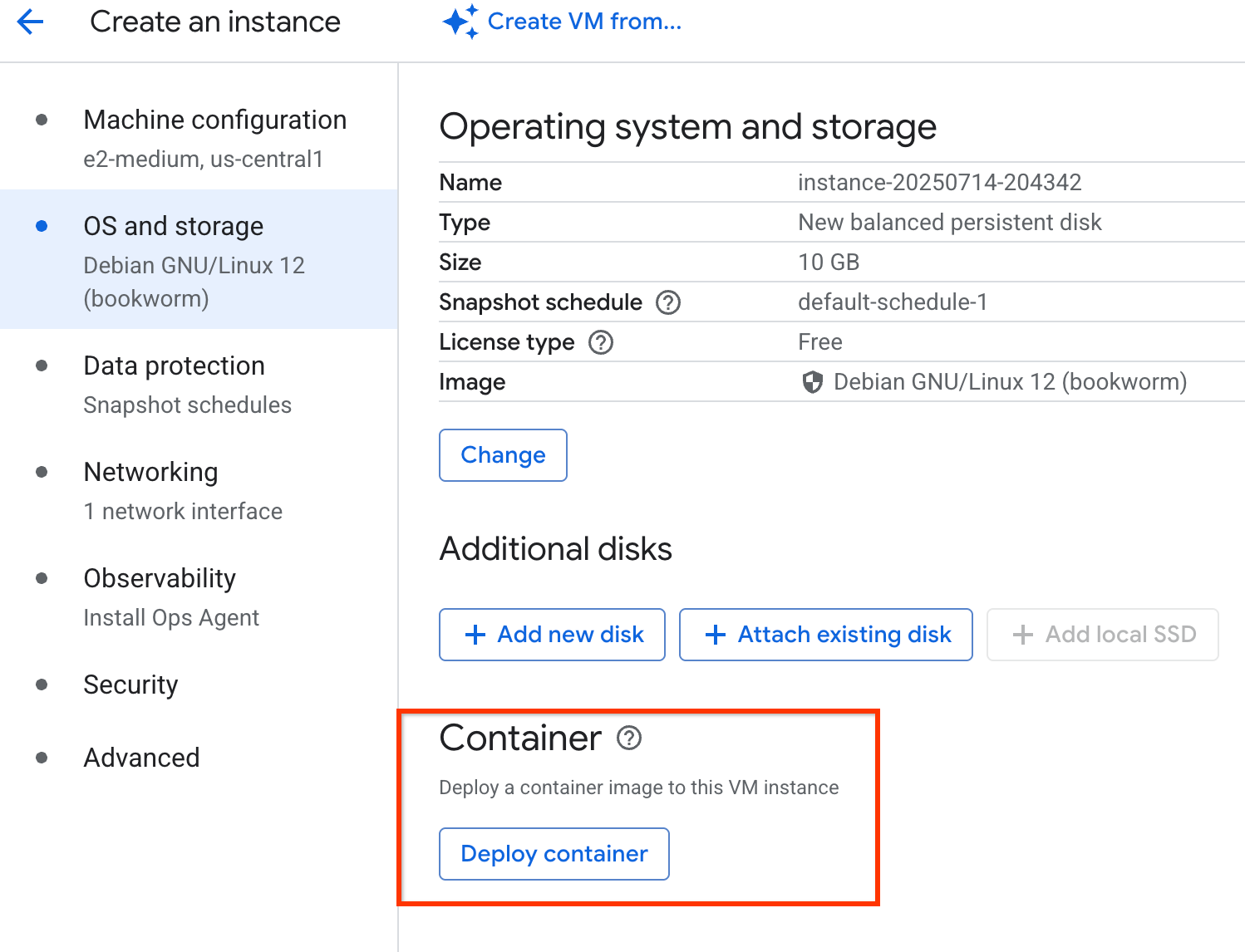
The **Deploy container** option on the **Create an instance** page is deprecated:
### gcloud
The following `gcloud` commands that configure a container on a VM or an instance template are deprecated:
- [gcloud compute instances create-with-container](https://docs.cloud.google.com/sdk/gcloud/reference/compute/instances/create-with-container)
- [gcloud compute instances update-container](https://docs.cloud.google.com/sdk/gcloud/reference/compute/instances/update-container)
- [gcloud compute instance-templates create-with-container](https://docs.cloud.google.com/sdk/gcloud/reference/compute/instance-templates/create-with-container)
- [gcloud compute instances create](https://docs.cloud.google.com/sdk/gcloud/reference/compute/instances/create) command that uses the `--metadata` flag to set the `gce-container-declaration` metadata key
- [gcloud compute instance-templates create](https://docs.cloud.google.com/sdk/gcloud/reference/compute/instance-templates/create) command that uses the `--metadata` flag to set the `gce-container-declaration` metadata key
### Terraform
The Terraform module [`gce-container`](https://registry.terraform.io/modules/terraform-google-modules/container-vm/google/latest)
and the `gce-container-declaration` metadata key to configure containers are deprecated.
## Prevent the creation of VMs that use the container startup agent
To prevent the creation of new VMs that use the deprecated container startup agent by using an organization policy,
see [Prevent the creation of VMs that use the deprecated container metadata](https://docs.cloud.google.com/compute/docs/containers/prevent-konlet-vms).
## Identify instances that use the deprecated container metadata
To identify instances in your project that use the deprecated container
metadata, follow these steps to check for the `gce-container-declaration`
metadata key:
1. Run one of the following commands:
- To list all instances in your project that use the
`gce-container-declaration` metadata key and value, run the following
gcloud CLI command:
gcloud compute instances list --filter="metadata.items.key:gce-container-declaration"
This command provides a list of all VM instances in your configured
project that contain the `gce-container-declaration` metadata key.
The metadata key uniquely identifies VMs that are in scope of the
deprecation. If you are using multiple projects, run this command
across all of the active projects.
- To validate a specific instance, run the following gcloud CLI command:
gcloud compute instances describe VM_NAME --format="(metadata.items)"
Replace `VM_NAME` with the name of the VM
instance that you want to validate.
2. If the output of the command from the preceding step lists
instances that use the `gce-container-declaration` metadata key, run
the following command to get more details about the container
declaration on your VMs:
gcloud compute instances list \
--filter='metadata.items.key:gce-container-declaration AND (metadata.items.value~"image:")' \
--format="table(name, zone, metadata.items.filter(key='gce-container-declaration').extract(value).slice(0):label=CONTAINER_DECLARATION)"
3. Based on the output of the command, consider the following:
- If the metadata contains the definition for the deprecated container startup agent, then
you must migrate the container deployment to an alternative solution as described in
this document.
- If the `gce-container-declaration` metadata key is present, but you are
not using it for the container startup agent, take the following actions:
- Check if you are reusing this metadata key for other configurations.
- If you are reusing the key, use a different metadata key for other configurations.
For more information about viewing metadata, see [View and query metadata](https://docs.cloud.google.com/compute/docs/metadata/querying-metadata).
## Compare the container deployment options
The following table summarizes the use cases for running containers on VMs and
recommends alternative container solutions for migrating your workloads:
| Use cases | Replacement type | Cost | Recommended solution |
|---|---|---|---|
| - Continue running container on a VM or a MIG. - Less familiar with serverless or managed solutions. - Run container for testing and development. - Your workload consists of a single VM. - Run container in the privileged mode. | Direct replacement | No additional cost | [Use startup scripts to deploy containers on VMs](https://docs.cloud.google.com/compute/docs/containers/migrate-containers#startup-scripts). |
| - Continue running container on a VM or a MIG. - Run multiple containers on a single VM. - Configure advanced scenarios on containers or VMs. For example, create users, import files, mount disks, or use privileged mode. - Your workload consists of multiple VMs or MIGs. | Direct replacement | No additional cost | [Use `cloud-init` to run tasks during the VM lifecycle](https://docs.cloud.google.com/compute/docs/containers/migrate-containers#cloud-init). |
| Run a batch job that has a definite end state and requires additional computing resources. | Managed service | Depends on your workload characteristics and complexity of the container configuration. | [Batch](https://docs.cloud.google.com/compute/docs/containers/migrate-containers#batch) |
| - Run stateless applications. - Run small to medium size jobs. | Managed service | No to low cost solution for smaller workloads. | [Cloud Run](https://docs.cloud.google.com/compute/docs/containers/migrate-containers#cloud-run) |
| - You already have an existing GKE cluster. - You need advanced control and scalability. | Managed service | Depends on workload characteristics and complexity of the container configuration. | [Google Kubernetes Engine](https://docs.cloud.google.com/compute/docs/containers/migrate-containers#gke) |
When you transition from the Compute Engine container startup agent to an
alternative solution, consider the following required changes and the potential
effort of implementing them:
- **VMs running Container-Optimized OS** : Take full ownership of VM and container runtime setup, configuration, security, and maintenance, which often involves scripting with startup scripts or `cloud-init`.
- **Cloud Run or Batch**: Ensure that your applications are stateless and fit the request-driven or job-based execution model. This approach might involve adapting applications to work with external state management services.
- **GKE**: Adopt Kubernetes principles, define workloads by using Kubernetes manifest files, and manage cluster resources.
## Use startup scripts to deploy containers on VMs
You can run a basic container on a VM using a startup script.
Consider the following points when you use a startup script to configure containers:
- You can use a startup script for basic scenarios. For advanced configuration, consider [using `cloud-init`](https://docs.cloud.google.com/compute/docs/containers/migrate-containers#cloud-init).
- Because you are creating a new VM with a container configured using the startup script, you must plan for the transition of any workloads deployed on the existing VMs.
- Test and ensure that everything works as expected before you route traffic to your newly created VM with a container.
To create a VM and to deploy a container on a VM or a MIG, do the following:
1. [Map current container on VM metadata to startup script command](https://docs.cloud.google.com/compute/docs/containers/migrate-containers#map-container-vm-metadata)
2. [Create a startup script based on the existing metadata configuration](https://docs.cloud.google.com/compute/docs/containers/migrate-containers#sample-startup-scripts)
3. [Create a VM by using the startup script](https://docs.cloud.google.com/compute/docs/containers/migrate-containers#create-vm) or [Create a MIG by using the startup script](https://docs.cloud.google.com/compute/docs/containers/migrate-containers#create-mig).
### Map your container metadata to `docker run` command
You can map the VM metadata or `gcloud` flags
to `docker run` arguments and include this in your startup script for creating VMs.
Some `gcloud` flags translate directly to VM metadata. These flags also
translate directly to `docker run` flags.
If you have an existing container on a VM, you can read the VM metadata
configuration and build a startup script using the equivalent `docker run` commands.
# Get your existing VM instance configuration in yaml format
gcloud compute instances describe VM_NAME --format="(metadata.items)"
The output is similar to the following:
metadata:
items:
- key: gce-container-declaration
value: |
spec:
containers:
- args:
- '"hello world!"'
command:
- echo
env:
- name: ONE
value: '1'
image: docker.io/library/busybox
name: my-instance
securityContext:
privileged: true
stdin: true
tty: true
restartPolicy: Always
- key: google-logging-enabled
value: 'true'
Use the following table to map existing specification to `docker run` commands:
| gcloud CLI flag | VM metadata key | Docker run command |
|---|---|---|
| `--container-image` | `containers.image` | Specify as an argument without any flag. For example: `docker run gcr.io/google-containers/busybox` |
| `--container-command` | `command` | Specify as an argument without any flag, after the container image name. For example: `docker run gcr.io/google-containers/busybox echo "hello world"` |
| `--container-arg` | `args` | Specify as an argument without any flag, after the command. For example: `docker run gcr.io/google-containers/busybox echo "hello world"` |
| `--container-env` | `containers.env array` | `--env KEY=VALUE [--env KEY=VALUE ...]` |
| `--container-restart-policy` | `restartPolicy` | `--restart` Possible values are `no`, `on-failure`, and `always`. Default is `no`. |
| `--container-stdin` | `containers.stdin` | `-i` Boolean flag, true if present, false by default. |
| `--container-tty` | `containers.tty` | `-t` Boolean flag, true if present, false by default. |
| `--container-privileged` | `containers.securityContext.privileged` | `--privileged` Boolean flag, true if present, false by default. |
| `--container-mount-disk` | - | No equivalent `docker run` command. You can [mount the disk](https://docs.cloud.google.com/compute/docs/containers/migrate-containers#mount-disk) separately. |
### Example startup scripts
The following examples show how to include the `docker` commands in your startup
script:
- Example 1: runs a standalone container in a VM based on Container-Optimized OS.
- Example 2: runs a web server container in a VM based on
Container-Optimized OS.
### Example 1
Run a standalone container in a VM based on Container-Optimized OS:
#!/bin/bash
# A name for the container
CONTAINER_NAME="my-app-container"
# Stop and remove the container if it exists
docker stop $CONTAINER_NAME || true
docker rm $CONTAINER_NAME || true
# Pull the latest version of the container image from Docker Hub
docker pull busybox:latest
# Run docker container from image in docker hub
docker run busybox:latest \
echo "hello world!"
### Example 2
Run a web server container in a VM based on Container-Optimized OS:
#!/bin/bash
# Enable incoming traffic
iptables -A INPUT -j ACCEPT
# A name for the container
CONTAINER_NAME="my-app-container"
# Stop and remove the container if it exists
docker stop $CONTAINER_NAME || true
docker rm $CONTAINER_NAME || true
# Pull the latest version of the container image from Docker Hub
docker pull nginx:latest
# Run docker container from image in docker hub
docker run \
--name=$CONTAINER_NAME \
--privileged \
--restart=always \
--tty \
--detach \
--network="host" \
nginx:latest
### Additional configuration options for container deployment
This section describes the additional configuration parameters
for deploying containers on your VMs.
For more information about these options, see [Configure options to run a container](https://docs.cloud.google.com/compute/docs/containers/deploying-containers#configuring_options_to_run_a_container).
#### Access to Artifact Registry images
If you need access to container images from [gcr.io](http://gcr.io) or pkg.dev,
use the `docker-credential-gcr` tool, which is preinstalled in Container-Optimized OS,
and configure authentication to Artifact Registry for Docker.
Run the following command before you run the container:
# Set home directory to save docker credentials
export HOME=/home/appuser
# Configure docker with credentials for gcr.io and pkg.dev
docker-credential-gcr configure-docker --registries LOCATION-docker.pkg.dev
Replace LOCATION with the [location](https://docs.cloud.google.com/artifact-registry/docs/repo-locations)
of your repository.
For more information, see [Configure authentication to Artifact Registry for Docker](https://docs.cloud.google.com/artifact-registry/docs/docker/authentication#standalone-helper).
#### Configure logging
We recommend using Cloud Logging [by enabling a logging agent](https://docs.cloud.google.com/container-optimized-os/docs/how-to/logging#enable_the_logging_agent) on a VM.
Alternatively, if you want to change the logging driver, you can include
the `--log-driver` parameter with your `docker run` command:
# Use Cloud Logging logging driver
docker run --log-driver=gcplogs nginx:latest
For more information, see [Using Cloud Logging with Container-Optimized OS](https://docs.cloud.google.com/container-optimized-os/docs/how-to/logging)
#### Configure internal firewall
Container-Optimized OS denies incoming traffic by default, so you must add
`iptables` rules to allow that traffic. Note that these commands configure the
host operating system's internal firewall. Additionally, you must configure your
Virtual Private Cloud (VPC) firewall to allow that traffic to the new VM
For more information, see [Use VPC firewall rules](https://docs.cloud.google.com/firewall/docs/using-firewalls).
# Enable all incoming and routed traffic
iptables -A INPUT -j ACCEPT
iptables -A FORWARD -j ACCEPT
For more information, see [Configuring the host firewall](https://docs.cloud.google.com/container-optimized-os/docs/how-to/firewall).
#### Attach volumes to the container
If volumes are attached to the container, the container metadata includes the
`volumes` entry and a `volumeMounts` array. The `name` of an entry in `volumes`
corresponds to the name of an entry in `volumeMounts`, and the other way around.
For each volume that you collect, gather the required information either from
the `volumes` or from the `volumeMounts` entry.
If no volumes are attached to the container, you can skip this section and
directly [create a VM by using the startup script](https://docs.cloud.google.com/compute/docs/containers/migrate-containers#create-vm).
For more information about disks and file system on Container-Optimized OS,
see [Disks and file system overview](https://docs.cloud.google.com/container-optimized-os/docs/concepts/disks-and-filesystem).
##### Mount tmpfs file system
To mount an empty tmpfs file system to a container, specify the `--tmpfs`
argument with your `docker run` command. For example, to mount a cache file system
to your nginx container, run the following command:
# mount a cache file system to the nginx container
docker run -d --name=$CONTAINER_NAME --tmpfs /var/cache/nginx:rw,size=512m,noexec,nosuid,nodev --network="host" nginx:latest
For more information about mounting `tmpfs` file systems, see [tmpfs mounts](https://docs.docker.com/engine/storage/tmpfs/).
##### Mount a host directory
To mount a directory from a host VM to a container, specify the `--mount` argument
with the `docker run` command:
# mount a read-only directory to the nginx container
docker run -d --name=$CONTAINER_NAME --mount type=bind,source=/var/www/html,target=/usr/share/nginx/html,ro nginx:latest
For more information, see [Bind mounts](https://docs.docker.com/engine/storage/bind-mounts/).
##### Mount a persistent disk to the container
Mounting a disk to the container requires additional steps. To mount a disk,
first mount it on the VM, and then mount that disk to the container:
1. To mount the disk to the VM, run the following command:
#!/bin/bash
DISK_DEVICE_NAME="my-persistent-disk" # This name MUST match the 'device-name' in the gcloud --disk flag
DISK_BY_ID_PATH="/dev/disk/by-id/google-${DISK_DEVICE_NAME}"
HOST_MOUNT_POINT="/mnt/disks/my-persistent-disk" # This is the path where the disk will be mounted on the VM
CONTAINER_MOUNT_PATH="/usr/share/my-persistent-disk" # This is the path where the disk will be mounted in the container
# format a disk as an ext4 filesystem, if it doesn't already contain one
file -sL $DISK_BY_ID_PATH | grep -q filesystem || \
mkfs.ext4 -m 0 -E lazy_itable_init=0,lazy_journal_init=0,discard $DISK_BY_ID_PATH
# create a directory for mounting point
sudo mkdir -p "${HOST_MOUNT_POINT}"
# mount a disk to the VM
sudo mount -o defaults,discard "${DISK_BY_ID_PATH}" "${HOST_MOUNT_POINT}"
2. After you mount the disk to the VM, add the `--mount` flag with the
`docker run` command to mount the disk to the container:
docker run -d --name=$CONTAINER_NAME --mount type=bind,source="${HOST_MOUNT_POINT}",target="${CONTAINER_MOUNT_PATH}",readonly nginx:latest
## Generate a startup script with Gemini assistance
You can use Gemini to help you generate a startup script based on your existing container declaration.
> [!CAUTION]
> As an early-stage technology, Gemini for Google Cloud
> products can generate output that seems plausible but is factually incorrect. We recommend that you
> validate all output from Gemini for Google Cloud products before you use it.
> For more information, see
> [Gemini for Google Cloud and responsible AI](https://docs.cloud.google.com/gemini/docs/discover/responsible-ai).
To use Gemini Cloud Assist to generate a startup script, follow these steps:
> [!WARNING]
>
> **Preview**
>
>
> This product or feature is
>
> subject to the "Pre-GA Offerings Terms" in the General Service Terms section
> of the [Service Specific
> Terms](https://docs.cloud.google.com/terms/service-terms#1).
>
> Pre-GA products and features are available "as is" and might have limited support.
>
> For more information, see the
> [launch stage descriptions](https://cloud.google.com/products/#product-launch-stages).
1. Go to the **Compute Engine** page.
[Go to Compute Engine](https://console.cloud.google.com/compute)
2. In the Google Cloud toolbar, click
spark **Open or
close Gemini AI chat** to open Gemini Cloud Assist chat.

3. In the **Enter a prompt** field, enter the [sample prompt](https://docs.cloud.google.com/compute/docs/containers/migrate-containers#sample-prompt) provided in this section. Replace the placeholders for the script and container YAML with a startup script
and your existing container configuration.
4. Click **Send prompt**.
For more information about setting up and using Gemini Cloud Assist, see [Set up Gemini Cloud Assist](https://docs.cloud.google.com/cloud-assist/set-up-gemini).
#### Sample prompt for generating startup script from your existing container configuration
````
You are a senior systems architect migrating container deployments on Compute Engine. The legacy container startup agent, Konlet, is deprecated, which is the reason for this migration. Your task is to process the input YAML specification, which is the existing container declaration being migrated, and translate it into a robust Bash startup script for Container-Optimized OS on Compute Engine. You must ensure complete functional equivalence with 1:1 Konlet parity by following the `` and referring to the `` element below.
To complete this task, follow these instructions in sequence:
1. Initialize the script with the shebang `#!/bin/bash` and options `set -euo pipefail`.
2. Integrate the "Existing Script" input verbatim immediately after the initialization.
3. Add a blank line, then define a function wrapper: `start_gce_container() { ... }`.
4. Inside the function, include the mandatory logic blocks for Firewall, Cleanup, and Authentication provided in the ``.
5. Translate the provided YAML "Container Declaration" using the mapping rules in the ``.
6. Generate HostPath, EmptyDir, or Persistent Disk volume preparation steps using the patterns provided in the ``.
7. Finalize the function, add a blank line, and provide the invocation and completion echo statements as specified in the ``.
1. Do not simplify: Ensure all logic steps and verbatim blocks are included. Omitting any block constitutes a functional failure.
2. UI link protection: Define all URLs using split-string variables to prevent the UI from breaking the script with Markdown links:
`KLT_URL="http""://metadata.google.internal/..."`
3. Nsenter prefix: You must prefix every `mkdir`, `mount`, `umount`, `blkid`, `mkfs`, and `grep` (when checking `/proc/mounts`) with: `nsenter -t 1 -m --`.
4. One command per line: Every single Bash command must be on its own separate line. Do not split a single command's arguments across multiple lines (e.g. keep `docker run` and its flags on one line, or use backslash `\` line continuations if you split the command).
5. Comment style: Include headers and comments using the `#` symbol for clarity.
6. Docker execution rules: Always run containers in detached mode using `docker run -d`. Never use the `--rm` flag. Never use the shell background operator (`&`) at the end of the `docker run` command.
## Translation dictionary (1:1 Konlet parity)
1. Restart policy:
- Always: `--restart always`
- OnFailure: `--restart on-failure`
- Never: `--restart no`
2. Security context:
- privileged: true -> Add `--privileged` flag.
- If disk name contains 'local-ssd', use dev path: `/dev/disk/by-id/google-local-nvme-ssd-0`
3. Multi-container support:
- If `spec.containers` has multiple entries, generate a separate `docker run` command for EACH container.
4. Background execution:
- To run containers in the background, you must use the `docker run -d` (detached) flag. Do not use `--rm` or `&`.
## Verbatim logic blocks (Use as-is inside function)
Firewall:
/sbin/iptables -C INPUT -j ACCEPT 2>/dev/null || /sbin/iptables -A INPUT -j ACCEPT
/sbin/iptables -C FORWARD -j ACCEPT 2>/dev/null || /sbin/iptables -A FORWARD -j ACCEPT
Cleanup:
/usr/bin/docker ps -a --filter "name=klt-" -q | xargs -r /usr/bin/docker rm -f
nsenter -t 1 -m -- /bin/sh -c 'for m in $(/bin/grep "/mnt/disks/gce-containers-mounts/" /proc/mounts | /usr/bin/awk '\''{print $2}'\'' | /bin/sort -r); do /bin/umount "$m" || true; done'
Authentication (Hardened for boot-time race conditions):
export DOCKER_CONFIG="/var/lib/docker-config"
/bin/mkdir -p "$DOCKER_CONFIG"
KLT_URL_TOKEN="http""://metadata.google.internal/computeMetadata/v1/instance/service-accounts/default/token"
KLT_URL_REG="https""://gcr.io"
/bin/sleep 2
KLT_TOKEN=$(/usr/bin/curl -s -H "Metadata-Flavor: Google" "$KLT_URL_TOKEN" | /bin/grep -o '"access_token":"[^"]*' | /bin/grep -o '[^"]*$')
if [ -n "$KLT_TOKEN" ]; then
echo "$KLT_TOKEN" | /usr/bin/docker login -u oauth2accesstoken --password-stdin "$KLT_URL_REG"
fi
## Volume preparation patterns
Pattern A (GcePersistentDisk):
nsenter -t 1 -m -- /bin/mkdir -p [MNT_PATH]
nsenter -t 1 -m -- /sbin/blkid [DEV_PATH] || nsenter -t 1 -m -- /sbin/mkfs.ext4 -m 0 -E lazy_itable_init=0,lazy_journal_init=0,discard [DEV_PATH]
nsenter -t 1 -m -- /bin/mount -t ext4 -o discard,defaults [DEV_PATH] [MNT_PATH]
nsenter -t 1 -m -- /bin/grep -q " [MNT_PATH] " /proc/mounts || exit 1
Pattern B (EmptyDir Memory):
nsenter -t 1 -m -- /bin/mkdir -p [MNT_PATH]
nsenter -t 1 -m -- /bin/mount -t tmpfs tmpfs [MNT_PATH]
nsenter -t 1 -m -- /bin/grep -q " [MNT_PATH] " /proc/mounts || exit 1
Pattern C (HostPath):
nsenter -t 1 -m -- /bin/mkdir -p [HOST_PATH]
1. Shebang & Opts: `#!/bin/bash` and `set -euo pipefail`.
2. Existing Script: Integrated verbatim.
3. [BLANK LINE]
4. Function Wrapper: `start_gce_container() { ... }`
5. [BLANK LINE]
6. Invocation: `start_gce_container || echo "Error: Container failed to start..."`
7. Completion: `echo "Startup script finished."`
```yaml
spec: \
containers: \
- name: klt-main \
image: gcr.io/my-proj/app:v1 \
volumeMounts: \
- name: data \
mountPath: /data \
volumes: \
- name: data \
gcePersistentDisk: \
pdName: data-disk \
fsType: ext4
```
The model should identify Pattern A for GcePersistentDisk and use the `nsenter` prefix for mounts.
#!/bin/bash \
set -euo pipefail \
echo "=== STARTING CUSTOM PRE-STARTUP ===" \
mkdir -p /tmp/test-marker \
echo "marker-content" > /tmp/test-marker/ok.txt \
echo "=== FINISHED CUSTOM PRE-STARTUP ==="
start_gce_container() {
# Firewall:
/sbin/iptables -C INPUT -j ACCEPT 2>/dev/null || /sbin/iptables -A INPUT -j ACCEPT
/sbin/iptables -C FORWARD -j ACCEPT 2>/dev/null || /sbin/iptables -A FORWARD -j ACCEPT
# Cleanup:
/usr/bin/docker ps -a --filter "name=klt-" -q | xargs -r /usr/bin/docker rm -f
nsenter -t 1 -m -- /bin/sh -c 'for m in $(/bin/grep "/mnt/disks/gce-containers-mounts/" /proc/mounts | /usr/bin/awk '\''{print $2}'\'' | /bin/sort -r); do /bin/umount "$m" || true; done'
# Authentication (Hardened for boot-time race conditions):
export DOCKER_CONFIG="/var/lib/docker-config"
/bin/mkdir -p "$DOCKER_CONFIG"
KLT_URL_TOKEN="http""://metadata.google.internal/computeMetadata/v1/instance/service-accounts/default/token"
KLT_URL_REG="https""://gcr.io"
/bin/sleep 2
KLT_TOKEN=$(/usr/bin/curl -s -H "Metadata-Flavor: Google" "$KLT_URL_TOKEN" | /bin/grep -o '"access_token":"[^"]*' | /bin/grep -o '[^"]*$')
if [ -n "$KLT_TOKEN" ]; then
echo "$KLT_TOKEN" | /usr/bin/docker login -u oauth2accesstoken --password-stdin "$KLT_URL_REG"
fi
As the systems architect leading this migration on Compute Engine, you must ensure that the final script retains full functional equivalence with the deprecated Konlet agent. This requires applying the host-level execution constraints using `nsenter` specified in the `` element, protecting URLs with string splitting, and strictly conforming to the `` without skipping any logic blocks.
# Input
1. Existing script: EXISTING_SCRIPT
2. Container declaration (YAML): CONTAINER_YAML
````
Replace the following:
- `EXISTING_SCRIPT`: the content of your existing startup script. Add a backslash (\\) at the end of each line instead of a line break.
- `CONTAINER_YAML`: the YAML specification of your container deployment from the `gce-container-declaration` metadata key. Add a backslash (\\) at the end of each line instead of a line break.
## Create a VM by using the startup script
After creating a startup script with your container configuration, use this
startup script to create a VM based on Container-Optimized OS. For more
information about creating a VM based on Container-Optimized OS, see [Create an instance from a public image](https://docs.cloud.google.com/compute/docs/instances/create-vm-from-public-image).
For more information about using startup scripts, see [Using startup scripts on Linux VMs](https://docs.cloud.google.com/compute/docs/instances/startup-scripts/linux).
### Console
1. In the Google Cloud console, go to the **Create an instance** page.
[Go to Create an instance](https://console.cloud.google.com/compute/instancesAdd)
If prompted, select your project and click **Continue** . The
**Create an instance** page appears and displays the
**Machine configuration** pane.
2. In the **Machine configuration** pane, select the machine family
and machine type for your VM.
3. In the navigation menu, click **OS and storage** . In the
**Operating system and storage** pane that appears, configure your boot
disk by doing the following:
1. Click **Change** . The **Boot disk** pane appears and displays the **Public images** tab.
2. In the **Operating system** list, select **Container Optimized OS**.
3. In the **Version** list, select the OS version.
4. In the **Boot disk type** list, select the type of the boot disk.
5. (Optional) If you need additional disks, add disks in the **Additional disks** section.
6. Click **Select**.
4. In the navigation menu, click **Advanced**.
1. In the **Automation** section, paste the startup script that you created for your container deployment.
5. To create and start the VM, click **Create**.
### gcloud
When using gcloud CLI, store a startup script in a separate file.
1. To create a VM by using a startup script, run the following
command:
```
gcloud compute instances create VM_NAME \
--zone=ZONE \
--image-family=IMAGE_FAMILY \
--image-project=IMAGE_PROJECT \
--machine-type=MACHINE_TYPE \
--metadata-from-file=startup-script=STARTUP_SCRIPT_FILE
```
Replace the following:
- `VM_NAME`: [name](https://docs.cloud.google.com/compute/docs/naming-resources#resource-name-format) of the new VM.
- `ZONE`: zone to create the instance in.
- `IMAGE_PROJECT`: the Container-Optimized OS [image project](https://docs.cloud.google.com/compute/docs/images/os-details#general-info) that contains the image, for example, `cos-cloud`.
- `IMAGE_FAMILY`: the Container-Optimized OS image family, for example, `cos-stable`.
- `MACHINE_TYPE`: machine type for the new VM, which can be a [predefined](https://docs.cloud.google.com/compute/docs/machine-resource) machine type or a [custom](https://docs.cloud.google.com/compute/docs/instances/creating-instance-with-custom-machine-type) machine type.
- `STARTUP_SCRIPT_FILE`: the relative path on your machine to the [startup script](https://docs.cloud.google.com/compute/docs/containers/migrate-containers#startup-scripts) file, for example, `./startup_script.sh`.
**Example:**
```
# Create COS-based VM by using a startup script
gcloud compute instances create "cos-instance-with-startup-script" \
--zone="us-central1-c" \
--machine-type="e2-medium" \
--image-family="cos-stable" \
--image-project="cos-cloud" \
--metadata-from-file=startup-script="./startup_script.sh"
```
2. Verify that Compute Engine created the VM by running the following command:
```
gcloud compute instances describe VM_NAME
```
Replace `VM_NAME` with the name of the VM you created.
### Terraform
To create a VM, you can use the [`google_compute_instance`
resource](https://registry.terraform.io/providers/hashicorp/google/latest/docs/resources/compute_instance).
```
provider "google" {
project = "PROJECT_ID"
}
resource "google_compute_instance" "cos_vm_instance" {
name = "VM_NAME"
machine_type = "MACHINE_TYPE"
zone = "ZONE"
# Use a Container-Optimized OS image for the boot disk
boot_disk {
initialize_params {
image = "IMAGE_PROJECT/IMAGE_FAMILY"
}
}
# Attaches the instance to the default network
network_interface {
network = "default"
}
# Specify the relative path to the startup script on your local machine
metadata = {
startup-script = file("STARTUP_SCRIPT_FILE")
}
}
```
Replace the following:
- `VM_NAME`: [name](https://docs.cloud.google.com/compute/docs/naming-resources#resource-name-format) of the new VM
- `ZONE`: zone to create the instance in.
- `IMAGE_PROJECT`: the Container-Optimized OS [image project](https://docs.cloud.google.com/compute/docs/images/os-details#general-info) that contains the image, for example, `cos-cloud`.
- `IMAGE_FAMILY`: the Container-Optimized OS image family, for example, `cos-stable`.
- `MACHINE_TYPE`: machine type for the new VM, which can be a [predefined](https://docs.cloud.google.com/compute/docs/machine-resource) machine type or a [custom](https://docs.cloud.google.com/compute/docs/instances/creating-instance-with-custom-machine-type) machine type.
- `STARTUP_SCRIPT_FILE`: the relative path on your machine to the [startup script](https://docs.cloud.google.com/compute/docs/containers/migrate-containers#startup-scripts) file, for example, `./startup_script.sh`.
**Example:**
```
provider "google" {
project = "my-project"
}
resource "google_compute_instance" "my_container_vm" {
name = "my-container-vm-startup"
machine_type = "e2-medium"
zone = "us-central1-a"
boot_disk {
initialize_params {
image = "cos-cloud/cos-stable"
}
}
network_interface {
network = "default"
}
metadata = {
startup-script = file("./startup_script.sh")
}
}
```
## Create a MIG by using the startup script
After creating an instance template using the startup script, use one of the
following methods to create a MIG.
For more information about creating MIGs, see [Create a managed instance group](https://docs.cloud.google.com/compute/docs/instance-groups/creating-groups-of-managed-instances#create_managed_group).
### Console
1. [Create an instance template](https://docs.cloud.google.com/compute/docs/instance-templates/create-instance-templates#console_1) that is
based on the startup script you created in the previous section.
1. In the **Operating system** section, select a **Container Optimized OS** and version.
2. In the **Automation** section, paste the startup script that you created for the container deployment.
2. [Create a MIG](https://docs.cloud.google.com/compute/docs/instance-groups/creating-groups-of-managed-instances#create_managed_group)
by using the instance template created in the previous step.
### gcloud
1. [Create an instance template](https://docs.cloud.google.com/compute/docs/instance-templates/create-instance-templates#gcloud_1)
by using the [`instance-templates create` command](https://docs.cloud.google.com/sdk/gcloud/reference/compute/instance-templates/create).
You must use a Container-Optimized OS image for the VM.
You can specify the relative path to the startup script file in the `--metadata-from-file` flag.
2. [Create a MIG](https://docs.cloud.google.com/compute/docs/instance-groups/creating-groups-of-managed-instances#create_managed_group)
by using the instance template created in the previous step.
**Example:**
```
# Create the instance template that uses a startup script
gcloud compute instance-templates create startup-template \
--machine-type=e2-medium \
--image-family=cos-stable \
--image-project=cos-cloud \
--metadata-from-file=startup-script=./startup_script.sh
# Create the managed instance group
gcloud compute instance-groups managed create startup-mig \
--template=startup-template \
--size=2 \
--zone=us-central1-a
```
### Terraform
Use the [`google_compute_instance_template`](https://registry.terraform.io/providers/hashicorp/google/latest/docs/resources/compute_instance_template) and [`google_compute_instance_group_manager`](https://registry.terraform.io/providers/hashicorp/google/latest/docs/resources/compute_instance_group_manager) resources to
create an instance template and a MIG, as shown in the following example:
**Example**:
```
resource "google_compute_instance_template" "startup_template" {
name_prefix = "startup-template-"
machine_type = "e2-medium"
disk {
source_image = "cos-cloud/cos-stable"
auto_delete = true
boot = true
}
network_interface {
network = "default"
}
metadata = {
startup-script = file("./startup_script.sh")
}
}
resource "google_compute_instance_group_manager" "startup_mig" {
name = "startup-mig"
base_instance_name = "startup-vm"
zone = "us-central1-a"
version {
instance_template = google_compute_instance_template.startup_template.id
}
target_size = 2
}
```
## Test and clean up
After successful creation of a VM or a MIG, validate that your application
is running on the container and working as expected. To fix any issues, see [Troubleshooting](https://docs.cloud.google.com/compute/docs/containers/migrate-containers#troubleshoot).
If the application is running successfully on your new VMs created using the
startup script, you can delete the [VMs](https://docs.cloud.google.com/compute/docs/instances/deleting-instance)
and [MIGs](https://docs.cloud.google.com/compute/docs/instance-groups/delete-mig) that use the deprecated method of deploying containers.
## Troubleshooting startup script issues
This section provides troubleshooting information for issues that you might
encounter when using startup scripts.
### Unable to save docker configuration
When you run the `docker-credential-gcr configure-docker`command in a startup script,
you might get the following error message:
```
ERROR: Unable to save docker config: mkdir /root/.docker: read-only file system
```
This error occurs because `docker-credential-gcr` attempts to write credentials
to the `/root/.docker/config.json` file. The `root` file system on
Container-Optimized OS is read-only, so you can't write to it.
To resolve this issue, set the environment variable `$HOME` to
point to a custom home directory before you run the `docker` commands.
Example:
```
export HOME=/home/appuser
docker-credential-gcr configure-docker
```
### View logs to debug issues
To troubleshoot issues that might occur when you configure containers on VMs using
a startup script, view the startup script logs and the container logs.
- To view startup script logs on the VM instance, run the following command:
```
sudo journalctl | grep "startup-script"
```
- To view logs from the Docker container, run the `docker logs` command:
```
docker logs CONTAINER_NAME
```
Replace `CONTAINER_NAME` with the name of your container.
For troubleshooting other issues, see the following documents:
- [Cloud Logging overview](https://docs.cloud.google.com/logging/docs/overview)
- [Using Cloud Logging with Container-Optimized OS](https://docs.cloud.google.com/container-optimized-os/docs/how-to/logging#access_logs)
- [Troubleshooting the Docker daemon](https://docs.docker.com/engine/daemon/troubleshoot/)
- [Troubleshoot and diagnose](https://docs.docker.com/desktop/troubleshoot-and-support/troubleshoot/)
- [Troubleshoot Terraform](https://developer.hashicorp.com/terraform/tutorials/configuration-language/troubleshooting-workflow)
- [Troubleshooting when running a basic web server](https://docs.cloud.google.com/compute/docs/tutorials/basic-webserver-apache#troubleshooting)
- [Set up and manage network address translation with Public NAT](https://docs.cloud.google.com/nat/docs/set-up-manage-network-address-translation)
## Use `cloud-init` with Container-Optimized OS
You can use [`cloud-init`](https://cloudinit.readthedocs.io/en/latest/index.html),
an industry-standard and cross-platform solution, to deploy containers on VMs
running Container-Optimized OS.
This tool lets you run custom configuration during the VM creation or startup.
For more information, see
[Using `cloud-init` with the Cloud config format](https://docs.cloud.google.com/container-optimized-os/docs/how-to/create-configure-instance#use-cloud-init).
## Use managed services for container deployment
This section describes the managed services provided by Google Cloud that you can
use to deploy containers.
### Cloud Run
Cloud Run is a good option for stateless container applications and small to medium jobs.
Key features of Cloud Run include the following:
- You can choose to only allocate CPUs during request processing, or always allocate CPUs.
- You can run a stateless container application or execute a job as one-off, on a schedule, or as part of a workflow.
- You can configure timeouts for each request or task.
- It's highly scalable and secure.
- It has integrated load balancing and autoscaling.
For more information about deploying containers on Cloud Run, see
[Deploying container images to Cloud Run](https://docs.cloud.google.com/run/docs/deploying)
### Batch
Batch is a fully managed service that lets you schedule, queue,
and execute batch processing workloads on Google Cloud resources. It's designed
for running batch-style, parallelizable workloads, including those packaged in containers.
For more information about deploying containers on Batch, see the following documents:
- [Get started](https://docs.cloud.google.com/batch/docs/get-started)
- [Create and run a basic job](https://docs.cloud.google.com/batch/docs/create-run-basic-job)
### GKE
If you are running complex applications, microservices, continuous operation
and need fine-grained control and scalability, Google Kubernetes Engine (GKE) (GKE) is the offering
that is best suited. For more information about deploying containers on GKE.
see the following documents:
- [GKE overview](https://docs.cloud.google.com/kubernetes-engine/docs/concepts/kubernetes-engine-overview)
- [Quickstart: Deploy an app to a GKE cluster](https://docs.cloud.google.com/kubernetes-engine/docs/deploy-app-cluster)
- [Deploying a containerized web application](https://docs.cloud.google.com/kubernetes-engine/docs/tutorials/hello-app)
## Get support
If you have any questions about the migration process or if you need assistance,
review the [FAQ](https://docs.cloud.google.com/compute/docs/containers/prepare-for-container-agent-shutdown)
or contact [Google Cloud Support](https://support.google.com/).