[Managed Airflow (Gen 3)](https://docs.cloud.google.com/composer/docs/composer-3/troubleshooting-dags "View this page for Managed Airflow (Gen 3)") \| [Managed Airflow (Gen 2)](https://docs.cloud.google.com/composer/docs/composer-2/troubleshooting-dags "View this page for Managed Airflow (Gen 2)") \| **Managed Airflow (Legacy Gen 1)**
This page provides troubleshooting steps and information for common workflow
issues.
Some DAG executions issues might be caused by the Airflow scheduler
not working correctly or optimally. Follow
[Scheduler troubleshooting instructions](https://docs.cloud.google.com/composer/docs/composer-1/troubleshooting-scheduling)
to solve these issues.
## Troubleshoot with Managed Airflow Agent
Managed Airflow Agent can help you understand, diagnose, and resolve
issues with failed Airflow tasks and DAG runs by analyzing task execution logs,
DAG source code, and environment metrics. For more information, see
[Troubleshoot Airflow tasks and DAG runs with Managed Airflow Agent](https://docs.cloud.google.com/composer/docs/composer-2/troubleshoot-tasks-and-dag-runs-with-agent).
## Troubleshooting workflow
To begin troubleshooting:
1. Check the [Airflow logs](https://docs.cloud.google.com/composer/docs/composer-1/view-logs).
You can increase the logging level of Airflow by overriding the
following Airflow configuration option.
> [!NOTE]
> **Note:** Remember to revert the logging level back to `INFO` after the troubleshooting is completed. Log files are stored in your environment's bucket; leaving the logging level at `DEBUG` might increase costs associated with Cloud Storage.
| Section | Key | Value |
|---|---|---|
| `logging` (`core` in Airflow 1) | `logging_level` | The default value is `INFO`. Set to `DEBUG` to get more verbosity in log messages. |
2. Check the [Monitoring Dashboard](https://docs.cloud.google.com/composer/docs/composer-1/use-monitoring-dashboard).
3. Review the [Cloud Monitoring](https://docs.cloud.google.com/composer/docs/composer-1/monitor-environments).
4. In Google Cloud console, check for errors on the pages for
the [components of your environment](https://docs.cloud.google.com/composer/docs/composer-1/environment-architecture).
5. In the [Airflow web interface](https://docs.cloud.google.com/composer/docs/composer-1/access-airflow-web-interface),
check in the DAG's [Graph View](https://airflow.apache.org/docs/apache-airflow/stable/ui.html#graph-view) for
failed task instances.
> [!TIP]
> **Tip:** To navigate through a large DAG to look for failed task instances, change the graph view orientation from LR to RL by [overriding](https://docs.cloud.google.com/composer/docs/composer-1/override-airflow-configurations) the following Airflow configuration option:
| Section | Key | Value |
|---|---|---|
| `webserver` | `dag_orientation` | `LR`, `TB`, `RL`, or `BT` |
## Debugging operator failures
To debug an operator failure:
1. [Check for task-specific errors](https://docs.cloud.google.com/composer/docs/composer-1/test-dags#task-error).
2. Check the [Airflow logs](https://docs.cloud.google.com/composer/docs/composer-1/view-logs).
3. Review the [Cloud Monitoring](https://docs.cloud.google.com/composer/docs/composer-1/monitor-environments).
4. Check operator-specific logs.
5. Fix the errors.
6. [Upload the DAG](https://docs.cloud.google.com/composer/docs/composer-1/manage-dags#add) to the `/dags` folder.
7. In the Airflow web interface, [clear the past states](https://airflow.apache.org/docs/apache-airflow/stable/ui.html#task-instance-context-menu) for the DAG.
8. Resume or run the DAG.
## Troubleshooting task execution
Airflow is a distributed system with many entities like scheduler, executor,
workers that communicate to each other through a task queue and the Airflow
database and send signals (like SIGTERM). The following diagram shows an
overview of interconnections between Airflow components.
[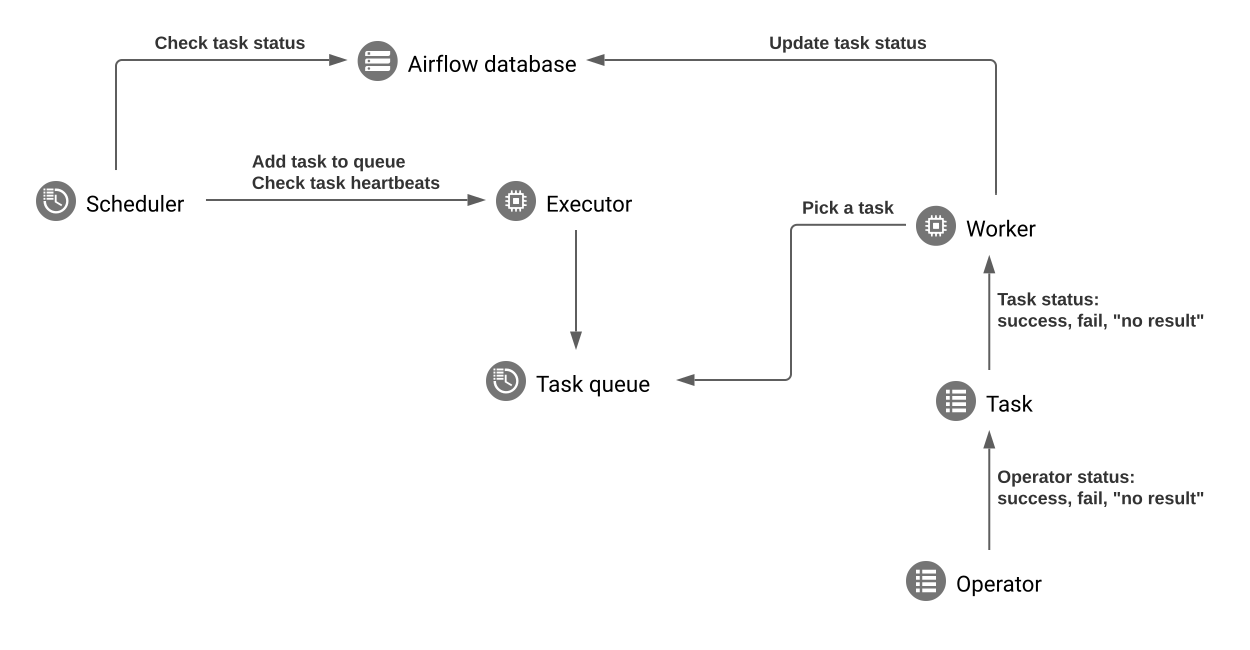](https://docs.cloud.google.com/static/composer/docs/images/composer-airflow-component-interaction.svg) **Figure 1.** Interaction between Airflow components (click to enlarge)
In a distributed system like Airflow there might be some network connectivity
issues, or the underlying infrastructure might experience intermittent issues;
this can lead to situations when tasks can fail and be rescheduled for
execution, or tasks might not be successfully completed (for example, Zombie
tasks, or tasks that got stuck in execution). Airflow has mechanisms to deal
with such situations and automatically resume the normal functioning. Following
sections explain common problems that occur during task execution by Airflow.
## Tasks fail without emitting any logs
A task instance can fail without emitting logs for several reasons.
For example, this can happen because of DAG parsing errors, DAG synchronization
delays, or if an Airflow worker pod is evicted during task execution (see
[Task fails because of Pod eviction](https://docs.cloud.google.com/composer/docs/composer-1/troubleshooting-dags#task-fails-pod-eviction)).
### DAG parsing timeouts or errors
If a DAG file has programming errors, or if parsing a DAG file takes too
long, this can lead to a situation where the Airflow scheduler can schedule
tasks, but Airflow workers cannot execute them. If this happens, a task can be
marked as `Failed` without any log from its execution.
#### Symptoms
- Airflow worker logs in Cloud Logging contain messages like:
- `airflow.exceptions.AirflowException: Dag "example-dag" could not be
found; either it does not exist or it failed to parse.`
- `airflow.exceptions.AirflowTaskTimeout: Timeout, PID: 12345` (this message might not contain DAG name or filepath).
- `ERROR - Failed to import: /home/airflow/gcs/dags/example-dag.py` (without detailed tracebacks).
- If there are DAG import errors, you might see them in the Airflow UI, or
`Broken DAG` messages on the **Environment details** page in
Google Cloud console.
#### Solution
- Check Airflow worker logs for errors related to DAG parsing. If you see
`AirflowTaskTimeout` errors, DAG parsing might be timing out. Parsing
timeout on Airflow workers is controlled by
[`dagbag_import_timeout`](https://airflow.apache.org/docs/apache-airflow/stable/configurations-ref.html#dagbag-import-timeout).
- If DAG parsing times are long, check for CPU contention on your
environment's cluster. If workers do not have enough CPU:
[Change the machine type to one with more performance](https://docs.cloud.google.com/composer/docs/composer-1/update-environments#upgrading-mt).
As an alternative, reduce worker_concurrency, as described in
[Optimizing your environment](https://docs.cloud.google.com/composer/docs/composer-2/optimize-environments#change_worker_concurrency).
- If CPU usage is low, optimize your DAG definition to reduce parsing
time, for example, by
[avoiding top level code](https://airflow.apache.org/docs/apache-airflow/stable/best-practices.html#top-level-python-code).
- If you see `Failed to import` errors, or errors in Airflow UI or
Google Cloud console, check DAG processor logs for detailed tracebacks as
described in
[Troubleshooting DAG Processor issues](https://docs.cloud.google.com/composer/docs/composer-1/troubleshooting-dag-processor),
or view DAG import errors by running the following gcloud CLI
command:
gcloud composer environments run ENVIRONMENT_NAME \
--location LOCATION \
dags list-import-errors
If your DAG makes calls to external services during parsing, consider
adding `try...except` blocks around these calls to handle temporary
errors.
- If DAG parsing optimization is not feasible, increase
[`dagbag_import_timeout`](https://airflow.apache.org/docs/apache-airflow/stable/configurations-ref.html#dagbag-import-timeout).
[Override](https://docs.cloud.google.com/composer/docs/composer-1/override-airflow-configurations) this Airflow configuration option to a higher
value than default 30 seconds, for example, to 120 seconds.
### DAG file synchronization delays
When you upload or update DAG files in your environment's bucket, it takes
time for these files to be synchronized to Airflow workers and schedulers.
This synchronization happens independently on all schedulers and workers. If
you trigger a DAG run shortly after uploading or updating a DAG file, and
the DAG file is not yet synchronized to a worker that picks up a task, the
task fails with no logs and you might see
`airflow.exceptions.AirflowException: Dag "example-dag" could not be
found...` in worker logs.
This synchronization usually takes 1-2 minutes but can be longer if you
have many or large files in `dags/` or `plugins/` folders in the bucket.
#### Solution
Wait for at least 2 minutes after uploading or updating DAGs or plugins
before triggering DAGs or enabling them.
### Tasks stuck in queued state
In Airflow versions earlier than 2.6.3, tasks can sometimes become
permanently stuck in the `queued` state. This can happen if a task is marked
as queued in the Airflow database but does not actually exist in Celery.
This situation can cause Airflow workers to fail liveness probes and restart,
which in turn can result in tasks failing with "Log file is not found" errors.
This issue is resolved in
[Airflow 2.6.3 and later versions](https://airflow.apache.org/docs/apache-airflow/stable/release_notes.html#consolidate-handling-of-tasks-stuck-in-queued-under-new-task-queued-timeout-config-30375).
If you use an earlier Airflow version, you can upgrade your environment to an
image version that uses Airflow 2.6.3 or later.
As a workaround, you can manually clear tasks that are stuck in the queued
state. In the Airflow UI, go to **Browse** \> **Task Instances** ,
find task instances that are stuck in the `queued` state, and set their
state to `failed`.
## Tasks are interrupted abruptly
During task execution, Airflow workers can abruptly terminate because of issues
not specifically related to the task itself, see [Common root causes](https://docs.cloud.google.com/composer/docs/composer-1/troubleshooting-dags#common-root-causes)
for a list of such scenarios and possible solutions. The following sections cover
some additional symptoms that could originate from those root causes:
### Zombie tasks
Airflow detects two kinds of mismatch between a task and a process that executes
the task:
- *Zombie tasks* are tasks that are supposed to be running but are not
running. This might happen if the task's process was terminated or is not
responding, if the Airflow worker didn't report a task status in time
because it is overloaded, or if VM where the task is executed was shut down.
Airflow finds such tasks periodically, and either fails or retries the task,
depending on the task's settings.
#### Discover zombie tasks
```
resource.type="cloud_composer_environment"
resource.labels.environment_name="ENVIRONMENT_NAME"
log_id("airflow-scheduler")
textPayload:"Detected zombie job"
```
> [!NOTE]
> **Note:** When zombie tasks are present in an environment, it might appear that the number of running tasks exceeds the total capacity of Airflow workers because there is a delay in marking zombie tasks as non-running. This doesn't happen in reality, the total capacity of Airflow workers isn't exceeded.
- *Undead tasks* are tasks that are not supposed to be running. Airflow finds
such tasks periodically and terminates them.
See [Common root causes](https://docs.cloud.google.com/composer/docs/composer-1/troubleshooting-dags#common-root-causes) for additional information on how to
troubleshoot Zombie tasks.
### SIGTERM signals
[SIGTERM signals](https://wikipedia.org/wiki/Signal_(IPC)) are used by Linux,
Kubernetes, Airflow scheduler and Celery to terminate processes responsible for
running Airflow workers or Airflow tasks.
There might be several reasons why SIGTERM signals are sent in an environment:
- A task became a Zombie task and must be stopped.
- The scheduler discovered a duplicate of a task and sends Terminating instance and SIGTERM signals to the task to stop it.
- In [Horizontal Pod Autoscaling](https://docs.cloud.google.com/kubernetes-engine/docs/concepts/horizontalpodautoscaler), the GKE
Control Plane sends SIGTERM signals to remove Pods that are no longer
needed.
- The scheduler can send SIGTERM signals to DagFileProcessorManager process.
Such SIGTERM signals are used by the Scheduler to manage
DagFileProcessorManager process lifecycle and can be safely ignored.
Example:
Launched DagFileProcessorManager with pid: 353002
Sending Signals.SIGTERM to group 353002. PIDs of all processes in the group: []
Sending the signal Signals.SIGTERM to group 353002
Sending the signal Signals.SIGTERM to process 353002 as process group is missing.
- Race condition between the heartbeat callback and exit callbacks in the
local_task_job, which monitors the execution of the task. If the heartbeat
detects that a task was marked as success, it cannot distinguish whether
the task itself succeeded or that Airflow was told to consider the task
successful. Nonetheless, it will terminate a task runner, without waiting
for it to exit.
Such SIGTERM signals can be safely ignored. The task is already in the
successful state and the execution of the DAG run as a whole will not be
affected.
The log entry `Received SIGTERM.` is the only difference between the regular
exit and the termination of task in the successful state.
[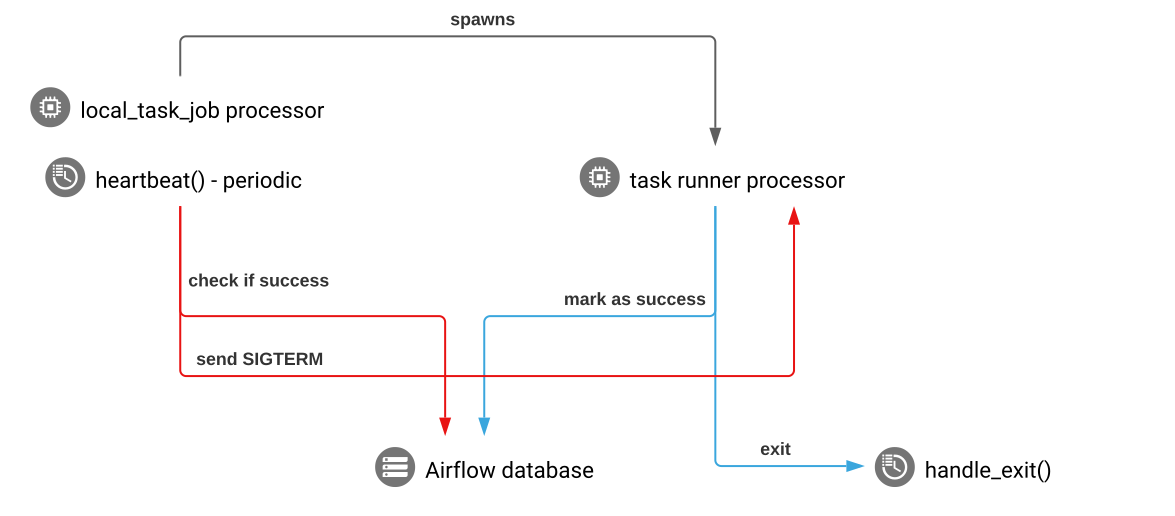](https://docs.cloud.google.com/static/composer/docs/images/airflow-sigterm-succeeded-task.svg) **Figure 2.** Race condition between the heartbeat and exit callbacks (click to enlarge)
- An Airflow component uses more resources (CPU, memory) than permitted by the
cluster node.
- GKE service performs maintenance operations and
sends SIGTERM signals to Pods that run on a node that is about to be upgraded.
When a task instance is terminated with SIGTERM, you can see the following log
entries in the logs of an Airflow worker that executed the task:
{local_task_job.py:211} WARNING - State of this instance has been externally
set to queued. Terminating instance. {taskinstance.py:1411} ERROR - Received
SIGTERM. Terminating subprocesses. {taskinstance.py:1703} ERROR - Task failed
with exception
Possible solutions:
This issue happens when a VM that runs the task is out of memory. This is not
related to Airflow configurations but to the amount of memory available to the
VM.
-
In Managed Airflow (Legacy Gen 1), you can re-create your environment using a
machine type with more performance.
- You can lower the value of the `[celery]worker_concurrency` concurrency
Airflow configuration option. This option determines how many tasks are
executed concurrently by a given Airflow worker.
### Airflow task was interrupted by `Negsignal.SIGKILL`
Sometimes your task might be using more memory than Airflow worker is allocated.
In such a situation it might be interrupted by `Negsignal.SIGKILL`. The system
sends this signal to avoid further memory consumption which might impact
the execution of other Airflow tasks. In the Airflow worker's log you might see
the following log entry:
{local_task_job.py:102} INFO - Task exited with return code Negsignal.SIGKILL
`Negsignal.SIGKILL` might also appear as code `-9`.
> [!NOTE]
> **Note:** In the presence of quick memory spikes, standard metrics might not accurately reflect the actual memory consumption.
Possible solutions:
- Lower `worker_concurrency` of Airflow workers.
- Upgrade to a bigger machine type used in Managed Airflow cluster.
- Optimize your tasks to use less memory.
### Task fails because of resource pressure
Symptom: during execution of a task, Airflow worker's subprocess responsible
for Airflow task execution is interrupted abruptly.
The error visible in Airflow worker's log might look similar to the one below:
...
File "/opt/python3.8/lib/python3.8/site-packages/celery/app/trace.py", line 412, in trace_task R = retval = fun(*args, **kwargs) File "/opt/python3.8/lib/python3.8/site-packages/celery/app/trace.py", line 704, in __protected_call__ return self.run(*args, **kwargs) File "/opt/python3.8/lib/python3.8/site-packages/airflow/executors/celery_executor.py", line 88, in execute_command _execute_in_fork(command_to_exec) File "/opt/python3.8/lib/python3.8/site-packages/airflow/executors/celery_executor.py", line 99, in _execute_in_fork
raise AirflowException('Celery command failed on host: ' + get_hostname())airflow.exceptions.AirflowException: Celery command failed on host: airflow-worker-9qg9x
...
Solution:
-
In Managed Airflow (Legacy Gen 1), create a new environment with
a larger [machine type](https://docs.cloud.google.com/compute/docs/machine-types) than the current machine
type. Consider adding more nodes to your environment and lower the
[`[celery]worker_concurrency`](https://airflow.apache.org/docs/apache-airflow/stable/configurations-ref.html#worker-concurrency) for
your workers.
- If your environment also generates zombie tasks, see
[Troubleshooting Zombie tasks](https://docs.cloud.google.com/composer/docs/composer-1/troubleshooting-dags#zombie-tasks).
- For a tutorial on debugging out of memory issues, see
[Debug out of memory and out of storage DAG issues](https://docs.cloud.google.com/composer/docs/composer-2/debug-out-of-memory-and-out-of-storage-dag-issues).
### Task fails because of Pod eviction
Google Kubernetes Engine Pods are subject to the
[Kubernetes Pod Lifecycle](https://kubernetes.io/docs/concepts/workloads/pods/pod-lifecycle/#pod-phase) and Pod eviction.
Task spikes and co-scheduling of workers are two most common causes for Pod
eviction in Managed Airflow.
Pod eviction can occur when a particular Pod overuses resources of a node,
relative to the configured resource consumption expectations for the node. For
example, eviction might happen when several memory-heavy tasks run in a Pod,
and their combined load causes the node where this Pod runs to exceed the
memory consumption limit.
If an Airflow worker Pod is evicted, all task instances running on that
Pod are interrupted, and later are marked as failed by Airflow.
Logs are buffered. If a worker Pod is evicted before the buffer flushes, logs
are not emitted. Task failure without logs is an indication that the Airflow
workers are restarted due to out-of-memory (OOM). Some logs might be present
in Cloud Logging even though the Airflow logs were not emitted.
To view logs:
1. In Google Cloud console, go to the **Environments** page.
[Go to Environments](https://console.cloud.google.com/composer/environments)
2. In the list of environments, click the name of your environment.
The **Environment details** page opens.
3. Go to the **Logs** tab.
4. View logs of individual Airflow workers under **All logs** \>
**Airflow logs** \> **Workers**.
Symptom:
1. In Google Cloud console, go to the **Workloads** page.
[Go to Workloads](https://console.cloud.google.com/kubernetes/workload)
2. If there are `airflow-worker` Pods that show `Evicted`, click each evicted
pod and look for the `The node was low on resource: memory`
message at the top of the window.
Solution:
-
Create a new Managed Airflow (Legacy Gen 1) environment with a larger
[machine type](https://docs.cloud.google.com/compute/docs/machine-types) than the current machine type.
- Check logs from `airflow-worker` pods for possible eviction causes. For more
information about fetching logs from individual Pods, see
[Troubleshooting issues with deployed workloads](https://docs.cloud.google.com/kubernetes-engine/docs/troubleshooting#workload_issues).
- Make sure that the tasks in the DAG are idempotent and retriable.
- Avoid downloading unnecessary files to the local file system of
Airflow workers.
Airflow workers have limited local file system capacity.
When the storage space runs out, the Airflow worker Pod is evicted by the
GKE Control Plane. This fails all tasks that the evicted
worker was executing.
Examples, of problematic operations:
- Downloading files or objects and storing them locally in an Airflow worker. Instead, store these objects directly in a suitable service such as a Cloud Storage bucket.
- Accessing big objects in the `/data` folder from an Airflow worker. The Airflow worker downloads the object into its local filesystem. Instead, implement your DAGs so that large files are processed outside of the Airflow worker Pod.
### Common root causes
#### Airflow worker ran out of memory
Each Airflow worker can run up to `[celery]worker_concurrency` task instances
simultaneously. If a cumulative memory consumption of those task instances
exceeds the memory limit for an Airflow worker, a random process on it is
terminated to free up resources.
#### Discover Airflow worker out-of-memory events
```
resource.type="k8s_node"
resource.labels.cluster_name="GKE_CLUSTER_NAME"
log_id("events")
jsonPayload.message:"Killed process"
jsonPayload.message:("airflow task" OR "celeryd")
```
Sometimes, the shortage of memory on an Airflow worker can lead to malformed
packets being sent during an SQL Alchemy session to the database, to a DNS
server or to any other service called by a DAG. In this case the other end of
the connection might reject or drop connections from the Airflow worker.
For example:
"UNKNOWN:Error received from peer
{created_time:"2024-11-31T10:09:52.217738071+00:00", grpc_status:14,
grpc_message:"failed to connect to all addresses; last error: UNKNOWN:
ipv4::443: handshaker shutdown"}"
**Solutions**:
- Optimize tasks to use less memory, for example, by
[avoiding top level code](https://airflow.apache.org/docs/apache-airflow/stable/best-practices.html#top-level-python-code).
- [Decrease](https://docs.cloud.google.com/composer/docs/composer-2/optimize-environments) `[celery]worker_concurrency`.
- In Managed Airflow (Legacy Gen 1),
[upgrade to a larger machine type](https://docs.cloud.google.com/composer/docs/composer-1/update-environments#upgrading-mt).
#### Airflow worker was evicted
Pod evictions are a normal part of running workloads on Kubernetes.
GKE evicts pods if they ran out of storage or to free
up resources for workloads with a higher priority.
#### Discover Airflow worker evictions
```
resource.type="k8s_pod"
resource.labels.cluster_name="GKE_CLUSTER_NAME"
resource.labels.pod_name:"airflow-worker"
log_id("events")
jsonPayload.reason="Evicted"
```
**Solutions**:
- If an eviction is caused by the lack of storage, you can reduce the storage usage or remove temporary files as soon as they aren't needed. As an alternative, you can [increase available storage](https://docs.cloud.google.com/composer/docs/composer-2/scale-environments#workloads-configuration) or run workloads in a dedicated pod [with `KubernetesPodOperator`](https://docs.cloud.google.com/composer/docs/composer-1/use-kubernetes-pod-operator).
#### Airflow worker was terminated
Airflow workers might be removed externally. If currently running tasks don't
finish during a graceful termination period, they are interrupted and might
end up being detected as zombies.
#### Discover Airflow worker pod terminations
```
resource.type="k8s_cluster"
resource.labels.cluster_name="GKE_CLUSTER_NAME"
protoPayload.methodName:"pods.delete"
protoPayload.response.metadata.name:"airflow-worker"
```
**Possible scenarios and solutions**:
- Airflow workers are restarted during environment modifications, such as
upgrades or package installation:
#### Discover Composer environment modifications
```
resource.type="cloud_composer_environment"
resource.labels.environment_name="ENVIRONMENT_NAME"
log_id("cloudaudit.googleapis.com%2Factivity")
```
You can perform such operations when no critical tasks are running or enable
task retries.
- Various components might be temporarily unavailable during maintenance
operations.
#### Discover GKE maintenance operations
```
resource.type="gke_nodepool"
resource.labels.cluster_name="GKE_CLUSTER_NAME"
protoPayload.metadata.operationType="UPGRADE_NODES"
```
You can [specify maintenance windows](https://docs.cloud.google.com/composer/docs/composer-1/specify-maintenance-windows) to minimize
overlaps with the critical tasks execution.
#### Airflow worker was under heavy load
The amount of CPU and memory resources available to an Airflow worker is limited
by the environment's configuration. If the resource utilization gets closer to
the limits, it might cause a resource contention and unnecessary delays during
the task execution. In the extreme situations, when resources lack during
longer periods of time, this might cause zombie tasks.
**Solutions**:
- [Monitor workers CPU and memory usage](https://docs.cloud.google.com/composer/docs/composer-2/optimize-environments) and adjust it to avoid exceeding 80%.
#### Cloud Logging queries to discover reasons for Pod restarts or evictions
Managed Airflow's environments use GKE clusters as
compute infrastructure layer. In this section you can find useful queries that
can help to find reasons for Airflow worker or Airflow scheduler restarts or
evictions.
Queries presented further can be adjusted in the following way:
- You can specify the required timeline in Cloud Logging. For example, the
last 6 hours, 3 days, or you can define your custom time range.
- You must specify the name of your environment's cluster in
CLUSTER_NAME.
- You can limit the search to a specific Pod by adding the
POD_NAME.
#### Discover restarted containers
```
resource.type="k8s_node"
log_id("kubelet")
jsonPayload.MESSAGE:"will be restarted"
resource.labels.cluster_name="CLUSTER_NAME"
```
Alternative query to limit the results to a specific Pod:
```
resource.type="k8s_node"
log_id("kubelet")
jsonPayload.MESSAGE:"will be restarted"
resource.labels.cluster_name="CLUSTER_NAME"
"POD_NAME"
```
#### Discover containers shutdown as a result of Out-of-Memory event
```
resource.type="k8s_node"
log_id("events")
(jsonPayload.reason:("OOMKilling" OR "SystemOOM")
OR jsonPayload.message:("OOM encountered" OR "out of memory"))
severity=WARNING
resource.labels.cluster_name="CLUSTER_NAME"
```
Alternative query to limit the results to a specific Pod:
```
resource.type="k8s_node"
log_id("events")
(jsonPayload.reason:("OOMKilling" OR "SystemOOM")
OR jsonPayload.message:("OOM encountered" OR "out of memory"))
severity=WARNING
resource.labels.cluster_name="CLUSTER_NAME"
"POD_NAME"
```
#### Discover containers that stopped executing
```
resource.type="k8s_node"
log_id("kubelet")
jsonPayload.MESSAGE:"ContainerDied"
severity=DEFAULT
resource.labels.cluster_name="CLUSTER_NAME"
```
Alternative query to limit the results to a specific Pod:
```
resource.type="k8s_node"
log_id("kubelet")
jsonPayload.MESSAGE:"ContainerDied"
severity=DEFAULT
resource.labels.cluster_name="CLUSTER_NAME"
"POD_NAME"
```
#### Airflow database was under heavy load
A database is used by various Airflow components to communicate to each other
and, in particular, to store heartbeats of task instances. Resource shortage on
the database leads to longer query times and might affect task execution.
Sometimes, the following errors are present in an Airflow worker's logs:
(psycopg2.OperationalError) connection to server at ,
port 3306 failed: server closed the connection unexpectedly
This probably means the server terminated abnormally before or while
processing the request.
**Solutions**:
- Avoid using a lot of `Variables.get` instructions in your top-level DAG code. Instead, use Jijna templates for retrieving values of Airflow variables.
- Avoid using [CloudLoggingHandler](https://docs.cloud.google.com/python/docs/reference/logging/latest/google.cloud.logging_v2.handlers.handlers.CloudLoggingHandler) to handle
logging. This logging handler causes the environment's database overload
and subsequent DAG failures with the
"server closed the connection unexpectedly" errors.
- Optimize (reduce) the usage of xcom_push and xcom_pull instructions in Jinja
Templates in top-level DAG code.
- Consider upgrading to a larger environment size (Medium or Large).
- [Lower the number of schedulers](https://docs.cloud.google.com/composer/docs/composer-1/scale-environments#scheduler)
- [Lower the frequency of DAG parsing](https://docs.cloud.google.com/composer/docs/composer-1/troubleshooting-scheduling#approach_to_schedulermin_file_process_interval_parameter).
- [Monitor the database CPU and memory usage](https://docs.cloud.google.com/composer/docs/composer-2/optimize-environments).
#### Airflow database was temporarily unavailable
An Airflow worker might take time to detect and gracefully handle intermittent
errors, such as temporary connectivity issues. It might exceed the default
zombie detection threshold.
#### Discover Airflow heartbeat timeouts
```
resource.type="cloud_composer_environment"
resource.labels.environment_name="ENVIRONMENT_NAME"
log_id("airflow-worker")
textPayload:"Heartbeat time limit exceeded"
```
**Solutions**:
- Increase the timeout for zombie tasks and [override the
value](https://docs.cloud.google.com/composer/docs/composer-1/override-airflow-configurations) of the `[scheduler]scheduler_zombie_task_threshold`
Airflow configuration option:
| Section | Key | Value | Notes |
|---|---|---|---|
| `scheduler` | `scheduler_zombie_task_threshold` | New timeout (in seconds) | The default value is `300` |
## Tasks fail because an error happened during execution
### Terminating instance
Airflow uses the *terminating instance* mechanism to shut down Airflow tasks.
This mechanism is used in the following situations:
- When a scheduler terminates a task that did not complete on time.
- When a task times out or is executed for too long.
When Airflow terminates task instances, you can see the following log entries in the logs of an Airflow worker that executed the task:
INFO - Subtask ... WARNING - State of this instance has been externally set
to success. Terminating instance.
INFO - Subtask ... INFO - Sending Signals.SIGTERM to GPID
INFO - Subtask ... ERROR - Received SIGTERM. Terminating subprocesses.
Possible solutions:
- Check the task code for errors that might cause it to run for too long.
- Increase the value of the
`[celery_broker_transport_options]visibility_timeout` Airflow configuration
option.
As a result, the scheduler waits longer for a task to be finished,
before considering the task to be a Zombie task. This option is especially
useful for time-consuming tasks that last many hours. If
the value is too low (for example, 3 hours), then the scheduler considers
tasks that run for 5 or 6 hours as "hanged" (Zombie tasks).
- Increase the value of the `[core]killed_task_cleanup_time` Airflow
configuration option.
A longer value provides more time to Airflow workers to finish their tasks
gracefully. If the value is too low, Airflow tasks might be interrupted
abruptly, without enough time to finish their work gracefully.
### DAG execution does not end within expected time
Symptom:
Sometimes a DAG run does not end because Airflow tasks get stuck and DAG run
lasts longer than expected. Under normal conditions, Airflow tasks do not stay
indefinitely in the queued or running state, because Airflow has timeout and
cleanup procedures that help avoid this situation.
Fix:
- Use the
[`dagrun_timeout`](https://airflow.apache.org/docs/apache-airflow/stable/_api/airflow/models/dag/index.html) parameter for the DAGs.
For example: `dagrun_timeout=timedelta(minutes=120)`. As a result, each DAG
run must be finished within the DAG run timeout. For more information about
Airflow task states, see
[Apache Airflow documentation](https://airflow.apache.org/docs/apache-airflow/stable/core-concepts/tasks.html#task-instances).
- Use the [task execution timeout](https://airflow.apache.org/docs/apache-airflow/stable/configurations-ref.html#default-task-execution-timeout)
parameter to define a default timeout for tasks that run based on Apache
Airflow operators.
### Lost connection to Postgres / MySQL server during query exception is thrown during the task execution or right after it
`Lost connection to Postgres / MySQL server during query` exceptions
often happen when the following conditions are met:
- Your DAG uses `PythonOperator` or a custom operator.
- Your DAG makes queries to the Airflow database.
If several queries are made from a callable function, tracebacks might
incorrectly point to `self.refresh_from_db(lock_for_update=True)` line in the
Airflow code; it is the first database query after the task execution. The
actual cause of the exception happens before this, when an SQLAlchemy session
is not properly closed.
SQLAlchemy sessions are scoped to a thread and created in a callable function
session can be later continued inside the Airflow code. If there are significant
delays between queries within one session, the connection might be already
closed by the Postgres or MySQL server. The connection timeout in
Managed Airflow environments is set to approximately 10 minutes.
Solution:
- Use the `airflow.utils.db.provide_session` decorator. This decorator provides a valid session to the Airflow database in the `session` parameter and correctly closes the session at the end of the function.
- Do not use a single long-running function. Instead, move all database queries to separate functions, so that there are multiple functions with the `airflow.utils.db.provide_session` decorator. In this case, sessions are automatically closed after retrieving query results.
### Transient interruptions when connecting to Airflow Metadata DB
Managed Airflow runs on top of a distributed infrastructure. It means
that from time to time some transient issues may appear and they might
interrupt execution of your Airflow tasks.
In such situations you might see the following error messages in Airflow workers' logs:
`"Can't connect to Postgres / MySQL server on 'airflow-sqlproxy-service.default.svc.cluster.local' (111)"`
or
`"Can't connect to Postgres / MySQL server on 'airflow-sqlproxy-service.default.svc.cluster.local' (104)"`
Such intermittent issues might be also caused by maintenance operations
performed for your Managed Airflow environments.
Usually such errors are intermittent and if your Airflow tasks are idempotent
and you have retries configured, they do not affect you. You can also
consider [defining maintenance windows](https://docs.cloud.google.com/composer/docs/composer-1/specify-maintenance-windows).
One additional reason for such errors might be the lack of resources in your
environment's cluster. In such cases, you might scale up or optimize your
environment as described in [Scaling environments](https://docs.cloud.google.com/composer/docs/composer-1/scale-environments) or
[Optimizing your environment](https://docs.cloud.google.com/composer/docs/composer-2/optimize-environments) instructions.
## A DAG run is marked as successful but has no executed tasks
If a DAG run `execution_date` is earlier than the DAG's `start_date` then
you might see DAG runs that don't have any task runs, but are still marked as successful.
[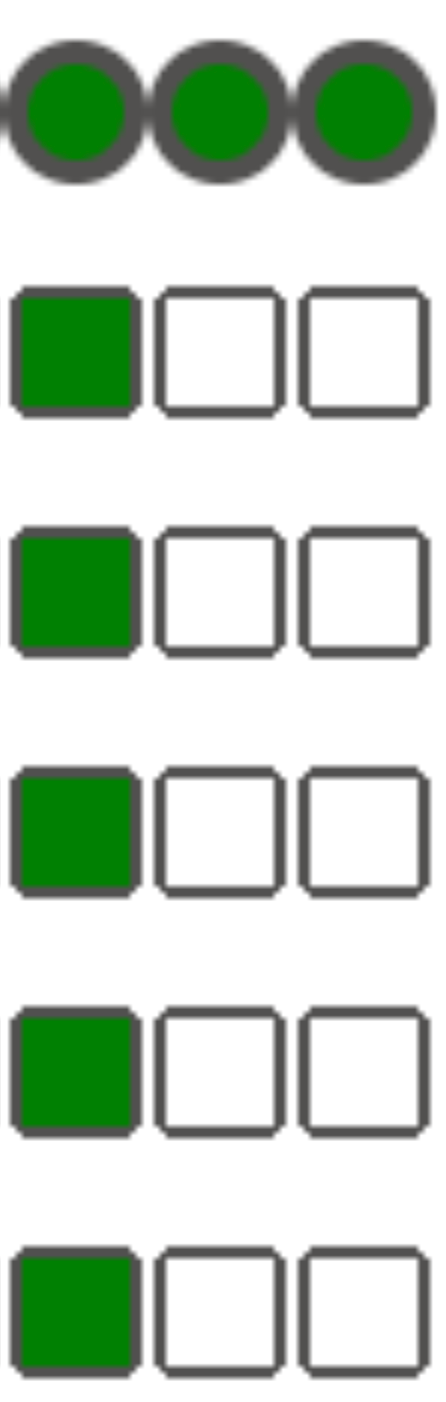](https://docs.cloud.google.com/static/composer/docs/images/dag-no-taskruns.png) **Figure 3.** A successful DAG run without executed tasks (click to enlarge)
**Cause**
This situation might happen in one of the following cases:
- A mismatch is caused by the timezone difference between the DAG's
`execution_date` and `start_date`. It might happen, for example, when
using `pendulum.parse(...)` to set `start_date`.
- The DAG's `start_date` is set to a dynamic value, for example
`airflow.utils.dates.days_ago(1)`
**Solution**
- Make sure that `execution_date` and `start_date` are using the same timezone.
- Specify a static `start_date` and combine it with `catchup=False` to avoid
running DAGs with past start dates.
## Best Practices
### Impact of update or upgrade operations on Airflow task executions
Update or upgrade operations interrupt currently executing Airflow tasks,
unless a task is executed in the [deferrable mode](https://docs.cloud.google.com/composer/docs/composer-2/use-deferrable-operators).
We recommend to perform these operations when you expect minimal impact
on Airflow task executions and set up appropriate retry mechanisms in your
DAGs and tasks.
### Do not schedule programmatically generated DAGs at the same time
Generating DAG objects programmatically from a DAG file is an efficient method
to author many similar DAGs that only have small differences.
It's important to not schedule all such DAGs for execution immediately. There
is a high chance that Airflow workers do not have enough CPU and memory
resources to execute all tasks that scheduled at the same time.
To avoid issues with scheduling programmatic DAGs:
- Increase worker concurrency and scale up your environment, so that it can execute more tasks simultaneously.
- Generate DAGs in a way to distribute their schedules evenly over time, to avoid scheduling hundreds of tasks at the same time, so that Airflow workers have time to execute all scheduled tasks.
### Controlling execution time of DAGs, tasks and parallel executions of the same DAG
If you want to control how long a single DAG execution for a particular DAG
lasts, then you can use the [`dagrun_timeout`](https://airflow.apache.org/docs/apache-airflow/stable/_api/airflow/models/dag/index.html) DAG
parameter to do so. For example, if you expect that a single DAG run (
irrespective, whether execution finishes with success or failure) must not last
longer than 1 hour, then set this parameter to 3600 seconds.
> [!NOTE]
> **Note:** Once the timeout is reached for a particular DAG, then all tasks of this DAG that are scheduled for execution are marked as failed and no task logs are available for the cancelled tasks.
You can also control how long you allow for a single Airflow task to last. To do
so, you can use [`execution_timeout`](https://airflow.apache.org/docs/apache-airflow/stable/concepts/tasks.html#timeouts).
If you want to control how many active DAG runs you want to have for a
particular DAG then you can use the `[core]max-active-runs-per-dag`
[Airflow configuration option](https://airflow.apache.org/docs/apache-airflow/stable/configurations-ref.html) to do so.
If you want to have only a single instance of a DAG run in a given moment, set
`max-active-runs-per-dag` parameter to `1`.
### Avoid increased network traffic to and from the Airflow database
The amount of traffic network between your environment's GKE
cluster and the Airflow database depends on the number of DAGs, number of
tasks in DAGs, and the way DAGs access data in the Airflow database. The
following factors might influence the network usage:
- Queries to the Airflow database. If your DAGs do a lot of queries, they
generate large amounts of traffic. Examples: checking the status of tasks
before proceeding with other tasks, querying the XCom table, dumping Airflow
database content.
- Large number of tasks. The more tasks are there to schedule, the more
network traffic is generated. This consideration applies both to the total
number of tasks in your DAGs and to the scheduling frequency. When the
Airflow scheduler schedules DAG runs, it makes queries to the Airflow
database and generates traffic.
- Airflow web interface generates network traffic because it makes queries to
the Airflow database. Intensively using pages with graphs, tasks, and
diagrams can generate large volumes of network traffic.
## What's next
- [Troubleshooting PyPI package installation](https://docs.cloud.google.com/composer/docs/composer-1/troubleshooting-package-installation)
- [Troubleshooting environment updates and upgrades](https://docs.cloud.google.com/composer/docs/composer-1/troubleshooting-updates-upgrades)