This page provides an overview of Kubernetes development in
Cloud Code.
## Use the Kubernetes section in Cloud Code
The **Kubernetes** section lets you access information about your
[clusters](https://docs.cloud.google.com/code/docs/vscode/k8s-overview#clusters), nodes, workloads, and more, right from your IDE.
You can also [set a current context](https://docs.cloud.google.com/code/docs/vscode/k8s-overview#clusters), [stream and view logs](https://docs.cloud.google.com/code/docs/vscode/k8s-overview#pods),
[open an interactive terminal](https://docs.cloud.google.com/code/docs/vscode/k8s-overview#launch_a_terminal), and
[look up resource descriptions](https://docs.cloud.google.com/code/docs/vscode/k8s-overview#describe_resources) with the Kubernetes
section.
Cloud Code uses the default kubeconfig file, located under
the `$HOME/.kube` directory on MacOS/Linux or `%USERPROFILE%\.kube` on Windows,
for retrieving Kubernetes resources. You can switch or add new Kubeconfig files
from within the Kubernetes section. Kubeconfig files are YAML files
containing your Kubernetes cluster details, certificate, and secret token for
authenticating to the cluster.
To use a kubeconfig file other than the default kubeconfig, refer to the
[Work with kubeconfig files](https://docs.cloud.google.com/code/docs/intellij/kubeconfigs) guide.
## Access the Kubernetes section
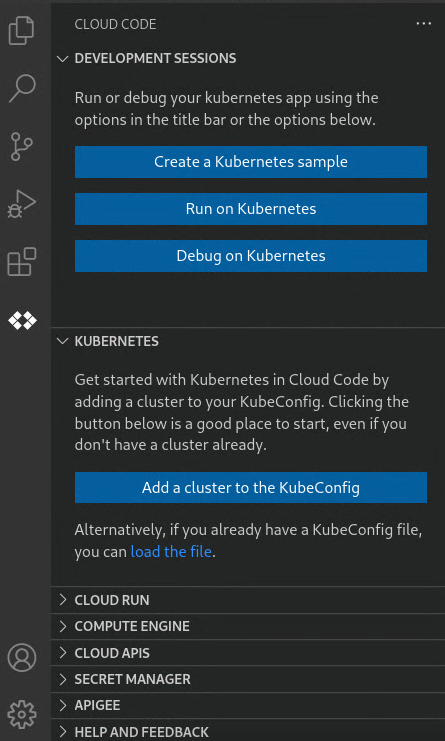
To view and manage your Kubernetes resources, access the **Kubernetes** section by clicking  **Cloud Code** and expanding the **Kubernetes** section. To view debugging sessions or create a sample app, expand the **Development sessions** section.
When attempting to debug, you may be prompted to [authenticate your credentials
to run and debug an application
locally](https://docs.cloud.google.com/code/docs/vscode/install#authenticate_credentials_for_debugging_applications_locally).
## Access the Development sessions section
Use the Development sessions to run or debug your Kubernetes application or create
a sample application using a template.
When you start a development or debugging session, the
**Development sessions** section displays the structured logging view.

To access the Development sessions, click  **Cloud Code** and expand the **Development sessions** section.
## Basic actions
The **Kubernetes** section is powered by `kubectl`. As long as you've
configured your `kubectl` config file to access your clusters, you can use the
**Kubernetes** section to add clusters, browse all your available
namespaces, resources, and nodes for your clusters, regardless of them being in
the active or inactive context.
### Kubernetes section
The available general Kubernetes actions, accessible through their icons in the
**Kubernetes** section, are:
- add KubeConfig
- refresh Refresh the **Kubernetes** section
- question_mark Open the Cloud Code Kubernetes documentation in a web browser
### Development sessions section
The available Kubernetes actions, accessible through their icons in the
Kubernetes **Development sessions** section, are:
-  Open a Kubernetes sample application
- play_arrow Run your application
-  Debug your application
### Copy a resource name
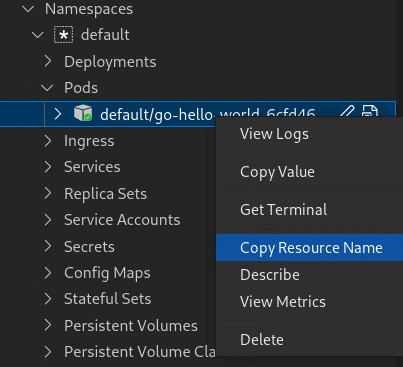
You can copy any Kubernetes resource name to the clipboard (including container
and cluster names). To copy a resource name, right-click on the resource and
choose **Copy resource name**.
### Refresh resources
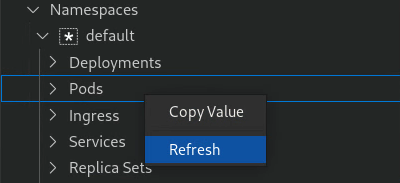
The **Kubernetes** section watches for changes and automatically
refreshes to reflect updates. To force a refresh of any Kubernetes resource to
fetch its latest information, right-click the resource and choose **Refresh**.
You can also force a refresh of the entire **Kubernetes** section using the **Kubernetes** section's refresh button. 
### Describe resources
To display the details of any non-cluster resource, right-click the resource, then select **Describe** . A terminal opens and displays the resource information. 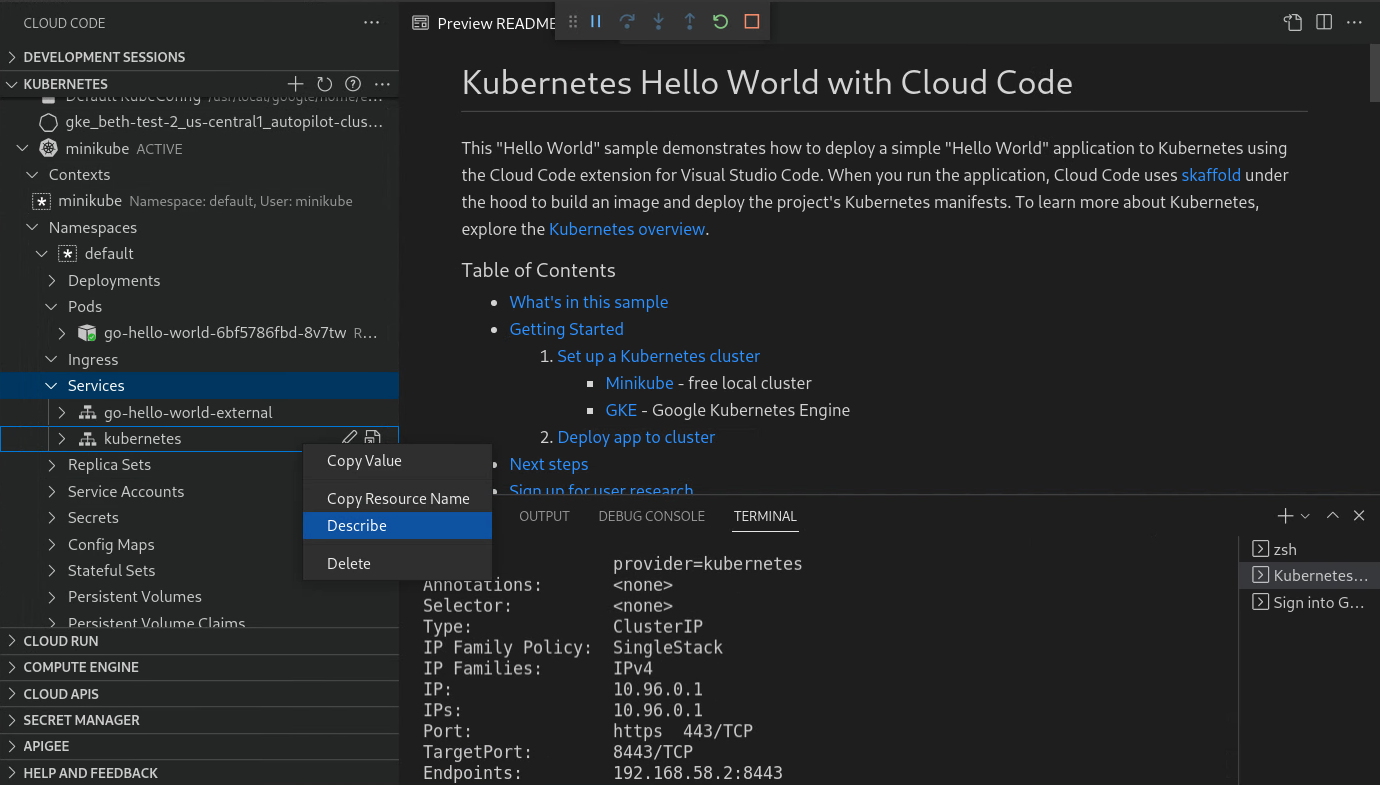
## Customize your launch configuration
To configure how your application is run, you can customize your
[`skaffold.yaml`](https://skaffold.dev/docs/references/yaml) file.
You can also configure your launch by specifying the following fields in the `cloudcode.kubernetes` configuration in your `.vscode/launch.json` file:
- **skaffoldConfig:** Specify the [`skaffold.yaml` configuration](https://skaffold.dev/docs/references/yaml/) file that contains the build and deploy settings.
- **profile:** Specify your preferred [Skaffold profile](https://skaffold.dev/docs/environment/profiles/). If not defined, the default profile is used.
- **imageRegistry:** Specify the image registry to push images to.
- **watch**: Specify whether to watch for changes in the workspace and rerun the application. Unless explicitly set to false, true by default.
- **cleanUp**: Specify whether to delete deployed Kubernetes resources in the cluster after the application is terminated. Unless explicitly set to false, true by default.
- **portForward** : Specify whether to [forward ports](https://skaffold.dev/docs/pipeline-stages/port-forwarding/) for exposed Kubernetes resources on your cluster to your local machine. Unless explicitly set to false, true by default.
### View remote YAML
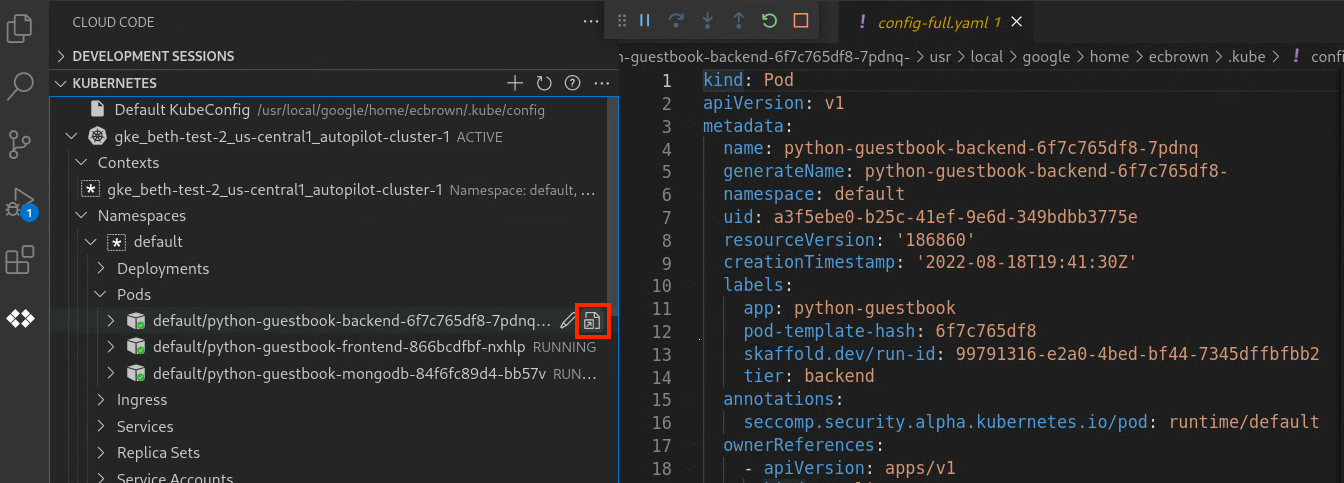
To view the YAML of a resource in your cluster, select or hover over the resource to show the  **Edit YAML** and  **View YAML** icons. Select the **View YAML** button to open the YAML file corresponding to your specified resource in a new editor tab.
### View logs
You can stream and view logs from Kubernetes resources into the Kubernetes
section console to monitor their progress.
To open the **logs viewer** , open the command palette by pressing `Ctrl/Cmd+Shift+P` or clicking **View \> Command Palette** then select **Cloud Code: View Logs** .

The **logs viewer** opens in a new editor tab.

To view logs for a pod or container, right click on the resource and select
**View logs**.

### Launch a terminal
For pods and containers, you can open an interactive terminal by right-clicking
the pod or container and selecting **Get terminal**.

## Resource-specific actions
The Kubernetes section displays clusters, namespaces, nodes, workloads
(such as deployments, replicasets, pods and containers), services and ingresses,
configurations (such as secrets and config maps) and storage (such as volumes).
Using the Kubernetes section, you can perform unique actions on some
of these resources.
### Clusters
- **Add a cluster to the Kubeconfig:** Add an existing GKE or minikube cluster or create a new one.
The Add Cluster dialog appears and you can choose the project and cluster
you'd like to use or create a new cluster.


- **Set as active cluster:** Set the specified cluster as active such that your
configured `kubectl` context accesses this cluster by default.

The Kubernetes section refreshes automatically and you'll see the
Kubernetes symbol next to the appropriate cluster.
If a cluster has multiple contexts configured, you'll be able
to choose one of the available contexts to set as the current context.
### Namespaces
- **Set as active namespace:** Set a namespace as active such that your
configured `kubectl` context accesses this namespace by default.
Right-click the namespace you want to set as active.

If this action is successful, the Kubernetes section refreshes automatically and you'll see an asterisk next to the namespace to signify that it's part of the current context.
Note that a Kubernetes context is a shortcut which gives you quick access
to a namespace in your cluster. Contexts are normally created
automatically when you start a minikube or GKE cluster. If you don't see
the **Set as current context** option for a given namespace and you'd
like to create a context for it, use the
[`kubectl config set-context` command](https://kubernetes.io/docs/reference/generated/kubectl/kubectl-commands#-em-set-context-em-)
in your terminal to set a context with your preferred cluster, user, and
namespace.
### Pods
- **View Logs:** [View logs](https://docs.cloud.google.com/code/docs/vscode/k8s-overview#view_logs) from a pod into the Kubernetes section Console.
- **Get Terminal:** [Get terminal](https://docs.cloud.google.com/code/docs/vscode/k8s-overview#launch_a_terminal) for a pod in the Kubernetes section Console.
Additionally, running pods have colored status marks next to their labels:
- **Red**: Pod is in a failed state
- **Yellow**: Pod is starting or terminating
- **Green**: Pod is healthy and running

### Containers
- **View logs:** [View logs](https://docs.cloud.google.com/code/docs/vscode/k8s-overview#view_logs) from a container into the Kubernetes section console.
- **Get Terminal:** [Get terminal](https://docs.cloud.google.com/code/docs/vscode/k8s-overview#launch_a_terminal) for a container in the Kubernetes section console.
### Deployments
- **View logs:** [View logs](https://docs.cloud.google.com/code/docs/vscode/k8s-overview#view_logs)
from a deployment into the Kubernetes section console.
Live deployments have colored status marks next to their labels and counts of
current/total replicas:
- **Yellow**: Deployment does not have minimum availability or have image problems.
- **Green**: Deployment is healthy and had minimum availability.

### Nodes
Nodes of your cluster have colored status marks next to their names:
- **Yellow**: Node has a resource problem such as memory or disk availability.
- **Green**: Node is healthy.
### Custom Resource Definitions (CRDs)
The Kubernetes section lists all Custom Resource Definitions (CRDs)
installed and available on your cluster:

## What's next
- [Get started with Cloud Code for VS Code for Kubernetes](https://docs.cloud.google.com/code/docs/vscode/get-started-k8s) by creating and deploying a Kubernetes application from a code sample.
- Use [file sync and hot reloading](https://docs.cloud.google.com/code/docs/vscode/speed-up-k8s-development#enable-skaffold-file-sync-and-hot-reloading) to speed up development.
- [Debug your application in Cloud Code](https://docs.cloud.google.com/code/docs/vscode/debug)