 Google uses AI technology to translate content into your preferred language. AI translations can contain errors.
透過 Cloud Code for IntelliJ 瀏覽 Cloud Storage 中的資源
透過集合功能整理內容
你可以依據偏好儲存及分類內容。
本文說明如何從 IDE 瀏覽 Cloud Storage 中的資源。
如要透過 Google Cloud Storage (GCS) 工具視窗瀏覽資源,請執行下列工作:
依序選取「工具」 >「Google Cloud Code」 >「Cloud Storage 瀏覽器」。
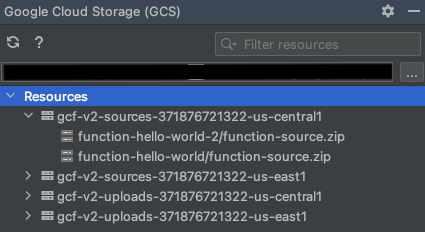
在「Google Cloud Storage (GCS)」工具視窗中,搜尋並選取專案。
在專案資源清單中,展開與儲存空間對應的箭頭,即可查看內容。
您也可以使用工具視窗頂端的「篩選資源」搜尋列,搜尋資源。
如果 bucket 含有項目,展開 bucket 後就會顯示這些項目。
如要複製值區或值區內檔案的名稱,請在值區或檔案上按一下滑鼠右鍵,然後點選「複製資源名稱」。
取得支援
如要在 IntelliJ IDE 中提交意見回饋或回報問題,請依序前往「Tools」
>「Cloud Code」
>「Help / About」
>「Submit feedback or report an issue」
,在
GitHub 上回報問題。
除非另有註明,否則本頁面中的內容是採用創用 CC 姓名標示 4.0 授權,程式碼範例則為阿帕契 2.0 授權。詳情請參閱《Google Developers 網站政策》。Java 是 Oracle 和/或其關聯企業的註冊商標。
上次更新時間:2026-07-13 (世界標準時間)。
[[["容易理解","easyToUnderstand","thumb-up"],["確實解決了我的問題","solvedMyProblem","thumb-up"],["其他","otherUp","thumb-up"]],[["難以理解","hardToUnderstand","thumb-down"],["資訊或程式碼範例有誤","incorrectInformationOrSampleCode","thumb-down"],["缺少我需要的資訊/範例","missingTheInformationSamplesINeed","thumb-down"],["翻譯問題","translationIssue","thumb-down"],["其他","otherDown","thumb-down"]],["上次更新時間:2026-07-13 (世界標準時間)。"],[],[]]

