# Map users with third-party identity
Supported in:
> [!NOTE]
> **Note:** If you've already completed Stage 2 of SOAR migration to Google Cloud, you need to use IAM to manage feature access to Google SecOps including SOAR. The **Permission Group** column is still displayed post migration in the **Group Mapping** page for backward compatibility. Don't delete these assignments. The column will be removed by March 31, 2027 without any customer impact. For more information, see [Migrate to Google Cloud](https://docs.cloud.google.com/chronicle/docs/soar/admin-tasks/advanced/migrate-to-gcp.md.txt).
This document explains how to provision, authenticate, and map users with secure
identification to the Google Security Operations platform. It outlines the configuration
process with Google Workspace as the external Identity Provider (IdP), though
the steps are similar for other IdPs.
When you use the Cloud Identity Provider, you should configure the
service with email groups instead of IdP groups. For details, see [Map users in Google SecOps
platform using Cloud Identity](https://docs.cloud.google.com/chronicle/docs/soar/admin-tasks/user-secops/map-users-in-the-secops-platform-first-party).
## Set up SAML attributes for provisioning
This section only applies before [Stage 1 of SOAR Migration to Google Cloud](https://docs.cloud.google.com/chronicle/docs/soar/admin-tasks/advanced/migrate-to-gcp.md.txt). After completing Stage 1 of the migration, refer to the [Google Cloud Third-Party Identity Authentication](https://docs.cloud.google.com/chronicle/docs/onboard/configure-authentication.md.txt).
To set up SAML attributes and groups in the external IdP, do the following:
1. In the Google Workspace, go to the **SAML Attributes** mapping section.
2. Add the following mandatory attributes:
- `first_name`
- `last_name`
- `user_email`
- `groups`
3. In **Google Groups** , enter the IdP group names. For example, `Google SecOps administrators` or `Gcp-security-admins`. Note these group names; you need them later for mapping in the Google SecOps platform. (In other external providers, such as Okta, this is referred to as *IdP Groups*).
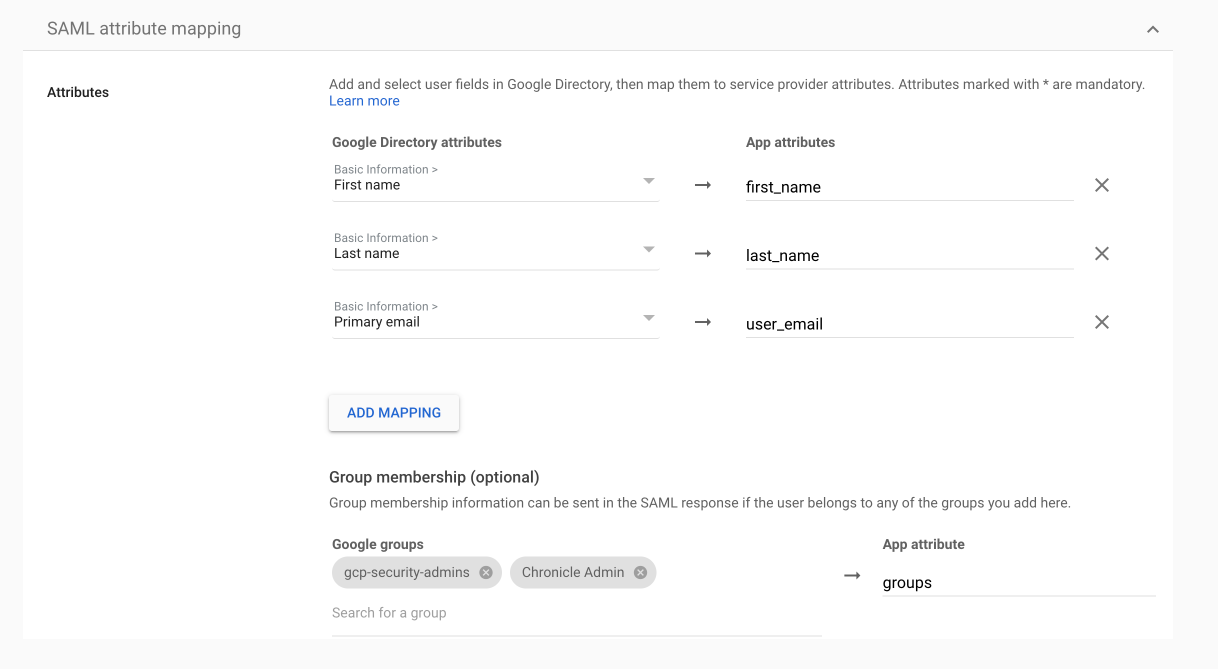 **Figure 1.** SAML attribute mapping
## Set up IdP provisioning
This section only applies before [Stage 1 of SOAR Migration to Google Cloud](https://docs.cloud.google.com/chronicle/docs/soar/admin-tasks/advanced/migrate-to-gcp.md.txt). After the completion of Stage 1, refer to the [Google Cloud Third-Party Identity Authentication](https://docs.cloud.google.com/chronicle/docs/onboard/configure-authentication.md.txt).
To set up IdP provisioning, follow the steps in [Configure the IdP](https://docs.cloud.google.com/chronicle/docs/onboard/configure-authentication.md.txt#configure_idp) and [Create a workforce identity pool provider](https://docs.cloud.google.com/chronicle/docs/onboard/configure-authentication.md.txt#create_a_workforce_identity_provider).
The following example is the `workforce pool` creation command for the app configuration
described in [Configure Workforce Identity Federation](https://docs.cloud.google.com/chronicle/docs/onboard/configure-authentication.md.txt#config_wif):
```bash
gcloud iam workforce-pools providers create-saml WORKFORCE_PROVIDER_ID \
--workforce-pool=WORKFORCE_POOL_ID \
--location="global" \
--display-name=WORKFORCE_PROVIDER_DISPLAY_NAME \
--description=WORKFORCE_PROVIDER_DESCRIPTION \
--idp-metadata-path=PATH_TO_METADATA_XML \
--attribute-mapping="google.subject=assertion.subject,attribute.first_name=assertion.attributes.first_name[0],attribute.last_name=assertion.attributes.last_name[0],attribute.user_email=assertion.attributes.user_email[0],google.groups=assertion.attributes.groups"
```
## Control user access
There are multiple ways to manage user access to different aspects of the platform:
- **Permissions groups** : Set user access levels by assigning them to specific permission groups. These groups determine which modules and submodules users can view or edit. For example, a user might have access to **Cases** and **Workdesk** pages, but be restricted from **Playbooks** and **Settings** . For more information, see [Work with permission groups](https://docs.cloud.google.com/chronicle/docs/soar/admin-tasks/permissions/working-with-permission-groups.md.txt).
**Important:** Any permission group assigned to users must have at least one default landing module enabled in its **Permissions** settings. Examples include **Homepage** , **Dashboards** , or **Cases**. If you disable all default landing modules this will cause backend errors and result in an infinite login redirect loop.
- **SOC roles** : Define the role of a group of users. You can assign users to SOC roles to streamline task management. Instead of assigning cases, actions, or playbooks to individuals, they can be assigned to a SOC role. Users can see cases assigned to them, their role, or additional roles. For more information, see [Work with roles](https://docs.cloud.google.com/chronicle/docs/soar/admin-tasks/permissions/working-with-roles.md.txt).
- **Environments or environment groups** : Configure environments or environment groups to segment data across different networks or business units, commonly used by businesses and Managed Security Service Providers (MSSPs). Users can only access data within the environments or groups assigned to them. For more information, see [Work with environments](https://docs.cloud.google.com/chronicle/docs/soar/admin-tasks/environments/work-with-environments.md.txt).
## Map and authenticate users
The combination of permission groups, SOC roles, and environments determines the
Google SecOps user journey for each IdP group in the
Google SecOps platform.
- If you use a third-party provider, map each IdP group defined in the SAML or OIDC settings on the **Group Mapping** page.
- If you use Cloud Identity Provider, map email groups on the **Group Mapping** page. For more information, see [Map users in the Google SecOps
platform using Cloud Identity](https://docs.cloud.google.com/chronicle/docs/soar/admin-tasks/user-secops/map-users-in-the-secops-platform-first-party).
You can map IdP groups with
multiple permission groups, SOC roles, and environments. This makes sure that different
users mapped to different IdP groups in the SAML or OIDC provider inherit all required permission levels. For more information, including how Google SecOps manages this, see [Multiple permissions in IdP group mapping](https://docs.cloud.google.com/chronicle/docs/soar/admin-tasks/user-secops/map-users-with-multiple-control-access-parameters.md.txt).
You can also choose to map IdP groups to individual control access parameters. This
enables a more granular level of mapping and can be helpful for large customers.
For more information, see [Map IdP groups to access control parameters](https://docs.cloud.google.com/chronicle/docs/soar/admin-tasks/user-secops/map-users-in-the-secops-platform.md.txt#map-parameters).
By default, the Google SecOps platform includes an IdP group of default administrators.
To map IdP groups, follow these steps:
1. In Google SecOps, go to **Settings \> Access Management \> Group Mapping**.
2. Make sure you have the names of the IdP groups available.
3. Click **Add** **Add** and start mapping the parameters for each IdP group.
4. Once you've finished, click **Add** . Each time a user signs in to the platform, they are automatically added to the **SOAR User Management** page, found under **Settings \> Access Management \> User Management**.
When users attempt to sign in to the Google SecOps platform, but their IdP group
hasn't been mapped, for users not to be rejected, we recommend enabling the
**Default Access Settings** and setting administrator permissions on this
page. After the initial administrator setup is complete, we suggest adjusting
the administrator permissions to a more minimal level.
## Map IdP groups to access control parameters
This section describes how to map different IdP groups to one or more access
control parameters within
the **IdP Group Mapping** page. This approach is beneficial for customers who
want to onboard and provision user groups based on specific customizations, rather
than adhering to the standardization of the Google SecOps SOAR platform.
While mapping groups to parameters may require you to create more groups initially,
once the mapping is set, new users can join Google SecOps without
the need to create additional groups.
For information about multiple permission in group mapping,
see [Map users with multiple control access parameters](https://docs.cloud.google.com/chronicle/docs/soar/admin-tasks/user-secops/map-users-with-multiple-control-access-parameters.md.txt).
### Delete users
If you delete groups from here, make sure to delete the individual users from the **User Management** screen. For more information, see [Delete Google SecOps users](https://docs.cloud.google.com/chronicle/docs/soar/admin-tasks/user-soar-only/how-can-i-disabledelete-a-user-account-in-chronicle-soar.md.txt).
### Use Case: Assign unique permission fields to each IdP group
The following example illustrates how to use this feature to help onboard and provision
users according to your company's needs.
Your company has three different personas:
- Security analysts (containing group members Sasha and Tal)
- SOC engineers (containing group members Quinn and Noam)
- NOC engineers (containing group members Kim and Kai)
Security analysts and SOC Engineers have the same Google SecOps Permission Groups (Analyst) and SOC Roles (Tier 1), but while the Security Analysts have permissions for the London environment, the SOC Engineers have permissions for the Manchester environment. Meanwhile, NOC Engineers have permissions for the **London** environment, but are assigned the **Basic** Permission Group and **Tier 2** SOC Role.
This scenario is illustrated in the following table:
| Persona | Permission Group | SOC Role | Environment |
|---|---|---|---|
| Security analysts | Analyst | Tier 1 | London |
| SOC engineers | Analyst | Tier 1 | Manchester |
| NOC engineers | Basic | Tier 2 | London |
For this example, assume that you already set up the necessary permission groups,
SOC roles, and environments in Google SecOps.
Here is how you would set up the IdP groups in the SAML or OIDC provider and in the Google SecOps
platform:
1. In your SAML or OIDC provider, create the following user groups:
- Security analysts (containing Sasha and Tal)
- SOC engineers (containing Quinn and Noam)
- NOC engineers (containing Kim and Kai)
- London (containing Sasha, Tal, Kim and Kai)
- Manchester (containing Quinn and Noam)
2. Go to **Settings \> Access Management \> Group Mapping**.
3. Click **Add** **Add**.
4. Enter the following details in the dialog:
- IdP / User Group: `Security analysts`
- Permission Group: ` Analyst`
- SOC Role: `Tier 1 `
- Environment: *leave blank*
5. Enter the following details in the next dialog:
- IdP Group: ` SOC engineers `
- Permission Group: `Analyst`
- SOC Role: ` Tier 1`
- Environment: *leave blank*
6. Enter the following details in the next dialog:
- IdP Group: `NOC engineers`
- Permission Group: ` Basic `
- SOC Role: `Tier 2 `
- Environment: *leave blank*
7. Enter the following details in the next dialog:
- IdP Group: `London`
- Permission Group: *leave blank*
- SOC Role: *leave blank*
- Environment: `London`
8. Enter the following details in the next dialog:
- IdP Group: `Manchester`
- Permission Group: *leave blank*
- SOC Role: *leave blank*
- Environment: `Manchester`
For customers using the Case Federation feature, see [Set up federated case access for Google SecOps](https://docs.cloud.google.com/chronicle/docs/soar/admin-tasks/environments/case-federation-secops.md.txt).
## Map service accounts for API access
To grant a *service account access* or *workload identity federation access* to Google SecOps, you must map the identity to the platform's access control parameters. This mapping is a mandatory step to provide the identity with the necessary access to **SOC Roles** , and **Environments** required to perform automated tasks or API operations.
> [!NOTE]
> **Note:** Granting Google Cloud IAM roles to a service account or principal is necessary but not sufficient for Google SecOps SOAR API access. If the service account is not explicitly mapped in **Group Mapping** , API requests fail with a `401 UNAUTHENTICATED` error even when all required project-level IAM roles are configured.
1. Go to **Settings \> Access Management \> Group Mapping**.
2. Click add **Add**.
3. Complete the fields in the **Add Mapping** dialog to map the identity to the platform's access control parameters.
1. In the **IdP / User group** field, enter one of the following:
- The full email address of your service account, if identity was set up using Cloud Identity.
- The Workload Identity principal string, if identity was set up using Workforce Identity Federation.
2. Configure the following access control fields:
| Field | Description |
|---|---|
| **Permission groups** | Select the permission groups to define which modules and submodules the identity can access. |
| **SOC roles** | Select the SOC roles to define the identity's role (such as Tier 1). |
| **Environments** | Select the environments or environment groups the identity can access (such as **All Environments**). |
| **Group members** | Enter the required user emails if applicable. Press **Enter** after adding each email. |
| **Restricted actions** | Select the restricted actions to limit specific operations within modules. |
4. Click **Add**.
For more information on setting up service accounts, see the [API migration guide](https://docs.cloud.google.com/chronicle/docs/soar/admin-tasks/advanced/api-migration-guide.md.txt).
**Need more help?** [Get answers from Community members and Google SecOps professionals.](https://security.googlecloudcommunity.com/)